Add a pupil to the SEND register
Written for: SENCos and school leaders.
When your school decides a pupil needs SEND support, or wants to keep a closer eye on them, add them to the SEND register in Student Radar. You choose their register status and their broad area of need in one short form, so the need is recorded from the start and every plan, provision and review that follows builds on it.
Before you start
Section titled “Before you start”- SENCos, headteachers, senior leaders, DSLs and administrators see Add to register and the other register controls. Other staff see the register read-only.
- Student Radar still checks your permissions when you save. If your school has changed what your role can do, you might be refused even though you can see the button.
- Adding a pupil records your school’s decision. Make it in line with your school’s SEND policy, after the usual conversations with the pupil, their family and staff.
Open the SEND Register
Section titled “Open the SEND Register”In the sidebar, open Inclusion, then SEND, then Plans, and choose SEND Register.
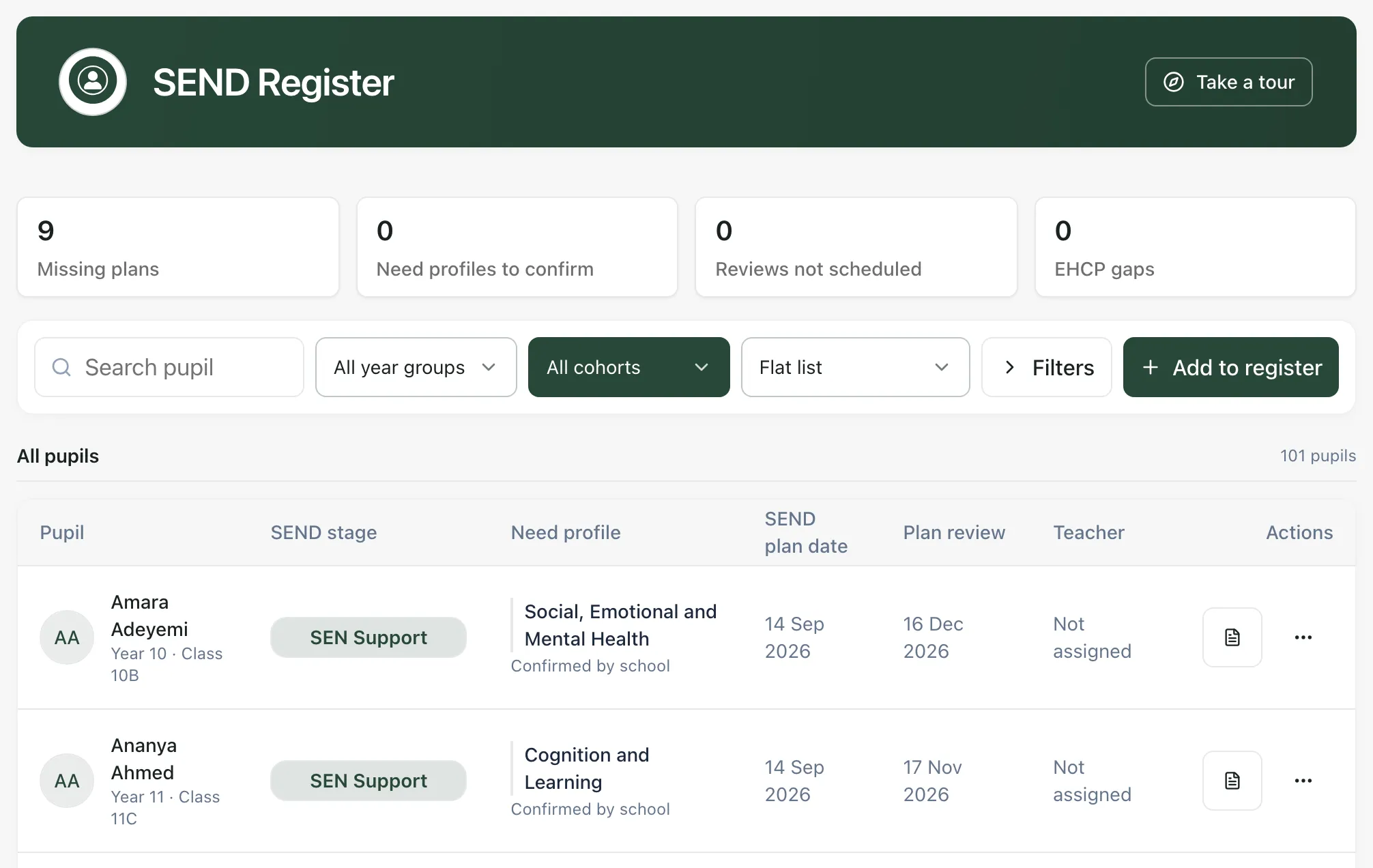
Across the top, four counts show what needs action: Missing plans, Need profiles to confirm, Reviews not scheduled and EHCP gaps. Click a count to show just those pupils.
Add the pupil
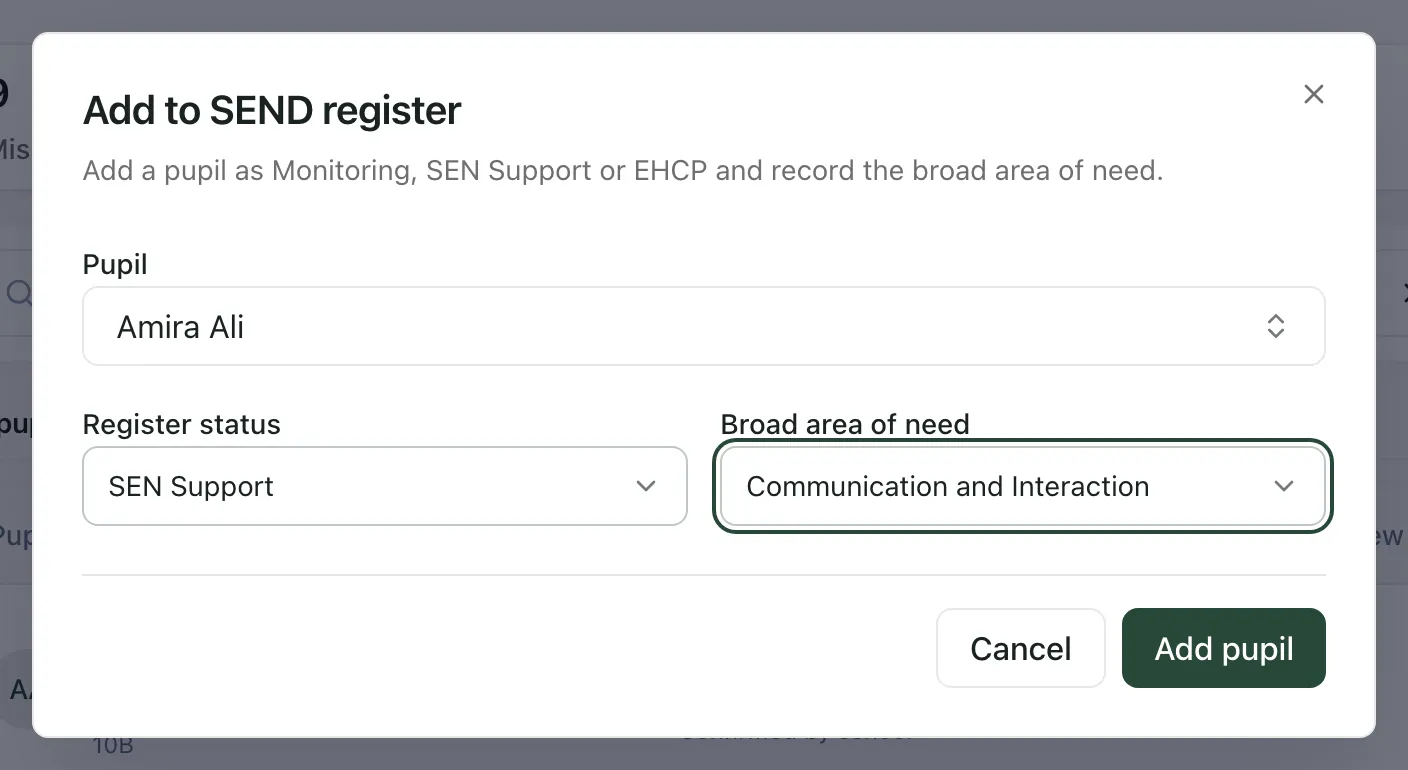
Section titled “Add the pupil”- Click Add to register.
- Under Pupil, click the box and start typing the pupil’s name. Choose them from the list, which shows their year group and class under their name.
- Under Register status, choose Monitoring, SEN Support or EHCP.
- Under Broad area of need, choose the pupil’s main area of need: Communication and Interaction, Cognition and Learning, Social, Emotional and Mental Health or Sensory and/or Physical.
- Check the pupil’s name, then click Add pupil. To leave the pupil as they are, click Cancel instead.
You’ll see “Register addition confirmed” and the pupil joins the register with the status and area of need you chose. Student Radar keeps a record of the change.
The pupil list only offers pupils who aren’t already on the register. To change the status or area of need of a pupil who is already on it, see Change a pupil’s SEND status or area of need.
Choosing a register status
Section titled “Choosing a register status”| Status | Use it when |
|---|---|
| Monitoring | Your school wants to watch a pupil’s needs more closely. It isn’t a SEND status, so the pupil isn’t counted in your SEND caseload or in Missing plans. |
| SEN Support | The pupil has special educational needs and receives SEN support in school. |
| EHCP | The pupil has an Education, Health and Care plan. |
Pupils being monitored are listed under Pupils being monitored, further down the page in Monitoring & Off-register.
Where else statuses come from
Section titled “Where else statuses come from”If your school’s MIS is connected to Student Radar, SEN Support and EHCP statuses can arrive from it automatically. Under Need profile, an area of need that came from the MIS says Synced from Wonde, and one your school has confirmed says Confirmed by school.
You might also see the status SEN register. It means your MIS lists the pupil on its SEN register but didn’t send whether they have SEN Support or an EHCP. You can’t choose it yourself.
Student Radar never treats a missing status from your MIS as Monitoring. A pupil is only shown as Monitoring when your school has decided to monitor them.
- Other staff: staff who can’t manage the register can still open it and see pupils’ statuses and areas of need, but not Add to register or the options to change a pupil’s status.
- Schools in Thailand: the statuses are called Learning support and Individual learning plan (ILP) instead of SEN Support and EHCP.
- Take a tour: click Take a tour at the top of the register for a step-by-step guide to the register, including the add form.
If something doesn’t work
Section titled “If something doesn’t work”| What you see | What to do |
|---|---|
| You can’t see Add to register | Your role has the read-only register. Ask your SENCo to add the pupil. |
| “No pupils are available to add with this status.” | Every pupil you can see is already on the register, or already being monitored if you chose Monitoring. Change an existing pupil’s status from their row instead. |
| “Unable to confirm addition” with “You don’t have permission to perform this action.” | Your account isn’t allowed to change the register. Ask your school’s Student Radar administrator. |
| “The result is unconfirmed. Retry to confirm the same pupil and selections.” | The connection dropped while saving. Click Retry addition. It confirms the same addition rather than adding the pupil twice. |
| “School context is still loading. Try again in a moment.” | Wait a few seconds and try again. |
| “Register information could not be loaded” | Click Retry register information before using the counts or the register to find gaps. |