Log a minor injury
Written for: All school staff.
When a pupil has an everyday bump, graze or nosebleed, use Quick log to add it to the school’s first aid record in a few moments. Quick log opens a shorter version of the injury form, with the less common sections tucked away until you need them. For anything more serious, use Record First Aid instead.
Open Quick log
Section titled “Open Quick log”- In the sidebar, open Health, then First Aid & Incidents, and choose First Aid.
- At the top of the page, click Quick log.

To save typing, click the arrow next to Quick log and choose a common injury instead: Bump to the head, Nosebleed, Grazed knee, Grazed elbow, Insect bite / sting or Bruise. The form opens with the injury type, severity, body location (where it applies) and a typical treatment note filled in. Check each one and change anything that doesn’t match what happened.
Fill in the form
Section titled “Fill in the form”-
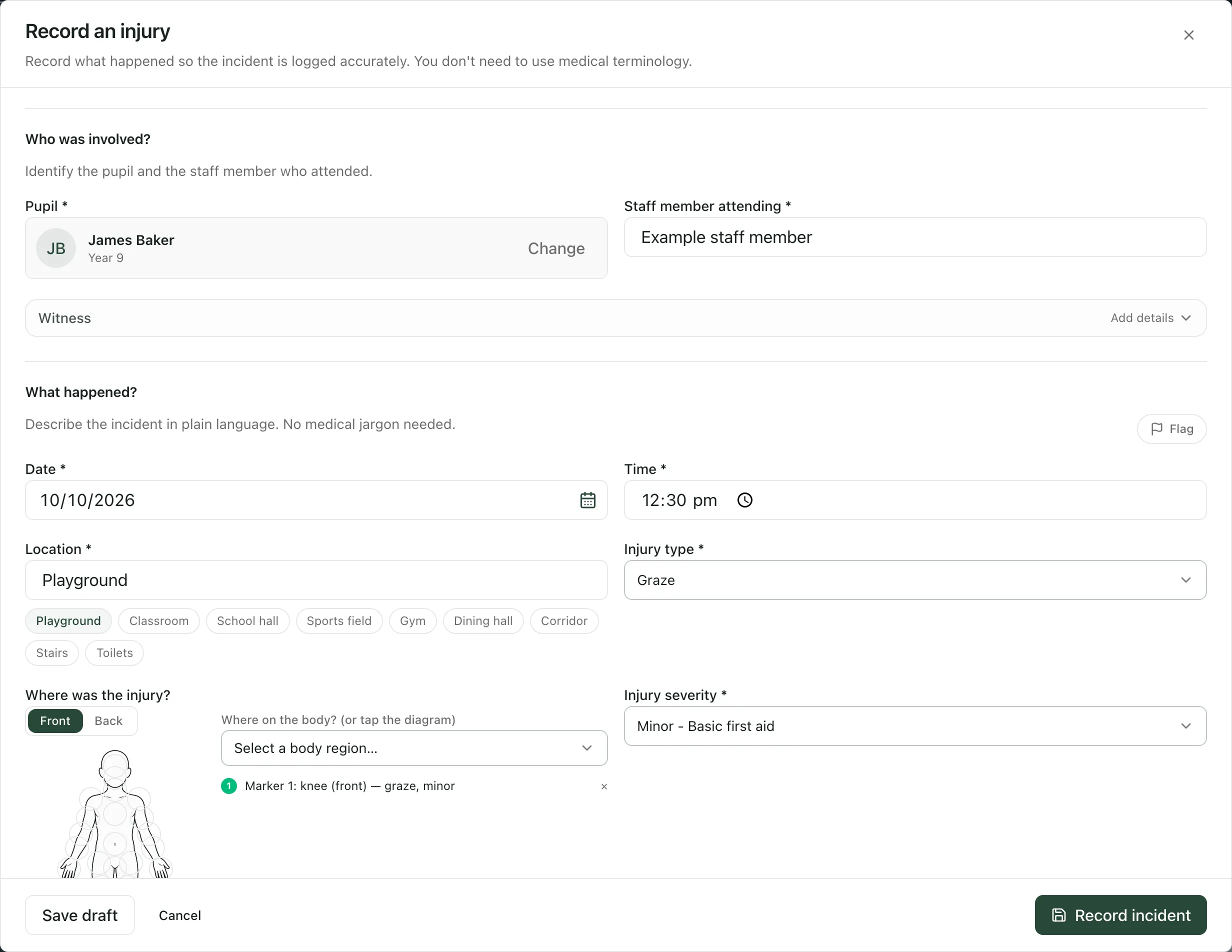
Under Who was involved?, search for the Pupil by first name or surname and choose them from the list. Then enter the Staff member attending.
-
Under What happened?, check the Date and Time, and enter the Location. You can click a common place, such as Playground or Classroom, to fill it in.
-
Choose the Injury type, then mark Where was the injury? on the body diagram, or choose a part of the body from the list. If you can’t tell where it is, tick Injury location is unclear.
-
Answer Is this a head injury? with yes or no. You must choose one.
-
Check the Injury severity. For a minor injury, choose Minor - Basic first aid.
-
In What happened?, describe what happened in plain language. You don’t need medical terms.
-
Under What treatment was given?, record the first aid you gave in Treatment given.
-
Click Record incident.
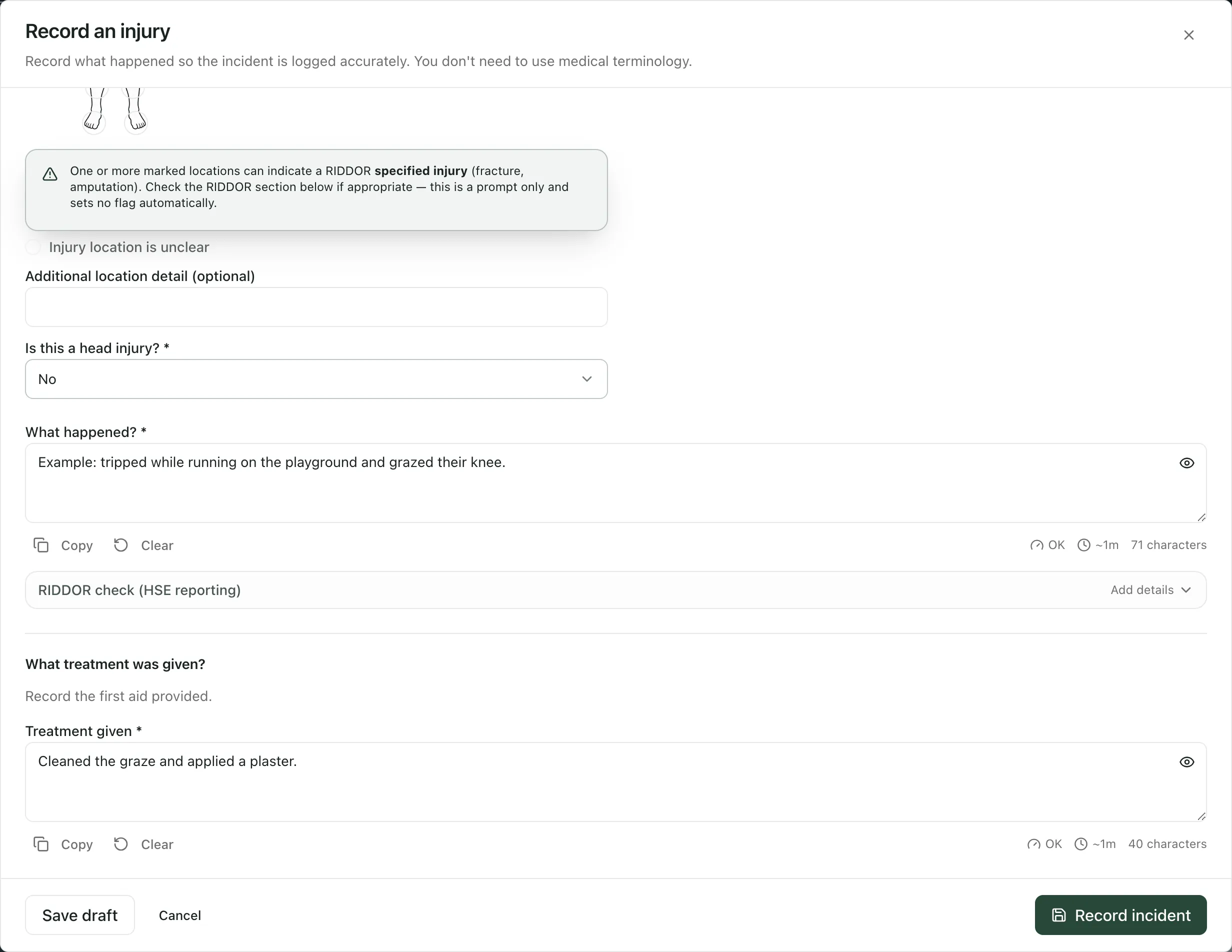
Witness and RIDDOR check (HSE reporting) are folded away in Quick log. Click Add details on either to open it. You record witness accounts on the incident after it’s saved.
After you record the incident
Section titled “After you record the incident”An Incident recorded window opens, and the injury appears in the First Aid records list.
- Under Review parent communication, you can prepare a message to the pupil’s parent or carer. Check the recorded facts, the wording and who it goes to, tick the confirmation boxes and click Prepare for approval. This prepares a draft for a second person to approve. It doesn’t tell parents by itself.
- If Student Radar can’t prepare a message, and you’ve told the parent another way, record how under How were parents informed?
- If something still needs doing, such as checking the pupil again after lunch, tick This needs a follow-up and say what. This adds a task to your My Actions list.
- Click Finish when you’re done.
If Student Radar spots wording in your description that might be a safeguarding matter, it asks you to review it before you finish. This is a prompt for your judgement, not a decision.
If the explanation doesn’t fit the injury
Section titled “If the explanation doesn’t fit the injury”If something about the injury worries you, click Flag next to What happened? and switch on The explanation doesn’t fit the injury. Say what doesn’t fit. Only the designated safeguarding lead sees this, and nothing about it shows on the incident or to the family. The DSL then decides how and when home is contacted.
Flagging doesn’t replace your school’s safeguarding procedure. If you’re worried about the pupil’s safety, speak to the DSL straight away and raise a safeguarding concern. See Raise a safeguarding concern about a pupil.
Other ways to start a record
Section titled “Other ways to start a record”- Record First Aid asks what kind of record it is (Injury, Illness or Near miss) and who it’s for, then opens the full form with every section showing.
- To log something similar to an earlier incident, click the copy icon (Copy to a new incident) on its row in First Aid records.
Take the built-in tour
Section titled “Take the built-in tour”Click Take a tour on the First Aid page for a step-by-step guide to the page and the form.
- Save draft keeps your form for 30 minutes in the same browser tab, so you can come back to it. Open Quick log again and click Resume draft. Refreshing the page, signing out or changing school clears the draft.
- If you choose a serious severity, Student Radar flags the incident for an HSE reporting review after you record it. Prompts about RIDDOR are only prompts. Student Radar doesn’t decide whether to report or submit anything to HSE.
- The RIDDOR check and prompts only appear for schools where RIDDOR applies (Great Britain).
- If you choose Yes — head injury, follow your school’s head-injury procedure for telling parents.
If something doesn’t work
Section titled “If something doesn’t work”| What you see | What to do |
|---|---|
| Record incident is greyed out | Choose the pupil from the search list. Typing their name isn’t enough. |
| “No pupils found. Try their first name or surname.” | Check the spelling, or type just the first name or surname. |
| “Mark at least one known injury location or explicitly select location unclear; an unspecified marker does not identify a location.” | Mark where the injury is on the body diagram, or tick Injury location is unclear. |
| “Choose known injury locations or unclear, not both.” | Untick Injury location is unclear, or remove the marker. |
| “Classify whether this is a head injury: yes or no.” | Answer Is this a head injury? |
| “Search unavailable. Try again.” | Wait a moment and search for the pupil again. |