Spot pupils close to persistent absence
Written for: Attendance leads, senior leaders and teachers.
A pupil is persistently absent when they have missed 10% or more of their possible sessions, so their attendance is 90% or below. Pupils just above that line, or slipping towards it, are the ones you can help most before it happens. The attendance analytics page shows them in several ways, so you can decide who to follow up first.
To open the page, in the sidebar, open Attendance and choose Analytics.
Pupils projected to cross the line soon
Section titled “Pupils projected to cross the line soon”On the Overview section, the PA threshold risk card counts pupils whose attendance is still above 90% but who are projected to reach persistent absence within four weeks.
- Click PA threshold risk. Rising Risk Detail opens with the pupils, the soonest to cross the line first.
- For each pupil, the Trajectory column shows how many weeks until they’re projected to reach persistent absence, their attendance now and how much it’s changing each week.
- Click a pupil to open their profile on the Attendance section.
The projection comes from the pupil’s weekly attendance over up to the last six weeks. A pupil can also be included when their attendance over the last seven days has dropped below 90% and well below their attendance for the year, even if that still looks fine.
Tip: A projection isn’t certain, and it doesn’t tell you why attendance is falling. Use it to decide who to talk to first, alongside what you know about each pupil and their family.
Pupils near the line, in both directions
Section titled “Pupils near the line, in both directions”Click Act now. The Pupils near the PA threshold panel has two lists:
- About to exit PA: pupils below 90% whose attendance is improving and who are projected to climb back above 90% within four weeks. These are the improvements to protect.
- Immediate PA risk: pupils above 90% whose attendance is falling and who are projected to drop below 90% within four weeks.
Each pupil shows their attendance, the change per week and the date they’re projected to cross 90%. Labels warn you about patterns:
- Recently worsened: their attendance over the last seven days is at least 3 points below their attendance for the year.
- Sharp decline: their attendance is falling by a point or more each week.
Click Open to go to the pupil’s profile, or Contact to see their parent or carer contacts. See Contact parents of today’s absentees. Each list shows 10 pupils. Click Show all to see the rest.
These projections need at least two weekly attendance snapshots for a pupil. Early in the school year, or soon after your school starts using Student Radar, both lists can be empty: you’ll see “No pupils are on track to exit persistent absence yet.” and “No pupils are projected to drop below 90%.” Use the attendance bands below in the meantime.
Pupils just above 90% now
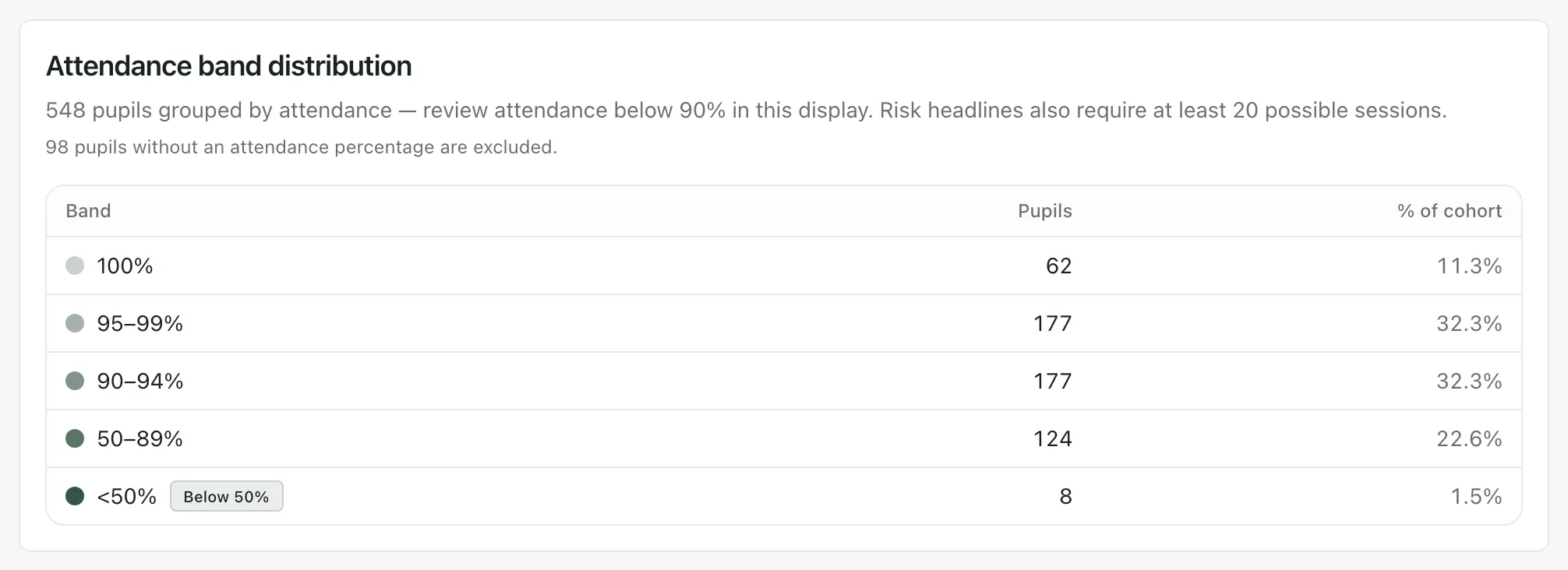
Section titled “Pupils just above 90% now”Click Breakdowns and scroll to Attendance band distribution. It groups pupils by their attendance so far.
-
Click the 90–94% band. These pupils aren’t persistently absent yet, but a few more missed sessions could take them below 90%.
-
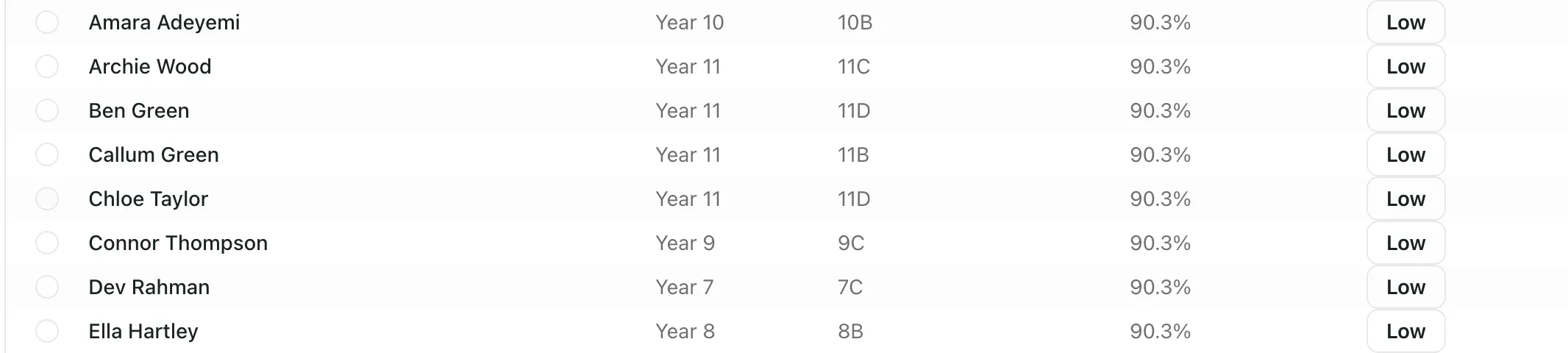
The pupils are listed with the lowest attendance first, so the pupils closest to the line are at the top.
-
Click a pupil’s name to open their profile on the Attendance section.
To keep a list for a meeting, tick the pupils you want, then click Export Selected. This downloads a CSV file with their UPN, year, class, attendance, and SEND, Pupil Premium and EAL status, so store it securely.
Pupils without an attendance percentage aren’t included in the bands. For example, when DfE methodology is chosen, sixth-form pupils have no percentage, because the DfE method doesn’t count them.
Pupils already persistently absent
Section titled “Pupils already persistently absent”On the Overview section, click the Persistent absence card. Persistent Absence Detail opens, with the lowest attendance first. Only pupils with at least 20 recorded sessions are counted, so a pupil who has just joined won’t appear until they have enough history.
What to do next
Section titled “What to do next”Open the pupil’s profile and look at their Attendance section to see which days and sessions they’re missing. To follow up, click Create attendance action. See Create an attendance action from a pupil profile.
- Filters: every list uses the filters at the top of the page. To focus on one year group or group of pupils, change the filters first. See Understand your attendance analytics.
- The 90% line: the Severely Absent Threshold under More filters changes the severe absence figures only. It doesn’t change who counts as persistently absent.
If something doesn’t work
Section titled “If something doesn’t work”| What you see | What to do |
|---|---|
| “Trajectory unavailable” | The projections couldn’t be loaded. Reload the page. The other figures are still correct. |
| “At least 20 recorded sessions required” | None of the pupils in your selection has enough recorded sessions yet for the persistent absence figures. Widen the dates or filters. |
| “No pupils are projected to drop below 90%.” | No pupil above 90% is projected to cross the line in the next four weeks, or there aren’t yet two weekly snapshots. Check the attendance bands instead. |
| “No pupils match the current filters.” | No pupils fit this list with the filters you’ve chosen. Change the filters at the top of the page. |
| “Select pupils first to export their records.” | Tick at least one pupil before clicking Export Selected. |