Send a safeguarding file to a new school
Written for: Designated Safeguarding Leads, deputies and senior leaders.
When a pupil with a child protection file leaves your school, the file has to go to their new school or setting. In England, Keeping children safe in education (KCSIE) expects the designated safeguarding lead to make sure this happens. Follow your school’s safeguarding procedure for what to send, when and how. Record Transfer lets you send the file securely from Student Radar, to any school, whether or not it uses Student Radar, and logs every step on both schools’ records.
This article explains how to use Student Radar. It isn’t legal advice. If you’re unsure what your duties are for a particular move, check the current statutory guidance and your school’s procedure, and ask your local authority’s safeguarding team.
Before you start
Section titled “Before you start”- Find out who the designated safeguarding lead or safeguarding contact is at the new school, and their email address.
- Decide which records go in the file. That’s a DSL decision: Student Radar lists the pupil’s concern records so you can choose.
Open Record Transfer
Section titled “Open Record Transfer”In the sidebar, open Safeguard, then Case Records, and choose Record Transfer. The Outbound tab lists the files you’ve sent. The Inbound tab lists files other schools have sent to you.
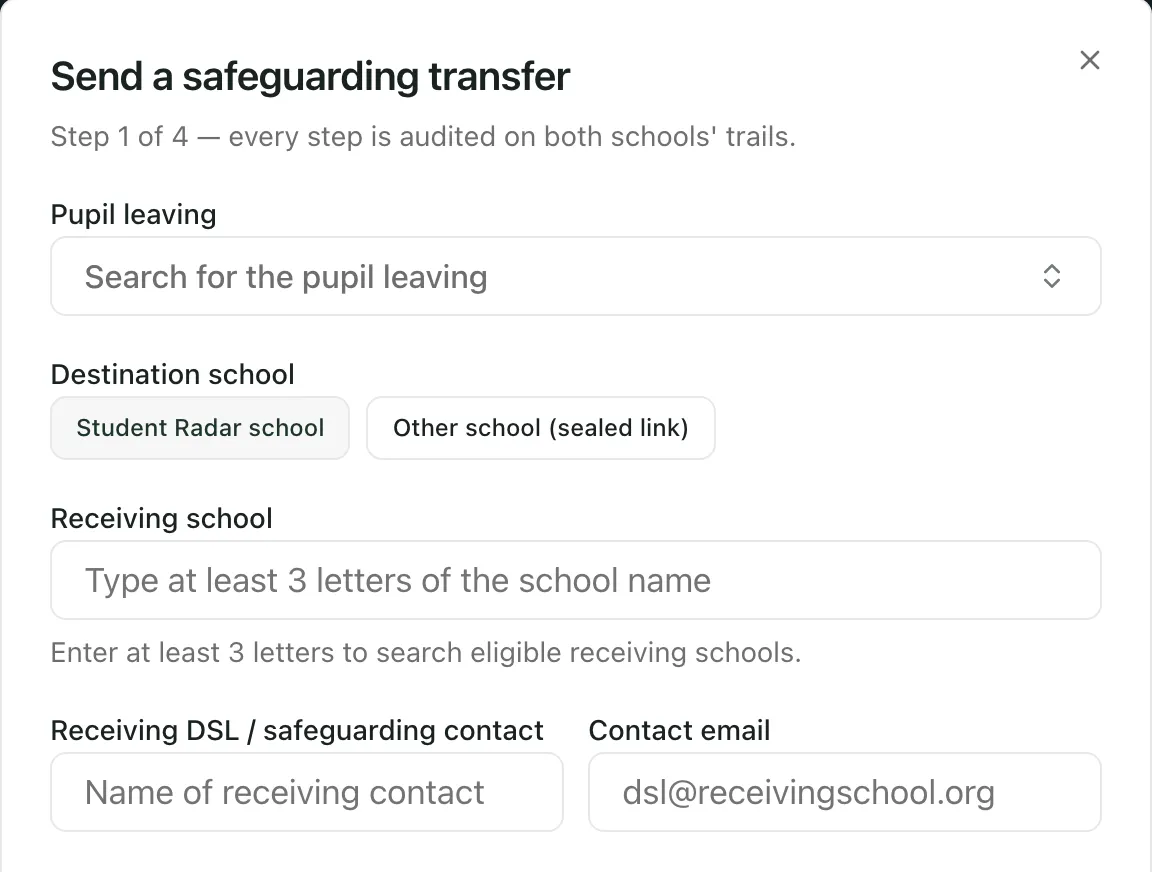
Click New transfer. Send a safeguarding transfer opens. It has four steps.
Step 1: Choose the pupil and the new school
Section titled “Step 1: Choose the pupil and the new school”- Under Pupil leaving, search for the pupil and choose them.
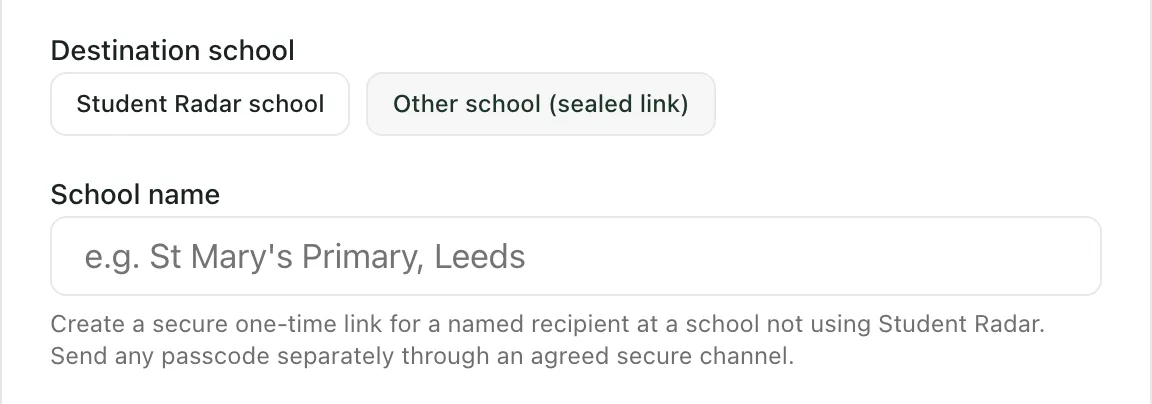
- Under Destination school, choose where the file is going:
- Student Radar school: in Receiving school, type at least three letters of the school’s name and choose it from the list. The school receives the file in Student Radar.
- Other school (sealed link): type the School name. Student Radar creates a secure one-time download link for the school’s named contact.
- Enter the Receiving DSL / safeguarding contact and their Contact email.
- Enter the Leaving date and Expected start date, if you know them.
- Choose the Reason for transfer, such as a school transfer, a managed move or a phase transition.
- Click Next.
Step 2: Choose the records and complete the checklist
Section titled “Step 2: Choose the records and complete the checklist”-
Under Records to include, tick each concern record that should go in the file. Click Review source under a record to read it before you decide. If the pupil has no concern records, the file carries the pupil summary only.
-
Tick each item in the KCSIE 2026 transfer checklist once it’s true:
- The CP file transfer is planned within 5 school days of the move.
- The CP file is being transferred separately from the main pupil file.
- Receipt confirmation will be requested and recorded.
- The summary below separates current concerns from historic context.
-
Fill in the Structured transfer summary, so the new school can tell current risk from background:
- Current concerns and live risks: what the receiving DSL needs to know first.
- Historic context: relevant history, kept apart from the current picture.
- Immediate actions / plan (optional): agreed handover actions, agency contacts, review dates or safety plans.
- Receipt confirmation plan (optional): how the receiving DSL will confirm they’ve got the file.
The first two need at least 20 characters each.
-
Check the Included record sections. The file always includes the safeguarding chronology, and the actions, outcomes and worry box reports linked to the records you chose. Attachments such as body maps are listed, but the files themselves stay access-controlled. Check any restricted attachments and agency notes, then tick I have checked restricted attachments and agency notes before including them.
-
Choose the Legal basis for the transfer: KCSIE transfer duty (CP file follows the child) or Consent recorded. Use the basis your school’s procedure sets out. Add a Note (optional) if it helps, such as when you spoke to the receiving DSL.
-
Click Next.
Step 3: Confirm and create the transfer
Section titled “Step 3: Confirm and create the transfer”Check the Recipient and Destination, and read the access rules. For a school that doesn’t use Student Radar, the link expires after 72 hours unless you revoke it sooner. A school that uses Student Radar has to accept the transfer before it can import it.
Tick I confirm this transfer is appropriate and authorised., then click Create secure transfer. Student Radar creates the transfer and seals the file.
Step 4: Send it
Section titled “Step 4: Send it”When the file is sealed, you see Pack sealed and stored and a Transfer review of what you’re sending.
- To a Student Radar school: click Offer to followed by the school’s name. The new school sees the transfer in its Inbound tab, where an authorised member of staff accepts it.
- To another school: click Done. Then, in the Outbound tab, click Issue link on the transfer. Enter the Receiving DSL email (audit trail) and click Issue link. Click Copy link and send it to the receiving DSL through a secure route your school has agreed with them.
The email address you enter for a link is a label for the record. Anyone who has the link can use it, so send it only to the named contact. To stop a link working, click Revoke next to it on the transfer.
Track the transfer
Section titled “Track the transfer”Each transfer on the Outbound tab shows its reference, status, pupil and destination, and when it was Created, Offered and when it Expires. Depending on its status, you can:
- Seal pack: finish sealing a transfer that was created but not sealed.
- Offer: offer a sealed transfer to a Student Radar school.
- Issue link: create a download link for a school that doesn’t use Student Radar.
- Download: download a copy of the sealed file. It opens in a new tab and is saved by your browser.
- Cancel: cancel a transfer that hasn’t been accepted.
The statuses run from draft, pack ready and offered to accepted or declined. Later steps show as Pack access stage recorded and Selected source import recorded. Neither confirms that the new school has read the file, so confirm receipt directly with the receiving DSL and record it as your procedure requires.
Schools outside England
Section titled “Schools outside England”The checklist and legal basis wording refer to KCSIE, which applies to schools in England. If your school is elsewhere, follow your local safeguarding requirements and your school’s procedure.
If something doesn’t work
Section titled “If something doesn’t work”| What you see | What to do |
|---|---|
| “Enter at least 3 letters to search eligible receiving schools.” | Keep typing the school’s name. |
| “No eligible Student Radar schools matched this search. Try a different name, or choose Other school (sealed link).” | Check the spelling, or send the file with Other school (sealed link). |
| “Receiving schools could not be loaded. Please try again.” | Click Retry school search. |
| “Could not load this pupil’s concern records. The pack cannot be prepared until they load — retry before continuing.” | Click Retry loading concerns. You can’t continue until the records load. |
| Next is greyed out | Fill in every required box, tick every checklist item and write at least 20 characters in each of the first two summaries. |
| “Could not prepare the transfer” | Close the window and check the Outbound tab. If the transfer is there as a draft, click Seal pack rather than starting again. |
| “Could not offer the transfer” | Click Offer on the transfer in the Outbound tab. |
| “Could not issue the link” | Try Issue link again. If it keeps happening, check the transfer hasn’t been cancelled or expired. |
| “Outbound transfers could not be loaded.” | Click Try again. |