Create an attendance support plan
Written for: Teachers, pastoral and attendance leads.
An attendance support plan records what will help a pupil come to school, who owns each action and when you’ll review it. You write the plan, agree it with the pupil and their family, then start it. Student Radar can draft suggestions from your notes, but a member of staff checks and agrees everything before it’s used. To look at ready-made strategies first, see Choose an attendance strategy for a pupil.
Choose the pupil
Section titled “Choose the pupil”- In the sidebar, click Attendance, then Attendance Support.
- Click Needs a conversation. The table lists pupils whose recent recorded attendance suggests a conversation, with the Reason for review and any Current support.
- Find the pupil, then click Choose pupil on their row. To narrow the list, use the search box or the year group and class lists.
- Under Who needs support?, check the pupil’s name, then click Create support plan.
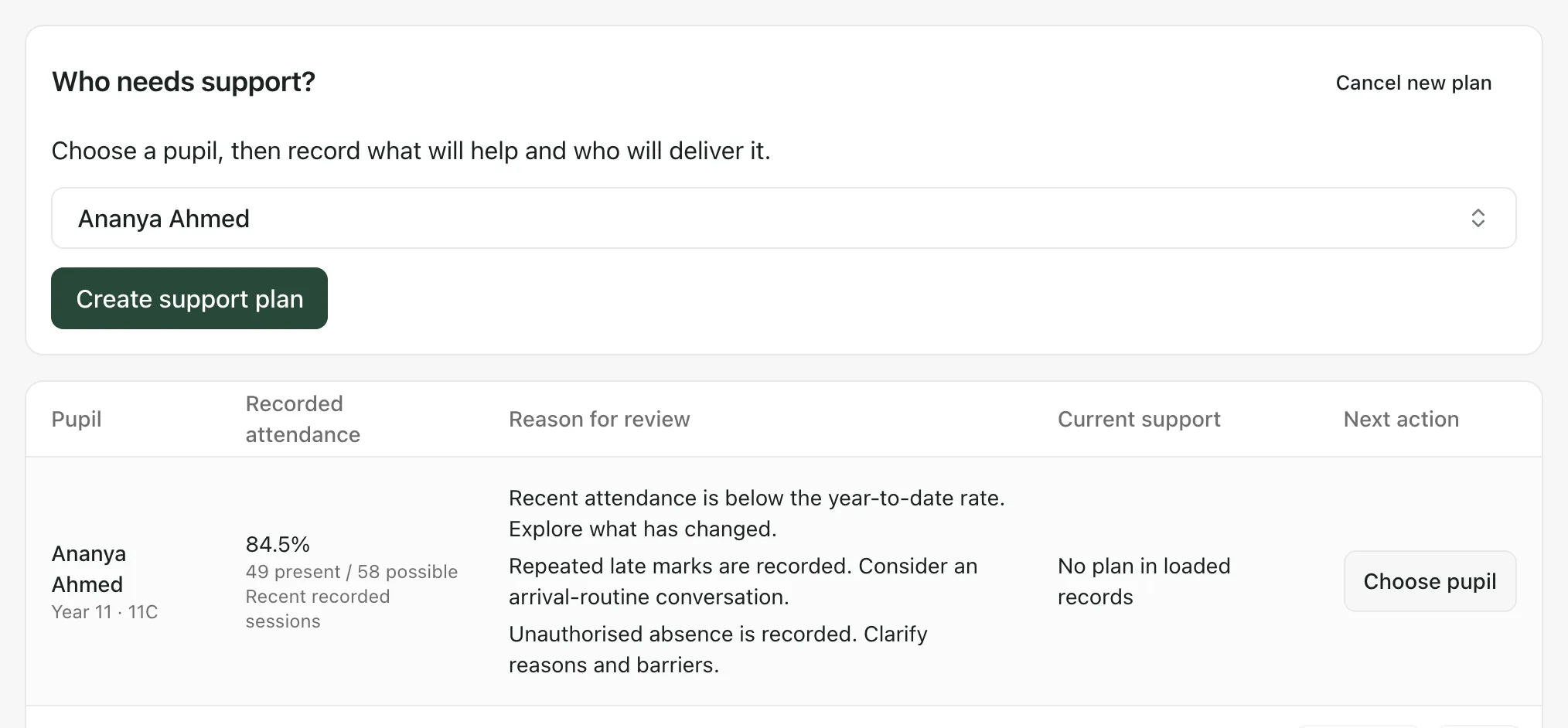
The reasons are prompts for a conversation, not conclusions. They’re based on recorded sessions only, and they don’t decide whether any formal action is appropriate.
If the pupil isn’t in the table, click Support plans and type their name in the search box. If they have no plan, click Start a support plan, choose the pupil, then click Create support plan.
Draft with AI (optional)
Section titled “Draft with AI (optional)”You can ask Student Radar to suggest a plan from what staff have noticed.
-
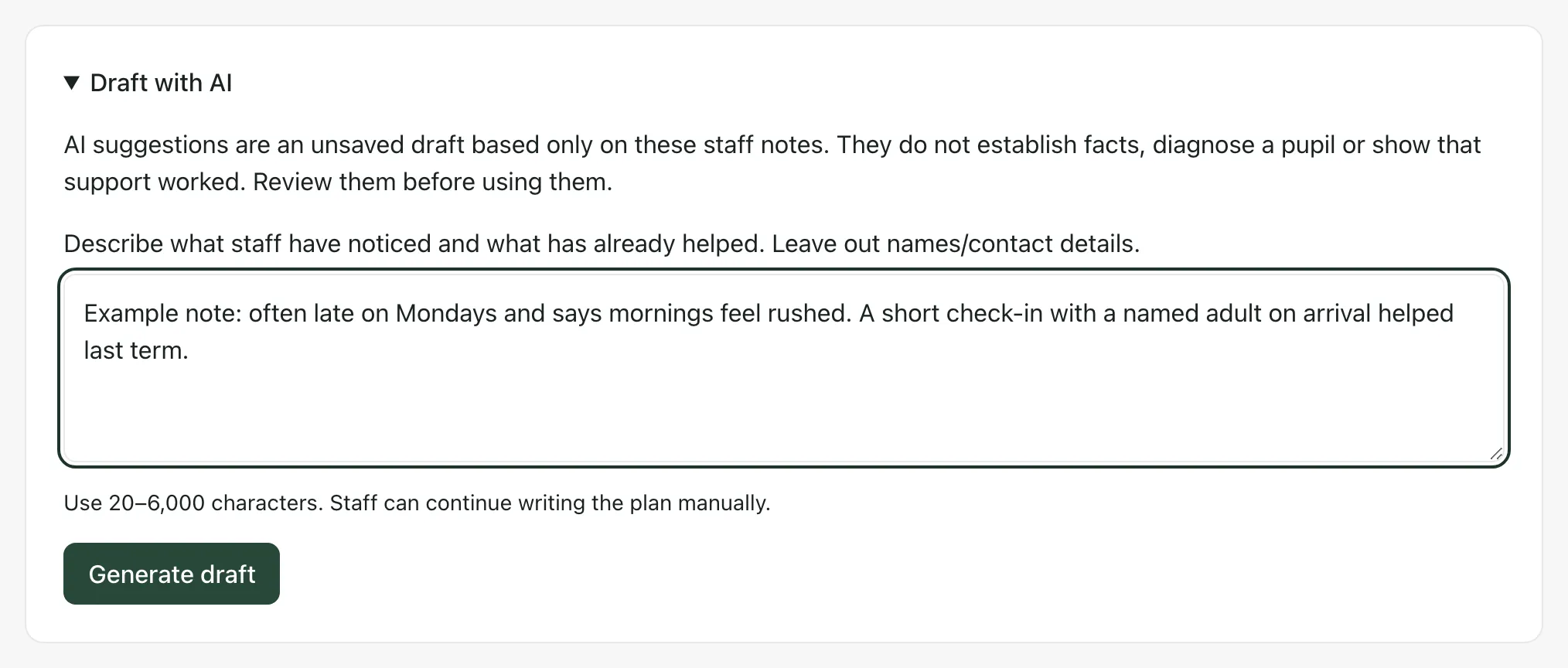
At the top of the form, click Draft with AI.
-
Describe what staff have noticed and what has already helped. Use at least 20 characters and leave out names and contact details.
-
Click Generate draft.
-
Read the suggestions: a title, Suggested barriers to discuss, Suggested practical support and Questions and unknowns.
-
Tick I have reviewed these suggestions, then click Use these suggestions.
The suggestions are added to your unsaved plan. Suggested barriers go under Barriers and evidence, and suggested actions are added with no staff owner. Check every action, choose its owner and confirm the dates before you save. The pupil and family views aren’t changed.
AI suggestions are based only on the notes you typed. They don’t establish facts, diagnose a pupil or show that support will work. You can use one set of suggestions per plan, and a draft expires if you leave it too long. You can always write the plan yourself instead.
Fill in the plan
Section titled “Fill in the plan”-
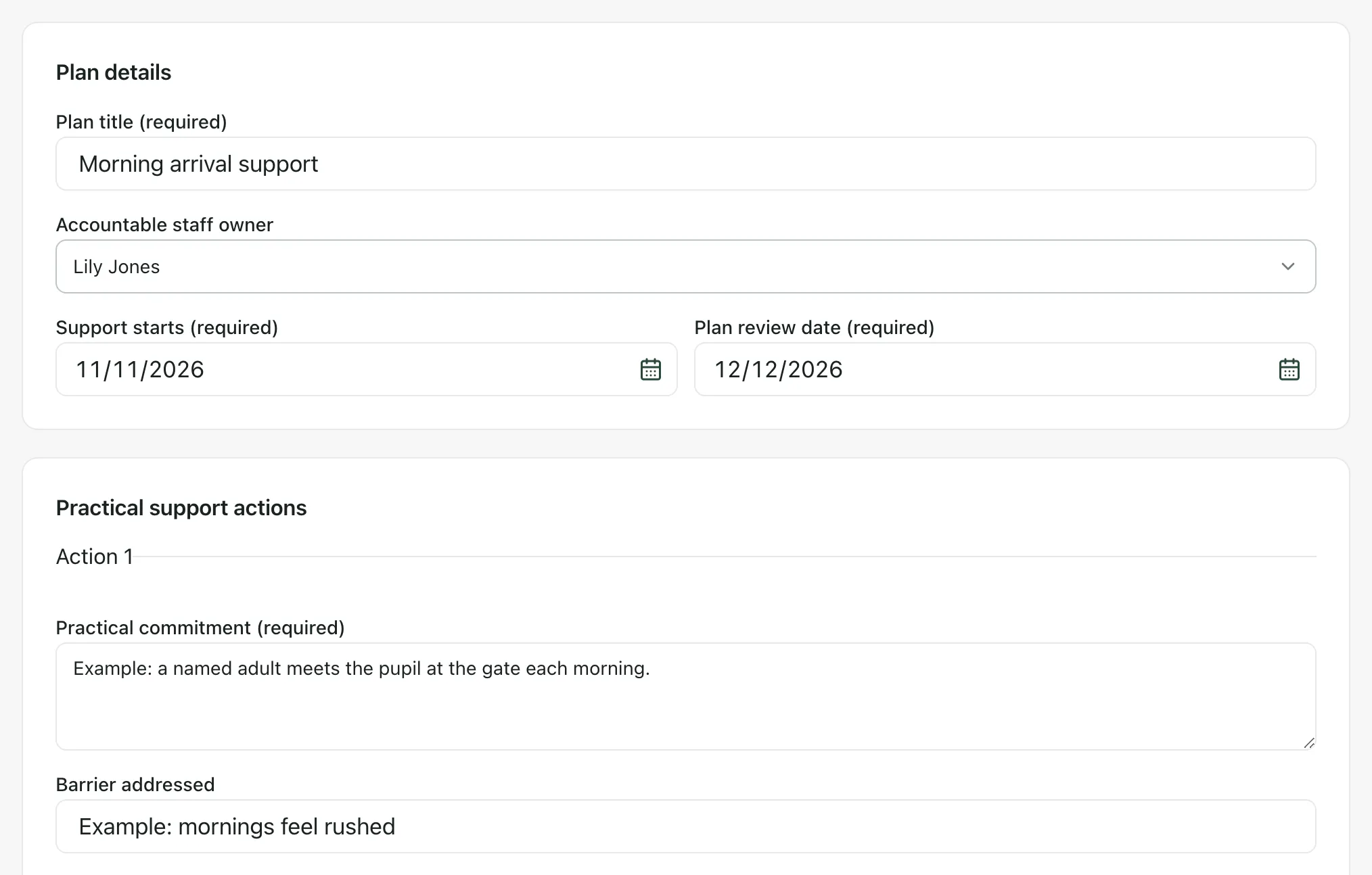
Under Plan details, enter the Plan title and choose the Accountable staff owner. Set when Support starts and the Plan review date. The review date is set two weeks ahead to begin with.
-
Under Practical support actions, fill in Action 1:
- Practical commitment: what will happen.
- Barrier addressed: what it’s meant to help with.
- Intended observable outcome: what you’d expect to see if it helps.
- Action staff owner, Action start and Action review. Action dates must fall within the plan’s dates.
-
Click Delivery arrangements to add the Frequency / arrangements, a Contingency if unavailable and the dates you’ll deliver the support. Click Add delivery date for each date.
-
Click Add support action for each extra action.
-
Click Pupil and family views. For the pupil and for the family, choose whether their view is Recorded, Not yet obtained, Declined or Communication support needed. For a recorded view, fill in Account and what helps, Source / who contributed and the Conversation date.
-
Click Barriers and evidence, then Add barrier to record what’s getting in the way, who said or saw it, when, and its Evidence status. Categories guide a conversation. They don’t establish a diagnosis.
-
Under Reduced timetable, record whether one is needed. See Record support delivered and review an attendance support plan before planning one.
-
If the pupil is returning after an absence, click Return-to-school arrangements. Choose a Return planning starting point, or click Add return step, then set the date, the arrangements and the status of each step.
-
Click Save support plan.
The plan is saved as a Draft plan, and its page opens. Nothing starts yet.
Start the agreed support
Section titled “Start the agreed support”When you’ve agreed the plan with the pupil and their family:
- On the plan’s Overview, under Next step, click Start agreed support.
- Next support state is set to Support underway. Type the Decision reason and continuing arrangements.
- Click Confirm support state.
The plan is now Support underway. In My Actions, under Attendance support work, each action owner gets a task for each planned delivery date, and the plan owner gets a task for the review date. To record what was delivered and review the plan, see Record support delivered and review an attendance support plan.
- Per-school switch: support plans are switched on separately for each school. If your school’s are off, Attendance Support shows only the strategies.
- Who can create plans: Create support plan stays greyed out until Student Radar has loaded the staff who can own the plan. If it stays greyed out, your account may not be allowed to create attendance plans for this pupil.
- Family-facing preview: tick Include this action in the family-facing preview for anything families should see. On a saved plan, Preview family-facing plan shows those items. The preview isn’t sent to anyone.
- Change a draft: open the plan and click Edit support plan.
If something doesn’t work
Section titled “If something doesn’t work”| What you see | What to do |
|---|---|
| “Attendance Support is unavailable. Check your access and retry.” | Click Retry. If it keeps happening, ask your school’s Student Radar administrator to check your access. |
| “No authorised staff owners are available. A support plan needs a valid staff owner.” | Nobody can be chosen as the plan’s owner. Ask your Student Radar administrator to check staff access for this pupil. |
| “Staff choices are unavailable. Check your access and retry.” | Click Retry staff choices. |
| “Check the plan before saving” | The message lists the fields to fix, such as a missing commitment or an action date outside the plan’s dates. |
| “Support could not be saved. Your changes remain here. Check access or reload the record if another person has edited it.” | Your changes are still in the form. Try again, or reload if a colleague has changed the plan. |
| “AI drafting is unavailable. Retry, or continue writing the plan yourself.” | Try again later, or write the plan yourself. |
| “This draft has expired. Generate a new draft before using suggestions.” | Click Generate draft again, and review the new suggestions. |
| “Your school changed in another session. Refresh to load the current school.” | Click Refresh workspace. |