Find a pupil and read their profile
Written for: Class teachers.
Use the search box at the top of Student Radar to find a pupil, then open their profile. The profile brings their attendance, behaviour, attainment, actions and more together in one place.
Find the pupil
Section titled “Find the pupil”-
Click the Search pupils… box at the top of the screen.
-
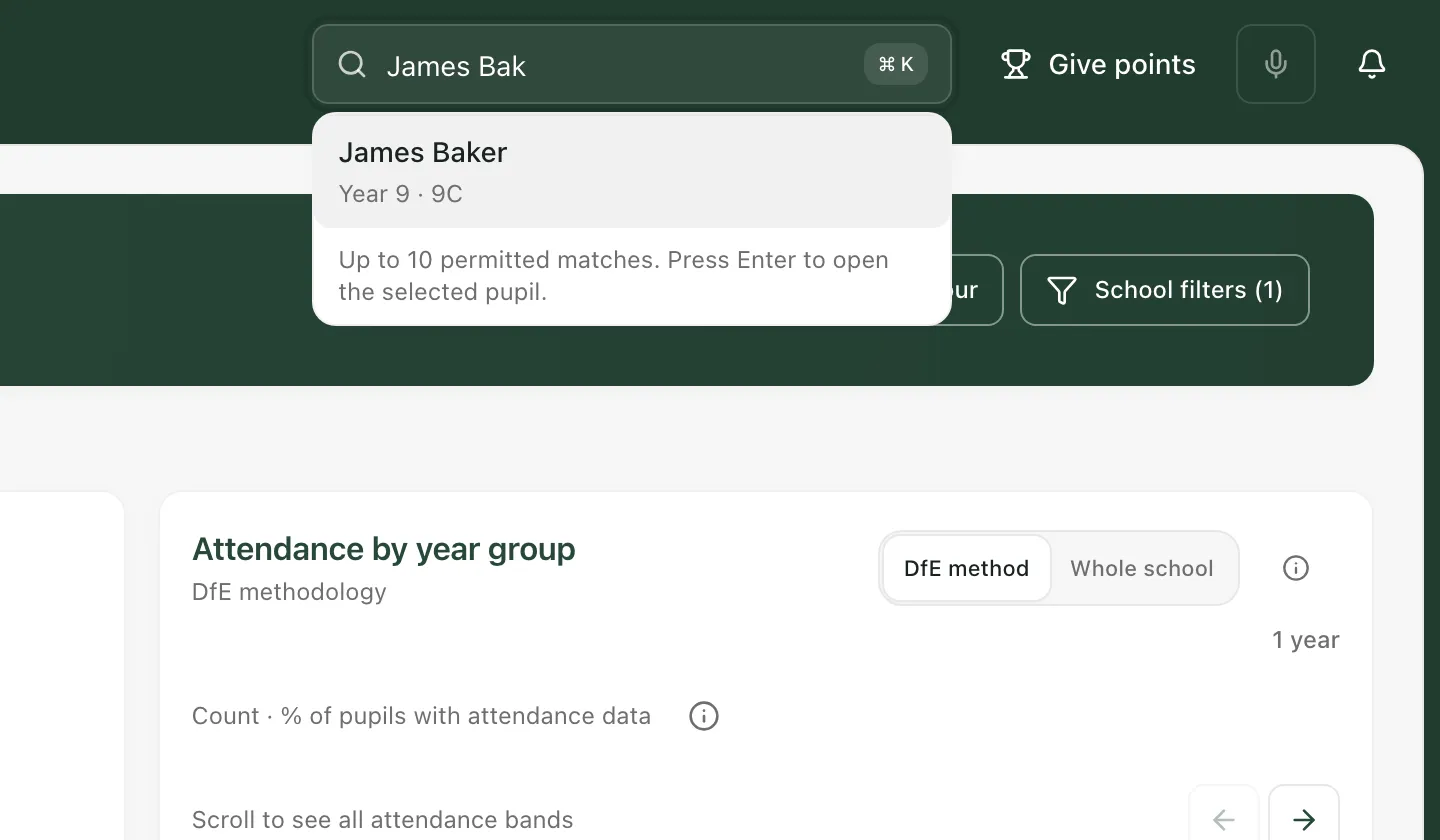
Type at least two letters of the pupil’s first name or surname. Matching pupils appear in a list, with their year group and class under their name.
-
Click the pupil’s name. You can also choose a pupil with the up and down arrow keys, then press Enter.
The list shows up to 10 pupils, in surname order. If you can’t see the pupil you want, type more of their name.
Tip: While you type, the page behind the search box also narrows to the pupils who match. On the Heat Map, for example, only their tiles are shown. Clear the search box to see everyone again.
On a phone or in a narrow window, tap the magnifying glass at the top of the screen to open the search box.
Read the profile
Section titled “Read the profile”The profile opens over the page you were on.
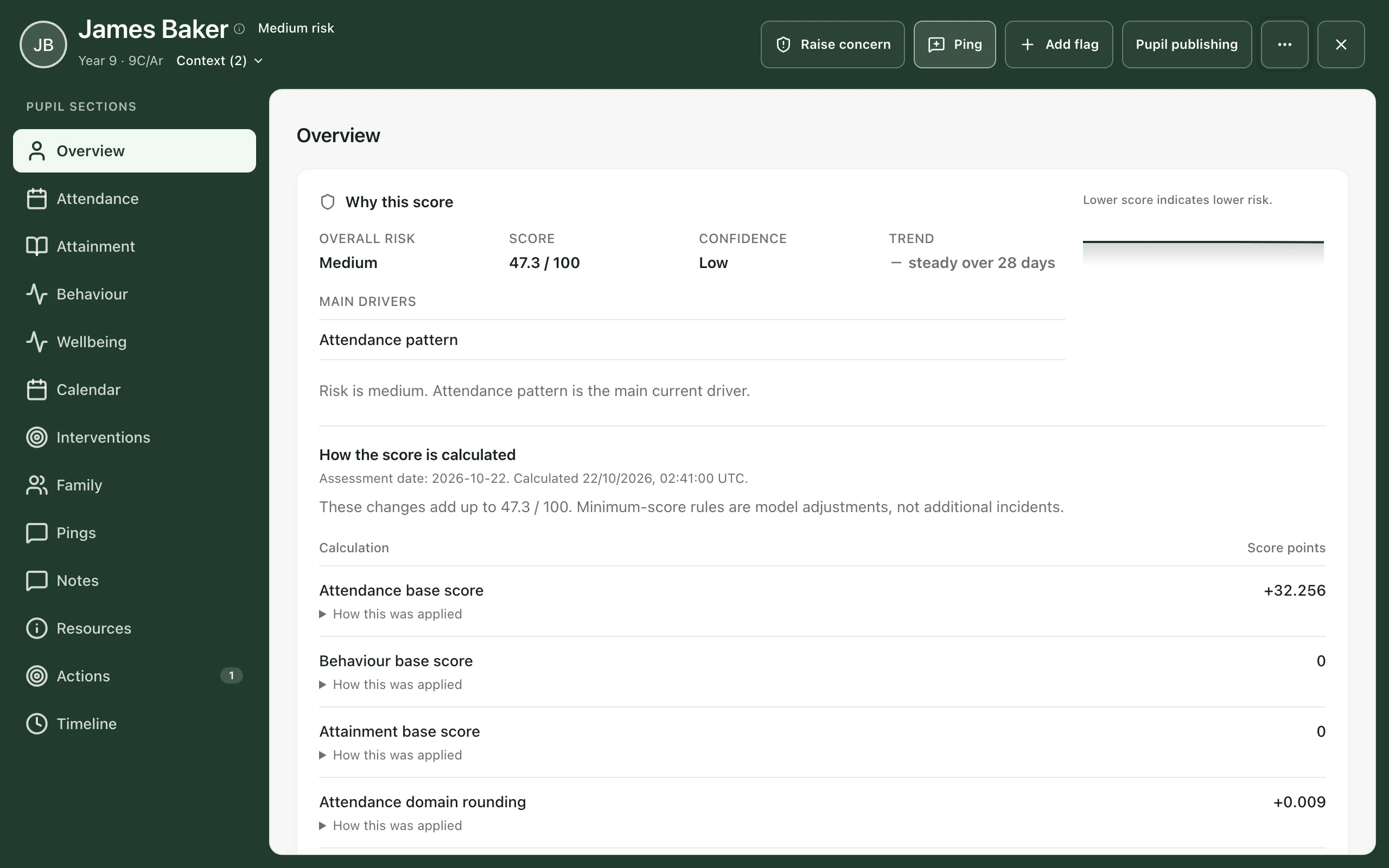
Across the top you’ll see:
- The pupil’s name, risk level, year group and class. Click the name to see more details, such as their date of birth, admission number and first language.
- Context: click it to see the groups the pupil belongs to, such as Pupil Premium, FSM, SEN Support or EAL. The number shows how many there are.
- Buttons for what you might do next, such as Raise concern and Ping (ask a colleague about this pupil). Click ⋯ for more options.
Down the left, under Pupil sections, is everything recorded about the pupil. Click a section to open it.
| Section | What it shows |
|---|---|
| Overview | A snapshot of the pupil: their current risk level and what’s behind it. |
| Attendance | Attendance this academic year, recent patterns and the sessions behind the figures. |
| Attainment | Attainment and progress across subjects. |
| Behaviour | Behaviour incidents, points, report cards and related support. |
| Wellbeing | Wellbeing check-ins and recorded support. |
| Calendar | Events for this pupil. |
| Interventions | Intervention plans and the provision mapped to the pupil. |
| Family | Family contacts and the communication log. |
| Pings | Requests between staff about this pupil. |
| Notes | Shared notes and observations from staff who work with the pupil. |
| Resources | Documents and evidence attached to the pupil. |
| Actions | What’s planned, in progress and done to support the pupil. |
| Timeline | A summary of the pupil’s recorded history, linked to where each record came from. |
Some sections only appear when there’s something to show:
- SEND, for pupils with SEND or EAL support records. For pupils who only have EAL support, it’s called Strategies & provision.
- Health, when health or medical information is recorded.
- Specialist input, when specialist support is recorded.
The Overview section
Section titled “The Overview section”The Why this score panel explains the pupil’s risk level. It shows the overall risk, the score out of 100, how confident Student Radar is in the score, how it has changed recently and the main things driving it. A lower score means lower risk.
Below that, How the score is calculated lists each part of the score. Click How this was applied under a line to see the detail.
The score is built from information recorded in Student Radar, such as attendance, behaviour and attainment. It’s a prompt to look more closely, not a judgement about the pupil. Use it alongside what you know.
Example: the Attendance section
Section titled “Example: the Attendance section”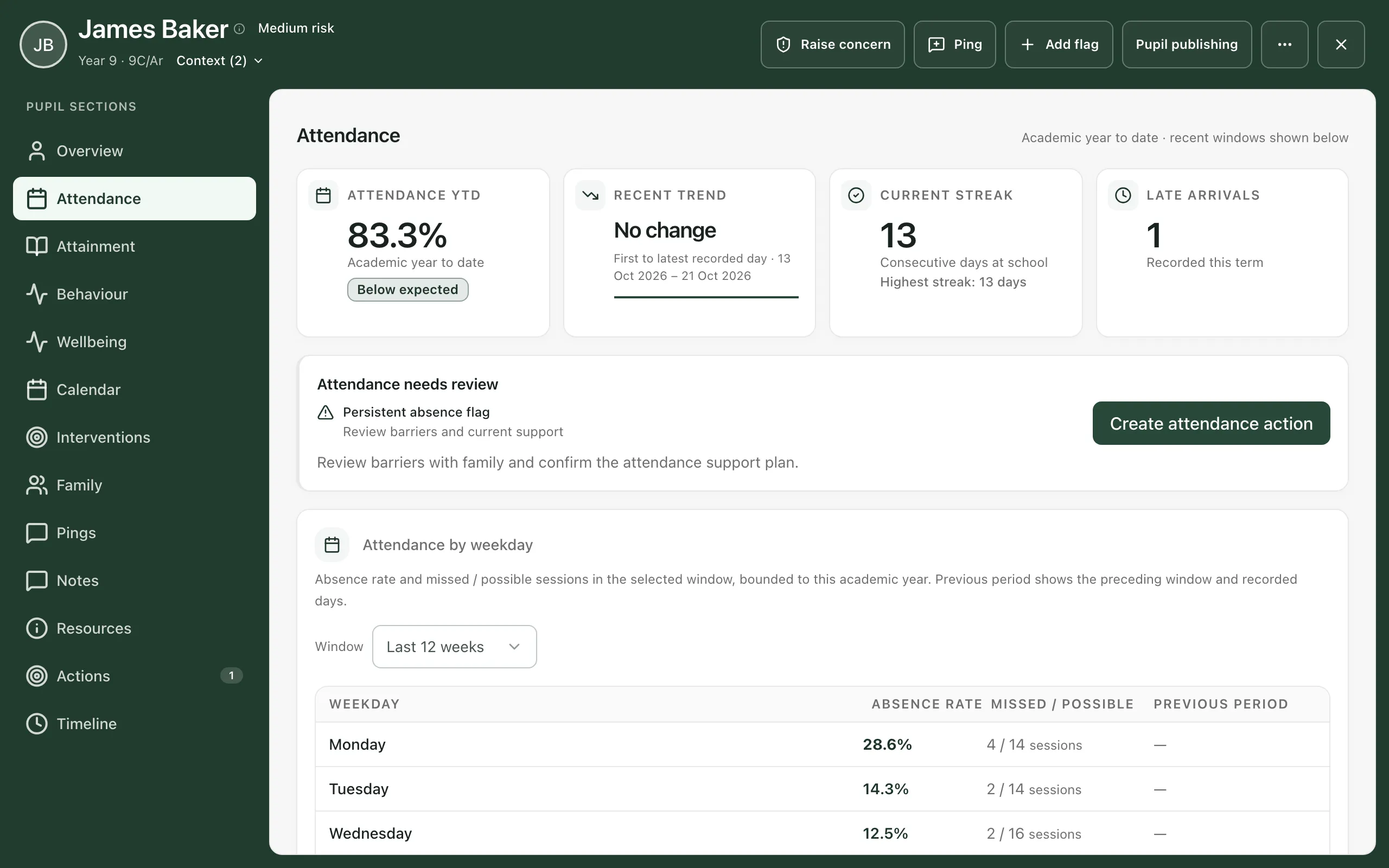
Along the top are four cards:
- Attendance YTD: attendance so far this academic year.
- Recent trend: whether attendance is going up, down or staying the same.
- Current streak: the number of days in a row the pupil has been in school.
- Late arrivals: late arrivals recorded this term.
If something needs following up, an Attendance needs review panel explains what and suggests a next step. Further down, Attendance by weekday shows which days the pupil misses most. Use Window to change the period it covers.
Close the profile
Section titled “Close the profile”Click × in the top-right corner, or click ⋯ and choose Close profile. You’ll be back on the page you were on.
Safeguarding information
Section titled “Safeguarding information”Class teachers don’t see safeguarding records on the pupil profile. On the profile, they’re shown only to the Designated Safeguarding Lead and their deputies.
If you’re worried about a pupil, click Raise concern at the top of their profile and follow your school’s safeguarding procedure. If Raise concern is greyed out, safeguarding isn’t switched on in Student Radar for your school, so follow your school’s usual procedure instead.
Take the built-in tour
Section titled “Take the built-in tour”Click ⋯ at the top of the profile and choose Take a tour. It walks you through each part of the profile, one step at a time.
Other ways to find a pupil
Section titled “Other ways to find a pupil”- Browse a class: in the sidebar, open Classes, choose a class, then choose Pupils. Click a pupil to open their profile. In secondary schools, classes are split into Tutor groups and Teaching classes.
- Heat Map: in the sidebar, open Overview, choose Heat Map, then click a pupil’s tile.
- Command palette: press ⌘K on a Mac or Ctrl+K on Windows to search for pupils and pages at the same time.
If something doesn’t work
Section titled “If something doesn’t work”| What you see | What to do |
|---|---|
| “Type at least two characters to find a pupil.” | Keep typing. The search starts after two letters. |
| “No matching pupils you can access.” | Check the spelling, or try just the surname. If the pupil still doesn’t appear, ask your school’s Student Radar administrator to check your access. |
| “Pupil search access is unavailable.” | Your account can’t use pupil search. Ask your school’s Student Radar administrator. |
| “Pupil search is unavailable. Please try again.” | Click Retry pupil search. If it keeps happening, wait a minute and try again. |
| “Pupil profile unavailable” | Student Radar couldn’t confirm that you can see this pupil, so nothing was opened. Click Retry if it’s shown, or click Close and ask your administrator. |
| “Restricted view” | Your account can see only part of this pupil’s record. Hidden sections haven’t been loaded. That doesn’t mean they’re empty. |