Assess and plan support for an EAL learner
Written for: All school staff who teach or support pupils learning English as an additional language.
The EAL area brings together pupils who are learning English as an additional language. For each learner you can record what you’ve observed of their English, judge each strand of language (listening, speaking, reading and writing), agree a few teaching targets and review whether the support helped. Bands and plans are staff judgements, built from what you’ve seen the pupil do. Student Radar doesn’t work them out for you.
Find the learner
Section titled “Find the learner”- In the sidebar, open Inclusion and choose EAL.
- On the Learners tab, find the pupil. Use Search learners, or narrow the list by Cohort, Year group or Form. Click Clear filters to see everyone again.
- Click the pupil’s name.
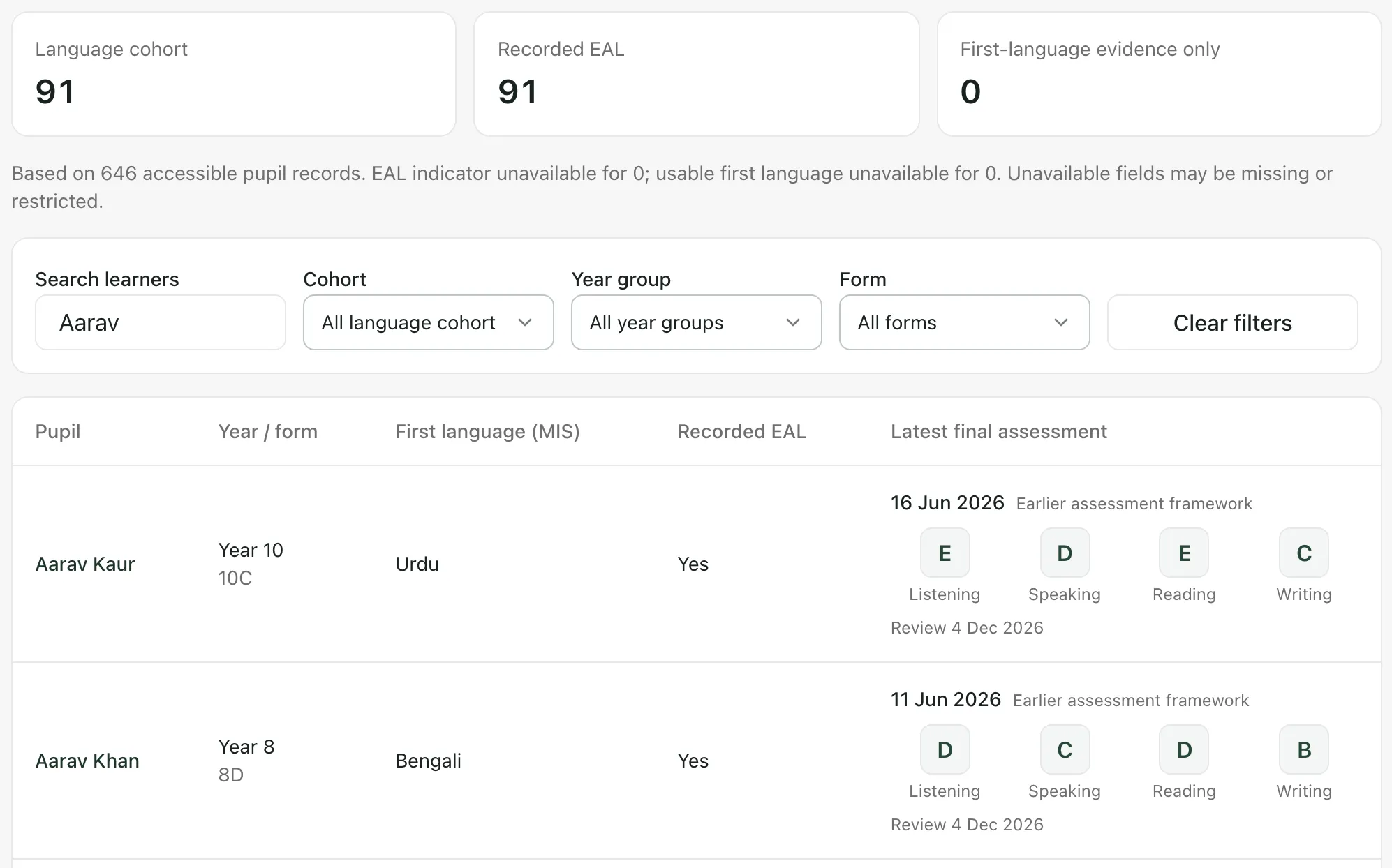
The counts at the top show:
- Language cohort: pupils you can access who have EAL recorded, or a first language other than English.
- Recorded EAL: pupils whose MIS record says EAL.
- First-language evidence only: pupils whose first language isn’t English but who don’t have EAL recorded.
The line underneath says how many pupil records these figures are based on, and for how many the EAL flag or first language wasn’t available. Being on the list doesn’t say anything about a pupil’s English, SEND or need for extra support. It only means they may need a closer look.
Read the learner’s language profile
Section titled “Read the learner’s language profile”The learner opens on Assessment & language profile.
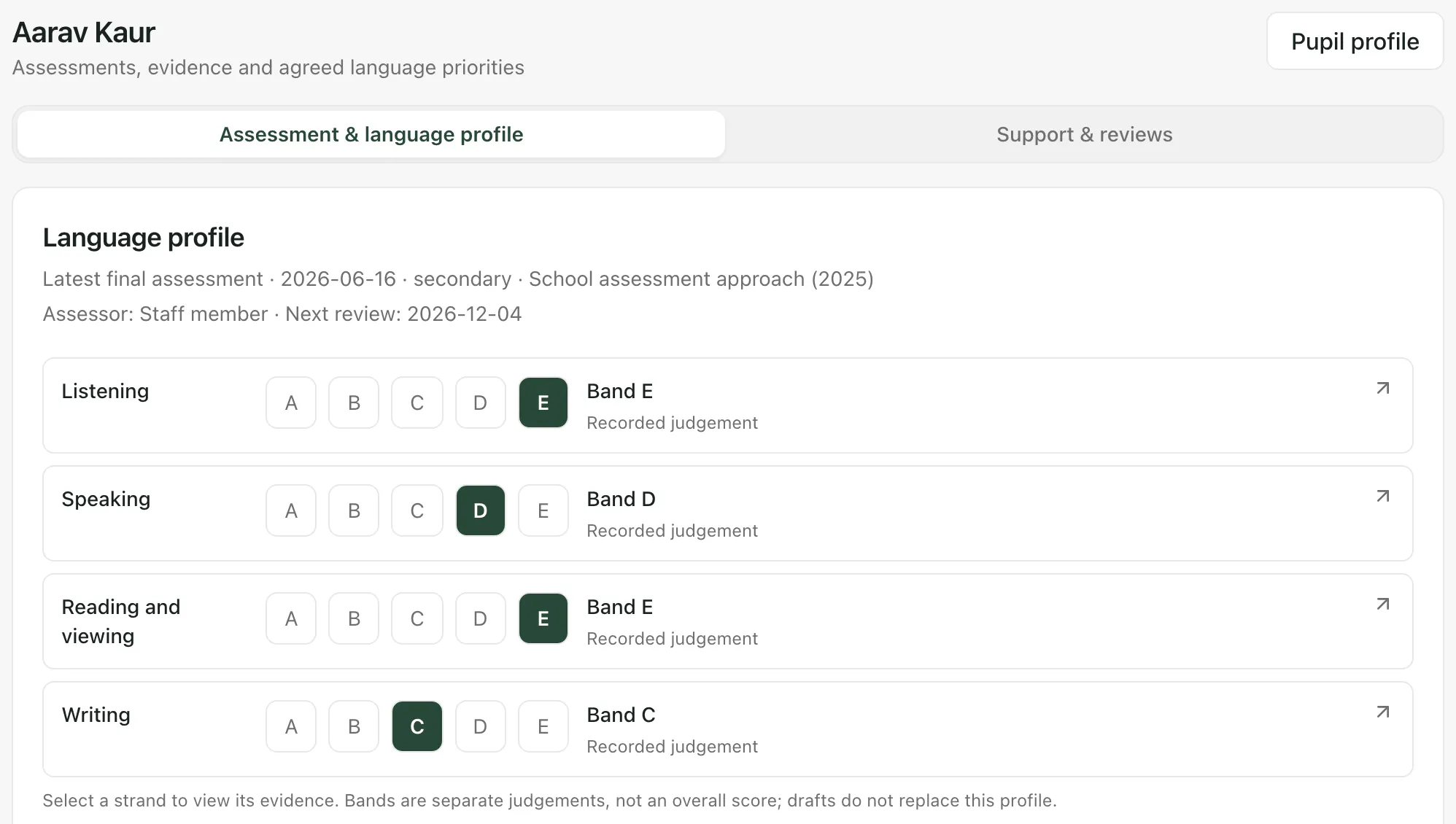
Language profile shows the bands from the pupil’s latest final assessment, one for each strand. Each band is a separate judgement, not part of an overall score. Click a strand to see the evidence behind it. Under the bands, Observed strengths and Next teaching priorities show what the assessment recorded.
Further down, the assessment history lists every assessment for the pupil, including drafts. Click an assessment’s date to read it in full, or click Print summary to print it.
Record a new assessment
Section titled “Record a new assessment”- Click New assessment.
- Check the Phase and the Assessment date, and add a Next review date (optional).
- Open Language background & context to note the languages the pupil uses, their previous schooling and where that information came from.
- Work through the three parts of the assessment:
- Observations: click Add observation for each task you watched. Record the task, what the pupil was given and what they actually did or said, and any support they had.
- Strands & bands: for each strand, choose how sure you are (Insufficient evidence, Provisional interpretation or Current professional judgement), pick a band, and explain what the evidence shows and what you don’t know yet.
- Assessment needs: note anything you still need to find out, who will do it and by when.
- Under Targets and classroom support, click Add target for each priority you agree. Choose the Strand and Agreed owner, and describe the target, the classroom support and the Target review date. You don’t need a target for every strand.
- Click Save draft.
- When the assessment is complete, open the draft again with Edit draft, check it and click Finalise assessment.
Missing evidence doesn’t mean low proficiency: if you haven’t seen the pupil use a skill, say so rather than giving a low band. A finalised assessment can’t be edited. To fix a mistake, click Correct on it and give a Reason for correction. The original stays in the history. To reassess a pupil later, click Review again on their latest final assessment.
Naming an Agreed owner for a target doesn’t send them anything. Let them know yourself.
Plan the pupil’s support
Section titled “Plan the pupil’s support”-
Click Support & reviews.
-
Open Pupil evidence and coverage to see what Student Radar can show you: recent EAL assessments, attendance, curriculum assessments and interventions. Each source says whether it’s available and how many records are included.
-
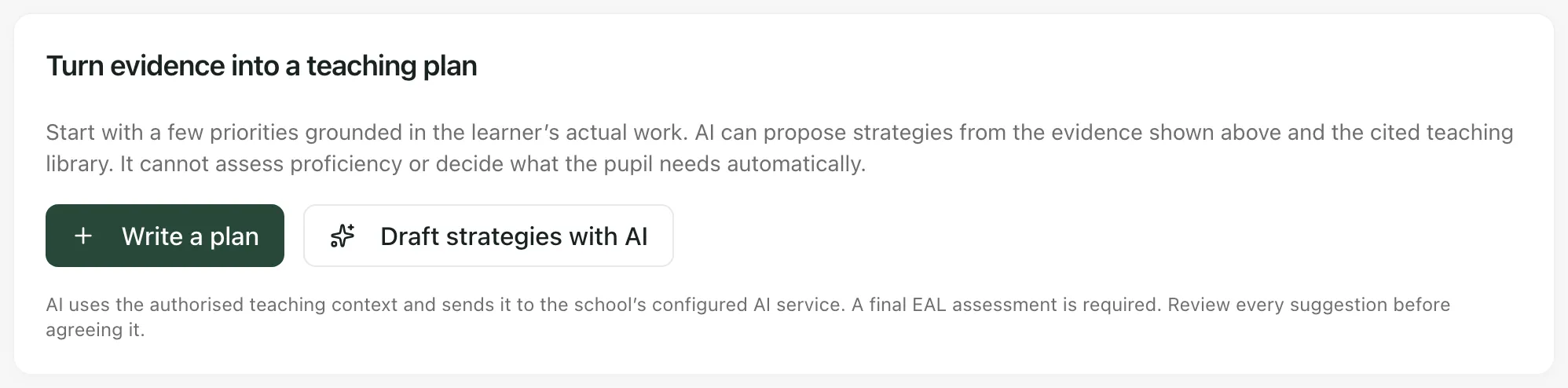
Under Turn evidence into a teaching plan, click Write a plan.
-
Give the plan a Plan title, and fill in Strengths to build on, Teaching priorities, Pupil / family perspective and Lesson context and access arrangements.
-
For each Teaching target, choose the Focus and answer the three questions: what the pupil should be able to do, what staff will do in lessons, and what evidence will show whether it helped. Click Browse teaching strategies to start a target from the strategy library. Two or three targets are usually enough; you can add up to five.
-
Click Save draft.
-
To put the plan in place, click Edit & agree plan, choose the First review date and click Agree plan & set review. You become the plan’s lead, and a review reminder is created for you.
Draft strategies with AI
Section titled “Draft strategies with AI”Draft strategies with AI suggests a plan from the evidence on the page and the strategy library. It’s only available once the pupil has a final EAL assessment. The draft opens in the plan form for you to check and edit: it can’t judge the pupil’s English or decide what they need. Read every suggestion against what you know of the pupil, change what doesn’t fit, and only then save and agree the plan.
Review the plan
Section titled “Review the plan”On the review date, open the learner’s Support & reviews and click Record review.
- Enter the Observation date.
- Describe what was taught or tried, what the pupil showed, the pupil’s or family’s view if you have it, and what you think the evidence means.
- Choose a Decision: Continue this plan, Adjust the teaching plan or Close this support cycle. If you adjust the plan, edit it in the same form.
- Unless you’re closing it, choose the Next review date.
- Click Save review & decision.
A lesson taught or a session attended doesn’t show on its own that the support worked, so record what the pupil actually demonstrated. Earlier plans and reviews stay in Plan and review history.
Find teaching strategies
Section titled “Find teaching strategies”The Resources tab on the EAL page holds Teaching evidence & strategies: a library of approaches with their sources. Use Find a strategy, Focus and Phase to narrow it.
- Who can make changes: most staff can read EAL records. Recording assessments and agreeing plans depend on the permissions your school gives you, so you may not see New assessment or Write a plan.
- Governors can’t open the EAL area.
If something doesn’t work
Section titled “If something doesn’t work”| What you see | What to do |
|---|---|
| “Your account does not currently have access to EAL learner records. Contact your school administrator to check your pupil access.” | Ask your Student Radar administrator to check your access. |
| “You can read support records; your account does not currently have permission to agree a plan.” | Ask the colleague who leads EAL in your school to write or agree the plan. |
| “No learners match these filters.” | Click Clear filters, or check the spelling of the name. |
| “Record a final EAL assessment before requesting an AI draft. You can still write a plan yourself.” | Finalise an assessment first, or click Write a plan. |
| “Your account needs a current staff link before you can own a support plan.” | Ask your Student Radar administrator to link your account to your staff record. |
| “The plan changed or an open plan already exists. Reload before trying again.” | Someone else has changed the plan. Reload the page and check the latest version before you try again. |
| “This pupil’s assessment changed or a draft already exists. Reload the saved history before continuing.” | Reload the page. If there’s already a draft, use Edit draft on it. |
| “The pupil evidence could not be loaded. This does not mean there is no evidence.” | Click Reload evidence. |
| “We couldn’t load the complete accessible learner list. No partial results are shown.” | Click Try again. |