Review attainment from whole school to pupil
Written for: Senior leaders, assessment leads, teachers and governors who review attainment.
Assessment & Outcomes shows your school’s assessment results in one report that you can narrow down step by step: from the whole school to a year group, then a class, then a single pupil. Each assessment is shown on its own scale, with how many pupils it covers, so you can see which cohorts are ahead or behind and which pupils might need a closer look.
Open the report
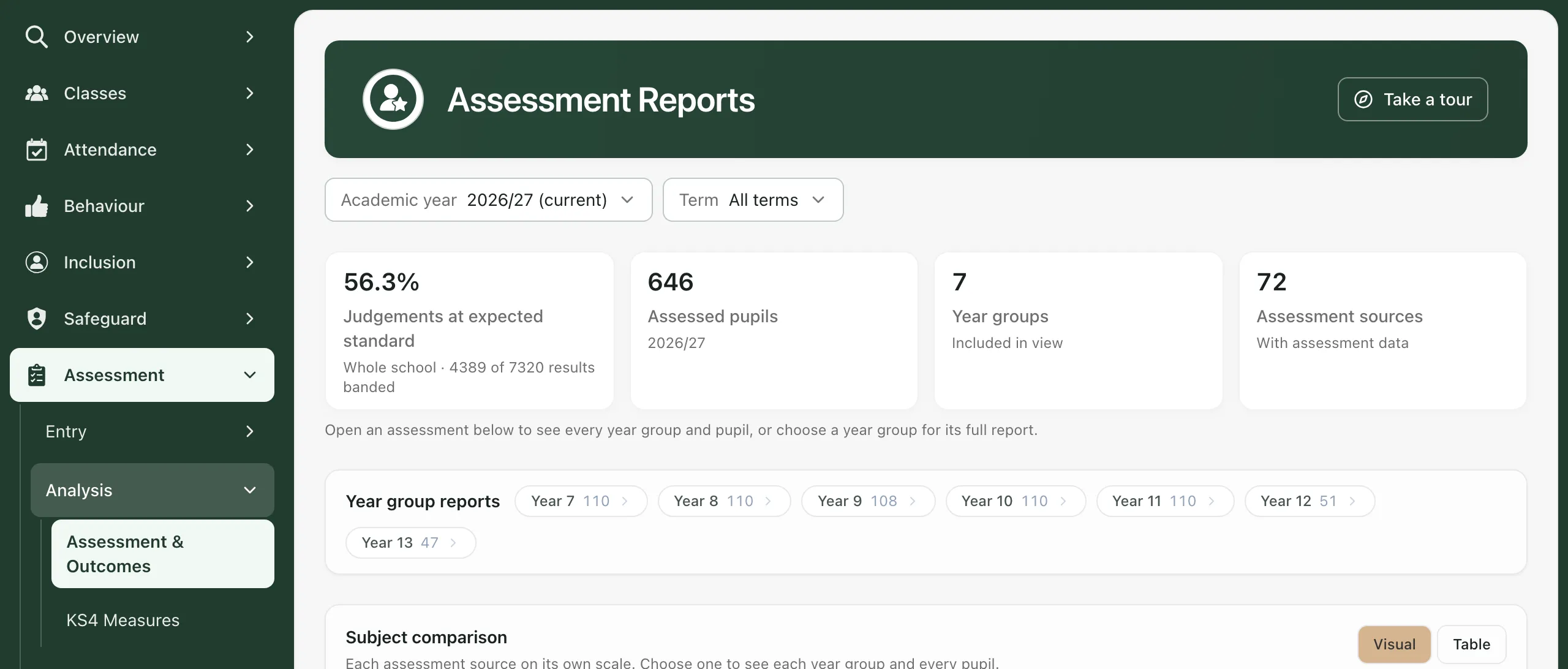
Section titled “Open the report”In the sidebar, click Assessment, then Analysis, then Assessment & Outcomes.
You can also open it from Leadership, then Teaching & pupils, then Assessment & Outcomes. The page is called Assessment Reports.
Choose the year and term
Section titled “Choose the year and term”- Under Academic year, choose the year. The current year is marked (current), and years with no results you can see are marked · no results.
- Under Term, leave All terms, or choose a term.
Everything on the page follows these choices.
When you choose a term, results that don’t name a term are left out, such as marks from your MIS that your school calendar doesn’t place in a term. A note under the filters tells you how many.
Read the headline figures
Section titled “Read the headline figures”For the whole school, the four cards show:
- Judgements at expected standard: the share of results at the expected standard or above, with how many results this is based on. If your school records scores rather than judgements, this card shows Results recorded instead.
- Assessed pupils: pupils with assessment results that you can see.
- Year groups: year groups included in the report.
- Assessment sources: how many different assessments have results.
These count the pupils you have access to who have assessment results, not everyone on roll.
Look at one assessment across the school
Section titled “Look at one assessment across the school”Below the year group links, Subject comparison shows a tile for each assessment, on its own scale. Each tile shows either the average score or the share at the expected standard, how results split between working towards, expected and greater depth, and how many pupils it covers, for example Scored 110 of 110 pupils.
To see the same figures as a table, click Table. Click Visual to go back to the tiles.
Click a tile to open that assessment.
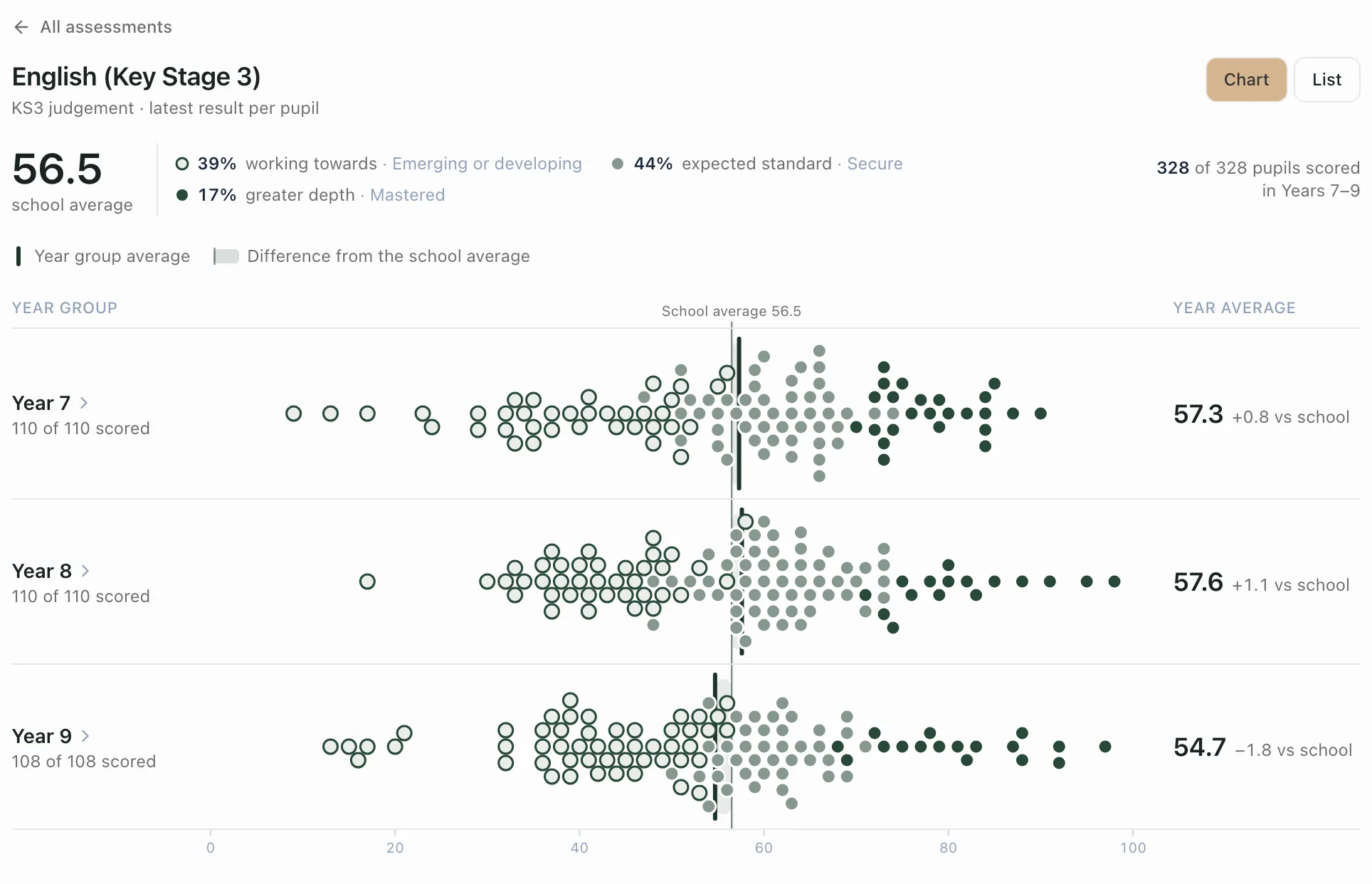
Each dot is one pupil’s latest result. A dark line marks each year group’s average, and the shading shows how far it is from the school average. Hover over a dot to see who it is, or click it to open that pupil’s results. Click List to see the same pupils in a table, lowest first.
Below the chart, Equity gaps compares groups of pupils, such as Pupil Premium, SEND and EAL, with all the pupils assessed. Groups too small to compare fairly aren’t compared. Use these differences as a prompt to look more closely, alongside what you know about the pupils, not as a conclusion.
Click All assessments to go back to the tiles.
Open a year group
Section titled “Open a year group”Click a year group under Year group reports, or click a year group’s name in an opened assessment. The page becomes that year’s report, for example Year 7 Assessment Report, with:
- Cards for the pupils with results, the headline figure, the number of assessments and the date of the latest assessment.
- A tile for each assessment that year group took.
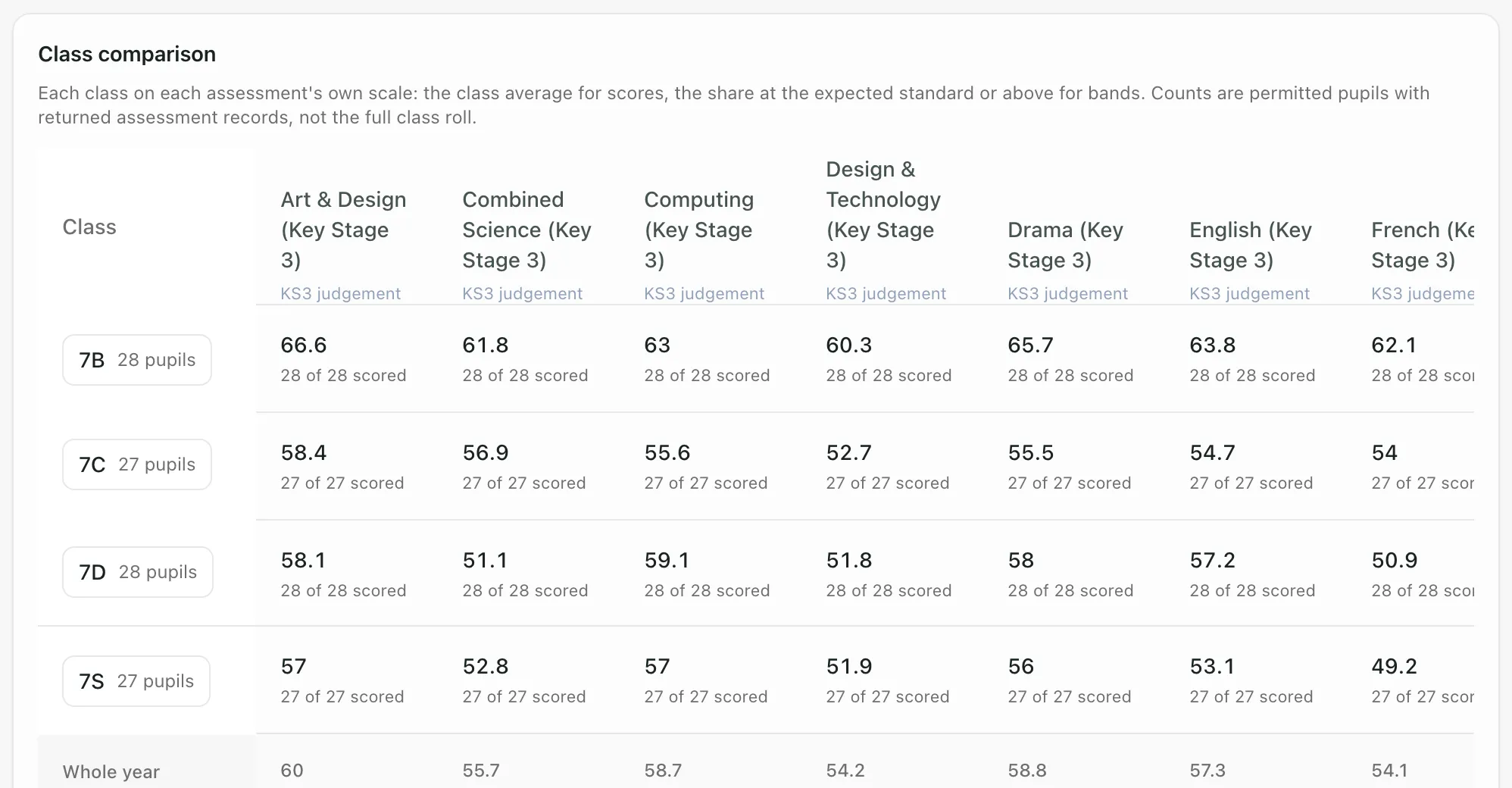
- Class comparison: each class’s result in each assessment. For scores, this is the class average. For judgements, it’s the share at the expected standard or above. Under each figure, you’ll see how many pupils it’s based on. The Whole year row is at the bottom.
- A table of every pupil in the year group against every assessment. Click a column heading to sort by it. A dash means the pupil has no result for that assessment.
Open a class
Section titled “Open a class”Click a class in Class comparison. You’ll see that class’s report, with its assessments and its pupils.
Open a pupil
Section titled “Open a pupil”Click a pupil’s name in a table, or a pupil’s dot in a chart. Their Pupil assessment profile opens, with:
- Their year group and class, and their groups, such as PP, EAL or FSM.
- Each assessment, with their latest result, its range or band, when it was recorded and the change since their previous result.
Click Open full profile to see the pupil’s whole profile.
Find your way back
Section titled “Find your way back”As you go down from the whole school, a trail of where you’ve been appears above the report. Click any step in it to go back to that level, or click Back to Whole School.
How the figures work
Section titled “How the figures work”Open How these figures are calculated and About this data at the bottom of the page for the details behind what you’re looking at. In short:
- Each assessment is shown separately, and results are compared only within their own scale.
- The share at the expected standard counts pupils whose latest result has a band. Results recorded on a scale without bands, such as some MIS marks, are counted but not rated.
- Standardised scores have their own scale: 100 is the average and 85 to 115 is the average range. They aren’t treated as the expected standard.
- Coverage is out of the pupils in the report, not the school roll. Only the year groups that took an assessment count towards its coverage.
- Year groups and classes are pupils’ current ones. Pupils who have left aren’t included, so results for an earlier year are grouped by where pupils are now.
The figures describe recorded results. They help you decide where to look more closely; they don’t explain why results are as they are.
Take the built-in tour
Section titled “Take the built-in tour”Click Take a tour at the top of the page for a step-by-step guide.
- Who can open the report: teachers, safeguarding leads, senior leaders, headteachers and governors can open it by default. Teaching assistants can’t. Schools can change who has access.
- What you see depends on your access: the report only includes pupils your account can see, and every count is out of those pupils.
- Entering results: see Enter assessment marks for your class and Enter standardised test scores.
If something doesn’t work
Section titled “If something doesn’t work”| What you see | What to do |
|---|---|
| “Assessment outcomes are unavailable.” | Click Retry assessment records. If it keeps happening, wait a minute and reload the page. |
| “Subject outcomes are unavailable. Retry the report to load a complete dataset.” | Reload the page. The figures aren’t shown until the full set of results has loaded. |
| “No permitted assessment records in this scope.” | There are no results you can see for this year, term, year group or class. Try another academic year or All terms. |
| “No assessment results you can see are recorded for” | Nothing has been recorded for the year you chose yet. Click the link beside the message to view the latest year with results. |
| “Other academic years could not be listed.” | Click Retry beside the message. |
| “Assessment reports are busy. Wait a minute, then retry.” | Many reports are being loaded at once. Wait a minute, then try again. |
| “Group comparisons are not shown: your access does not include pupil demographics for every pupil in this report.” | Your account can’t see pupils’ groups for everyone in the report, so Equity gaps isn’t shown. |
| “Unable to load pupil assessment detail.” | Close the pupil’s profile and open it again. |
| “You do not have access to the Assessment Leadership dashboard.” | Your account can’t open this report. Ask your school’s Student Radar administrator. |