Schedule an exam and assign candidates
Written for: Senior leaders, headteachers and exams staff who plan exam windows.
Exams & Assessment Windows keeps your exam timetable, the candidates for each exam, their access arrangements and the results in one place. This article shows you how to schedule an exam, choose who sits it and add candidates later. To enter results once the exam is over, see Record exam results.
Open the exams timetable
Section titled “Open the exams timetable”- In the sidebar, open Assessment, then Exams.
- Choose Assessment Windows.
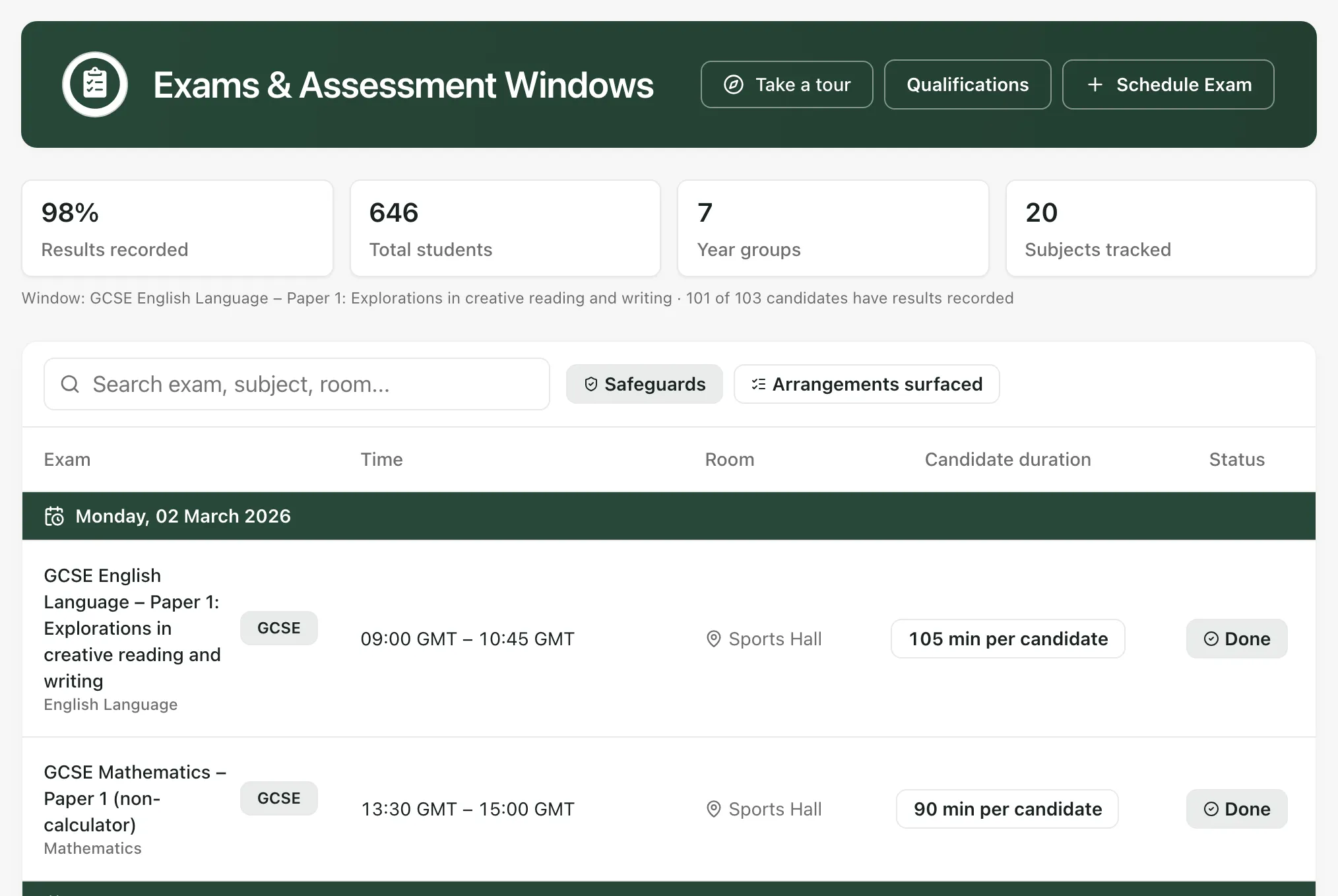
The cards at the top give the headline picture. Results recorded is for the exam window shown underneath the cards. Total students, Year groups and Subjects tracked cover the pupils and exams in this view. Click a card to see the detail behind it.
The timetable lists every exam, grouped by day, with its time, room and how long each candidate sits for. The status shows whether an exam is Scheduled, Live, Done or Cancelled. Type in Search exam, subject, room… to find an exam.
Schedule an exam
Section titled “Schedule an exam”- Click Schedule Exam at the top of the page.
- Under Exam details, fill in:
- Subject: for example, Biology Paper 2.
- Year group / level: for example, GCSE Year 11. The exam’s name is the subject followed by this.
- Date and Start time.
- Duration (mins): between 15 and 360 minutes.
- Room and Lead invigilator.
- Special arrangements: optional notes for the whole exam, separated by commas, such as extra time or a reader.
- Under Assign candidates, choose who sits the exam:
- Year Group: click one or more year groups.
- Class: click one or more classes.
- Individual: type in Search by name… and click each pupil. The pupils you add appear above the search box. Click × next to a name to take them off.
- Whole School: every pupil available to you on this page. You have to choose this yourself; it’s never selected for you.
- Check the details, then click Schedule exam.
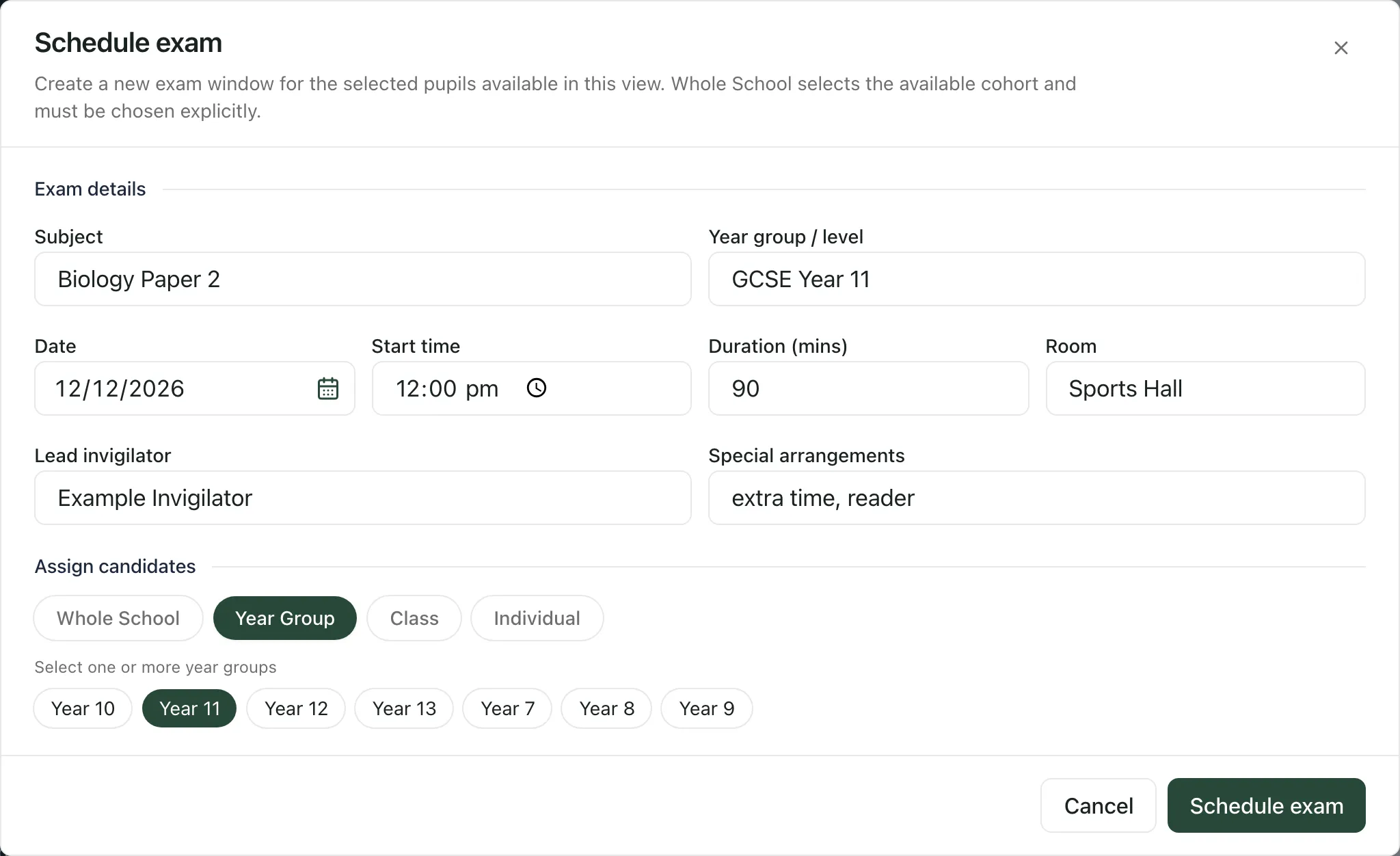
You’ll see “Exam scheduled” with the number of candidates assigned, and the exam appears in the timetable. Subject, Date, Start time, Room and Lead invigilator must be filled in before the exam can be scheduled.
Add a candidate to an existing exam
Section titled “Add a candidate to an existing exam”- In the timetable, click the exam’s name. The exam opens.
- Scroll to Assign candidate.
- Choose the pupil in Pupil.
- If you need to, type a note in Unverified legacy arrangement note.
- Click Add to exam.
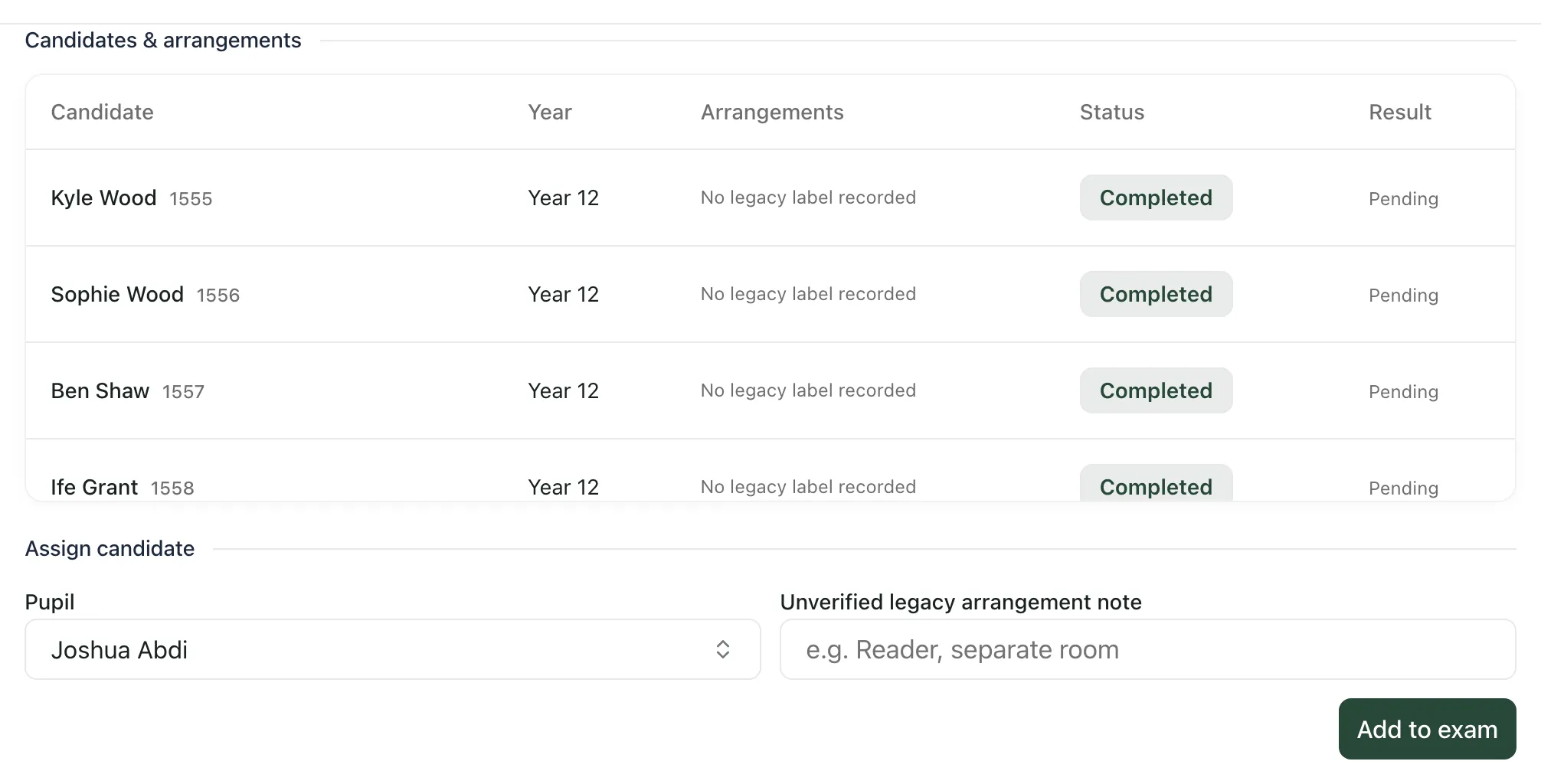
You’ll see “Candidate assigned” and the pupil is added to Candidates & arrangements.
Check access arrangements
Section titled “Check access arrangements”When you open an exam, Access arrangements for this sitting shows each candidate’s approved access arrangements and how far their preparation has got, for example “No applicable approved arrangement”, “Approved — preparation required” or “Confirmed operational delivery”. Click Refresh readiness to check again.
Arrangements are approved in the access arrangements case for each pupil. Notes you type in Special arrangements or Unverified legacy arrangement note show as an unverified label in the candidate list. They’re there to help on the day, but they don’t count as an approved arrangement. To set up an arrangement properly, see Open an access arrangements case.
Get the exam ready
Section titled “Get the exam ready”In the open exam:
- Under Invigilation & readiness, type a name in Add invigilator, tick Lead if they’re leading, and click Add.
- Under Special notes, type a note, such as a room that needs preparing, and click Add note.
- Under Qualification structure, click Generate seating plan to create a seating plan for the exam. Pupils with access arrangements are seated at the front, and you can adjust the plan in Seating Plans.
Look out for clashes
Section titled “Look out for clashes”If two exams in the next 30 days overlap and share a candidate, a room or an invigilator, Scheduling clashes appears under the timetable. Each clash is labelled Candidate clash, Room clash or Invigilator clash and names the two exams. Move one of the exams, or change the room or invigilator, before the day.
Who can schedule exams
Section titled “Who can schedule exams”You need exam scheduling permission to schedule exams. By default, the buttons for scheduling and changing exams are shown to teachers, DSLs, headteachers and administrators. Other roles, including senior leaders, SENCos and office staff, see the page as read-only, with the message “Read-only access. Contact an administrator to schedule or edit exams.” Schools can change who has access, so if you can’t schedule an exam, ask your Student Radar administrator.
Take the built-in tour
Section titled “Take the built-in tour”Click Take a tour at the top of the page. It walks you through the summary cards, the Schedule exam form, the timetable and an open exam.
If something doesn’t work
Section titled “If something doesn’t work”| What you see | What to do |
|---|---|
| “Read-only access. Contact an administrator to schedule or edit exams.” | Your account can see the timetable but can’t schedule or change exams. Ask your Student Radar administrator. |
| Schedule Exam is greyed out | Hover over it. “Exam scheduling permission is required.” means your account doesn’t have it. Ask your administrator. |
| “Select at least one year group, class, or pupil.” | Choose who sits the exam under Assign candidates. |
| “Lead invigilator is required” or “Room is required” | Fill in the missing field, then click Schedule exam again. |
| “An earlier exam request needs to be checked before another is started.” | An earlier attempt to schedule an exam wasn’t confirmed. Click Check pending request. If it didn’t go through, click Retry same request or Abandon pending request. Abandoning never removes an exam that was already created. |
| “No exam windows scheduled yet. Create one to get started.” | Your school has no exams yet. Click Schedule Exam to add the first one. |
| “Could not load the assessment windows. Try again to review the schedule.” | Click Try again. |
| “Scheduling clash checks are unavailable. Try again before relying on this timetable.” | Click Retry clash checks. Until it works, check for clashes yourself. |
| “Could not save the change. Your entries have been kept. Please try again.” | Check your connection and try again. |