Sign in to the parent portal
Written for: Parents and carers.
The parent portal is where you can see information about your child from school, explain an absence and fill in forms. There’s no password to remember: each time you sign in, Student Radar emails you a short code.
The first time: accept your invitation
Section titled “The first time: accept your invitation”Your child’s school sets up your access. You’ll get an email inviting you to the school’s parent portal.
- Open the invitation email and click the button to accept it. If the button doesn’t work, copy the link from the email into your browser’s address bar.
- Sign in with the email address the invitation was sent to, as described below.
- Check that Signed-in email shows the address the school invited, and check Your name.
- Click Continue to dashboard.
You’ll see “Your account is now linked to your school workspace.” Your parent portal then opens.
The invitation link only works for a few days. The email tells you how long. If it has run out, ask the school office to send you a new one.
Sign in with an email code
Section titled “Sign in with an email code”-
Go to the Student Radar sign-in page.
-
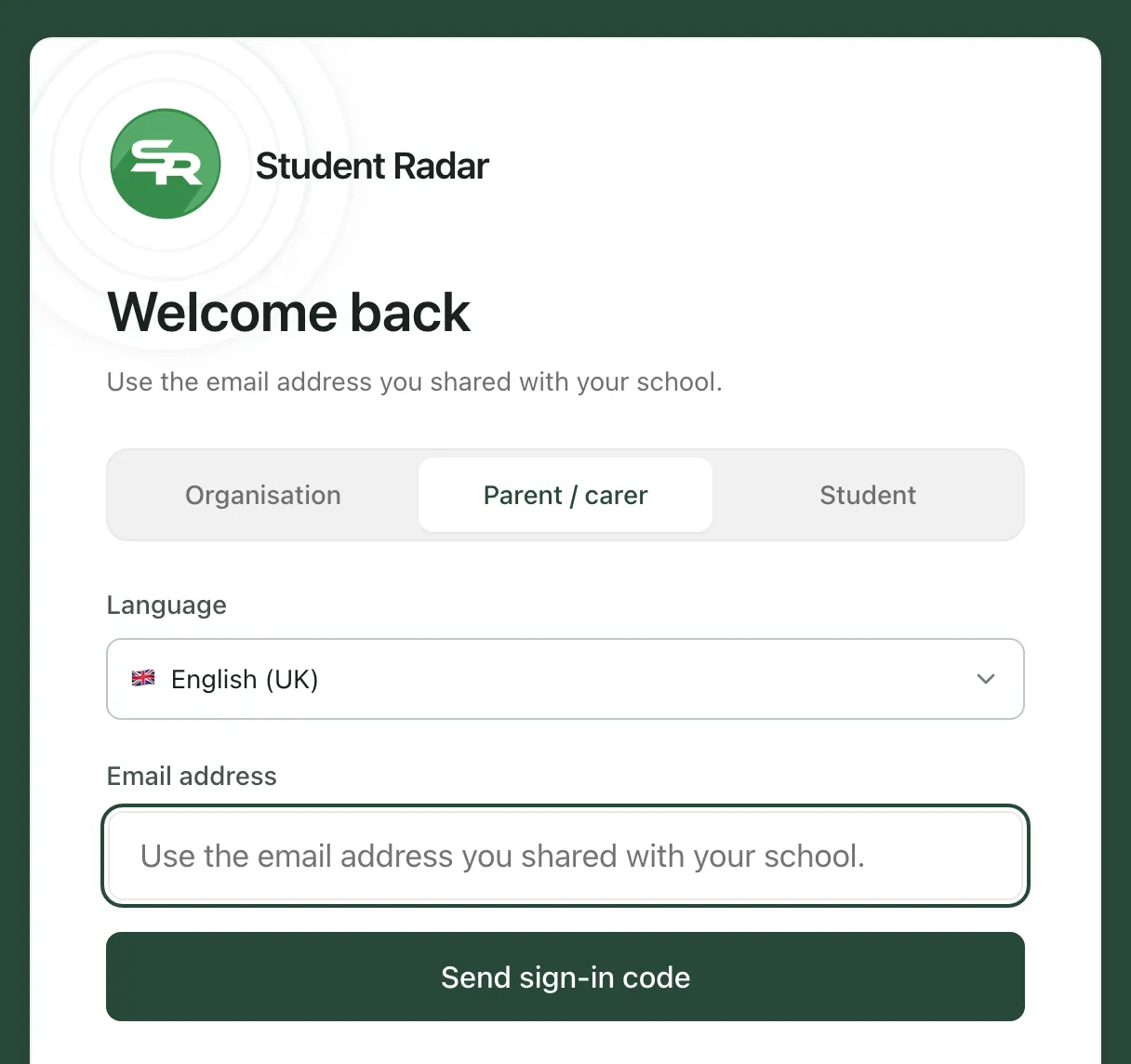
Click Parent / carer.
-
If you’d like to read the sign-in page in another language, choose it under Language.
-
In Email address, type the email address you gave the school.
-
Click Send sign-in code.
-
Look in your email for a 6-digit code. It can take a minute to arrive. Check your junk or spam folder too.
-
Type the code into the boxes on the screen, then click Sign in.
You’ll see “Code accepted. Signing you in…” and your parent portal opens on Home.
Only use a code you asked for, and never share it with anyone. School staff won’t ask you for it.
If the code hasn’t arrived, click Resend code. You can ask for a new code once a minute. If you typed the wrong email address, click Change email.
Sign out
Section titled “Sign out”Click your initials at the top right of the portal, then click Log out. Sign out when you’ve finished, especially on a shared computer or tablet.
Help with signing in
Section titled “Help with signing in”Click Help signing in at the bottom of the sign-in page for a short reminder. If you can no longer get into the email account the school has for you, contact the school office. They can help you get access again.
Signing in doesn’t, on its own, show you a child’s information. The school has to link your account to your child first. As the portal says: “For help with access or your child’s information, contact the school office.”
If something doesn’t work
Section titled “If something doesn’t work”| What you see | What to do |
|---|---|
| “Enter a valid email address.” | Check the email address for typing mistakes, then try again. |
| “If this address can sign in, a code will arrive shortly. Check your junk or spam folder too.” | Wait a minute and check your email, including junk or spam. If nothing arrives, check you used the address the school has for you. |
| “The code is incorrect or has expired. Check it or request another.” | Check you typed the newest code. If it still doesn’t work, click Resend code and use the new code. |
| “Please wait before requesting another code.” | Wait a minute, then ask for a new code. |
| “Sign-in is unavailable right now. Please try again shortly.” | Wait a few minutes, then try again. |
| “This is taking longer than usual. Please keep this page open.” | Keep waiting. Don’t close the page. |
| “Invalid invite link. Please check the URL or request a new invitation.” | Open the link straight from the invitation email. If you copied it, make sure you copied all of it. |
| “We could not validate this invitation. It may have expired or already been used. Please contact your school administrator for a new link.” | If you’ve accepted the invitation before, just sign in as usual. Otherwise, ask the school office for a new invitation. |
| “We could not verify your organisation access” | Click Sign out, then sign in again. If it keeps happening, contact the school office. |