Record an ABC behaviour observation
Written for: All staff.
An ABC observation records a behaviour together with what happened just before it (the antecedent) and just after it (the consequence). One observation on its own tells you little, but a run of them can show patterns, such as the same lesson, time of day or demand coming up before the behaviour. You record observations in the ABC Observation Register, where you can also look back over everything recorded for a pupil.
Open the register
Section titled “Open the register”In the sidebar, open Behaviour, then Assessment, and choose ABC Observations.
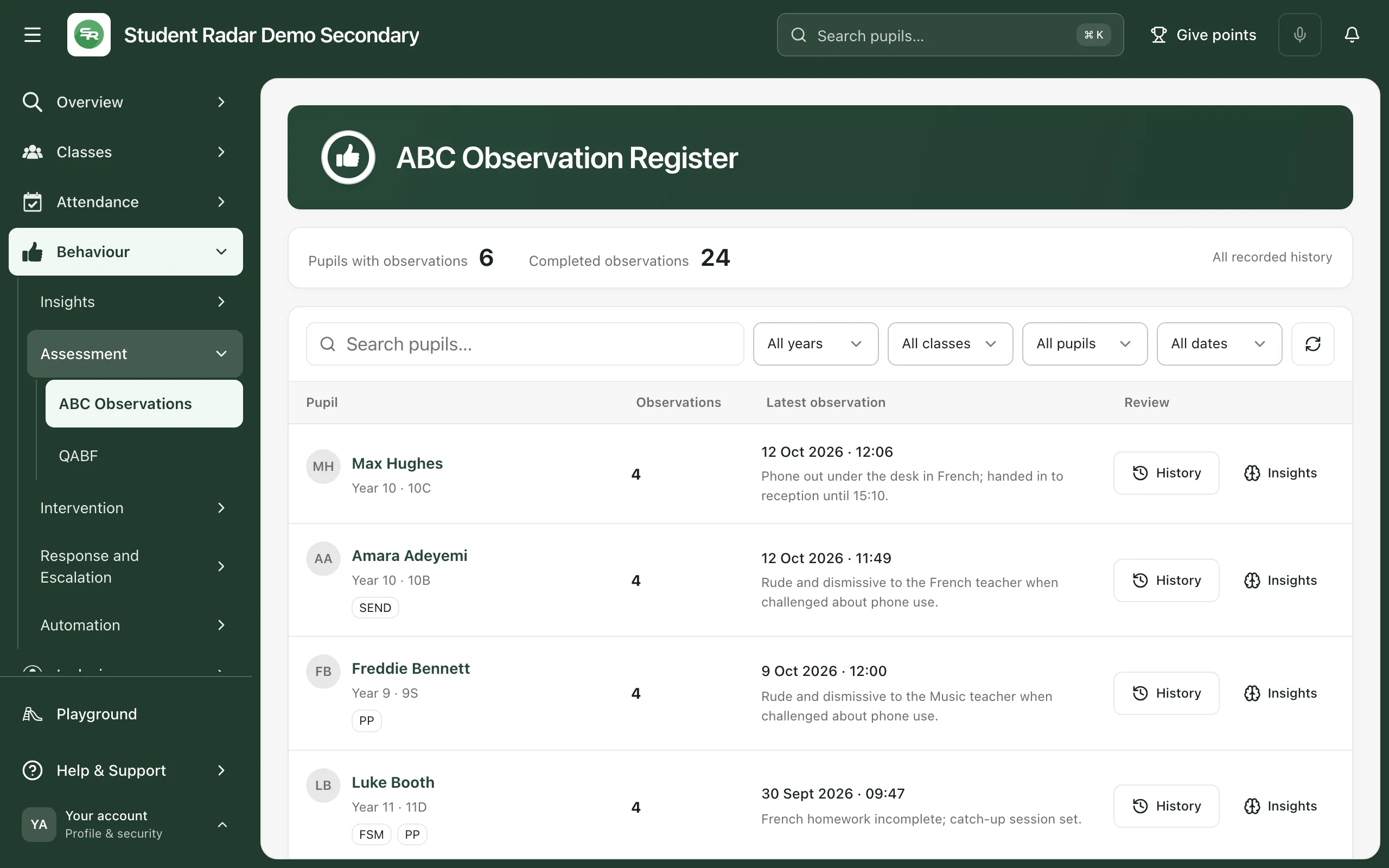
The register lists each pupil who has completed observations, with how many there are and the date and behaviour of the latest one.
Record an observation
Section titled “Record an observation”-
Click New observation at the end of the row of filters. On a phone, the button says New.
-
Under Pupil, click Search for a pupil…, type at least two letters of the pupil’s name and choose them from the list.
-
Check the Date. It starts as today’s date. If you know when it happened, add the Time too.
-
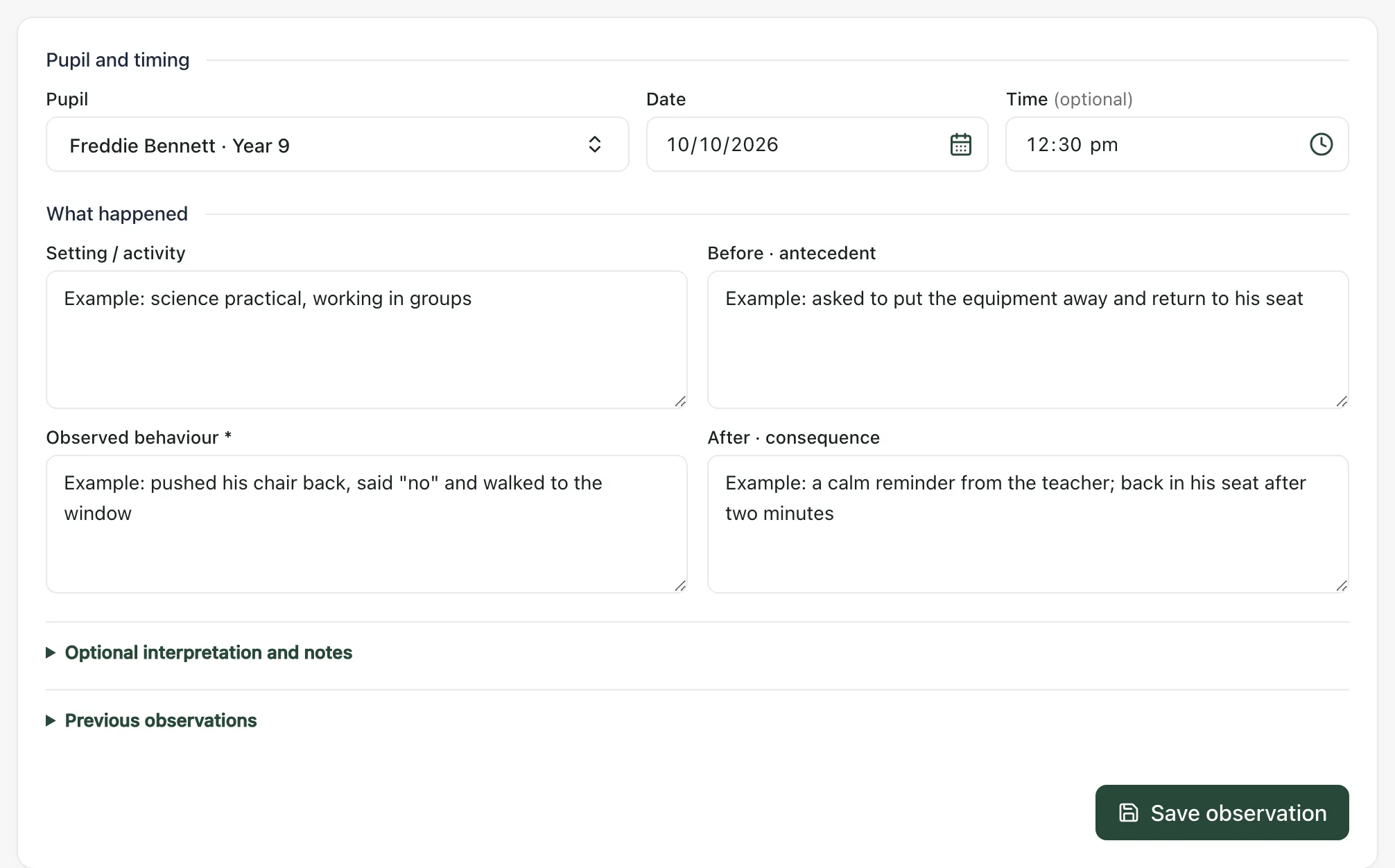
Under What happened, fill in the four boxes:
- Setting / activity: where the pupil was and what was happening.
- Before · antecedent: what happened immediately before the behaviour.
- Observed behaviour: what you saw or heard. This is the only box you must fill in. It’s marked with an asterisk.
- After · consequence: what happened afterwards, including how adults responded.
-
If you want to, click Optional interpretation and notes to add a Possible function (your working idea about why the behaviour happened) and any Additional notes.
-
Click Save observation. You’ll see “ABC observation saved”, and the observation is added to the pupil’s history in the register.
Tip: Write down what you saw and heard, not what you think it meant. For example, write that the pupil pushed his chair back and walked to the window, rather than that he was defiant. Keep your thoughts about the reason for Possible function, so the two stay separate.
Once you’ve chosen a pupil, click Previous observations at the bottom of the form to see their latest 10 observations while you write.
To stop without saving, click Cancel. If you’ve typed anything, Student Radar checks first: “Discard this observation? Your unsaved changes will be lost.”
Look back at a pupil’s observations
Section titled “Look back at a pupil’s observations”Click History on the pupil’s row. The observations are listed down the left, newest first. Click one to see its setting, antecedent, behaviour and consequence, who recorded it and when. Click Interpretation and notes to see the possible function and notes, if any were added.
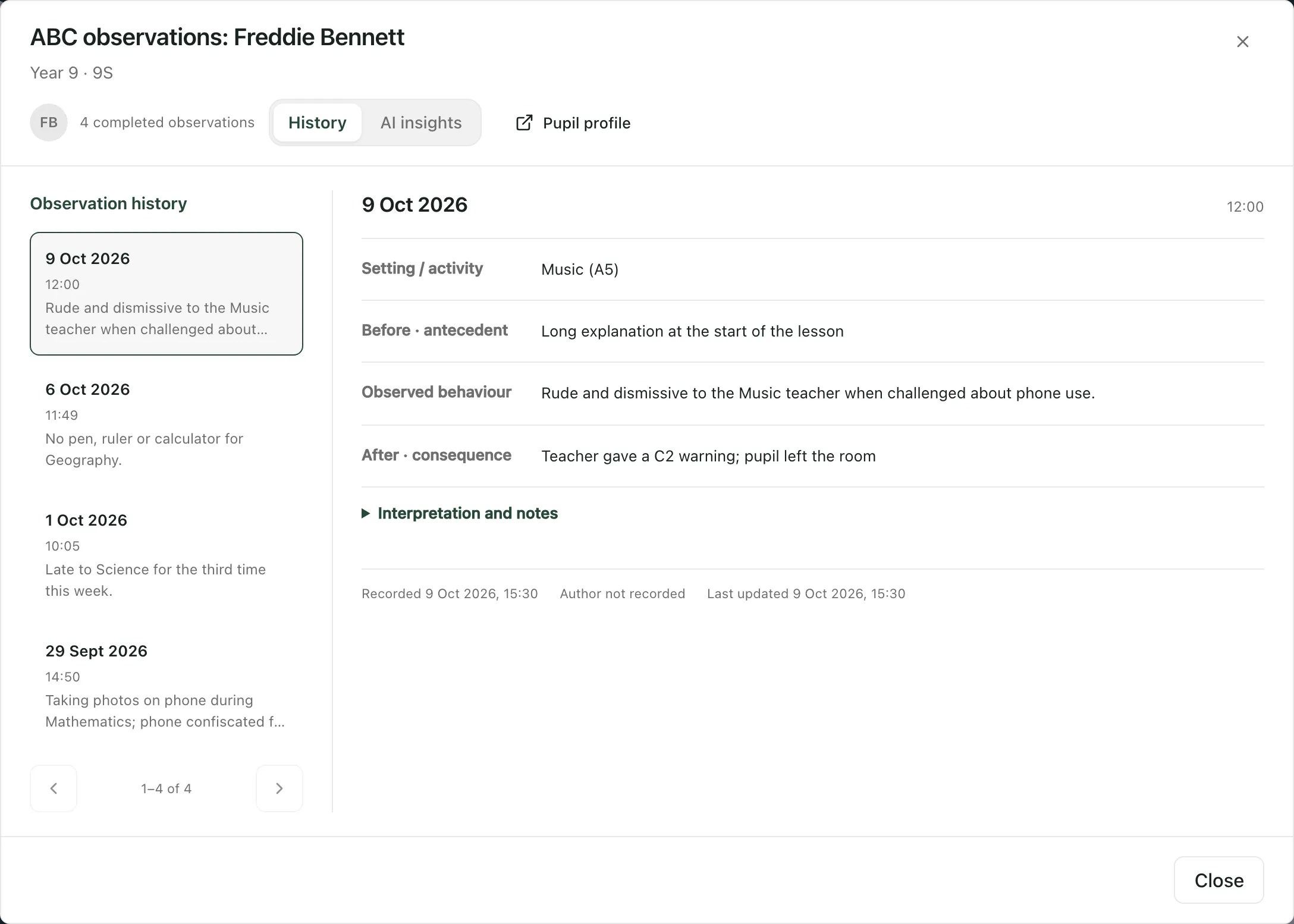
Click Pupil profile to open the pupil’s profile at their Behaviour section. You can also click the pupil’s name in the register.
To narrow the register, search for a pupil, or use the filters for year group, class, pupil group (SEND, EHCP or EAL) and date range (Last 7 days, Last 30 days or Last 90 days). Click Clear filters to see everyone again.
AI insights
Section titled “AI insights”Click Insights on a pupil’s row, or the AI insights tab in their history, to see a summary of patterns across their recorded observations. If nothing has been generated yet, click Generate analysis. It uses up to 25 of the pupil’s most recent observations.
The summary suggests possible triggers, possible functions, strategies to consider and questions to explore, and lists its limitations. It’s there to help you think, alongside what you and your colleagues know about the pupil. It isn’t a diagnosis or a decision, and nothing happens automatically because of it. If the pupil’s observations have changed since the summary was made, click Generate updated analysis before relying on it.
- Can’t see New observation: your account can look at the register but can’t record observations. Ask your school’s Student Radar administrator if you need to.
- Alternative provision: in alternative provision settings, the register shows the last 30 days to start with, and each pupil’s row has its own Record observation button. Staff who can record observations can open Review & edit to change one.
If something doesn’t work
Section titled “If something doesn’t work”| What you see | What to do |
|---|---|
| “Describe the behaviour” | Fill in Observed behaviour, then save again. |
| “Choose an accessible pupil before saving.” | Choose the pupil again from Search for a pupil…. If they don’t appear, ask your administrator to check access. |
| “Enter a valid date” | Check the Date box, then save again. |
| “Could not save the ABC observation.” | Nothing was saved, and what you typed is still in the form. Wait a moment, then click Save observation again. |
| “Observations could not be loaded” | Click Try again. Until the register loads, it doesn’t mean there are no observations. |
| “No observations match these filters” | Click Clear filters, or try a different date range. |
| “You can review observations, but do not have access to record a new one.” | Your account can’t record observations. Ask your school’s Student Radar administrator. |