Read behaviour trends and hotspots
Written for: Behaviour and pastoral leads, senior leaders and other staff who review behaviour.
Behaviour Analytics gives you a school-wide view of recorded behaviour: how incidents are changing week by week, where and when they happen, how different groups of pupils compare, and which pupils have several recent incidents. Use it to spot patterns worth looking into, then check the context before you decide what to do.
Open Behaviour Analytics
Section titled “Open Behaviour Analytics”In the sidebar, open Behaviour, then Insights, and choose Analytics.
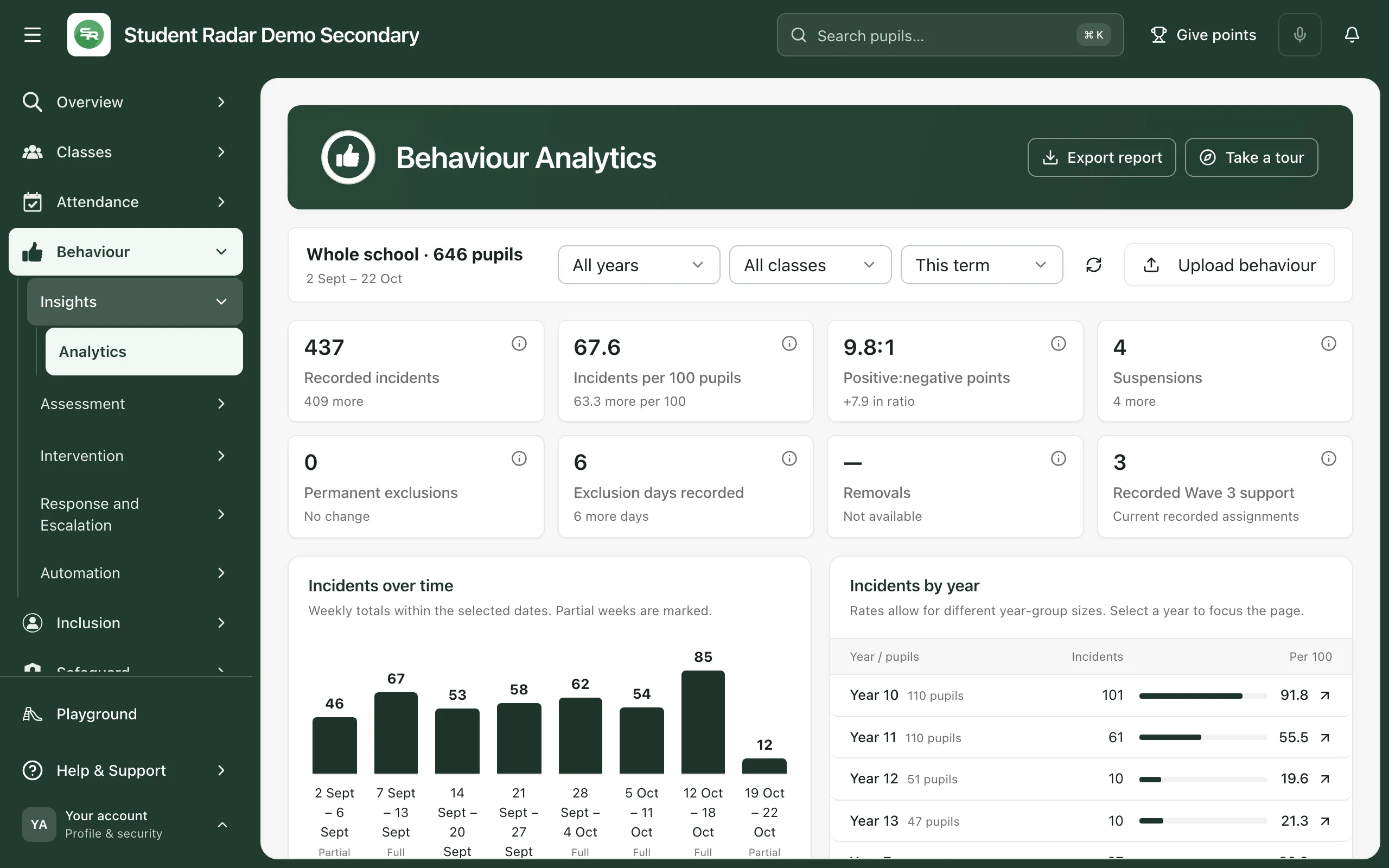
Choose who and when
Section titled “Choose who and when”The bar at the top shows who you’re looking at and the dates covered, for example the whole school and its number of pupils. Change it with the three filters:
- All years: choose one year group.
- All classes: choose one registration class.
- The reporting period: 7 days, 28 days or This term (from the start of the current term to today).
Every part of the page updates to match. Click Clear filters to go back to the whole school. The circular arrows button reloads the figures.
Read the headline figures
Section titled “Read the headline figures”The cards across the top give a quick health check for the pupils and dates you’ve chosen: recorded incidents, incidents per 100 pupils, the balance of positive to negative points, suspensions, permanent exclusions, exclusion days recorded, removals and pupils with recorded Wave 3 support.
Under each figure is the change from the period just before, which is the same length. The dates used for the comparison are at the bottom of the page. Click the information button (ⓘ) on a card to see what the figure counts.
A dash means the figure isn’t available, for example because a reliable summary isn’t connected yet. It doesn’t mean zero.
See how behaviour is changing
Section titled “See how behaviour is changing”Incidents over time shows the number of recorded incidents each week. Weeks that are only partly inside your dates are marked Partial week, so a low last bar doesn’t always mean things are improving.
Incidents by year compares year groups. Per 100 allows for different year-group sizes, so use it rather than the raw count to compare years. Click a year to focus the whole page on it.
These are recorded incidents only. If staff start recording more (or less), or recording changes in one area, the pattern changes too. Look at the trend alongside what you know about recording before you decide on any follow-up.
Find the hotspots
Section titled “Find the hotspots”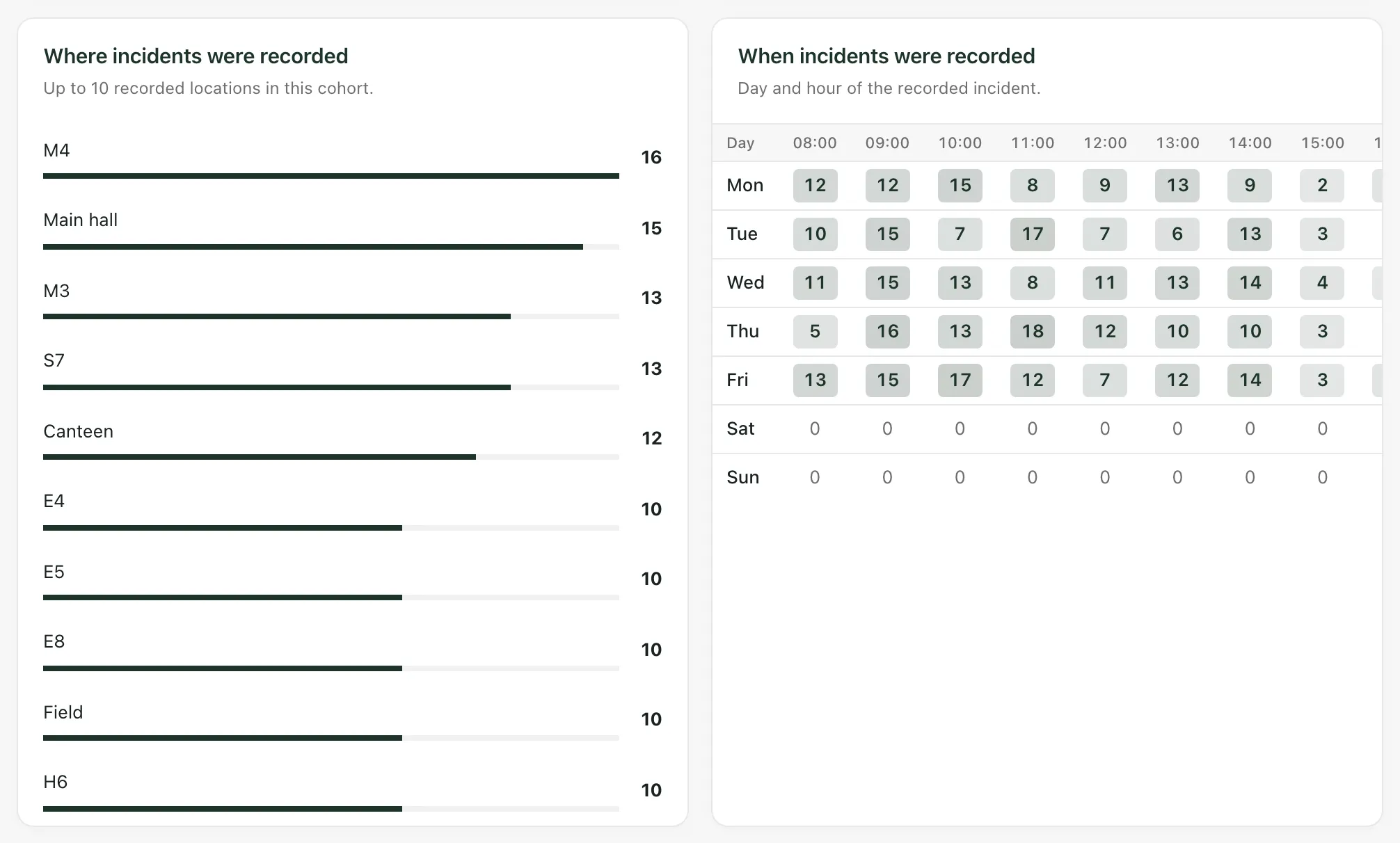
- Where incidents were recorded lists the 10 locations with the most incidents.
- When incidents were recorded shows a grid of days against hours. Darker cells have more incidents. Scroll the grid sideways to see later hours.
Use them to point you at practical changes, such as duty positions, busy corridors or particular times of day. Notes under each panel say how many incidents had no location or no usable time, so you know what’s missing from the picture.
Compare groups of pupils
Section titled “Compare groups of pupils”Incidents across pupil groups compares the incident rate for groups such as gender, Pupil Premium and SEND provision. Each row shows the number of pupils, their incidents, the rate per 100 pupils and the Difference per 100 compared with the rate for everyone you’re looking at.
Groups overlap, so don’t add the rows together. Small groups are left out to protect pupils’ privacy. A difference is a prompt to look more closely at fairness and practice. It doesn’t show a cause, and it isn’t a measure of any child’s needs.
Review the pupils with several incidents
Section titled “Review the pupils with several incidents”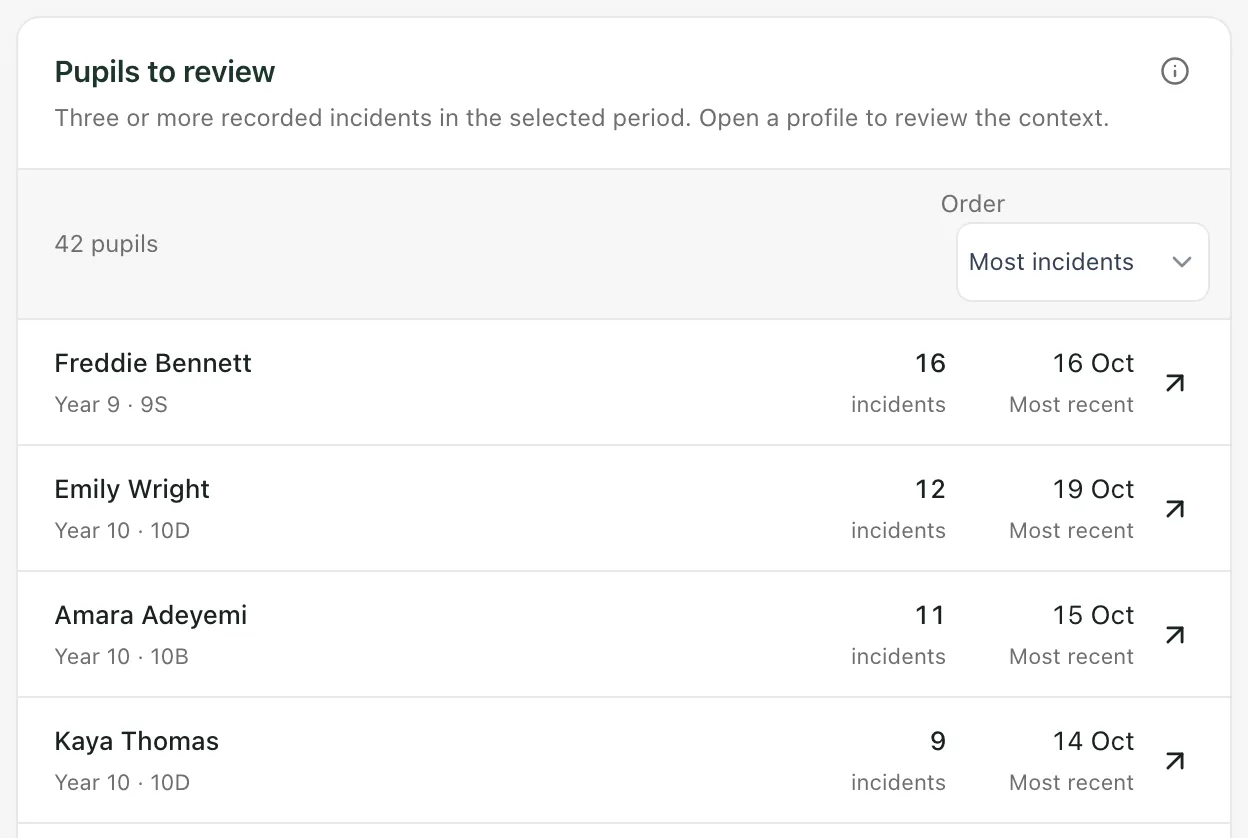
Pupils to review lists pupils with three or more recorded incidents in your dates, up to 50 at a time. Use Order to sort by Most incidents or Most recent.
Click a pupil to open their profile at the Behaviour section. Read the context, such as what happened, what support is already in place and anything else you know, before you decide whether follow-up is needed.
The list is a review threshold, not a risk assessment. Being on it doesn’t mean a pupil needs a sanction or an intervention. That’s a decision for staff.
Beside the list, Recorded support shows how many pupils have each behaviour support wave recorded. Not recorded means no wave has been recorded. It isn’t treated as Wave 1, and support levels aren’t risk labels.
Export a report
Section titled “Export a report”- Click Export report at the top of the page.
- Under Include in the report, tick the parts you want: Key indicators, Exclusions & suspensions, Pupil group comparisons, Recorded locations and Recorded support.
- Click Download CSV or Download PDF.
The report covers the same pupils and dates as the page. Named pupil records are left out. Check the context before you share it.
Take the built-in tour
Section titled “Take the built-in tour”Click Take a tour at the top of the page. It walks you through each part of the analytics, one step at a time.
- Your access: some staff see the figures without named pupils or locations. In that case Pupils to review says “Named pupil records are not included in your access.” and the locations panel says “Location detail is not included in your access.” Suspension and exclusion figures need access to exclusions.
- Small groups: if you choose a year or class with very few pupils, you’ll see “This cohort is too small to display” to protect pupils’ privacy. Click Clear filters.
- Imported data: if your school imports behaviour summaries from another system, they appear under Imported behaviour summaries at the bottom of the page. See Import behaviour data.
- This term: This term needs your school’s term dates in the calendar. Without them, you’ll see “No current term is configured”. Click Show last 7 days, or choose 28 days.
If something doesn’t work
Section titled “If something doesn’t work”| What you see | What to do |
|---|---|
| “Behaviour analytics could not be loaded” | Click Try again. The reason is shown under the message. |
| “You do not have access to behaviour analytics for this school.” | Ask your school’s Student Radar administrator to check your access. |
| “Please wait a moment before refreshing again.” | Wait a minute, then click Try again. |
| “These filters are not available. Clear the filters and try again.” | Click Clear filters, then choose the year or class again. |
| “This year or class is no longer available” | The year or class has changed since you chose it. Click Clear filters. |
| “No current term is configured” | Click Show last 7 days, or ask whoever manages your school calendar to add the term dates. |
| “No pupils meet this review threshold.” | No pupil has three or more recorded incidents in your dates. Try a longer period, such as This term. |
| “Could not download the report” | Click Download CSV or Download PDF again. If it keeps happening, refresh the page and try once more. |