Prepare and sign off a review pack
Written for: Alternative provision staff who report to commissioning schools, and the leaders who sign off.
A review pack is the report you give a commissioning school about a pupil’s placement for a period, such as a month or a placement review. Student Radar fills in the figures from your records (attendance, check-ins, progress records and evidence) and shows any gaps. You write the summary and next steps, and a leader signs the pack off before it’s shared.
Open Placement Reports
Section titled “Open Placement Reports”In the sidebar, open Commissioning Schools and choose Placement Reports.
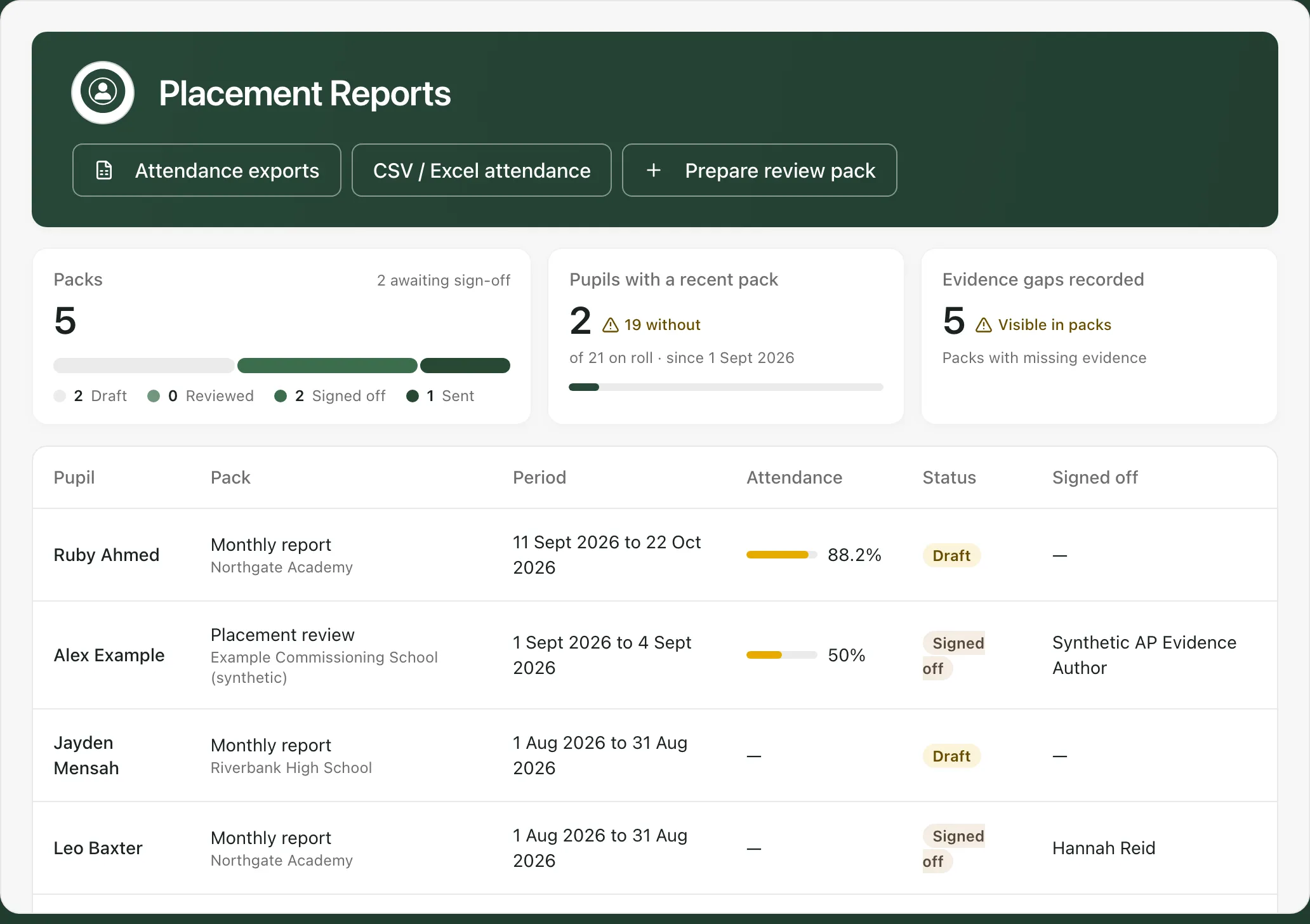
- Packs counts your packs by status: Draft, Reviewed, Signed off and Sent, and how many are awaiting sign-off.
- The next card counts the pupils on roll with a pack since the start of last month, and how many are without one.
- Evidence gaps recorded counts the packs with missing evidence. The gaps stay visible in the packs.
The table lists each pack with its pupil, kind, commissioning school, period, attendance, status and who signed it off. Click a pack to open it.
Prepare a pack
Section titled “Prepare a pack”- Click Prepare review pack.
- Choose the pupil and, if they’ve had more than one, the Placement. Leave it on All placements in period to cover them all.
- Choose the Kind: Weekly report, Monthly report, Termly report, Placement review or Final report.
- Check the From and To dates. The period starts as the last six weeks.
- Click Prepare pack.
You’ll see “Review pack prepared from the records”, and the new pack opens.
Read the evidence
Section titled “Read the evidence”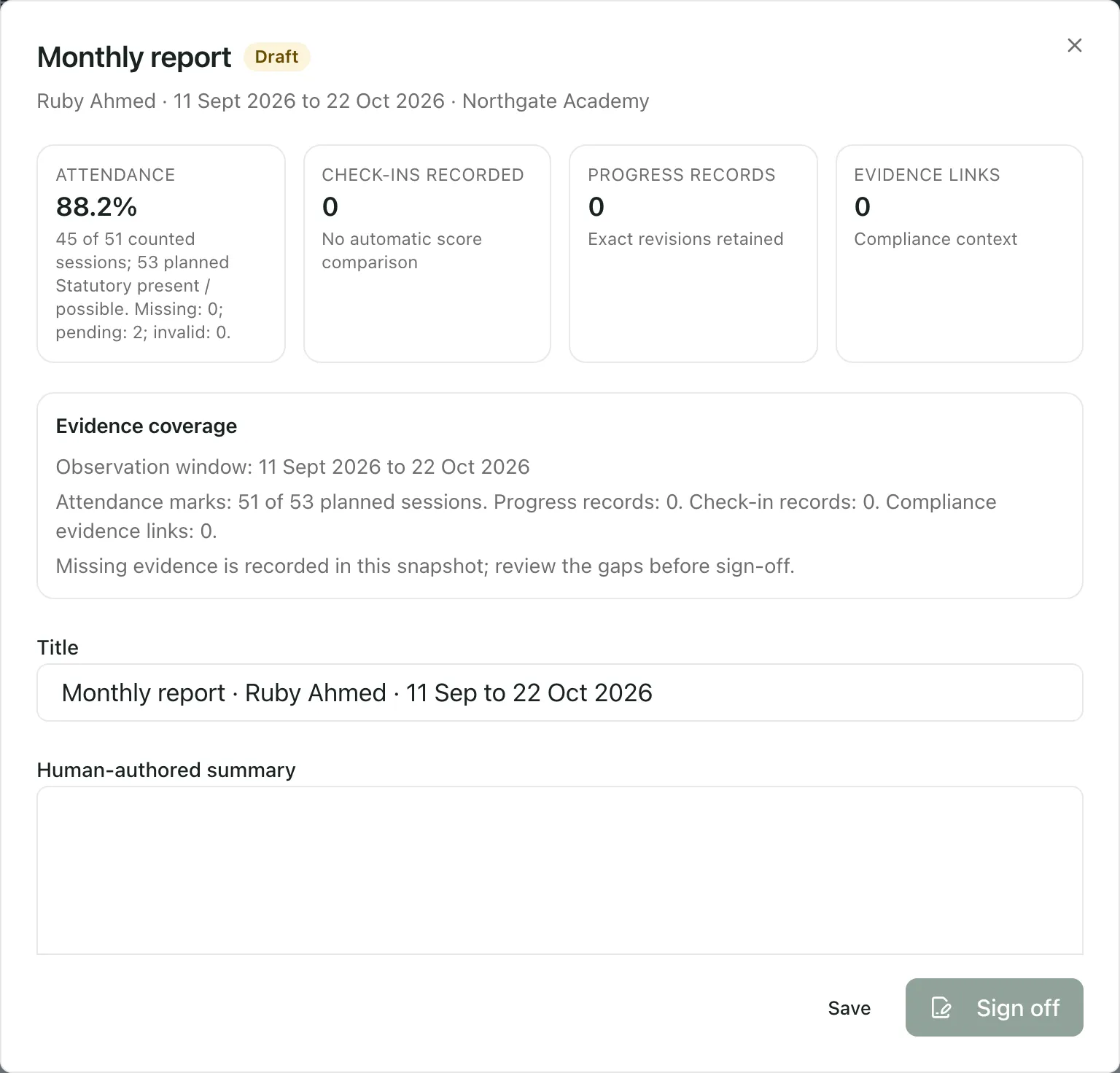
The tiles at the top show attendance for the period and how many check-ins, progress records and evidence links the pack draws on. Evidence coverage says how much of the period is covered, and whether any evidence is missing. The pack records exactly which versions of your records it used, so later changes don’t alter it.
The figures describe what’s recorded. They don’t judge the placement or compare scores, so read them alongside what you know about the pupil.
Write the summary
Section titled “Write the summary”- Check the Title.
- In Human-authored summary, describe how the placement is going.
- In Next steps, say what happens next.
- Click Save.
You’ll see “Report saved as reviewed”, and the pack’s status changes to Reviewed.
Sign off the pack
Section titled “Sign off the pack”Signing off is for AP leaders. If you can sign off, a Leader sign-off statement box appears below Next steps.
- Read the pack, including the evidence gaps.
- In Leader sign-off statement, record your review and decision in at least 20 characters.
- Click Sign off.
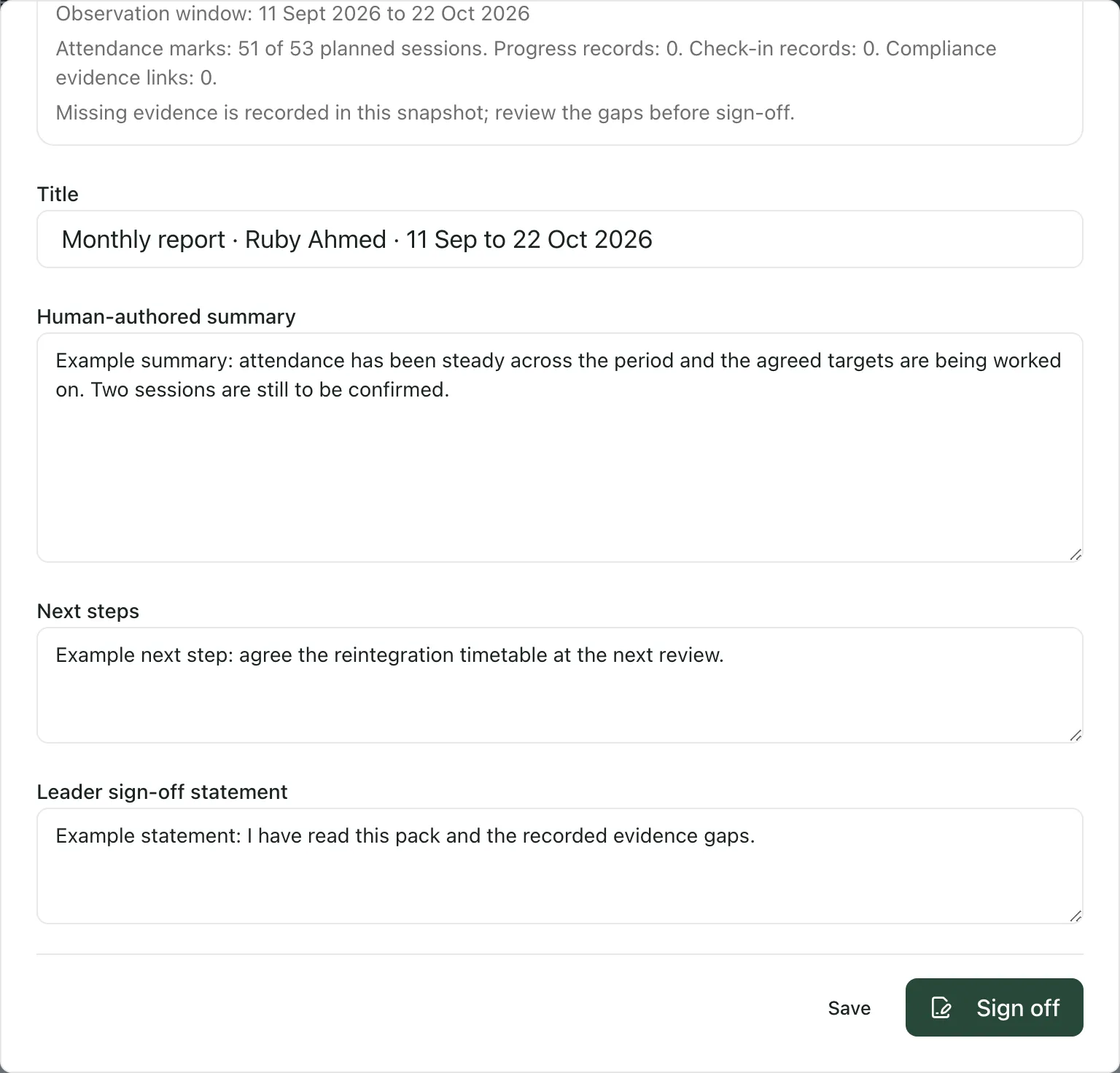
You’ll see “Report signed off”. Any unsaved changes to the summary are saved first. A signed-off pack can’t be edited.
Share or download the pack
Section titled “Share or download the pack”- Share with the commissioning school: publish a summary of the signed pack to a named person at the school. See Record a placement and share updates with the commissioning school.
- Download: if you can export reports, use Download CSV or Download themed PDF in the pack. Downloading is for your own authorised use. It doesn’t publish the pack to a school.
For statutory attendance evidence, click Attendance exports. See Export statutory attendance evidence.
- Who can do what: viewing packs, preparing and editing them, and signing them off are separate permissions. Leaders, and staff assigned to the pupil, can usually prepare a pack. Only leaders can sign one off.
- Sent packs: packs marked as sent before sharing moved to Communication and access keep their Sent status.
- Wording: your setting profile decides some words on this page, such as what you call your pupils.
- Long lists: the page shows your latest 50 packs. Older versions are kept in the evidence ledger.
If something doesn’t work
Section titled “If something doesn’t work”| What you see | What to do |
|---|---|
| “You do not have permission to view provision reports.” | Ask your Student Radar administrator for access to reports. |
| Prepare review pack isn’t shown | Your account can’t prepare packs. Ask an AP leader. |
| “Learner history could not be loaded.” | Close the window and open it again. Until it loads, Prepare pack is greyed out. |
| “Could not prepare the review pack” | Check the dates and try again. The message underneath says what went wrong. |
| Sign off is greyed out | Write at least 20 characters in Leader sign-off statement. |
| “Could not sign off” | The message underneath says why. If the pack changed, close it, open it again and sign off again. |
| “This legacy report has no immutable evidence snapshot. It cannot be newly signed off.” | This is an older pack. Prepare a new pack for the same period instead. |
| “Save your changes before exporting.” | Click Save, then download the pack. |