Set placement rates and raise invoices
Written for: Alternative provision leaders, office and finance staff who invoice for placements.
Billing turns your placements into invoices. You set a rate for each placement, saying who pays and how it’s charged. Then, for each period, you generate draft invoices, check them, send them to the funders yourself and record when they’re paid.
Before you start
Section titled “Before you start”Billing is for leaders, office and finance staff. Seeing billing, changing it and exporting invoices are separate permissions, so you may be able to do some of these and not others. If you can only see billing, the buttons that change it aren’t shown.
Before your first invoices, check your invoice details:
- Click Invoice settings at the top of the page.
- Check the Invoice prefix, Next number, Payment terms (days), VAT rate (%) and VAT number (if registered).
- Add your bank details, Payment reference note, Address (one line per row), Contact email and any Standard note on invoices. These are printed on every invoice.
- Click Save settings.
If you can only view the settings, the button is View invoice settings.
Open Billing
Section titled “Open Billing”In the sidebar, open Commissioning Schools and choose Billing. The banner shows what’s Outstanding, how many invoices are Overdue, how many are Drafts, and what’s been Paid this year.
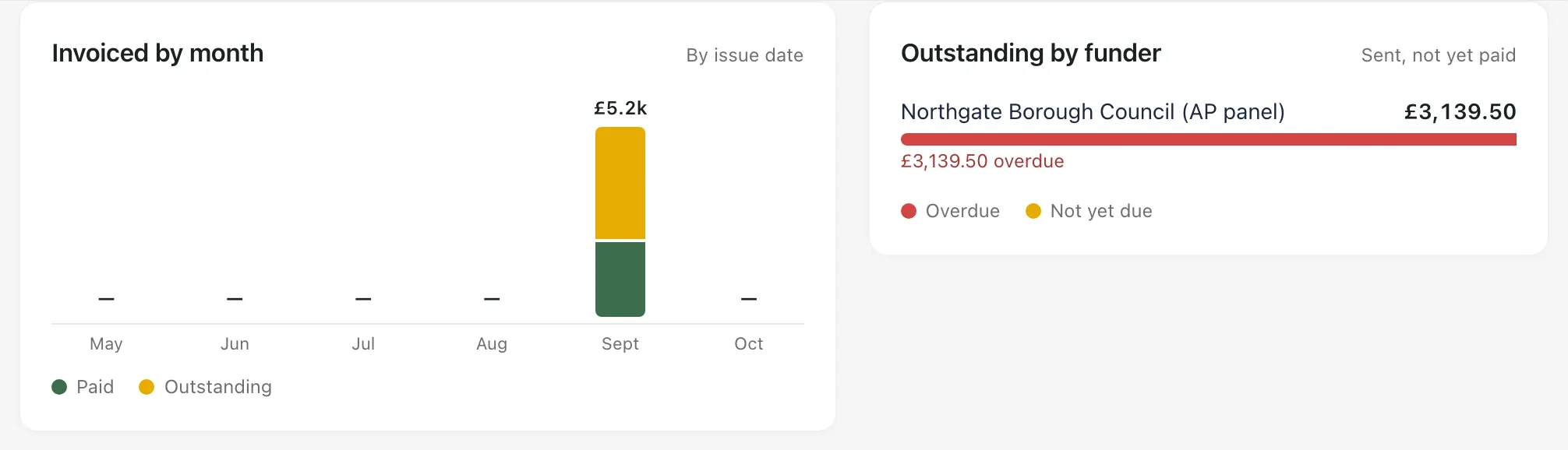
- Invoiced by month shows what you’ve invoiced each month, by issue date, split into paid and outstanding.
- Outstanding by funder shows who owes what on invoices you’ve sent, and how much of it is overdue.
Below the charts, a summary compares revenue, costs and budget for the billing period.
Set a rate for each placement
Section titled “Set a rate for each placement”- Click Rates per placement. Placements without a rate say No rate set, and the tab counts how many are unpriced.
- Click the pupil’s name.
- Enter the Funder (who pays), and the Funder email and Purchase order or reference if you have them.
- Enter the Rate per hour (£).
- Choose a Charge mode:
- Attended hours only: bill the sessions the pupil attended (present, late or an approved activity code).
- All scheduled hours: bill every weekday session in the period, whether or not the pupil attended.
- Click Save rate.
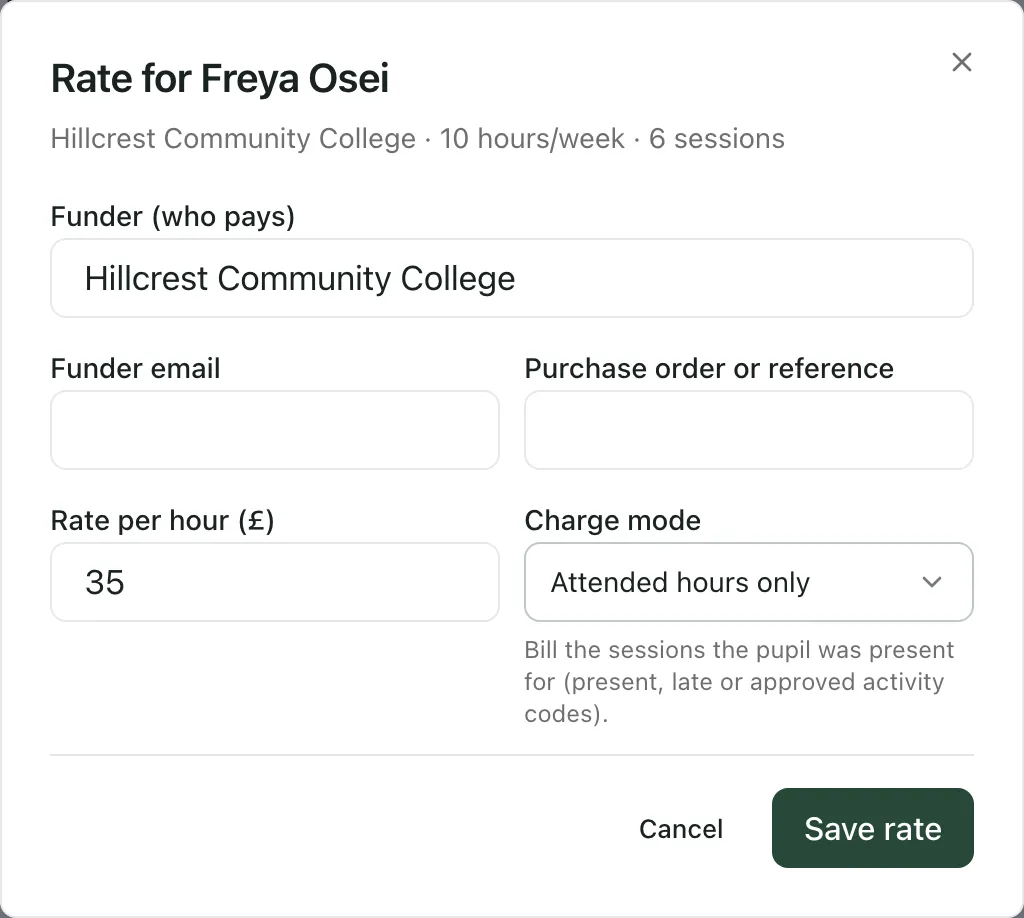
You’ll see “Rate saved”. Placements only appear on invoices once they have a rate.
Generate invoices
Section titled “Generate invoices”- At the top of the page, set the billing period with Period from and to. It starts as last month.
- Click Generate invoices.
Student Radar creates draft invoices for the period from your rates and, for attended-hours placements, from your registers. You’ll see how many draft invoices were created. If you see “Nothing new to invoice”, every funder already has an invoice for the period, or no placement has a rate.
Take your registers for the period before you generate invoices, so that attended hours are complete.
Check, send and record payment
Section titled “Check, send and record payment”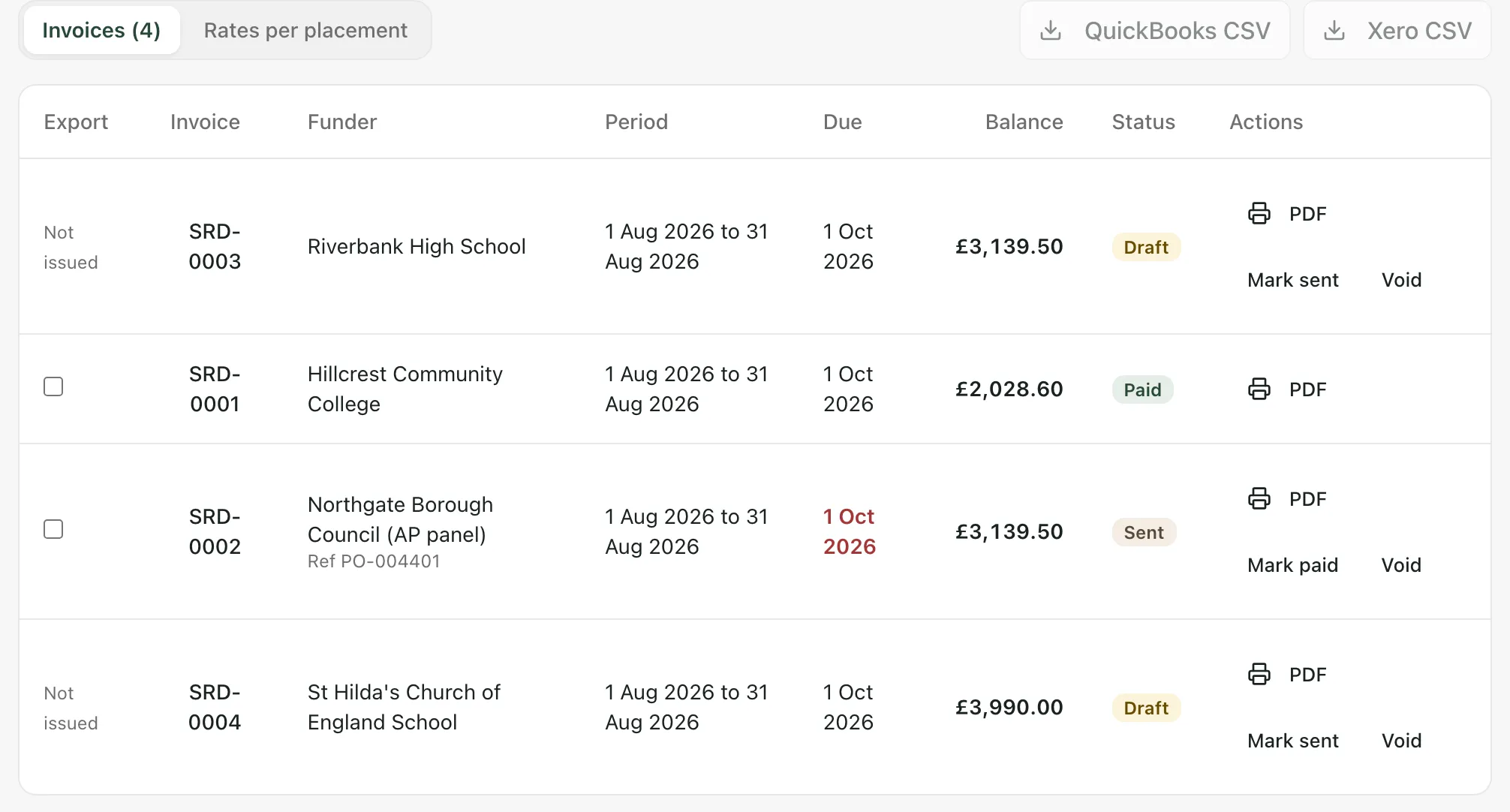
- Click an invoice number to check its lines: each placement’s sessions, hours, rate and amount.
- Click PDF to download the invoice, then send it to the funder in the usual way. Student Radar doesn’t email invoices for you.
- Click Mark sent. The invoice now counts towards Outstanding. Once its due date has passed, the date shows in red and the invoice counts as overdue.
- When the funder pays, click Mark paid.
To cancel an invoice that’s wrong, click Void. You can’t void a paid invoice.
Add a credit note
Section titled “Add a credit note”To reduce what’s owed on an invoice you’ve already sent:
- Click the invoice number.
- Click Add credit note.
- Enter the Credit amount including VAT (£) and a Reason.
- Click Record credit note.
The invoice shows the credit under Credit and adjustment revisions, with its Balance after revisions.
Export to your accounts package
Section titled “Export to your accounts package”- On the Invoices tab, tick the invoices to export in the Export column. Only sent and paid invoices can be exported. Drafts say Not issued.
- Click QuickBooks CSV or Xero CSV.
- Placements from referrals: confirming a placement from a referral doesn’t create an invoice. Set its rate here, then include it in your next billing period.
- Wording: your setting profile decides some words on this page, such as what you call your pupils and the schools that place them.
If something doesn’t work
Section titled “If something doesn’t work”| What you see | What to do |
|---|---|
| “You do not have permission to view billing data.” | Ask your Student Radar administrator for access to billing. |
| “Billing access could not be verified. No finance data has been loaded.” | Refresh the page. If it keeps happening, ask your administrator. |
| “No invoices yet. Set a rate on each placement, then generate invoices for a period.” | Set rates on Rates per placement, then click Generate invoices. |
| “Nothing new to invoice” | Check that the placements have rates, and that you haven’t already invoiced this period. |
| “Could not generate invoices” | Check the billing period and try again. The message underneath says what went wrong. |
| “Complete billing records could not be loaded. Balances are unavailable.” | Click Retry billing records. Until they load, don’t rely on the balances. |
| “Placement rates could not be loaded.” | Click Retry placement rates. |
| QuickBooks CSV and Xero CSV are greyed out | Tick at least one sent or paid invoice in the Export column. |
| “Invoice PDF could not be prepared” | Try again in a moment. The message underneath says what went wrong. |