Assign an intervention from the EHCP
Written for: SENCos and inclusion leads.
When a pupil with an EHCP has no provision recorded yet, you can assign it from the SEND Hub. Student Radar suggests provision from the pupil’s EHCP, you choose which suggestions to assign, and each one is added to the pupil’s provision and the Intervention Planner. You can also add an intervention of your own.
Before you start
Section titled “Before you start”The pupil’s EHCP needs to be uploaded and prepared, with its sections checked. See Upload a pupil’s EHCP.
Open the Assign intervention window
Section titled “Open the Assign intervention window”- In the sidebar, open Inclusion, then SEND, and choose SEND Hub.
- On the Caseload tab, choose EHCP from All cohorts, then click Open story on the pupil’s row.
- Under Records needing attention, next to Provision map, click Assign provision.
Assign provision only appears when no provision is linked to the pupil. To add provision for a pupil who already has some, use the Provision Map.
Assign provision suggested by the EHCP
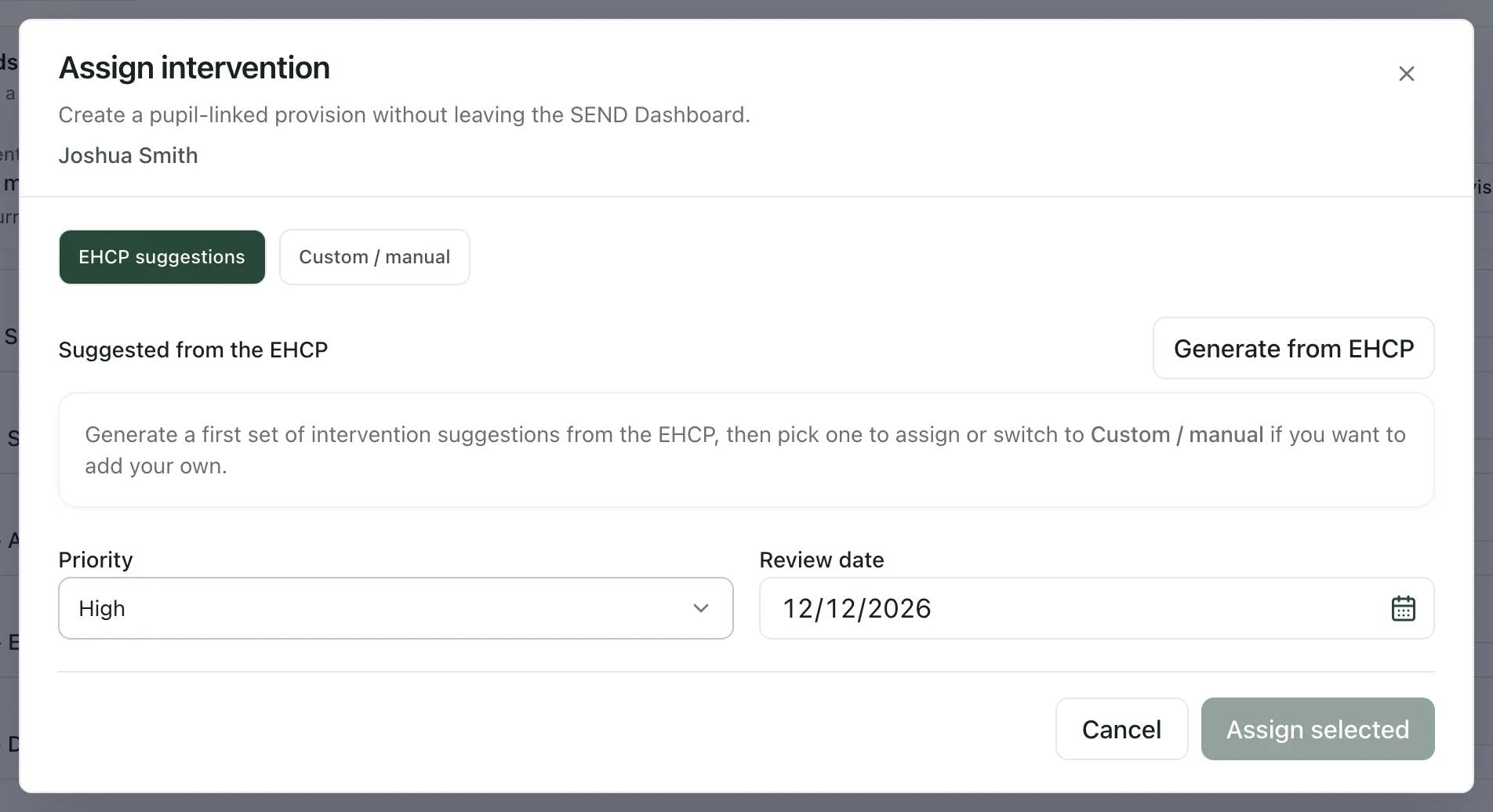
Section titled “Assign provision suggested by the EHCP”The Assign intervention window opens on EHCP suggestions.
-
Click Generate from EHCP.
If your school has checked and confirmed the EHCP’s Section F provision in Student Radar, the suggestions use those confirmed lines. Otherwise, AI reads the EHCP’s sections and suggests the provision they describe.
-
Read each suggestion. It shows:
- its name, and whether it’s an intervention or a resource
- whether it’s 1:1, small group or other EHCP provision
- the hours each week, or Hours not specified
- a summary, staffing and timing where the EHCP gives them
- the EHCP sections it came from, after Source
-
Tick each suggestion you want to assign. Select all ticks them all, and Clear selection or Clear all unticks them.
-
If a ticked intervention has no hours in the EHCP, enter the planned Hours / week. It can’t be assigned without them.
-
Choose a Priority (Low, Medium, High or Urgent) and a Review date. These apply to everything you’ve ticked.
-
Click Assign selected.
You’ll see “Provisions assigned”. The provisions are added to the pupil’s record, appear on the Provision Map and get an entry in the Intervention Planner, ready for sessions to be planned and recorded.
Lines in the EHCP that describe everyday strategies rather than provision aren’t offered as suggestions. A note in the window tells you how many were left out.
The suggestions are a starting point, not a decision. Compare each one with the EHCP before you assign it, and only assign what you’ve agreed to put in place.
Add your own intervention
Section titled “Add your own intervention”If the suggestions don’t cover what you need, or none could be found:
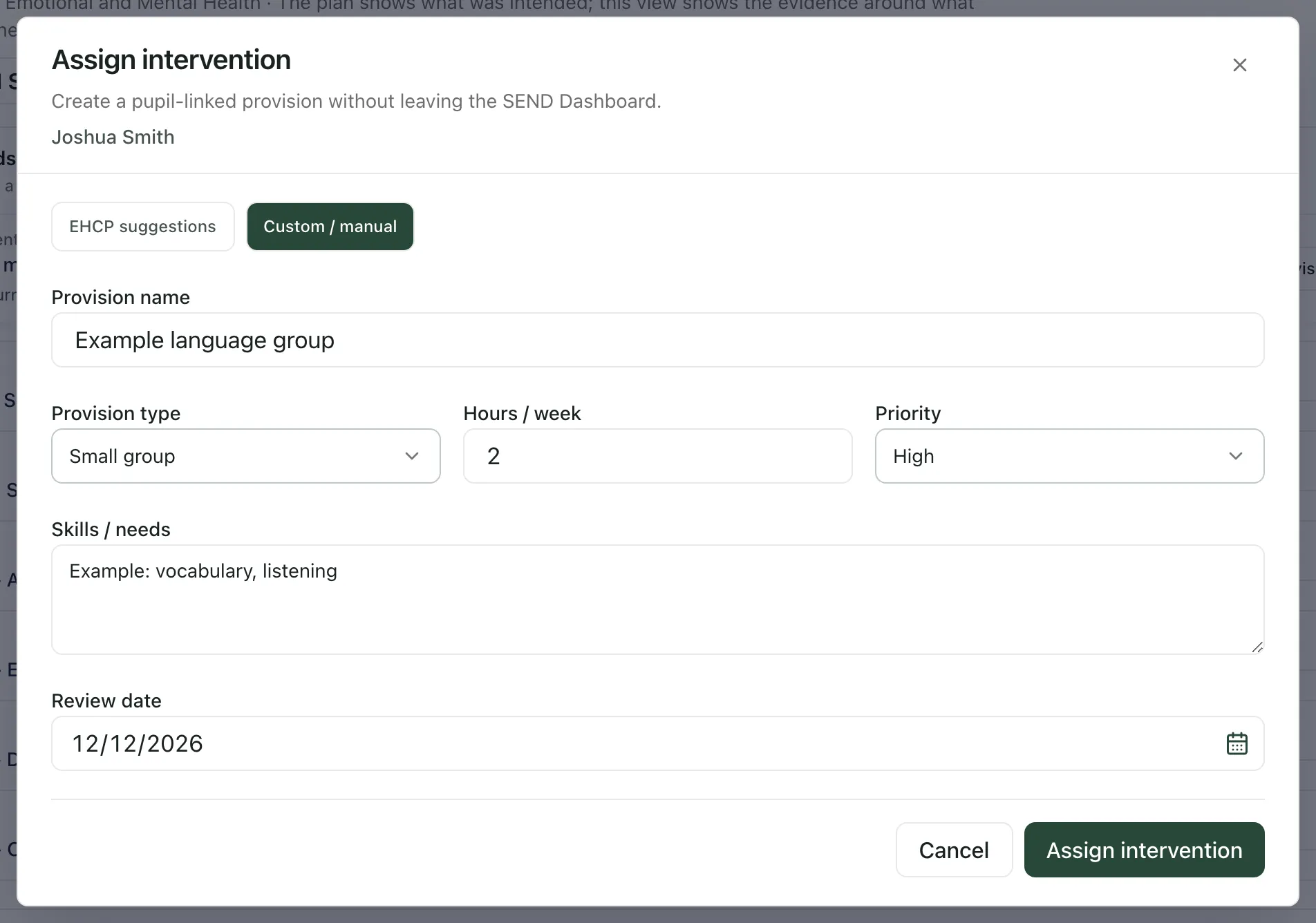
- Click Custom / manual.
- Enter the Provision name.
- Choose the Provision type: EHCP provision, Small group or 1:1.
- Enter the Hours / week and choose a Priority.
- In Skills / needs, list the skills or needs it addresses, separated by commas.
- Choose a Review date.
- Click Assign intervention.
You’ll see “Intervention assigned”. The pupil now has the provision and a matching entry in the Intervention Planner.
After you assign
Section titled “After you assign”- The provision shows under Support received: intervention delivery in the pupil’s support story. Choose it as the Delivery focus when you review whether it’s working.
- Assigning provision doesn’t record that it happened. Record each session in the Intervention Planner. See Record an intervention session.
- England only: EHCPs are an England feature, so EHCP suggestions only apply to schools in England.
- What you can assign depends on your SEND permissions for the pupil.
If something doesn’t work
Section titled “If something doesn’t work”| What you see | What to do |
|---|---|
| Assign provision isn’t shown | The pupil already has provision linked. Use the Provision Map to add more. |
| “EHCP suggestions could not be loaded.” | Click Custom / manual and add the intervention yourself, or close the window and try again later. |
| “No assignable provision was found in the EHCP.” | Check the EHCP’s sections were saved, or click Custom / manual to add the intervention yourself. |
| “Add hours before assigning” | Enter the Hours / week for every ticked intervention that says Hours not specified. |
| Assign selected is greyed out | Tick at least one suggestion, and enter hours where they’re needed. |
| Assign intervention is greyed out | Enter a Provision name. |