Plan and record a monitoring activity
Written for: Teachers, subject leaders, senior leaders and governors who monitor teaching and learning.
Use Monitoring & QA to plan a monitoring activity, such as a learning walk, a lesson observation or a look at pupils’ work, and to record what you find. Each activity starts as a private draft that only you and your headteacher can see, so you can build it up as you go and share it when you’re ready.
Open Monitoring & QA
Section titled “Open Monitoring & QA”- In the sidebar, click Leadership, then Teaching & pupils, then Monitoring & QA.
- Check that Monitoring workspace is selected at the top of the page.
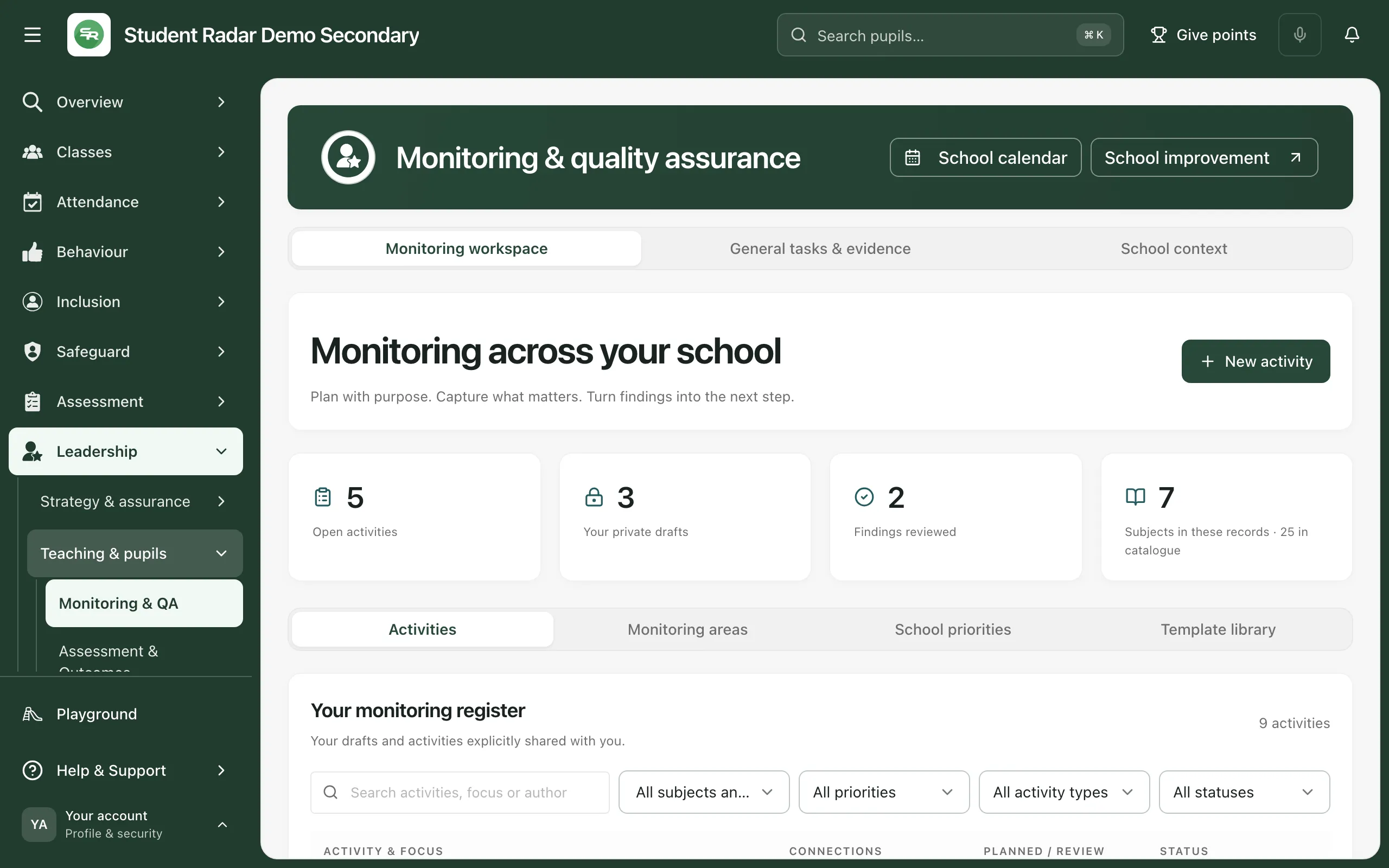
The counts along the top cover only the activities you can see: Open activities, Your private drafts, Findings reviewed and how many subjects your activities cover. Below them, Activities shows your monitoring register: your own drafts and the activities colleagues have shared with you.
Plan the activity
Section titled “Plan the activity”-
Click New activity.
To start from a different set of ready-made questions, click Template library instead, then click Use template on the template you want. The library has a starter template for each type of activity, and any templates colleagues have saved for your school.
-
On the Plan tab, give the activity an Activity title that colleagues will recognise.
-
Choose the Activity type:
Type Starter template Learning walk A focused learning walk Lesson observation A developmental lesson observation Work scrutiny Learning through pupils’ work Pupil voice Listening to pupils about learning Planning review Curriculum planning in context Assessment review Making sense of assessment Staff discussion Reflecting with colleagues -
Under Recording approach, choose Guided prompts and notes to answer the template’s questions, or Quick notes to record in a single notes box.
-
In What do you want to understand?, write the question your activity should help you answer.
-
Say what the activity covers:
- Subjects: leave Whole-school focus ticked, or tick the subjects you’re looking at.
- Monitoring areas: tick any whole-school areas your school monitors, such as SEND, Pupil Premium or EAL. This doesn’t pick out individual pupils.
- School priorities: tick the school improvement priorities this activity will help you understand.
-
Add the Activity date and the Review date, when you’ll come back to the findings. Leave the activity date empty if you’re still planning.
-
Under Classes or year groups and Sampling plan, say which classes, work or times you’ll sample, and who or what will be missing.
-
Click Save activity.
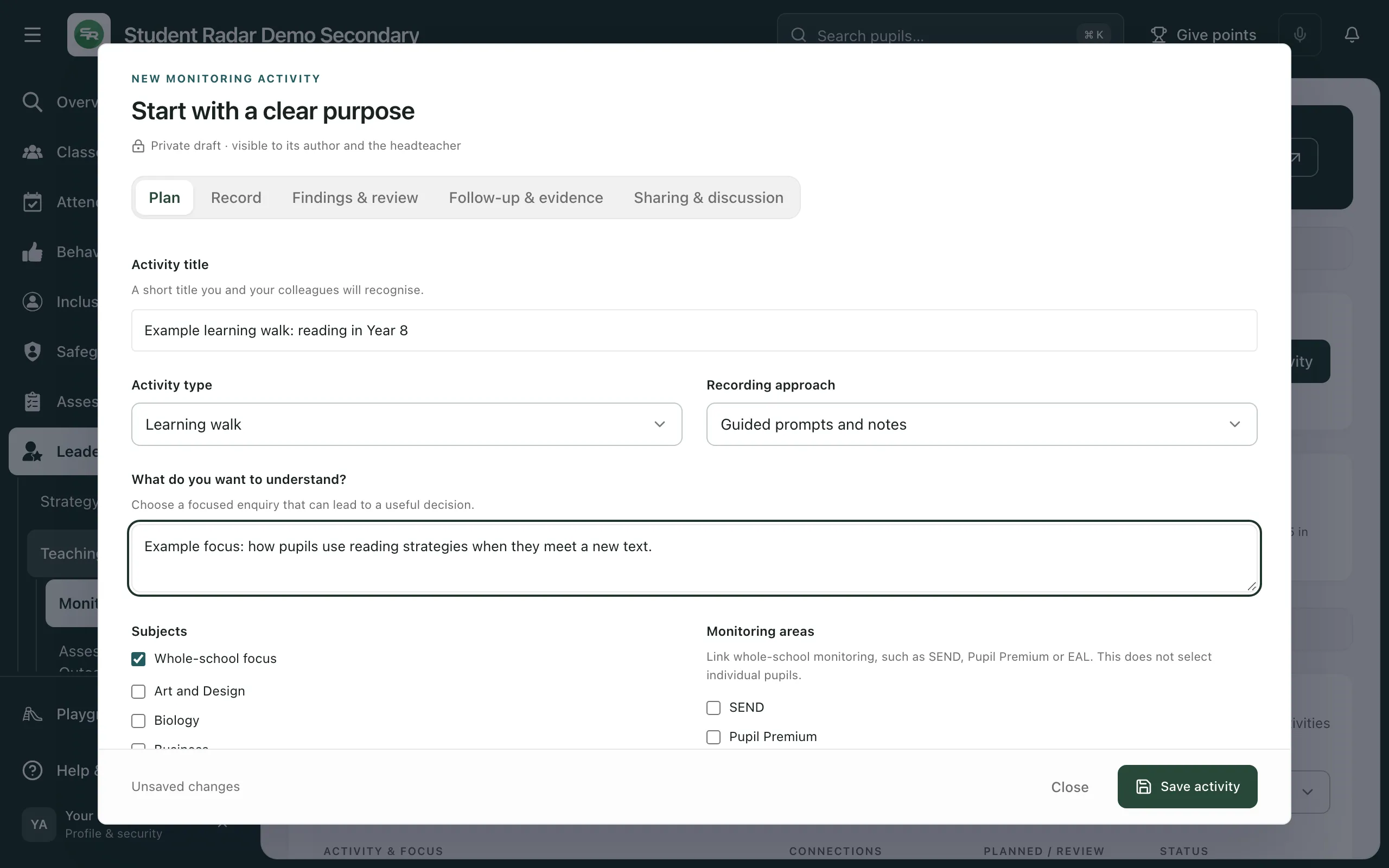
You only need a title and what the activity covers to save a draft, so you can add the rest later. When it’s saved, you’ll see “Activity saved.” and the bottom of the box shows Saved.
If you change the Activity type before you’ve recorded any answers, the questions change to match the new type. Once you’ve recorded answers, your questions and answers are kept.
Record what you find
Section titled “Record what you find”-
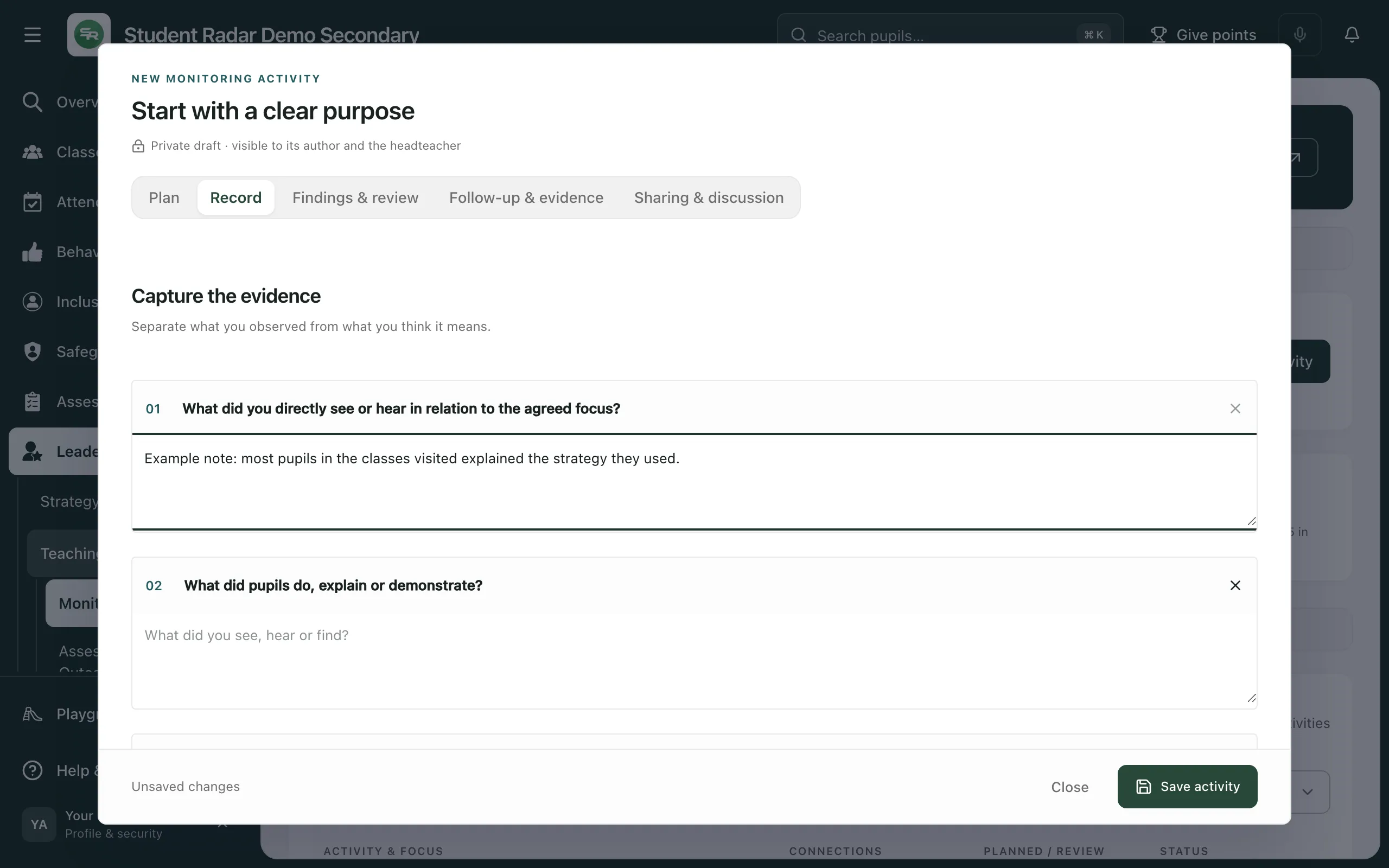
Open the activity and click the Record tab.
-
Under each numbered question, type what you saw, heard or found. Keep to what you observed here: you’ll say what you think it means on the Findings & review tab.
-
Change the questions if you need to:
- To reword a question, click it and type.
- To remove a question, click the cross beside it. You can’t remove a question that already has an answer.
- To add your own question, type it in the box below the questions and click Add prompt. An activity can have up to 20 questions.
-
Add anything else in Additional notes and evidence. Include the titles and dates of any sources, so your evidence can be traced.
-
Say how much your evidence covers:
- Sample / response count: how many lessons, books or pupils you looked at.
- Eligible group size: how many there were to choose from.
- Coverage, missing perspectives and limitations: what your evidence leaves unanswered.
Leave a count blank if you don’t know it.
-
Click Save activity.
Attach photos and documents
Section titled “Attach photos and documents”You can attach evidence to the whole activity, or to a single question:
- For the whole activity, go to Activity images and documents.
- For one question, open the Images and documents section for that question, below the questions.
Type a caption in Caption for new files if you want one, then use Add images or documents to choose the files. You can attach JPEG, PNG and WebP images, PDFs, Word, Excel and PowerPoint files, text files and CSV files, up to 15 MB each and 20 uploads for each activity.
The activity is saved before a file uploads. Attached files can be seen by the same people as the activity. To change a file’s caption, edit it and click Save caption. To take a file off, click Remove file.
Pupil voice activities
Section titled “Pupil voice activities”When the Activity type is Pupil voice, the Record tab also has:
- Response identity: choose Named responses or Anonymous responses. For anonymous responses, record themes only and keep out names and anything else that could identify a pupil.
- Question wording: choose Older pupils or Younger pupils / supported conversation. You can only change this before any answers are recorded.
- Print questions: prints the questions for pupils to answer on paper.
Find an activity later
Section titled “Find an activity later”Your activities are listed on the Activities tab. To narrow the list, type in Search activities, focus or author, or use the boxes beside it: All subjects and areas, All priorities, All activity types and All statuses.
Click an activity’s title to open it. The status column shows where each activity has got to:
| Status | What it means |
|---|---|
| Draft | Private: only its author and the headteacher can see it. |
| Shared | Shared with named colleagues. |
| Reviewed | The findings have been checked against the evidence and marked as reviewed. |
| Closed | Closed with its later review recorded. It can’t be changed. |
| Cancelled | Cancelled. The record is kept, but it can’t be changed. |
To review your findings, share the activity and give the findings somewhere to go, see Share monitoring findings and build an evidence pack.
- Who can see an activity: drafts can be seen only by their author and the headteacher. Colleagues see an activity only when it’s shared with them. Headteachers see everyone’s drafts, and their count reads Drafts you can oversee.
- Who can create activities: if New activity is greyed out, your account can’t create monitoring activities. Schools decide who can.
- Read-only record: if the bottom of an activity says Read-only record, you can look at it but not change it. This happens when it was shared with you to view or comment, or when it has been closed or cancelled.
- Look at your school’s data first: the School context tab links to attendance, assessment and behaviour reports, so you can choose a focus that’s worth following up.
- Longer enquiries in one subject or area: the Monitoring areas tab holds monitoring cycles, with set steps, sign-off and a review. Choose a subject or area and click New cycle.
- What the counts mean: they count the records you can access. A completed activity is a record of work done, not proof that something has improved.
If something doesn’t work
Section titled “If something doesn’t work”| What you see | What to do |
|---|---|
| “Monitoring is not available yet” | The page couldn’t load your activities. Click Try again. If it keeps happening, wait a minute and reload the page. |
| “Give this activity a title” | Add an Activity title, then save again. |
| “Choose a subject, monitoring area or whole-school focus” | On the Plan tab, tick Whole-school focus, a subject or a monitoring area. |
| “Review must be on or after the activity” | Change the Review date so it’s on or after the Activity date. |
| “Sample cannot exceed the eligible group” | Check Sample / response count and Eligible group size on the Record tab. |
| “Keep your recorded answers: remove individual questions after copying any text you need to retain.” | You tried to switch to Quick notes after recording answers. Copy any text you need, then remove the questions one at a time. |
| “This activity changed while you were working. Reload the saved activity before continuing. Your text is still here.” | Someone else saved the activity. Copy your text, close and reopen the activity, then add your changes again. |
| “You do not have permission for this monitoring action.” | Your account can’t make this change. Ask your school’s Student Radar administrator. |
| “Too many requests. Wait a minute before trying again.” | Wait a minute, then try again. |
| “Choose a JPEG, PNG, WebP, PDF, Office document, text or CSV file.” | That type of file can’t be attached. Save it in one of these formats and try again. |
| “Each file must be between 1 byte and 15 MB.” | The file is empty or too big. Make it smaller, for example by reducing a photo’s size, and try again. |
| “This activity has reached its 20-upload limit.” | Remove a file you don’t need before adding another. |
| “Upload failed. Your activity is saved; remove the incomplete file and try again.” | Click Remove file on the incomplete file, then upload it again. |
| “Keep your unsaved changes?” | You’re closing an activity with unsaved changes. Click Keep editing and save, or Discard edits to close without saving. |
| “No activities match these filters” | Click Clear filters. |
| “This activity is unavailable in your current access or loaded activities.” | The link was to an activity you can’t see. Ask its author to share it with you. |