Add a device to the asset register and issue it
Written for: School staff who look after devices, including IT technicians.
Asset Management is your school’s register of devices and equipment, such as laptops, iPads and cameras. Add each item once, then record who you lend it to, when it’s due back and what condition it was in. Every change is kept in the item’s history.
Add a device
Section titled “Add a device”- In the sidebar, open Administration and choose Asset Management.
- Click Add asset at the top of the page.
- Type the Asset name, for example Pupil loan Chromebook 30.
- If you like, fill in the Category (such as Laptop), Serial number and Tag (such as your school’s asset label).
- Leave Status as Available if the device is ready to lend. Choose Maintenance if it’s being repaired.
- Choose its Condition: Excellent, Good, Fair or Damaged.
- Add any Notes, then click Add asset at the bottom of the form.
“Asset added” confirms it. The device appears in the inventory.
Issue the device
Section titled “Issue the device”- Click Issue asset at the top of the page.
- Under Asset, choose the device. Only available devices can be chosen.
- Under Assign to, choose Staff, Student or Other.
- Under Name, choose the member of staff from the list, or type the person’s name.
- Check the Due date. It’s set a week ahead, so change it if the loan is longer, for example to the end of the school year.
- Record the Condition it’s in as you hand it over, and add any Notes (condition, handover, incidents), such as a scuff on the lid or a case included.
- Click Issue asset at the bottom of the form.
“Asset issued” confirms it. The device now shows as checked out, with the person’s name and due date.
When you lend a device to a pupil, Student Radar records the name you type. It isn’t linked to the pupil’s record, so the inventory shows “Recorded name only. A pupil identity link was not recorded; the name may be historical.” under their name.
Find a device and see its record
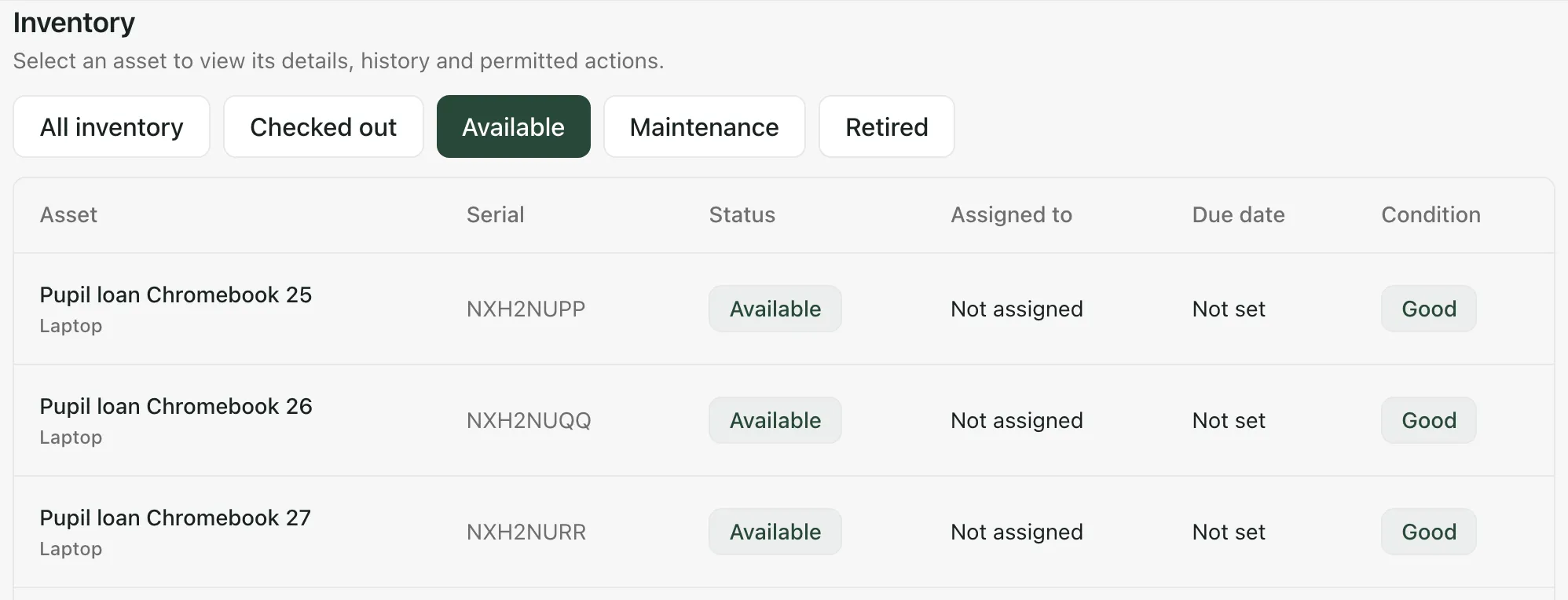
Section titled “Find a device and see its record”Under Inventory, use the buttons to show All inventory, Checked out, Available, Maintenance or Retired items. To find something quickly, type its name, serial number, category or the person who has it in Search inventory.
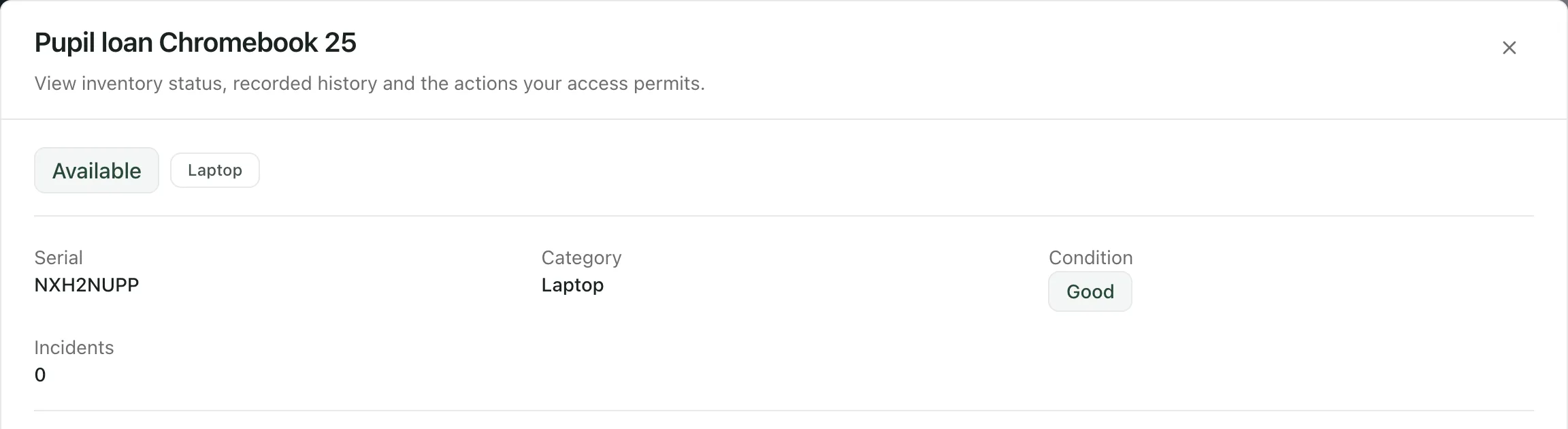
Click a device to open its record. It shows the status, serial number, category, condition and how many incidents have been logged, then the actions your access allows and its recent activity.
Check a device back in
Section titled “Check a device back in”- Open the device’s record.
- Under Check in this asset, choose the Condition on return and note any Damage / notes.
- Click Check in.
“Asset returned” confirms it, and the device is available to lend again.
To record damage or a loss without checking the device in, type what happened under Log incident and click Log incident.
Keep track of loans
Section titled “Keep track of loans”The totals at the top of the page show how many Tracked assets you have, how many are Checked out and how many are Overdue. An overdue device’s record shows how many days overdue it is. The Audit trail at the bottom of the page lists the latest issues, returns and incidents across all devices, with who recorded each one and when. Click a device’s name there to open its record.
Take the built-in tour
Section titled “Take the built-in tour”Click Take a tour at the top of Asset Management for a short guide.
- Staff with access to Asset Management can view the register, and IT technicians can open it too. Adding, issuing and checking in devices depend on your access. If Add asset or Issue asset is greyed out, your access doesn’t include that action. Ask your Student Radar administrator.
- To take a device out of use, open its record and use Manage inventory status, if your access allows. Retire asset keeps the device’s history.
If something doesn’t work
Section titled “If something doesn’t work”| What you see | What to do |
|---|---|
| “Enter an asset name” | Type a name for the device. |
| “Asset create failed” | Check the details and try again. If it keeps happening, ask your Student Radar administrator. |
| “Asset is required” | Choose a device under Asset. |
| “Staff member is required” | Choose the member of staff under Name. |
| “Assignee name is required” | Type the name of the person who’s borrowing the device. |
| “Asset unavailable” | The device is already lent out or in maintenance. Choose another, or check it in first. |
| “Issue failed” | Try again. If it keeps happening, your access may not allow issuing assets. |
| “Return failed” | Try again. Your notes are kept in the form. |
| “Asset data could not be loaded. Any displayed records may be out of date.” | Click Try again. |