See which pupils in your class need support first
Written for: Staff who teach or support a class.
The Pupils page lists everyone in a class with their attendance, risk level and flags such as SEND or Pupil Premium. Sort or filter it by risk to see who to look at first, then open a pupil’s profile to find out more.
Open the class
Section titled “Open the class”- In the sidebar, click Classes.
- Choose the class:
- In a secondary school, click Tutor groups, then the year group and the tutor group. For a subject class, click Teaching classes, then the subject and the class.
- In a primary school, click the year group, then the class.
- Click Pupils.
The page shows the class name, the year group and the number of pupils. To look at another class in the same year, choose it from the list next to the pupil count.
Put the pupils who need support first
Section titled “Put the pupils who need support first”The list starts in name order. To bring the pupils with the highest risk to the top:
- Click the Risk column heading. The list is sorted with the lowest risk first.
- Click Risk again. Now the highest risk is at the top. An arrow beside the heading shows the direction.
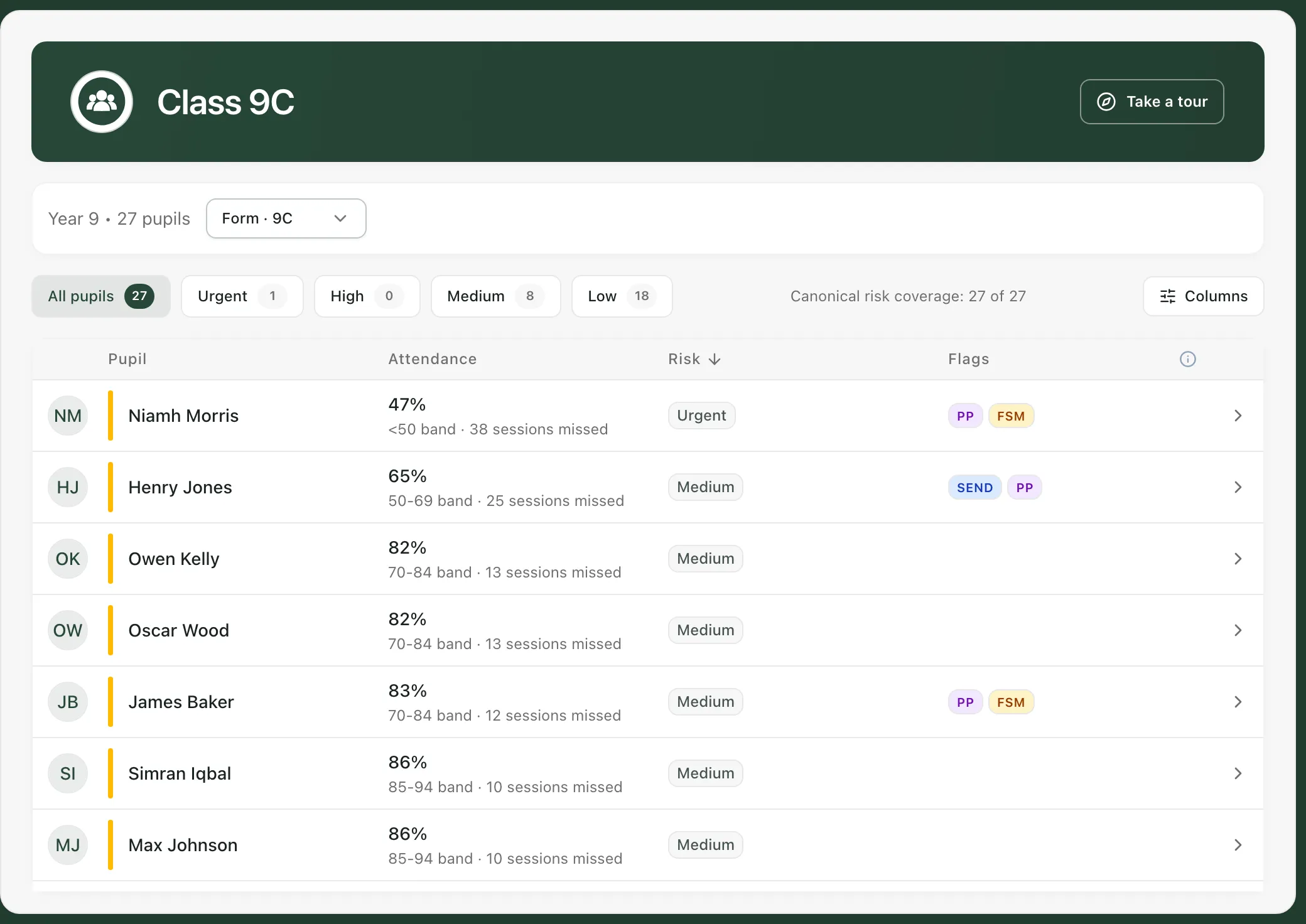
To see only one group, click a risk level above the list: Urgent, High, Medium or Low. Each shows how many pupils are in that group. Click All pupils to see everyone again.
You can also sort by Pupil, Attendance or Flags. Sorting by Attendance puts the lowest attendance first.
What the list shows
Section titled “What the list shows”| Column | What it shows |
|---|---|
| Pupil | The pupil’s name, with a coloured stripe beside it as a quick cue. Point at the stripe to see what it means. |
| Attendance | Attendance this year, the band it falls in (such as 85-94) and the number of sessions missed. |
| Risk | The pupil’s current risk level: Urgent, High, Medium or Low. Risk unavailable means there’s no current score, and these pupils are always listed last when you sort by risk. |
| Flags | Up to four flags, such as SEND, PP (Pupil Premium), FSM (Free School Meals) or EAL (English as an Additional Language). Your school’s own pupil flags appear here in colour. |
Canonical risk coverage above the list shows how many pupils in the class have a current risk score, for example 27 of 27.
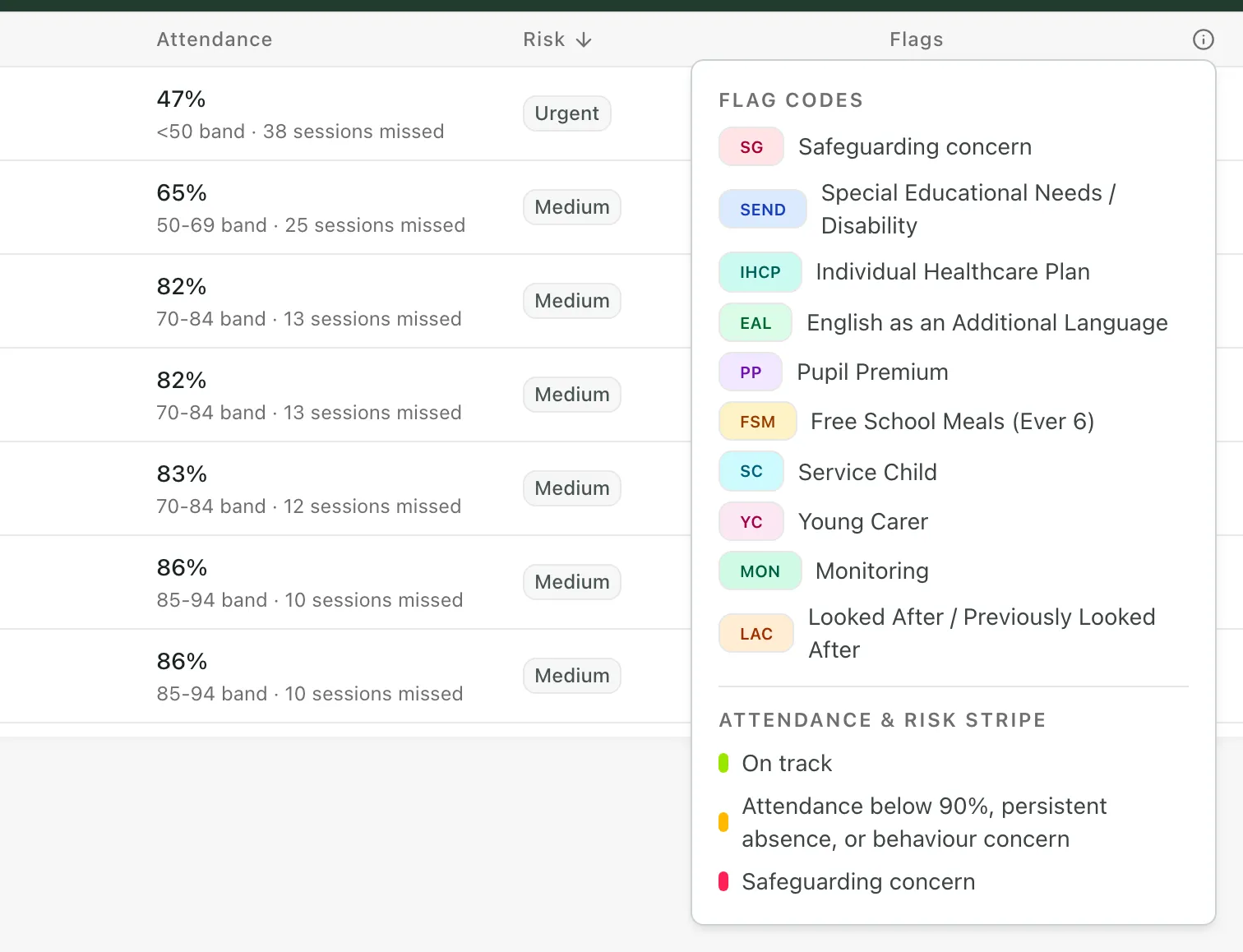
To find out what a flag or stripe colour means, click the information icon at the end of the Flags heading.
To hide the attendance or flag columns, click Columns and clear Show attendance or Show flags.
Open a pupil’s profile
Section titled “Open a pupil’s profile”Click a pupil’s row to open their profile. It shows what’s behind their risk level, along with their attendance, behaviour, support and more. See Find a pupil and read their profile.
The risk level and flags are prompts to look more closely, not a judgement about the pupil. Use them alongside what you know about the pupil and talk to colleagues before deciding what support to give.
- Safeguarding: the legend lists the SG flag and the safeguarding stripe colour. They only appear on pupils for staff who can see safeguarding information. If you’re worried about a pupil, open their profile, click Raise concern and follow your school’s safeguarding procedure.
- Teaching classes: for a teaching class, the page is named after the class and shows the subject and the number of pupils.
- Tour: click Take a tour at the top of the page for a step-by-step guide.
If something doesn’t work
Section titled “If something doesn’t work”| What you see | What to do |
|---|---|
| “No pupils match the current filter.” | No pupils in this class are at the risk level you chose. Click All pupils. |
| “This teaching class could not be loaded. Try selecting it again from Classes.” | Choose the class again from Classes in the sidebar. If it keeps happening, ask your Student Radar administrator. |
| “No classes found. Make sure students are loaded and have class information assigned.” | Your account can’t see any pupils with a class yet. Ask your school’s Student Radar administrator. |
| “No accessible teaching classes found.” | Under Teaching classes, you don’t have any subject classes you can open. Use Tutor groups, or ask your administrator. |
| A pupil shows Risk unavailable | There’s no current risk score for them. Their attendance and flags are still shown. |