Keep your Single Central Record
Written for: Alternative provision leaders and DSLs.
The Single Central Record lists everyone who works with pupils at your provision, including volunteers, agency staff and trustees, with the pre-appointment checks and training recorded for each of them. It shows at a glance which checks are complete, which are missing and which are about to expire.
The record holds sensitive vetting information about your staff. Record only what you need, and don’t share screenshots of it.
Open the record
Section titled “Open the record”In the sidebar, open Compliance and choose Single Central Record.
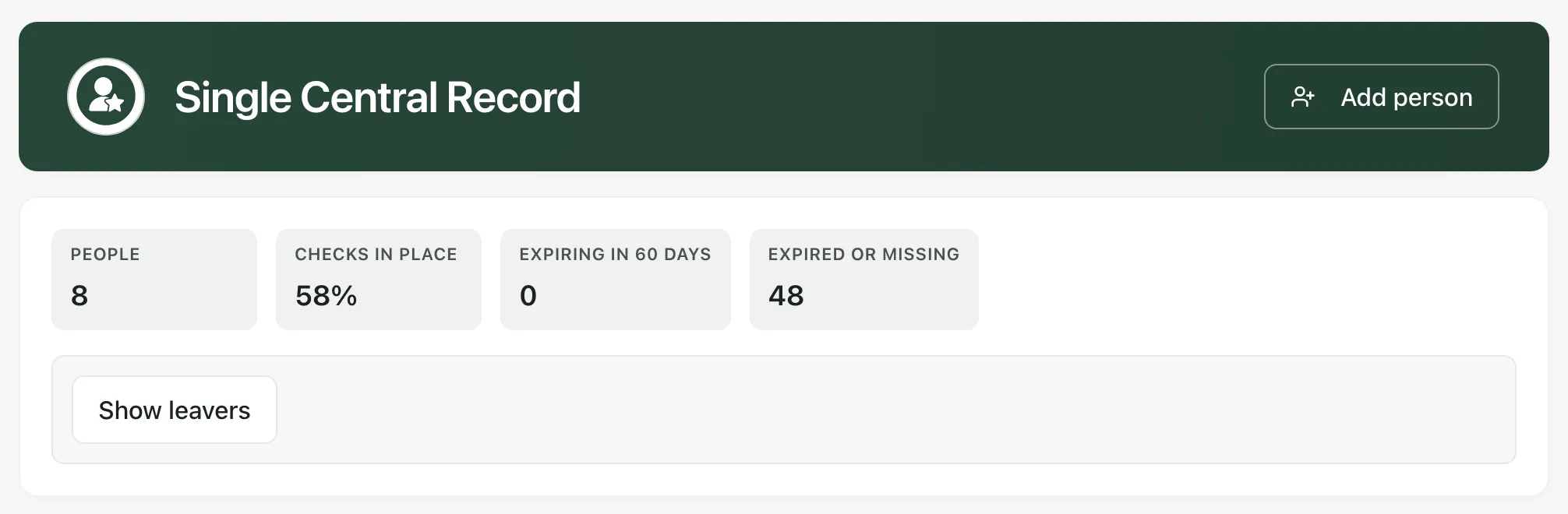
Across the top:
- People: how many people on the record are active.
- Checks in place: the share of checks for active people that are complete, not required or not yet expired.
- Expiring in 60 days: checks that run out in the next 60 days.
- Expired or missing: checks that have run out, or haven’t been recorded at all.
People who have left are hidden. Click Show leavers to include them, and Hide leavers to hide them again.
See which checks need attention
Section titled “See which checks need attention”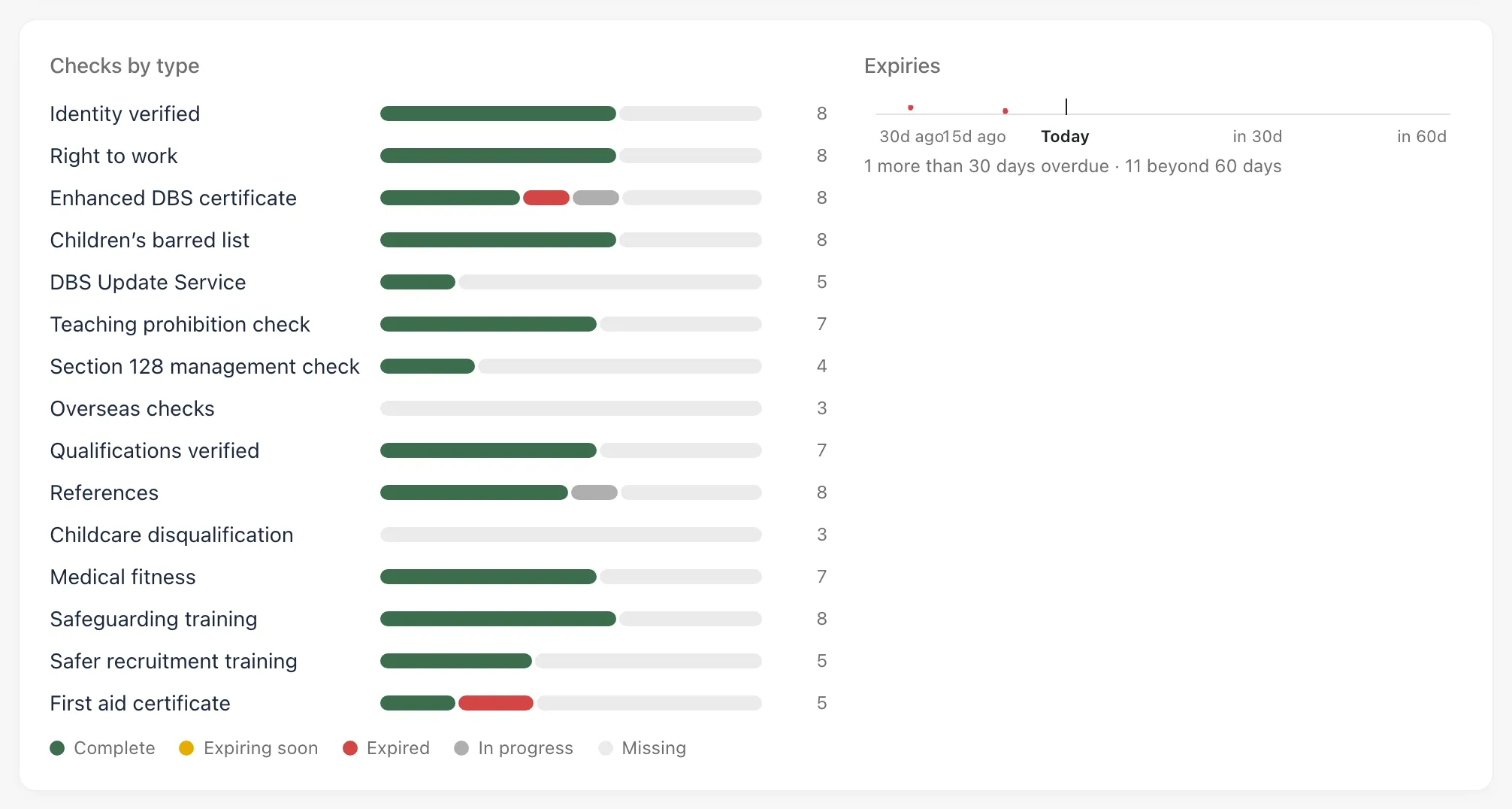
Checks by type shows, for each kind of check, how many people have it complete, expiring soon, expired, in progress or missing. Expiries marks each expiry date from 30 days ago to 60 days ahead, with a count of any outside that range.
Below the charts, Needs attention lists the checks that need review, expired and missing checks first. It shows the first eight. On a phone, tap the line that says how many checks need review to open the list.
Read the grid
Section titled “Read the grid”The grid has a row for each person and a column for each check. Hover over a column heading to see its full name.
| Column | Check |
|---|---|
| ID | Identity verified |
| RTW | Right to work |
| DBS | Enhanced DBS certificate |
| Barred | Children’s barred list |
| Update | DBS Update Service |
| Prohib. | Teaching prohibition check |
| s128 | Section 128 management check |
| Overseas | Overseas checks |
| Quals | Qualifications verified |
| Refs | References |
| CDR | Childcare disqualification |
| Medical | Medical fitness |
| SG training | Safeguarding training |
| SR training | Safer recruitment training |
| First aid | First aid certificate |
Each cell shows the state of that check:
| Symbol | Meaning |
|---|---|
| ✓ | Complete. |
| ! | Complete, but it expires in the next 60 days. |
| ✗ | Expired. |
| … | In progress. |
| – | Missing: not recorded, or recorded as not started. |
| n/a | Not required for this person. |
Hover over a cell to see when the check was done, when it expires and its reference.
Add a person
Section titled “Add a person”- Click Add person.
- Fill in their Full name, Role and Type: Employee, Volunteer, Agency or supply, Contractor, Governor or trustee or Proprietor.
- Add their Start date. Leave Status as Active.
- Click Add.
You’ll see “Person added to the record”. Staff you add in Staff and access appear on the record too, ready for their checks. See Invite and manage staff.
Record a check
Section titled “Record a check”- Click the cell for the person and the check.
- Under Status, choose Not started, In progress, Complete or Not required.
- Fill in the Reference or certificate number, if there is one.
- Check Completed on. It starts on today and can’t be in the future.
- Enter Expires on for checks that run out, such as an enhanced DBS certificate, first aid certificate or training. For other checks it’s optional.
- Under Verified by, enter who checked it. If you leave it empty, it’s recorded as you.
- Click Save check.
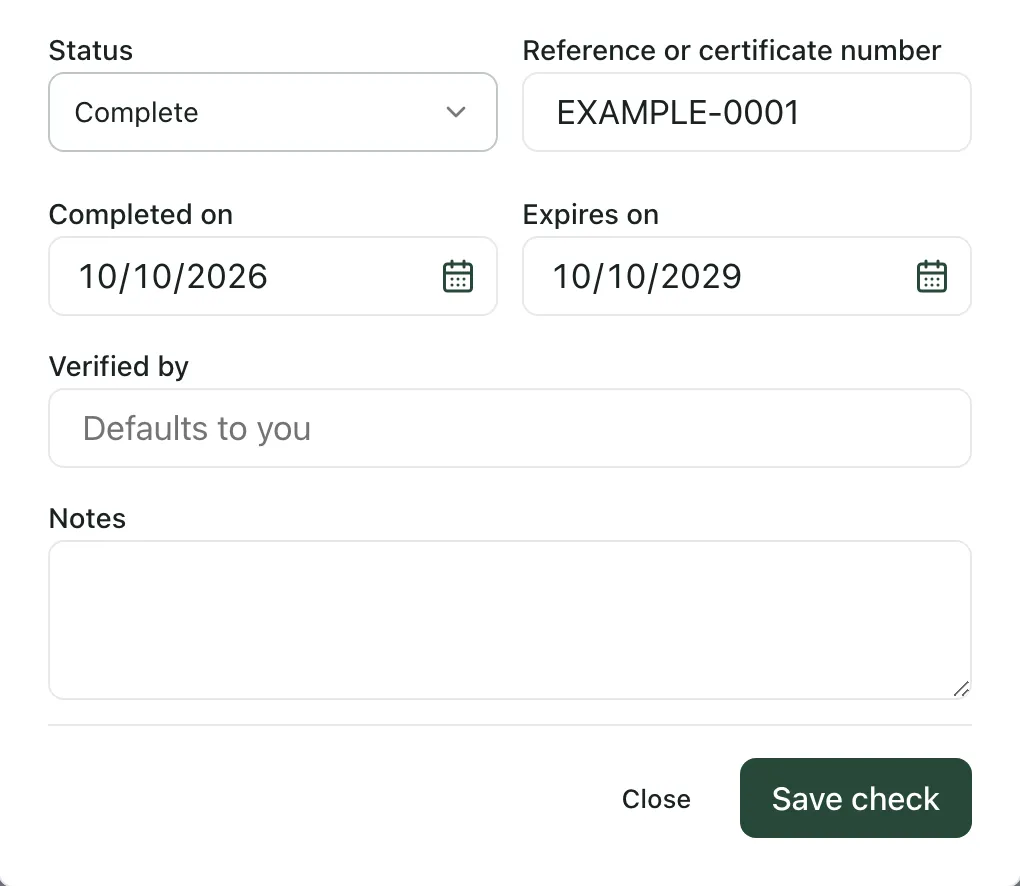
You’ll see “Check recorded”, and the cell updates.
To change a check, click its cell again, change the details and click Save check.
When someone leaves
Section titled “When someone leaves”- Click the person’s name in the grid.
- Set Status to Left and fill in the End date.
- Click Save.
Their checks stay on the record. They’re hidden from the grid and the totals unless you click Show leavers.
Staff training
Section titled “Staff training”Staff training, at the bottom of the page, lists the training each person needs, such as an annual safeguarding update, with its recorded state, evidence and review date. Recording that evidence exists, or completing a training task, doesn’t by itself show that someone is competent. Whether a requirement applies to someone is a decision a person records.
- Who can do what: by default, provision leaders keep the record up to date. Other staff who can open it see it read-only.
- Two-step check: recording a check needs a recent two-step check. You must have confirmed your sign-in with a second step, such as your authenticator app, in the last 15 minutes. See Add a passkey or authenticator app.
- Your compliance checklist: the record is the evidence for the Single central record of pre-appointment checks duty. See Evidence your compliance duties.
If something doesn’t work
Section titled “If something doesn’t work”| What you see | What to do |
|---|---|
| “Staff checks could not be loaded. Compliance totals are unavailable.” | Click Retry checks. Until the record loads, the totals aren’t complete. |
| “No active people recorded. Add a person or show leavers to review earlier records.” | Click Add person, or click Show leavers to see people who have left. |
| “People and checks must finish loading before this draft can be saved. Retry the checks if loading failed.” | Wait for the record to load. If it doesn’t, click Retry checks. |
| “Refresh the SCR and choose a currently available person before saving again.” | The person has changed or been removed. Close the form, reload the page and find them again. |
| “Could not record the check” | Read the reason under the message, then try again. |
An error that mentions recent_aal2_required |
Your sign-in needs a fresh two-step check. Sign out, sign in again and complete the second step, then try again. |