Set up note categories
Written for: Headteachers, school administrators and school leaders.
Staff choose a category for every note they add to a pupil’s record. Student Radar comes with standard categories, such as Pastoral and Academic. You can add your own categories in your school’s words, such as Reading support or Attendance visit, so notes are easier to file and find.
How school categories work
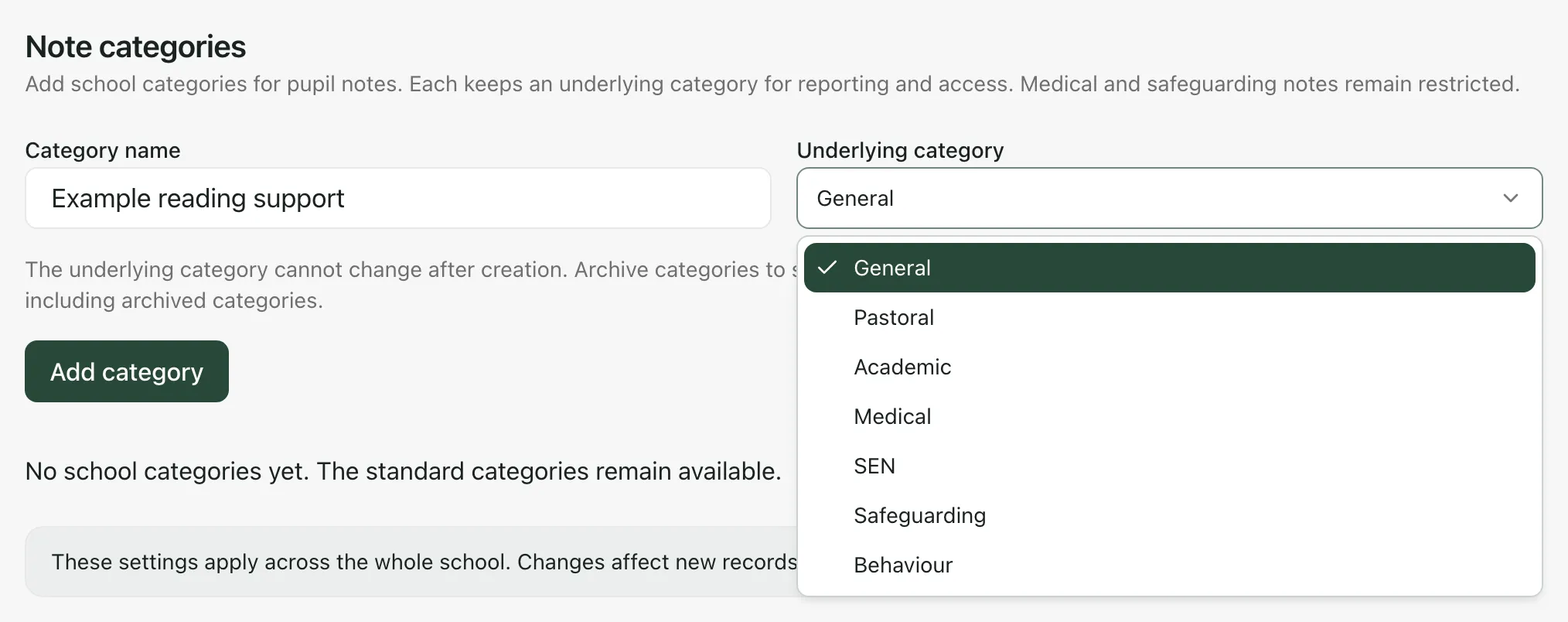
Section titled “How school categories work”Each category you add sits under one of the standard categories, called its Underlying category:
- General
- Pastoral
- Academic
- Medical
- SEN
- Safeguarding
- Behaviour
The underlying category decides how notes are reported and who can read them. A category under Medical or Safeguarding is restricted in exactly the same way as those standard categories, whatever you call it. You can’t change a category’s underlying category after you’ve added it, so choose carefully.
Add a category
Section titled “Add a category”-
In the sidebar, click Settings, then School Settings.
-
Click the Note categories tab.
-
In Category name, type the name staff will see, up to 60 characters.
-
Choose the Underlying category.
-
Click Add category.
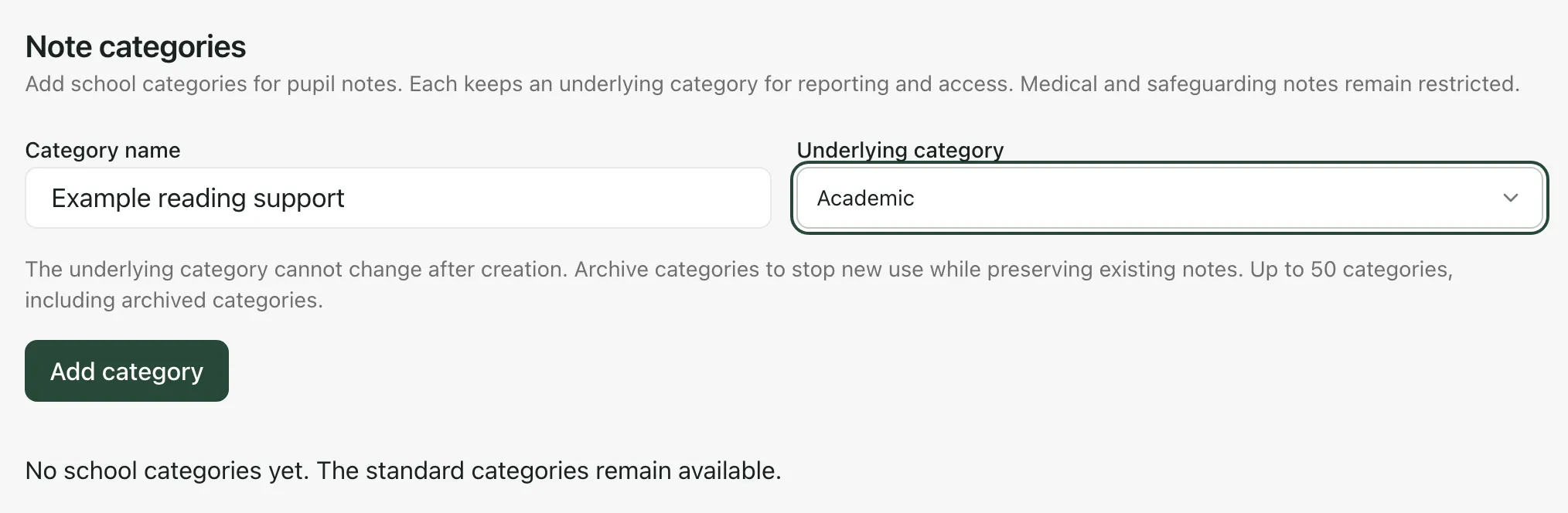
You’ll see “Category saved.” and the category appears in the list below the form, with its underlying category underneath its name. Staff can choose it straight away when they add a note, alongside the standard categories.
Your school can have up to 50 categories, including archived ones.
Rename a category
Section titled “Rename a category”- Click Rename next to the category.
- Change the Category name. The underlying category is locked.
- Click Save category. To stop without saving, click Cancel edit.
Notes already filed under the category show the new name.
Archive a category you no longer use
Section titled “Archive a category you no longer use”Click Archive next to the category. Staff can no longer choose it for new notes, but notes already filed under it keep their category. Archived categories show Archived next to their underlying category.
To bring an archived category back, click Restore.
- Who can change note categories: by default, headteachers, administrators, senior leaders, Designated Safeguarding Leads and their deputies, and SENCos can manage note categories. Other staff see “You need permission to manage note categories.” and can’t change the list.
- Standard categories stay: the standard categories are always available. If your school hasn’t added any, the tab shows “No school categories yet. The standard categories remain available.”
- Take the tour: click Take a tour at the top of School Settings for a short guide to each tab.
If something doesn’t work
Section titled “If something doesn’t work”| What you see | What to do |
|---|---|
| “Unable to save. Check for a duplicate name or refresh if the category changed.” | Check another category doesn’t already have that name. If it doesn’t, reload the page, as someone else may have changed the category. |
| Add category is greyed out | Type a Category name. If your school already has 50 categories, archived ones included, you can’t add more. |
| “You need permission to manage note categories.” | Ask your Student Radar administrator to add or change the category for you. |
| “Unable to check category permissions. Refresh to try again.” | Reload the page. |
| “Unable to load categories.” | Click Retry. |