Keep the allergy register and spare AAI checks
Written for: Staff who keep the school’s allergy records and emergency kit.
The Allergy & Anaphylaxis Register lists every pupil with a recorded allergy, how severe it is and whether they need an adrenaline auto-injector (AAI). It also keeps the school’s spare AAIs: where they are, when they expire and when they were last checked. This article covers keeping the register up to date with your MIS and running the monthly spare AAI checks.
Open the register
Section titled “Open the register”In the sidebar, click Health, then Medication & Clinical Safety, then Allergy Register.
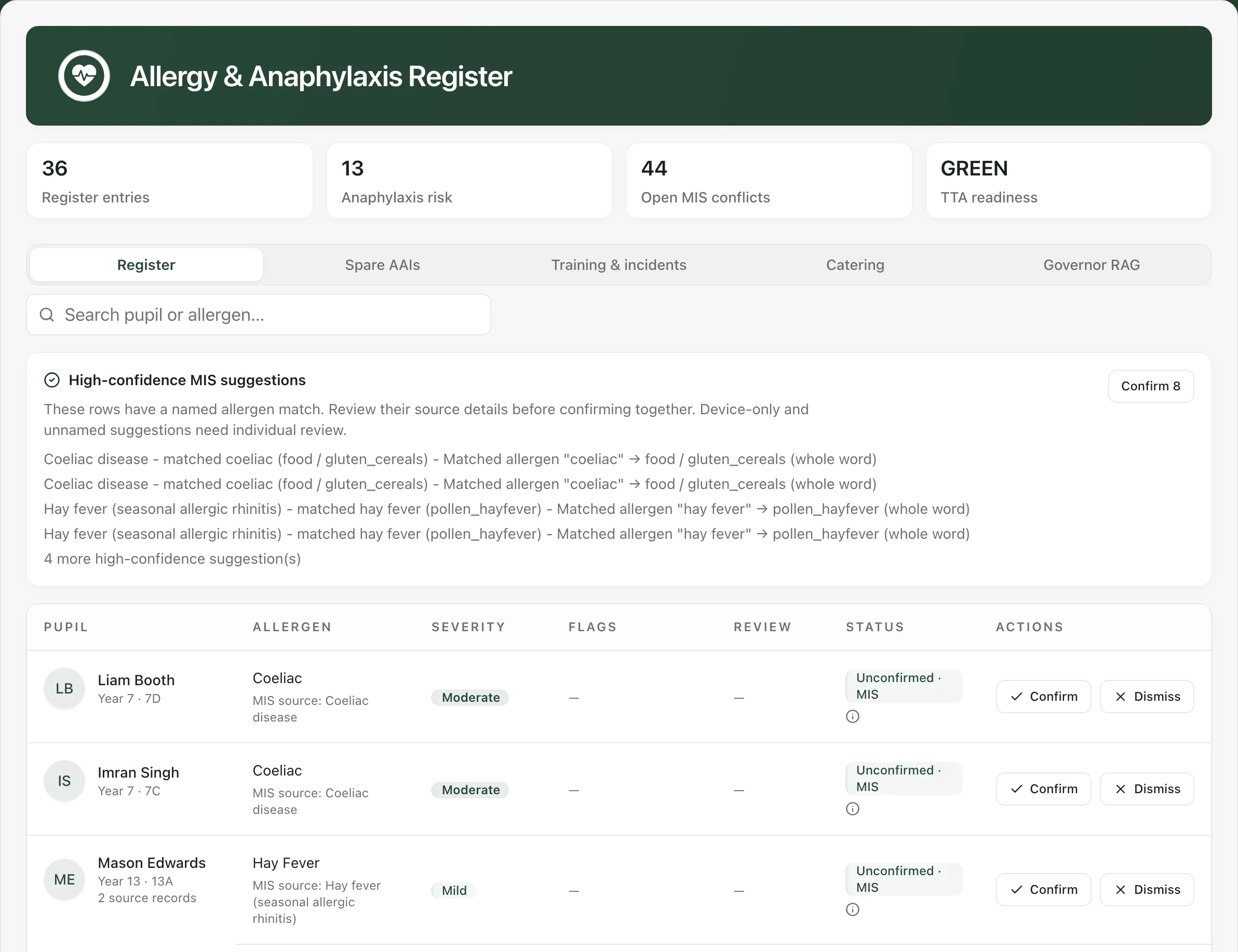
The cards along the top show:
- Register entries: the allergies on the register.
- Anaphylaxis risk: pupils with a recorded risk of anaphylaxis, including suggestions from your MIS that haven’t been confirmed yet.
- Open MIS conflicts: register entries that no longer match your MIS.
- TTA readiness: an overall red, amber or green rating for how ready the school is to give adrenaline quickly (time to adrenaline).
Read the register
Section titled “Read the register”On the Register tab, each row is one allergy. Type in the search box to find a pupil or an allergen.
- Severity: Mild, Moderate, Severe, Anaphylaxis risk or Not recorded.
- Flags: Anaphylaxis for a pupil at risk of anaphylaxis, and AAI for a pupil who needs an adrenaline auto-injector.
- Review: when the allergy is next due for review. Reviews that are overdue or due within two weeks are highlighted.
- Status: Active, Draft or Unconfirmed · MIS. A second label, MIS updated or MIS removed, means the MIS record has changed since the entry was added.
Click a row to open the pupil’s Allergy action plan.
Check suggestions from your MIS
Section titled “Check suggestions from your MIS”Student Radar reads the medical conditions in your MIS and suggests the ones that look like allergies. Suggestions appear at the top of the register as Unconfirmed · MIS. Point to the small information symbol under the status to see why a row was flagged.
- Read the suggestion, including the MIS source under the allergen.
- Click Confirm to add it to the register, or Dismiss if it isn’t an allergy the school needs to plan for.
A confirmed suggestion becomes a Draft entry. Open it to complete the action plan.
When several suggestions name a specific allergen, a High-confidence MIS suggestions panel lists them. Check their source details, then click Confirm in the panel to confirm them all at once. Suggestions marked Individual review or Low-confidence match must be checked one at a time.
Deal with a change in the MIS
Section titled “Deal with a change in the MIS”If the MIS record behind an entry changes or is removed, the row shows MIS updated or MIS removed with two buttons:
- Accept records the MIS change as reviewed. It doesn’t rewrite the pupil’s action plan, so update the plan if the change matters.
- Dismiss records that the change doesn’t affect the register entry.
Confirming, dismissing and accepting are for staff who manage the register: by default the SENCo, headteacher, DSL and deputy DSLs, and medical leads. Other staff see a dash in Actions.
Keep a pupil’s action plan current
Section titled “Keep a pupil’s action plan current”Click a pupil’s row to open their Allergy action plan. Staff who manage the register can edit the plan, then click Save draft or Activate plan. A plan can only be activated once the parent has approved the spare AAI consent and the emergency steps are in place. To ask the parent, click Request parent consent. You’ll see who the request will go to before anything is sent.
Draft with AI fills in a first draft from the register entry. It’s a starting point only: check every step against the clinician’s instructions before saving.
Look after the spare AAIs
Section titled “Look after the spare AAIs”Click the Spare AAIs tab.
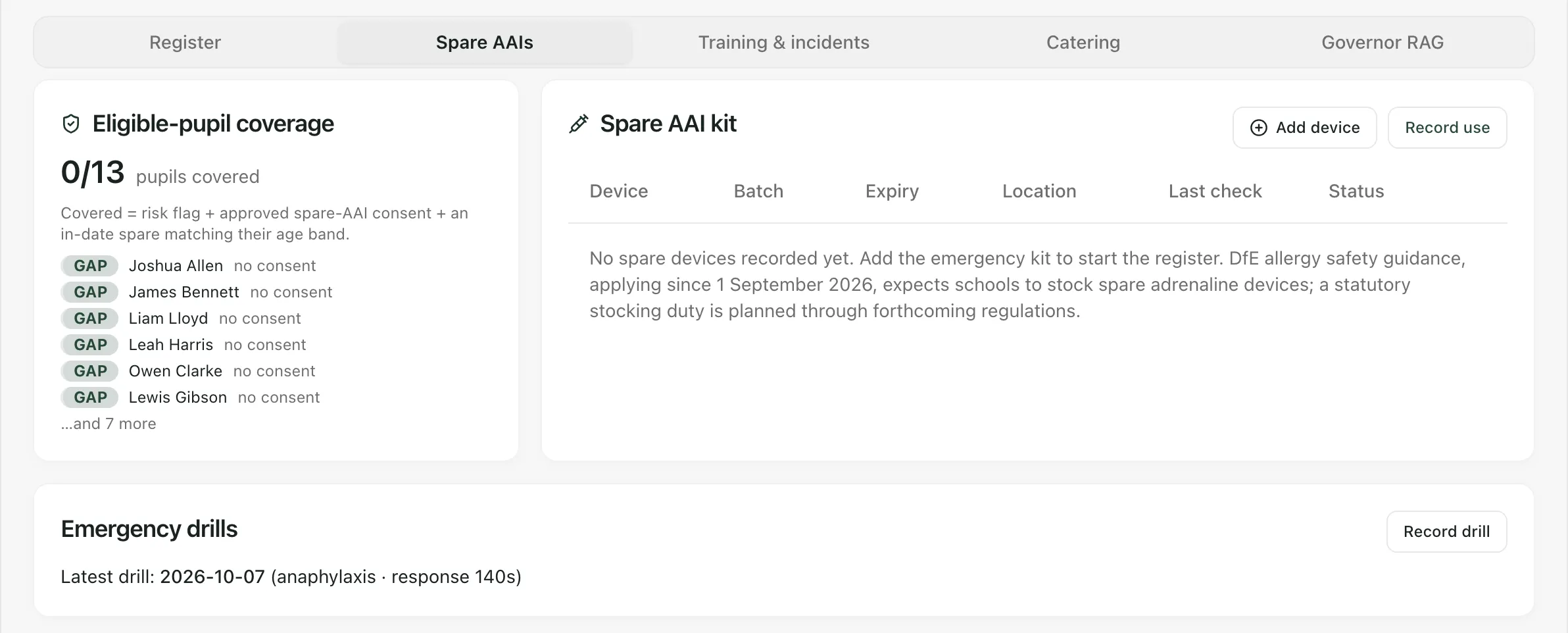
Eligible-pupil coverage counts the pupils flagged for anaphylaxis or an AAI who are covered. A pupil is covered when they have approved spare AAI consent and there’s an in-date spare that matches their age. Pupils who aren’t covered are listed with the reason: no consent, or no matching device.
Spare AAI kit lists each device with its Batch, Expiry, Location, Last check and Status (In service, Used, Expired or Disposed). An expiry date within eight weeks is highlighted.
Add a spare device
Section titled “Add a spare device”-
Click Add device.
-
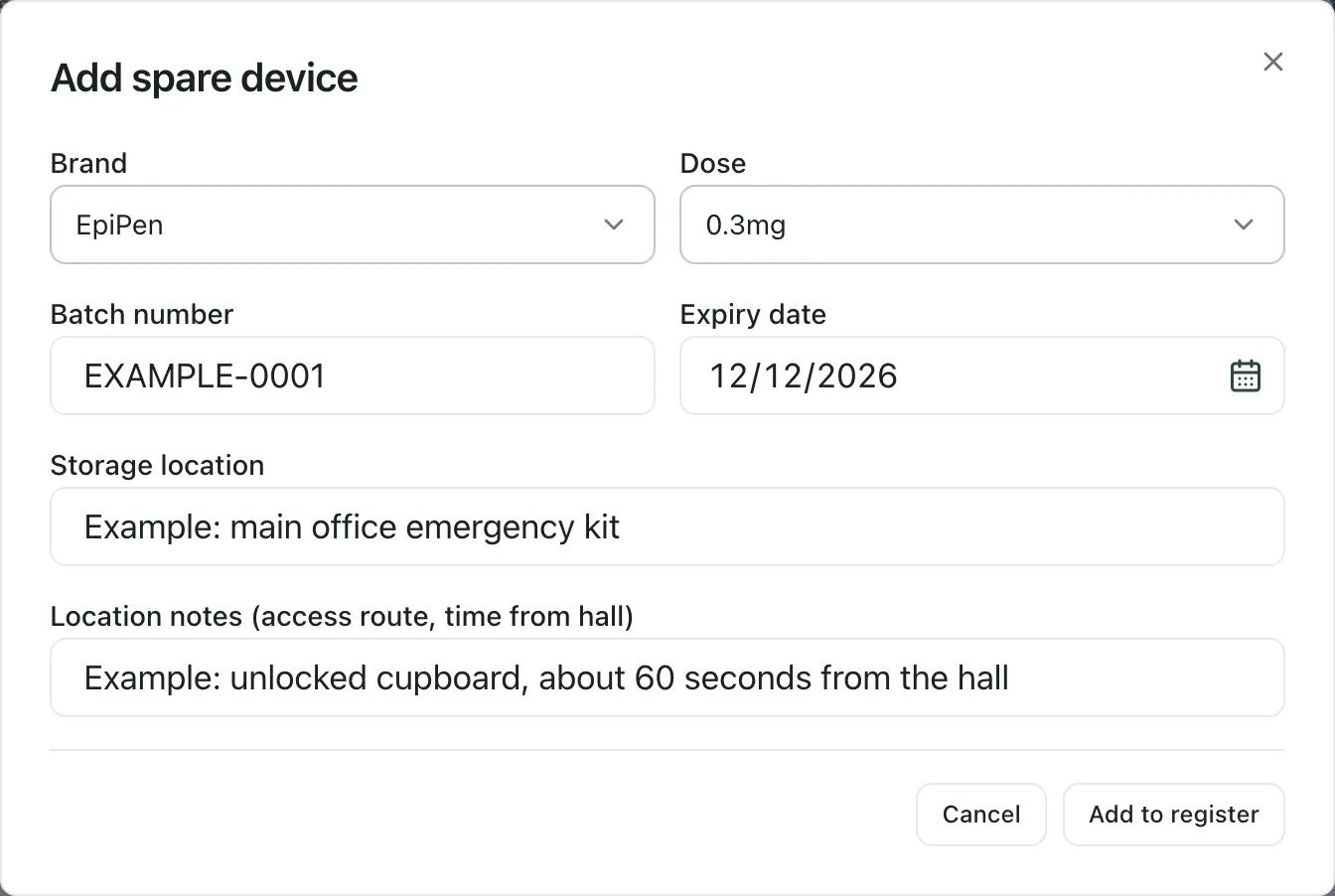
Choose the Brand and Dose, and enter the Batch number and Expiry date from the device.
-
Enter the Storage location. Under Location notes (access route, time from hall), add anything that helps someone find it quickly.
-
Click Add to register.
Adding devices is for staff who manage the register.
Record the monthly check
Section titled “Record the monthly check”Two members of staff check each spare together.
- In Spare AAI kit, click Record check on the device’s row.
- Choose the second member of staff. They must be a different person from you.
- Tick each check that passes:
- In date (expiry checked against the device)
- Accessible (unlocked, in its stated location)
- Intact (solution clear, device undamaged)
- Add any Notes, such as what you did about a failed check.
- Click Record check.
The date appears under Last check.
After a spare has been used
Section titled “After a spare has been used”In an emergency, follow the pupil’s action plan and call for help first. Record the use afterwards:
- Click Record use.
- Choose the Device used and the pupil. Leave the pupil blank if they aren’t on roll.
- Leave the ambulance box ticked: an ambulance must always be called when adrenaline is given. Keep Also log a first-aid incident ticked to create a first aid record and inform parents.
- Add Outcome notes, then click Record use.
The device is taken out of service, and a banner reminds you until a replacement is linked. Add the replacement with Add device. Then, under Record of use, choose it from Link replacement….
The Catering and Governor RAG tabs
Section titled “The Catering and Governor RAG tabs”- Catering has printable packs for the kitchen and lunchtime staff, such as an allergen matrix and class lunch cards. Each print is logged.
- Governor RAG shows the school’s allergy readiness as red, amber and green ratings, without naming any pupils.
- Supply staff and governors see the register with allergens, doses and emergency details hidden. Governors see only the Governor RAG tab.
- In England, the empty kit message also refers to the DfE guidance on spare adrenaline devices.
- Drills are recorded on the Spare AAIs tab too. See Record allergy training, drills and incidents.
If something doesn’t work
Section titled “If something doesn’t work”| What you see | What to do |
|---|---|
| “Allergy records unavailable” | Click Retry allergy records. A failed load doesn’t mean there are no allergies. |
| “No entries match your search.” | Check the spelling, or search for the pupil’s surname only. |
| “Could not update the register” | Nothing changed. Try again in a minute. |
| “Batch number, expiry date and storage location are required.” | Fill in all three, then click Add to register again. |
| “No spare devices recorded yet. Add the emergency kit to start the register.” | Add each spare AAI with Add device. |
| You can’t see Confirm, Dismiss or Add device | Your role can view the register but not change it. Ask your SENCo or medical lead. |