Set up an appraisal cycle
Written for: Headteachers and senior leaders who run staff appraisal.
An appraisal cycle holds a year’s staff reviews and sets the professional standards that staff are rated against. This article shows you how to create a cycle, add a review for each member of staff with their reviewer, and record the objectives you agree. To take a review through to the end of the year, see Complete and sign an appraisal review.
Before you start
Section titled “Before you start”Appraisal & Staff Review is for leaders. By default, headteachers, senior leaders, DSLs and administrators can open it, as can trust and service leads. Creating cycles and reviews is limited to headteachers, senior leaders and administrators. Other staff, including classroom teachers, can’t open the page.
Open Appraisal & Staff Review
Section titled “Open Appraisal & Staff Review”- In the sidebar, open Leadership, then Staff.
- Choose Appraisal & Staff Review.
The page opens on Reviews, which lists the reviews in your school’s current cycle. The tabs along the top take you to each part of the appraisal year.
Create the cycle
Section titled “Create the cycle”- Click the Cycles tab.
- Under Create cycle, fill in:
- Name: for example, Teacher appraisal 2026/27 or Early career teachers 2026/27.
- Academic year: this is filled in for you. Change it if you need to.
- Framework: the standards staff in this cycle are rated against. Choose Teachers Standards, Headteachers Standards, Early Career Framework or NPQ.
- Click Create cycle.
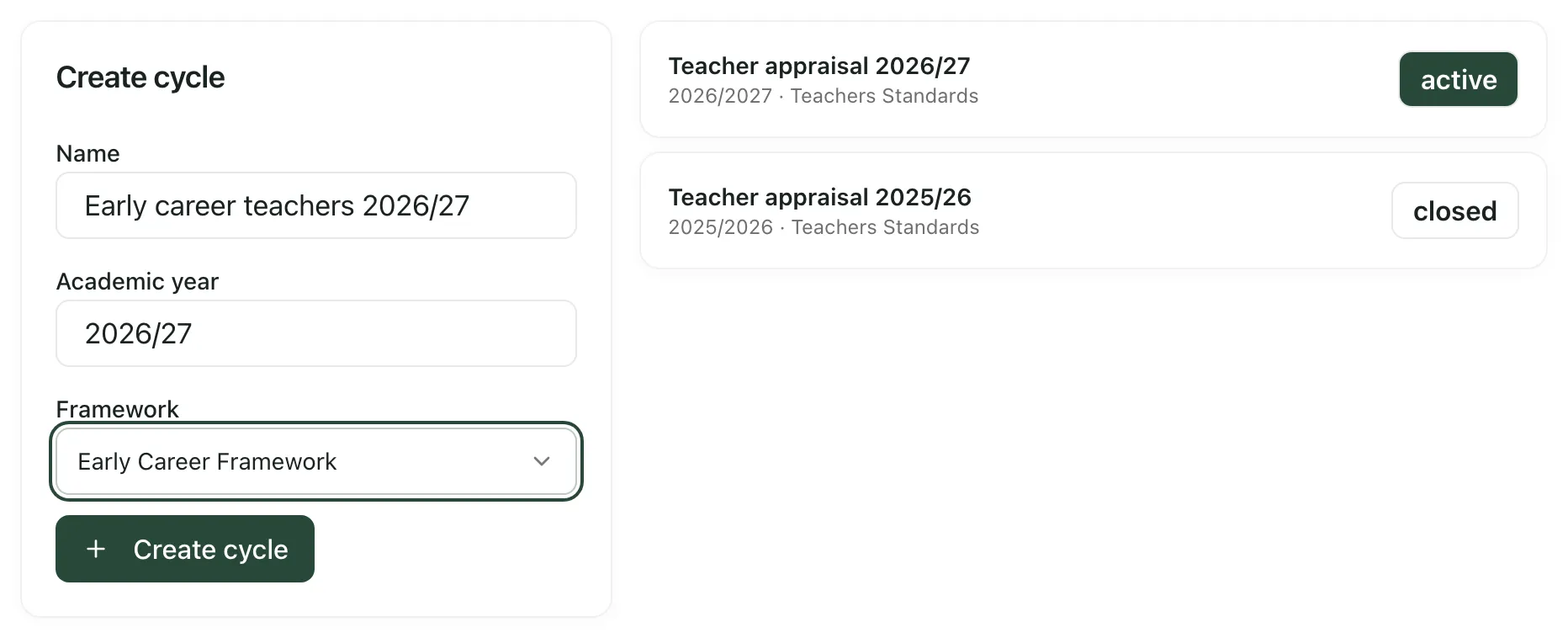
You’ll see “Cycle created” and the cycle appears in the list on the right, with its academic year, framework and status.
Which cycle you’re working in
Section titled “Which cycle you’re working in”The Reviews, Team reviews, Standards and other tabs all work in your school’s active cycle. If no cycle is active, they use the most recent one.
New cycles are saved as draft, and there’s no button on the page to make a cycle active or to close one. If an older cycle is still active when you want to start a new year, contact Student Radar support to switch it over before you add reviews.
Add a review for each member of staff
Section titled “Add a review for each member of staff”- Click the Team reviews tab.
- Under Create review, choose the member of staff in Appraisee.
- Choose who will carry out the review in Reviewer.
- Click Create review.
You’ll see “Review created”. The review appears on the Reviews tab with the status Not started. Repeat for each member of staff in the cycle.
Record the objectives
Section titled “Record the objectives”- On the Team reviews tab, under Add objective, choose the member of staff in Review.
- Give the objective a short Title.
- In Success criteria, say how you’ll both know it has been met.
- Click Add objective.
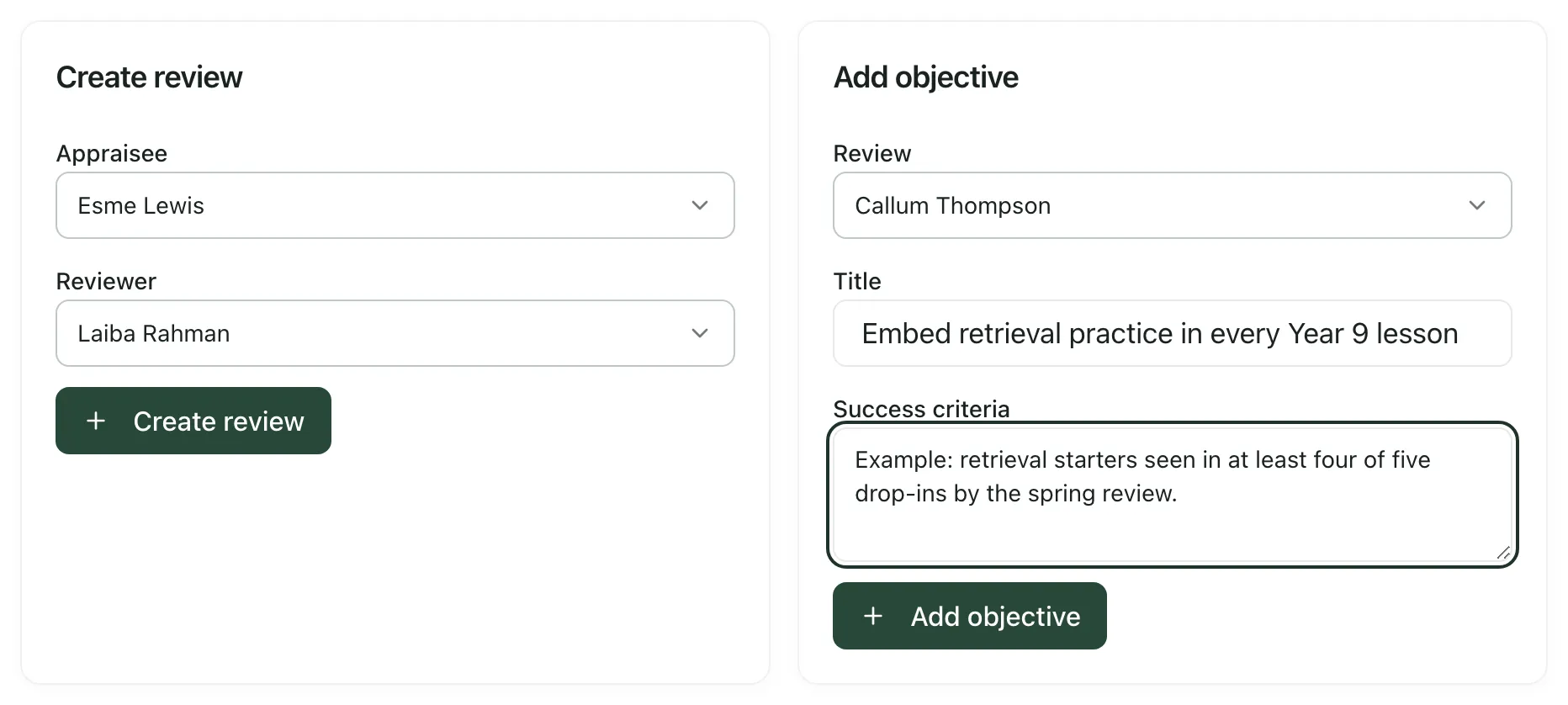
You’ll see “Objective added”, and the objective appears on the member of staff’s review card.
Objectives from your self-evaluation
Section titled “Objectives from your self-evaluation”If your school uses the Ofsted framework, the Evidence tab can suggest objectives from the areas your self-evaluation shows need improving. Choose the review under SEF-seeded objectives and read the suggestions. If they fit, click the button to seed them into the review. Suggestions are a starting point for the conversation, so agree and edit them with the member of staff.
Ask colleagues for 360 feedback (optional)
Section titled “Ask colleagues for 360 feedback (optional)”- Click the 360 tab.
- Under Request 360 feedback, choose the Review, the colleague in Respondent and their Relationship to the member of staff: Peer, Line report, SLT or Other.
- Click Create 360 request.
Requests are made inside Student Radar only; nothing is emailed. The colleague answers the questions under Respond to request. Each person’s answers are visible only to them and to the headteacher and administrators. Reviewers and the member of staff see an unnamed summary once enough people have responded.
Reports for the cycle
Section titled “Reports for the cycle”On the Reports tab you can download, as a PDF, Excel or CSV file:
- Professional Objectives: each objective’s status, any linked measures and how much evidence is linked.
- Review Period Grading: each review’s status, overall grade and sign-off date. Pay data isn’t included.
Pay recommendations are kept on a separate tab that only headteachers and administrators can open.
If something doesn’t work
Section titled “If something doesn’t work”| What you see | What to do |
|---|---|
| “Your role does not have access to this view.” | Appraisal & Staff Review is only open to leaders. Ask your headteacher if you need access. |
| “Cycle creation failed” | Only headteachers, senior leaders and administrators can create cycles. A cycle can’t have the same name, year and framework as another one. |
| “Review creation failed” | Check that you can create reviews and that the member of staff doesn’t already have a review in this cycle. |
| “Objective creation failed” | Check your connection and click Add objective again. |
| “No appraisal reviews in the active cycle yet.” | Add reviews on the Team reviews tab. |
| “Some appraisal data could not be loaded. Refresh the page to try again; missing records have not been treated as empty.” | Refresh the page. Don’t assume a review or objective is missing until it loads. |