Enter standardised test scores
Written for: Teachers and assessment leads.
Record your pupils’ scores from standardised tests such as NFER, GL Progress Tests and CAT4. You type each pupil’s standardised score, or their raw mark if your school has added the publisher’s conversion table, and each score saves as you go.
Open standardised test entry
Section titled “Open standardised test entry”- In the sidebar, click Assessment, then Entry, then Statutory Assessments.
- Click the Standardised tests tab.
If your school isn’t set up as a primary school in Student Radar, you’ll see Primary statutory assessment capture first. Click Open standardised tests.
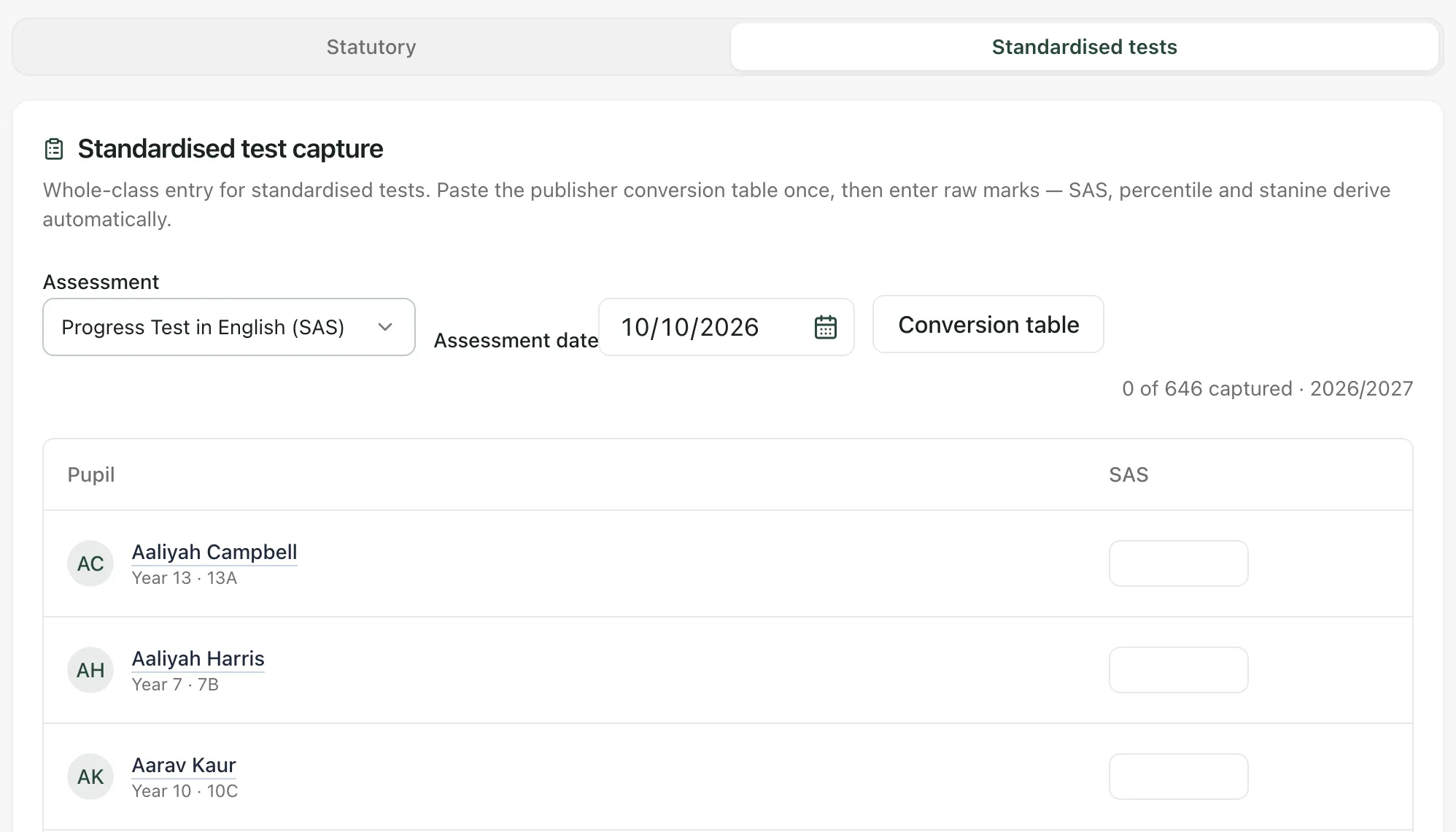
Choose the test and the date
Section titled “Choose the test and the date”-
Under Assessment, choose the test:
Test What you enter Pupils listed at first Times tables practice check Correct answers out of 25 Year 4 Eleven plus (standardised score) Standardised score (SAS) Year 5 NFER Reading (SAS) Standardised score (SAS) Everyone you can see NFER Maths (SAS) Standardised score (SAS) Everyone you can see Progress Test in English (SAS) Standardised score (SAS) Everyone you can see Progress Test in Maths (SAS) Standardised score (SAS) Everyone you can see CAT4 (mean SAS) Mean standardised score (mean SAS) Everyone you can see -
Set the Assessment date to the day the pupils sat the test. It starts on today’s date.
The date decides which academic year the scores count towards. The count at the top right shows how many pupils have a score and the academic year, for example 0 of 646 captured · 2026/2027.
For the times tables practice check and the eleven plus, a switch beside the date limits the list to one year group, for example Year 4 only. Turn it off to see every pupil you can access.
Enter the scores
Section titled “Enter the scores”- Find the pupil and click their box.
- Type the score. A standardised score must be between 59 and 145. A times tables practice check score is out of 25.
- Leave the box, for example by pressing Enter or clicking another box. The score saves as soon as you leave the box.
There’s no save button. To correct a score, type the right one over it and leave the box. Emptying the box doesn’t remove a saved score.
Scores you record here go into your school’s assessment record, so they appear in assessment reports straight away.
Enter raw marks with a conversion table
Section titled “Enter raw marks with a conversion table”For NFER, Progress Test, CAT4 and eleven plus scores, you can add the conversion table from the publisher’s manual. You then type each pupil’s raw mark, and Student Radar works out their standardised score, and their percentile and stanine if the table includes them.
Add the conversion table
Section titled “Add the conversion table”You only need to do this once for each test and edition. Conversion tables are kept for your whole school, so colleagues entering the same test use the same table.
- Choose the test under Assessment, then click Conversion table.
- Under Edition, give the table a name that says which version it is, such as the year, year group and term.
- Under Conversion table, paste the table: one line per raw mark, with the raw mark, the standardised score and, if you have them, the percentile and stanine. Separate them with commas or tabs. If you copy the columns from a spreadsheet, they paste with tabs.
- Check the count under the box. It shows how many lines were read, and how many were skipped because they couldn’t be read, such as a heading line.
- Click Save edition.
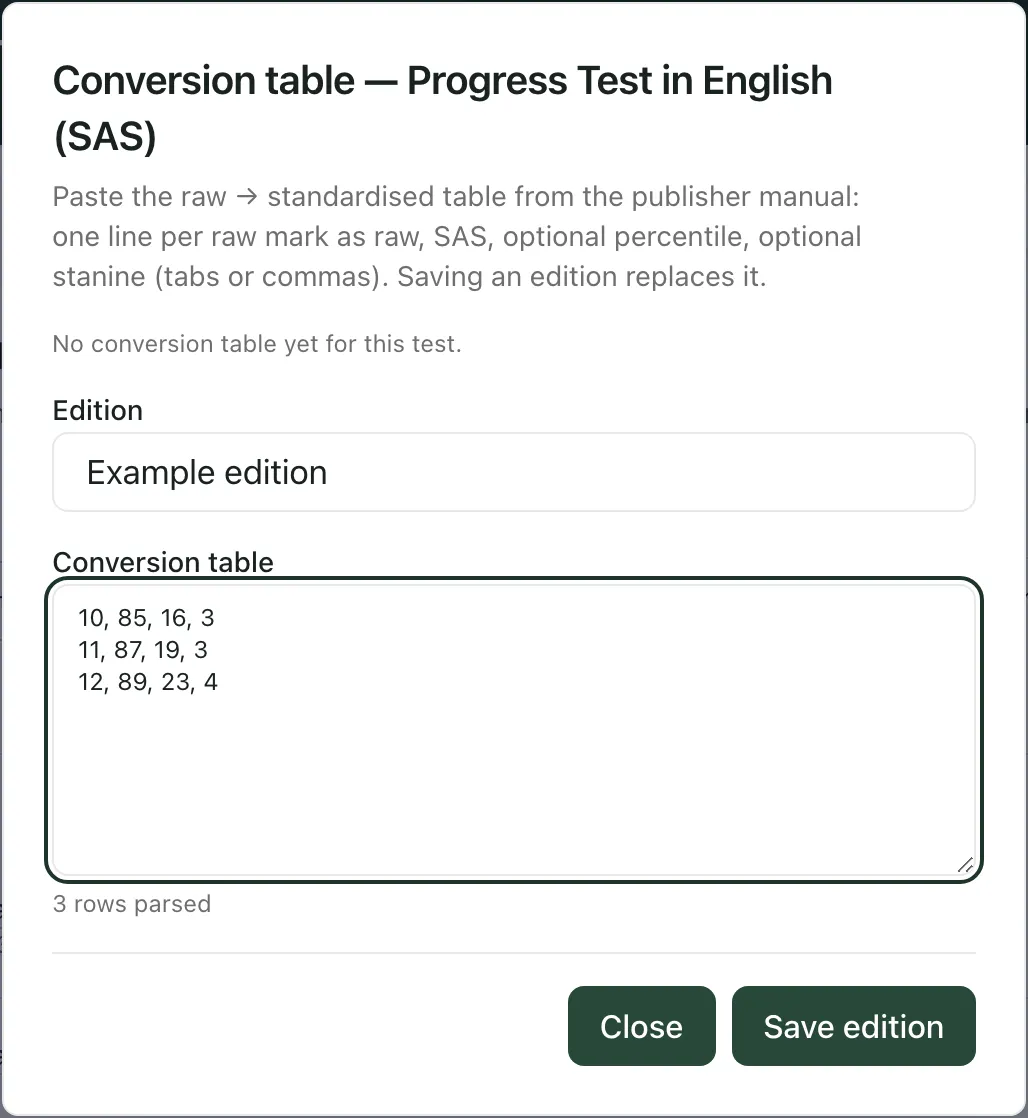
Saving an edition with the same name as an existing one replaces it. Saved editions are listed at the top of the box with their number of rows and range of raw marks. To remove one, click the bin beside it.
Type raw marks
Section titled “Type raw marks”Once a table is saved, the score column changes to Raw mark → SAS. If there’s more than one edition, choose the right one under Edition next to the date.
- Click the pupil’s box and type their raw mark.
- Leave the box. The standardised score is worked out from the table and saved, and shown beside the box, for example SAS 104.
When you come back to the page later, the raw mark boxes are empty. Each pupil’s saved score is the SAS label beside their box.
If a raw mark isn’t in the table, Student Radar tells you and nothing is saved. Check the mark, or check that you’ve chosen the right edition.
- Who can use this page: teachers, SENCos, safeguarding leads, senior leaders, headteachers, office staff and governors can open it by default. Teaching assistants can’t. Whether you can save scores depends on your account’s assessment access, and schools can change who has access.
- Pupil profiles: click a pupil’s name to open their profile.
- Statutory checks: phonics, MTC and key stage results are on the Statutory tab. See Record phonics check and MTC results.
- Schools in Thailand: the page is called National curriculum checks. The Standardised tests tab works in the same way.
If something doesn’t work
Section titled “If something doesn’t work”| What you see | What to do |
|---|---|
| A message asking you to enter a score in a range | The score is outside the test’s range: 59 to 145 for a standardised score, or 0 to 25 for the times tables practice check. |
| A message saying the raw mark isn’t in the conversion table | Nothing was saved. Check the raw mark and the Edition, or ask whoever added the table to check it. |
| “Could not save the result” | The score wasn’t saved. Type it again and leave the box. If it keeps happening, ask your administrator to check your assessment access. |
| “Could not save the conversion table” | The table wasn’t saved. Check the edition name and the pasted lines, then click Save edition again. |
| “Could not delete the edition” | The edition is still there. Try again later, or ask your school’s Student Radar administrator. |
| “No pupils match the expected year group.” | Turn off the year group switch beside the date, or check the Assessment date. |
| “Could not load the statutory assessment records and pupil list.” | Click Try again before you enter any scores. |
| “Results save as you enter them” | You pressed the save shortcut. There’s nothing to save: each score saved when you left its box. |