Start a Personal Education Plan
Written for: Designated teachers for looked-after children, DSLs and senior leaders.
A Personal Education Plan (PEP) records a looked-after child’s aspirations, the education targets agreed for them, the support in place and when it will next be reviewed. In school, the designated teacher for looked-after children leads it, working with the Virtual School and the child’s social worker. Student Radar holds the school’s working plan. If your local authority keeps the formal PEP in its own ePEP system, you can link to it from the plan. You can also keep a voluntary plan for a previously looked-after child.
Looked-after status is confidential. Only share a plan with colleagues who need it to support the child.
Who can see plans
Section titled “Who can see plans”The page says who can open plans: “Plans are visible to the designated teacher, the DSL and senior leads with PEP access. Teaching a pupil does not give access to their plan.” If you teach a looked-after child but can’t see their plan, speak to your designated teacher.
Open Personal Education Plans
Section titled “Open Personal Education Plans”In the sidebar, open Inclusion and choose Personal Education Plans.
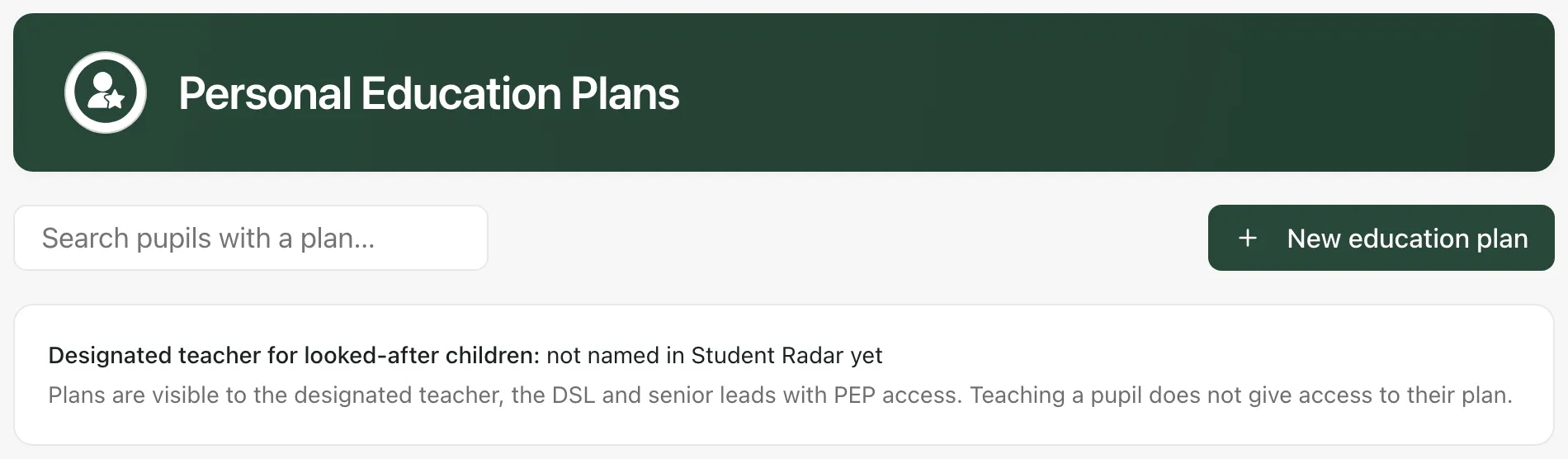
The panel under the search box names your school’s designated teacher. If nobody is named yet, ask whoever manages Student Radar permissions in your school to click Manage designated teachers and name them. A designated teacher can open and update every PEP in the school.
The list shows each plan with its Planning basis, School lead, Review date and status. A plan whose review date has passed shows Review due.
Start the plan
Section titled “Start the plan”- Click New education plan.
- Under Pupil, type at least two letters of the child’s name, then choose them from the list.
- Choose the Planning basis: Looked-after child · PEP, or Previously looked-after child · voluntary plan. This doesn’t change the child’s recorded care status or funding.
- Under Designated teacher or school lead, type part of their name in the search box, then choose the member of staff who will lead the plan.
- Choose the Review date.
- Click Create plan.
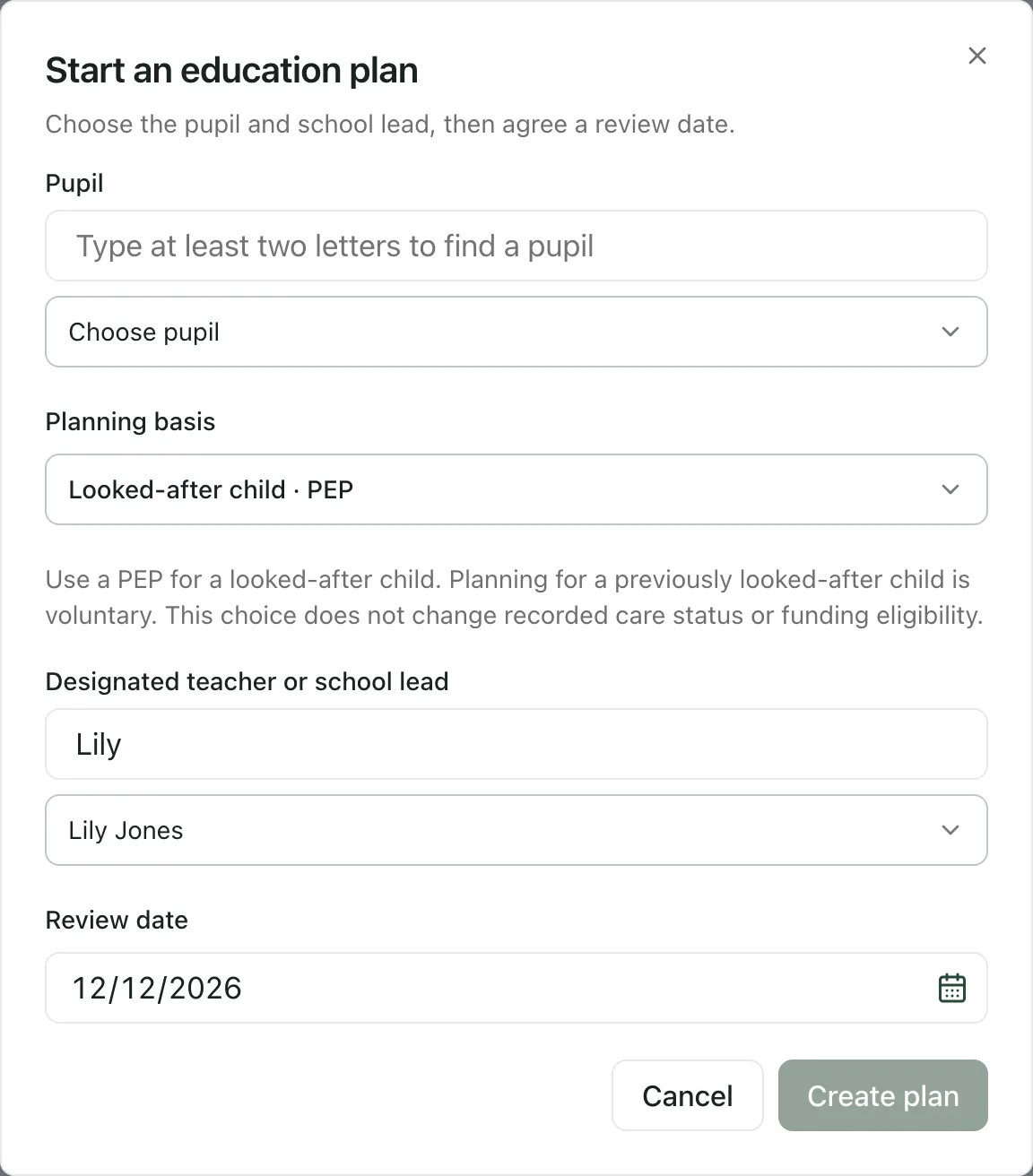
Create plan stays greyed out until you’ve chosen a pupil, a school lead and a review date. The new plan opens straight away.
Fill in the plan
Section titled “Fill in the plan”Work down the plan. Everything here is the school’s record, so write it for the people who’ll read it at the PEP meeting.
- Check the Designated teacher or school lead, Next review date and Planning basis.
- Fill in Strengths, interests and aspirations, the child’s views (or why they couldn’t be gathered), Parent or carer views · contributor and date and Education baseline · attainment, attendance and participation.
- Under Support network · Virtual School, social worker and agreed contributions, record who is involved and what they’ve agreed to do.
- If your local authority uses an ePEP, add the Local Authority ePEP reference and the Local Authority ePEP link (HTTPS). A link to Open Local Authority ePEP then appears on the plan.
- Under Views, click Add a view to record what the child, carers or others said, who said it, how it was gathered and how it shaped the plan.
- Under Education targets and support, click Add target for each target. Record the starting point, the intended outcome, how progress will be measured, the agreed teaching or support, the target’s owner and review date, and any funding requested, agreed and used.
- Click Save plan.
Leave a funding amount blank if you don’t know it: blank means unknown, not zero. Pupil premium plus (PP+) isn’t a personal budget for the child.
School evidence for this review period shows the school records you can see for the child over the period. Change the From and To dates to choose the period. A source you can’t see, or one with nothing recorded, is still listed, so a gap isn’t hidden.
Under the plan’s heading, the child’s recorded care status (Looked after and Previously looked after) is shown, with where it came from. If it doesn’t match the planning basis, the plan says so. Update the pupil’s record or the planning basis: nothing changes automatically.
Before the PEP meeting
Section titled “Before the PEP meeting”Click Prepare meeting pack to make a PDF for the meeting. Choose who it’s for and which sections to include, then check it. Student Radar records that you prepared the pack, but nothing is sent: share it through your school’s usual secure route.
Record the review
Section titled “Record the review”After the PEP meeting:
- Update the plan’s targets with what was delivered, the evidence and the outcome.
- Click Record review.
- Check anything listed as still to complete, such as the child’s views or a target’s evidence.
- Enter the date the Review held on, choose a Decision (Continue support, Adapt support or Seek further advice), and record the reasons and agreed next steps.
- Choose the Next review date.
- Click Record review and schedule next.
The review is saved as a fixed record in Review history, and the next review is scheduled. Recording the review doesn’t send anything to the local authority: approval stays in your ePEP process.
When a plan is no longer needed, click Close plan and give a reason. The plan and its history are kept.
- England only: Personal Education Plans follow the system for looked-after children in England, so the page isn’t available to schools outside England.
- Review reminders: the school lead gets a reminder when the review is due. If the lead can’t open the plan, the list shows Lead cannot open and nobody may see the reminder. Name them as a designated teacher, or choose another lead.
If something doesn’t work
Section titled “If something doesn’t work”| What you see | What to do |
|---|---|
| “No education plans you can open” | Plans are only shared with the staff who need them. Speak to your designated teacher if you support a looked-after child. |
| You can’t find the child under Pupil | Type more of their name: the list shows up to 20 matches. If they still don’t appear, ask your administrator to check your access. |
| “The school lead for this plan cannot open it, so they will not see its review reminder. Name them as a designated teacher or choose another lead.” | Name the lead as a designated teacher, or choose a different Designated teacher or school lead and save the plan. |
| “The school lead for this plan has no Student Radar account, so nobody receives its review reminder.” | Choose a lead who uses Student Radar, then click Save plan. |
| “Recorded care status could not be loaded, so it has not been compared with this plan.” | Reload the page. The plan itself is unaffected. |
| “This plan is too long. Shorten the notes before saving.” | Shorten the longest notes, then click Save plan again. |
| “Designated teachers could not be loaded.” | Reload the page. |