Score a lesson on a report card
Written for: All staff.
A report card gives a pupil up to five targets for each lesson, such as arriving on time with the right equipment. When a pupil on report has a lesson with you, you score each target at the end of the lesson. The scores add up to the pupil’s percentage for the day, which their coach compares with the card’s daily goal when they check out with the pupil.
Find the pupil’s card
Section titled “Find the pupil’s card”In the sidebar, open Behaviour, then Intervention, and choose Report Cards.
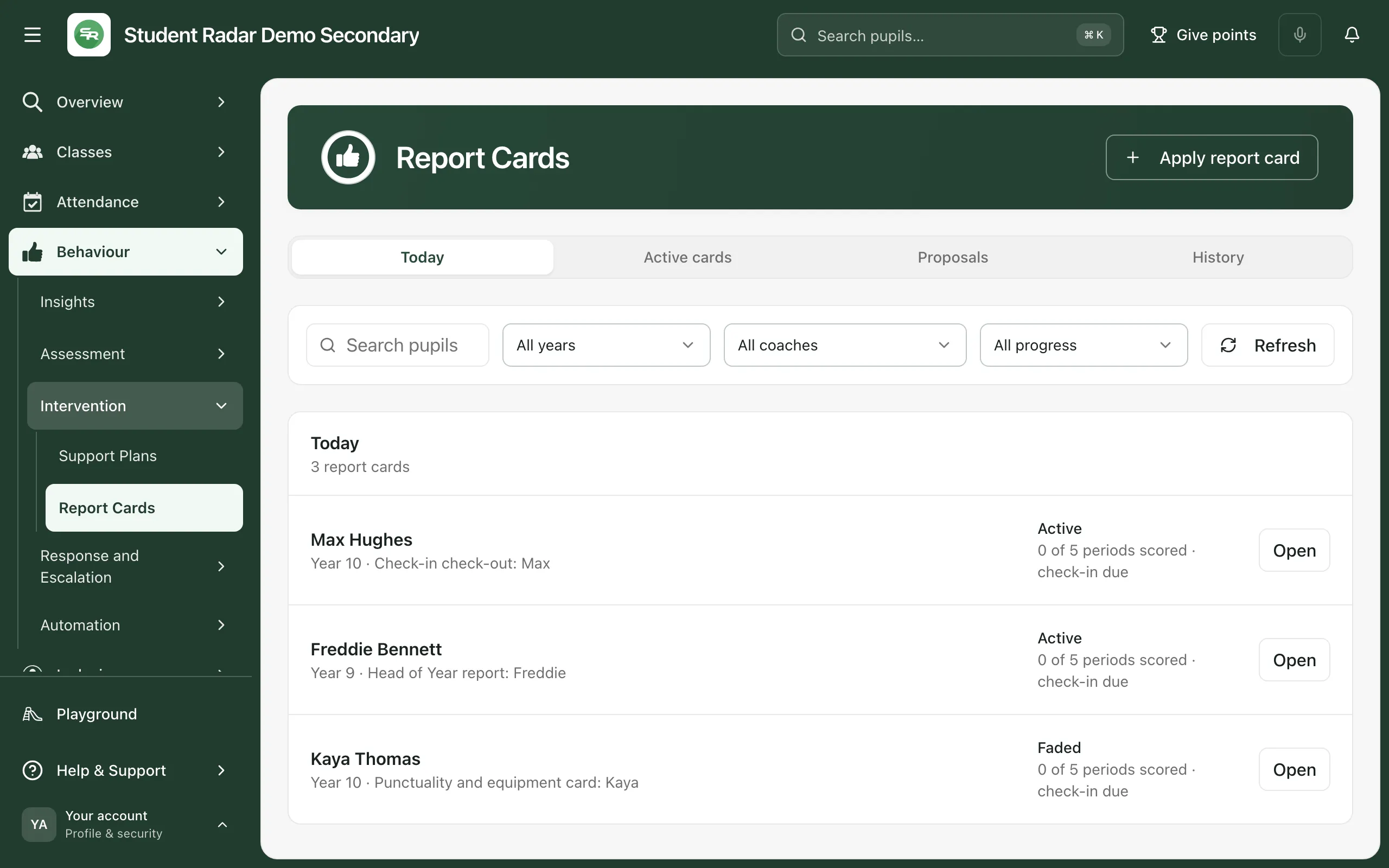
The Today tab lists the cards running today. Each row shows the card’s name, its status and how many of today’s periods have been scored. To find a pupil quickly, type their name in Search pupils. You can also filter by year, by coach and by progress against the daily goal.
Click the pupil’s name, or click Open.
Check what needs scoring
Section titled “Check what needs scoring”The card opens with a summary at the top: the card’s Status, its Daily goal, the pupil’s recent average (Current window) and how many periods have been scored today (Coverage today). Below that, Daily trend and completeness shows the pupil’s result for each recent day. Days that weren’t scored stay blank, so gaps are easy to spot.
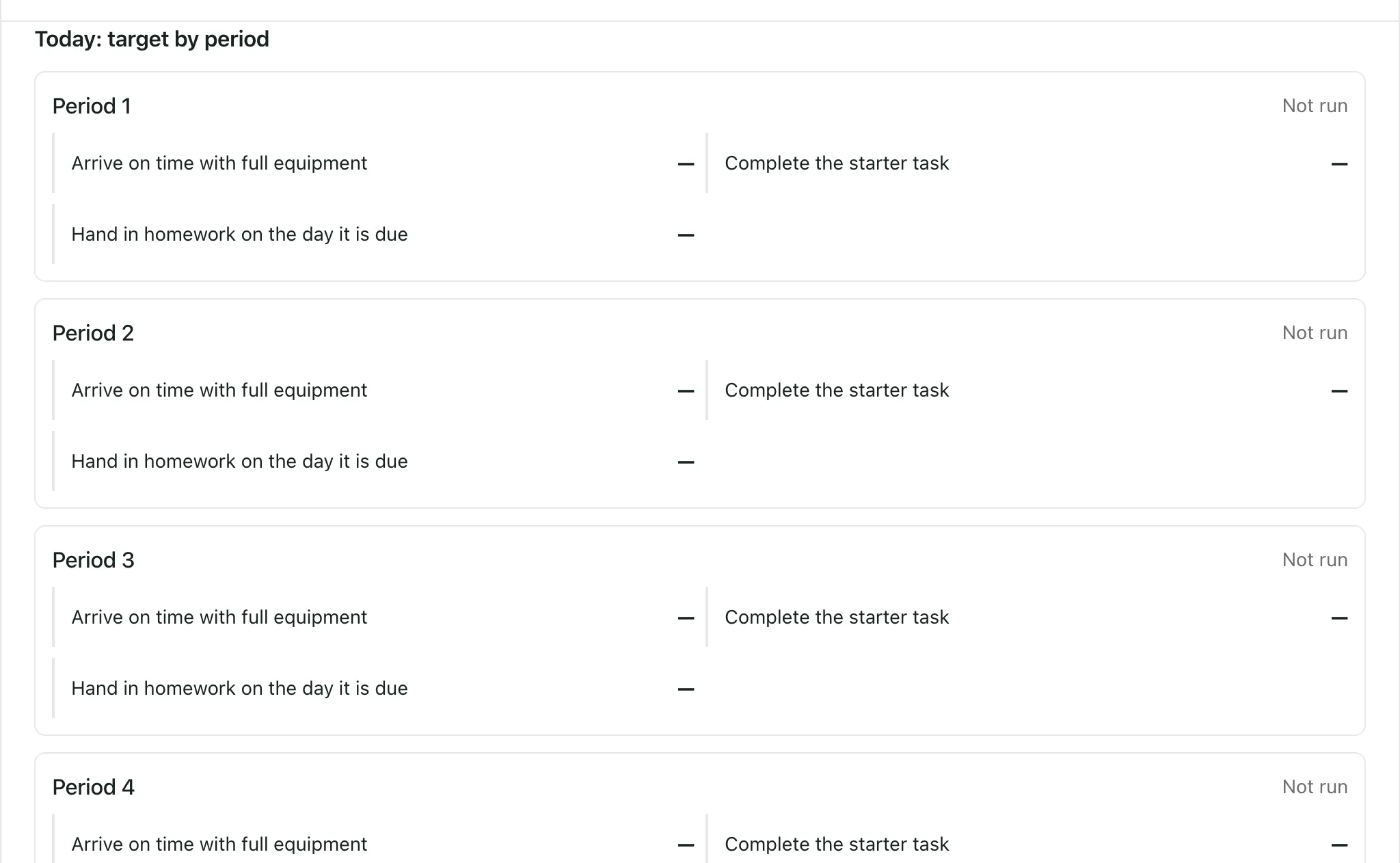
Under Today: target by period, each period on the card is listed with its targets. Periods that haven’t been scored yet say Not run.
Score the lesson
Section titled “Score the lesson”-
Click Score a period at the bottom of the card.
-
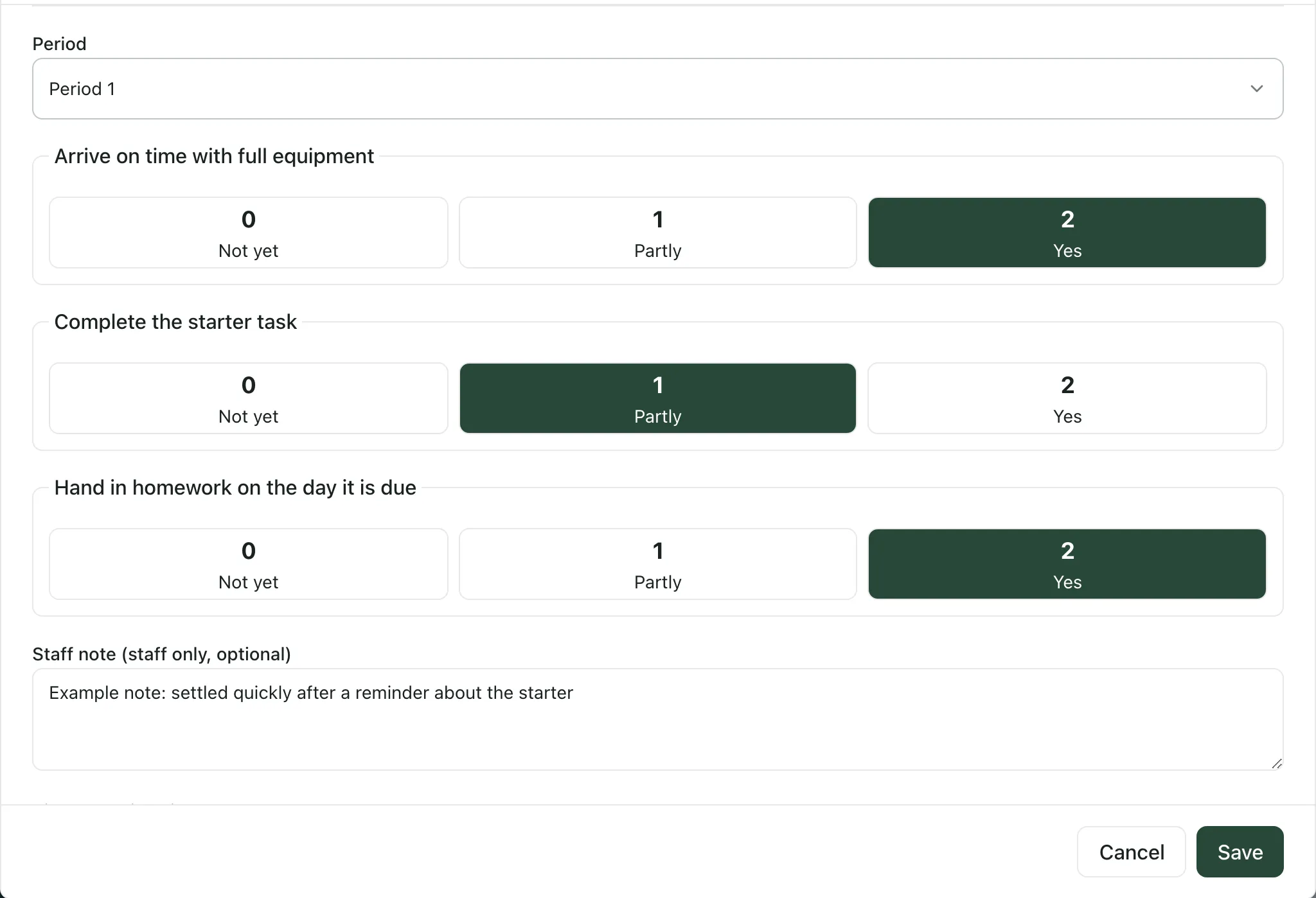
Check the Period. It starts on the first period that hasn’t been scored today. Choose a different period from the list if you need to.
-
For each target, click a score: 0, 1 or 2. The words under each number depend on the card, for example Not yet, Partly and Yes.
-
If you want to, add a Staff note (staff only, optional), such as what helped. Staff notes are never shared with parents.
-
Click Save. It’s available once every target has a score. You’ll see “Period score saved”, and the period’s scores appear under Today: target by period.
To correct a score you’ve already saved today, click Score a period again and choose the same period. Periods that already have a score are marked (correct score) in the list. Score the targets again, then click Save.
To stop without saving, click Cancel.
Tip: You can also score from the pupil’s profile. Open the profile, go to the Behaviour section and click Score a period on the Report Card panel.
- Today only: you score today’s periods. You can’t add scores for an earlier day.
- Score a period not showing: the button appears only on active cards that you’re allowed to score. A card that’s been closed can’t be scored. If you think you should be able to score a card, ask the pupil’s coach or your school’s Student Radar administrator.
- Coach actions: buttons such as Coach check-in, Coach check-out, Edit live plan, Start fade and Close report card are for the pupil’s coach and leaders who manage the card.
- Faded cards: a card with the status Faded is being phased out, but it’s still scored in the same way.
- Per-school switch: report cards are switched on for each school. If they aren’t on for yours, the page says so instead of showing the cards.
If something doesn’t work
Section titled “If something doesn’t work”| What you see | What to do |
|---|---|
| “Update not saved” | The score wasn’t saved, and the reason is shown under the message. Check the scores, then click Save again. |
| “Nothing here yet” | There are no cards on this tab. Try Active cards, or clear the search and filters. |
| “Report cards are unavailable” | Click Refresh. Until the list loads, it doesn’t mean there are no cards. |
| “The report-card record is unavailable” | Close the card and open it again from the list. If it keeps happening, click Refresh first. |
| “Report Cards are not enabled for this school” | Report cards aren’t switched on for your school. Speak to your school’s Student Radar administrator. |
| “You do not have access to Report Cards” | Ask your school’s Student Radar administrator to check your access, then click Check access again. |