Complete and sign an appraisal review
Written for: Headteachers and senior leaders who carry out and sign off staff appraisals.
Each appraisal review moves through the year from agreeing objectives to a final review that both the member of staff and their reviewer sign. This article shows you how to move a review on, rate it against the professional standards, link evidence, and sign it off. To create the cycle and reviews in the first place, see Set up an appraisal cycle.
Open the reviews
Section titled “Open the reviews”- In the sidebar, open Leadership, then Staff.
- Choose Appraisal & Staff Review.
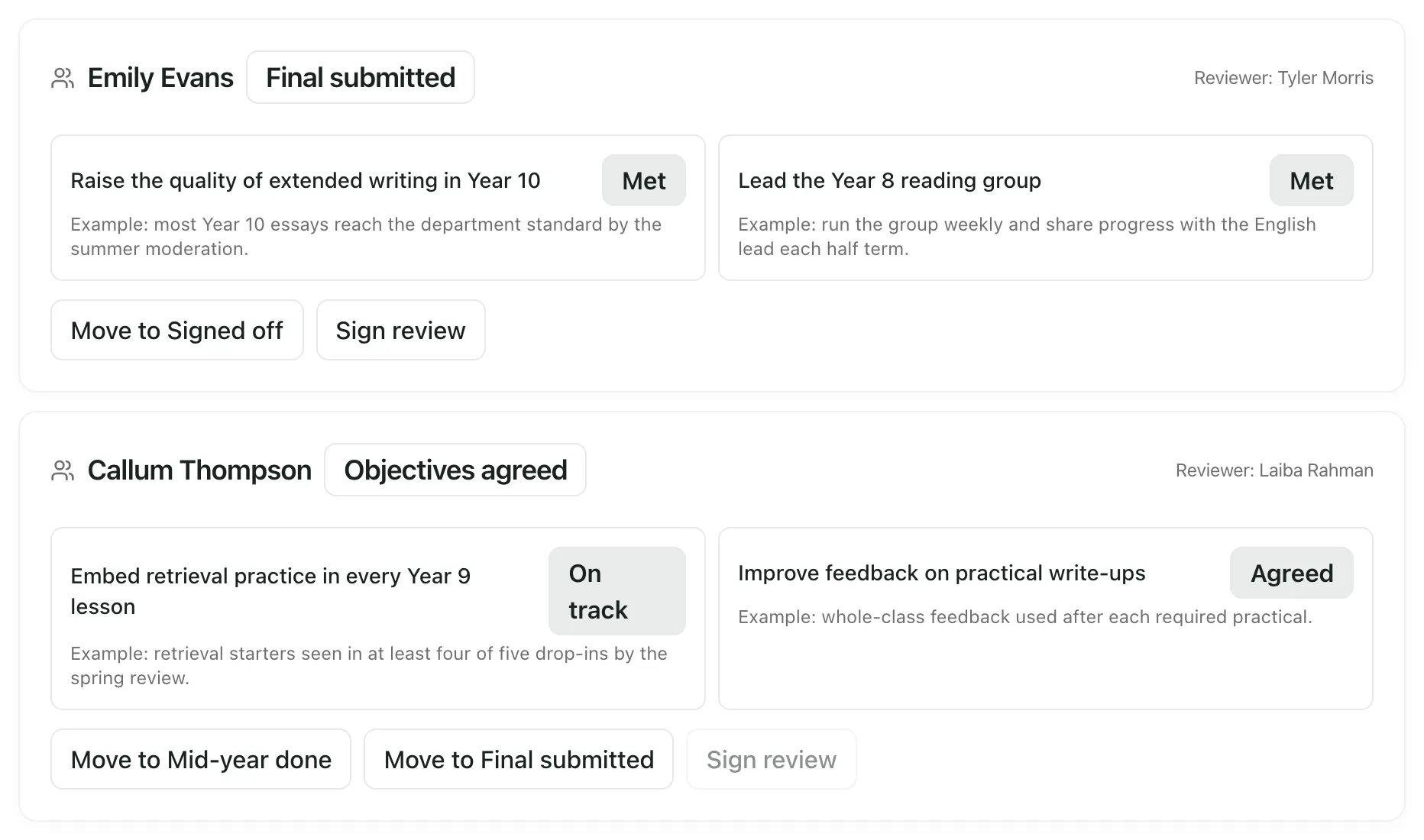
The Reviews tab lists the reviews in your school’s current cycle that you can see. Each card shows the member of staff, the review’s stage, their reviewer and their objectives with each objective’s status, such as Agreed, On track or Met.
Move the review through the year
Section titled “Move the review through the year”A review goes through these stages:
- Not started
- Objectives proposed
- Objectives agreed
- Mid-year done (you can skip this and go straight to the final review)
- Final submitted
- Signed off
When a stage is finished, click the button on the review card that moves it to the next stage, for example Move to Objectives agreed once you’ve agreed the objectives together. The review card only offers the stages that can come next.
Rate against the standards
Section titled “Rate against the standards”At the start, middle and end of the year, record ratings against each standard in the cycle’s framework: the member of staff’s own view of themselves (Self) and the reviewer’s view (Reviewer).
- Click the Standards tab.
- Under Record standard rating, choose the member of staff in Review. Framework shows the standards used in this cycle.
- Choose the Standard.
- Choose the Stage: Start, Mid or End.
- Choose the Rater: Self for the member of staff’s own rating, or Reviewer.
- Choose a Rating from 1 to 4. A lower rating means more development is needed.
- In Justification, explain the rating in at least 10 characters.
- Click Save rating.
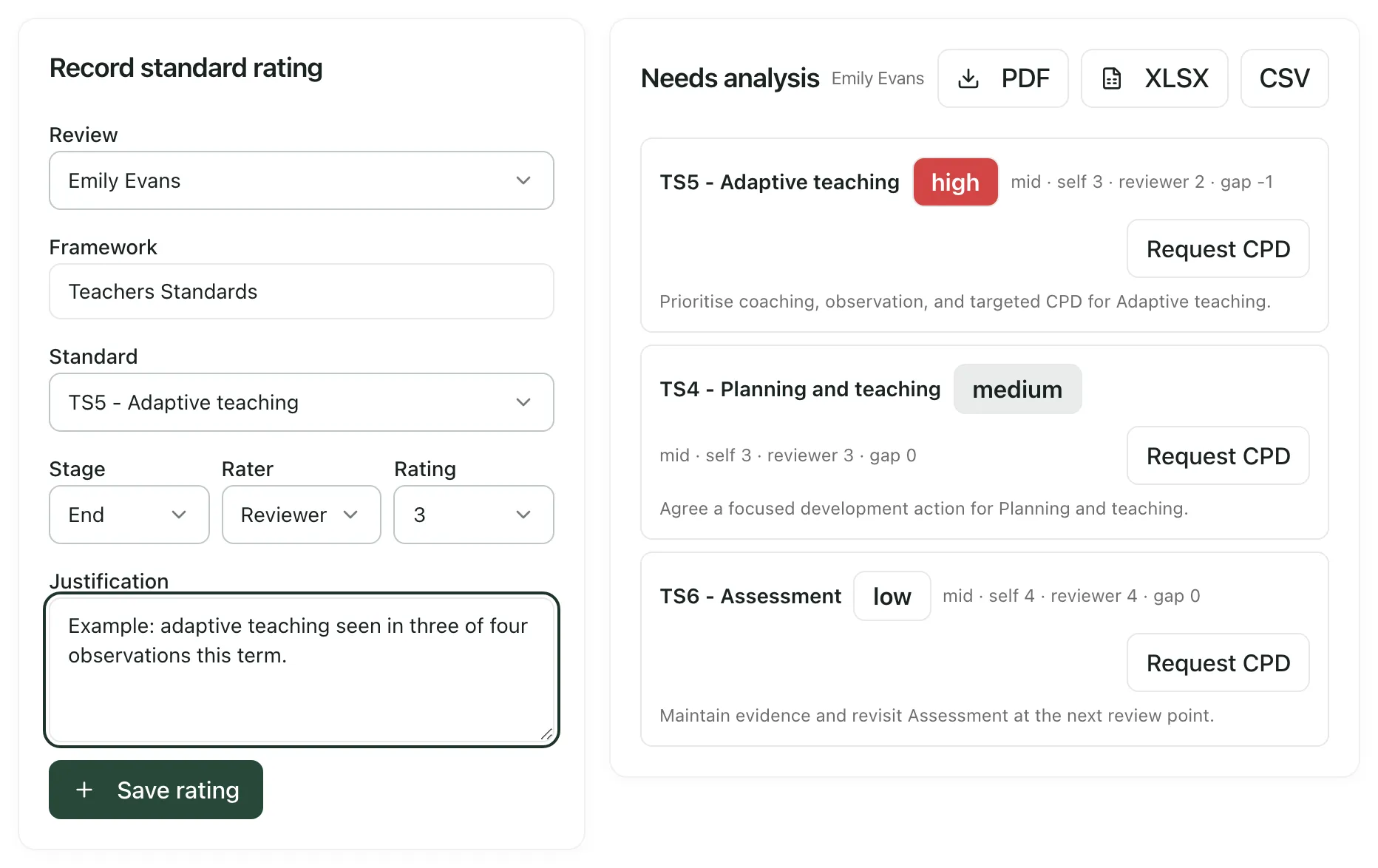
You’ll see “Standard rating saved”. If you save a rating for the same standard, stage and rater again, it replaces the earlier one.
Use the needs analysis
Section titled “Use the needs analysis”Needs analysis compares the self and reviewer ratings for each standard and stage, and suggests a learning plan. A standard is marked high when the lower of the two ratings is 2 or less, or the ratings are 2 or more apart. It’s marked medium when the lower rating is 3 or the ratings are 1 apart, and low otherwise.
The priorities are there to start a conversation, not to decide anything for you. Talk them through with the member of staff.
- Click Request CPD next to a standard to send a CPD request for it. It appears with your school’s other CPD requests in CPD.
- Click PDF, XLSX or CSV to download the needs analysis.
Link evidence to objectives
Section titled “Link evidence to objectives”- Click the Evidence tab and choose the member of staff in Review.
- Under Objective evidence and live KPI movement, choose the Objective and the Evidence item from your school’s evidence.
- Click Link.
Each objective shows how many pieces of evidence are linked. If an objective is linked to a measure on one of your school priorities, click Refresh KPI to bring the measure up to date.
Sign the review
Section titled “Sign the review”When the final review is done, move the review to Final submitted. Then the member of staff and their reviewer each sign it:
- Open the Reviews tab.
- On the review card, click Sign review.
You’ll see “Review signature recorded”. When both of you have signed, the review moves to Signed off by itself, and a copy of its objectives and ratings is kept exactly as they were at sign-off. A signed-off review can’t be changed.
Always use Sign review to finish. The button that moves the review straight to Signed off doesn’t sign it, so the review stays at Final submitted until both of you have signed.
Who can sign
Section titled “Who can sign”Only the member of staff and their reviewer can sign a review. A headteacher or administrator can’t sign on someone else’s behalf.
Both people need to open Appraisal & Staff Review to sign. By default, only headteachers, senior leaders, DSLs and administrators (and trust and service leads) can open the page. Classroom teachers and other staff can’t, so they can’t sign their review in Student Radar.
If something doesn’t work
Section titled “If something doesn’t work”| What you see | What to do |
|---|---|
| Sign review is greyed out | The review isn’t at Final submitted yet. Move it on first. |
| “Review sign-off failed” | Only the member of staff and their reviewer can sign, and only once the review is at Final submitted. |
| “Rating and justification are required” | Choose a Standard and write a Justification of at least 10 characters. |
| “Standard rating failed” | Check your connection and click Save rating again. |
| “Record self and reviewer ratings to build the proposed learning plan.” | No ratings have been saved for this review yet. |
| “No objectives recorded yet.” | Add objectives on the Team reviews tab. See Set up an appraisal cycle. |
| “Add or seed objectives before linking evidence.” | The review needs at least one objective before you can link evidence. |
| “No appraisal reviews in the active cycle yet.” | There are no reviews you can see in the current cycle. Reviews are created on the Team reviews tab. |