Act on a pupil review suggestion
Written for: Pastoral, behaviour and senior leaders who review pupils flagged by school rules.
Your school can set up pupil review rules that look for a pattern in what’s recorded about a pupil, such as attendance below 90% together with several behaviour incidents. When a pupil matches, Student Radar suggests that someone reviews them. A suggestion is a prompt for your professional judgement. It doesn’t change anything about the pupil, and nothing happens until a member of staff decides what to do.
Find the suggestions
Section titled “Find the suggestions”In the sidebar, open Leadership, then Operations, and choose Automation. Click the Pupil reviews tab.
You can also get there:
- from Health, then Wellbeing, then Pupil Welfare: click Pupil review suggestions at the top of the page.
- from a task in My Actions that came from a review: click Open sourced review in Automation.
Under Pupil review suggestions, you see only the suggestions, pupils and evidence you’re allowed to see.
Read a suggestion
Section titled “Read a suggestion”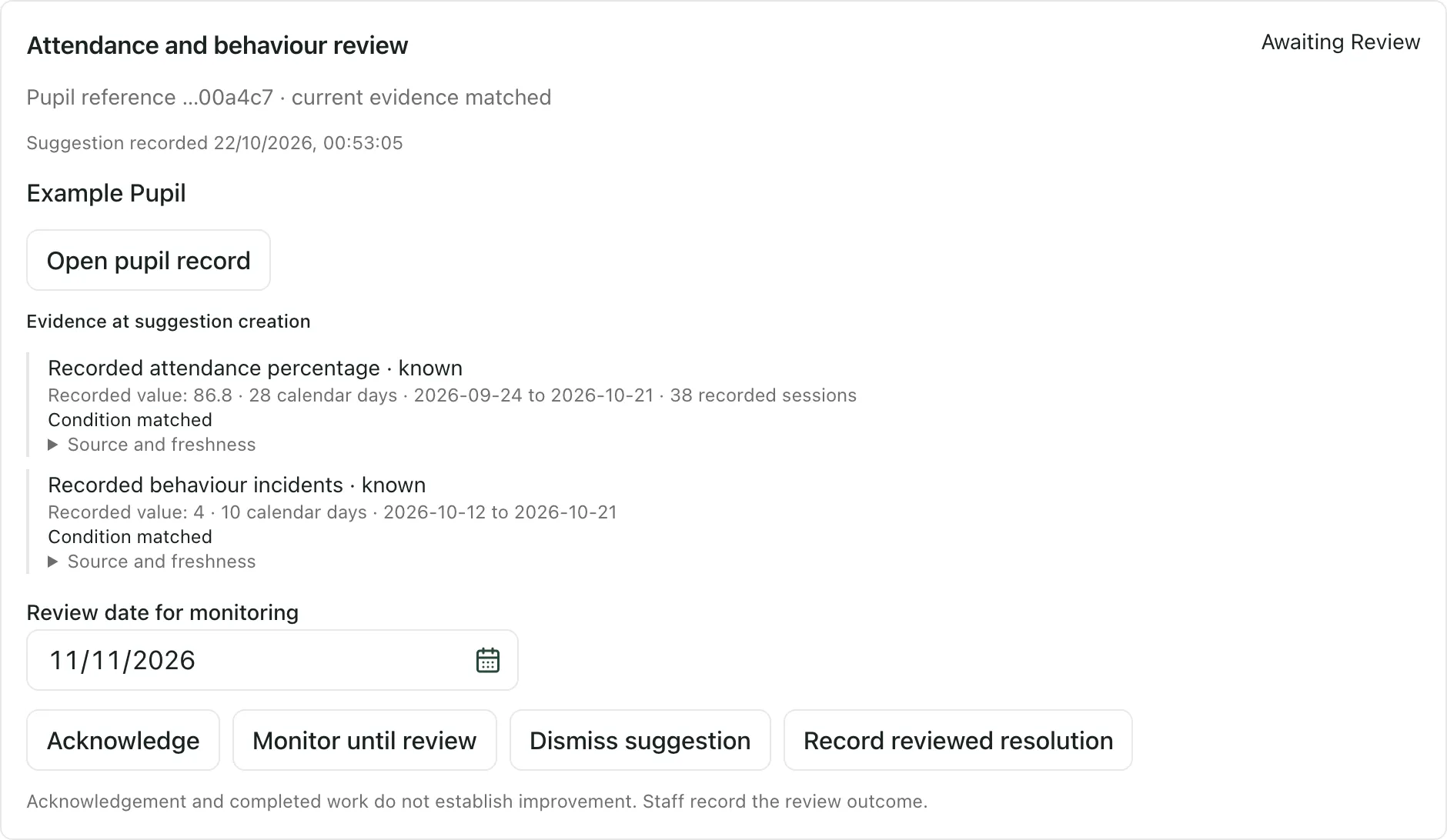
Each suggestion shows:
- the rule that made it and its status, such as awaiting review.
- the pupil’s name and a short reference, and whether the pupil’s current evidence still matches the rule.
- when the suggestion was recorded.
- Evidence at suggestion creation: each thing the rule checked, the value recorded, the dates it covers and whether the condition matched. Click Source and freshness to see where the figure came from and how up to date it is.
- Current permitted evidence, when the evidence has changed since the suggestion was made.
The evidence is only what was recorded. A missing record doesn’t mean something didn’t happen, and the rule doesn’t know the context. Click Open pupil record to look at the pupil’s profile, and talk to the staff who know them, before you decide.
Record your decision
Section titled “Record your decision”If you’re allowed to review suggestions, choose one of these:
| Button | Use it when |
|---|---|
| Acknowledge | You’ve seen the suggestion and are looking into it. |
| Monitor until review | You want to keep an eye on the pupil. Set the Review date for monitoring first; the button is available once there’s a date. |
| Dismiss suggestion | The suggestion doesn’t need any action, for example because the context explains it. |
| Record reviewed resolution | You’ve reviewed the pupil and the matter is resolved. |
Your decision is recorded with your name and the time. Dismissing or resolving a suggestion is final. A decision records your review. It doesn’t change the pupil’s record, assign work or contact anyone.
Acknowledging a suggestion, or completing work that came from it, doesn’t show that things have improved for the pupil. Record what you found in the usual place, such as the pupil’s notes or support plan.
If you’re worried about a pupil’s safety or welfare, don’t wait: follow your school’s safeguarding procedure and use Raise concern on the pupil’s profile.
Accept or dismiss proposed follow-up work
Section titled “Accept or dismiss proposed follow-up work”Some rules also propose a piece of follow-up work, such as a check-in with the pupil. These are listed under Proposed follow-up work, with when the work would be due.
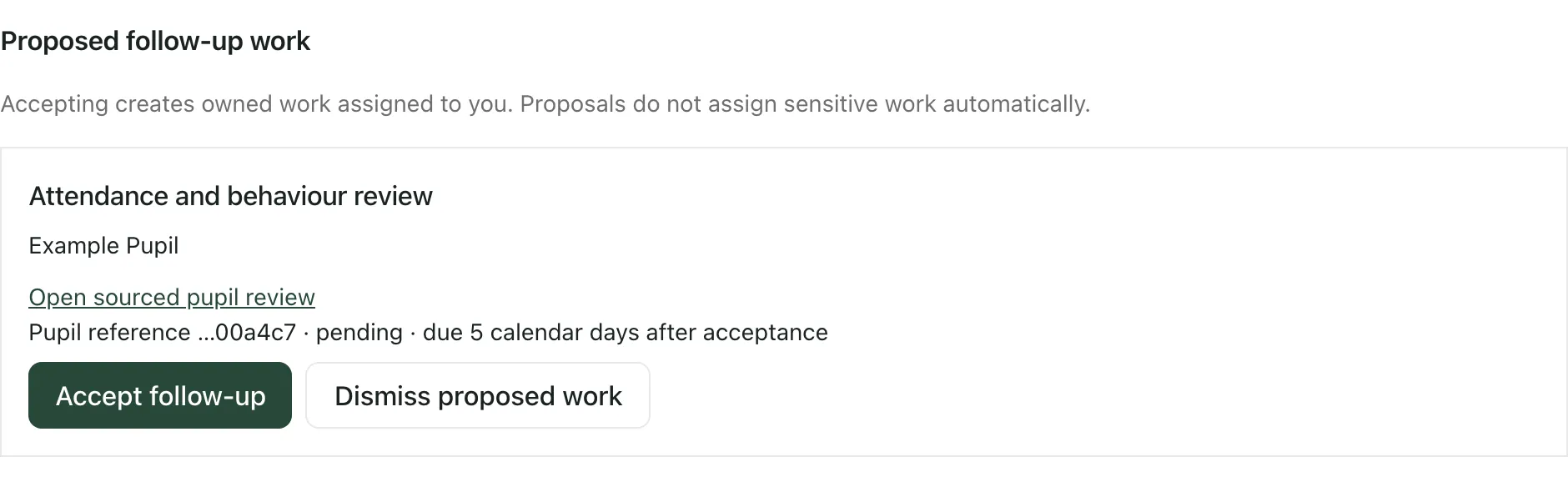
- Click Open sourced pupil review to see the suggestion it came from.
- Click Accept follow-up to create the work as a task assigned to you. It appears in My Actions. Click Open accepted work to open it.
- Click Dismiss proposed work if the work isn’t needed.
Proposals never assign work to anyone on their own. A person always decides.
- Who can decide: the decision buttons appear only if your account is allowed to review suggestions. Otherwise you can read the suggestion but not record a decision.
- Not on Behaviour automation: pupil review suggestions are on the main Automation page, not on Behaviour automation.
- Setting up rules: staff with automation access create pupil review rules from New pupil review rule on the Automation page. For behaviour rules, see Create and switch on a behaviour rule.
If something doesn’t work
Section titled “If something doesn’t work”| What you see | What to do |
|---|---|
| “No permitted review suggestions recorded.” | There are no suggestions you’re allowed to see. |
| “This review is unavailable under your current permissions.” | The link opened a suggestion you can’t see. Ask the person who sent it, or your Student Radar administrator. |
| “This rule changed elsewhere. Reload it before saving again.” | Someone else decided this suggestion at the same time. Refresh the page to see the latest decision. |
| “Your current school permissions do not allow this automation action.” | Your account can’t record this decision. Ask your school’s Student Radar administrator. |
| “Automation access required” | Your account can’t open Automation. Ask your school’s Student Radar administrator. |