Plan an intervention
Written for: All school staff who set up interventions.
Use the Intervention Planner to set up targeted support for a group of pupils: what it aims to improve, who it’s for, when the sessions run, who delivers it and how you’ll judge whether it’s working. Planning all of this up front means the sessions can be recorded and the plan reviewed on the date you set.
Start a new plan
Section titled “Start a new plan”- In the sidebar, open Inclusion and choose Intervention Planner.
- Click Create intervention.
The Create an intervention window has four steps: Aim & pupils, Schedule, Staff and Review. Click Next to move on, or Back to change an earlier step. You can’t move past a step until its required details are filled in.
Tip: Before you choose pupils, click Pupil map on the planner page to see which pupils are already on current plans. It flags pupils on several plans at once, so support isn’t doubled up without you knowing.
Step 1: Aim and pupils
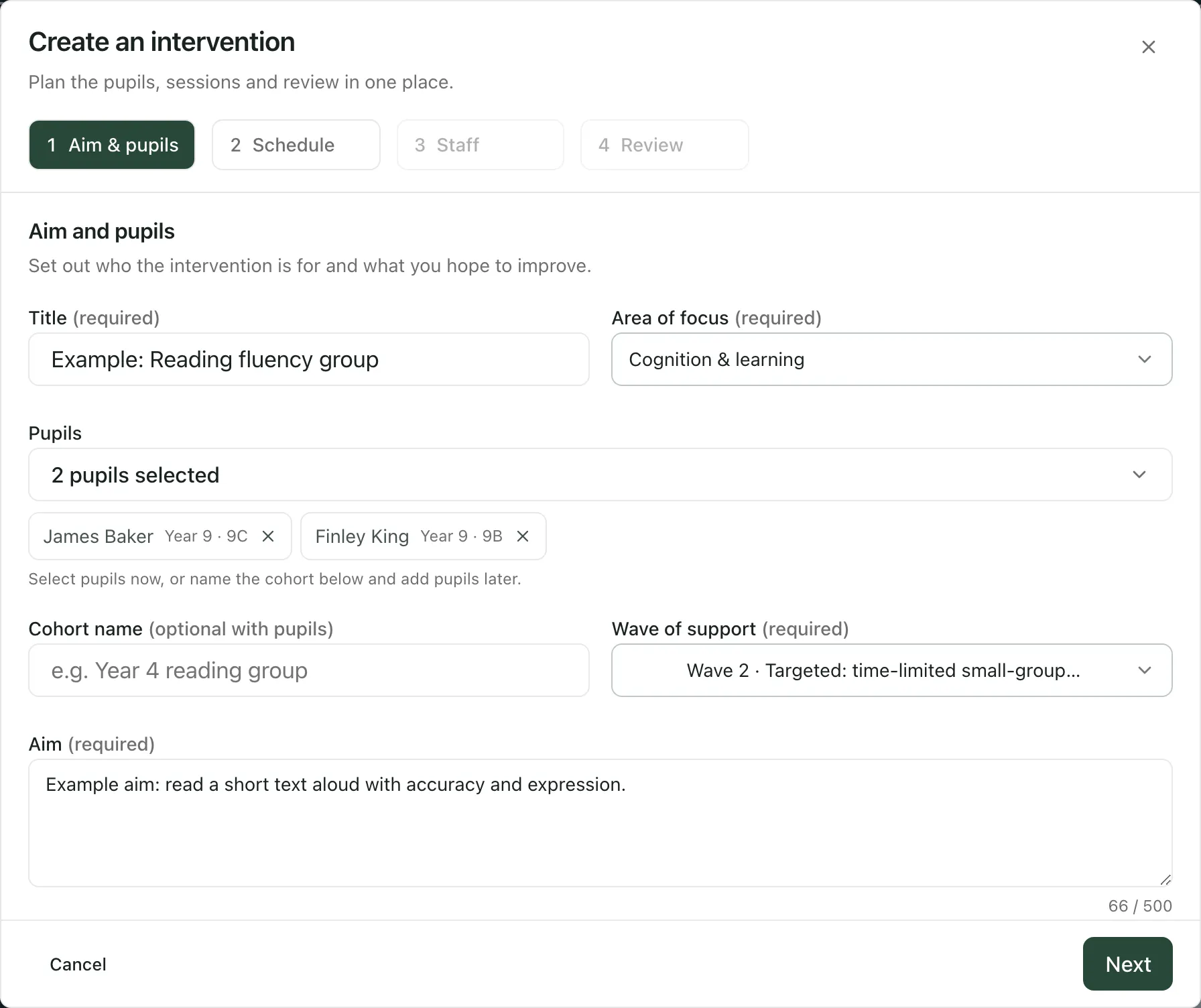
Section titled “Step 1: Aim and pupils”- Give the plan a Title, such as the name of the group.
- Choose the Area of focus: Cognition & learning, Communication & interaction, Sensory / physical, Social, emotional & mental health, Attendance or Behaviour.
- Under Pupils, click Search and select pupils, type a name, year or form, and click each pupil to add them. Click a pupil’s name under the box to remove them.
- If you don’t know the pupils yet, enter a Cohort name instead and add pupils later.
- Choose the Wave of support. Your school decides what the waves are called.
- Describe the Aim: what you’d like pupils to be able to do.
Step 2: Schedule the sessions
Section titled “Step 2: Schedule the sessions”Set the Session length (minutes) and, if you like, a Room. Then choose how sessions are scheduled:
- Recurring: choose the Weekdays, the date to start from (Starting from), the Start time and the Number of weeks. Student Radar works out the sessions and lists them underneath.
- Individual dates: click Add session for each session and give it a Date, Start time and Minutes, and an optional Topic.
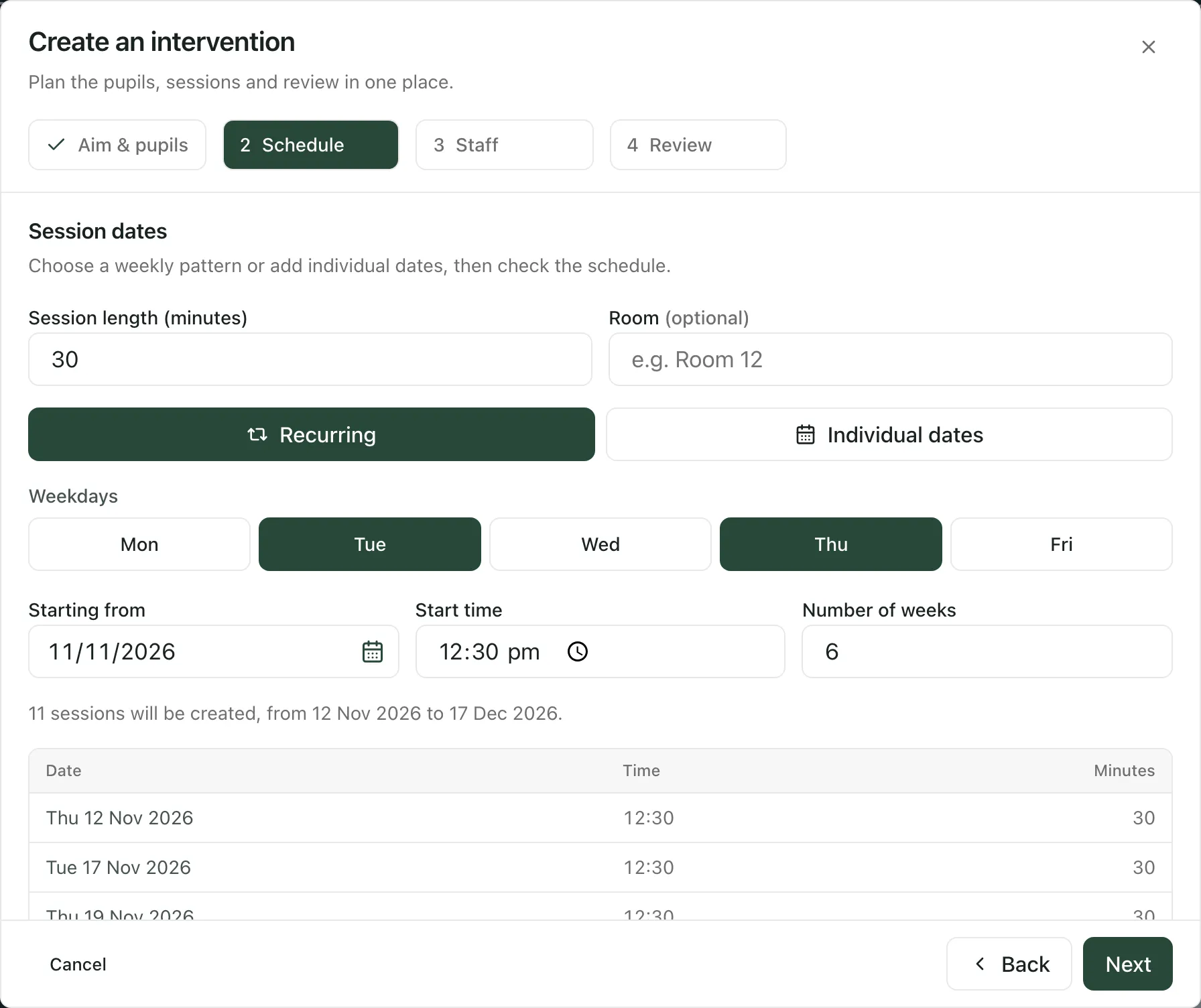
Check the list of sessions before you move on. A recurring pattern doesn’t skip school holidays or check the calendar for clashes. To remove or move single sessions, switch to Individual dates: the sessions from your pattern are kept so you can edit them.
A plan can have up to 260 sessions, each between 5 and 480 minutes long.
Step 3: Choose the staff
Section titled “Step 3: Choose the staff”- In Lead staff member, choose or type the name of the person leading the intervention.
- Use Support staff to add colleagues who help deliver it.
You can leave this step and assign staff later.
Step 4: Agree the review and create the plan
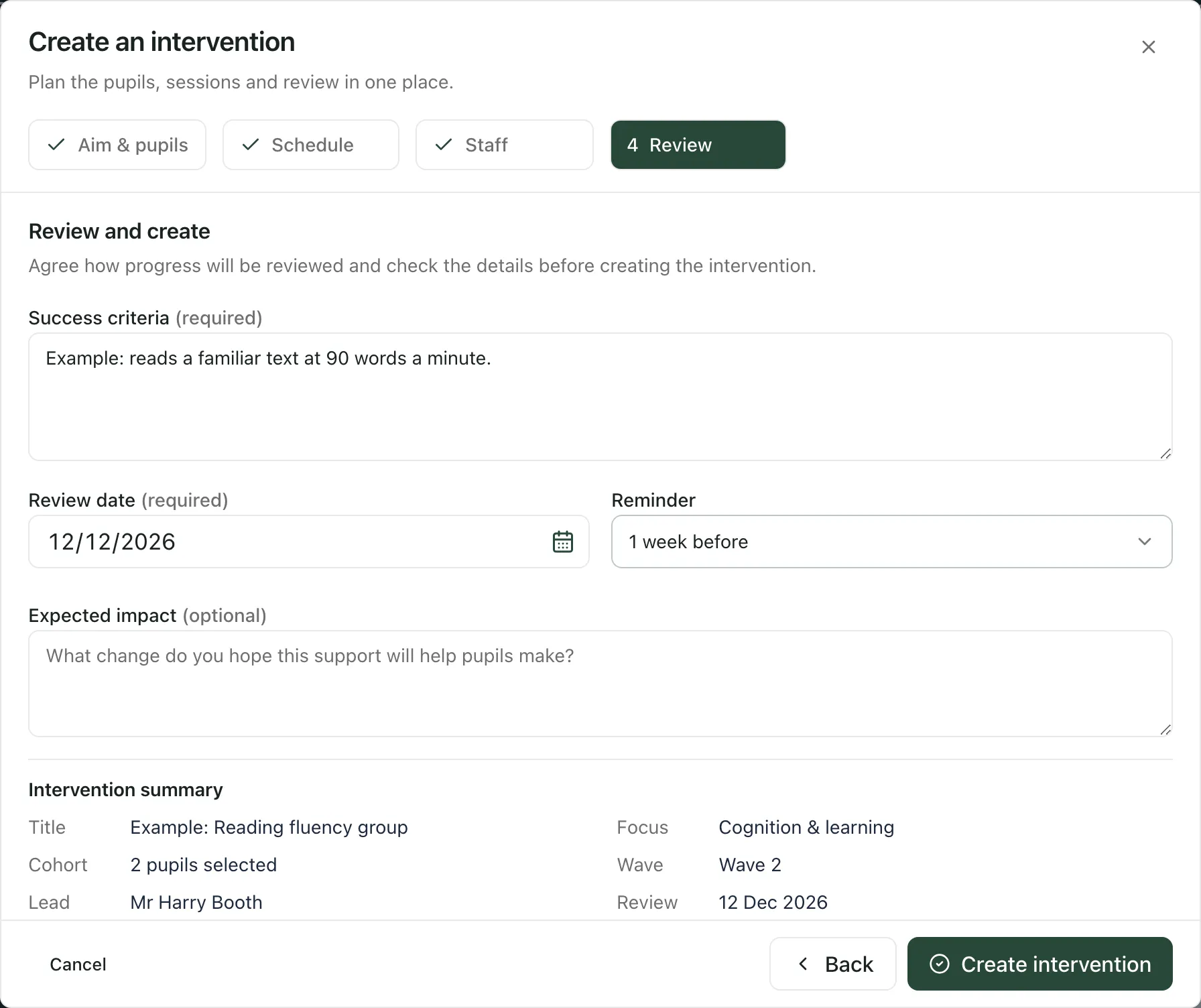
Section titled “Step 4: Agree the review and create the plan”- In Success criteria, say what staff will look for to judge whether the intervention is working. Put each criterion on its own line.
- Choose a Review date. It must be on or after the first session.
- Choose when you’d like a Reminder: 1 day before, 3 days before or 1 week before the review.
- Optionally, describe the Expected impact.
- Check the Intervention summary and the list of sessions.
- Click Create intervention.
The plan appears in the planner list. To see its sessions alongside the rest of the school’s diary, click Calendar on the planner page.
If the save can’t be confirmed, Student Radar keeps your draft open and the button changes to Retry creation. Click it to try again; it won’t create the plan twice.
If you click Cancel after entering details, you’re asked whether to discard them. Click Keep editing to go back to your draft, or Discard draft to clear it.
After you’ve created the plan
Section titled “After you’ve created the plan”- To run the plan day to day, see Record an intervention session. It covers recording delivery, taking the pupil register and noting progress.
- To change the plan, click its name in the list and use its sections, such as Overview and Schedule.
- On the review date, open the plan and use the Review section to judge whether the intervention is working, using the evidence recorded. Sessions delivered and attended don’t show on their own that the support made a difference.
See your plans by wave
Section titled “See your plans by wave”Click Board on the planner page to see plans grouped by wave of support. To move a plan to another wave, drag it to another column or use its menu. If you manage your school’s planner, click Edit categories to rename the waves or add your own.
Take the built-in tour
Section titled “Take the built-in tour”Click Take a tour on the planner page. It shows the summary figures, the create window, the list of plans and what a finished plan looks like.
If something doesn’t work
Section titled “If something doesn’t work”| What you see | What to do |
|---|---|
| Create intervention is greyed out | Your account can read the planner but not add plans to it. Ask your SENCo or Student Radar administrator. |
| “Check these details” | Something required is missing from the step. Fix each item in the list, then click Next again. |
| “Select pupils or enter a cohort name.” | Add at least one pupil, or a Cohort name. |
| “Add at least one session with a date and start time.” | Set up a recurring pattern, or click Add session under Individual dates. |
| “The review date must be on or after the first session.” | Choose a later Review date. |
| “No matching pupils. Try a name, year or form.” | Check the spelling, or search by year or form instead. |
| “Couldn’t confirm the save. Your draft has been kept. Retry to finish creating this intervention.” | Click Retry creation. If it keeps happening, check your connection. |
| “Interventions could not be loaded” | Click Try again. |