Manage AP qualifications and record confirmed achievement
Written for: Authorised provision qualification leads and accreditation recorders.
Check the qualification definition and offer, assign the intended pupil and record actual award or unit achievement with evidence. Adding a catalogue entry does not assign a pupil, record achievement, issue a certificate or establish that an awarding body has approved the specification.
You need the relevant accreditation viewing/management and pupil/placement permissions. Confirm qualification numbers, credit totals and specifications with the awarding body before relying on a catalogue definition. The fictional examples describe a provider-created practical-skills entry; they are not an actual regulated qualification.
Find and interpret a catalogue entry
Section titled “Find and interpret a catalogue entry”- Open Accreditations under Progress and select Catalogue.
- Review Catalogue entries, In your offer, Your own entries and Awarding bodies. Each count has its own scope; an entry in the catalogue is not necessarily in the offer.
- Use Search, Awarding body, Level and Offer to find the intended record. Clear or broaden filters before assuming an entry is absent.
- Read the award, body, subject, level, structure and listed units together. Qualification number not confirmed is a real gap, not an assurance that the number is unnecessary.
- Distinguish reference entries, provider entries and migrated information. A listed name/level is not the same as a verified specification.
- Where there are more than six listed units, use Show all … and Show fewer to inspect the relevant unit. Review any stated catalogue limit/partial-list notice; the catalogue reader is bounded to 1,000 entries.
- If a source read fails, use Try again. A failed catalogue read must not be interpreted as no qualifications or awards.
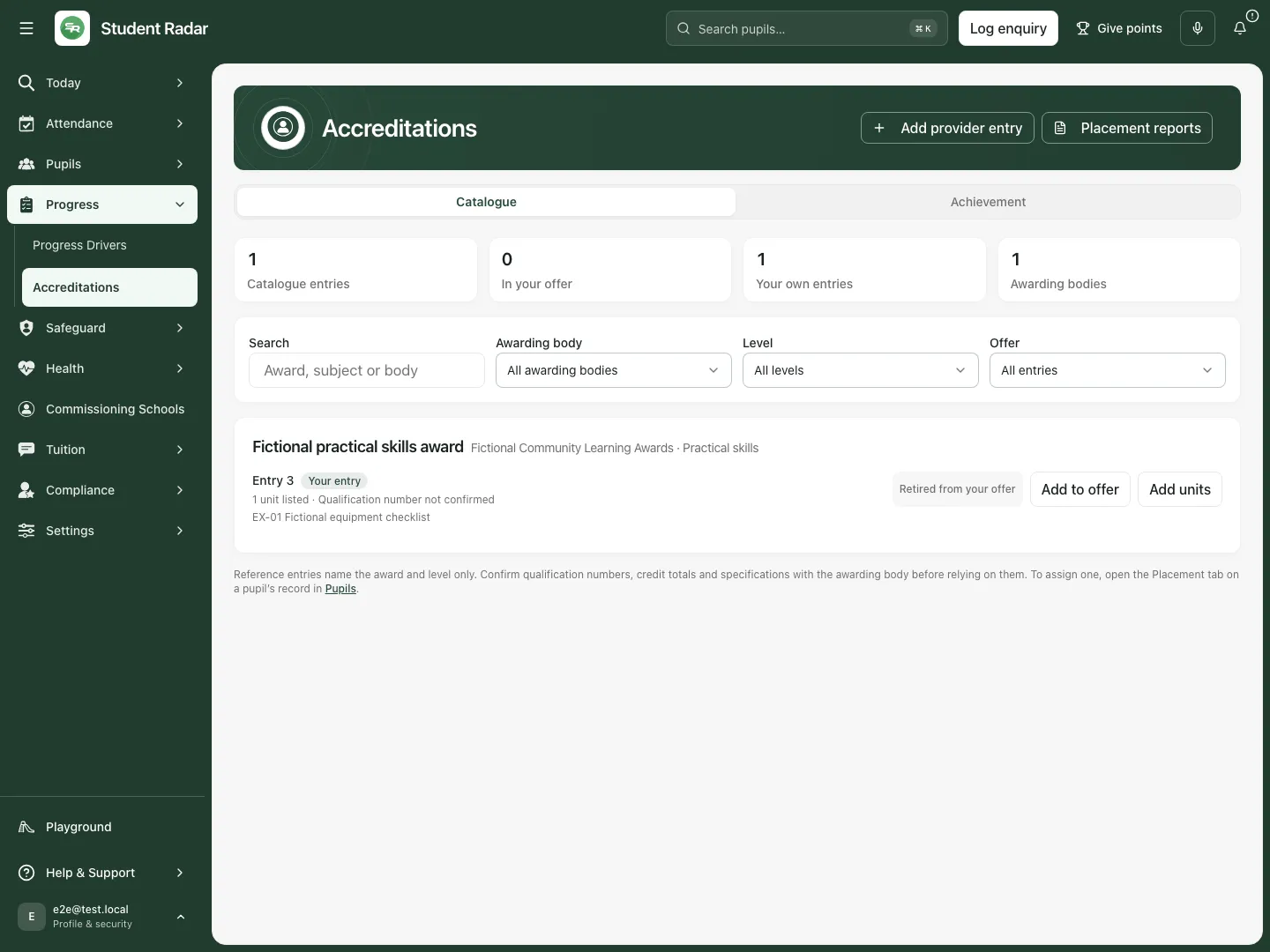 The fictional provider entry lists one unit and an unconfirmed qualification number. It is retired from the current offer; historic achievement remains a separate record.
Add the provision’s own catalogue entry
Section titled “Add the provision’s own catalogue entry”- Choose Add provider entry.
- Select Awarding body, or use the new-body option and enter Name with Short name (optional). Check existing bodies first to avoid near-duplicate spellings.
- Select Qualification or award, or create the new award with Title, Subject (optional), Type and Offer category.
- Choose Structure: the applicable single award, components, units or credits structure. Set Achievement is recorded to For the whole award or For each unit (each unit is certificated) according to the actual scheme. Unit-certificated awards need a unit-capable structure.
- Set Level, and record the size/qualification number only when known. Leave an unconfirmed qualification number blank rather than inventing one.
- Record Units needed and Credits needed where applicable. These definitions do not themselves award credits or a qualification.
- In Units or components (optional) enter one per line: a title,
Code | Title, orCode | Title | Credits. Review every validation issue; at most 50 units can be added in one request. - Choose Add entry. Inspect the resulting body/award/level and units. Cancel abandons an unsubmitted form. If the result is uncertain, inspect the catalogue before deliberately adding another entry.
Add units to an existing level
Section titled “Add units to an existing level”- Find the exact award/body/level and choose Add units. The control is offered for unit-capable structures.
- In Units or components, enter only the intended additional units, one per line, using the title/code/credits format.
- Check the unit titles and any credits against the actual specification. Existing units are not achieved merely because they are listed.
- Choose Add units in the form. Inspect the reported additions/skips; units already listed can be skipped rather than added twice.
- Reload the catalogue and verify the added unit under the intended level. A duplicate/no-new-unit result is different from a failed save.
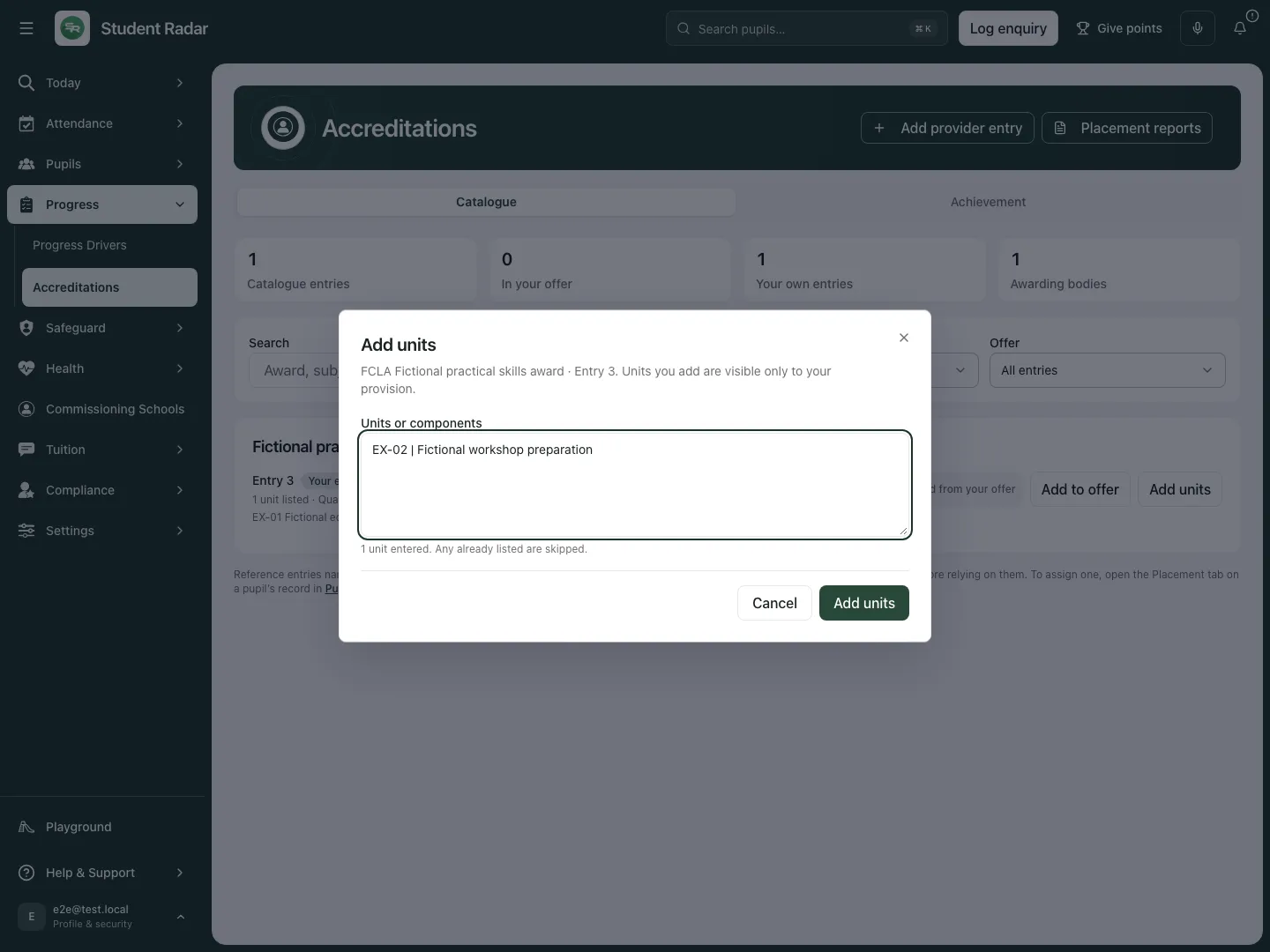 The fictional second unit is being added to the catalogue definition. It does not record anyone as having completed it.
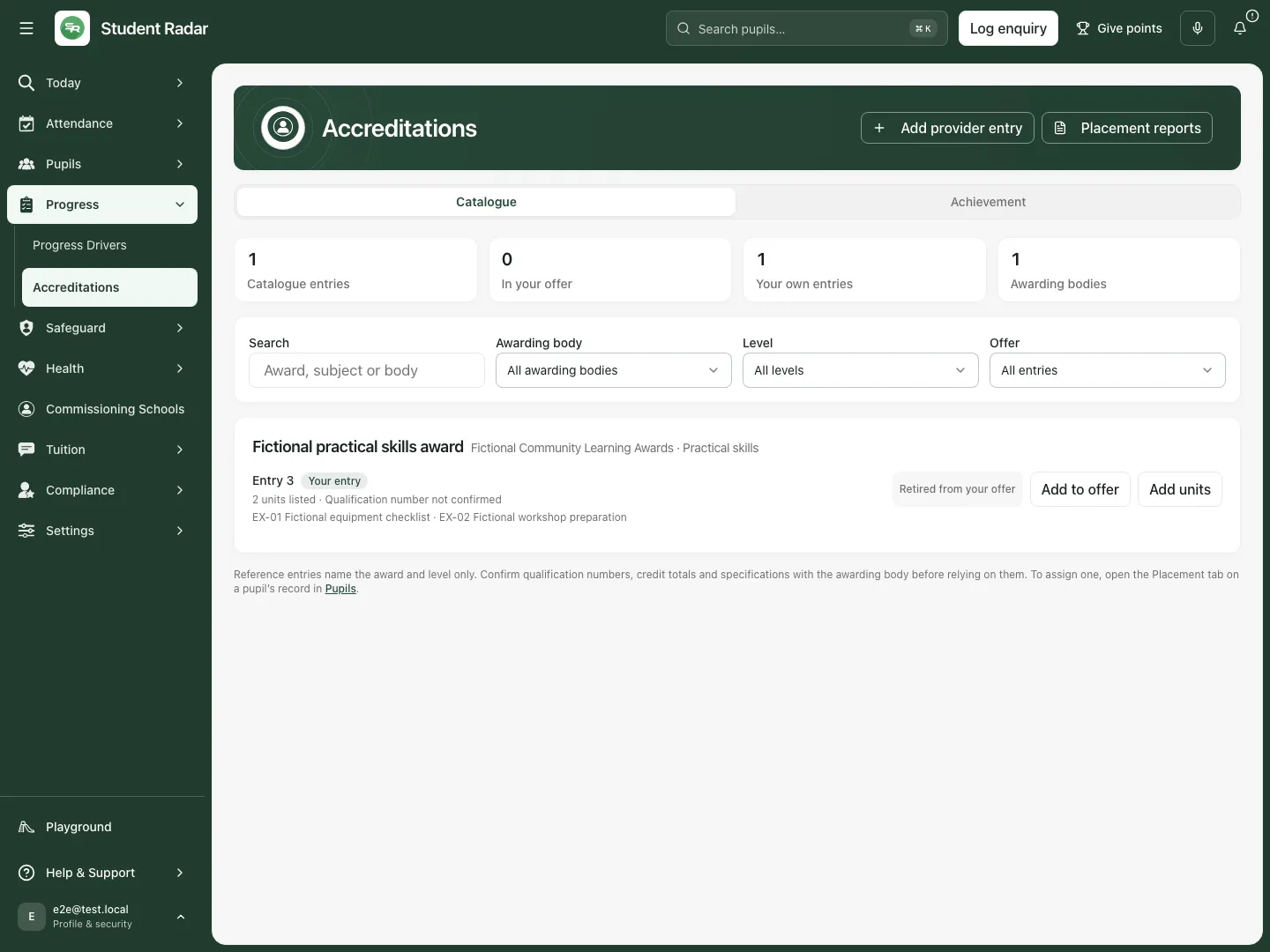 The reopened fictional entry now lists the equipment-checklist and workshop-preparation units. No pupil assignment or achievement was created by that save.
Add the level to your offer
Section titled “Add the level to your offer”- Choose Add to offer for the intended catalogue level.
- In Add to your offer, inspect the body, award and level. Read the notice that the accreditation details remain not confirmed until the provision checks the specification/evidence with the awarding body.
- Set Offered from, within the supported date range shown by the form (from 1 January 2000 to a year from today).
- Choose Add to offer to publish it into the provision’s qualification offer, or Cancel to leave the catalogue entry alone.
- Verify In your offer. An already-in-offer result is not another offer entry. Adding to the offer does not assign a pupil or confirm the qualification’s external validity.
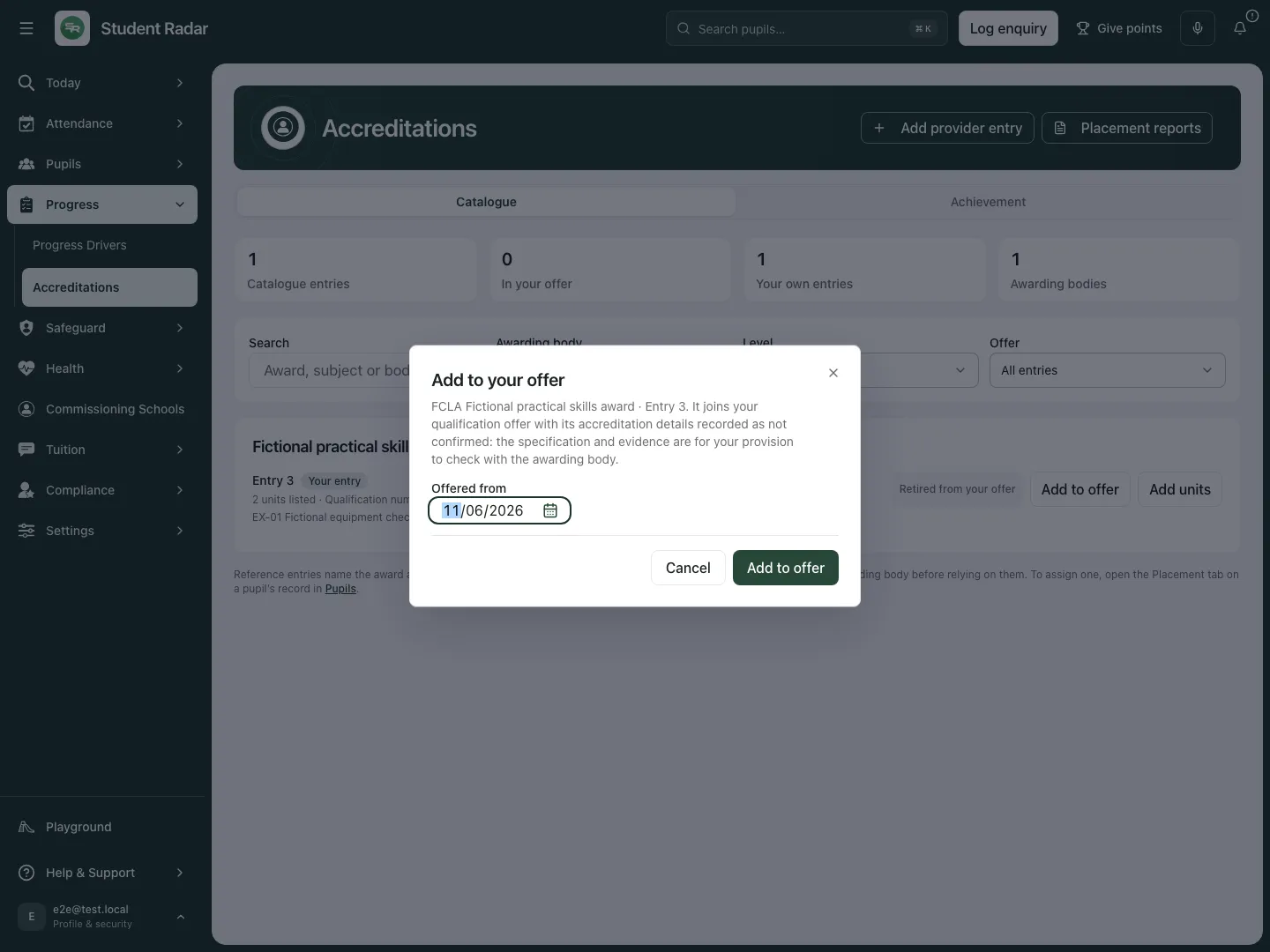 The fictional offer form keeps the effective date and unconfirmed-specification notice explicit. This example cancels without adding the entry to the offer.
Assign the offered qualification on the pupil’s placement
Section titled “Assign the offered qualification on the pupil’s placement”- Open Pupils, select the intended pupil and open Placement. Use the current permitted placement; a pupil can have more than one historical placement.
- In qualification assignments choose Add assignment.
- Select Qualification from the provision’s offer and set State to the actual planning/study/entry state. A planned assignment is not an entered pupil or an achieved award.
- Complete Responsible staff, Starts, Review due, optional Ends, Rationale, Target and Expected evidence as appropriate.
- Where relevant, link an available Calendar event or the supported timetable source/reference/revision. A context link does not create a timetable event or grant access to it.
- Choose Save assignment, then inspect the resulting assignment. Use Revise qualification assignment for deliberate later changes; retain the current definition and date/version context.
- If no qualification is offered, return to the catalogue/offer workflow first. Do not record an unrelated free-text achievement as a substitute for the missing assignment.
Record confirmed units or awards with their evidence
Section titled “Record confirmed units or awards with their evidence”- In the pupil’s placement accreditation progress, check the assignment, award basis and unit list.
- Choose Record on the exact unit or whole-award line. Unit achievement and award achievement are separate; completed units never automatically record the whole award.
- In Record achievement, enter Achieved on for the actual confirmation date. It cannot be in the future and must be within the supported range.
- Where the selected record requires it, enter Credits awarded from the assessor/awarding-body record. Do not infer credits solely from a unit title or a planned total.
- In Evidence, select the current authorised Evidence Store document/version. If it is absent or cannot be read, keep Evidence missing rather than claiming a file was checked.
- Upload the actual certificate/evidence through the Evidence Store destination first if needed, then return and select its version. A source list is permission-scoped and can show only the most recently updated available documents.
- Add Note (optional), choose Record, and inspect the resulting achievement and evidence state. This records confirmed achievement; it does not register an examination entry, issue a certificate or send a result to an awarding body.
- If a document cannot later be re-authorised or its current version cannot be confirmed, read the evidence warning. A previously saved reference is not proof that the current file remains accessible or valid.
Withdraw an incorrect achievement record
Section titled “Withdraw an incorrect achievement record”- On the intended recorded unit/award choose Withdraw.
- In Withdraw this record, enter Reason, at least three characters.
- Choose Withdraw to confirm, or Cancel to leave the record in place.
- Reopen and check the withdrawn state/reason. The prior record remains historical; withdrawal does not remove a real external qualification or silently rewrite the awarding body’s record.
- Record a corrected confirmed outcome through the permitted current workflow when appropriate, retaining its evidence and dates.
Read the achievement report with the right denominator
Section titled “Read the achievement report with the right denominator”- Select Achievement.
- Set From and To to the intended report window, no more than two years. The initial window follows the school’s academic-year context; inspect it before using the figures.
- Wait for the report to load. Invalid windows, loading and unavailable sources are different from zero achievement.
- Read Pupils entered, Pupils achieved, Units achieved and Achievements without evidence separately. Counts include only pupils you can view.
- Entered includes an assignment in the window that is studying, entered or ceased, or achievement in the window; planned pupils are excluded.
- Achieved means the award was recorded in the window, or, for a unit-certificated award, at least one unit. The latter does not mean the whole award was achieved.
- In Achievement by award and level, read achieved pupils alongside that row’s entered denominator. Do not add per-award rows and present them as unique pupils across the school.
- Investigate Achievements without evidence against the source records. A missing evidence count is not a reason to invent a document link or erase a genuine confirmed result.
- Placement reports opens the separate reporting workflow. Its report period, pupil access and source coverage still need checking; opening it does not export or send a report.
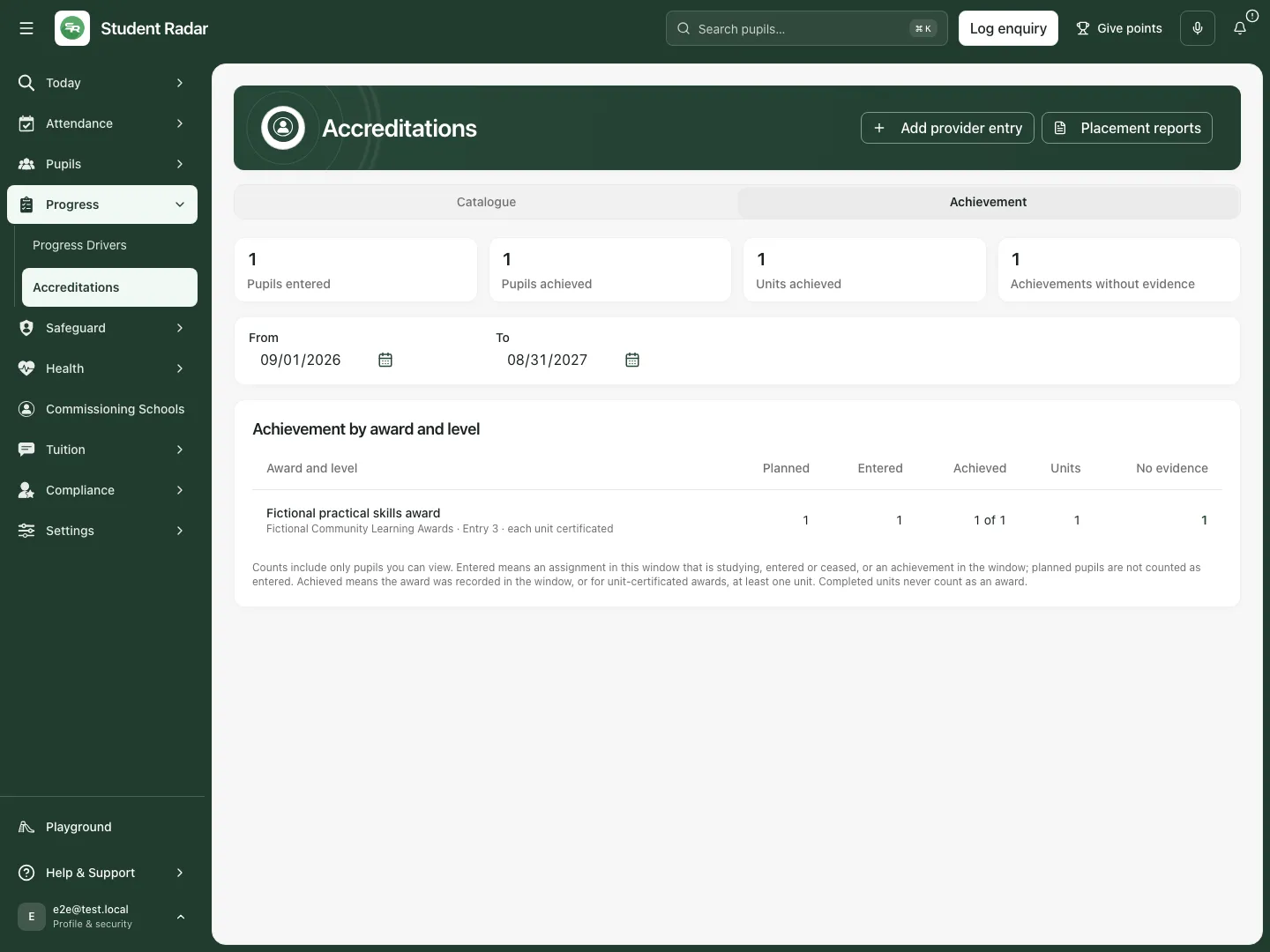 The fictional unit-certificated example has one pupil entered, one with a unit achievement, one unit and one missing-evidence record. It does not claim a whole award or certificate was issued.
Phone use and questions
Section titled “Phone use and questions”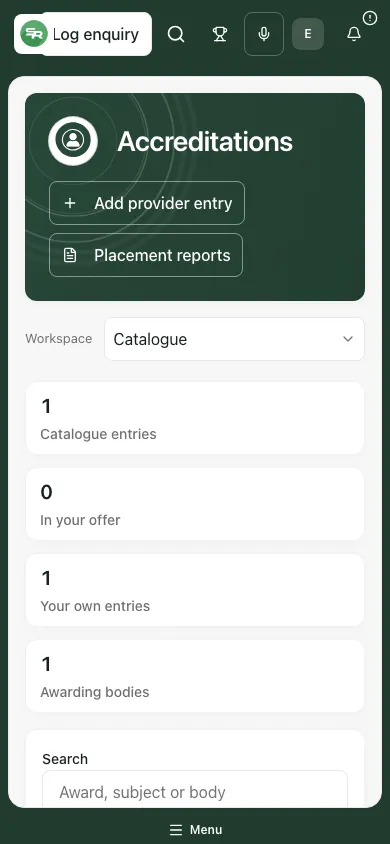 The fictional phone catalogue retains the award/body/level and listed units together.
The catalogue lists it. Is it externally confirmed? No. Check the qualification number, specification and evidence with the awarding body. Reference entries name award/level, not every detail of an approved course.
Do enough units automatically award the qualification? No. Unit and whole-award records remain separate and need the actual confirmation.
The evidence document is missing. Record that state honestly and resolve access/source evidence. A document reference cannot bypass permission or establish an unverified certificate.
Add units reported no new units. Check the listed units; duplicates can be skipped. Do not change spelling merely to force a duplicate through.
The report is empty or failed. Check period, access and source state. A failed read is not a zero result.
Related: AP Progress Drivers, Evidence Capture.