Plan assessment windows and record candidate results
Choose the assessment sitting and candidates, check readiness and record results against the intended exam or paper. The workspace connects the timetable with candidate results, qualification papers, invigilators and access-arrangement records without treating a typed arrangement note as approval.
Open Assessment → Exams → Assessment Windows. Screenshots use fictional examples.
1. Find the right sitting and interpret the overview
Section titled “1. Find the right sitting and interpret the overview”The timetable groups windows by day. Current and upcoming sittings appear first; earlier sittings follow, most recent first. Use Search assessment windows (shown as Search exam, subject, room…) and Show more to find a window, then select its name. Check the displayed school time zone, start/end interval, room and duration per candidate.
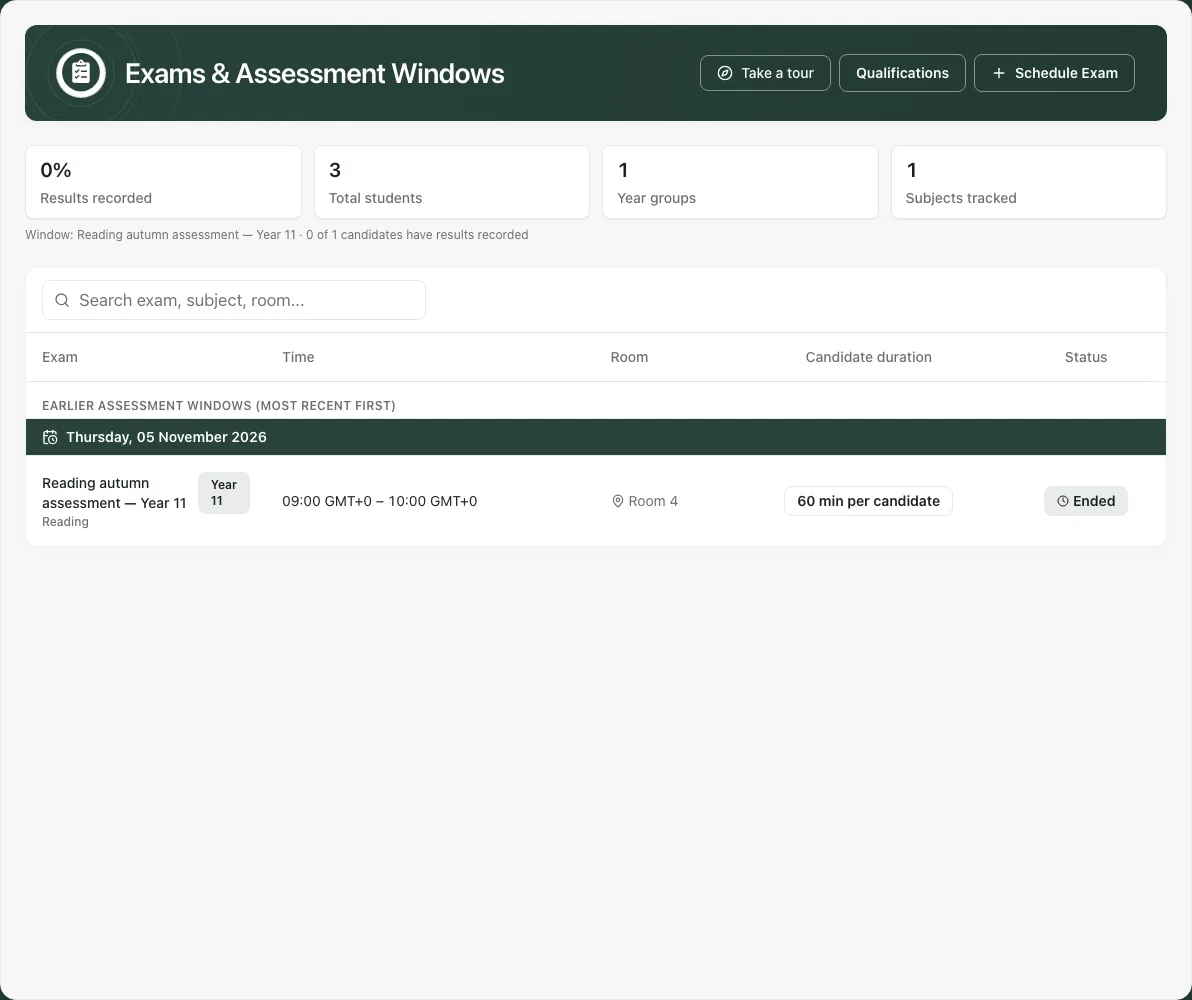
Scheduled, Live and Ended reflect the sitting’s time; Done and Cancelled retain their recorded states. Ended does not certify that results or arrangement observations are complete. This page has no general edit, reschedule, cancel or delete command for an existing window.
The four summary cards can be opened to inspect their detail. Results recorded concerns the latest sitting that has started, or the next sitting if none has started; check the named window before interpreting its percentage. Total students and Year groups concern pupils in this view, not necessarily the whole school. Subjects tracked counts distinct subjects in the loaded windows; its detail lists the corresponding windows. A result percentage is result-entry coverage, not an attainment percentage.
A link from Calendar, Home, My Actions or an arrangement case may open a specific exam. If it says the exam is unavailable here, check the school and ask the exams lead; the link does not grant access or prove that the exam still exists.
2. Schedule a window for a checked cohort
Section titled “2. Schedule a window for a checked cohort”Select Schedule Exam, then complete Exam details:
- Enter Subject and optional Year group / level. These form the sitting’s title.
- Set Date and Start time, reading the school-time note and displayed time zone.
- Enter Duration (mins) as a whole number from 15 to 360.
- Enter Room and Lead invigilator.
- Add optional Special arrangements as comma-separated whole-exam notes. These notes are not approved pupil access arrangements.
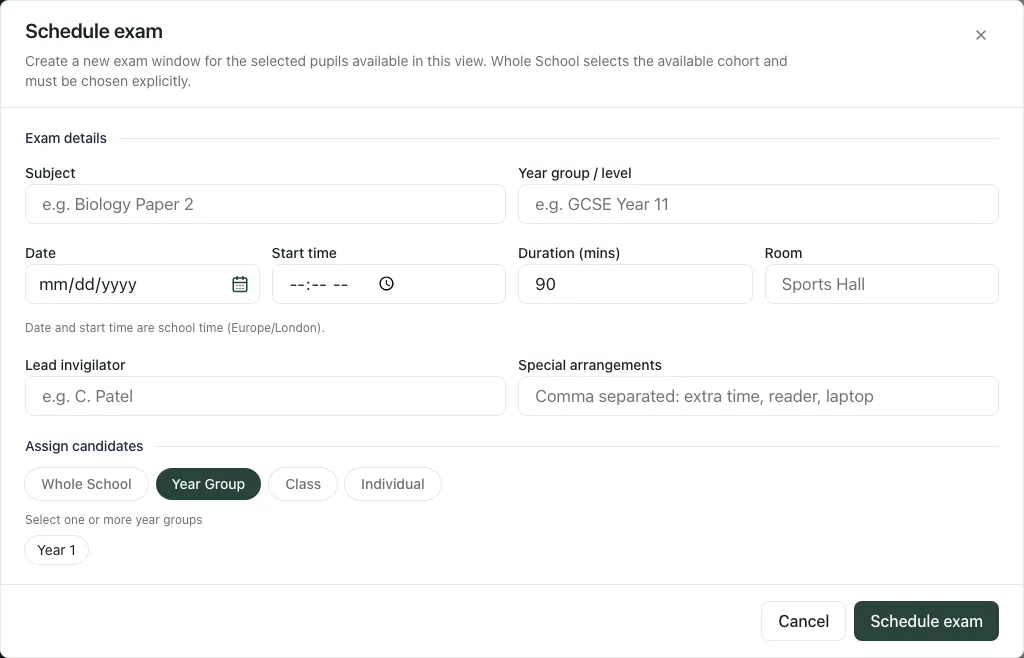
Under Assign candidates, deliberately choose Year Group, Class, Individual or Whole School. Whole School is an explicit choice, not the default. All these choices use pupils available in the current view. A filtered view can therefore schedule a smaller cohort than the school’s full MIS year group.
For Individual, use Search pupils by name, select the intended pupils and review the chosen names. Use each pupil’s remove control to correct the list. Check the candidate count, dates, room and notes before Schedule exam. Wait for the confirmed result and open the new sitting to check what was created.
If the time falls into an ambiguous or nonexistent clock-change interval, the form refuses it; check the intended school time instead of shifting it arbitrarily. Keep subject, level, room, invigilator and notes within the form’s stated bounds.
If creation cannot be confirmed, use Check pending request before starting again. Retry same request reuses that request where offered. Abandon pending request prevents an unfinished request creating an exam, but retains an exam already created. Read the returned outcome rather than assuming abandoning deletes a sitting.
3. Open the detail and add a candidate later
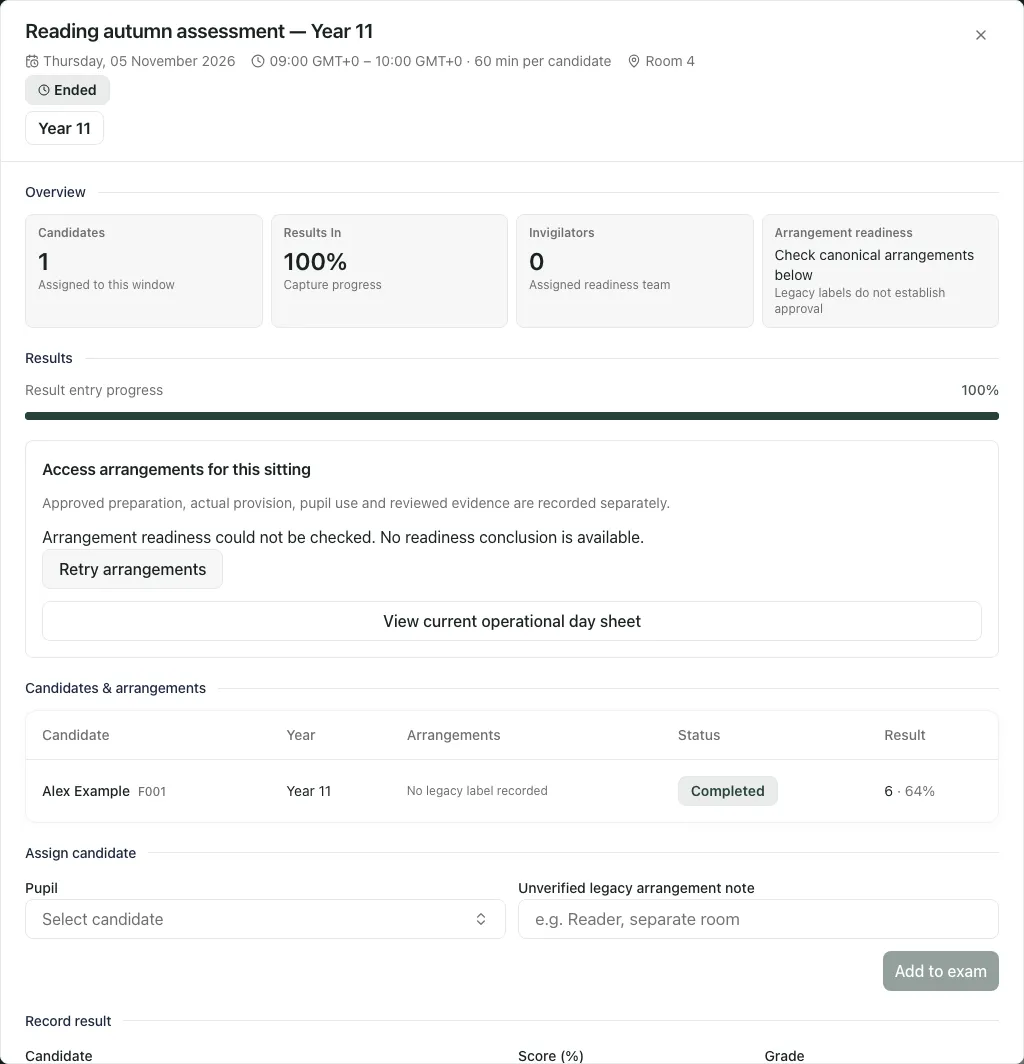
Section titled “3. Open the detail and add a candidate later”The exam detail shows Overview, Results, Candidates & arrangements, supported entry controls, qualification structure and Invigilation & readiness. Check the full title, date, time zone and room at the top before saving anything.
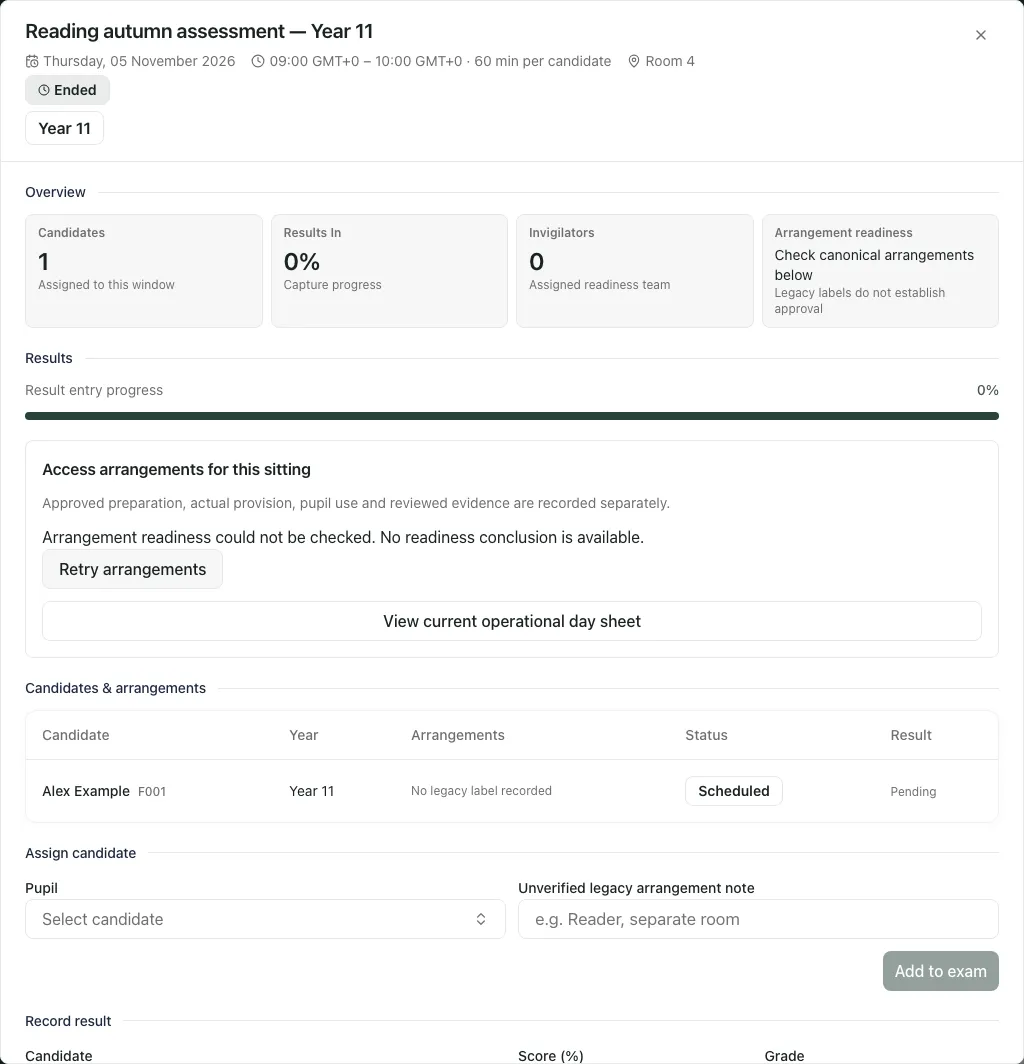
Under Assign candidate, choose Pupil deliberately. No candidate should be assumed from an initial default. Current candidates are excluded from the available choices. If needed, enter Unverified legacy arrangement note, then Add to exam. Check the candidate table after confirmation.
A legacy note or a hint in the picker is not formal arrangement approval, resource confirmation or evidence that support was delivered. The table labels legacy arrangements as unverified and directs staff to the canonical arrangements below.
Candidates cannot be added to a cancelled or completed window. If the pupil is already assigned with a different arrangement note, the page says nothing changed; do not assume it overwrote the note. A permission or rate-limit refusal also needs resolution before the table can be treated as updated.
4. Record a direct candidate result
Section titled “4. Record a direct candidate result”Use Record result for a checked direct result:
- Choose Candidate.
- Enter Score (%) from 0 to 100, Grade, or both. At least one is required.
- Select Save result and wait for Result saved.
- Check the candidate’s Result and status in Candidates & arrangements. Reopen the exam if necessary to verify the saved entry.
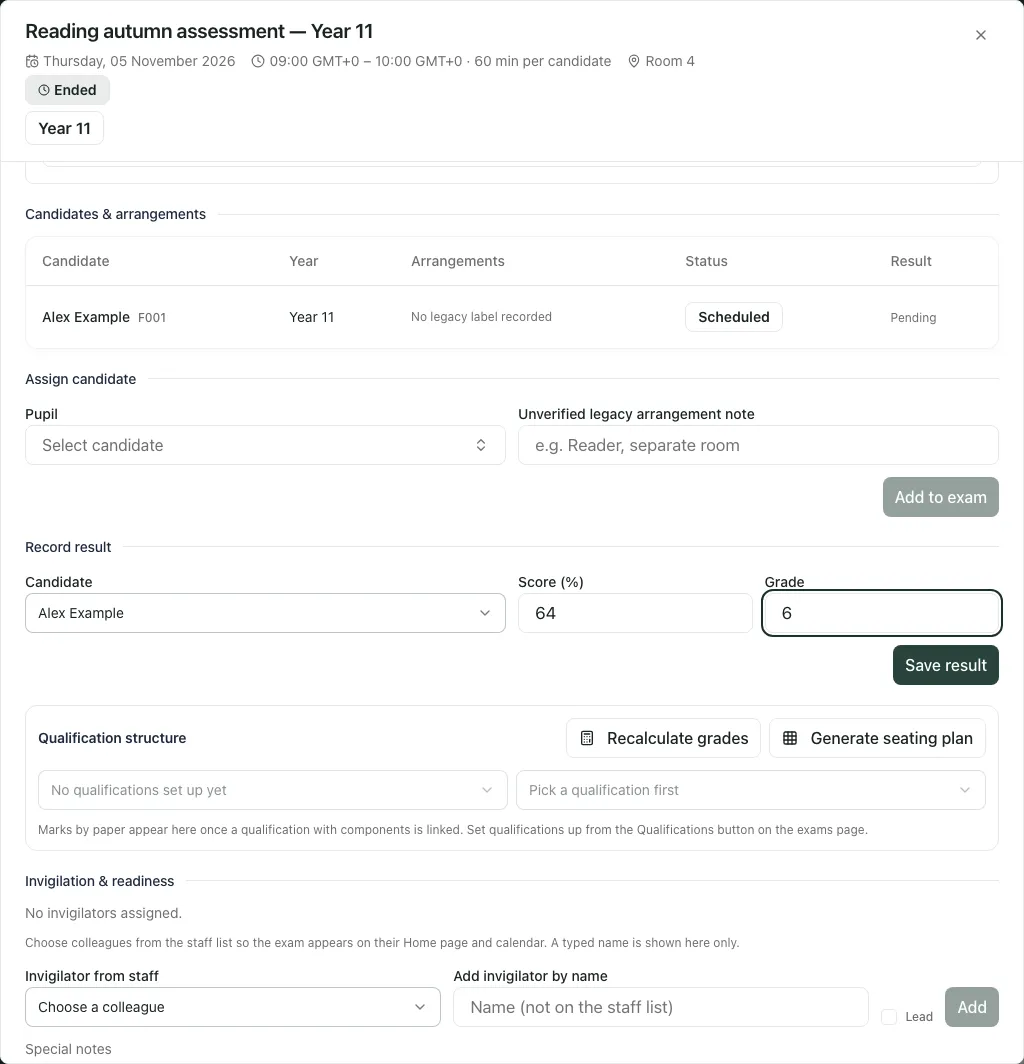
The fields clear for the next entry. Choose the next candidate explicitly and repeat. A saved result marks that candidate completed; it does not change the whole window to Done or establish examination-board submission.
A pending result is missing result entry, not a score of zero. Result-entry coverage counts candidates with a score or grade; it does not assess quality or attainment.
Important for paper-linked exams: recalculation stores weighted marks, and the result display labels them weighted marks. The direct Score (%) field still accepts a percentage from 0 to 100. Do not enter a raw or weighted paper total there as though it were a percentage. Agree the intended results workflow with the exams lead and use the paper-mark route for a qualification calculation.
5. Set up qualifications, papers and boundaries
Section titled “5. Set up qualifications, papers and boundaries”From the timetable select Qualifications. Authorised staff can:
- Enter New qualification and Board, then Add.
- Select it in Edit qualification.
- Under Components (papers), enter Code, Name, Max raw and Weight, then Add paper for each paper.
- Under Overall grade boundaries, enter Series, Grade and Min mark, then Add boundary. Check the saved table; remove an incorrect boundary using its remove control where offered.
The weighted total is the sum of raw marks multiplied by each paper’s weight. It is not automatically a percentage: that depends on the qualification’s configured scale. Check maximum marks, weights, grade thresholds and series before any recalculation. These are school-recorded definitions, not an automatic guarantee of an awarding body’s official outcome.
A failed qualification, component or boundary read says it could not load and offers retry. Do not create duplicate setup just because that read failed.
6. Link a paper and record marks safely
Section titled “6. Link a paper and record marks safely”In the exam’s Qualification structure, select Qualification, then Component to identify the paper this sitting represents. Check the confirmed link before entering marks. The table provides raw-mark inputs named for each candidate and paper. Enter a valid raw mark within that paper’s maximum and move out of the box to save it; check any error before proceeding.
When marks are ready, select Recalculate grades and read the returned count and boundary series. Review candidate results afterwards. Recalculation is a deliberate results action, not a board submission or evidence that every mark was complete.
The panel follows the linked paper if it changes. If a colleague links a different paper while you have unsaved marks, save or use Discard unsaved marks before moving. Where offered, Discard and show the linked paper explicitly abandons edits. If you deliberately browse another qualification, the notice identifies the linked paper; Show the linked paper returns to it. Do not save against an old paper while a new link is being resolved.
Changing the candidate list or your access can reset unsaved marks. Finish and check a candidate’s saved entry before changing that scope. If the linked paper is unavailable in the qualifications you can see, resolve that with the exams lead rather than reusing a similarly named paper.
Generate seating plan creates a plan for the sitting where allowed. If one already exists, Open seating plan opens it. Check the resulting plan’s candidates and rooms in its own workflow; creating it does not confirm access-arrangement resources or pupil attendance.
7. Add staff invigilators and useful notes
Section titled “7. Add staff invigilators and useful notes”In Invigilation & readiness, choose Invigilator from staff, set Lead if appropriate and select Add. Linking a colleague’s staff record allows the duty to appear in their Home and calendar views.
For someone not on the staff list, choose that option and complete Add invigilator by name. A typed name is shown here only; it does not link a person’s Home/calendar duty. The typed Lead invigilator in the initial Schedule exam form is also name-only, so add the linked staff invigilator here when that connection is needed.
Enter a Special note and choose Add note for operational information relevant to the sitting. Check the added text. Notes do not replace a reviewed arrangement case, resource reservation or instruction to a named adult.
8. Check canonical arrangement readiness and what happened
Section titled “8. Check canonical arrangement readiness and what happened”The access-arrangements panel connects each candidate’s actual sitting with current arrangement records and staff actions. Read the stated applicability, preparation and delivery state. Refresh readiness, First candidates and Next candidates help review the available pages. A missing/unavailable read is not “no arrangement needed”.
Where offered, Prepare approved arrangement starts preparation from the current applicable approval. Review unresolved preparation requirements before confirmation. Confirm timing and resource assignments separates approved working minutes, rest breaks, occupied time, rooms, staff and devices; check the displayed time zone, acknowledge each requirement and confirm instructions before Confirm operational delivery. A planned resource is not evidence it was used.
After the sitting, Record what happened uses Delivery outcome, Support actually provided, Support used by the pupil, Occurrence date and time, actual configuration, optional Staff observation, Variance reason and optional Pupil feedback. Record the observed event; select Save delivery observation. A variance reason is required when the outcome was not delivered as planned. “Not observed” is distinct from No.
If correcting an observation, Amend the recorded observation requires Correction reason and Save observation amendment. Check every existing answer before saving: an amendment replaces the whole observation. If the page warns recorded answers could not load, re-enter all answers that must be retained. Existing pupil feedback is preserved separately, not edited by that amendment.
Only offered actions are available for the current case/sitting and staff role. An authorised trial is distinct from live-exam approval; trial controls do not establish that a live arrangement has been approved or delivered. If an operation is held, use Recover original arrangement operation where offered rather than creating duplicate work. Follow your school’s assessment and access-arrangement process; the software state is not independent legal or awarding-body advice.
Phone use and troubleshooting
Section titled “Phone use and troubleshooting”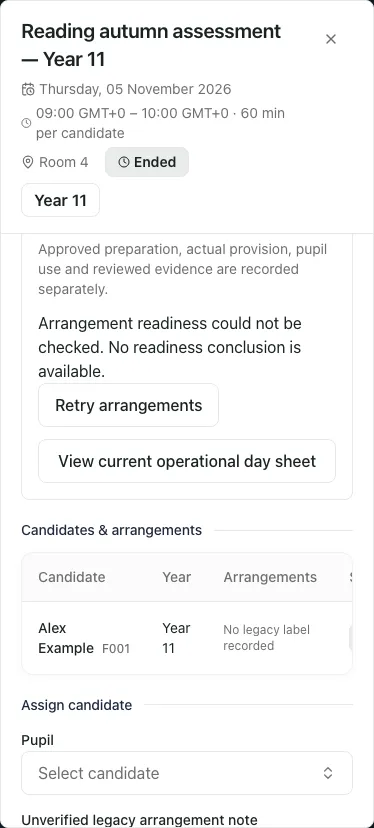
On a phone the exam detail scrolls within the dialog. Check its heading before entering results and scroll to the relevant section; the selected candidate and field labels still matter.
- Cannot schedule/manage qualifications: viewing the timetable, scheduling and qualification setup require different access. Ask the exams lead for the specific task.
- Result entry disabled: wait for the exact candidate’s result access check and confirmed exam read. A displayed candidate does not automatically grant write access.
- Exam details failed: use Retry exam details. Do not record a result against a stale summary alone.
- Clash warning: open the named clashing exam and inspect its time, room and candidates. A warning does not resolve the clash or automatically reschedule either sitting.
- No qualifications or marks shown: distinguish a genuine empty setup from a failed read or unavailable linked paper.
- Saving failed or outcome uncertain: keep the pupil/exam context, read the error and verify the saved row or recover the original operation before retrying.
For focused steps see Schedule an exam and assign candidates and Record exam results.
Common questions
Section titled “Common questions”What should I check before entering a candidate result?
Section titled “What should I check before entering a candidate result?”Confirm the sitting, candidate and correct exam or linked paper. Keep qualification and paper setup in the same context.
Does an access-arrangement note approve the arrangement?
Section titled “Does an access-arrangement note approve the arrangement?”No. Check the canonical arrangement readiness and actual record. A typed note is not an approval.