Write a school self-evaluation and retain signed snapshots
Confirm the framework edition, write the area evaluation and cite evidence before reviewing a signed snapshot. The workspace supports a professional judgement; it does not calculate an overall inspection grade.
Open Leadership → Strategy & assurance → Self-Evaluation (SEF). Screenshots use fictional examples and leave the judgement Not evaluated while the evidence still needs review.
1. Confirm the framework and scope
Section titled “1. Confirm the framework and scope”Read the selected framework name, edition, applies-from date and confirmation state. The applicable areas and judgement options come from that edition, rather than a universal set of grades. Early-years and post-16 areas depend on the confirmed scope where the framework uses them.
If configuration is needed, eligible staff can choose Choose framework or Configure framework, select Leadership framework, tick Include early years provision / Include post-16 provision where applicable, then Review framework selection → Confirm framework. Check the resulting confirmed edition before writing or signing. Changing framework selection is a deliberate school decision; it must not silently translate old judgements into a different scale.
Use the offered original framework link to consult the underlying source. Student Radar’s recorded school evaluation is not an inspector’s decision or a guarantee of compliance. Alternative provision uses provision wording where appropriate; other framework labels may say Standards finding or Setting judgement.
2. Read the area list and find work to review
Section titled “2. Read the area list and find work to review”The list summarises each applicable area, judgement, saved state and evidence availability. Use search and Show filters to reveal Filter by judgement and, where available, Filter by evidence. Clear filters returns to the full applicable list.
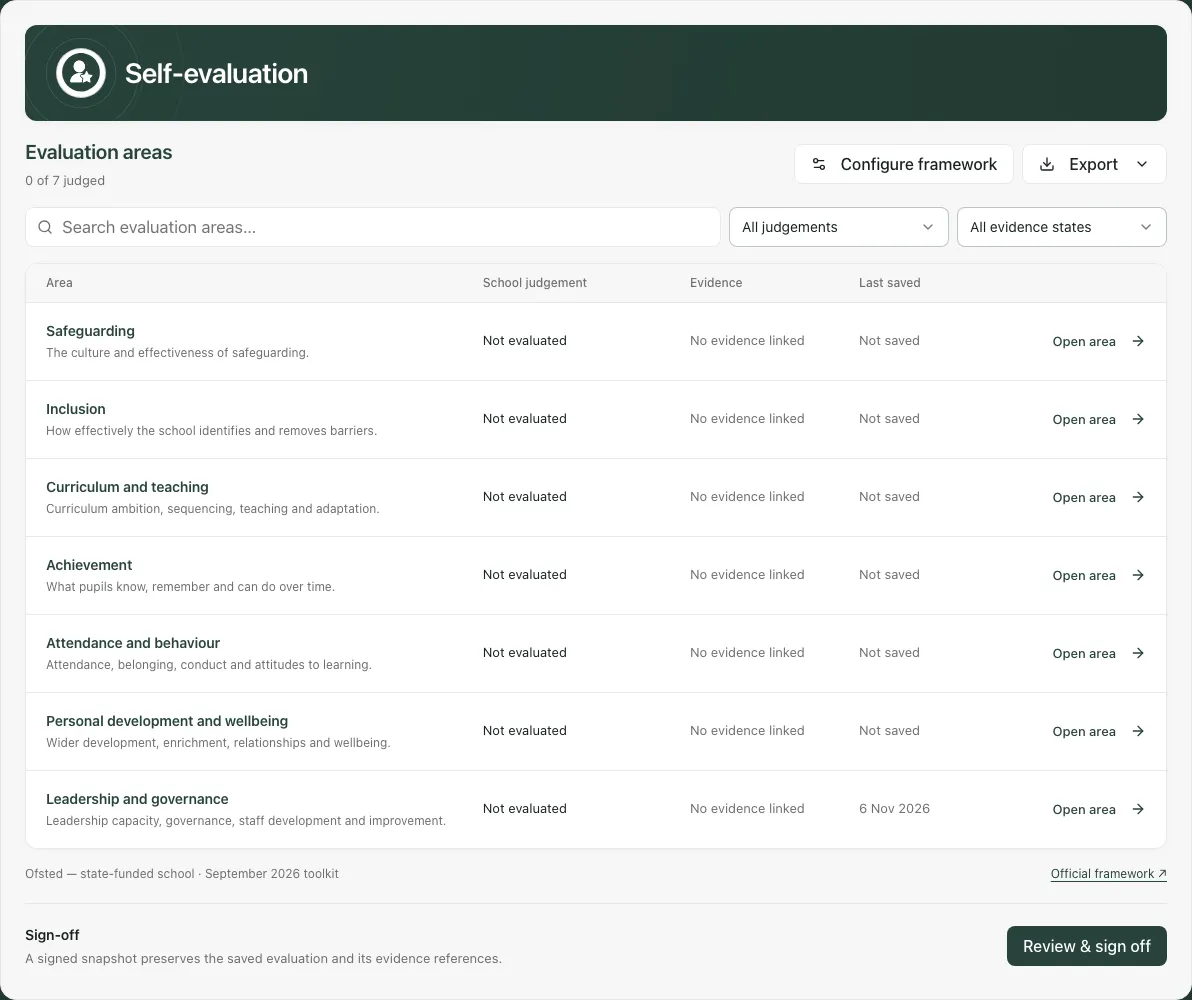
Not evaluated means a judgement has not been recorded. Evidence not available to your role is not the same as no linked evidence. Where citations or sensitive text are withheld, the page avoids presenting their absence as a zero; ask the appropriate leader rather than inferring what the area contains.
Select Open [area], for example Open Leadership and governance. Opening one area does not automatically save the others or sign off the evaluation.
3. Write and save an area evaluation
Section titled “3. Write and save an area evaluation”In the area dialog’s Evaluation section:
- Choose the offered School judgement, Provision judgement, Setting judgement or Standards finding only after reviewing the evidence. Leave Not evaluated while the judgement is unresolved.
- Write Evaluation summary in clear, evidence-backed language. Distinguish observed strengths, known weaknesses and incomplete coverage.
- Expand Evaluation prompts for the area’s questions where useful; they guide reflection and do not answer themselves from the data.
- Read any supporting metrics with their date, period, method and missingness. A dash, unavailable read or restricted metric is not a favourable zero.
- Select Save area and wait for All changes saved. Reopen the area to check the stored summary and judgement.
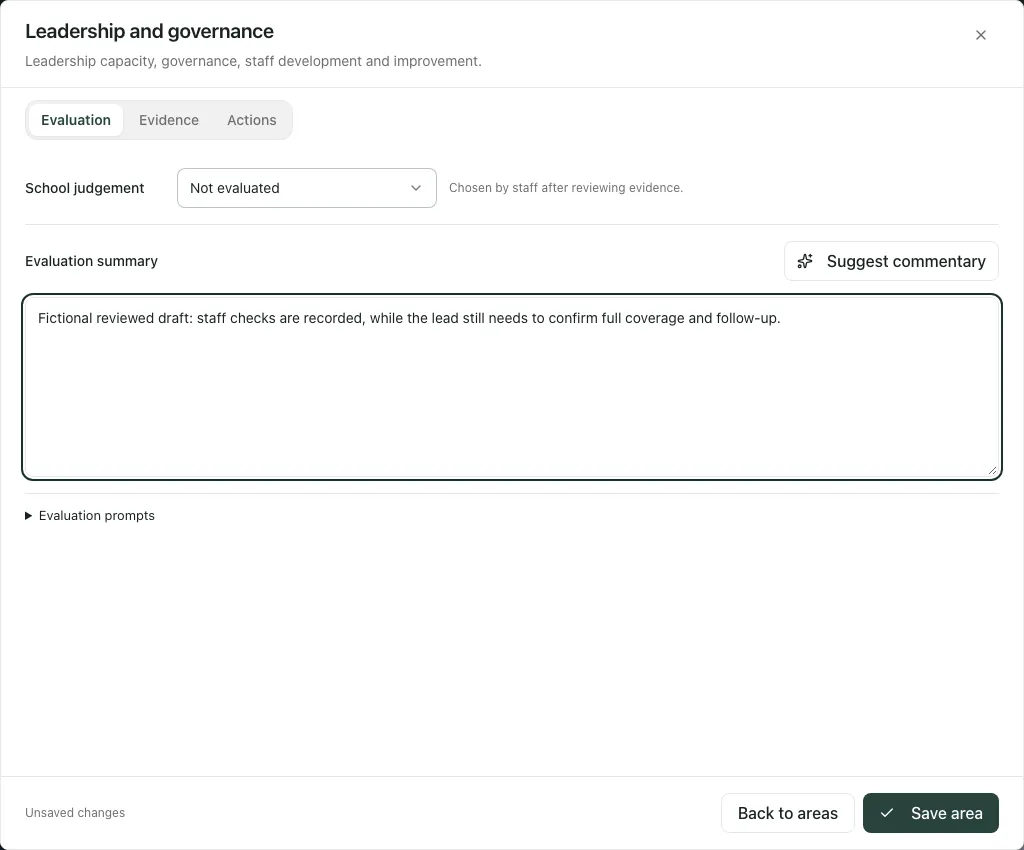
The example records that staff checks exist but full coverage and follow-up still need confirmation. It deliberately does not turn that sentence into a positive school judgement.
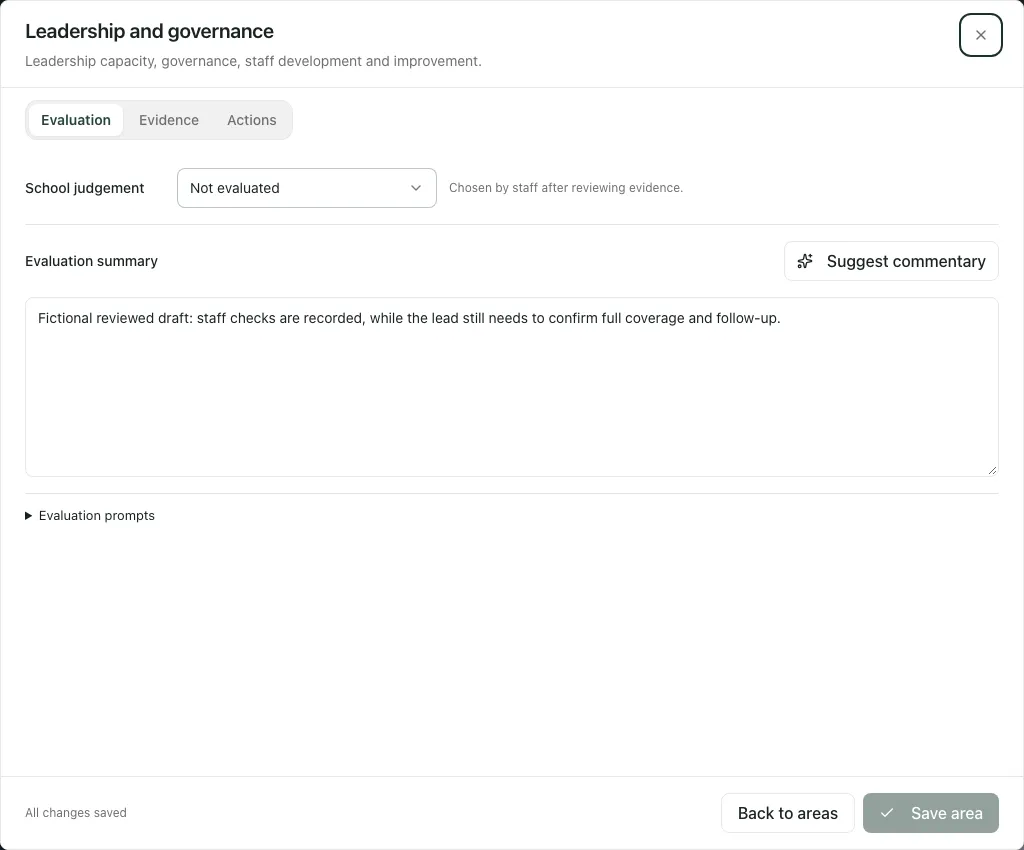
You can keep writing during a save. If new edits remain, save them again; the first receipt does not establish that later typing was saved. Back to areas preserves in-progress area drafts within the workspace, and the list marks unsaved areas. Leaving the workspace warns about retained unsaved input; decide deliberately rather than closing the warning without reading it.
4. Connect evidence with enough context
Section titled “4. Connect evidence with enough context”Open the area’s Evidence section. Read existing references and Evidence notes before adding more. A citation can remain in the evaluation even if its underlying evidence is now unavailable; that warning is not proof that the original item was empty.
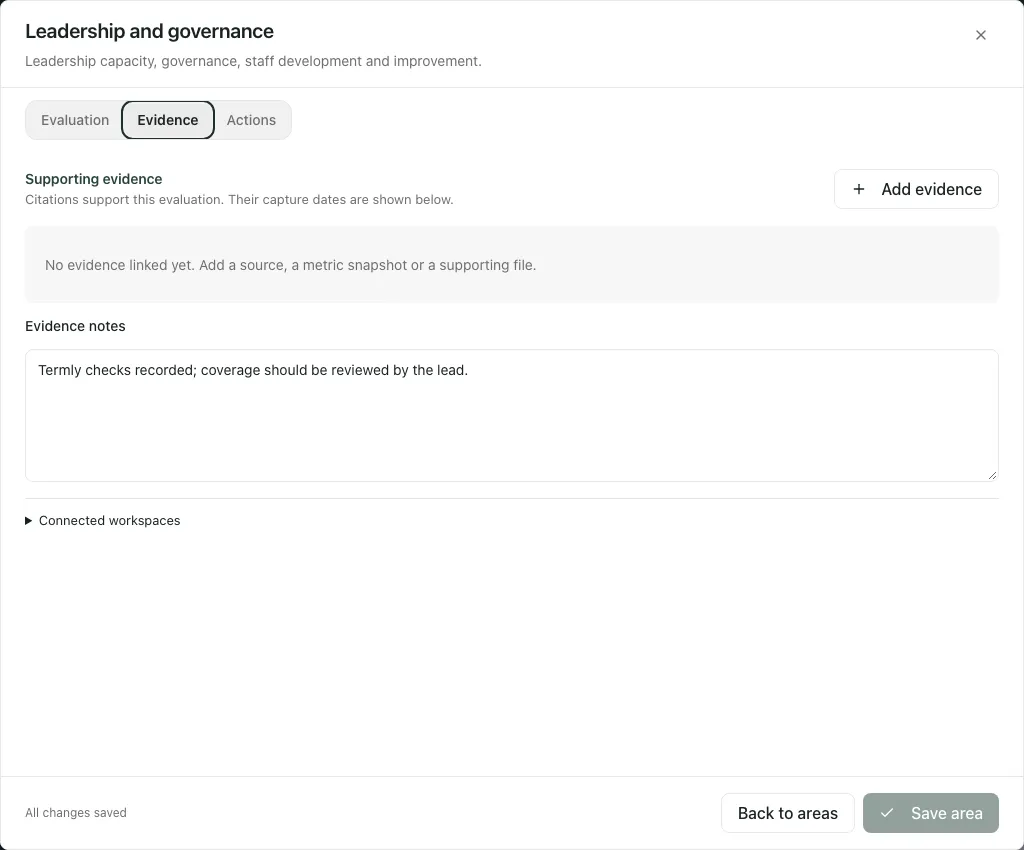
Select Add evidence and choose one of the available sources:
- Student Radar links the area to a relevant connected workspace. Open its original records for the detail you are authorised to read; a link is not a frozen copy or new access.
- Current metrics lets you inspect a supported metric and use Add snapshot to capture the offered snapshot. Check period, method, coverage and freshness. A snapshot represents that measured state, not every later change.
- Evidence library searches retained items. Check the title, item type and captured date, select the intended items, use Next/Previous to review pages and Use selected evidence. A later empty page can mean no more items, not an empty library.
- Upload adds one supporting file. Enter Evidence title, choose the file, then Upload and cite. The stated limit is 10 MB and supported PDF, Office, image, CSV and plain-text types; a refusal must be resolved before it can be cited.
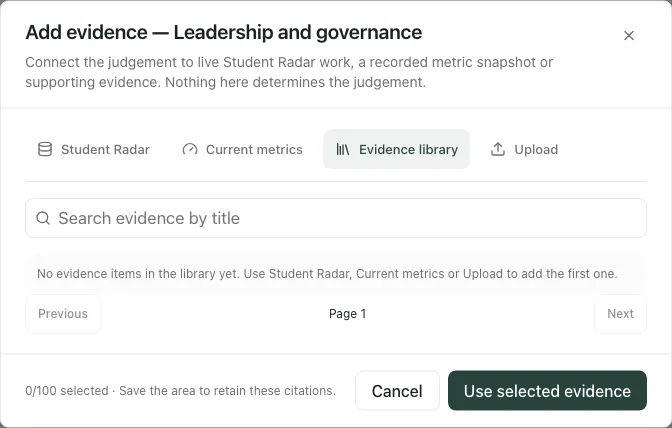
An area can cite up to 100 items. Check the new citation in the area and Save area if the evaluation still shows unsaved changes. Uploading/citing evidence and saving narrative are distinct events. Failed uploads retain the submitted draft for retry; successful uploads clear the file form so it is not unintentionally added again.
Use a cited item’s open control where offered to inspect the source or permitted file. Remove [title] removes the citation from this evaluation; it does not erase the original evidence everywhere. Save the changed evaluation. Safeguarding counts are not captured into the picker as portable evidence; consult the authorised safeguarding workspace.
Choose proportionate, useful evidence and explain what it supports. The existence of a link, file or measure does not prove that its coverage is complete or that a resulting action improved outcomes.
5. Turn agreed next steps into owned improvement work
Section titled “5. Turn agreed next steps into owned improvement work”In the area’s Actions section, write Agreed next steps and Save area. This narrative is the evaluation’s account of what should happen next; it does not by itself create an assigned task.
After saving the evaluation, Create priority can start a school improvement priority with a responsible owner and review date where offered. The created priority links to the saved evaluation record and its framework context. Check its purpose, ownership, dates and success criteria in School Priorities. A saved next-step sentence, a created priority and a completed action are different states.
Connected-workspace and priority links depend on the destination being available to your role. Opening a link never extends access to restricted records. If no destination is offered, continue the evaluation and ask the responsible leader for the appropriate workflow.
6. Review optional AI commentary
Section titled “6. Review optional AI commentary”Suggest commentary can help draft a summary using the available context. It is optional and is not a school judgement. Review the generated wording against the actual evidence and edit it before saving. Reject suggestion discards that suggestion; saving a reviewed suggestion records the chosen wording and decision rather than giving it independent authority.
Do not describe missing evidence as a confirmed strength, infer causation from a measure, or use a draft to replace an authorised safeguarding or inspection decision. Only one pending suggestion should be resolved before asking for another.
A refusal can mean access changed, the framework selection changed, text was too long, the school is a demo or the service is busy. Read the message: not every refusal is an uncertain successful draft that should be retried. Keep manual text and resolve the relevant condition. If a request outcome needs checking, use the offered same-request recovery rather than starting duplicates.
7. Resolve a concurrent save without losing your draft
Section titled “7. Resolve a concurrent save without losing your draft”If another leader changed the area, the error offers Compare saved version. Review the latest saved version shows Latest saved evaluation beside Your unsaved draft.
Choose Keep reviewing to return without discarding, Use saved version to abandon your local draft in favour of the saved record, or Keep my draft for saving to retain your wording against the newly reviewed version. The last option is not an immediate save: inspect it, then save deliberately. Do not overwrite a colleague’s changes merely to clear an error.
If the framework changed while you were writing, the original draft is retained in its original context. Check the warning and the selected edition; do not paste an old-scale judgement into a new area as though it were already reviewed.
8. Review and sign a saved snapshot
Section titled “8. Review and sign a saved snapshot”Save all intended areas first. Unsaved area drafts block export and Review & sign off. Opening the review reloads the saved evaluation so the leader is reviewing actual saved content.
Select Review & sign off, expand each area in Review saved evaluation, and check its judgement, evaluation, evidence, reference count, version and actions. Add Review note (optional) if useful, then Sign off snapshot only when authorised and satisfied with that saved set.
Sign-off creates an immutable snapshot; it does not calculate an overall school grade, submit evidence to an inspection body, send it to governors or freeze all future working evaluations. A changed/failed reload can prevent sign-off. Close and reopen the review after resolving the message, rather than signing stale content.
Signed snapshots lists the most recent retained signed versions (up to the 20 shown). Open one to inspect Signed evaluation and its recorded context. Where permitted, Download signed PDF or Download signed Word exports that signed version; Show current evaluation returns to the working record. A current edit and an earlier signed snapshot should not be described as the same version.
9. Export a reviewed working evaluation
Section titled “9. Export a reviewed working evaluation”Use Export → Download PDF, Download Word or Inspection bundle (ZIP) where offered. Check the selected framework, scope, saved state and access before preparing a copy. A downloaded working evaluation is not automatically a signed snapshot.
An inspection bundle includes an evidence manifest; some references are links or metric snapshots rather than downloadable files. Unavailable or refused files can be listed as not bundled. Check the manifest and omissions before saying the bundle includes every cited file. A file’s inclusion is not permission to share it outside the agreed audience.
Review generated files before use, especially names and non-English characters in PDFs. Use an appropriate alternative output if the PDF does not preserve the text. Exports carry the school’s date context, but that does not prove the underlying source was updated on the export date.
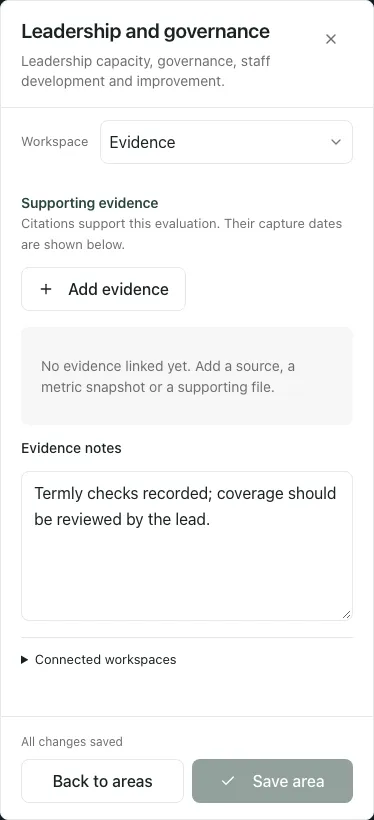
On a phone the area dialog retains Evaluation, Evidence and Actions sections. Scroll within it, check the area name and saved state, and use Back to areas to return to the list.
Troubleshooting
Section titled “Troubleshooting”- Framework unconfirmed or unavailable: complete the authorised configuration or retry the read; do not invent the area/scale.
- No evidence visible: distinguish no linked citations, an unavailable item and evidence withheld for your role.
- Supporting metrics unavailable: retain the uncertainty. Evaluation can remain Not evaluated while the evidence is checked.
- Save failed: your draft is retained. Read the error, compare versions if needed, then save and verify the outcome.
- Sign-off/export disabled: check all unsaved areas, framework context, pending work and the specific permission.
- A linked area is newer than expected: the page opens the current saved revision; use signed snapshots for earlier signed content.
For a shorter author/reviewer sequence, see Write your self-evaluation. For owned delivery, see Use School Priorities.
Common questions
Section titled “Common questions”What framework should I select before writing?
Section titled “What framework should I select before writing?”Confirm the framework edition and scope that apply to the school or provision before recording an area evaluation.
What should I do if another person changed the evaluation?
Section titled “What should I do if another person changed the evaluation?”Review the latest saved version and resolve the concurrent save using the workspace’s recovery process rather than replacing a colleague’s work blindly.