Schedule assessment archives and check export runs
Create or review an archive schedule, inspect its run history and check the resulting file before downloading or sharing it. Report Automation also provides controlled one-off exports. A schedule, an archive, an email notice and a completed download are different events: check the one your task actually needs.
Open Assessment → Reports → Report Automation. The four sections are Schedules, Archives, Exports and My report emails. Screenshots use fictional examples; email is off in this example school.
1. Read the schedule overview
Section titled “1. Read the schedule overview”In Schedules, check the active schedule count, next run, archives you can open and school email status. These figures depend on the current school and your access. Email being off does not prevent a supported assessment archive from being created.
Each schedule card shows its name, report, cadence, active/paused state and recent run summary. Runs expands the recorded history. An active schedule is an instruction for future runs, not proof that the next run completed. No runs yet differs from a failed or unavailable history.
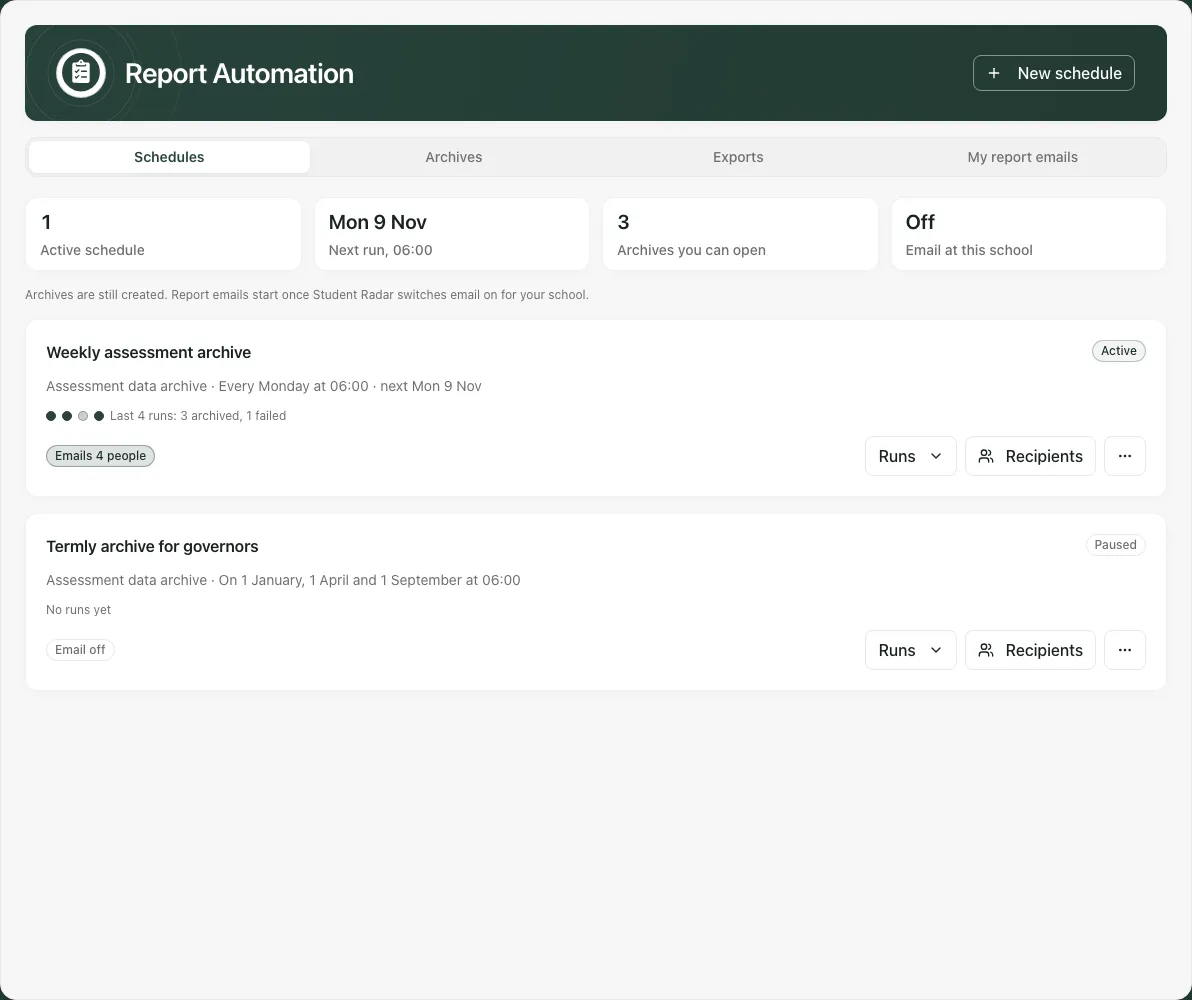
The supported scheduled report is Assessment data archive: a private CSV of recorded assessment results. This is not a recurring version of every custom report in Reports Catalogue, a parent report send or a public governors’ report.
2. Create a schedule deliberately
Section titled “2. Create a schedule deliberately”- Select New schedule.
- In Report, check the offered report and select What is in it to inspect the archive fields and purpose.
- Enter Schedule name, up to 120 characters. It is shown inside Student Radar and is not included in report email wording.
- In Runs, choose the supported cadence: daily, weekly, monthly or Three times a year. Read the dates shown. Three times a year means 1 January, 1 April and 1 September; it does not follow your school’s individual term boundaries.
- Check Start running straight away. Leave it off if you want a paused schedule while you review the arrangements. It controls future scheduled operation, not an immediate “run now” command.
- Select Create schedule and wait for confirmation. You can then choose colleagues in the optional recipients step. Creating a schedule does not automatically save an email list.
Runs are scheduled for 06:00 school time. Check the displayed next run after creation rather than assuming a browser time zone or that a past time will run immediately.
Only one active assessment archive schedule is allowed. Pause the existing active archive before starting a different one. Demo schools can preview the archive but cannot enable live scheduled runs. Other school limits or unavailable templates are explained by the returned message.
3. Edit, pause or remove a schedule
Section titled “3. Edit, pause or remove a schedule”Select the schedule’s ⋯ menu (accessible as More actions for [name]) and Edit. Change Schedule name and/or Runs, then Save changes. Editing keeps the schedule’s current active/paused state; use the separate menu action to change that state.
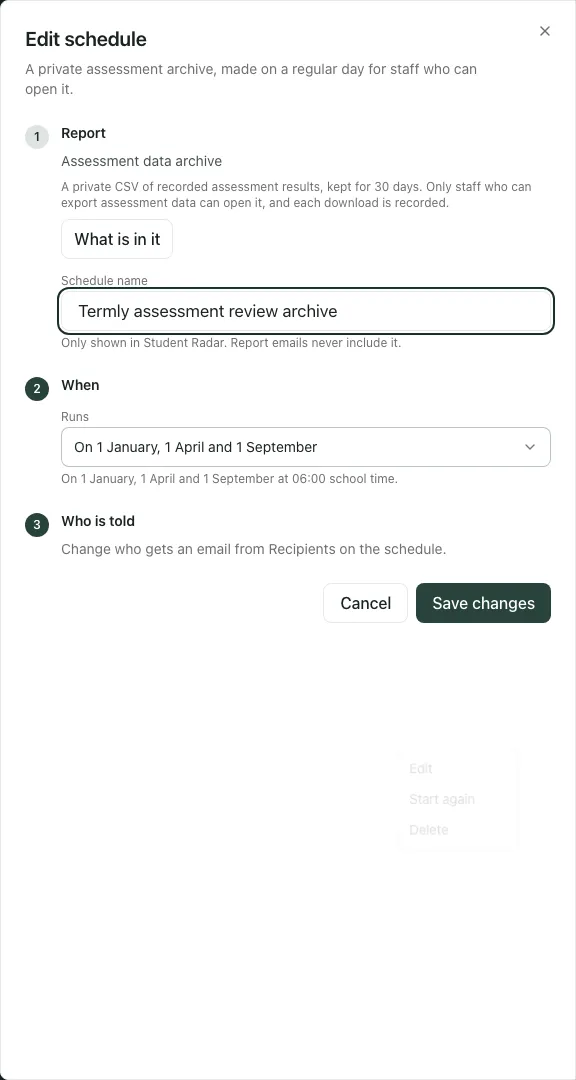
After saving, check the card’s name, cadence and status. In this example the renamed termly schedule remains Paused, with no runs yet and email off.
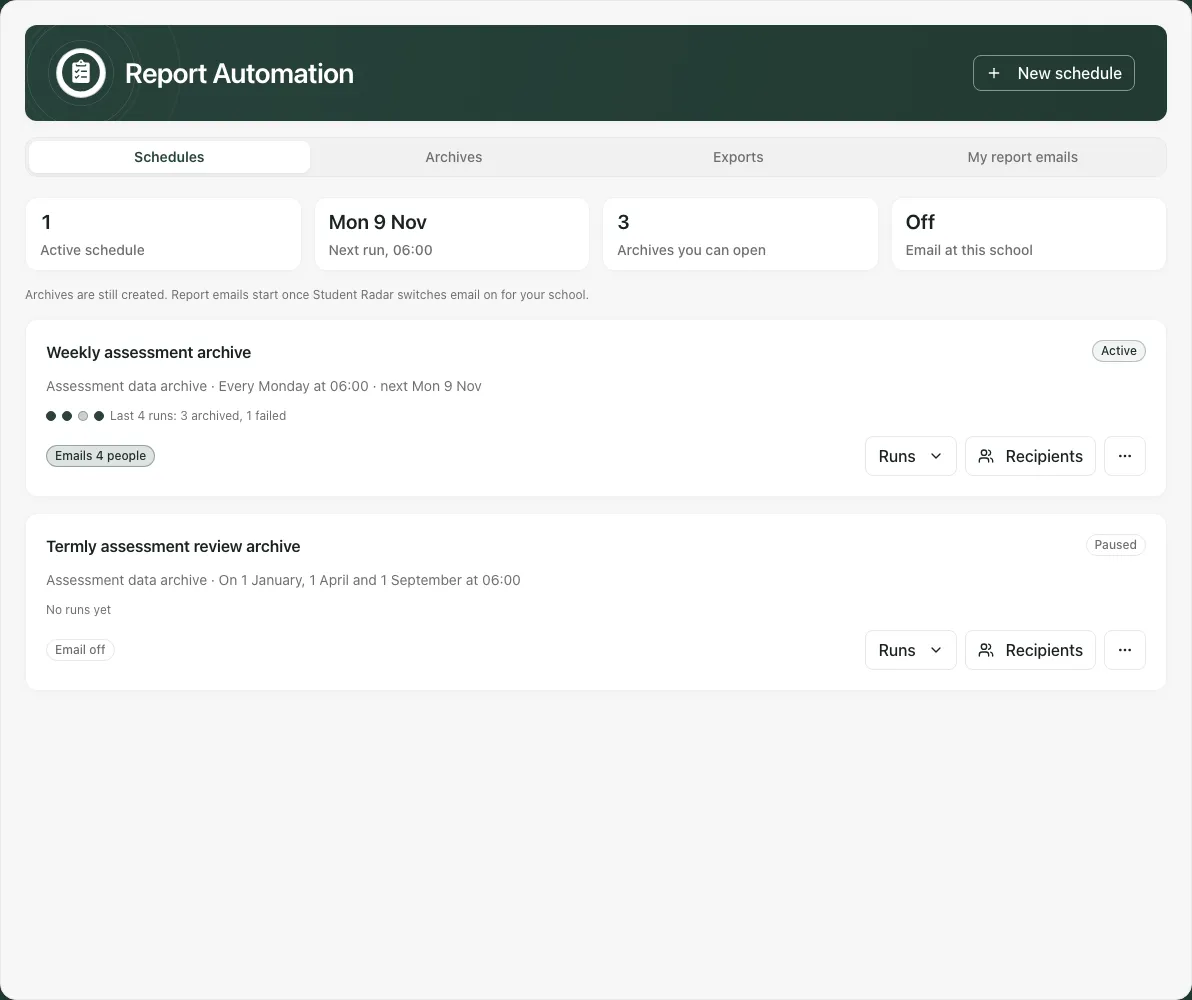
Use Pause to stop future runs or Start again to resume where allowed. Pausing is not deletion and does not retract an existing archive or notice. If a legacy schedule cannot safely start again, follow the message to delete it and create a verified replacement.
For an unused schedule choose Delete, check the name in Delete this schedule?, then Delete schedule. Its existing archives remain until expiry. A run still in progress, retrying or waiting for review can prevent editing, pausing or deletion; inspect the run rather than repeatedly resubmitting the change.
4. Read run history and handle a blocked run
Section titled “4. Read run history and handle a blocked run”Select Runs on the schedule. Read the run date, outcome, row count, expiry and notice counts where available. Use the offered archive link to open that run’s archive in Archives. Recent run dots summarise a limited set of runs, not the complete lifetime success rate.
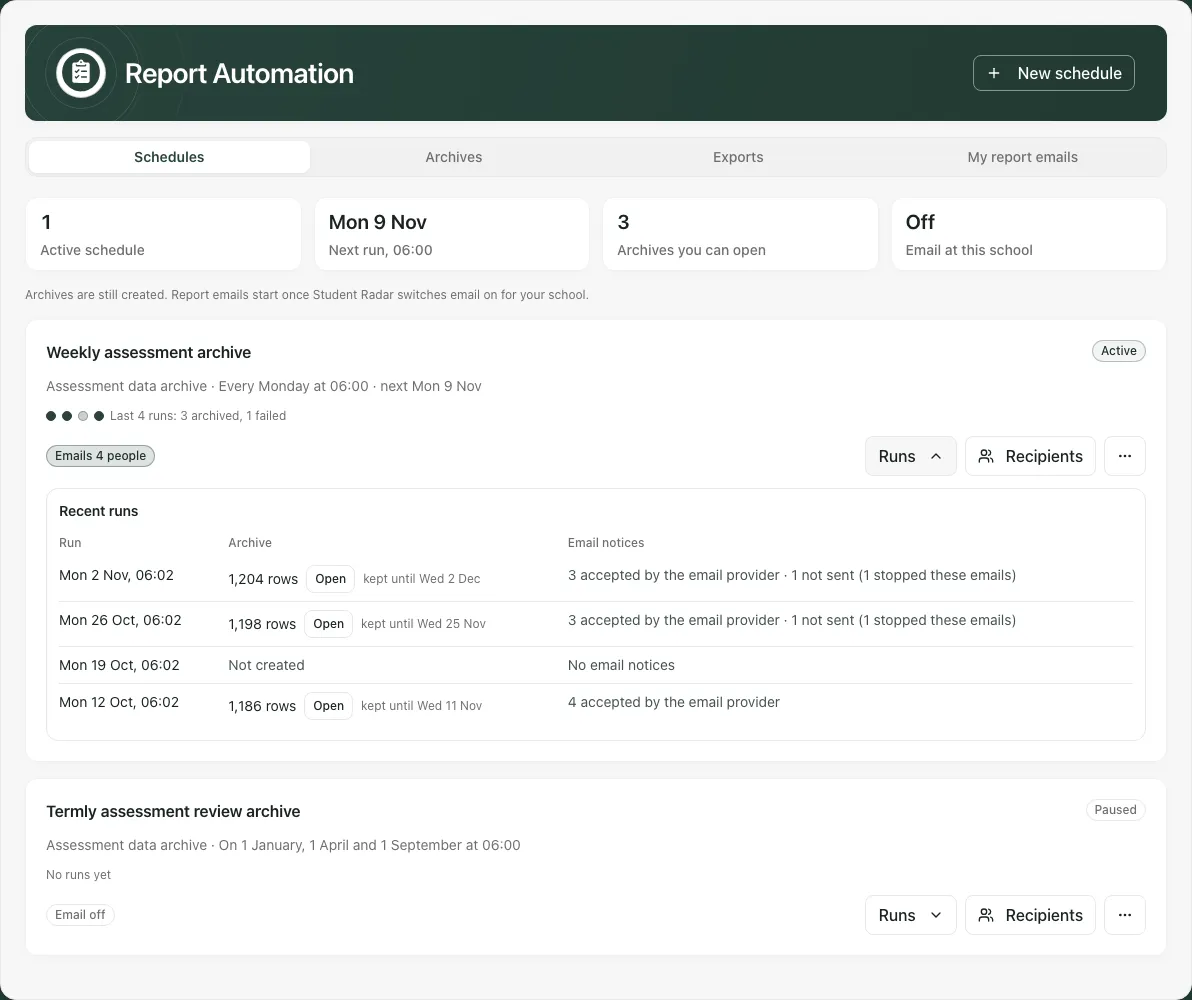
A completed archive does not mean every notice was sent. Notice labels distinguish accepted, waiting, unknown and not sent, with reasons such as opt-out. “Accepted” is provider acceptance, not proof that a colleague read an email or downloaded the archive. Unknown is not a safe instruction to resend it automatically.
A Review run action appears when a run has been held for manual review. Read Review the blocked run and check the archive list and relevant run evidence first. If authorised to skip it, enter Why this run can be skipped (10–500 characters) and select Skip this run. This records the reason and lets the next run proceed; it does not make an archive, send an email or retry the blocked run. Cancel if the outcome is still uncertain.
Last run too large means no archive was made: the current archive limit is 10,000 rows or 5.5 MB. That run is not retried automatically. Do not interpret it as a partial successful extract. Agree a suitable alternative with the authorised report/export lead rather than assuming the first rows represent the whole school.
5. Choose and review recipients
Section titled “5. Choose and review recipients”Select Recipients on the schedule. The panel explains whether school email is active, whether the schedule is paused and whether the list needs approval again. These conditions affect whether notices can actually go out.
Turn Email when each run is ready on only if notices are needed. Search Search staff by name, add eligible colleagues and remove people who no longer need the notice. A schedule can have at most ten recipients. If email is on, add at least one person; otherwise switch it off. Check the entire list, then Save list. Done closes the panel and is not a substitute for saving.
Saving a list can approve its delivery arrangement for staff allowed to share the report. If the person who approved it no longer has the required access, notices stop pending a fresh authorised approval. Adding a colleague is not a grant of report access: opening the archive is checked again.
People who stopped these emails are not silently re-added by someone else. They can choose to add themselves and start them again. A changed list or a permission failure may require refresh; keep your unsaved choices while checking the warning. Use the explicit Discard my changes and reload only when you intend to abandon them and load the latest saved list.
The notice says that a report is ready and links back to signed-in Student Radar. It does not attach pupil data or make the archive public. Saving recipients while school email is off prepares the list; it does not prove a message was sent.
6. Find and download an existing archive
Section titled “6. Find and download an existing archive”In Archives, inspect Scheduled assessment archives. Check the file name, size, record count and availability label. Use the schedule’s Runs to inspect the run date and expiry. Private archives are retained for 30 days; a list entry or an old email link does not guarantee the file remains available.
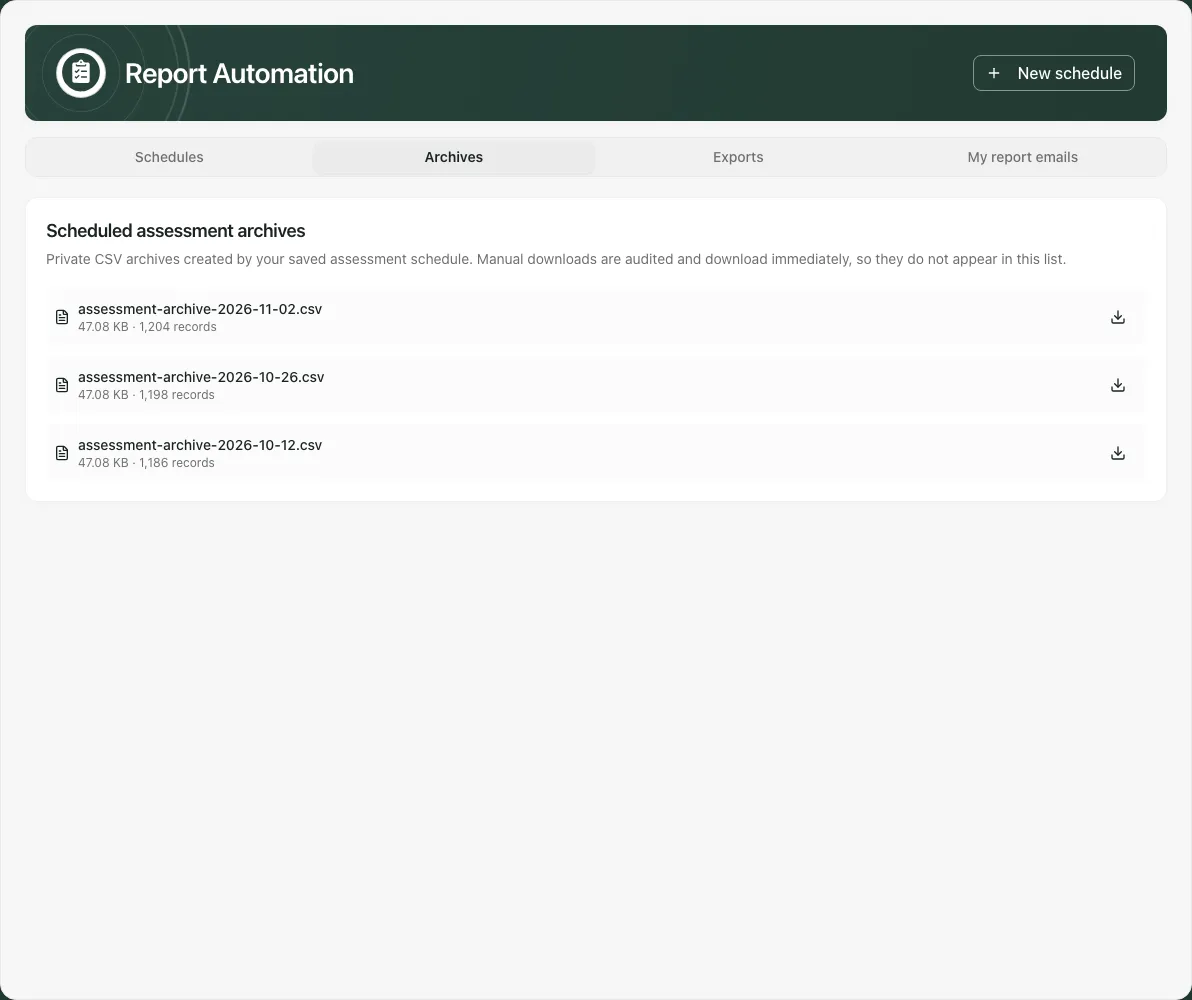
To obtain an available archive, select its download control, read Download assessment archive, enter Reason for download with at least ten characters and choose Download archive. Each download is recorded. The matching assessment-export permission is required even when you can see the schedule or received its notice.
An expired, removed or unavailable archive cannot be restored by refreshing a download link. Use a newer permitted archive or agree a new export. If the list is capped, open the older run through its schedule’s Runs or its notice rather than assuming it never existed.
7. Make a controlled one-off export
Section titled “7. Make a controlled one-off export”Exports is separate from scheduled archives. In Select data, tick the protected school data tables your task needs; each selection has its own export permission. Do not select additional data simply because it is available.
Choose Export format, enter Reason for export (at least ten characters), then check Export summary and Start export. CSV supports one table at a time; use the offered Excel or JSON format for multiple tables. The reason is recorded in the protected export audit.
Follow progress and verify the resulting file and its scope before use. The page can refuse unavailable data, permissions or unsafe bounds. A cancelled or failed attempt may still leave an audit record of the request; that is not evidence a file was successfully downloaded. Do not describe a browser download as sharing the file with a colleague or submitting it elsewhere.
8. Manage your own report emails
Section titled “8. Manage your own report emails”My report emails shows which schedules notify you, the school’s email availability and your subscription status. If you work in several schools, switch to the school that sent the notice before searching for its subscription.
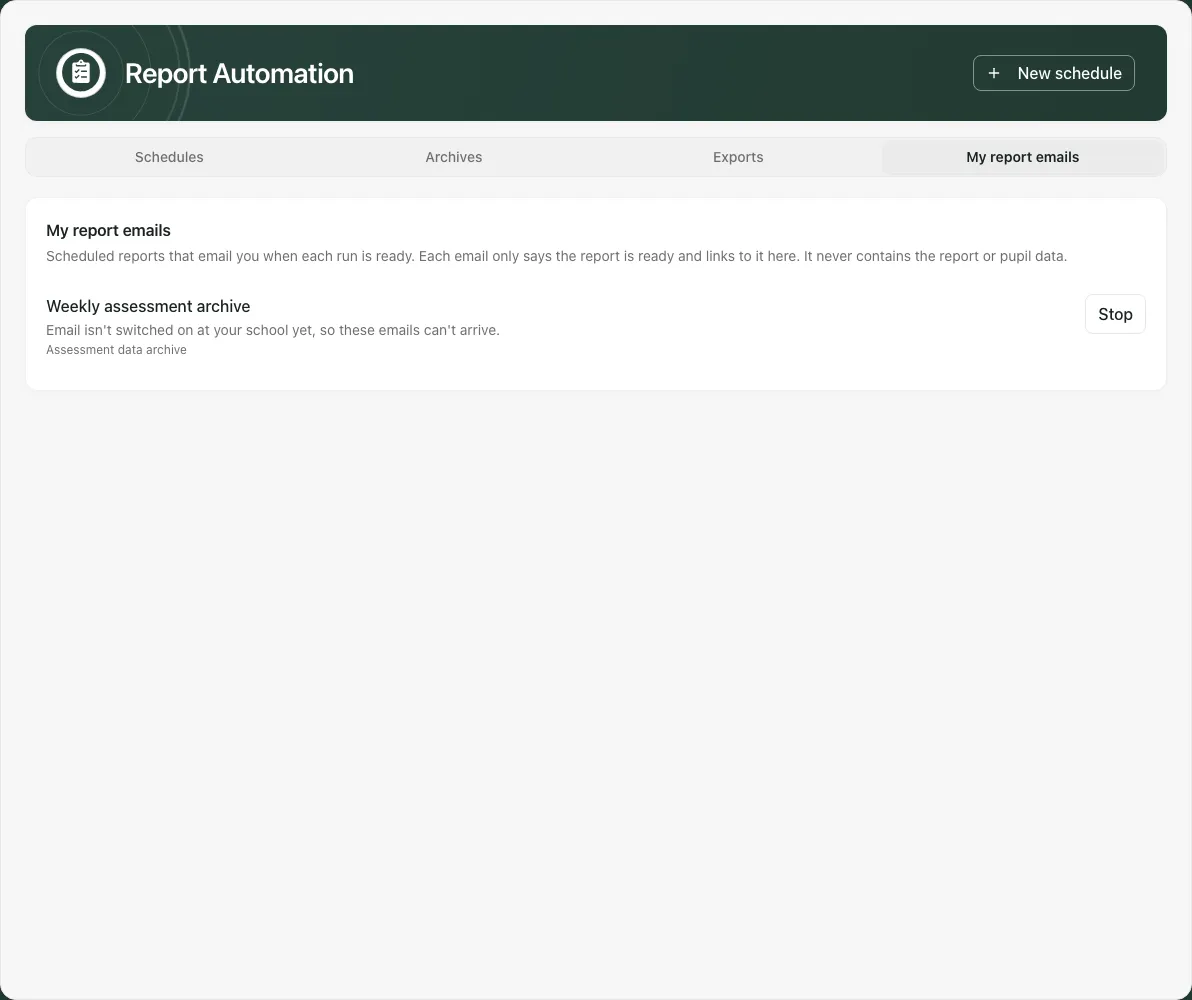
Choose Stop, then confirm Stop emails to stop your own notices for that schedule. The report remains in Student Radar. Use Start again where offered to resume your subscription, subject to the current schedule, list approval and email availability. These controls affect your notices, not the schedule’s archive creation or everyone else’s messages.
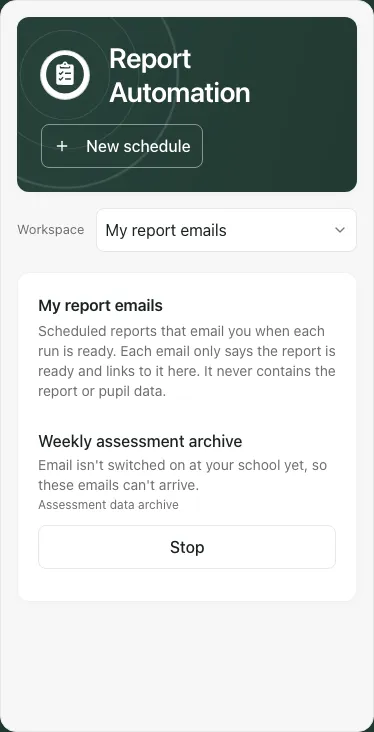
On a phone, use the section selector to reach schedules, archives, exports or your notices. Keep the current school and schedule context in view before changing a subscription.
Troubleshooting
Section titled “Troubleshooting”- No New schedule or management controls: read access is different from managing schedules and exporting assessment data. Ask the school’s authorised report lead.
- No templates available: the supported archive may be unavailable or not released for scheduling. Reload and read the message; a custom report is not automatically schedulable.
- Schedule paused or email off: check both states. An active recipient list cannot override either of them.
- Run waiting for review: inspect its recorded outcome and use Review run only for a deliberate skip, with a reason.
- Recipients changed elsewhere: review the conflict; do not discard your input until you choose to reload the latest list.
- Notice received but archive denied: a link does not confer export permission, and archives expire. Ask the appropriate lead rather than forwarding a file around the access check.
- No delivery evidence: scheduled, archived, accepted notice and downloaded are distinct. Use the status you can actually establish.
For the shorter setup sequence, see Schedule a recurring report.
Common questions
Section titled “Common questions”Where do I check whether a scheduled archive ran?
Section titled “Where do I check whether a scheduled archive ran?”Inspect the schedule’s run history, including any blocked result, then locate and check the actual archive and expiry.
Does a report-ready notice contain proof of download?
Section titled “Does a report-ready notice contain proof of download?”No. A notice, archive and completed download are different events. Verify the file or download outcome required for your task.