Plan the AP weekly rota and record session attendance
Written for: Alternative provision staff planning sessions or using permitted session registers.
Check the provision and week, organise dated sessions and staffing and use the connected register to record actual attendance. Templates, agreed-placement plans, dated sessions and attendance observations each keep their own meaning.
Before you start
Section titled “Before you start”Open Today → Weekly Rota in the intended provision. The page starts on the current school week and today’s Day view. The date/Now line follows the school clock; check the week if you opened a deep link or deliberately chose another date.
Only permitted rota managers see session editing, Usual week and Lay down this week. Reading a rota is not permission to record attendance, manage cover, inspect volunteer checks or export it. Office staff have a separate administrative rota with reduced context; see the section below. A context link does not grant the destination’s access.
The examples use fictional pupils, staff and sessions. The new-session example is intentionally unassigned: saving an unassigned slot is not a staffed, agreed pupil timetable or a recorded attendance session.
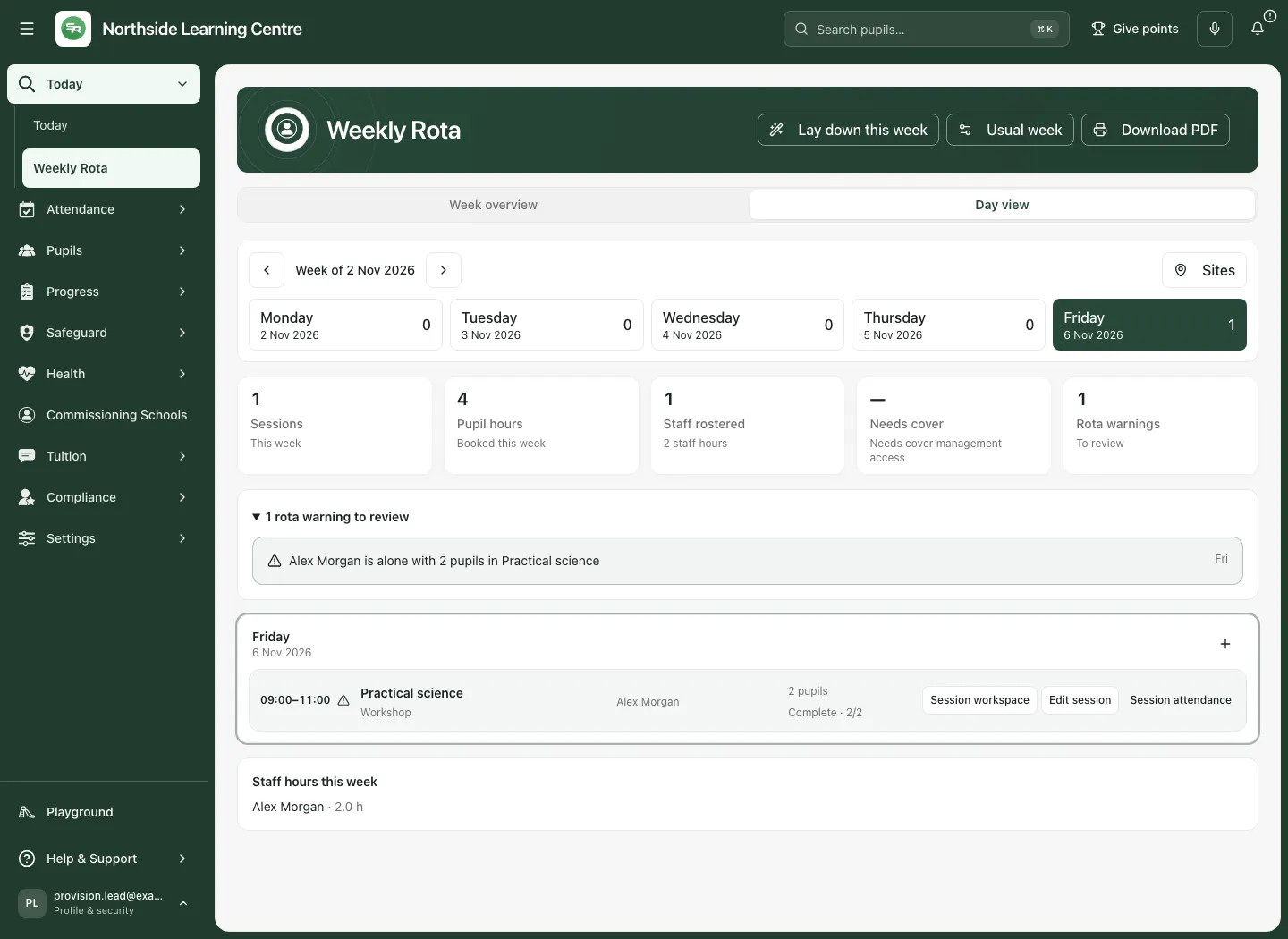
Read the week, day and summary
Section titled “Read the week, day and summary”- Use Previous week and Next week around Week of [date].
- Choose Week overview to scan the week and select a day, or Day view to inspect that day’s sessions. On a phone use the Rota view selector. Weekend days appear when relevant, including a selected day or weekend session.
- Read session time, kind, location/site, staff and booked pupils. Attendance status is separate: Not started, partial/complete, cancelled or nothing to record describe the register, not educational impact.
- Read the summary Sessions, pupil hours, Staff rostered, Needs cover and Rota warnings. Pupil hours are booked pupil time, not actual attendance or proven support delivered. Meeting time is not pupil teaching time. Unavailable is not zero.
- Use Show cancelled sessions when offered to inspect retained cancellations. Do not count a cancelled session as delivered.
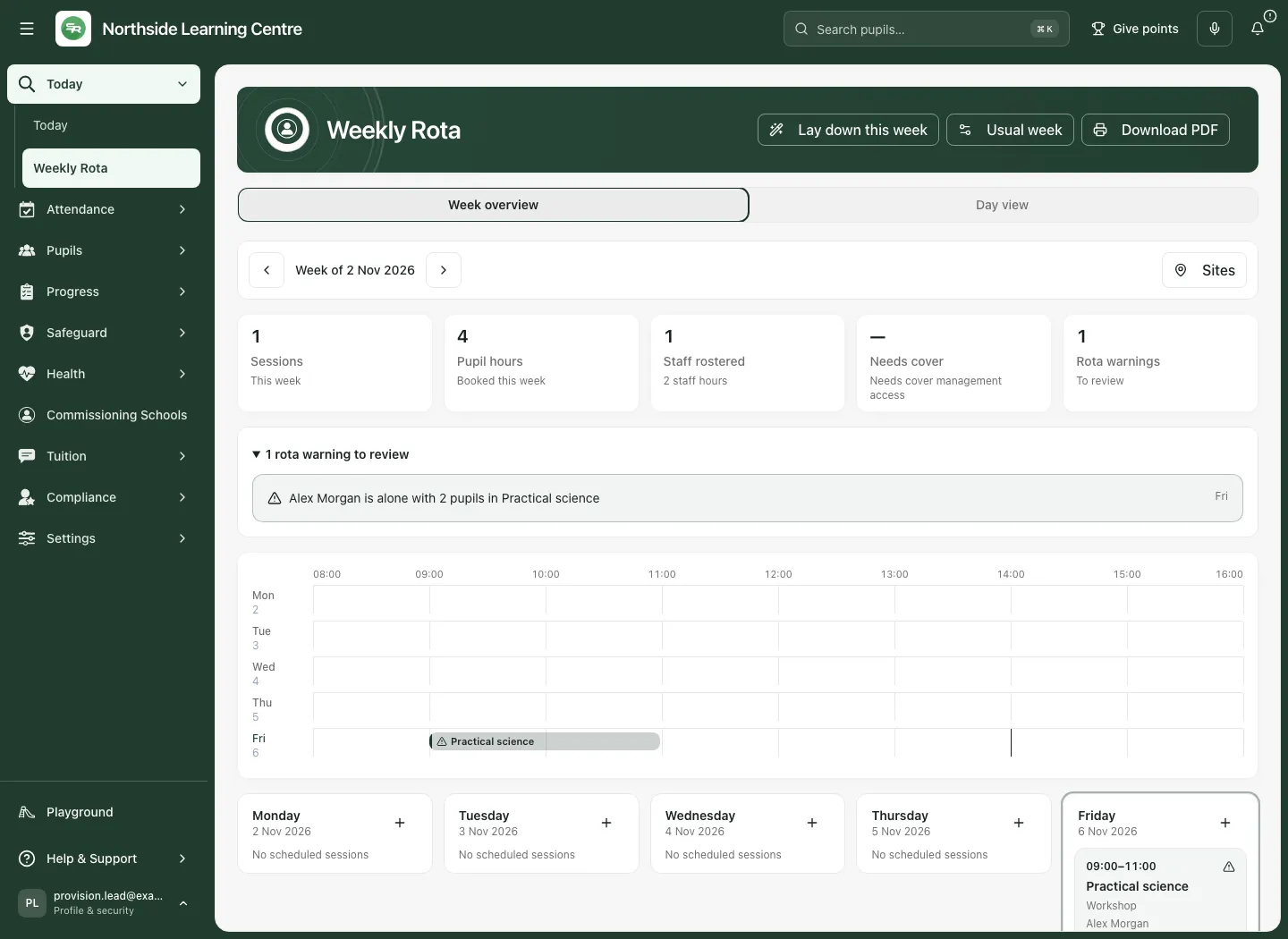
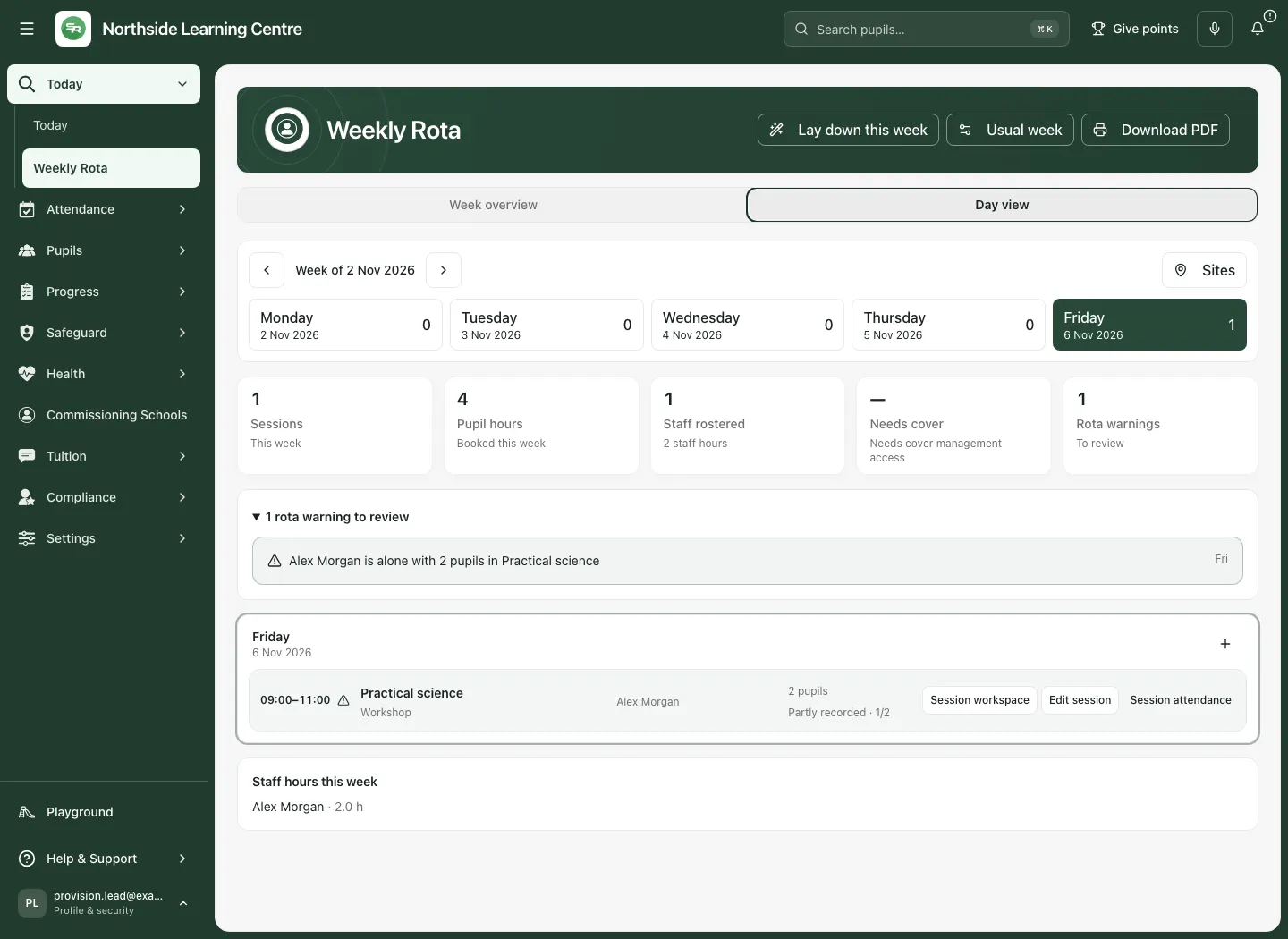
Where sites are configured, Site narrows the displayed sessions and summary figures. No site recorded identifies missing site assignments. Double-booking checks still consider other sites; a filter is not permission to ignore another session. Sites manages the source site list where permitted. See Set up sites and filter the day.
Add or update a dated session
Section titled “Add or update a dated session”- In Day view, select the plus/Add session on [day] control. Check the New session date before entering details.
- Enter Title, Date, Kind, Start and End. End must be after start. Choose the appropriate education, therapy, vocational, outreach/off-site, lunch-duty, meeting or other kind; kind affects attendance reporting, not just colour.
- Enter Location, or Site and Room or area where configured. A typed room/site suggestion is not an external venue check.
- Under Staff and Pupils, search and select the actual people. A typed search is not a selection. A session with booked pupils needs staff before it can save. The picker preserves a previously booked pupil’s name where the current roll has changed; review rather than silently replacing them.
- Read Scheduling checks, working hours, staffing requirements, absent staff, volunteer information and weekly agreed-hours coverage. Unknown requirements/hours mean coverage cannot be confirmed; they are not a clean bill of health.
- Add Notes where useful, then Save session. The button can instead say Check session or Override and save when the current check requires that next step. Check the confirmed row after save/reload before assuming it is scheduled.
- To change an existing session, use Edit session, review the current version and save. A cancelled session opens as View session/Cancelled session, not an editable active session.
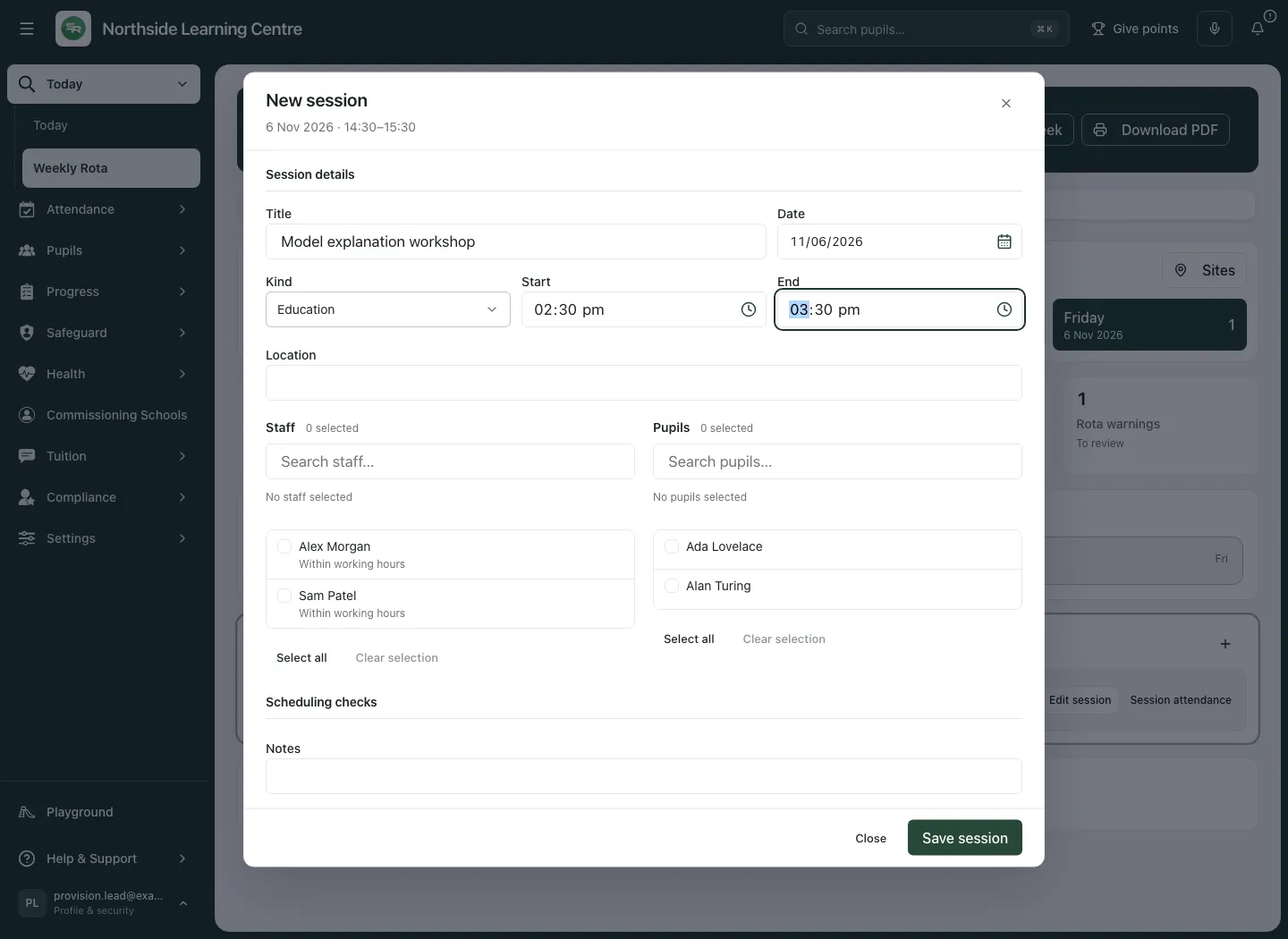
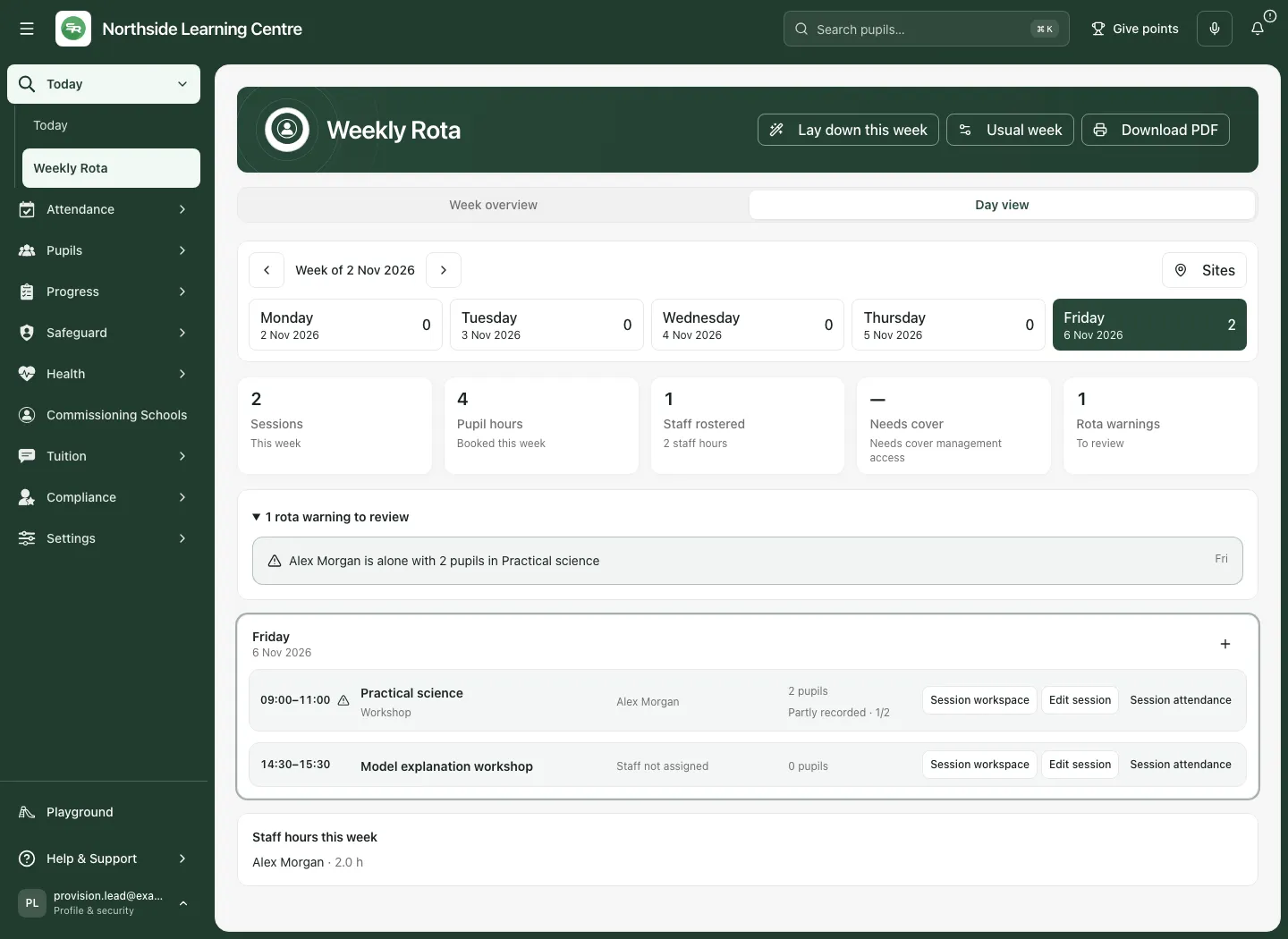
Some warnings are prompts and do not prevent saving; other server scheduling checks or changed permissions refuse the command. Neither a saved session nor absence of a warning certifies suitable staffing, consent, risk arrangements or safe delivery. Follow the provision’s responsible planning process.
Assign staff to an agreed-placement occurrence
Section titled “Assign staff to an agreed-placement occurrence”Agreed placement plans can appear as Staff not assigned · agreed placement plan before they become dated staffed sessions.
- Check the pupil, date/time and original agreement, then select Assign staff.
- In Assign planned session, select the delivering staff. Placement-derived pupil/time/details are fixed in this form; change the original authorised placement arrangement when those facts need changing.
- Read working-hours, staffing and agreed-hours checks, then Save session. The new staffed session/register should appear after confirmation.
- Past-dated unassigned occurrences cannot simply be assigned as new sessions through this route. Read the message and use the appropriate authorised correction process rather than changing a date to bypass it.
A stale occurrence, changed placement or cancellation can cause the form to refresh/close. Reopen the current source rather than repeatedly saving an old planned occurrence. Assigning staff is not proof they attended, received an invitation or completed the session.
Review working hours, absence and volunteer coverage
Section titled “Review working hours, absence and volunteer coverage”Read the expandable rota warning group and the relevant session warning icon. The source can identify missing staff, staff alone with pupils, overlapping allocations, ratio shortfalls, working-hours concerns, staff absence/cover and volunteer issues where the reader has access.
Needs cover concerns sessions with absent assigned staff and is shown only with the appropriate cover authority. Use Staff absence or Arrange cover where offered, update the actual allocation and check the refreshed session. “Absence awaiting approval” differs from an approved absence. A separate cover record should not be assumed to rewrite every rota allocation automatically.
Volunteers are identified separately and have their own Volunteer hours this week. They count towards staffing ratios/lone-working coverage only when the provision has configured this and the required clearance rules pass. A named volunteer is not automatically an extra cleared member of staff. Read the supervision/check information you are permitted to see; missing detail is not clearance. Staff hours this week is rostered time, not payroll or a confirmed record of hours worked.
Only authorised managers can record a required override reason. Where agreed weekly hours are exceeded, read the affected pupil and total, enter the reason (at least five characters) and use the explicit override action after reviewing the returned check. Do not enter a generic reason merely to dismiss a block. Working hours, absence, occupancy and other workforce rules still apply; an override is not an external approval.
Cancel a dated session without deleting its history
Section titled “Cancel a dated session without deleting its history”- Open the correct active session’s edit action and select Cancel session.
- Enter Why is this session being cancelled?
- Check the date, pupils and reason, then select Confirm cancellation. Keep session abandons the cancellation where offered.
- Check the cancelled state/reason in the rota history and use the cancelled-session display if needed. Cancellation does not delete the session or erase earlier attendance observations. It does not automatically notify every referring school or family.
Build the usual week
Section titled “Build the usual week”A usual week is a set of recurring templates; it is not yet a set of real dated sessions.
- Select Usual week. The usual week lists the current templates. Weekend templates remain visible when present, and a template can be created for any of the seven days.
- Select Add to the usual week. Enter title, Day, kind, start/end, location/site and the staff/pupils who normally attend.
- Read Staff · current weekly hours, working-hours messages and Current staffing requirements. A template has no actual date, so a specific day’s absence must still be checked on the dated rota.
- Keep Active (laid down when a week is generated) selected only for a template that should be generated. Select Save template and verify the saved template.
- Use Edit [title] for a template change. It affects subsequently generated weeks, not past dated sessions. Do not assume it rewrites sessions already laid down.
- Remove [title] asks for confirmation before deleting the template. Check the prompt and template identity; this differs from cancelling a dated session.
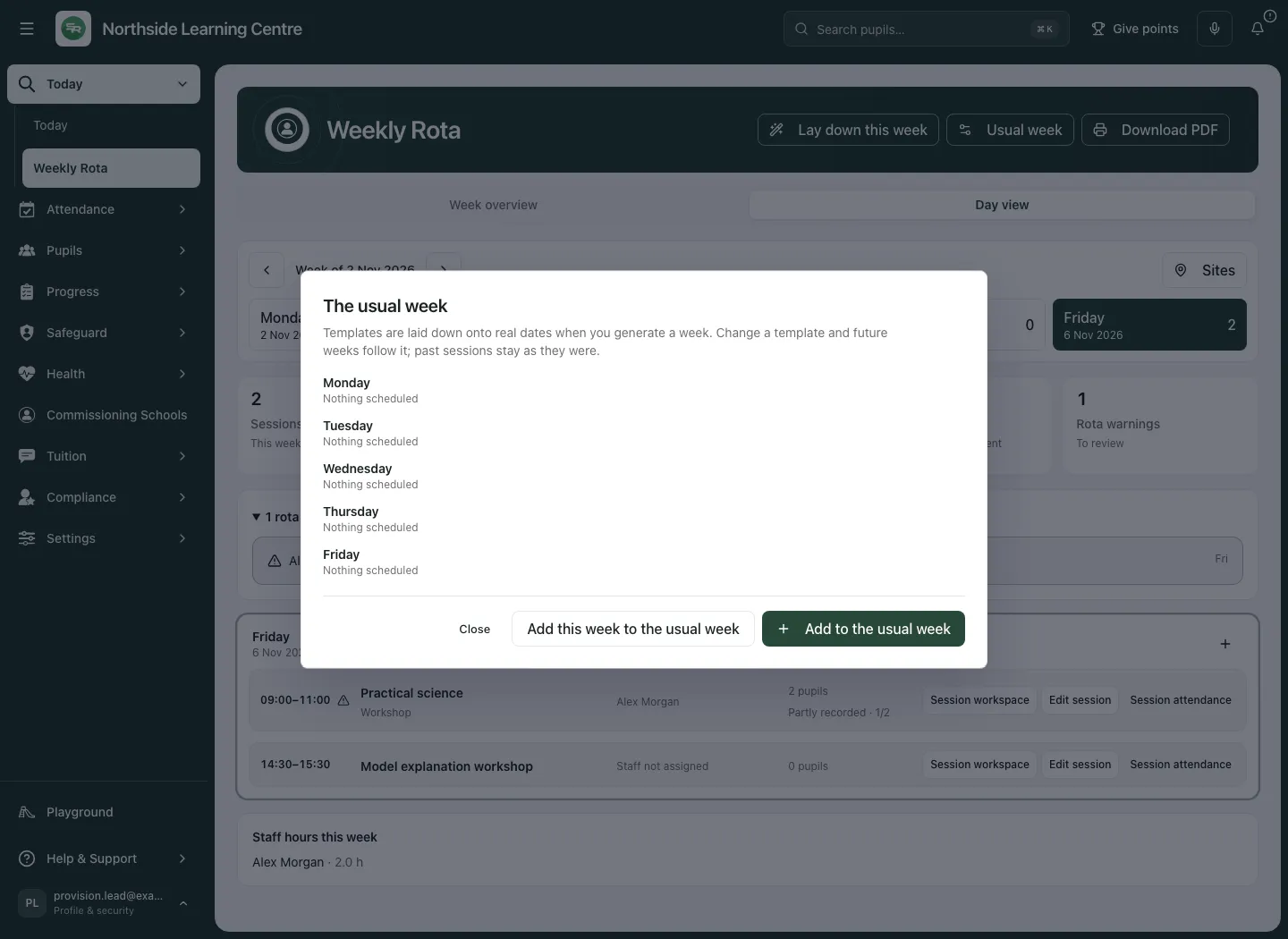
Copy a useful real week into templates
Section titled “Copy a useful real week into templates”- Go to the correct source week and open Usual week → Add this week to the usual week.
- Read eligible/skipped counts. Existing templates stay as they are; already represented sessions are skipped. The source week can have no more than 200 sessions.
- Choose Carry staff across and whether to carry pupils across. Review identity, hours and sites rather than assuming today’s assignments remain suitable every week.
- Select Add templates, or the explicit agreed-hours override action if the authorised review requires one. Cancelled sessions, notes, attendance and check-ins are excluded. A template does not inherit a completed register.
- Check the saved template list. If templates were added but refresh failed, refresh/check the existing results instead of blindly adding them again.
Lay down a real week
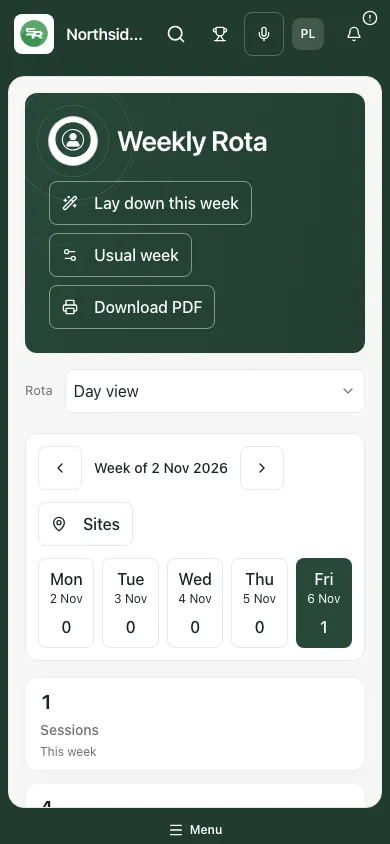
Section titled “Lay down a real week”- Go to the target week and select Lay down this week.
- The app creates dated sessions from active templates and reports the created result. If nothing needs adding, Week already laid down is different from having no active templates; an empty usual week asks you to add one first.
- Review the dated week for holidays, closures, actual staff absence, changed pupils, consent, risks and venue arrangements. A template generation is not evidence that those checks are complete.
- If generation exceeds agreed hours, an authorised manager can record Reason for exceeding agreed hours this week and use Override agreed hours and generate. Otherwise change the plan or ask the responsible manager.
- Adjust individual dated sessions through their own edit/cancel actions. Do not repeatedly generate to repair an uncertain result without checking what was actually created.
Open the Daily Register or a rota session’s attendance
Section titled “Open the Daily Register or a rota session’s attendance”In the sidebar use Attendance → Daily Register, or Take register on AP Today. It is a focused view of the same dated rota, not a second independent attendance timetable. Open weekly rota returns to the displayed day.
Use Register date, its previous/next-day arrows and Today. Where available, Site narrows that day’s sessions. Read Marked, Booked, Present, Absent and Registers to take as booked session places, not necessarily distinct pupils. Lunch-duty sessions are excluded from attendance totals as labelled.
Sessions with missing marks appear first. Not started means no booked pupil has a saved mark; In progress means some; Complete means every expected booking is marked. A cancelled session allows no new marks. Nothing to record means no pupils are booked. Unrecorded is unknown, not absent.
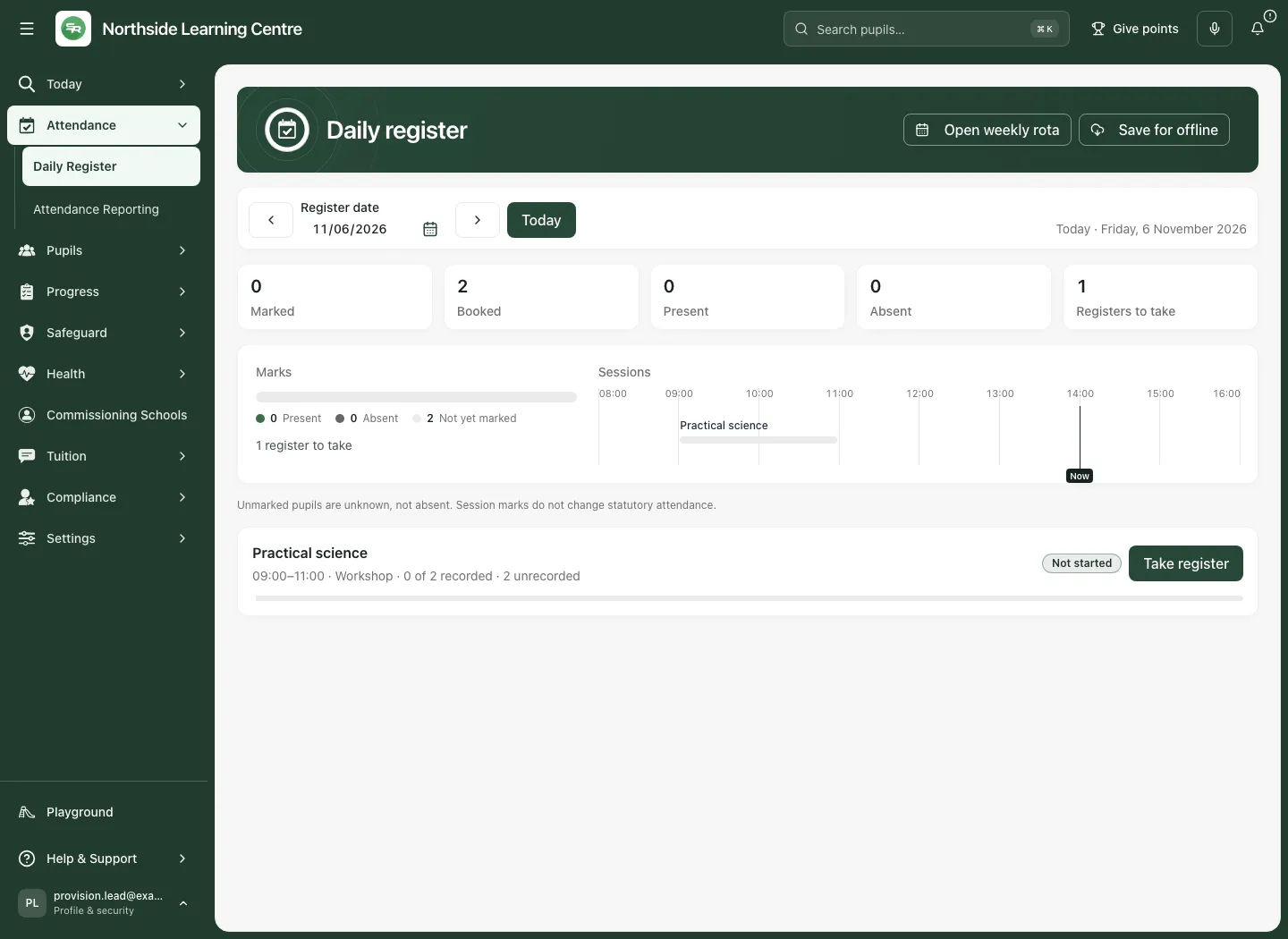
From a rota session’s attendance button, the register opens in Session attendance: [title]. In Daily Register, Take register for [session] expands the corresponding form. A read-only reader may see Review register instead.
Record the session register and check the receipt
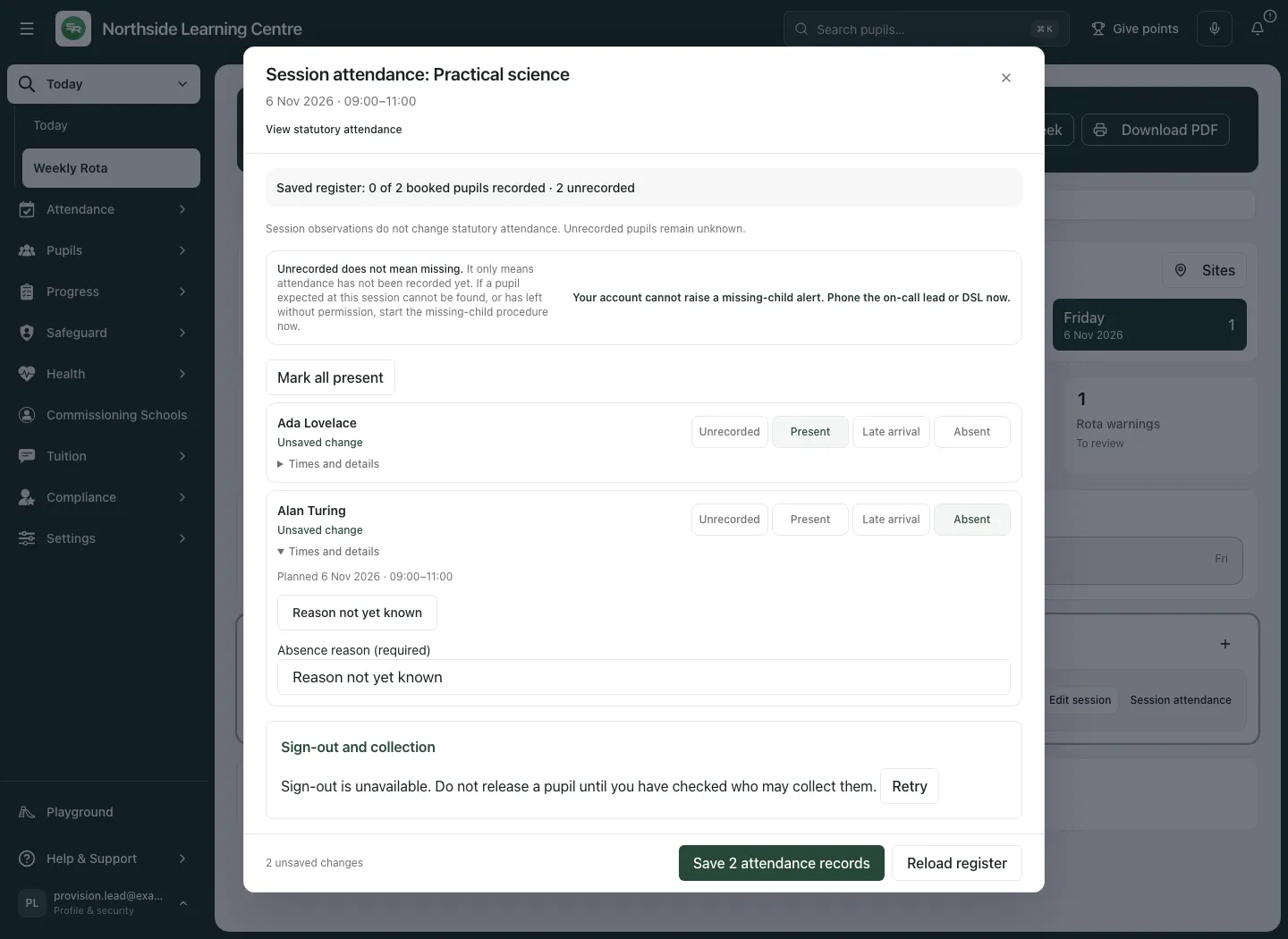
Section titled “Record the session register and check the receipt”- Check session date/time and every booked pupil before selecting marks. Future-session attendance is unavailable until the session date.
- Use Mark all present only if that is true. It fills planned arrival/departure times; correct them to what actually happened.
- For each pupil select Present, Late arrival, Absent or Unrecorded. A newly selected mark can be undone to Unrecorded while nothing is saved; this does not erase a previously saved observation.
- Use Times and details where offered to inspect Arrival and Departure. An arrival after planned start is treated as late. Late arrival reason (optional) can be left empty; if supplied it needs at least three characters.
- For early departure, enter departure time, check Left early and complete Early departure reason (required). For absence use Absence reason (required) or Reason not yet known if the reason is genuinely not known. A recorded unknown reason is not evidence of authorised absence.
- Read Unsaved change and any validation message. Reasons are 3–500 characters. A correction to an existing mark needs Correction reason (required when saving changes) where requested.
- Select the counted save action, for example Save 2 attendance records. Wait for confirmation, then check the session’s updated completeness. Reopen/reload the saved register when you need to verify actual marks. A complete register can contain an absence; it does not mean all pupils attended.
Recover from an uncertain or refused attendance save
Section titled “Recover from an uncertain or refused attendance save”- A connection failure before confirmation does not prove that nothing was recorded. Use Retry same save when offered; it retains the same request rather than making an unrelated second submission.
- If another attendance save is busy, the app can retry the same request briefly. If still blocked, wait and use the offered retry.
- If the session, booking, existing mark or permission changed, use Reload register. Review saved marks, then choose Re-apply my unsaved marks or Discard them. A pupil no longer eligible for that session is listed rather than silently reapplied. Review any new correction reason required after another person’s save.
- Use the app’s reload control. Carried unsaved marks are offered while that workspace stays open; a browser reload/sign-out is not a promise of draft recovery.
Save for offline is a separate deliberate device-copy workflow with its own availability, expiry and send/reconciliation rules. It is not a background guarantee that every register is saved locally or sent. See Take the register offline before relying on it. A queued/device mark is distinct from a confirmed server record.
Missing-child and collection/sign-out controls are separate safeguarded workflows, not ordinary attendance choices. Use Report a missing pupil from the session register and Sign pupils out and record who can collect them, with the provision’s procedures. Recording attendance is not proof a child has been collected by an authorised person.
Session planning and reflection remain separate records
Section titled “Session planning and reflection remain separate records”Where permitted, open the session workspace for Session planning or Session reflection. Inspect the freshly loaded record, enter the intended/current session information and Save. If the result is uncertain, Retry same save keeps that request; if a newer record/session exists, review the latest saved version before deciding what to keep. Saved history retains earlier revisions. A saved plan/reflection is not an attendance mark, a completed report or proof of impact.
Office administrative rota
Section titled “Office administrative rota”Office staff can see a reduced scheduling table for Monday–Sunday. Where their capabilities allow, Add session opens Schedule session with Session title, date/start/end/location, staff and administrative pupil selection. Save schedule persists that schedule, not full pupil case facts or attendance. New sessions use the create action; do not duplicate a saved session after an uncertain response.
Office Edit session, Cancel session → Confirm cancellation and Download rota PDF use the administrative source and permissions. A schedule conflict or changed revision requires checking the latest allocation/time, not repeated blind retries. This view does not promise access to full pupil profiles, staffing-check detail or the full named attendance source.
Export, phone use and failed sources
Section titled “Export, phone use and failed sources”Download PDF (or office Download rota PDF) re-reads permitted rota information for the week. The file includes relevant weekend sessions; it is not proof of attendance, delivery or external receipt. Review identifiable information and share through the provision’s authorised route. Export rights and the site filter do not grant unrestricted source access.
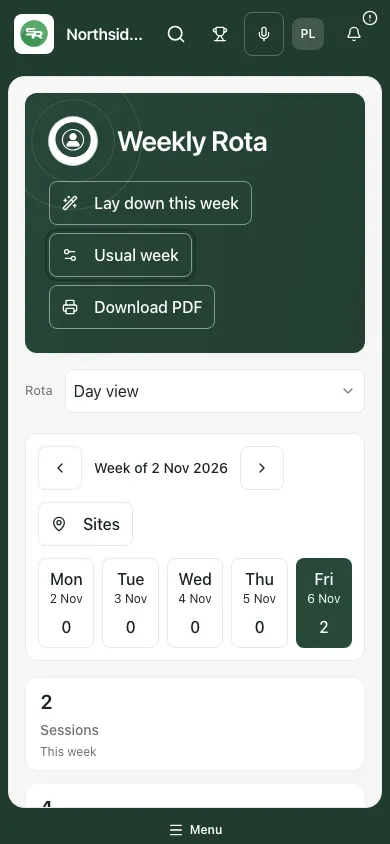
If access cannot be confirmed, use Retry. Unknown ratios/working hours do not become a zero requirement. If the week’s read is too large or a link names a session no longer available, read the explanation and narrow/check the source rather than assuming there are no sessions. Sensitive dialogs can be withdrawn when access changes. Preserve work only through permitted processes; do not bypass a refusal with an old bookmark or duplicated session.
Common questions
Section titled “Common questions”Does editing a usual-week template change past sessions?
Section titled “Does editing a usual-week template change past sessions?”No. Template changes affect subsequently generated weeks. Review and edit or cancel individual dated sessions through their own controls.
What should I do after an uncertain attendance save?
Section titled “What should I do after an uncertain attendance save?”Use Retry same save where offered. If the session, booking, mark or permission changed, use Reload register and review the saved record before deciding what to reapply.
Related: AP Today · Build the usual week · Assign staff or cancel a session · Take today’s register.