Record AP daily check-ins and review observed patterns
Written for: Alternative provision staff recording permitted session observations and leaders managing the check-in framework.
Open the pupil’s booked session, record the measures actually observed and retain the support and context when reviewing patterns. An unrecorded session is unknown, not a low score. A rating or completed session does not establish impact, diagnosis or the reason for a pupil’s response.
Open the correct date, booking and permission scope
Section titled “Open the correct date, booking and permission scope”Open Progress → Daily Check-ins. Check the provision and Session date, which defaults to the current school day. You can select an earlier date, not a future one. In an embedded session workspace the booking/date are fixed to that source; future or cancelled bookings are read-only with a reason.
Viewing check-ins, recording/correcting them, managing measures and reading/adding evidence require separate current permissions. A read-only demo does not offer saves. A failed AP access check says recording access could not be confirmed and offers Check access again; it is not an empty score sheet or permission to continue writing.
Bookings come from the rota. Use Booked sessions for the selected day’s permitted booked pupils or All on-roll pupils for the applicable roll and history, then search by pupil name. On-roll eligibility follows the viewed date, so an earlier session can still have a relevant former pupil. Seeing an identity does not grant access to all their evidence.
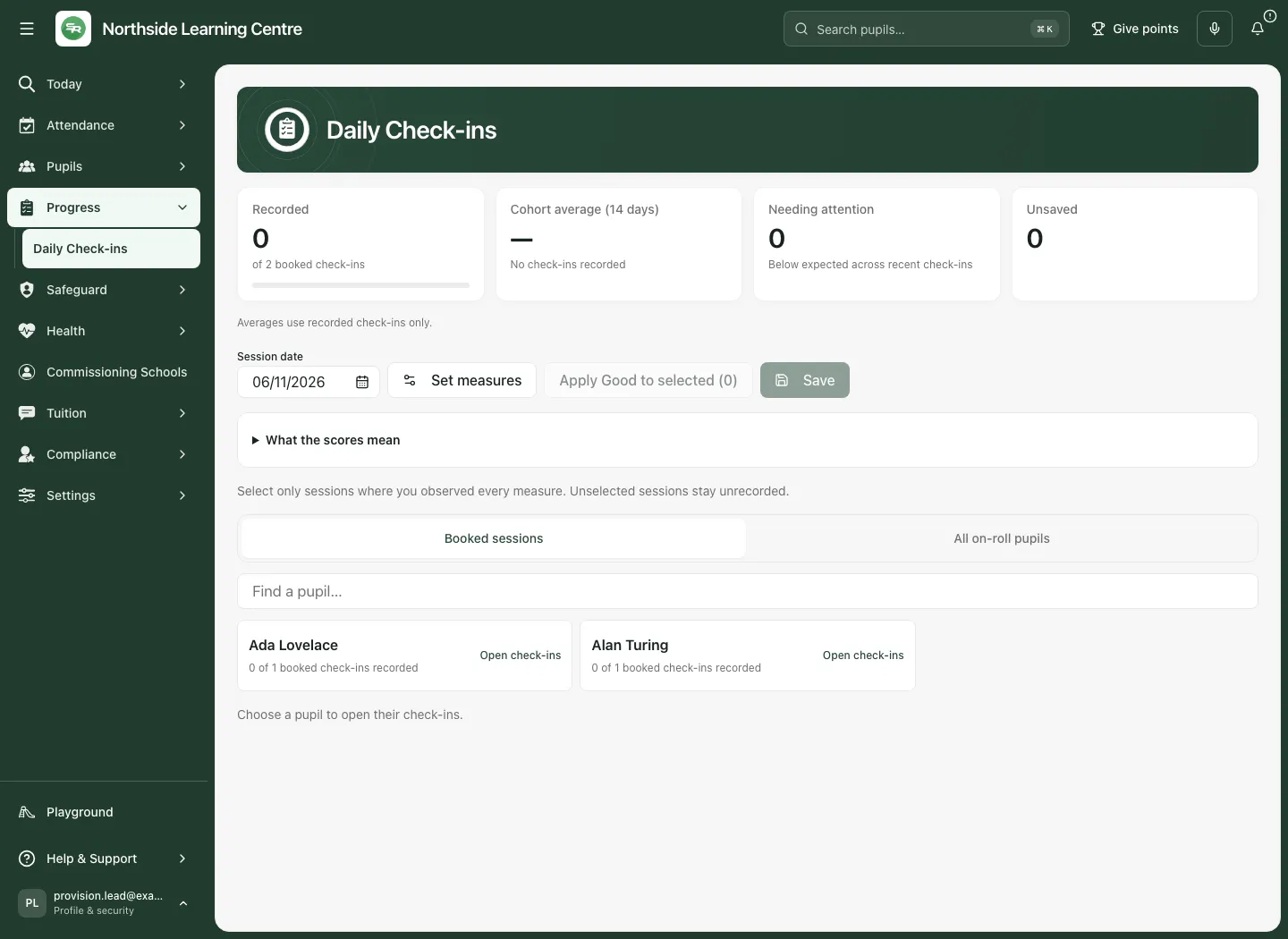
A pupil card states recorded bookings out of their expected bookings. No booked sessions on this date is different from no history or no need. Check the original rota through Open rota where offered rather than create a check-in for an unbooked session.
Understand the published measures first
Section titled “Understand the published measures first”The page shows the active measures and scale. Open What the scores mean to read each label and observation description. The suggested initial framework has engagement, work completion, following requests and respect, but your provision can publish different wording and a two-to-five-point scale.
Read the actual words and support conditions rather than compare raw numbers from different frameworks. New records use the current published framework; a saved record’s correction uses its own framework and captured wording. Older thin records without a full snapshot may use available current wording, so do not assume they establish an exact historical comparison.
If no framework is published, permitted managers see Set up check-in measures → Set measures. Suggested defaults support setup; they are not a fallback that makes a failed framework read safe to use. A failed evidence/framework/booking read keeps scores and totals unavailable until verified.
Record one actual observation
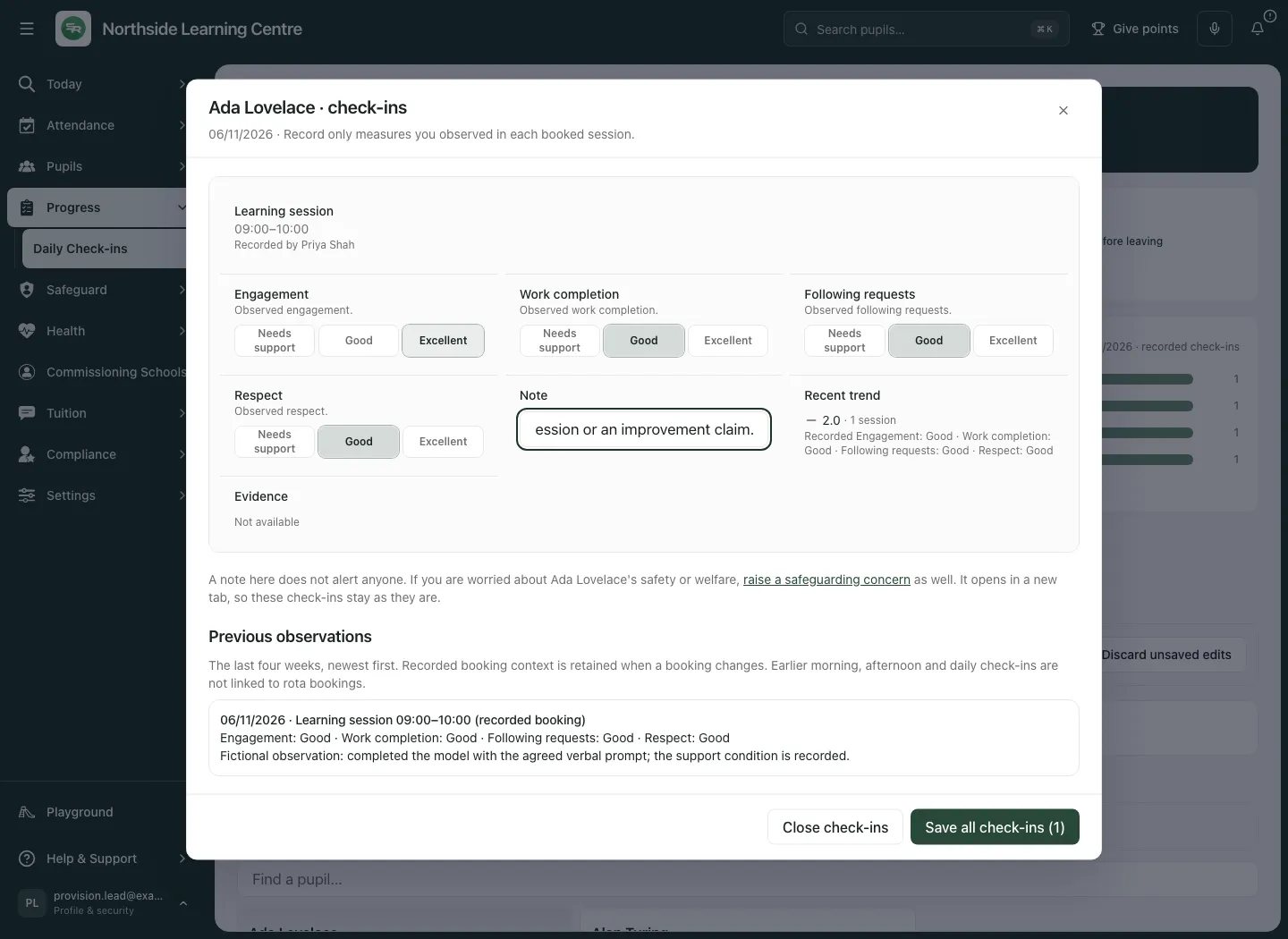
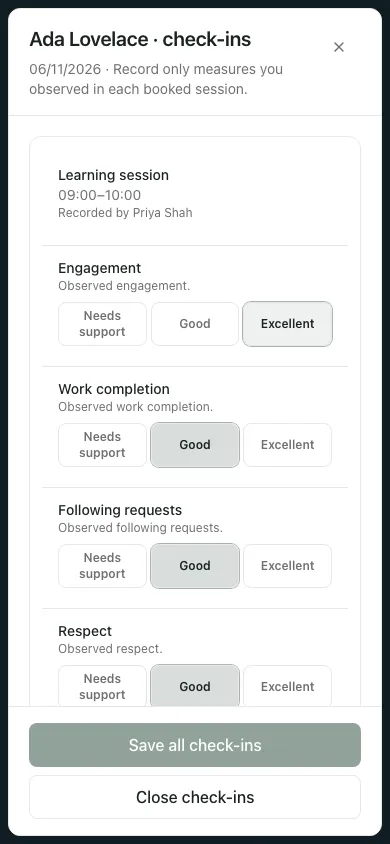
Section titled “Record one actual observation”- Select the pupil’s card, such as Ada Lovelace. [Pupil] · check-ins opens for the selected date.
- Find the correct booked session and read its title/time. Where there are several bookings, score only the sessions you actually observed.
- For each measure, select the label matching the observation. Read the description on hover or in the visible guidance; a numeric position alone is insufficient.
- Add a Note with relevant task, pupil response, support or prompting and any uncertainty. A note does not alert someone or raise a safeguarding concern.
- Complete every required measure for a session before saving it. An incomplete row states what is missing; it stays unsaved rather than becoming zeros.
- Select the counted Save all check-ins (N) in the pupil window, or the page’s counted Save (N) where shown. The number counts complete changed observations, not pupils who attended or all unfinished drafts.
- Wait for the saved confirmation and check the recorded state. Close check-ins returns to the list. Reopen or refresh to verify the saved note and ratings.
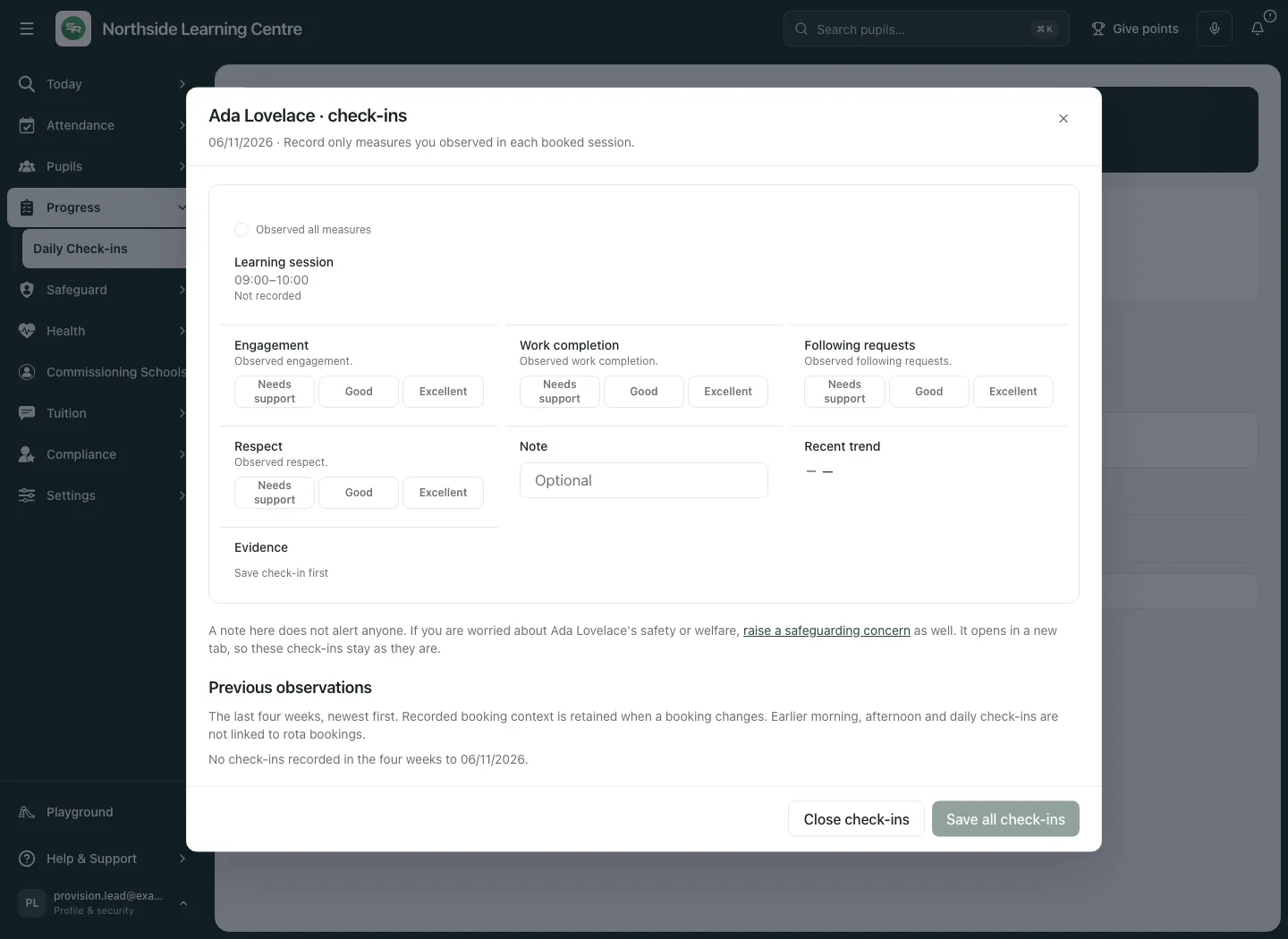
A missing score is not automatically “Needs support”. Record only the measures you actually observed. If you cannot complete all the required measures reliably, leave the session unrecorded and follow the provision’s process for discussing the evidence gap.
Fill selected observations with the expected option deliberately
Section titled “Fill selected observations with the expected option deliberately”The convenience fill only applies to explicitly selected, unrecorded sessions, and only fills measures that are still blank. It does not replace a recorded value or decide that unselected pupils met expectations.
- In each relevant pupil/session, tick Observed all measures only when you observed every measure. Selection is tied to that date/booking.
- On desktop, return with Close check-ins if the global apply button is behind the pupil window. The actual page action reads Apply [label] to selected (N), for example Apply Good to selected (1). On a phone, the corresponding expected-option action can be beside the session.
- Select the action, reopen/check the selected session and change any proposed score that does not match your observation. The expected label follows the published scale; it is not necessarily the same numeric score after a framework change.
- Add the actual observation note and save the counted complete changes.
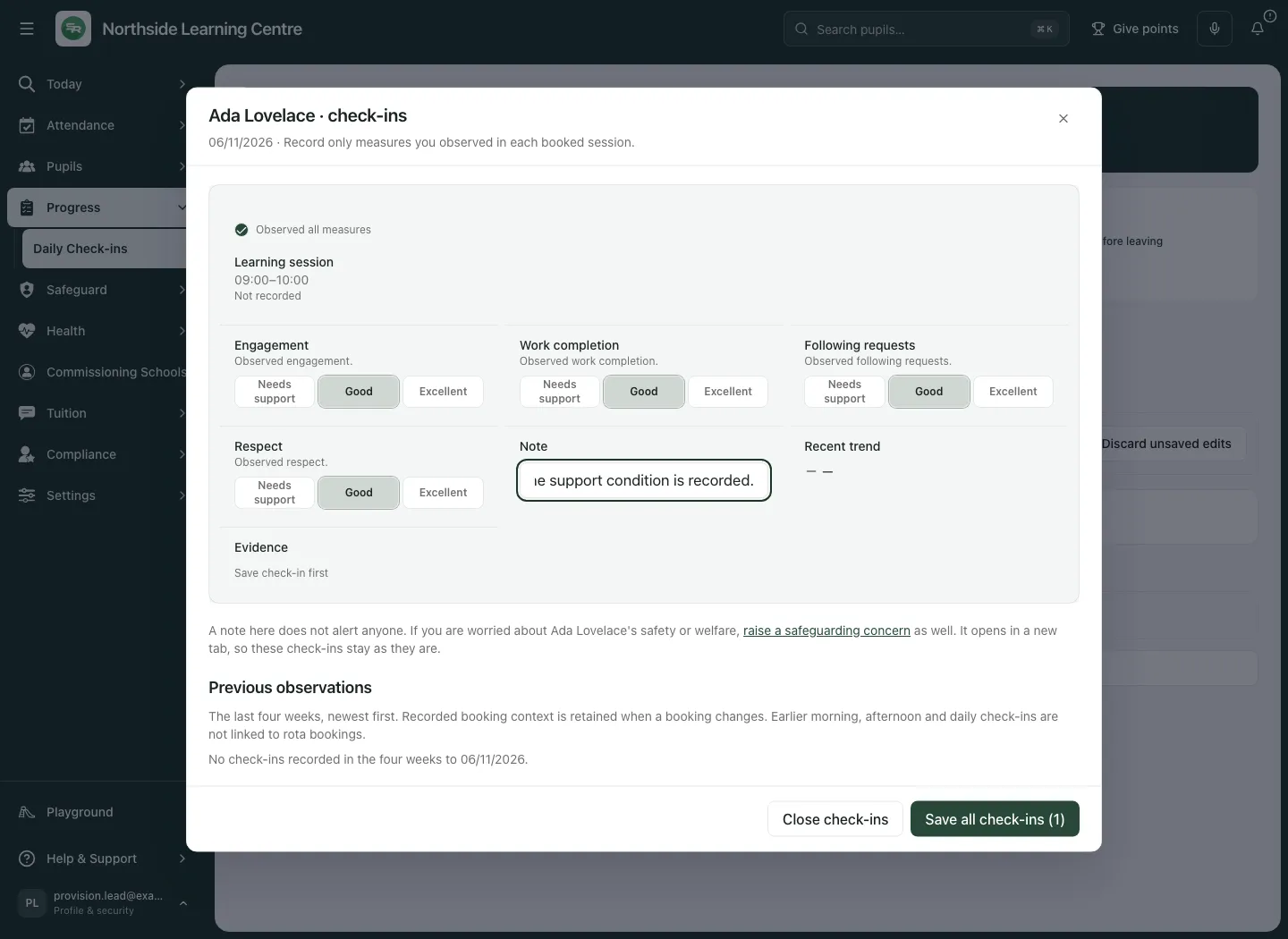
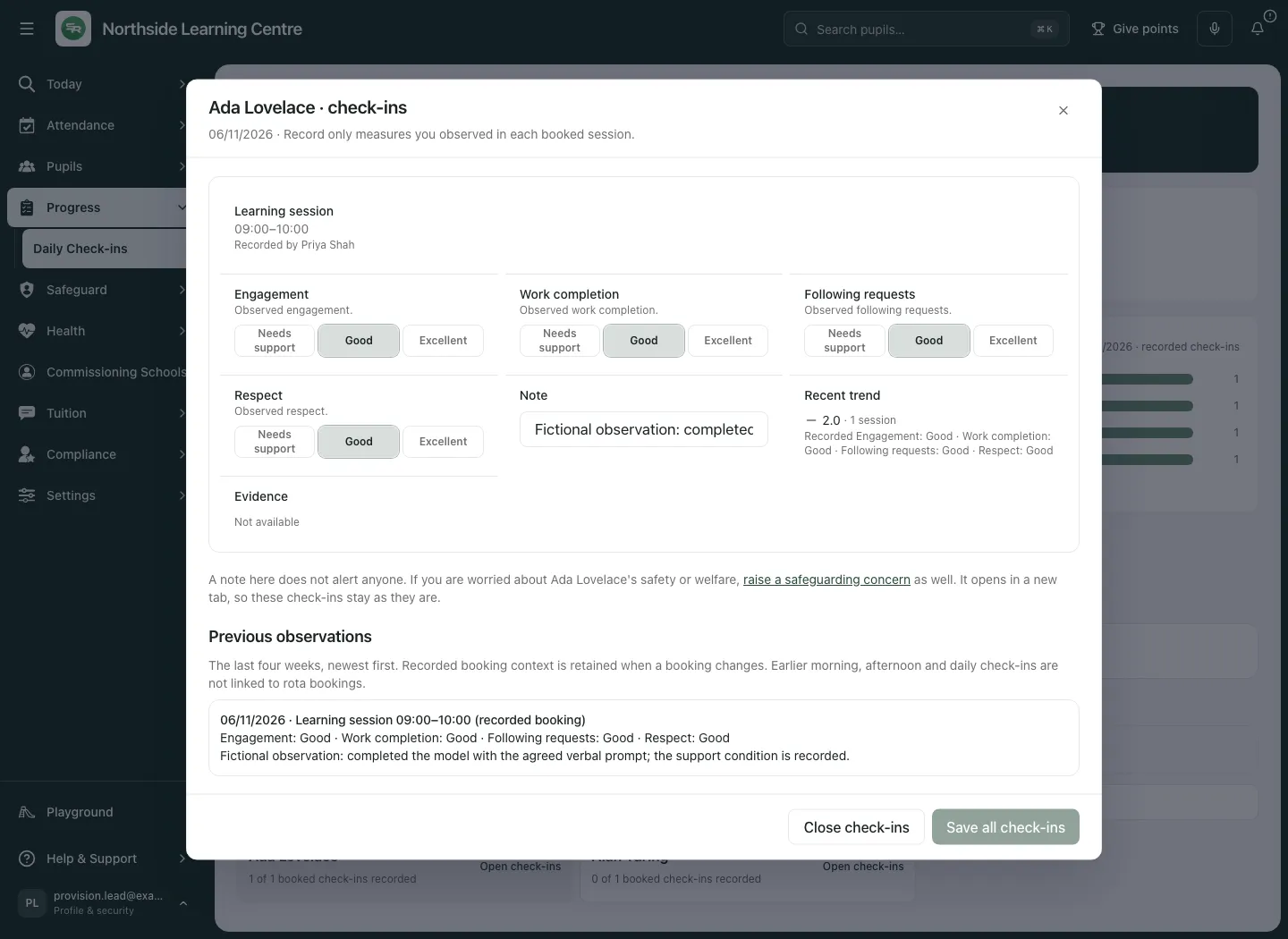
The example does not establish that every pupil attended or that the prompt caused improvement. The Observed all measures checkbox is a staff statement, not automated observation. A date/session change clears the observation selection rather than carrying it to another booking.
Correct a saved observation without creating a new session
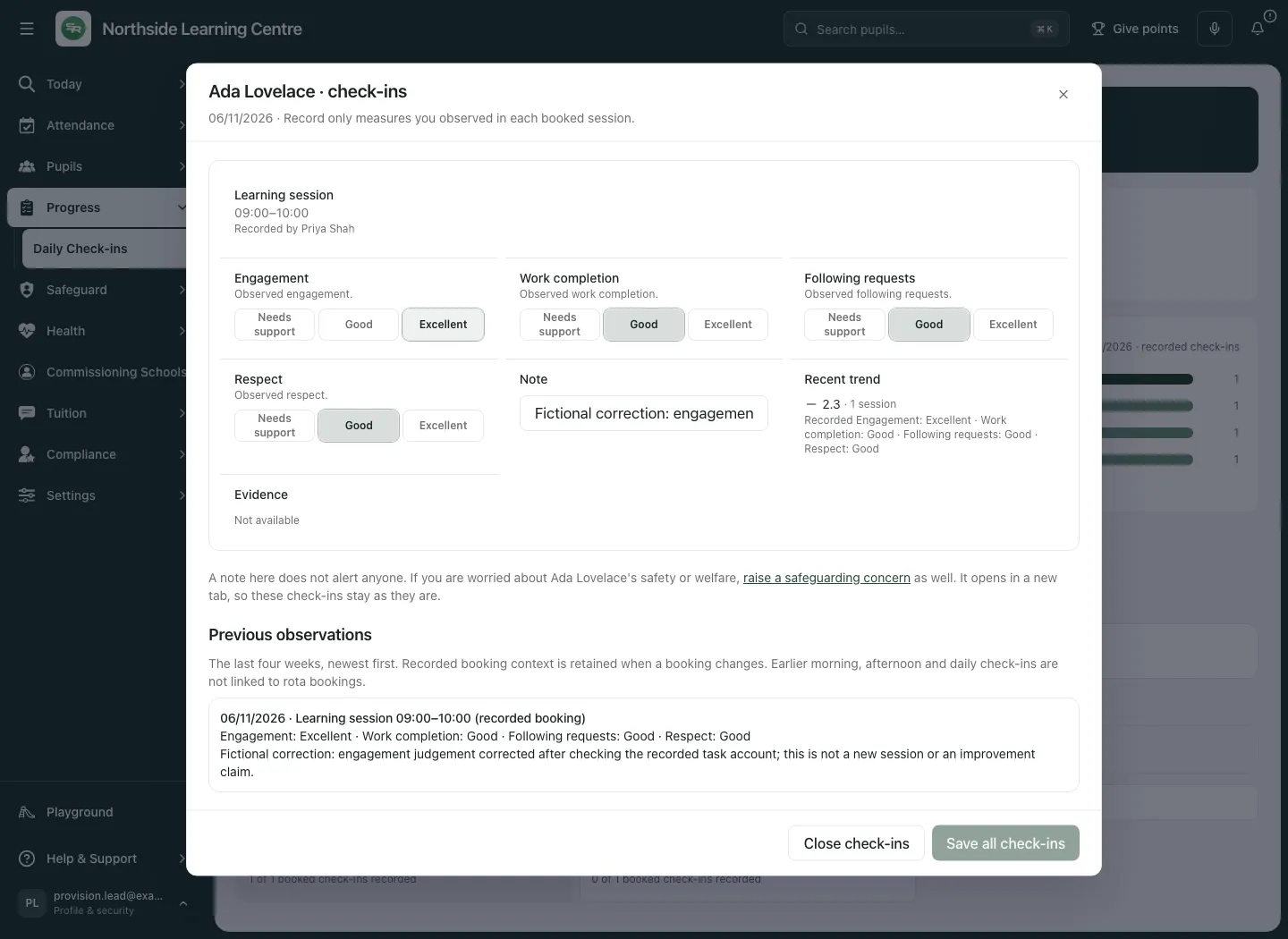
Section titled “Correct a saved observation without creating a new session”- Reopen the pupil and saved session. Read the existing values, note, recorder and original booking/framework context.
- Change the actual mistaken score or note. Whitespace alone is not treated as a meaningful correction.
- Save the counted change. It uses the original record’s current revision and framework, not a new observation on today’s measures.
- Refresh/reopen and check the corrected wording and note. A correction to one judgement is not a new session or proof the pupil improved between two occasions.
If a colleague changed the saved record, compare their values before using Use saved values for [pupil]. If the booking changed/cancelled, use Discard draft and review booking deliberately after retaining any needed note. A new unsaved observation affected by a framework change offers Discard draft and use the new measures instead. These controls discard your draft; they are not a silent merge or another save.
Read Previous observations and permitted evidence
Section titled “Read Previous observations and permitted evidence”Previous observations lists the pupil’s last four weeks, newest first. This uses their recent record across sessions, even when you are currently opening one booking. Original recorded booking title/time context remains visible if the rota changed later; earlier AM/PM/daily observations are identified separately and are not falsely linked to a rota booking.
After a check-in is saved, Evidence opens or adds permitted session evidence. Check the pupil, session and photo/video consent context before adding anything. Evidence has its own access, review and retention rules; an attached item does not automatically achieve a target or establish an outcome. A failed evidence/consent read is not a Yes. See Consent Records.
Interpret the summary as a prompt, with its denominator
Section titled “Interpret the summary as a prompt, with its denominator”| Summary | How to read it |
|---|---|
| Recorded | Saved booked observations out of the selected day’s expected bookings, not every pupil on roll or every attended session. |
| Cohort average (14 days) | Recorded observations for the listed applicable cohort, with check-in and pupil counts and the scale maximum. It is not an attendance percentage or a standardised impact measure. |
| Needing attention | Pupils whose recent comparable check-in average is below the source’s expected threshold. Select it to inspect those pupils; Show everyone returns to the wider list. |
| Unsaved | Current unsaved drafts, including those still incomplete. It is not the number of records already saved. |
Recent trend compares the latest five observations with the five before, where the frameworks are comparable. With insufficient or non-comparable data, the page says so rather than inventing a trend. Needing attention is a prompt to read the observation and discuss it with the appropriate colleague, not a diagnosis or judgement about the pupil.
Ratings by measure counts recorded ratings for the selected date/cohort on the displayed scale; records on a different-length scale are excluded instead of remapped. Read the count and version context before interpreting a distribution. Cohort averages and trend displays withhold an average when the measures changed without an appropriate comparability relationship. A high rating is not proof a pupil no longer needs support.
Set or revise the measures with a clear comparison decision
Section titled “Set or revise the measures with a clear comparison decision”Management permission is separate from recording permission. Save or deliberately discard current check-in work first: Set measures is disabled while unsaved edits, an active save/refresh or unresolved failure need attention. A publication does not silently wipe those drafts.
- Select Set measures. Set check-in measures reads the current published contract again rather than relying on a stale cached version.
- On Measures, define two to six criteria. Each needs a Criterion N name (up to 80 characters) and What staff should observe description. Add criterion adds one; remove only an intentionally unwanted measure.
- On Score scale, define two to five points, lowest to highest, with a Label and What this means for each. A changed scale is a changed measurement method, not a way to improve existing scores.
- On Publication, check Published version in semantic form such as 1.0.0, later than the current version, and Effective from, no later than today and no earlier than the current effective date where applicable.
- Choose Comparison with the previous version → Comparable only when measure meaning and scale interpretation are materially unchanged. Otherwise use Do not compare.
- Enter Comparison rationale (required), 10–500 characters. First publication supplies an explicit initial/no-previous-version rationale; review it rather than invent a previous comparison.
- Select Save framework after reviewing the complete changed definition. Unchanged measures keep save disabled rather than claim a new publication occurred.
- Check the confirmed published version and return to the observations. Existing records keep their own source framework; a new publication does not rewrite those ratings.
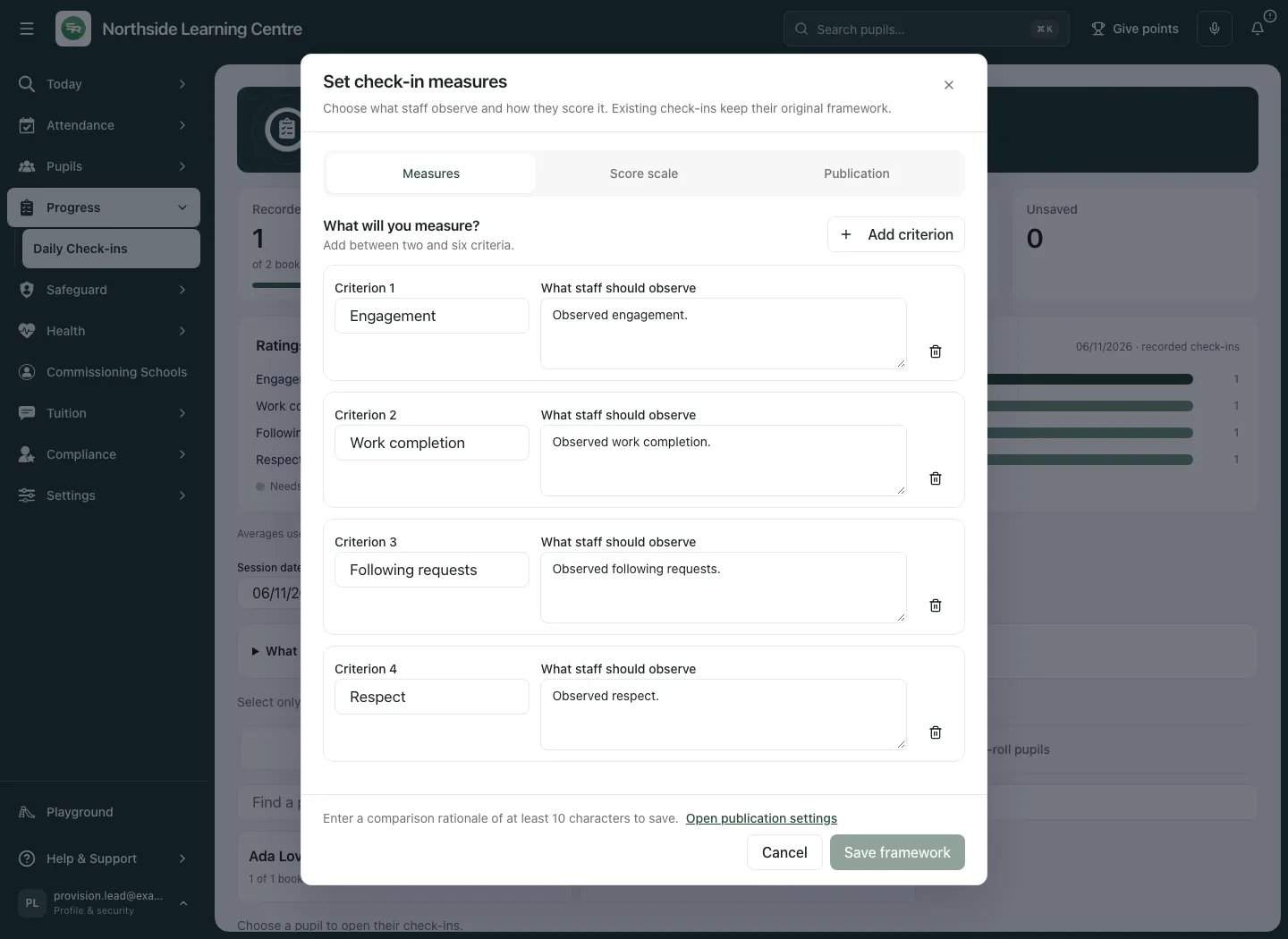
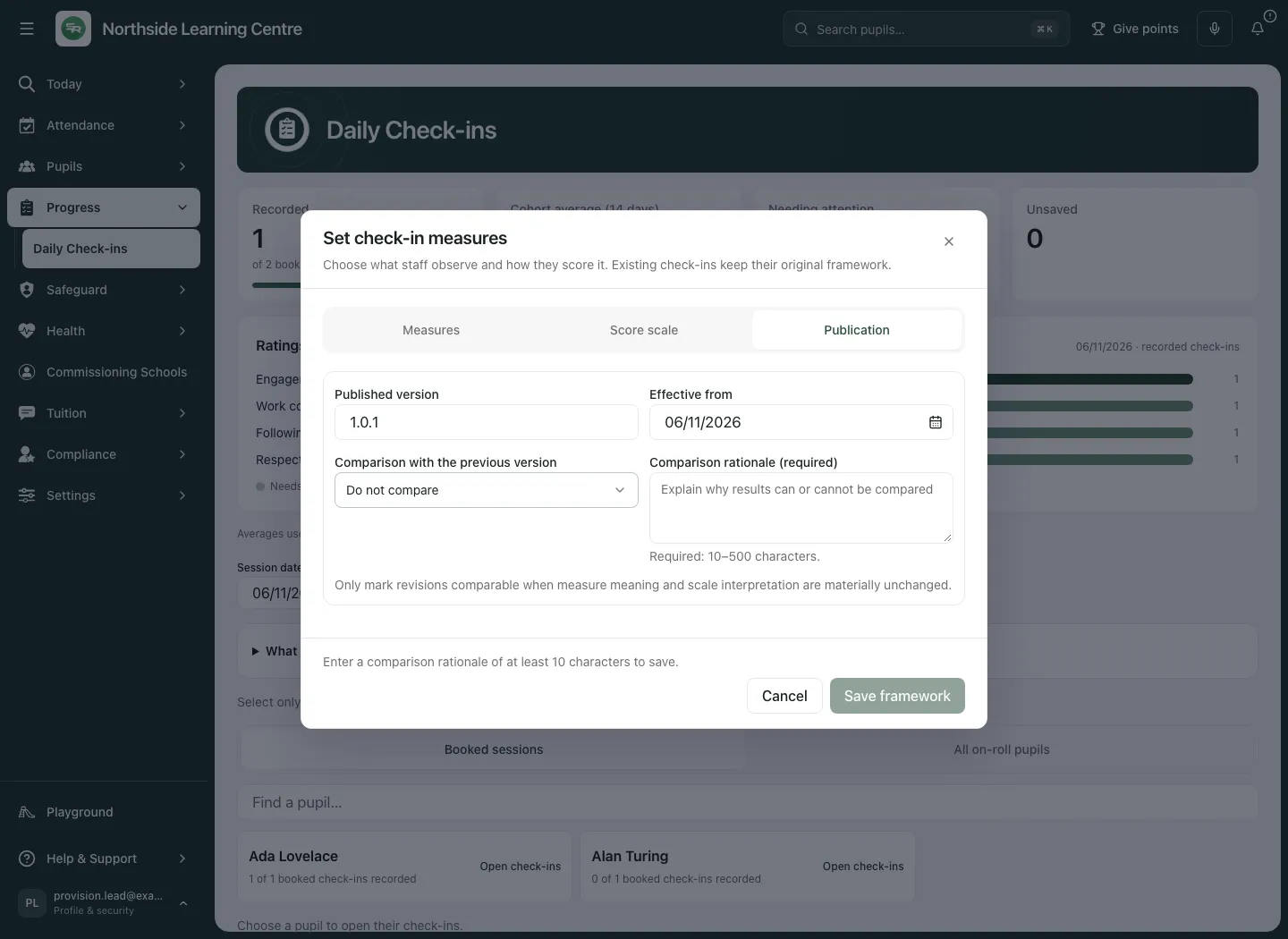
If another person published while you edited, the dialog keeps your changes and re-reads the latest version. Compare the current/pending measures and scale. Keep my changes rebases the intended publication with a later version/effective boundary, resets comparability to Do not compare and requires a fresh rationale; it is not an overwrite of unseen content. Use the latest version/discard options deliberately after copying any needed work. A failed re-read remains unconfirmed and cannot be made comparable by assumption.
Keep unfinished work through a date change or partial save
Section titled “Keep unfinished work through a date change or partial save”The page follows the school day when there is no work in progress. Unsaved edits, an active save or a failed save hold the draft on its original date. Save or discard your current edits before changing the session date explains the lock.
Discard unsaved edits asks for confirmation: Keep editing or Discard edits. Leaving the workspace also warns about unsaved scores. Do not change a booking/date to make an unconfirmed observation appear saved.
A batch saves at most 200 complete observations. If some succeed and another fails, the message states how many were confirmed and retains unconfirmed/unfinished drafts. Select Refresh saved check-ins, inspect the latest source and save only the remaining intended changes. A repeated click is not proof every observation saved; complete-source reads are bounded to 5,000 rows and refuse an unverifiable partial window.
Use the phone view
Section titled “Use the phone view”Open the named pupil/session and scroll each measure’s labelled choices. Keep the booking/date and the support note in view before saving; the phone does not infer a score for an unobserved measure.
Common questions
Section titled “Common questions”What should I record if I did not observe the session measure?
Section titled “What should I record if I did not observe the session measure?”Leave it unrecorded rather than invent a low score. Missing observation is unknown.
What should I check before comparing check-in ratings?
Section titled “What should I check before comparing check-in ratings?”Review the source framework, booked session, support conditions and comparison limits. A rating alone does not establish cause or impact.
Related: Weekly rota, Consent Records, Student Radar support. A note is not an alert; use the provision’s separate safeguarding workflow for a concern.