Record AP family contact and review family email states
Written for: Alternative provision colleagues with permitted family-contact access and eligible one-to-one email authority.
Record family contact that already happened or open the separate Email family workflow for an eligible recipient. Recording contact sends nothing. Email family is a separate send workflow whose queued or accepted state does not prove delivery or reading.
Open the AP family workspace
Section titled “Open the AP family workspace”Open Pupils → Family → Family Messages. This is the AP edition of the communication route; other settings use Connect. Check the provision. Reading full family-contact information, recording contact and sending an email have their own current pupil and contact authority. Access to a pupil’s name, directory or general communication page is not permission to see every family record or email an adult.
The page reads a permitted current pupil list for the picker, including appropriate administrative names where full pupil-record access is not held. It is bounded to 500; a failed/partial read says which names are available rather than claiming the provision is empty. If a pupil is not in the picker, use their permitted source record or ask the responsible colleague, rather than choose another child.
The examples are fictional. Review actual contact identity, information-sharing restrictions and the purpose before recording or emailing.
Read Recent contact and the coverage note
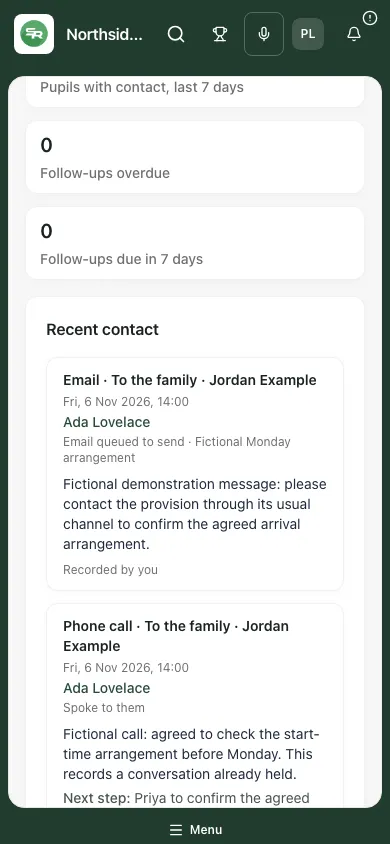
Section titled “Read Recent contact and the coverage note”Recent contact shows the latest 50 permitted entries, newest recorded first. Each retains pupil, kind, To the family/From the family, person, when the contact happened, what happened, summary, next step, follow-up date and recorder where known. The recorded date and actual contact date can differ.
The headline cards count:
- Contact logged, last 7 days: entries recorded during that source window, not necessarily conversations that occurred in those seven days.
- Pupils with contact, last 7 days: distinct permitted pupils represented in that recorded window.
- Follow-ups overdue: a latest qualifying entry’s follow-up before the school date.
- Follow-ups due in 7 days: follow-ups today through the next seven days, inclusive.
Read any warning that counts/follow-ups cover only the latest 500 scanned entries. A 50-card list and a 500-entry summary window are different limits; neither promises the whole history. An unavailable result is not zero. Unsettled email entries can appear while sending/checking, so contact-log counts are not delivery/read counts.
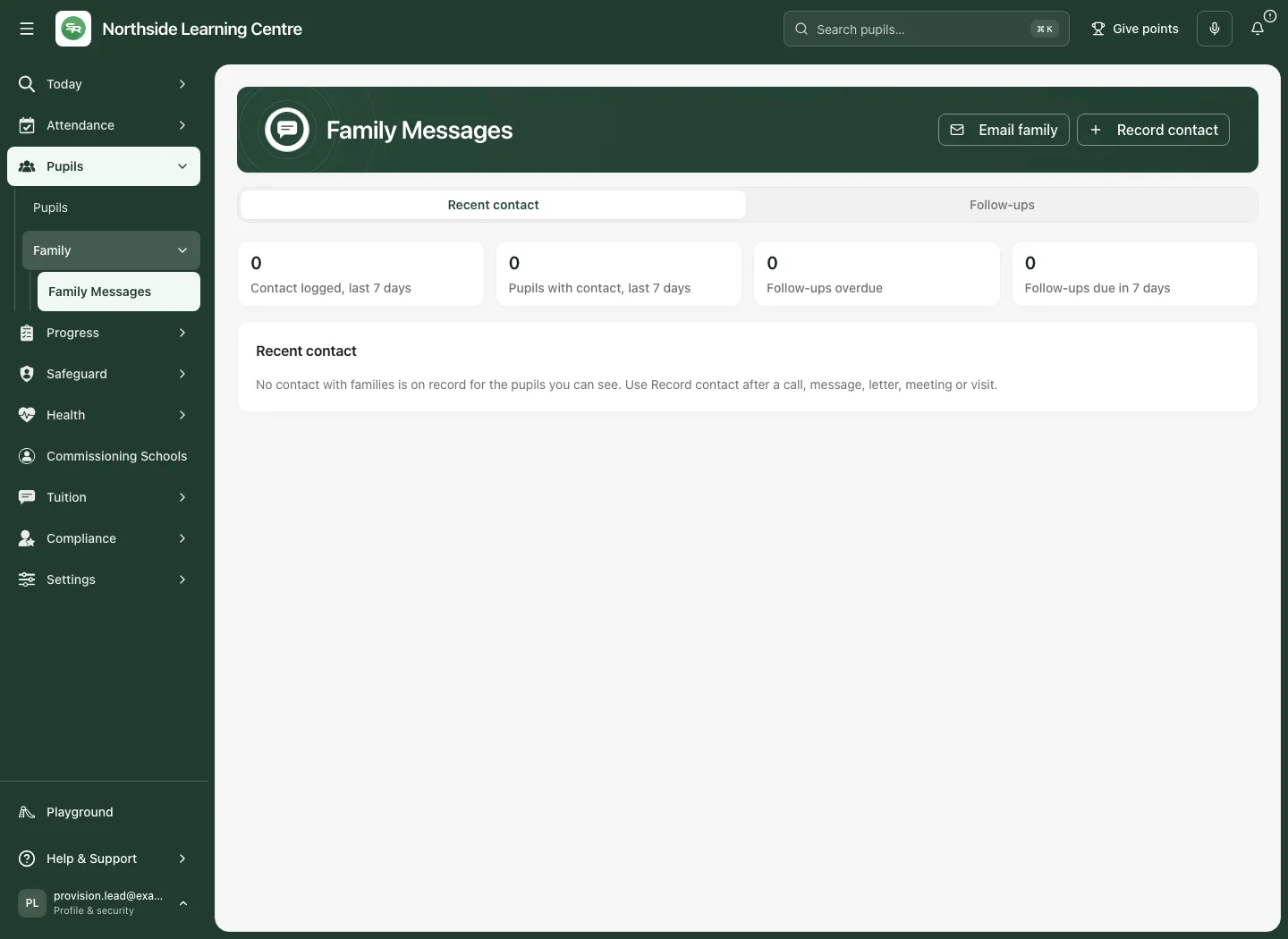
Select a pupil’s name to open their permitted Family section. Contact with the family shows that pupil’s record; Show earlier contact expands older entries up to the latest 100. Older imported/tool entries retain their source/recorder labels. A source failure does not establish no contact occurred.
Record contact after it happened
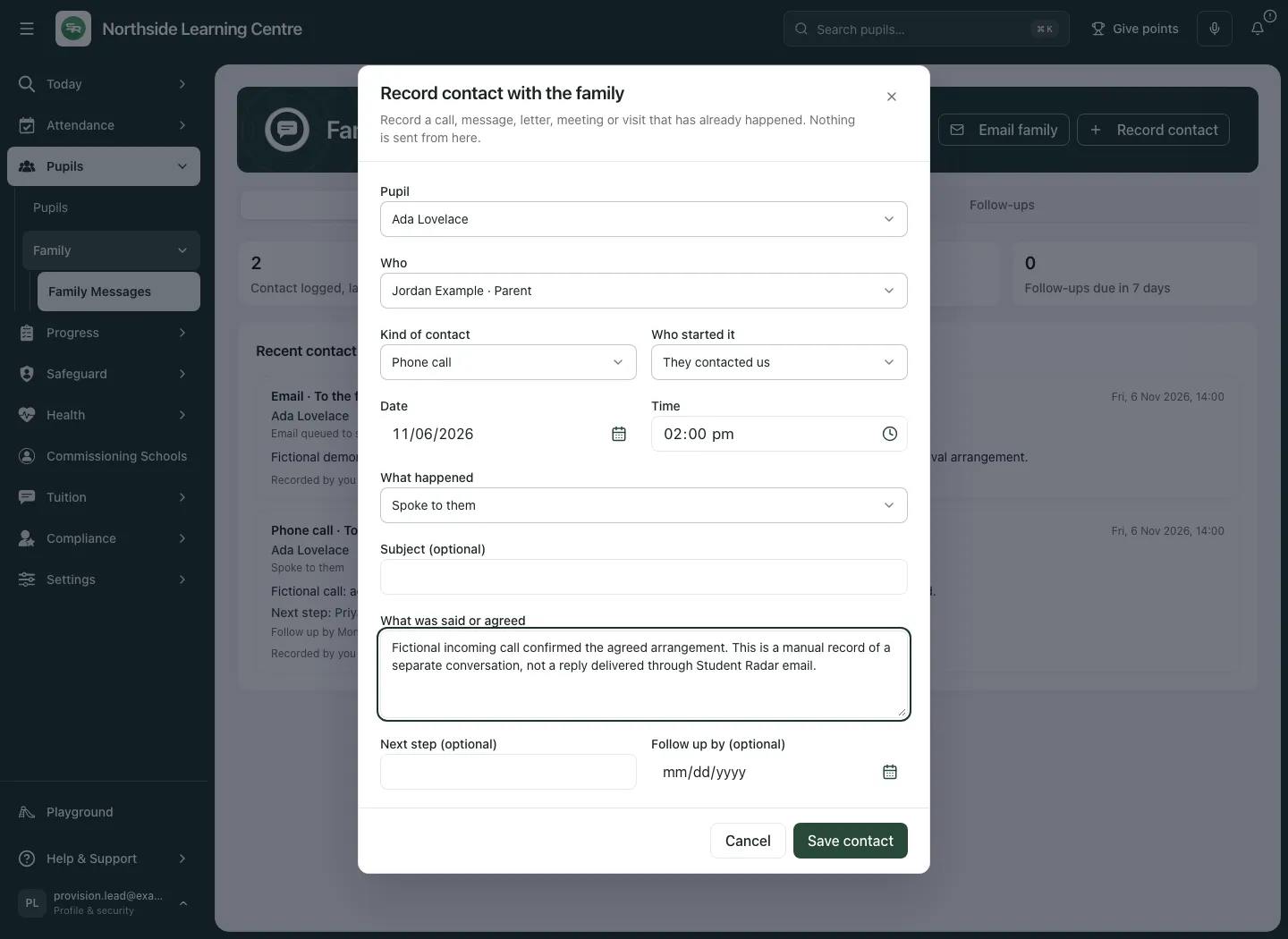
Section titled “Record contact after it happened”- Select Record contact. Record contact with the family opens; from a pupil/follow-up row the named pupil may already be fixed.
- Choose Pupil and check the identity.
- Under Who, choose the actual family contact. If the person is absent, choose Someone not on the contact list and enter Name and relationship. This records who the contact was with; it does not create a verified contact relationship, parental responsibility or permission to collect/receive restricted information.
- Choose Kind of contact: Phone call, Text message, Email, Letter, Meeting or Home visit.
- Under Who started it, select We contacted them or They contacted us.
- Check Date and Time in the school time zone. The contact must already have happened, within the previous 366 days. Defaults are not evidence of the actual time.
- Choose What happened for that kind/direction:
| Kind | Choices |
|---|---|
| Phone | Spoke to them or No answer; an incoming unanswered call is Missed call. |
| Meeting/home visit | Took place or Did not take place. |
| Outgoing text/email/letter already sent elsewhere | Sent or Sent, and they replied. |
| Incoming text/email/letter | Received. |
- Add Subject (optional) and a factual What was said or agreed. Separate reported information from a commitment actually agreed; do not copy unnecessary restricted case material.
- If needed, add Next step (optional) and Follow up by (optional), today through 366 days ahead. This date is a page follow-up, not an automatically assigned My Actions task.
- Select Save contact. Wait for Contact recorded, then check the fresh entry, person, actual-contact date, summary and follow-up.
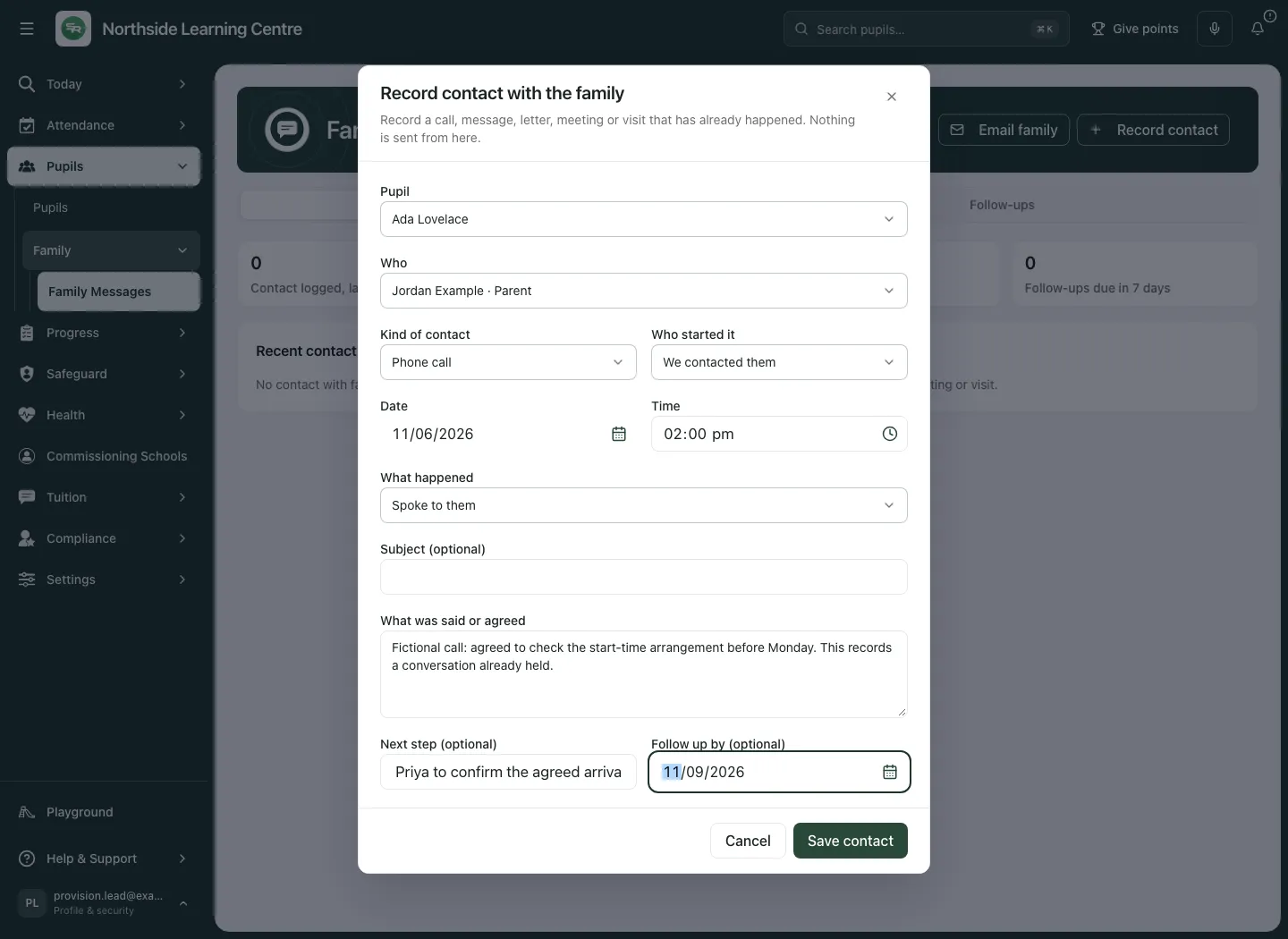
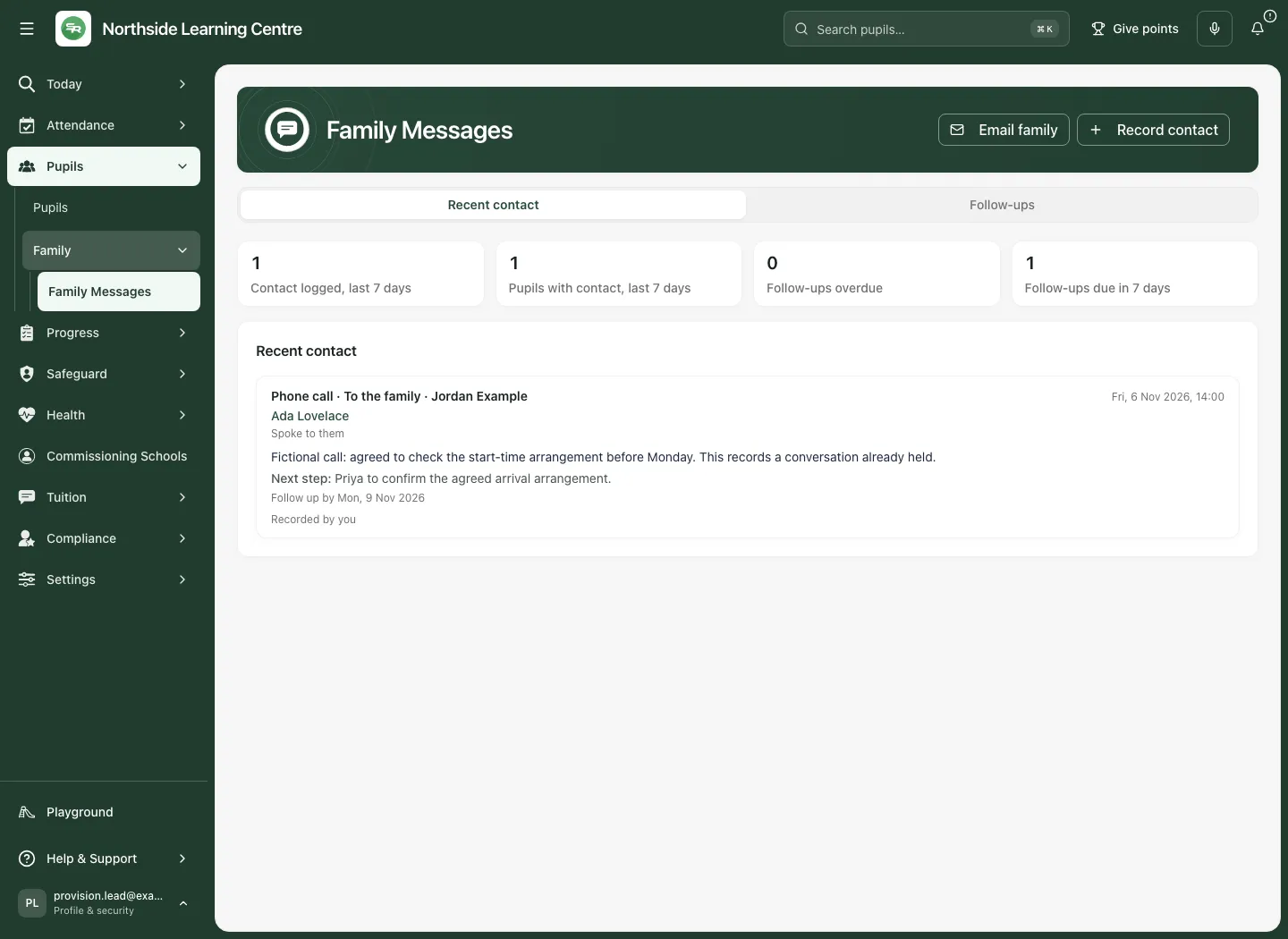
A manual Sent or Sent, and they replied is the recorder’s account, not a provider delivery/read receipt. Choosing Email/Text/Letter in Record contact does not send that item. Saved entries cannot be edited or deleted here; record a clear new corrective entry without obscuring the earlier account.
Use Follow-ups without inventing a completed conversation
Section titled “Use Follow-ups without inventing a completed conversation”Select Follow-ups. It lists each pupil’s follow-up from their latest qualifying entry, soonest first. Overdue and upcoming labels follow the school date; they do not create automatic contact or an escalation.
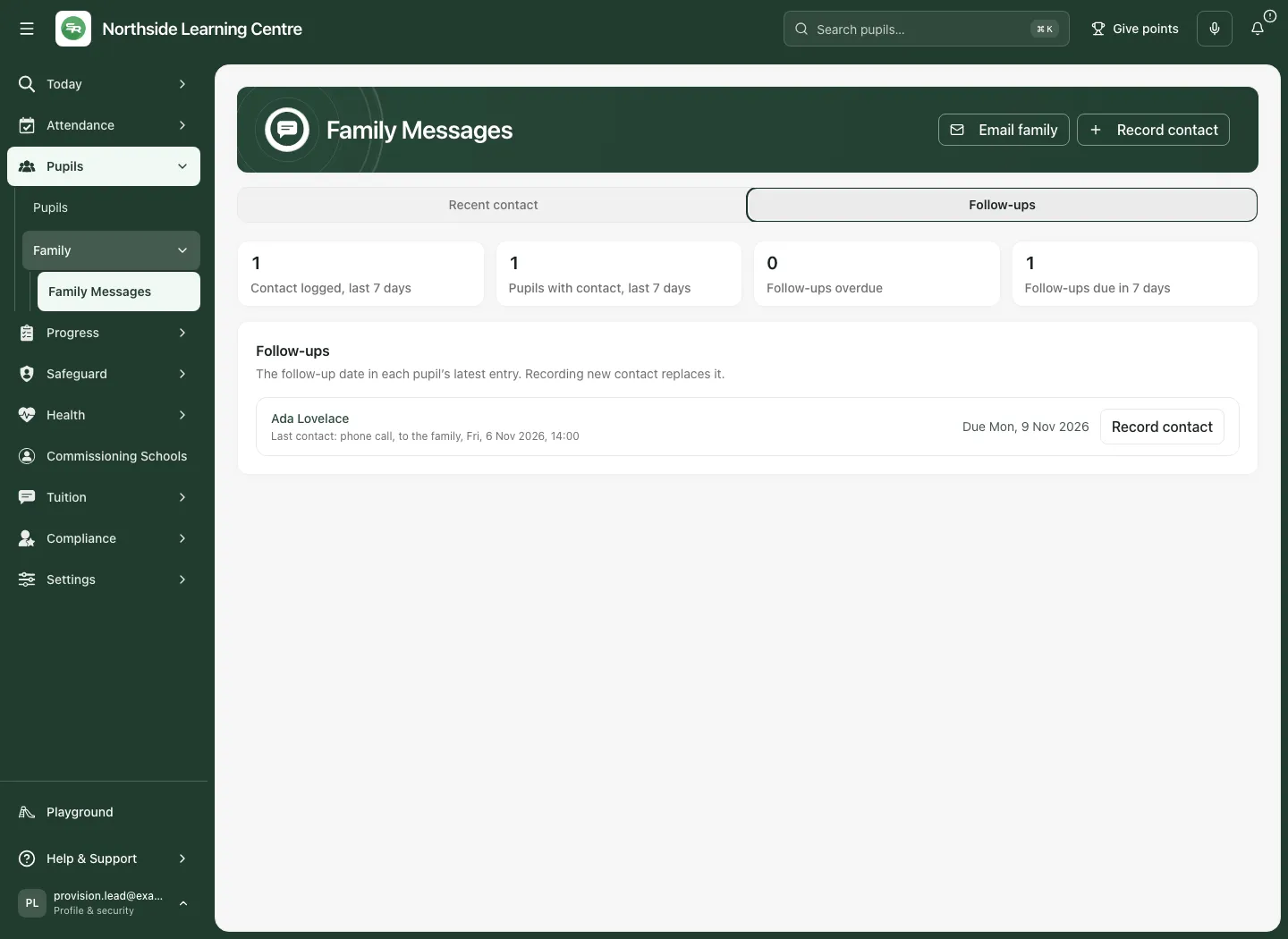
When you have actually been back in touch, select Record contact beside the pupil and record the new event. The new entry replaces the previous follow-up date:
- Enter a new Follow up by if another check is genuinely needed.
- Leave it blank if no further date is planned. This removes the pupil from this page’s planned follow-ups; it does not delete the old entry, complete an unrelated task or prove the underlying issue resolved.
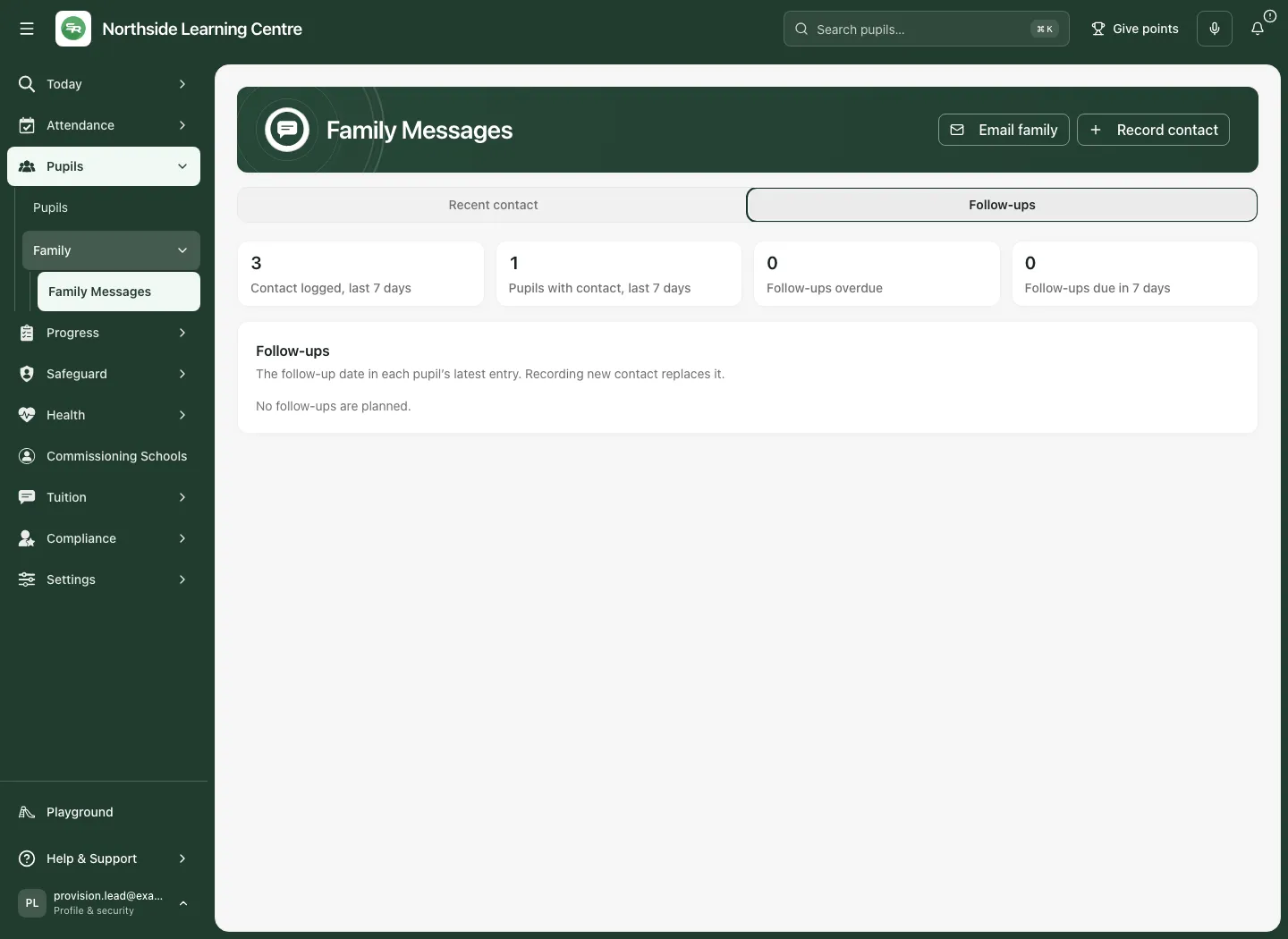
A failed or Not sent email is not counted as made contact and does not displace an earlier qualifying entry’s planned follow-up. Emails still being checked can have uncertain outcomes; inspect the actual message state and current latest entry before deciding what follow-up remains. Page follow-ups stay here and on the pupil’s record, rather than appearing as My Actions work automatically.
Email one eligible family contact
Section titled “Email one eligible family contact”Email family appears only when family email is enabled and your current authority permits it. The send form rechecks who can receive the message; a disabled contact is not a missing email address you should work around.
- Select Email family and choose the correct Pupil if not already fixed.
- Under To, choose one eligible contact. Eligible options show a masked address; an ineligible contact gives its reason, such as no confirmed contact consent, parental responsibility missing, court restriction, no address, opt-out or a suppressed address.
- Check the actual relationship and masked endpoint. Readiness is checked again at send/dispatch; a prior eligible display is not permanent authority. Necessary contact consent is confirmed through the permitted contact-authority workflow, not by changing standing consent or typing another adult’s details here.
- Enter Subject, up to 150 characters, and Message, up to 2,000. Keep the purpose and next action clear. Your name and provision name are added to the message.
- Review the pupil, recipient and content, then select Send email once. Wait for the result and inspect its entry on the pupil’s family-contact record.
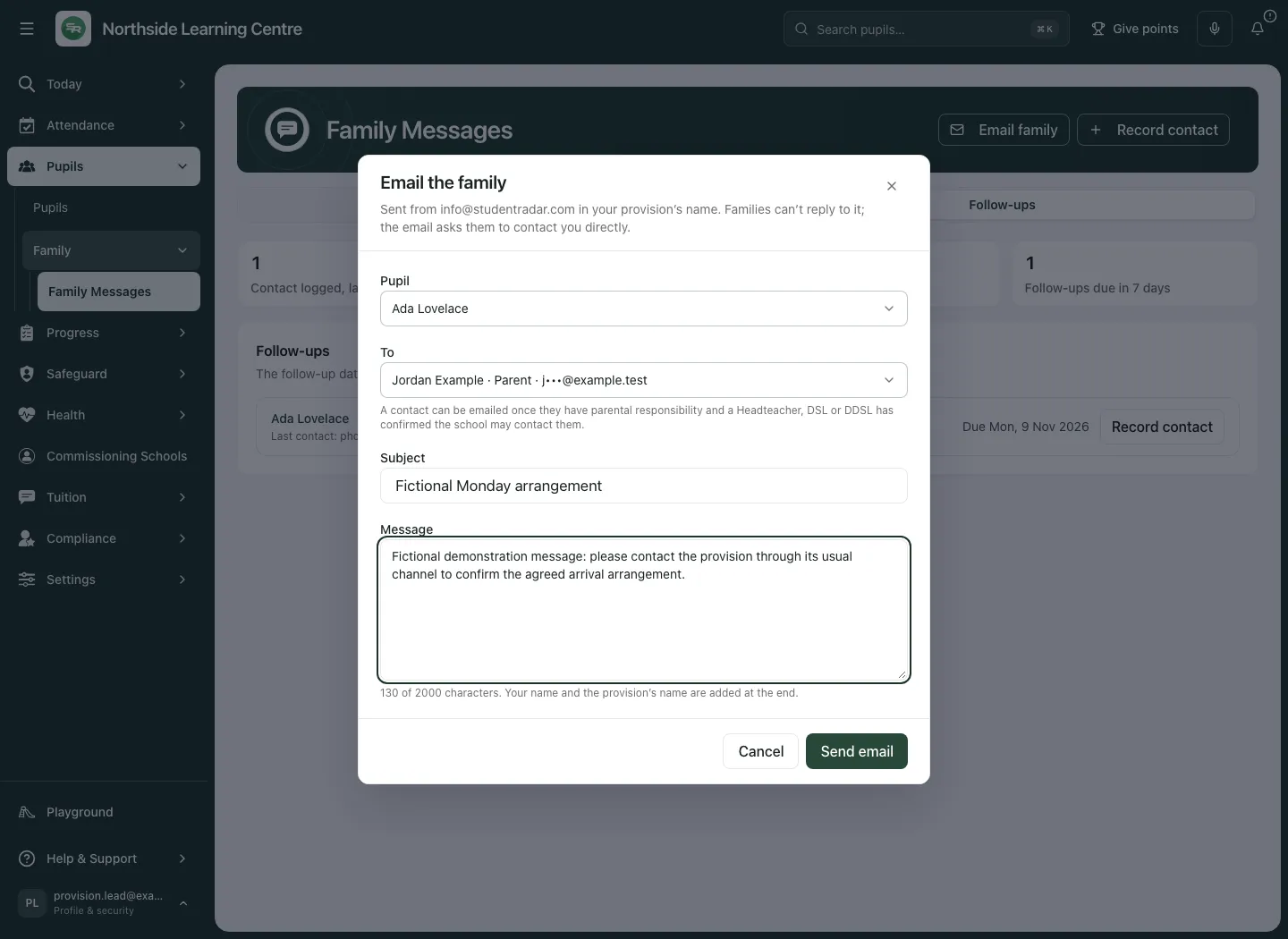
The email is sent from info@studentradar.com in the provision’s name. Families cannot reply to that email; the message asks them to contact the provision directly. This page is not a threaded family-reply inbox. Record an actual incoming call/email through Record contact → They contacted us when appropriate; do not present that manual account as a reply automatically captured from the send.
Check the delivery state before saying the email went
Section titled “Check the delivery state before saying the email went”| State | What it establishes |
|---|---|
| Email queued to send | The request has been accepted for sending, not delivered. |
| Sending | The send process is in progress, not a confirmed receipt. |
| Accepted by the email service | The email provider accepted it; this does not establish delivery, reading or a family response. |
| Delivery being checked | The outcome is uncertain. Do not send another copy simply because it is not settled. |
| Not delivered / Not sent | Read the current reason; it was not successful made contact for the page’s counts/follow-up selection. |
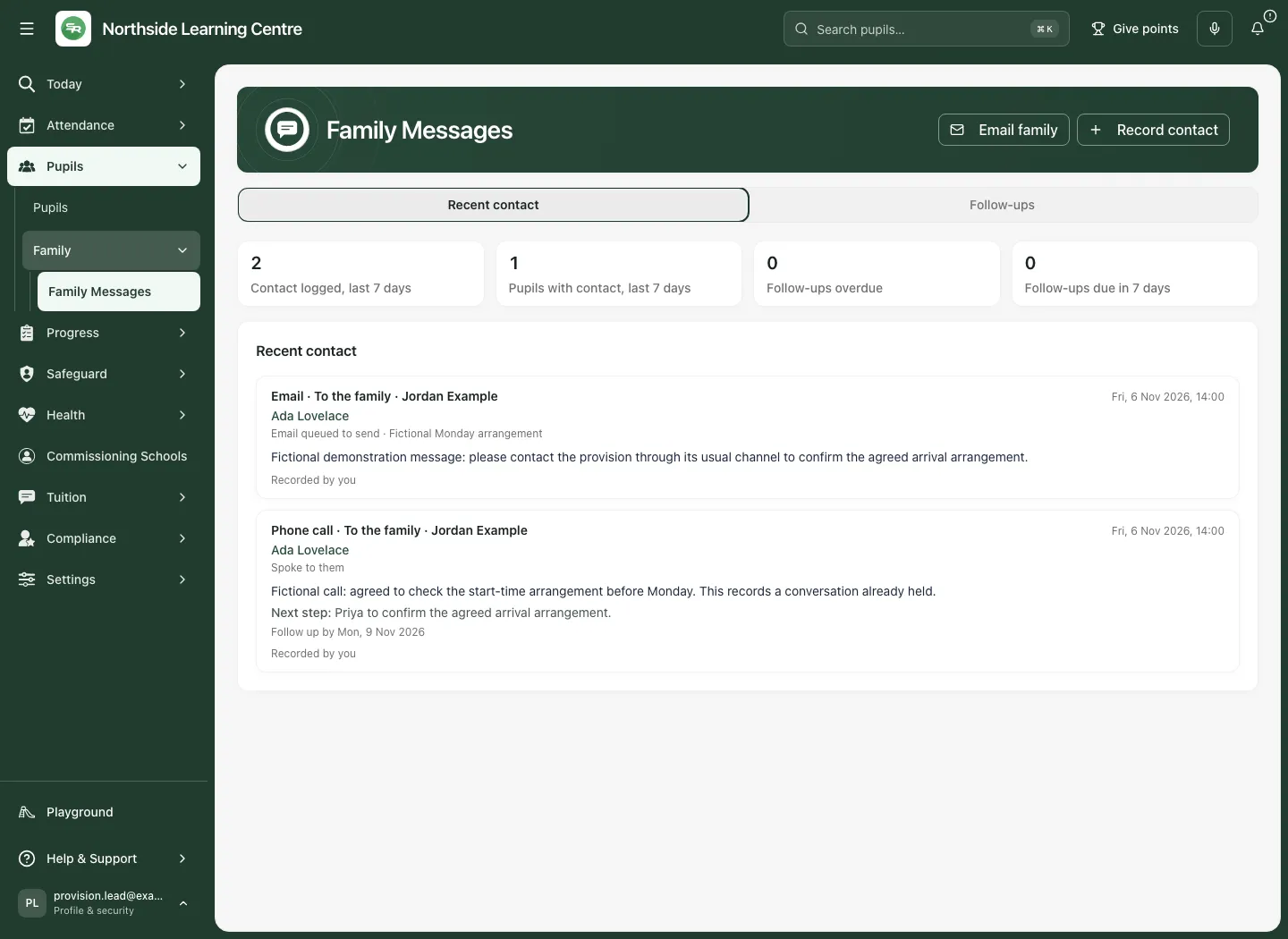
Unsettled entries refresh periodically, around every 30 seconds, while present. Follow the displayed refusal rather than assume a queued message will eventually go. Address/authority changes, recipient removal/opt-out, sender/activation changes or expiry can prevent dispatch. The send limits are 20 emails an hour and 300 a day; wait when rate-limited.
A retry of the same unchanged request can return Already sent for its existing request. That is duplicate-request handling, not proof a family read it. If the result cannot be verified, reload the record before trying again. No approval/cancellation/reply controls are invented on this page; any further permitted communication workflow has its own authority and state.
Keep unsaved work and respond to access changes
Section titled “Keep unsaved work and respond to access changes”Cancel, Escape and the close button check unsaved contact/email content; confirm discard only when intended. Saving/sending blocks dismissal through the guarded form until the result returns. A network failure can preserve work with Try again; it is not confirmed saved or queued.
A temporary background read failure can retain the last permitted result with a stale notice and retry. An explicit sign-in/access/pupil refusal removes that old information and closes associated forms; only a fresh authorised read can restore it. Do not use an old screenshot or cached profile to bypass that refusal.
A pupil-specific link or Heat Map handoff opens only an allowed pupil context; a multiple-pupil handoff offers individual permitted links, not a bulk email or a grant of family access. A partial picker explains its coverage.
Use the phone view
Section titled “Use the phone view”Choose Recent contact or Follow-ups and scroll the actual named entry. Check its contact and delivery state rather than rely on a headline card.
Common questions
Section titled “Common questions”Which action should I use for a conversation that already happened?
Section titled “Which action should I use for a conversation that already happened?”Record the completed family contact and intended follow-up. Recording contact sends nothing.
What does a queued family email tell me?
Section titled “What does a queued family email tell me?”It records a sending stage, not proof of delivery or reading. Check the actual result through the separate Email family workflow.
Related: Pupil records, Consent decisions, Student Radar support. Family contact text is not a substitute for the safeguarding workflow or an automatic alert.