Create and save a class seating layout
Written for: Staff who teach or support a class.
Place pupils in a room, save the class layout and choose an appropriate pupil display or staff printing option.
Private staff context can help you review an arrangement when your account permits it. It is a prompt for professional consideration, not an instruction to place a child automatically.
The examples use fictional pupils and a small demonstration room. Always check the actual class roster and current support or care records when planning a real room.
Before you start
Section titled “Before you start”Confirm the school, group and room. You need permission to read the roster and saved plan, and separate permission to manage the layout. Viewing a pupil elsewhere does not grant access to restricted context. Read-only viewers do not have placement and removal controls.
Consider sight lines, access, mobility, support and the practical teaching activity. The layout does not replace a risk assessment or individual care instructions. Keep any printed staff copy secure and choose the class-safe view before sharing a screen with pupils.
Open and check the group
Section titled “Open and check the group”- Open Classes in the sidebar.
- Choose the year/class, teaching class or tutor group you need.
- Select Seating Layout.
- Check the group shown on Seating layout. Use Switch class or the group chooser where offered to find another group.
- Wait for both the roster and saved plan to load. Read the state below the room before editing.
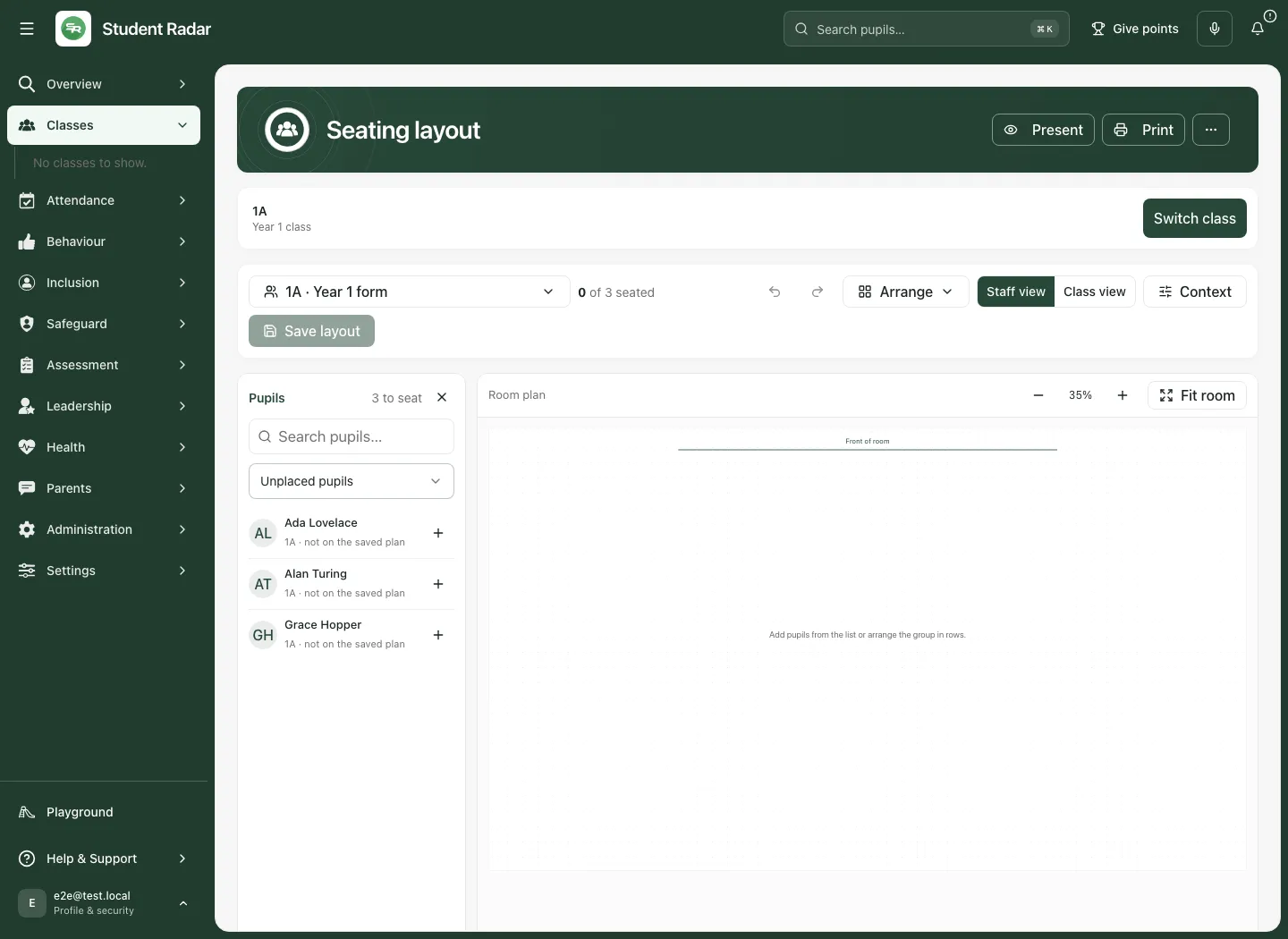
Each group keeps its own saved layout. A whole-year selection differs from a form or teaching class. A saved plan is not a verified current roster: when membership changes, review new and departed pupils rather than silently reusing old seats.
Place pupils
Section titled “Place pupils”Arrange the group together
Section titled “Arrange the group together”- Select Arrange.
- Choose Arrange in rows or Arrange in pairs.
- Inspect the whole room and the seated count.
- Adjust seats to fit the real room and teaching needs before saving.
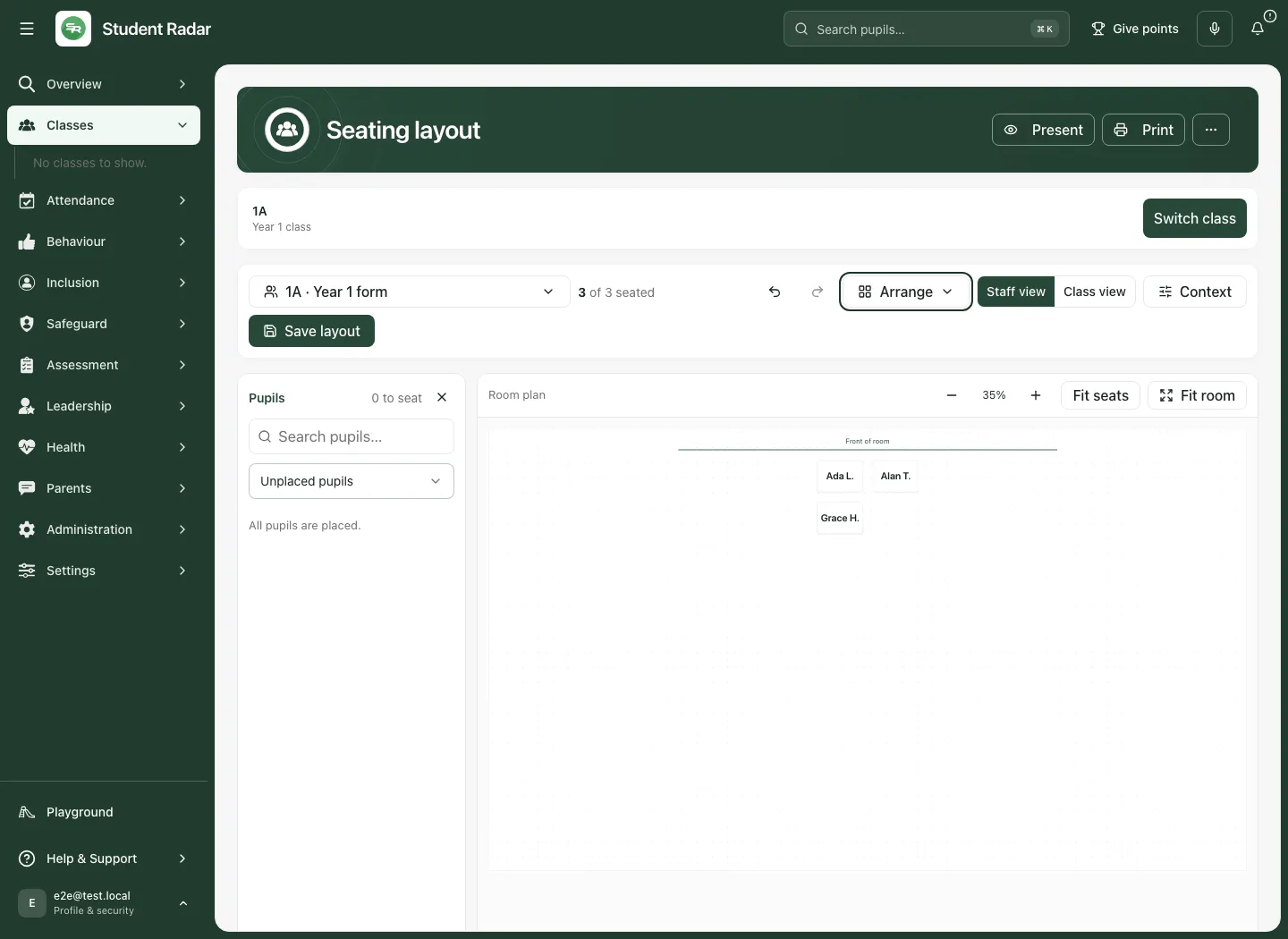
An automatic row or pair arrangement supplies a starting geometry. It is not a recommendation about which children should sit together. A room’s supported capacity can limit the arrangement controls.
Place pupils one at a time
Section titled “Place pupils one at a time”Use the Pupils list and select the plus control for an unplaced pupil. You can also drag an available pupil onto the room where supported. Unplaced pupils helps identify who still needs a seat; switch to All pupils to inspect the full roster.
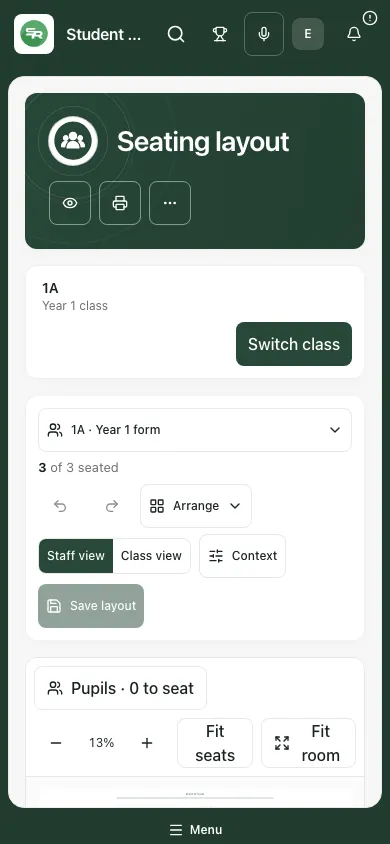
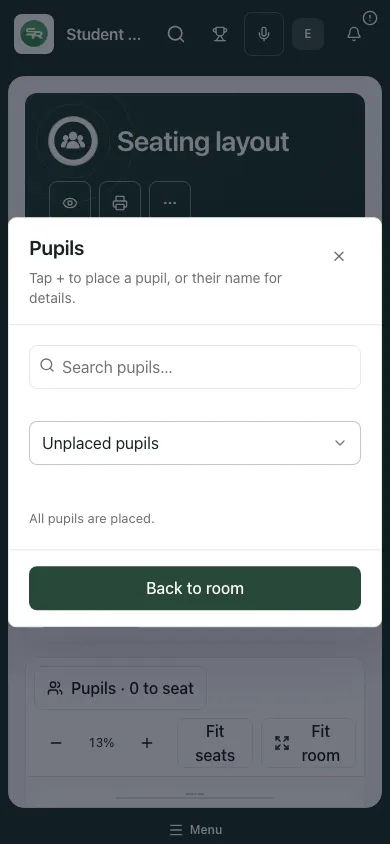
On a phone, select Pupils · [number] to seat to open the list, place pupils, then select Back to room. Check the room after returning.
Move, remove and undo
Section titled “Move, remove and undo”- Drag a placed seat to move it. Dropped desks can line up with neighbouring desks; hold Alt for free placement where supported.
- Tab to a seat and use the arrow keys to move it. Shift + arrow keys moves it further.
- Select a seat’s remove control, or press Delete on the focused seat, to return the pupil to the unplaced list.
- Use Undo placement and Redo placement to review recent arrangement changes before saving.
- Select a seat or press Enter for its permitted details in Staff view. Moving a desk and opening pupil details are different actions.
To clear the whole draft arrangement, choose Arrange → Clear room and read the confirmation. Pupils return to the list. Review and save only if that is the intended new layout; the previously saved plan does not change merely because the draft is cleared.
Fit the room to the screen
Section titled “Fit the room to the screen”Use the zoom controls, Fit seats for the placed desks or Fit room for the complete room. Zoom changes the view, not the identity of pupils or the saved room’s meaning. Zoom in when you need to inspect the permitted context on seats. Keep the front-of-room marker in mind when translating the plan to the classroom.
Review private staff context
Section titled “Review private staff context”- Choose Staff view.
- Open Context.
- Choose the permitted Pupil flags, Behaviour · 30-day summary or Allergy, AAI and IHCP context.
- Read coverage and availability messages before drawing a conclusion.
- Open the pupil’s permitted detail or authoritative record if you need the current instructions.
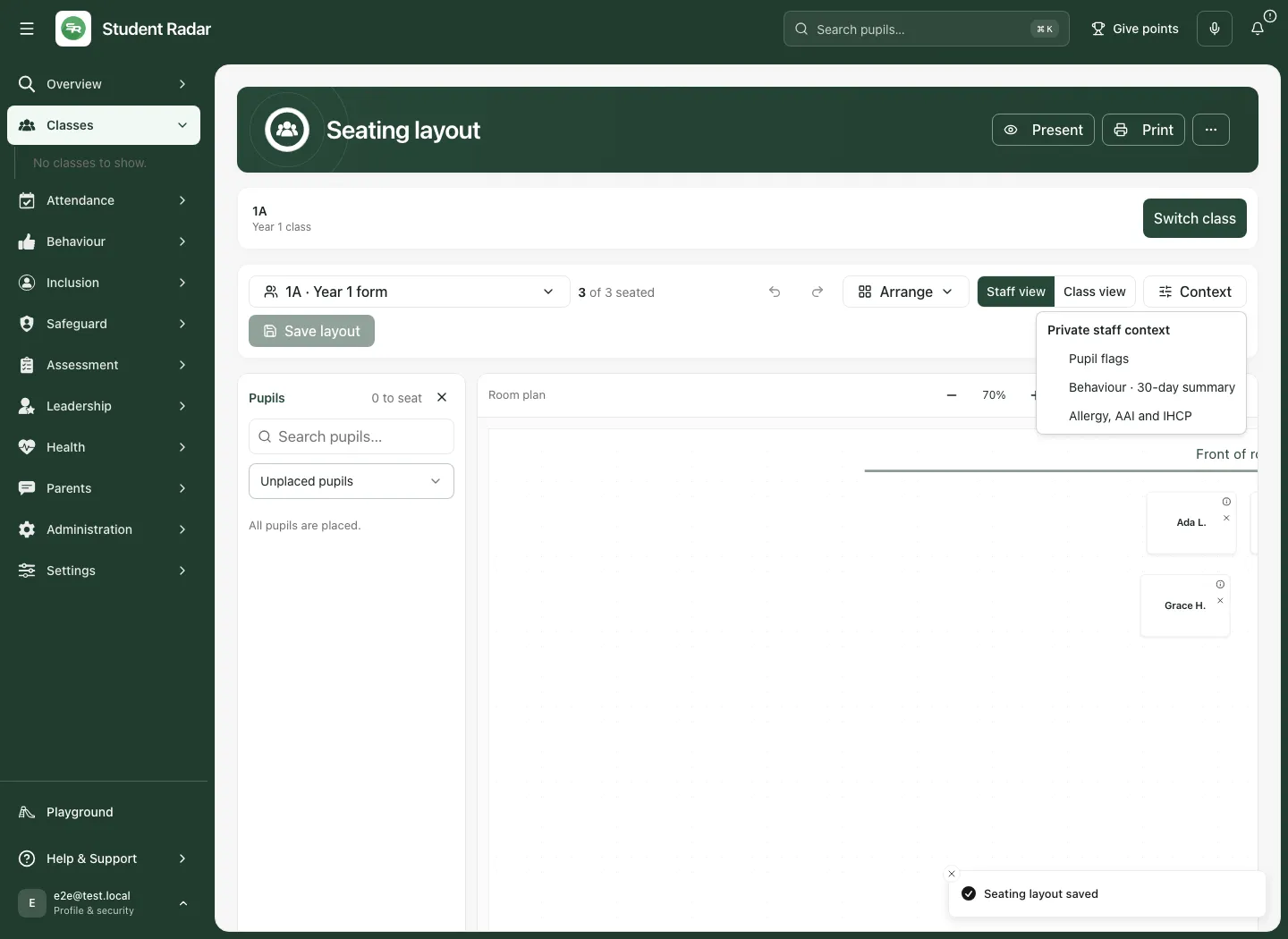
Pupil flags can include authorised SEND or demographic information. The behaviour summary describes a stated observation window; points are not a diagnosis or a ranking of a child’s character. Medical context can identify recorded allergy, adrenaline auto-injector (AAI) or individual healthcare plan (IHCP) information where permitted.
Missing context does not mean no need or no allergy. A filter can be incomplete when some source records are unavailable. Recorded allergy, Negative points recorded and Attendance below 90% are filters on the available authorised evidence. Read the coverage and observation period, then verify at the source before acting.
The page’s More seating actions menu can provide Open allergy register and lunch cards where you have access. Use the medical source for current care instructions. Do not copy sensitive detail into a public room display.
Save and confirm
Section titled “Save and confirm”- Check the group, seated count and placements.
- Select Save layout.
- Wait while the room and pupil assignments save together.
- Confirm the page shows the saved version and timestamp, rather than Unsaved changes or Save not confirmed.
- Reopen the same group or use More seating actions → Reload saved plan to review the shared version when needed.
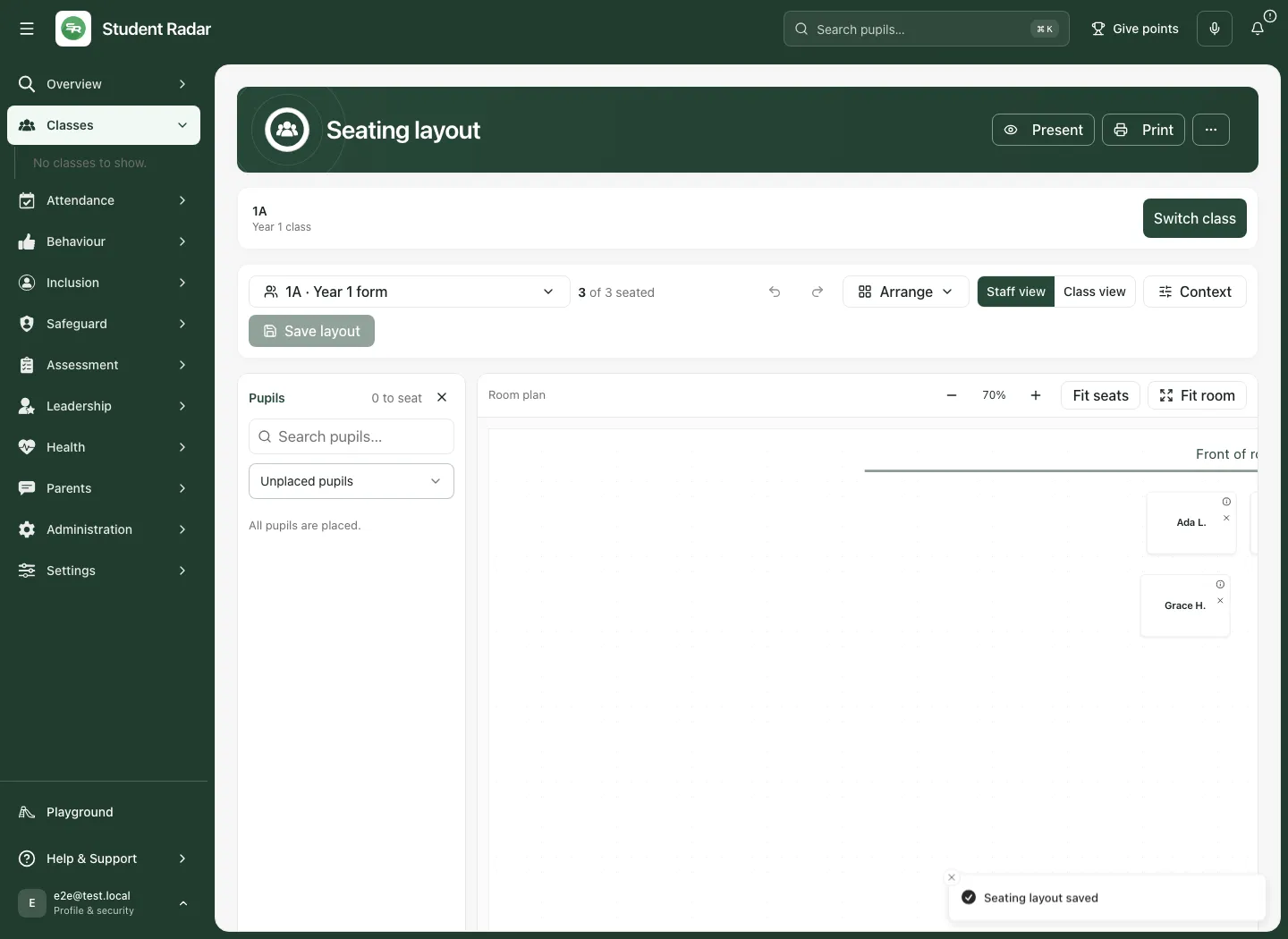
When switching groups with unsaved changes, read Leave this layout?. Choose Stay here to return and save, or Discard and switch only when you intend to lose that draft.
If the saved version has changed, your draft remains for review. Reload and compare before retrying. If a save could not be confirmed, Retry save checks the same save attempt where offered; it is not proof that nothing was stored. Avoid making unrelated new changes until the outcome is clear.
Choose the right view for pupils
Section titled “Choose the right view for pupils”Staff view is for authorised staff planning. Class view removes private staff context and uses class-facing desk labels. Present opens a full-screen class-facing room display. These are not reasons to grant broader access to the staff view.
- Check the room arrangement.
- Select Present before displaying the screen to the class.
- Check that the class-facing display is the one visible.
- Select Exit presentation when finished.
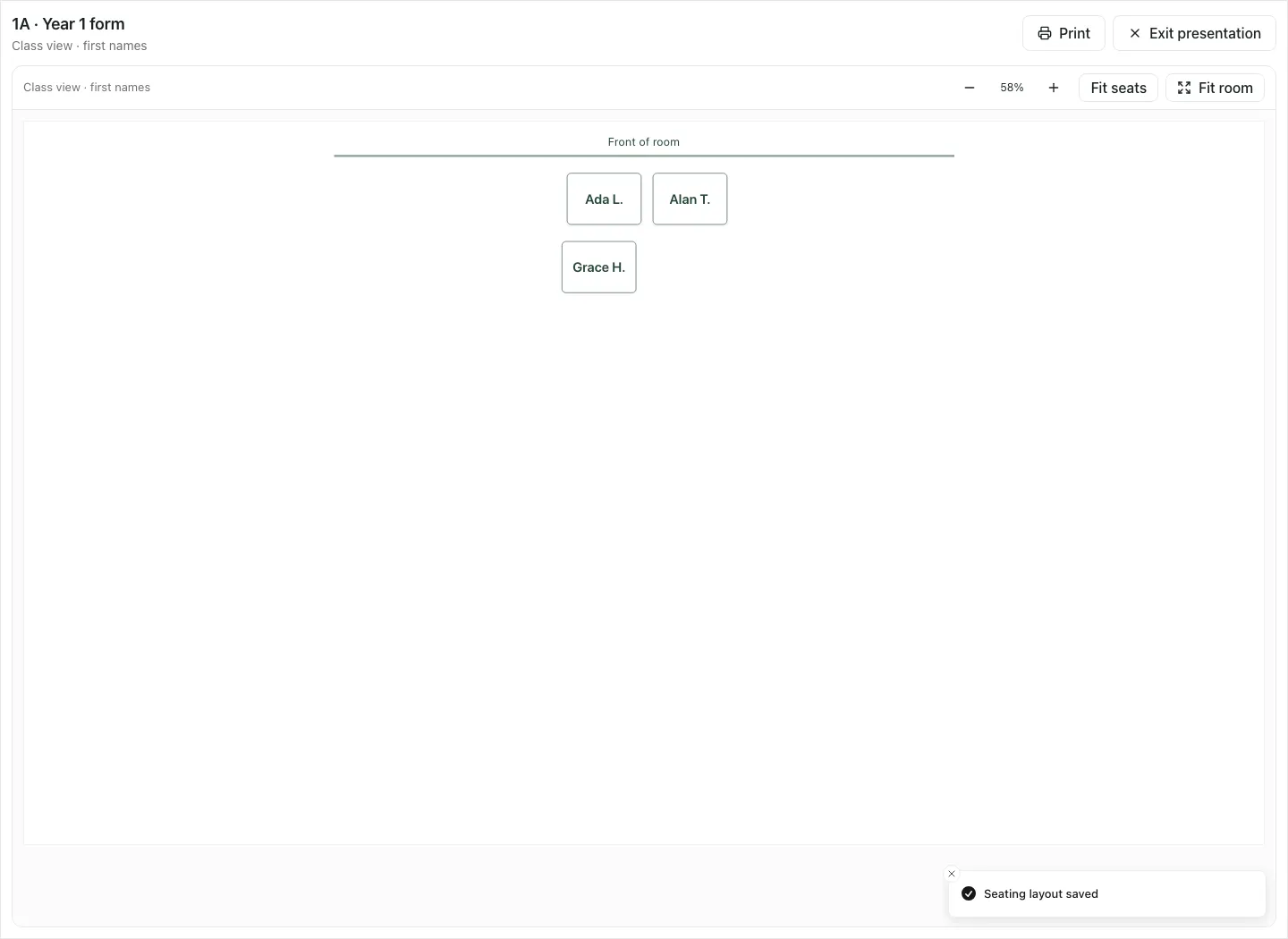
Current class-facing labels use first names and surname initials, such as Ada L., rather than whole surnames. The presentation omits staff flags, behaviour and medical detail. Do not leave the staff workspace visible behind a shared screen after exiting.
Print a class or staff copy
Section titled “Print a class or staff copy”Open Print and choose the intended A4 landscape copy:
- Class copy · first names uses first names and surname initials.
- Staff copy · full names and photos includes full names and authorised available photos.
Neither copy prints staff flags, behaviour or medical detail. Check the print preview and recipient before printing. Keep staff copies secure, check the version/date and replace out-of-date copies according to your school’s arrangements. A printed plan does not update itself when the roster or saved layout changes.
Use the phone workspace
Section titled “Use the phone workspace”The room appears before the collapsible pupil list. Use Fit room to see the full arrangement, then Pupils · [number] to seat for the roster. Select Back to room after reviewing or placing pupils. The same saved/unsaved state applies: verify the save outcome before leaving.
Review after a change
Section titled “Review after a change”When a class gains or loses pupils, inspect the roster-change messages and available actions. Add new pupils deliberately and review seats left by departed pupils. Verify the arrangement against the current roster before saving or printing it again.
If an arrangement was intended to support attention, access or participation, review what actually happened through the appropriate observations. A saved seating change does not demonstrate impact. Agree an owner and review time through the normal work process when follow-up is needed.
Troubleshooting
Section titled “Troubleshooting”| What you see | What to do |
|---|---|
| Pupils could not be loaded | Retry the roster. Do not treat failure as an empty class. |
| Saved layout could not be loaded | Retry the saved plan before editing. |
| No placement controls | Your account may be read-only; ask for the exact management access needed. |
| Some context unavailable | Read the available coverage and check the authoritative source. Missing detail is not a negative finding. |
| Save not confirmed | Retry the same save or review the saved version as instructed. |
| Another edit has been saved | Keep the draft, reload the current version and compare deliberately. |
| Arrangement control unavailable | Check roster/plan load, management access and room capacity. |
| Can’t find a pupil | Clear search and pupil filters, then check roster membership with an administrator. |
| Room seems too small or zoomed in | Use Fit room, then adjust the view. |
Frequently asked questions
Section titled “Frequently asked questions”Does Arrange choose suitable peers for each child? No. It places seats in a geometric arrangement. Staff decide the arrangement using relevant evidence.
Does no medical flag mean no allergy? No. Availability and access can limit what appears. Check the authoritative medical record.
Does presentation show only initials? Current desk labels use first names and surname initials. It omits private staff context and full surnames.
Does moving a seat save immediately? No. Review the draft and select Save layout; confirm the saved version afterwards.
Does a new plan prove a classroom improvement? No. Review actual observations and the intended outcome separately.