Maintain the SEND register and plan the next review
Written for: SENCos, SEND team members and authorised school staff.
Read SEND status and sources, update authorised membership or broad need, and organise plans and review dates.
Keep SEND status, monitoring, school overrides and MIS facts distinct. A register entry records a school decision; it does not diagnose a need, issue an EHCP or prove support was delivered.
Before you begin
Section titled “Before you begin”Open SEND → Plans → SEND Register, or the available SEND Register item in your school’s navigation. Reading the register and managing a pupil’s status require the appropriate access. Create/update, teacher assignment, plan editing, document upload and specialist links have their own checks. Staff and leadership layouts can differ; a leadership presentation alone does not grant write permission. The guide describes controls where available to your role and pupil scope.
Read the register before changing it
Section titled “Read the register before changing it”- Open On the register. Read the stage counts and any incomplete/unavailable data notice.
- Choose the year group and cohort, then the grouping: Flat list, By form, By teaching class or By need. A teaching class is distinct from a registration form; check the group label before assigning or opening a class action.
- Inspect SEND stage, Primary need and Plan review beside each pupil. Open Details or expand a row to inspect further information where offered.
- Use Needs attention filters such as No SEND plan, Review overdue, Review not scheduled, Need area to confirm or EHCP provision not mapped. A count marked unavailable is not zero. Review urgency can come from a different source/date than the visible plan date.
- Open Open or More actions → Open profile for the permitted pupil context before deciding on a change.
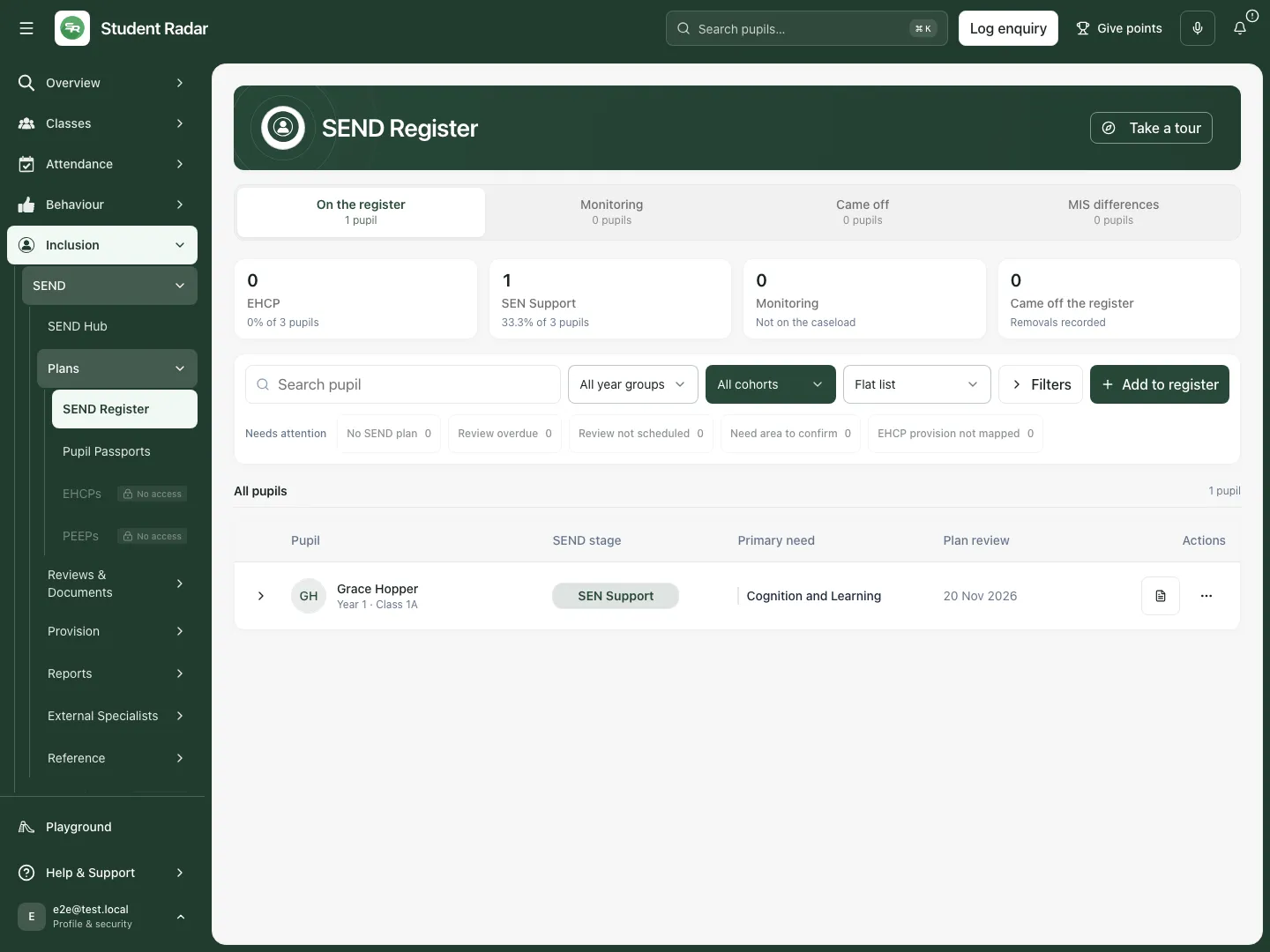
The fictional register shows Grace’s SEN Support stage, recorded broad need and a dated plan review. One visible pupil is not a whole-school completeness claim.
Add a pupil deliberately
Section titled “Add a pupil deliberately”- Select Add to register.
- In Add to SEND register, choose Pupil. Check the name, year and form; pupils already on the selected register/status path may not be available to add.
- Choose Register status: Monitoring, SEN Support or EHCP. Use the school’s authorised decision and evidence. Choosing EHCP here records status; it does not issue an EHCP.
- Choose Broad area of need: Communication and Interaction, Cognition and Learning, Social, Emotional and Mental Health or Sensory and/or Physical. Do not guess from a diagnosis label or a missing field.
- Select Add pupil and wait for saving to finish. Read the success/error message and check the correct section for the pupil.
- Reopen the pupil’s More actions → Change register status to check the recorded stage and broad area. If the result is unconfirmed, use Retry addition to confirm the same pupil/selections rather than submitting a new change.
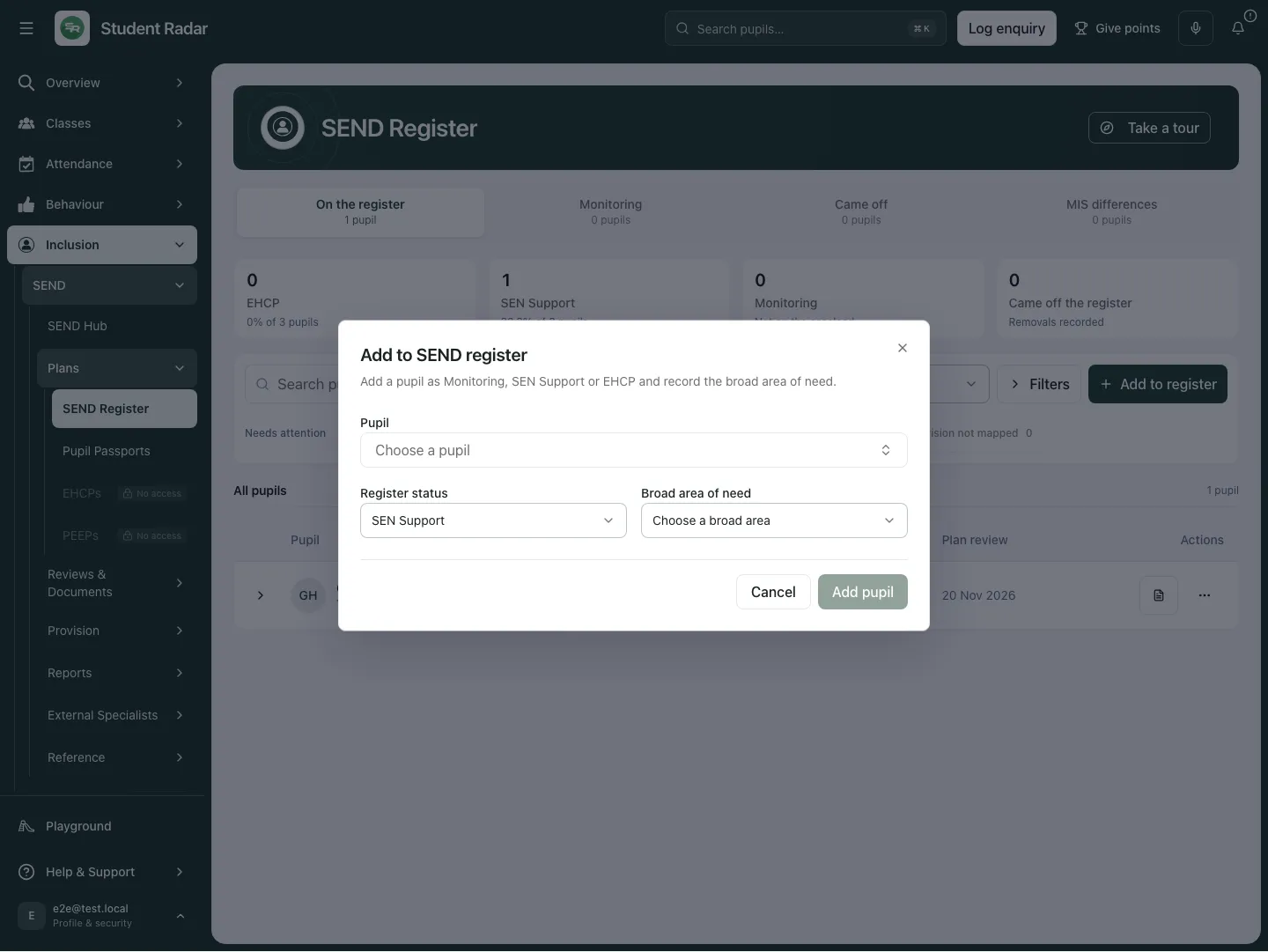
The add dialog requires a pupil, register status and broad area. Fictional school example.
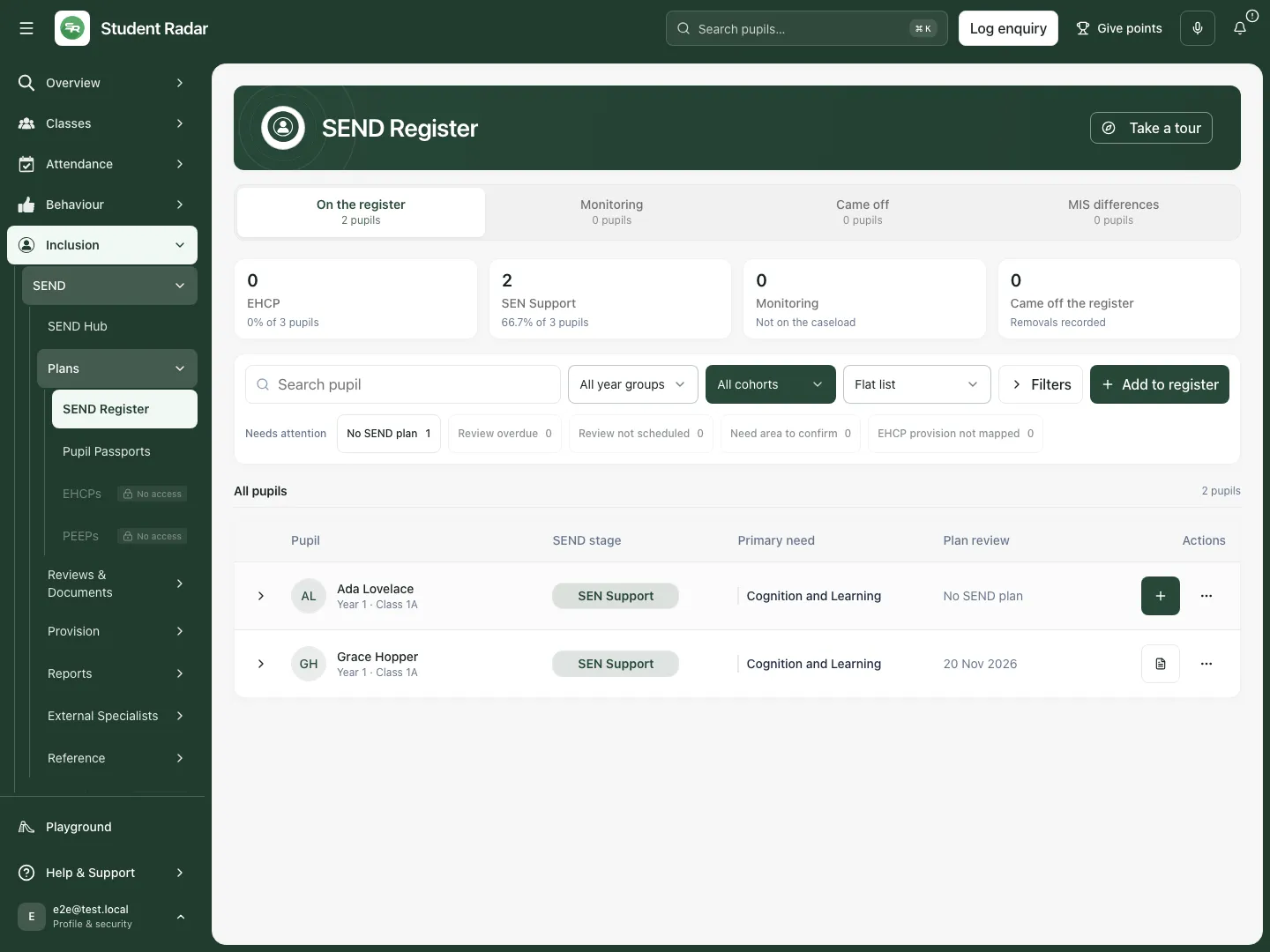
Ada appears after the fictional addition; the list reflects the chosen section and filters.
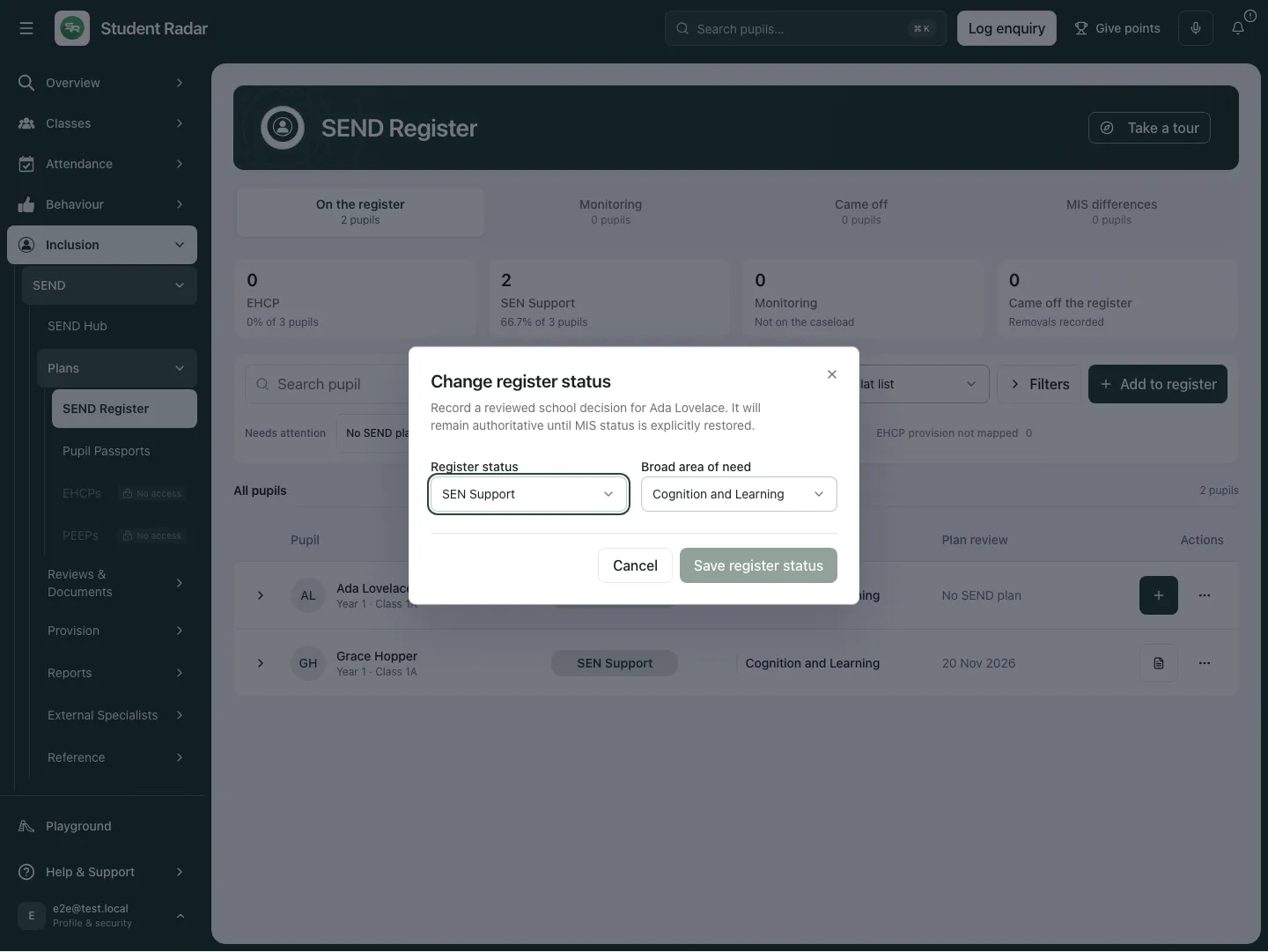
Reopening Change register status confirms the fictional SEN Support stage and Cognition and Learning broad area.
Change status or confirm broad need
Section titled “Change status or confirm broad need”- Find the pupil and choose More actions → Change register status.
- Recheck the pupil identity, select the intended Register status and Broad area of need, then choose Save register status.
- Read the result and reopen the dialog to verify the current state. A status change and an MIS update are different operations; review MIS differences when the school’s local record differs.
- For a broad-need-only correction, choose Change broad area of need, review the current/source information, select the confirmed area button in Set broad area of need. Choosing that area saves it immediately; there is no separate Save button in this dialog. A mapped MIS need and a confirmed school broad area can have different provenance.
- If Need profile to confirm is shown, check the source and obtain the appropriate professional confirmation. An unconfirmed profile is not “no need”.
Use Monitoring, Came off and MIS differences
Section titled “Use Monitoring, Came off and MIS differences”Monitoring is separate from the SEND caseload. Use it for the school’s deliberate monitoring decision and review the pupil’s needs and support as evidence develops. Moving to SEN Support/EHCP needs an authorised decision, not an automatic inference from an attendance or behaviour signal.
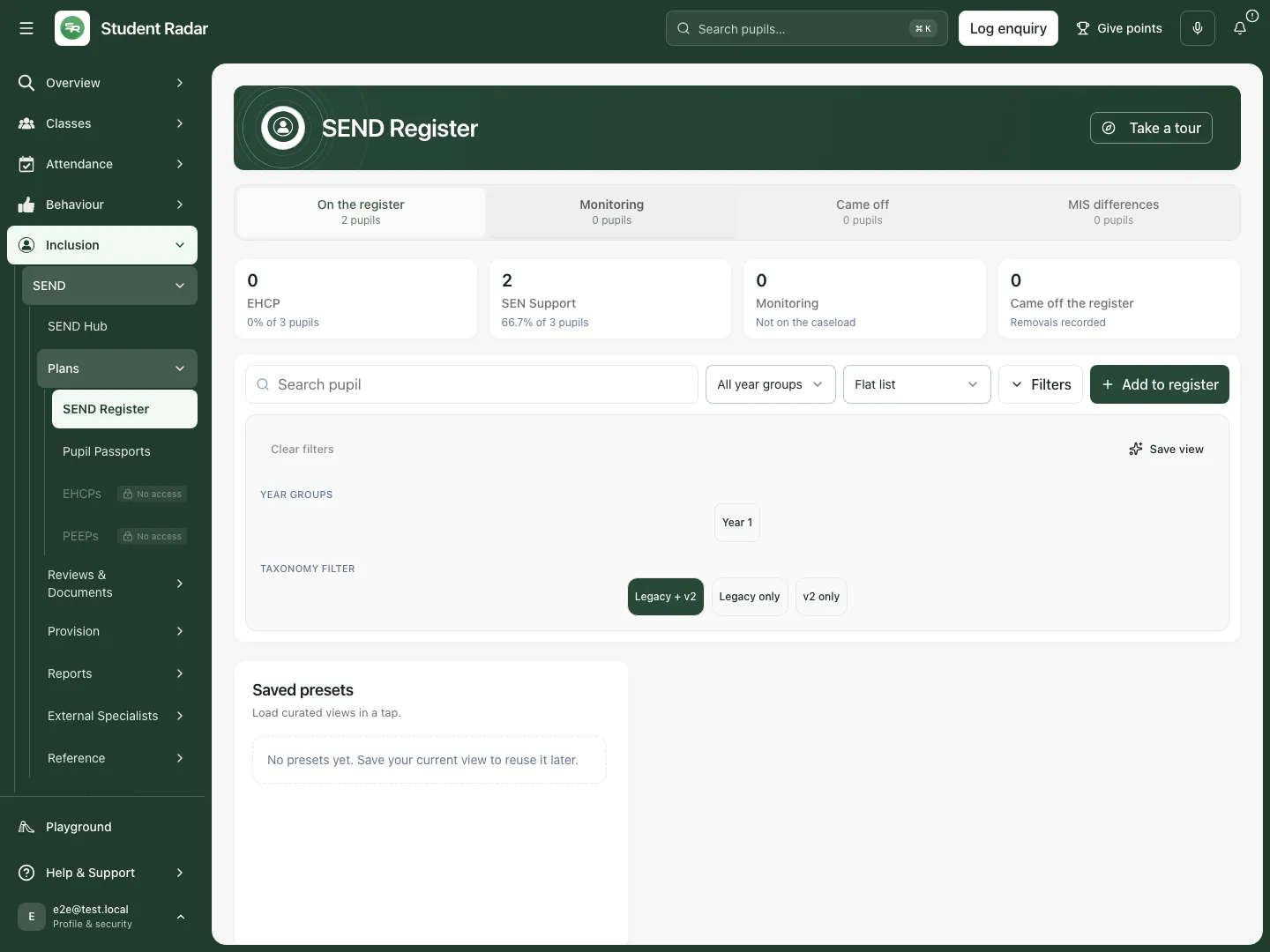
Monitoring has its own section. The fictional example has no matching monitored pupils.
Came off keeps readable removal history distinct from the current register. Removing a pupil from the register does not delete their underlying records. To remove, use More actions → Remove from register, read Remove from SEND register?, and confirm only after checking the intended pupil and decision. Check the resulting history/current section. Re-add a pupil through the deliberate register workflow if circumstances change.
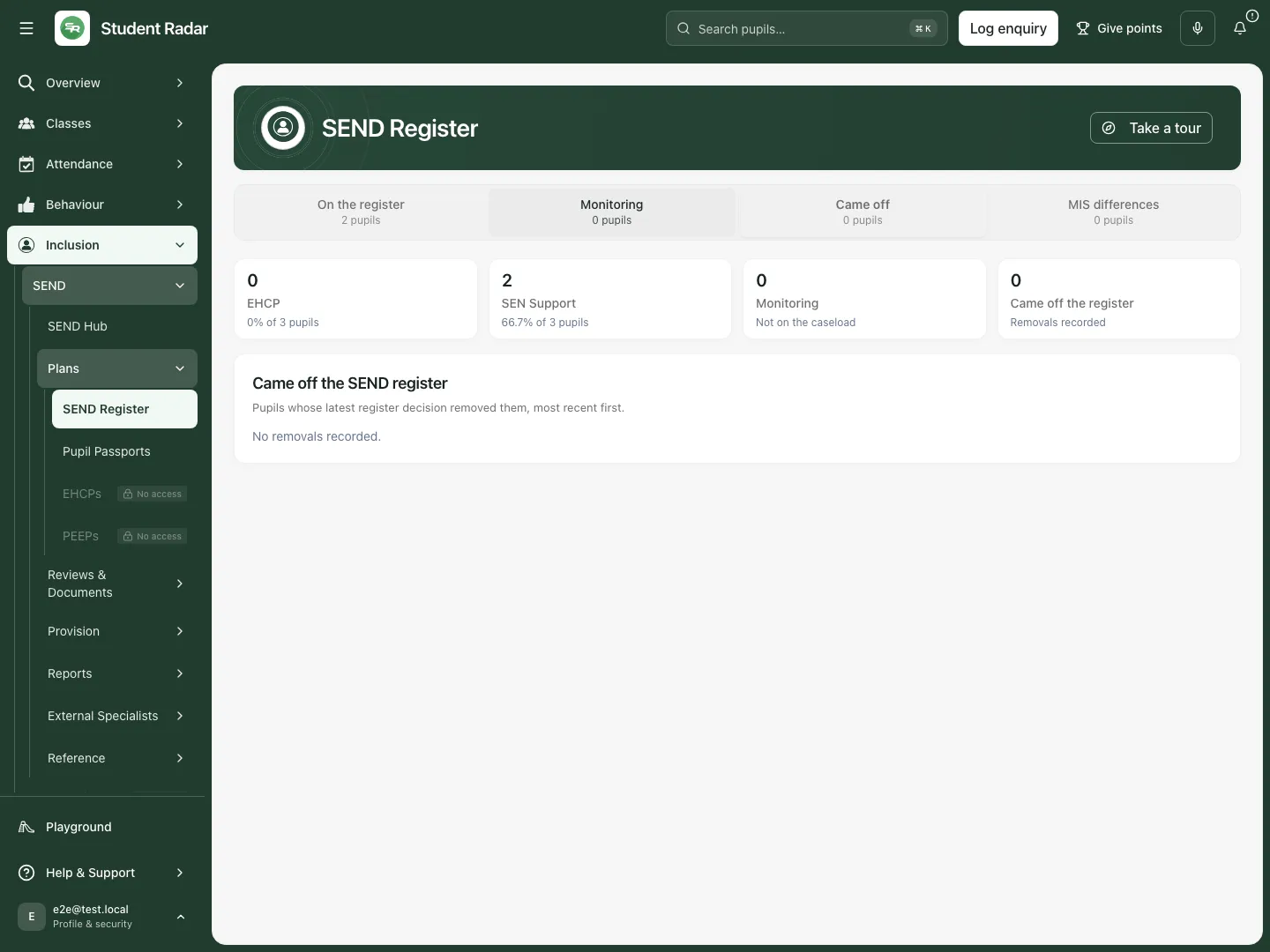
Came off shows recorded removals available to the viewer, separately from current membership. Fictional school example.
MIS differences is available to register managers. Review the school’s current status and the MIS status before deciding which is correct. Where Restore MIS status is offered, read the displayed target and confirmation before applying it. This restores the app’s local override to the recorded MIS status; do not describe it as correcting the MIS. If the MIS fact is wrong, arrange correction in the source system through the school’s process.
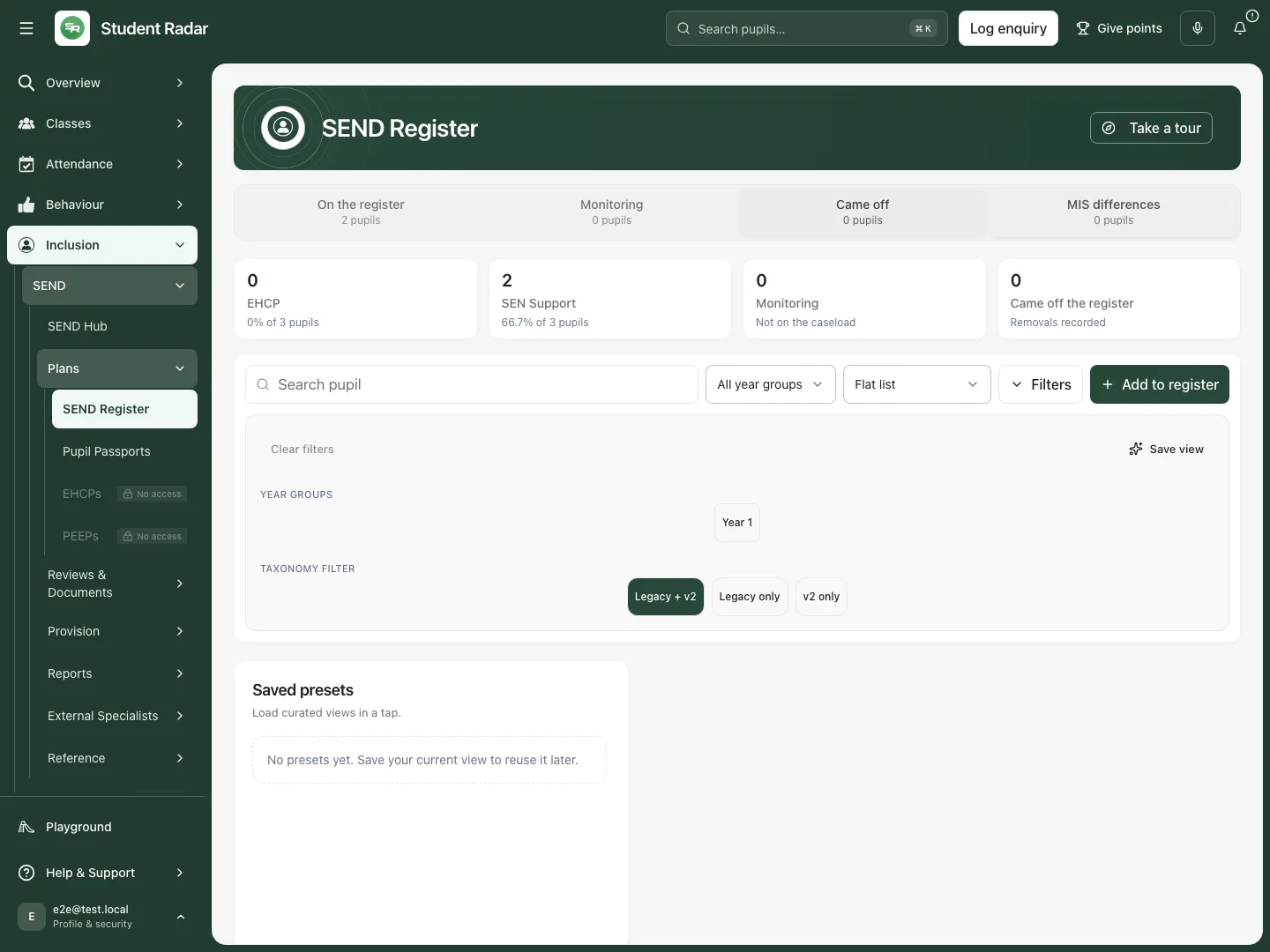
MIS differences supports deliberate reconciliation; an empty fictional view is not evidence that every source record is correct.
Filter and save a useful review view
Section titled “Filter and save a useful review view”- Select Filters. Choose year groups, stages/needs, relevant attention flags and any supported display/grouping options.
- Read active chips and the resulting count. Clear filters returns to the wider permitted scope.
- Select Save view and enter Preset name. Tick Make this my default view only when that should be the normal starting point, then choose Save preset.
- Use the saved-preset controls to apply, set a default or delete an unwanted view where offered. A saved view stores selection preferences; it does not freeze or certify the underlying pupil data.
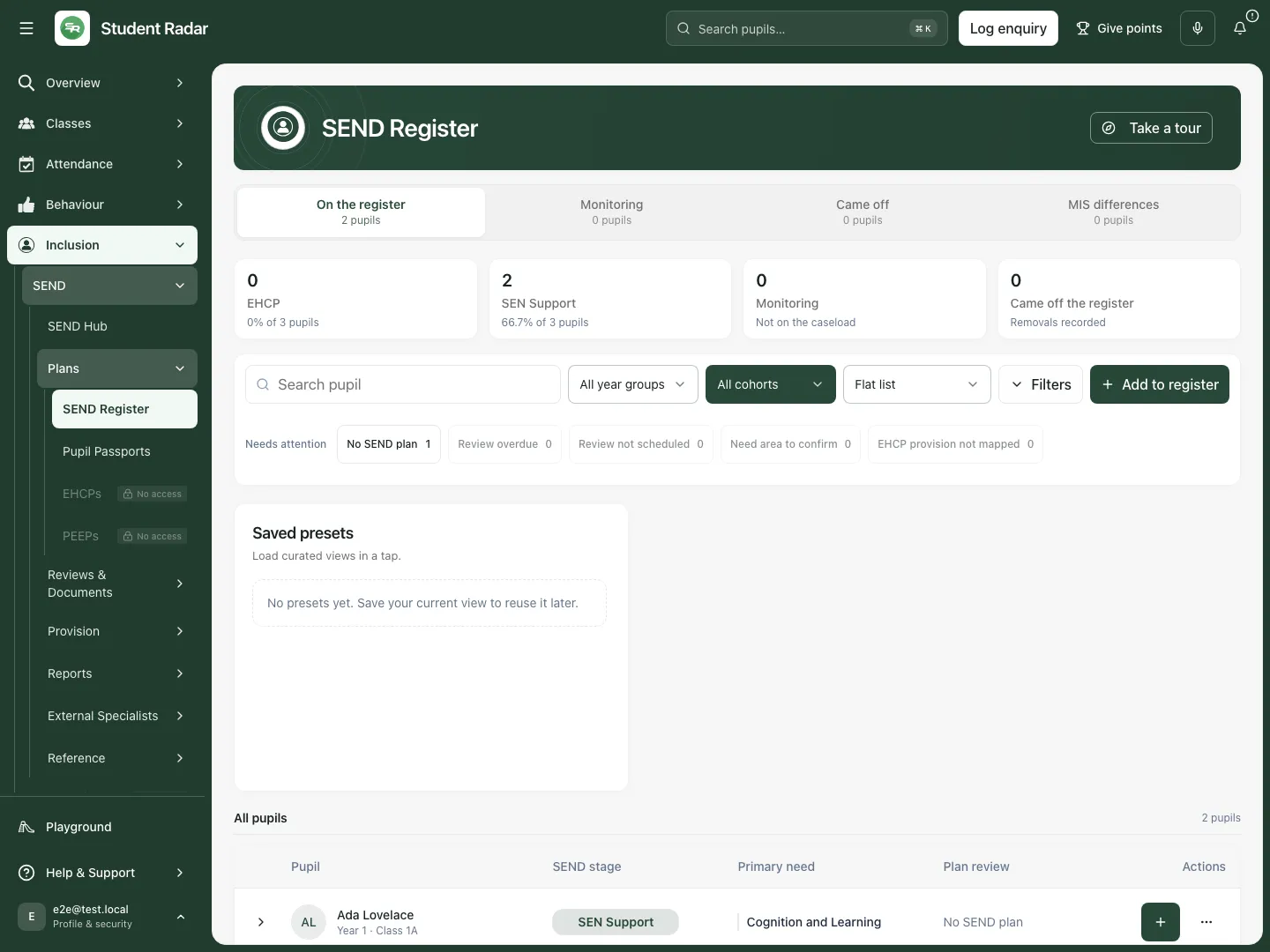
Filters make the review question explicit before a view is saved or used for follow-up. Fictional school example.
Assign teaching responsibility
Section titled “Assign teaching responsibility”Use More actions → Assign teacher for the intended pupil, or the supported class assignment control for the correctly identified group. Choose an eligible staff member and select Save teacher. Check the changed pupil count and any partial outcome rather than assuming every pupil changed. A teaching-class selection and form selection are different groups, and a chosen owner must have the required pupil access. Follow-up review work and subject teaching responsibility are not interchangeable facts.
Work on plans and review dates
Section titled “Work on plans and review dates”Open the available Create ISP, Create replacement ISP or plan action after checking the pupil’s current plan and scope. A replacement needs review of the current plan; a draft is not a reviewed/published plan. Use Open passport and Open EHCP only where offered and permitted. A link opens the specialist record; register membership does not grant that record’s access.
For a permitted current plan, use Schedule review, choose Review date and select Schedule review. Check the result in the register. If another current plan replaced the one you read, choose Refresh current plan and review the new plan before scheduling. If an earlier submission is unconfirmed, Retry schedule checks that same date. Review source/date warnings must remain visible when the plan and queue differ.
Where plan exports/printing or Archive plan are offered, check the exact current pupil/document, source/version and confirmation. Archiving a plan and removing register membership are different actions. A PDF/print is a snapshot; review its scope before sharing.
Upload documents with the right source and pupil
Section titled “Upload documents with the right source and pupil”Where Upload passports / ISPs is available, upload one or up to 20 DOCX files, no more than 10 MB each. Use it only for the intended documents and pupils, and review the proposed pupil matching and imported content before saving/processing. School-specific import tools appear only where configured. An uploaded document is not automatically an approved plan, confirmed status or proof of provision. Do not use optional AI generation until an authorised human has checked the source and the school’s required review step.
Use the register on a phone
Section titled “Use the register on a phone”Choose the section from the compact control, inspect the full pupil row/card and open its action menu. Scroll dialogs to check the pupil, status, broad need and confirmation before saving. The same access and source distinctions apply on desktop and phone.
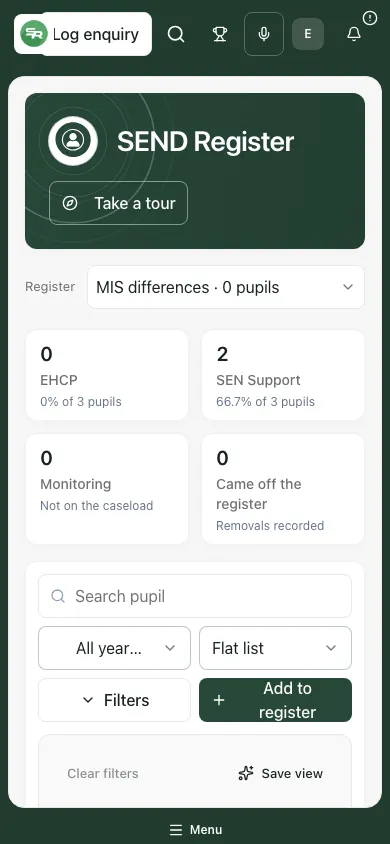
The fictional phone view retains the selected register section; check filters before interpreting an empty result.
Troubleshooting and questions
Section titled “Troubleshooting and questions”No pupils match the current view. Clear filters and check the intended section/year/cohort before assuming there are no SEND pupils.
No available pupil in Add to register. Check existing membership, the selected status and readable pupil scope. Do not create a duplicate identity to force an addition.
The result is unconfirmed. Retry the same addition/status/schedule request. The control keeps the original selections to avoid duplicate or conflicting changes.
Access could not be verified. Ask the administrator for the exact register/pupil/plan capability needed. A visible leadership layout is not authority to change every pupil.
Need/provision/review source unavailable. Refresh the source and retain the warning. A dash or an unchecked source is not evidence of no plan, provision or overdue review.
Does removal delete the pupil’s records? No. Current membership and readable removal history are separate from underlying pupil records.
Can I correct MIS status here? Review MIS differences to manage the app’s override. Correct the actual MIS through the school’s source-system process.
Related guides
Section titled “Related guides”Use SEND Hub, Create, review and share a pupil passport, Read an EHCP and review outcomes and provision, Prepare and complete an EHCP annual review.