Review medication instructions and record administration
Written for: Authorised school medical staff and medication record managers.
Check the medicine, current instructions, stock and authorisation before using the permitted schedule or administration controls. These are different records: adding a medicine is not authorisation to administer it, requesting consent is not receiving consent, and a scheduled dose is not a dose given.
Follow the school’s authorised medication procedures, current instructions and trained staff responsibilities. This guide explains recording controls, not clinical decisions or treatment. You need the relevant pupil and medication permissions; reading a medicine does not necessarily permit changing it or recording an administration. The examples use fictional records and are not treatment instructions.
Review the round and find a medicine
Section titled “Review the round and find a medicine”- Open Medications under Health → Medication & Clinical Safety.
- Check Active on site, Needs attention, expiry and consent information. Read an unavailable-source warning before interpreting a count; a failed read is not an empty round.
- Search for the pupil or medicine. Clear medication search removes the text filter. If a pupil context filter is active, Show all medicines removes it.
- Review the round’s Due now, Overdue, Upcoming, PRN — as needed, No schedule set, Given, Refused, Missed or Unavailable states. These reflect the recorded schedules and outcomes, not proof of physical administration.
- Select the medicine to inspect its instructions and records. Show … more (given or later today) expands remaining dose rows; Show fewer doses collapses them.
- Controlled-drug doses use the witnessed CD register. Check CD register means the round cannot confirm the required register information, not that a dose was omitted.
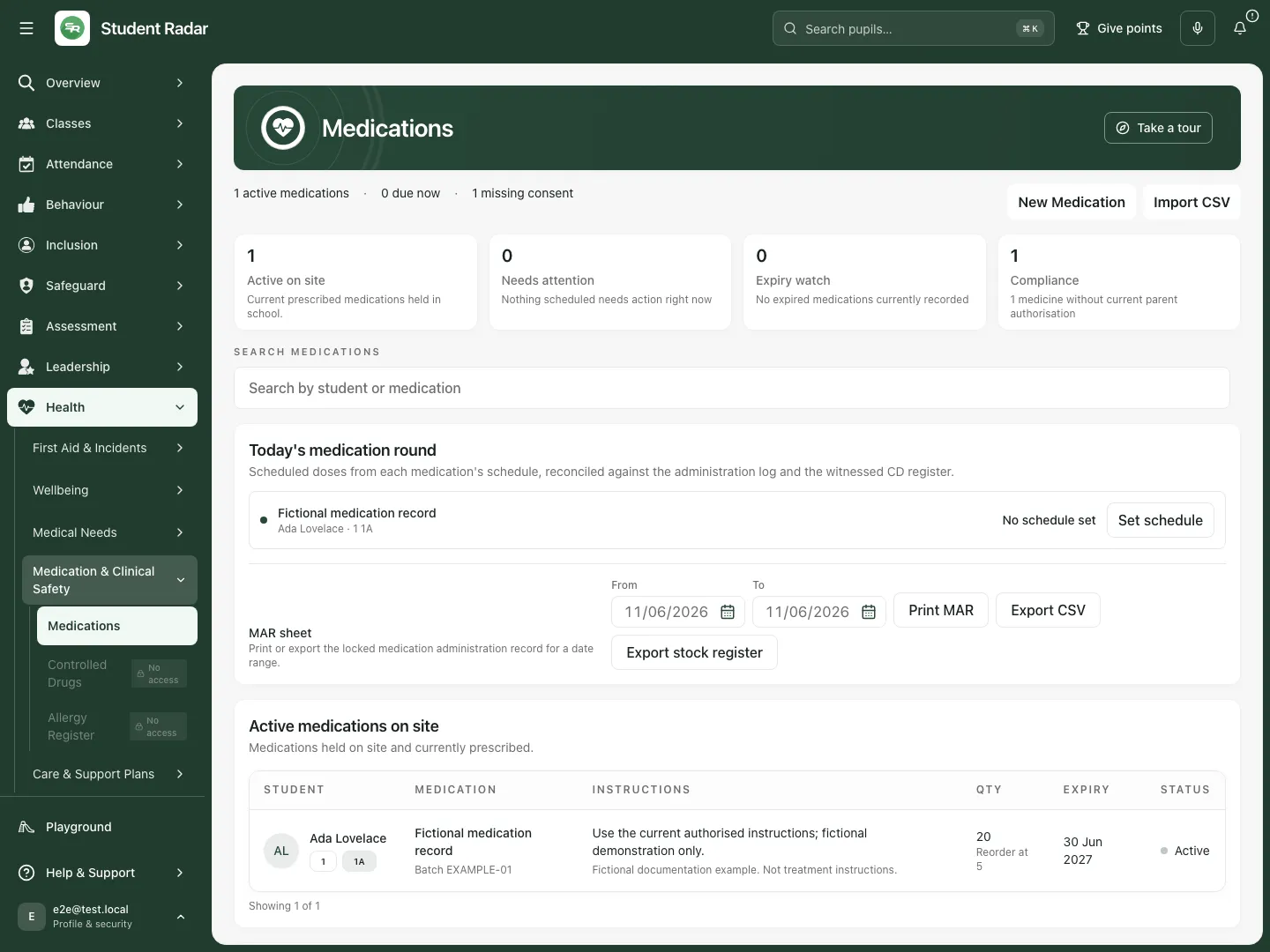 The fictional medicine is held on site, with its consent and schedule information kept separate from administration outcomes.
Add a medication record
Section titled “Add a medication record”- Choose New Medication.
- In Student, select the correct pupil. Unassigned is available, but does not identify a pupil or substitute for checking who the medicine is for.
- Enter Medication name and Dosage from the actual authorised record. Do not use this form to invent a dose.
- Review Controlled-drug schedule: Not a controlled drug, Schedule 2, Schedule 3, Schedule 4 or Schedule 5. Use the applicable classification process; controlled-drug administrations belong in the witnessed register.
- Record Quantity, Reorder threshold, Batch number, Expiry date, Storage location and Notes as applicable. Keep stock units and instructions unambiguous.
- In Medication Schedule, add the intended schedule entries or leave them for an authorised later review.
- Choose Save medication, then open the resulting medicine and inspect its details. Cancel abandons an unsaved form. A saved medication does not establish parent authorisation or a recorded administration.
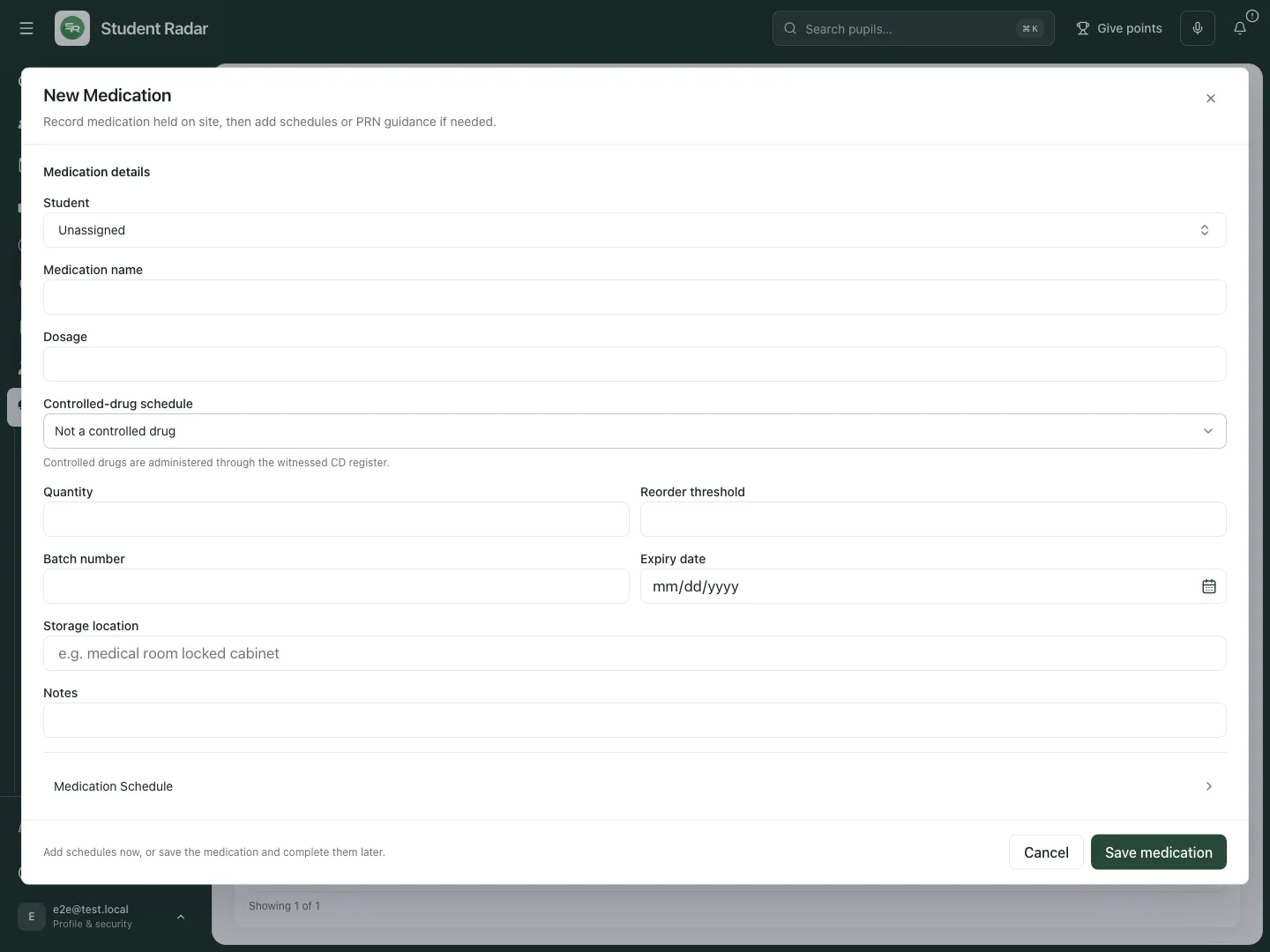 The fictional empty form separates medicine details and schedule recording. Opening it does not add a medicine.
Inspect, amend, stop or activate the record
Section titled “Inspect, amend, stop or activate the record”- Open the medicine. Read Instructions, expiry, stock governance, schedule and administration log before changing anything.
- Choose Edit details where your access permits it.
- Amend Dosage instructions, Expiry date, Reorder threshold, Storage location or Notes from the current agreed information. Stock quantity changes use stock events rather than this detail editor.
- Choose Save details. Cancel changes abandons the edits. If the record changed elsewhere, review the current values and reconcile before retrying; do not treat a stale-write error as success.
- Reopen the medicine and verify the amended value.
- For an active medicine, Stop medicine exposes a separate Confirm stop decision. Check the intended medicine before confirming; Keep medicine cancels that decision. Inactive medicines leave the round and cannot have doses recorded.
- For an inactive record, check its details and authorisation before using Activate medicine where offered. Activation changes the app state; it does not authorise treatment by itself.
- An expired medicine leaves the round. Follow the school’s procedure for the real supply and record the new stock and correct expiry information as appropriate; editing a date does not physically replace medicine.
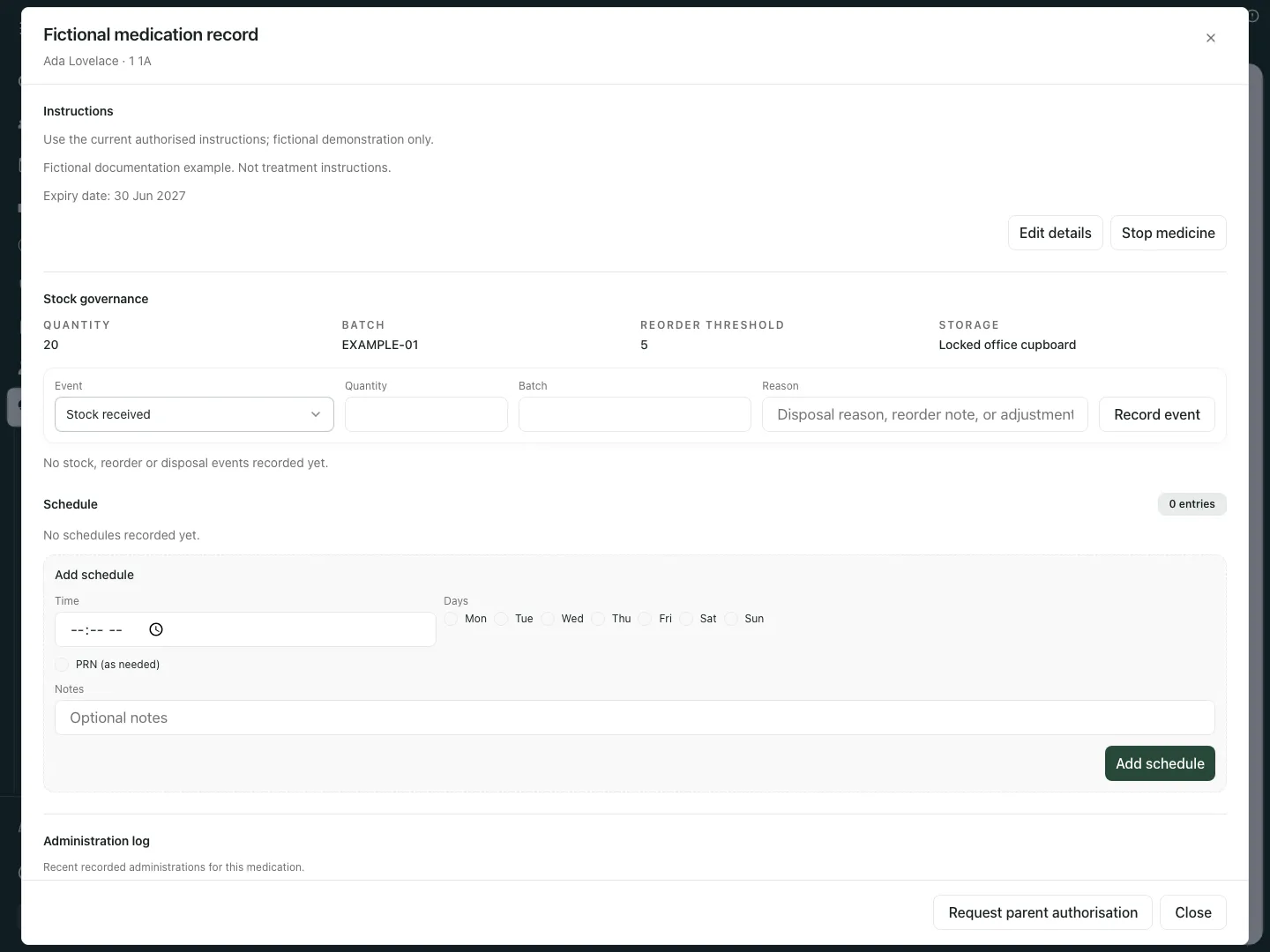 The fictional medicine shows instructions, stock and schedule history in the same record, with missing authorisation still visible.
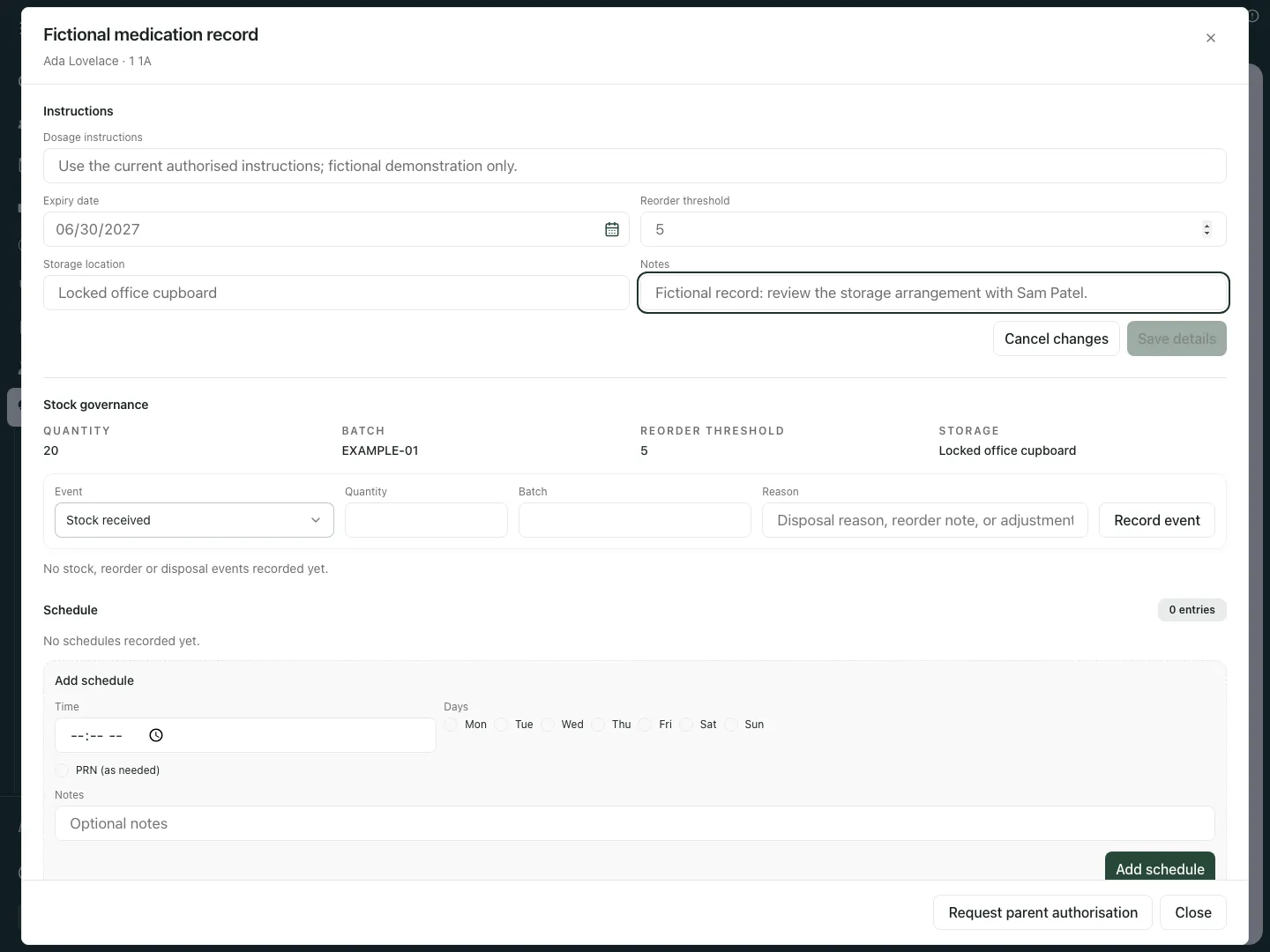 The fictional Notes edit records a storage-review point. Save details and Cancel changes have distinct effects.
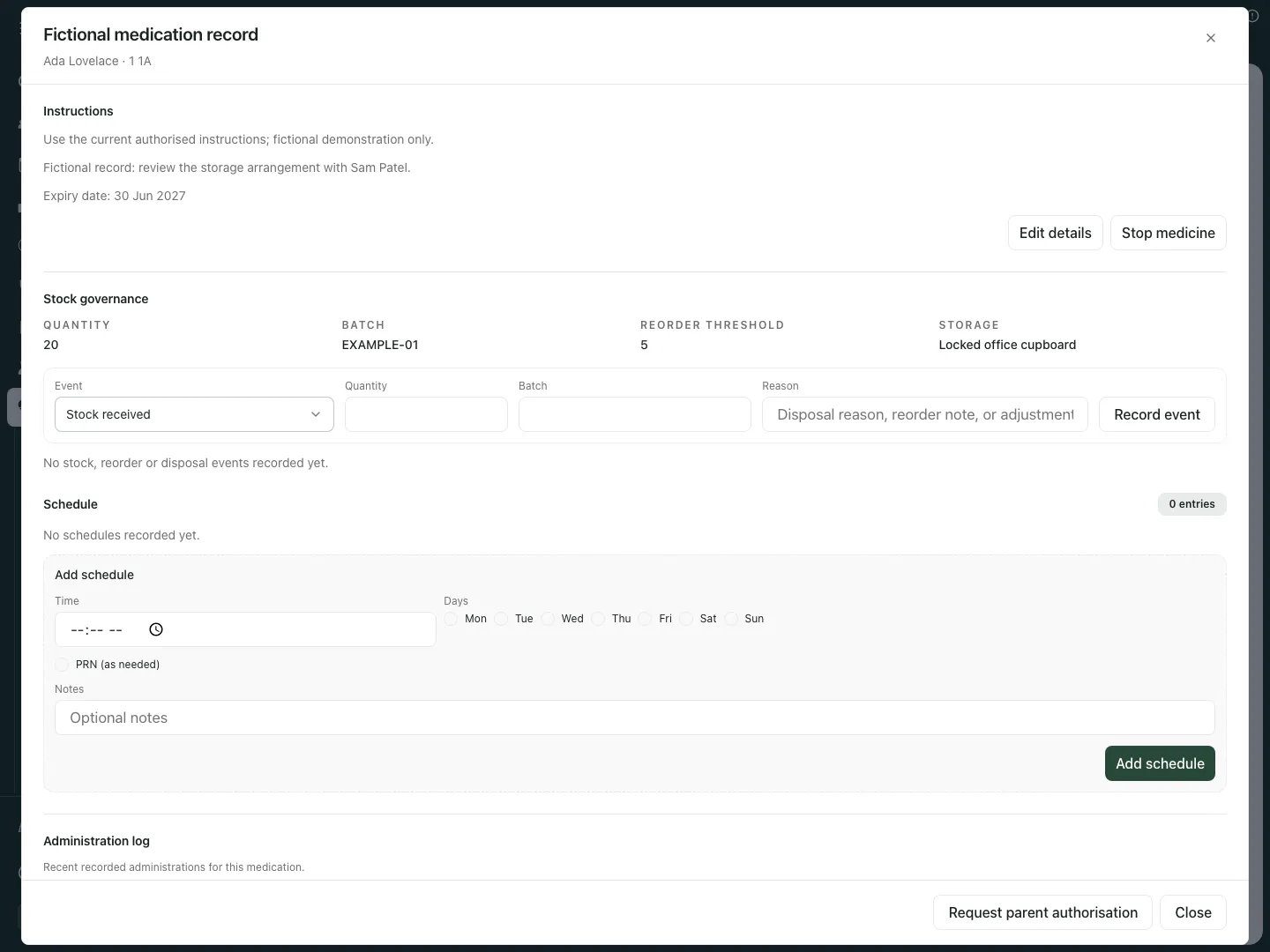 The reopened fictional medicine retains the storage-review note. That note is not a consent response, stock event or administration.
Record stock and its explanation
Section titled “Record stock and its explanation”- Open Stock governance for the medicine and inspect current quantity, batch, reorder threshold and storage.
- In Event, choose Stock received, Reorder requested, Disposed or Stock adjustment.
- Complete Quantity, Batch and Reason as appropriate. Receipts and disposal require a whole number above zero; a stock adjustment records the signed change. Reorder requested records the request without adding stock.
- Choose Record event only for the event that actually occurred. Inspect the resulting history and balance. Recording a reorder does not place an external order; recording disposal does not perform physical disposal.
- Keep the stock event distinct from administration consumption. Where the administration form asks for Stock units used, record the actual units and any required adjustment note rather than altering the balance informally.
Add, change or end a schedule
Section titled “Add, change or end a schedule”- In Schedule, inspect existing entries before adding another.
- Under Add schedule, set Time and the applicable Days (Mon–Sun). The display uses Daily when no specific days are selected.
- For an as-needed schedule select PRN (as needed) and record the agreed PRN protocol, Minimum interval in minutes, Maximum daily doses and Escalation instructions. Use the current authorised instructions; these fields do not calculate a clinical prescription.
- Add Notes if needed, then choose Add schedule. Review the resulting schedule and round.
- To change an existing entry choose Edit, amend its fields and choose Save. Cancel abandons the schedule edits.
- To stop future doses from an entry choose End schedule, optionally enter the reason, then Confirm end schedule. Keep schedule cancels. Its doses leave the round from now; past MAR sheets retain the schedule history.
- If a stale-schedule message appears, your draft is retained. Refresh/review the current schedule and reconcile before saving again. Do not add a duplicate as a workaround.
Record an actual administration or exception
Section titled “Record an actual administration or exception”- Open the medicine and check its pupil, current instructions, active state, expiry, consent and school time. Missing, pending, expired or rejected authorisation is displayed as a warning; follow school procedure before any real-world administration.
- Eligible staff choose Record administration or Record exception. Controlled-drug administration uses Record in CD register and its witness process rather than creating an ordinary given-dose record here.
- Enter Time in the displayed school time zone, for what actually happened. A future administration time is refused; an ambiguous clock-change time requires clarification.
- Choose Outcome: Given, Refused, Missed or Unavailable. A non-given outcome asks for Reason and Reason note; use the actual reason, with an explanation for Other.
- Complete Dose and Reason / remarks as applicable. For a given dose, complete the stock usage fields if shown, using the recorded stock units.
- Review duplicate, interval and daily-limit warnings. A retry of the same save is different from deliberately recording another dose. If a deliberate additional dose is appropriate and the app permits it, the additional-dose path requires an explanation and Record another dose. A warning override does not provide clinical authority.
- Choose Save for the actual record, then inspect the administration log. The signed-in staff identity is recorded by the system; do not write another colleague’s name to impersonate their action.
- Parent notification is a separate reviewed action from saving an administration. A saved dose or notification request does not establish delivery to a recipient.
Review authorisation requests and responses
Section titled “Review authorisation requests and responses”- In the medicine choose Request parent authorisation. Wait for the recipient/content preview; inspect the pupil, medicine and intended parent/carer.
- Review the optional text-message choice only when available. Send request or Send request + text is the deliberate external-send control; Cancel leaves it unsent. Follow your school’s authority before using it.
- Read the resulting request state and later consent response. Pending is not approved; rejected, expired and missing authorisation remain distinct.
- From Safety & compliance, Preview consent chase prepares a batch preview. Inspect Requests ready to send and Skipped, including absent contacts, demo restrictions or preview failures.
- The count-labelled Send … request(s) control starts the selected requests. Review successes and skips after completion rather than assuming every candidate was sent or delivered. A preview alone sends nothing.
Import inactive drafts from CSV
Section titled “Import inactive drafts from CSV”- Choose Import CSV in a current authorised school session. If the session warning appears, resolve it before importing.
- Use Download Medical Tracker sample to inspect the expected structure, Choose CSV to select a file, or CSV content to paste it. Use Medical Tracker preset applies that mapping.
- Choose Dry-run validation. Review Column mapping and match each intended field to its CSV header; rerun validation after changing the mapping or content.
- Resolve validation errors and review warnings, pupil matching and the draft count before using Import … drafts. Do not treat unmatched pupils as confirmed identities.
- Inspect the import receipt/result. Imported rows remain inactive until staff review authorisation, dose, storage and activation separately. Importing does not create proof of consent or a dose given.
- Cancel abandons an unsubmitted import. If an operation is already running or its result is uncertain, inspect/recover that operation rather than starting a second import blindly.
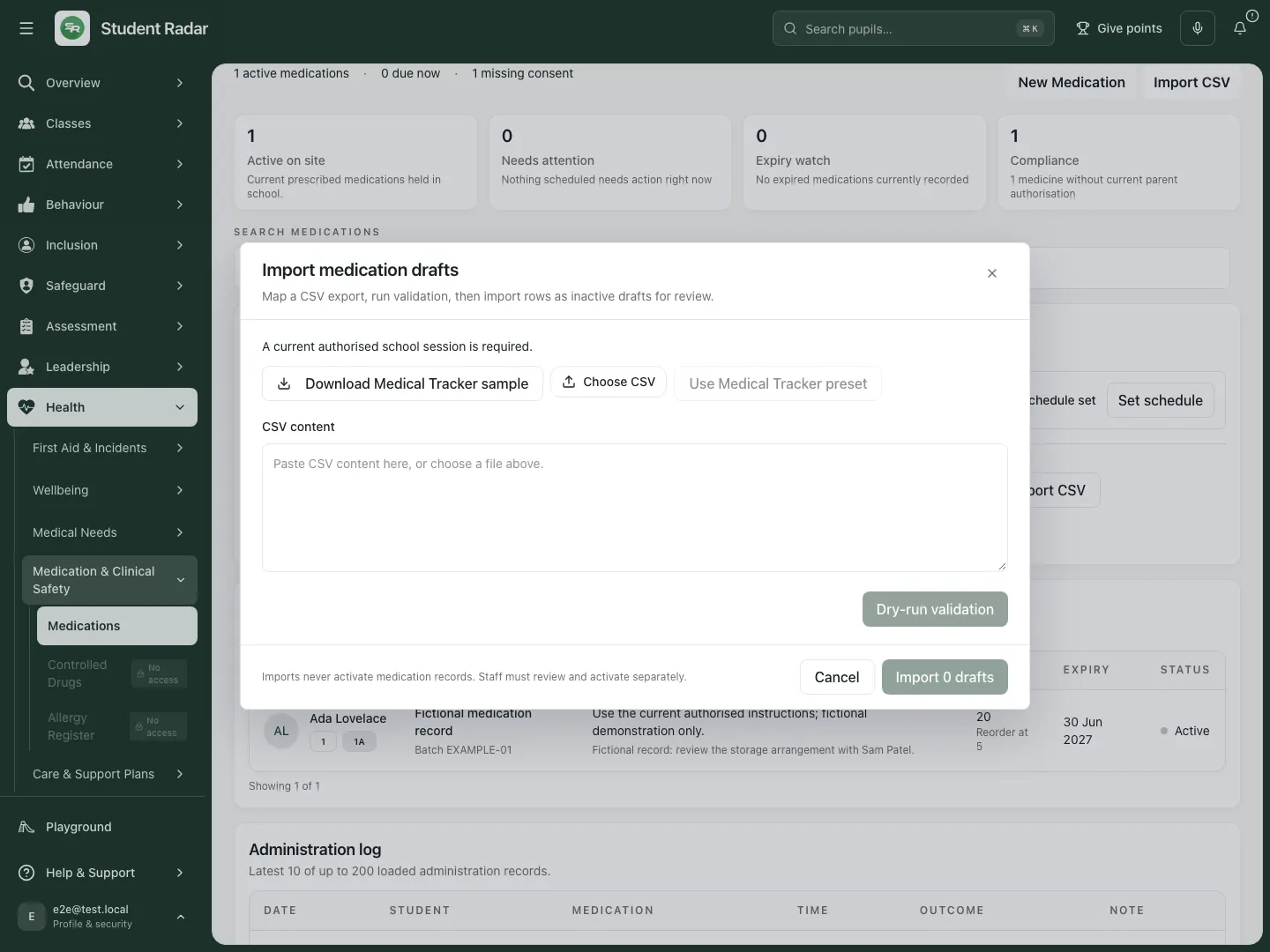 The import form keeps validation and inactive draft creation separate. The fictional example has not imported a file.
Export MAR and stock records with their coverage
Section titled “Export MAR and stock records with their coverage”- In MAR sheet, set From and To to the intended date range.
- Choose Print MAR for the printable medication administration record or Export CSV for the CSV version. Inspect the requested period and recorded outcomes; a blank or unavailable source is not a confirmed missed administration.
- Check controlled-drug warnings: when the CD source cannot be read, rows say Check CD register rather than inventing given-dose data.
- Export stock register downloads the stock-event CSV. An unavailable history or the 500-record display limit prevents a complete stock export from being claimed. Review the warning and source before relying on the result.
- The on-page administration table shows the latest 10 of up to 200 loaded records; this is not a whole-history count. Use the export’s own source/period checks for the intended report.
Phone use and troubleshooting
Section titled “Phone use and troubleshooting”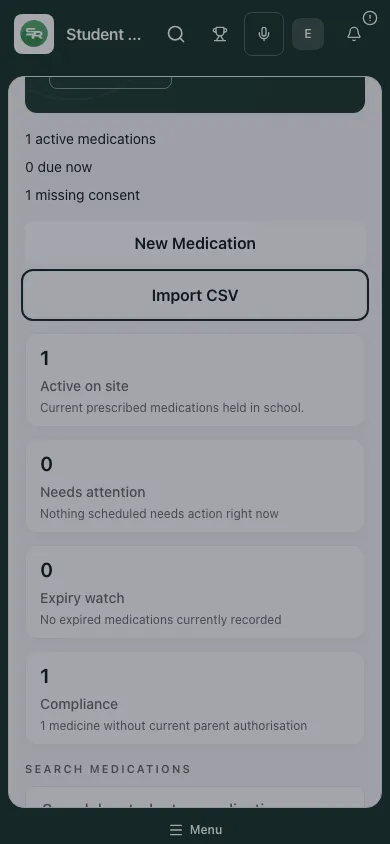 The fictional phone view keeps the medicine and its available controls in the same workflow.
Medication records could not be loaded. Refresh and resolve the source error. The round and consent summary are unavailable; do not interpret them as zero.
My account can read but cannot record doses. Reading, updating details, schedule management and administration have separate permissions. Ask an authorised school administrator to check the intended duty.
School time unavailable. Choose Retry school time and resolve the time context before recording an administration.
A parent request failed or is pending. Review its actual state and recipient rather than recording consent as approved. A request accepted for sending is not a delivery receipt.
Does stopping a medicine delete its administrations? No. Stopping removes current administration availability; its existing history remains.
Does a due row prove the dose should be given? No. Check the current instructions, authorisation and school procedure. The app displays recorded schedule information.
Common questions
Section titled “Common questions”Does adding a medicine authorise a dose?
Section titled “Does adding a medicine authorise a dose?”No. Check current instructions, parent or carer authorisation and the permitted administration workflow. A scheduled dose is not a dose given.
What should I check before recording administration?
Section titled “What should I check before recording administration?”Confirm the pupil, medicine, instructions, stock and current authorisation under the school’s trained staff procedures.
Related: First Aid, Pupil Welfare.