Write and review AP risk assessments with version history
Written for: AP colleagues drafting pupil or standing assessments and authorised reviewers.
Write the hazards, controls and professional judgement, then submit the intended assessment version for authorised review. A saved or signed assessment records a decision; the app does not establish that an activity, person or arrangement is safe.
Open the right kind of assessment
Section titled “Open the right kind of assessment”Open Pupils → Records → Risk Assessments in the AP sidebar. The two sections have different subjects and permissions:
| Section | Subject and decision |
|---|---|
| Pupils | An individual pupil assessment, drafted by permitted staff and made Live by an authorised provision approver. |
| Sites and activities | A reusable place/activity assessment, with Draft, Awaiting approval, Approved, Changes requested and Archived states, using Trips permissions. |
Reading, drafting, deciding and archiving are separate authorities. The pupil and site sections can therefore offer different actions to the same colleague. Governor mode withholds operational changes. If the AP or permission check fails, use the offered retry; a failed check or restricted read is not proof no assessment exists.
Check the provision, pupil or site and current school date. Follow your provision’s assessment, safeguarding and approval procedures; this guide explains the record controls. The screenshots use a fictional workshop example, not a risk assessment to reuse for a real activity.
Read pupil coverage and the next review
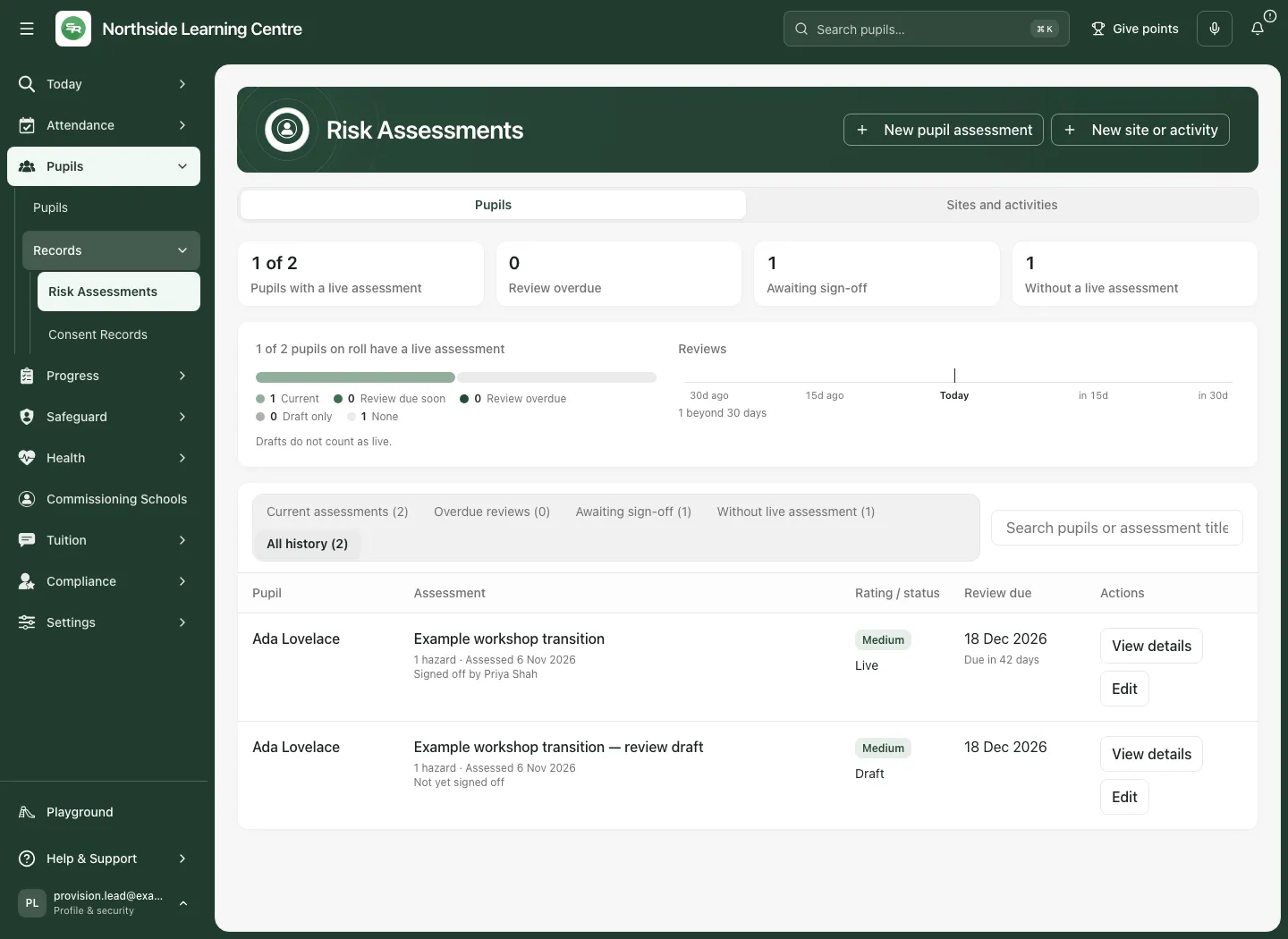
Section titled “Read pupil coverage and the next review”The pupil section counts eligible pupils on roll with a live assessment, overdue live reviews, drafts awaiting sign-off and pupils without a live assessment. A draft does not count as live. Leavers’ history can remain readable without entering the current roll’s working counts.
The coverage bar separates Current, Review due soon (within 14 days), Review overdue, Draft only and None. Reviews shows live assessment review dates around today; select an assessment’s dot to inspect it. A live record without a review date is not a confirmed current review.
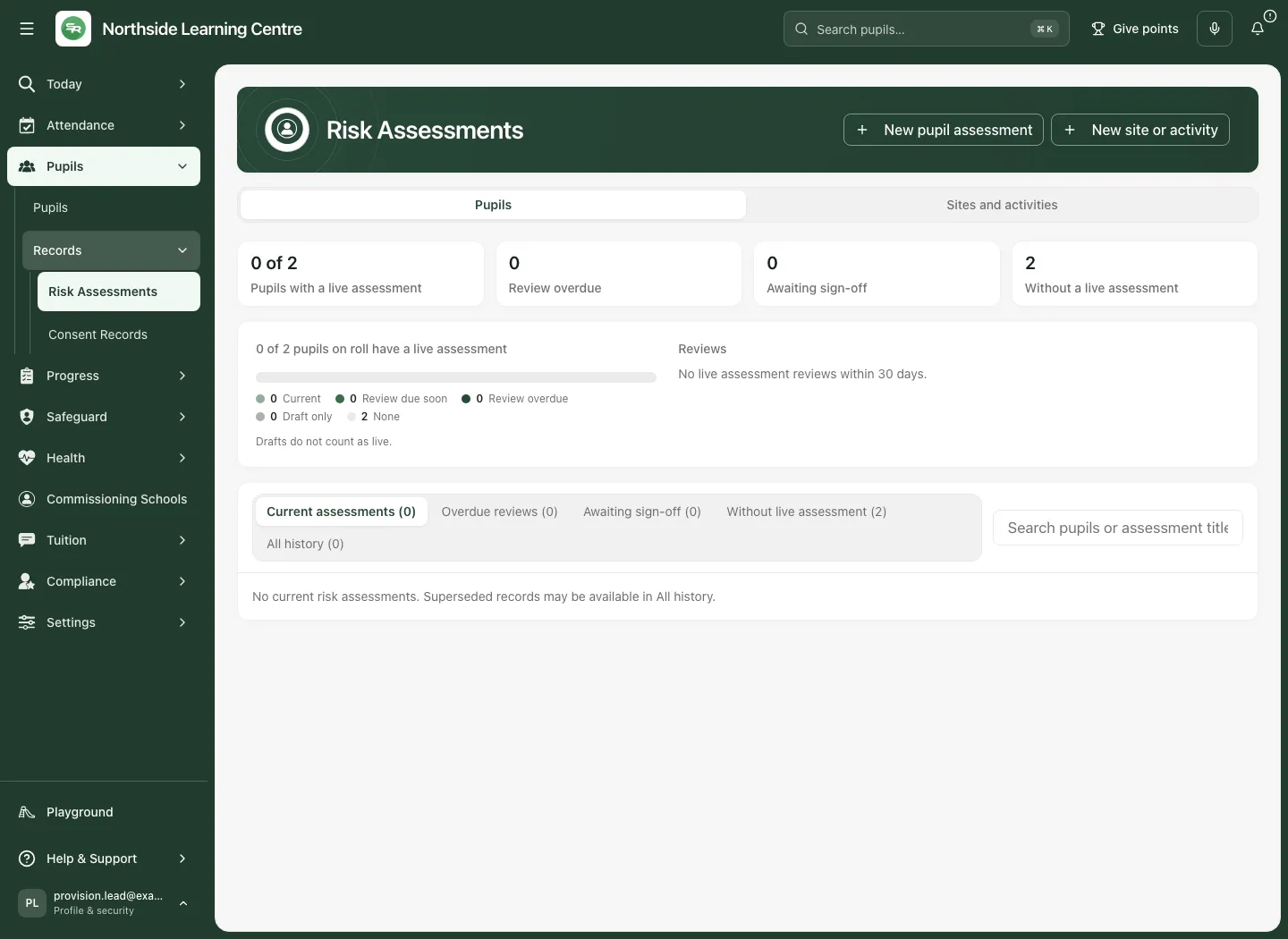
Use these list controls and Search risk assessments:
| View | What to inspect |
|---|---|
| Current assessments | Current live records and drafts, ordered around their review dates. |
| Overdue reviews | Live records whose review date has passed. |
| Awaiting sign-off | Drafts needing an authorised decision. |
| Without live assessment | On-roll pupils with Create assessment or Review draft where offered. |
| All history | Current, superseded and archived assessments, newest first. |
No on-roll pupils is not “all pupils covered”. If the complete permitted list cannot be verified, counts and missing-record conclusions are unavailable. A failed background refresh can retain an older list with a stale notice; retry before using it as the latest evidence. The pupil source read is bounded to 1,000 rows and requires a matching complete count.
Draft an individual pupil assessment
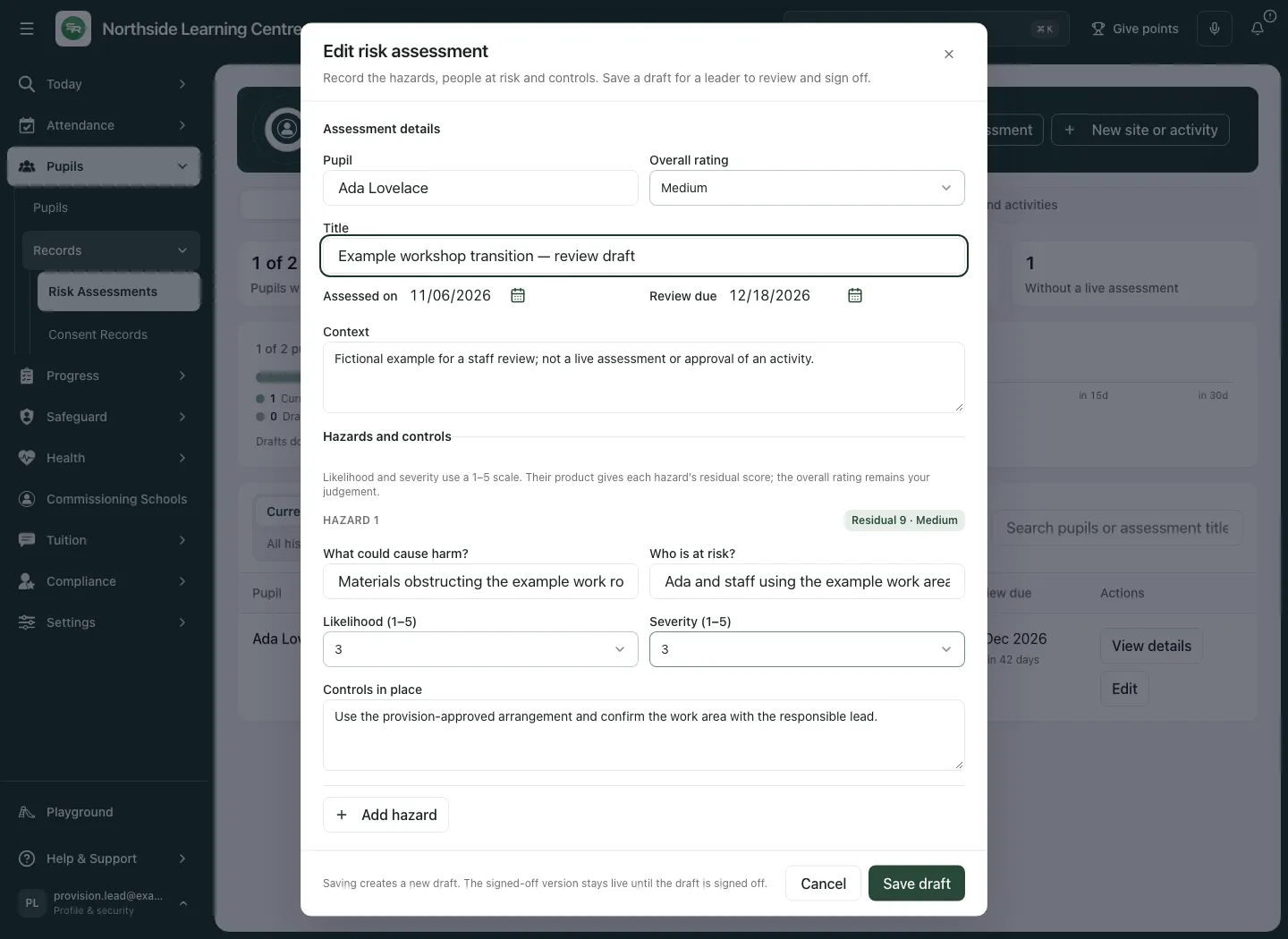
Section titled “Draft an individual pupil assessment”- Select New pupil assessment, or Create assessment from the named pupil’s gap row. The general New action does not choose a pupil for you.
- Choose Pupil and check the identity. Enter a meaningful Title, up to 200 characters; Individual risk assessment is only a proposed title.
- Set Assessed on, today or earlier, and required Review due, on or after the assessment date. The proposed review is six weeks ahead; choose the actual agreed date rather than accept it automatically.
- Set Overall rating to Low, Medium, High or Very high using professional judgement. It is not automatically set by the hazard scores.
- Add Context, up to 2,000 characters, with relevant source information and its limits.
- Under Hazards and controls, record What could cause harm? (up to 300 characters), Who is at risk? (up to 200), Likelihood (1–5), Severity (1–5) and Controls in place (up to 1,500).
- Use Add hazard for further hazards, up to 40. Remove an unwanted row with its labelled remove button. Do not leave controls in an unnamed row: the form refuses rather than silently discard them.
- Select Save draft. Wait for Risk assessment drafted, then reopen the saved record from Awaiting sign-off or Current assessments.
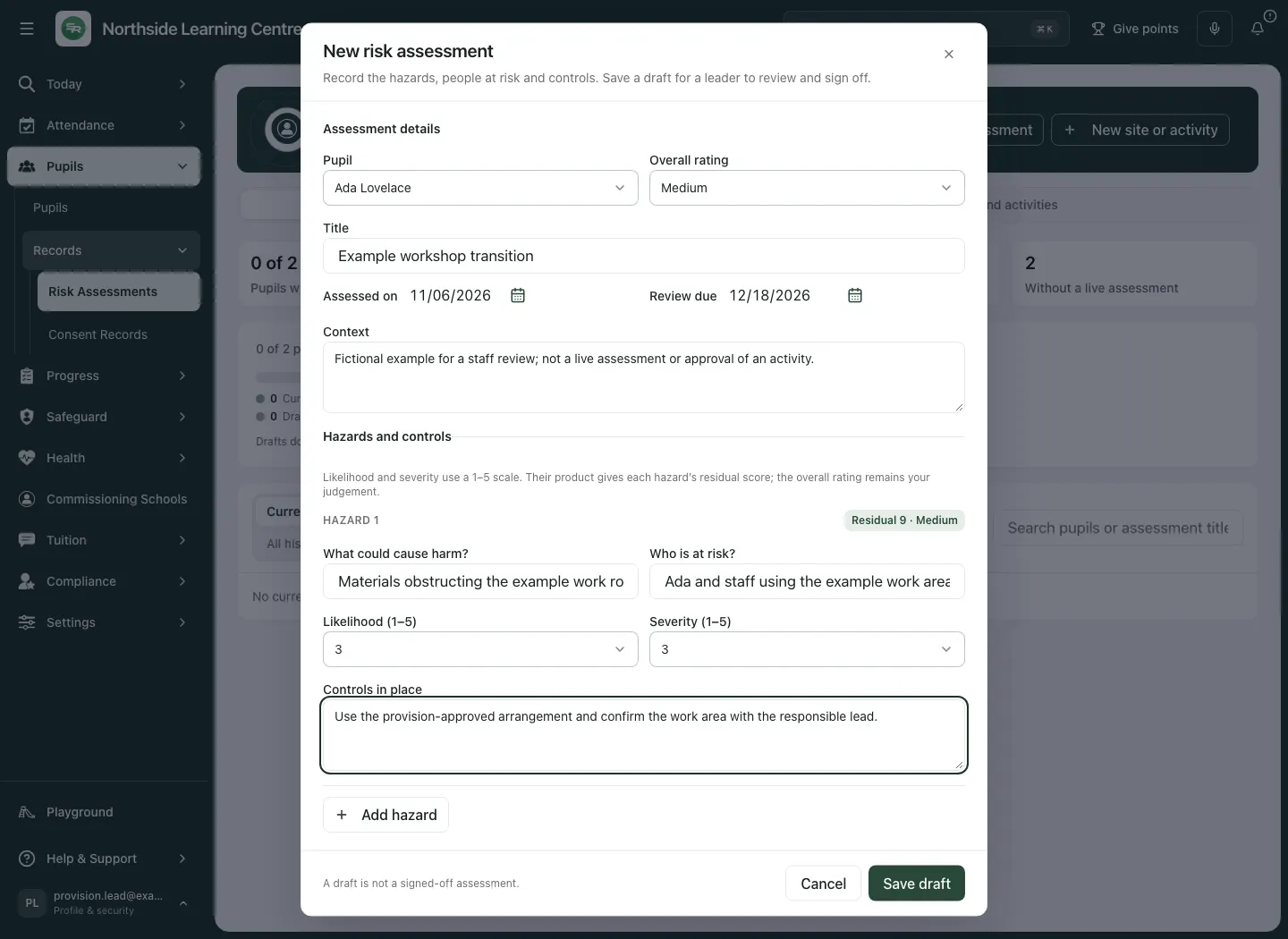
Each pupil hazard displays likelihood × severity as a residual score: below 8 Low, 8–14 Medium, 15–25 High. This display supports review; it does not diagnose the pupil, approve the controls or replace the overall judgement.
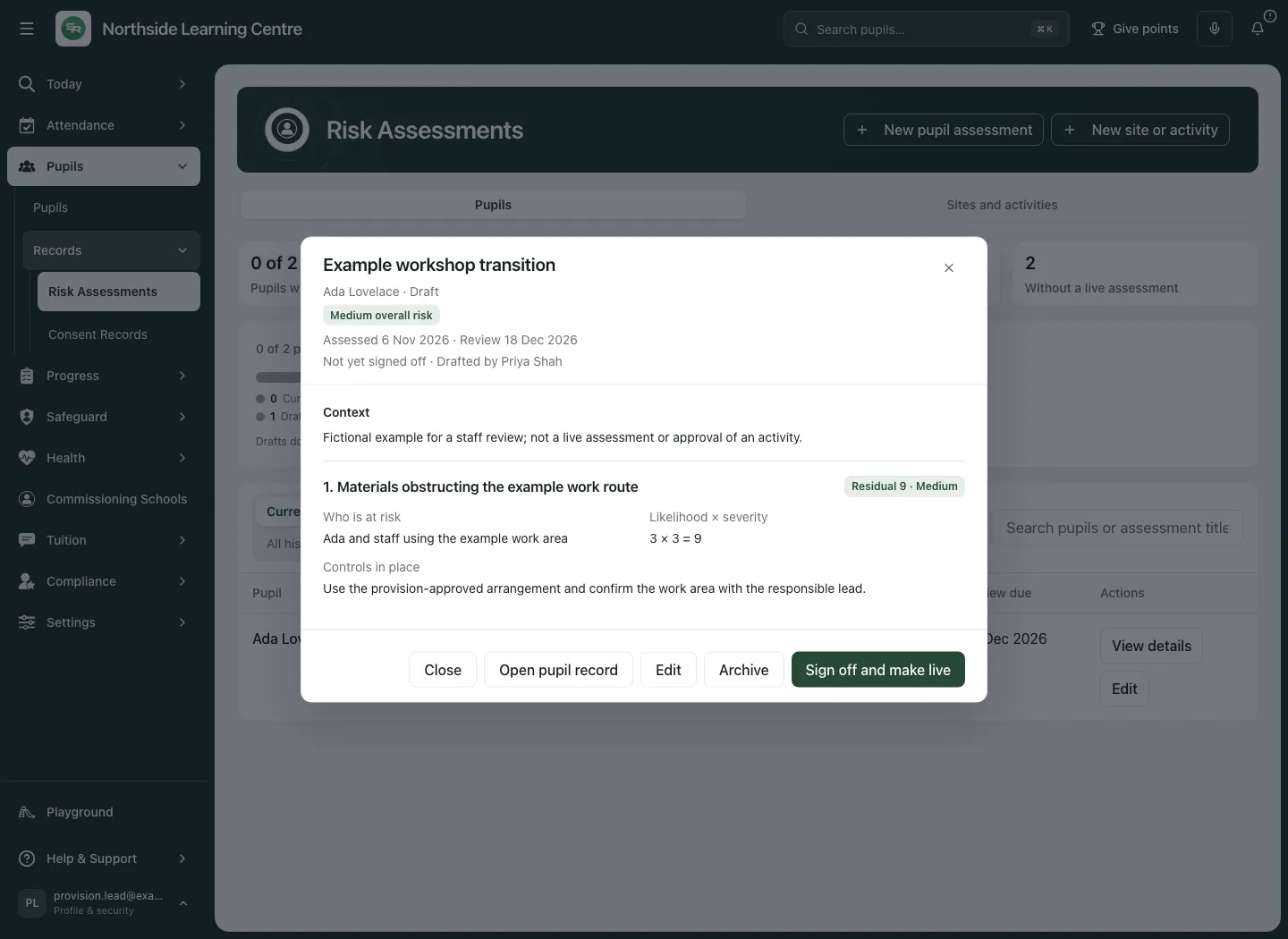
A pupil can have a waiting draft; the form warns before adding another. Prefer opening the existing draft when you intend to continue it. Closing unsaved changes prompts Discard assessment changes?; choose Keep editing or deliberately Discard changes.
Sign off and make the pupil version live
Section titled “Sign off and make the pupil version live”- Open the exact draft by title or View details. Read the pupil, assessed/review dates, context, all hazards, controls and scores.
- Check the stated replacement and overdue warnings. Signing a new draft can replace an existing live assessment; a past review date would make the new version live but already overdue.
- If changes are needed, select Edit. Otherwise, with approval permission, select Sign off and make live.
- Wait for Risk assessment signed off and live, then reopen it and check Live, sign-off name/date and the intended content.
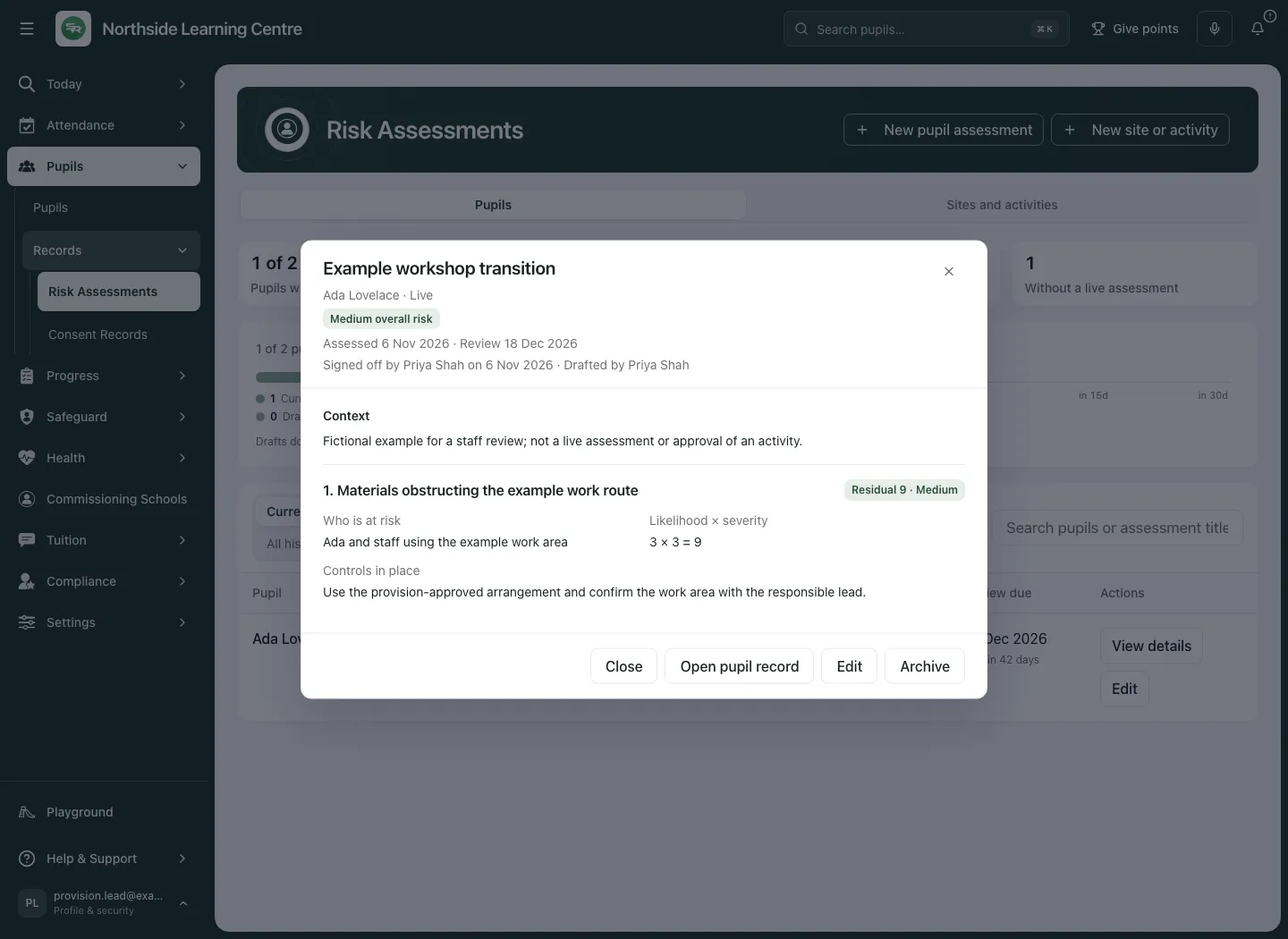
At least one named hazard is required. Saving, signing or archiving can require a recent two-step verification; follow the current authenticator instruction and reopen the latest copy before retrying. A failed approval is not live cover.
Review a live assessment without removing it prematurely
Section titled “Review a live assessment without removing it prematurely”- Open the live record and choose Edit. If a waiting update already exists, the app opens that draft rather than starting another parallel update.
- Review the hazards, controls, judgement and next date. Saving changes to a live assessment drafts a new version; it does not overwrite the signed one or remove its live status.
- Select Save draft and inspect All history. The original remains Live while the update awaits sign-off.
- Have the authorised reviewer read the update and Sign off and make live. Only then is the previous live record marked Superseded and retained in history.
To stop using an assessment, open it and select Archive. Read Archive this risk assessment? carefully: archiving a live assessment can leave the pupil without a live assessment. Confirm Archive only for the actual authorised decision. Live archive needs approval as well as management permission; a draft has its own management requirement. Archived and superseded records stay in All history and cannot be casually reopened as drafts.
Resolve a changed source before saving again
Section titled “Resolve a changed source before saving again”The form compares the version you opened with the latest read. A refusal or changed-source notice is not permission to overwrite it.
- Use Load the latest copy if the new record has not loaded. Keep your draft while the read is unavailable.
- Compare Latest copy and Your draft. Where offered, take a field with Use latest, add a new hazard with Add to my draft, or Use the latest hazards.
- Choose the offered keep-changes option only after comparing the current record; Use the latest copy asks before replacing unsaved work. A newly signed, replaced or archived source may require a new draft rather than an in-place save.
- Read the new copy and make a deliberate save/decision. A comparison is not itself a save; an error stays unconfirmed.
Work with reusable sites and activities
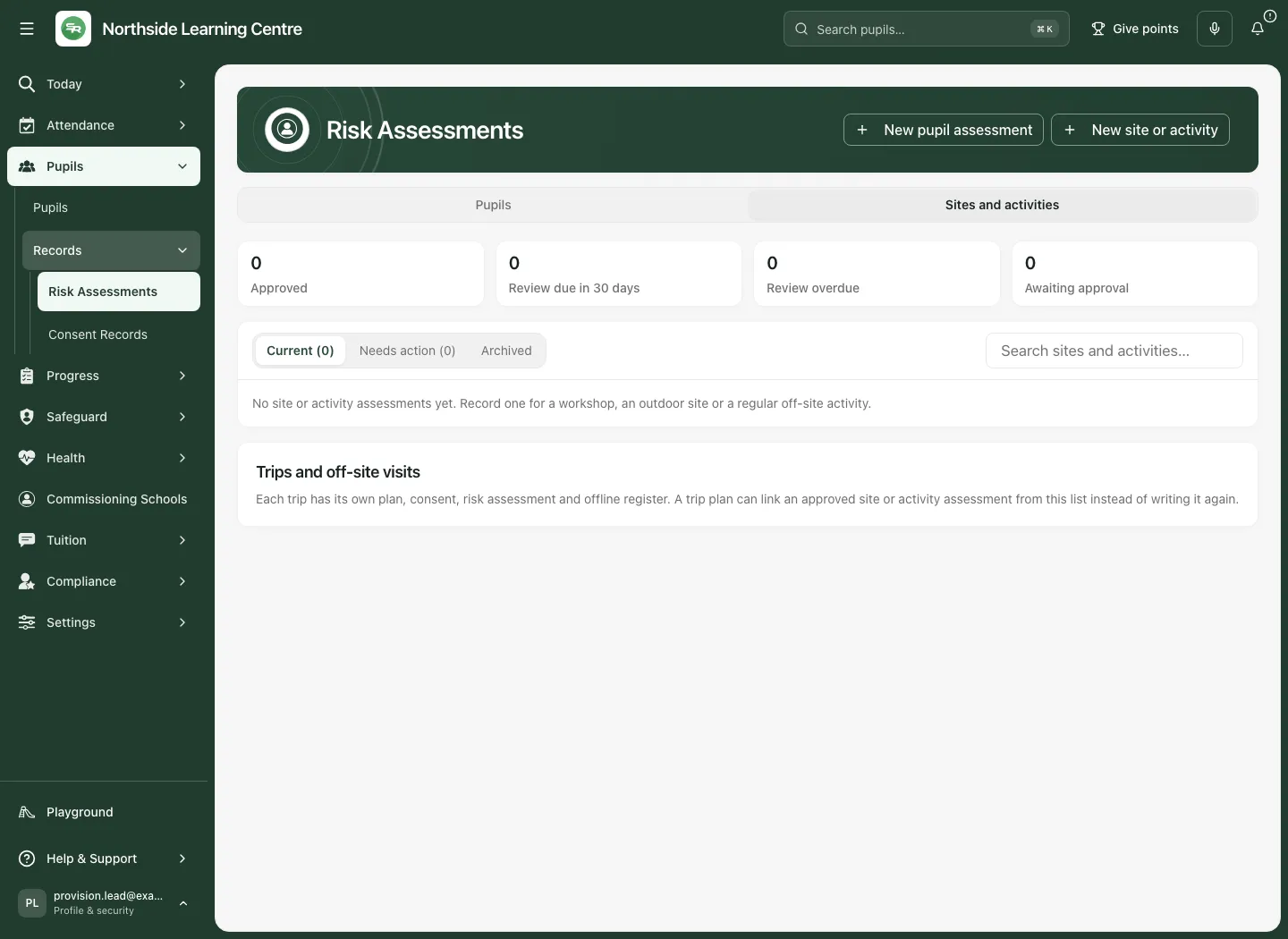
Section titled “Work with reusable sites and activities”Select Sites and activities. Approved, Review due in 30 days, Review overdue and Awaiting approval refer to these reusable assessments, not pupil coverage. Due/overdue counts apply to open assessments in their stated scope, including drafts that need action. Use Current, Needs action, Archived and the search box to inspect title, location and frequency.
Draft a site or activity
Section titled “Draft a site or activity”- Select New site or activity. Choose Assesses → A site or workshop or An activity.
- Check Title, Location, How often, Summary and Review due. The default review is a year ahead; choose an actual date from today through 1,825 days ahead.
- Add complete hazards: What could cause harm?, Who is at risk? (groups separated by commas), likelihood/severity before controls, Likelihood after controls, Severity after controls, and Controls in place.
- Select Save draft. The residual score uses the after-controls values; a number does not establish controls are effective. An incomplete hazard cannot be treated as approved.
- Reopen and inspect the draft before Submit for approval. This changes it to Awaiting approval; it does not approve it.
Obtain a separate approval decision
Section titled “Obtain a separate approval decision”A permitted independent approver reads the current version and can Approve an eligible draft/awaiting assessment. They must be neither the owner nor anyone who saved or submitted its content since the last approval. The visible button may still be refused when you helped author the version: Someone who did not write or change this version needs to approve it. Ask an appropriately permitted colleague who was not involved in that authorship; changing the owner does not erase the saved/submitted history. For an awaiting version needing work, the permitted reviewer enters Note for the author and selects Request changes; read Latest decision note on the resulting Changes requested record.
Approved reusable assessments can be offered to trip planning. Linking one does not approve the entire trip, replace trip-specific hazards or obtain consent. Use the permitted Open Trips route and Plan an off-site trip or activity.
Update or archive the reusable version
Section titled “Update or archive the reusable version”Editing an approved assessment saves a new draft version while the approved version stays in force and remains linked from trips. Read which version remains approved. Submit and obtain another eligible approval before relying on the replacement as approved.
If a hazard owner is no longer current, the form can explain that saving again will make you the owner of those hazards. Review that responsibility deliberately; do not repeatedly save to clear an unexplained refusal. Source/version conflict controls compare your draft with the latest copy as above.
Use Archive only after reading its confirmation. It cannot be undone through this workflow; history remains under Archived. Trips disabled, missing Trips permission and a failed complete read are distinct from no reusable assessments. The reader pages in batches of 200 and refuses an unverifiable complete list rather than silently present the first page as a total.
Use the phone view
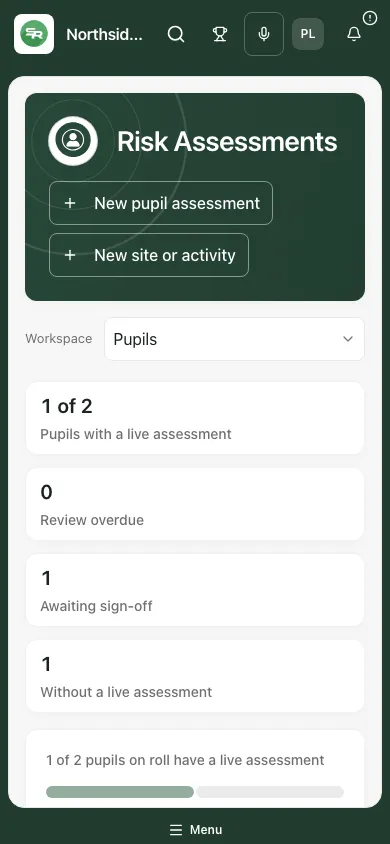
Section titled “Use the phone view”Choose the section, scroll the current record/history and open the named assessment. Check the subject, state and dates before using its action buttons.
Common questions
Section titled “Common questions”What should I do while an assessment update awaits approval?
Section titled “What should I do while an assessment update awaits approval?”Keep the current signed assessment available and follow the authorised review process for the new version. Do not erase its history.
Does signing an assessment establish that an arrangement is safe?
Section titled “Does signing an assessment establish that an arrangement is safe?”No. It records the professional decision. Staff remain responsible for the actual risks, controls and authorised arrangements.
Related: Safeguarding concern, Two-step sign-in, Student Radar support. A risk assessment is separate from consent, the single central record, compliance evidence and the source safeguarding response.