Set your capacity and check free places
Written for: Alternative provision leaders and office staff who plan places.
Tell Student Radar how many learners your provision can take at once, and it works out how many places are free on each weekday for the next six weeks. Use it to see when you can offer a start date, and which days are already full.
Before you start
Section titled “Before you start”The page is for AP leaders and office staff who can read every referral. Leaders who can manage referrals can change the capacity. Office staff can see it but not change it.
Open the page
Section titled “Open the page”In the sidebar, open Referrals and choose Capacity & Waiting List. It opens on Free places. The other sections are Waiting list and Capacity.
Set your capacity
Section titled “Set your capacity”- Click Capacity.
- Under Count places, choose Places per day, or Places per session (morning and afternoon) if you count mornings and afternoons separately.
- Enter your usual number in Places per day (or Places per session). It can be from 0 to 999.
- If some days are different, enter their numbers under Different on some days (optional), for example a lower number on Friday. Leave a day blank to use the usual number. Enter 0 for a day the provision is closed.
- Click Save capacity.
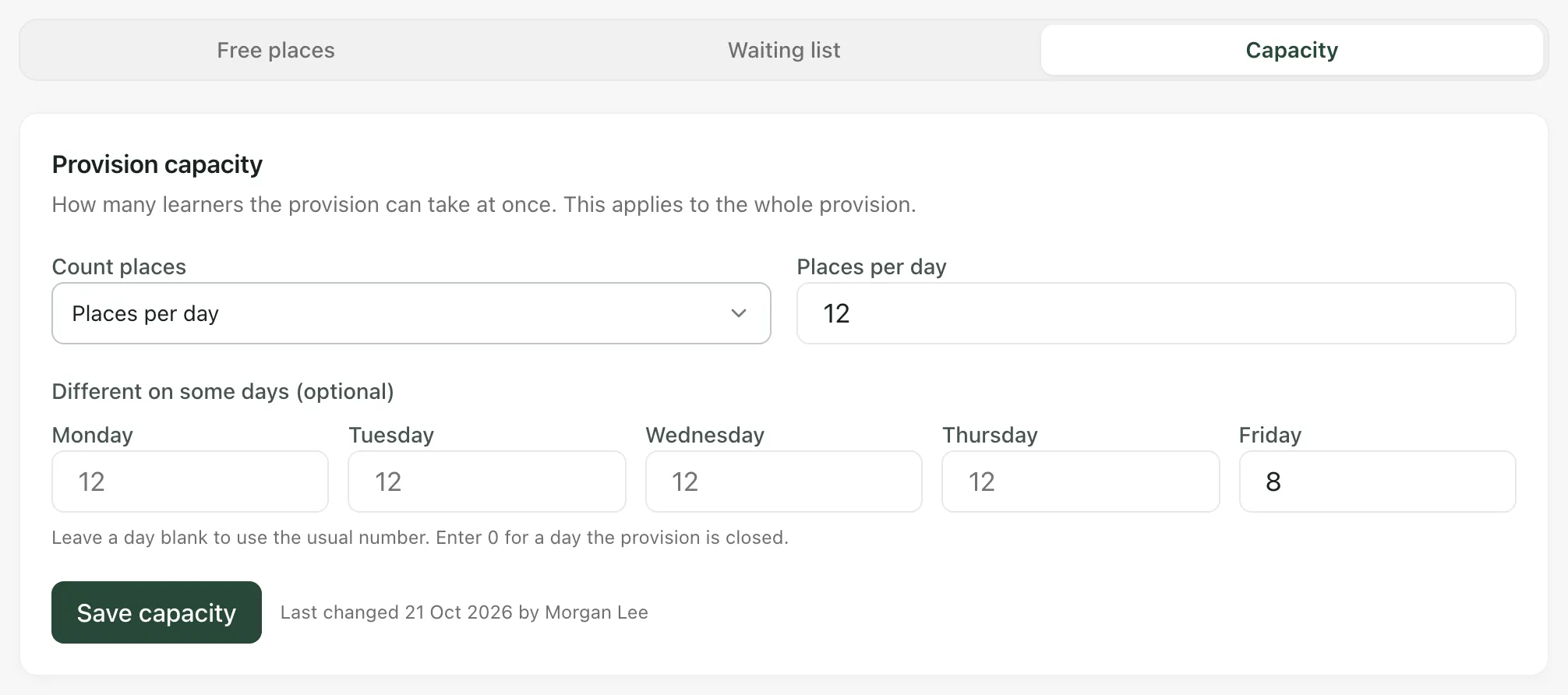
You’ll see “Capacity saved.” Beside Save capacity, on the same row, the page shows when the capacity was last changed and by whom.
The capacity covers the whole provision. If you have more than one site, enter one number for them all.
Check free places
Section titled “Check free places”On Free places, four cards sum up the next six weeks:
- The first card shows how many places are free all day next Monday.
- Next free place is the first weekday with a place free all day. If there isn’t one, it says “None in 6 weeks”.
- Placed today is how many learners are on placement today.
- Waiting for a place is how many referrals are on your waiting list.
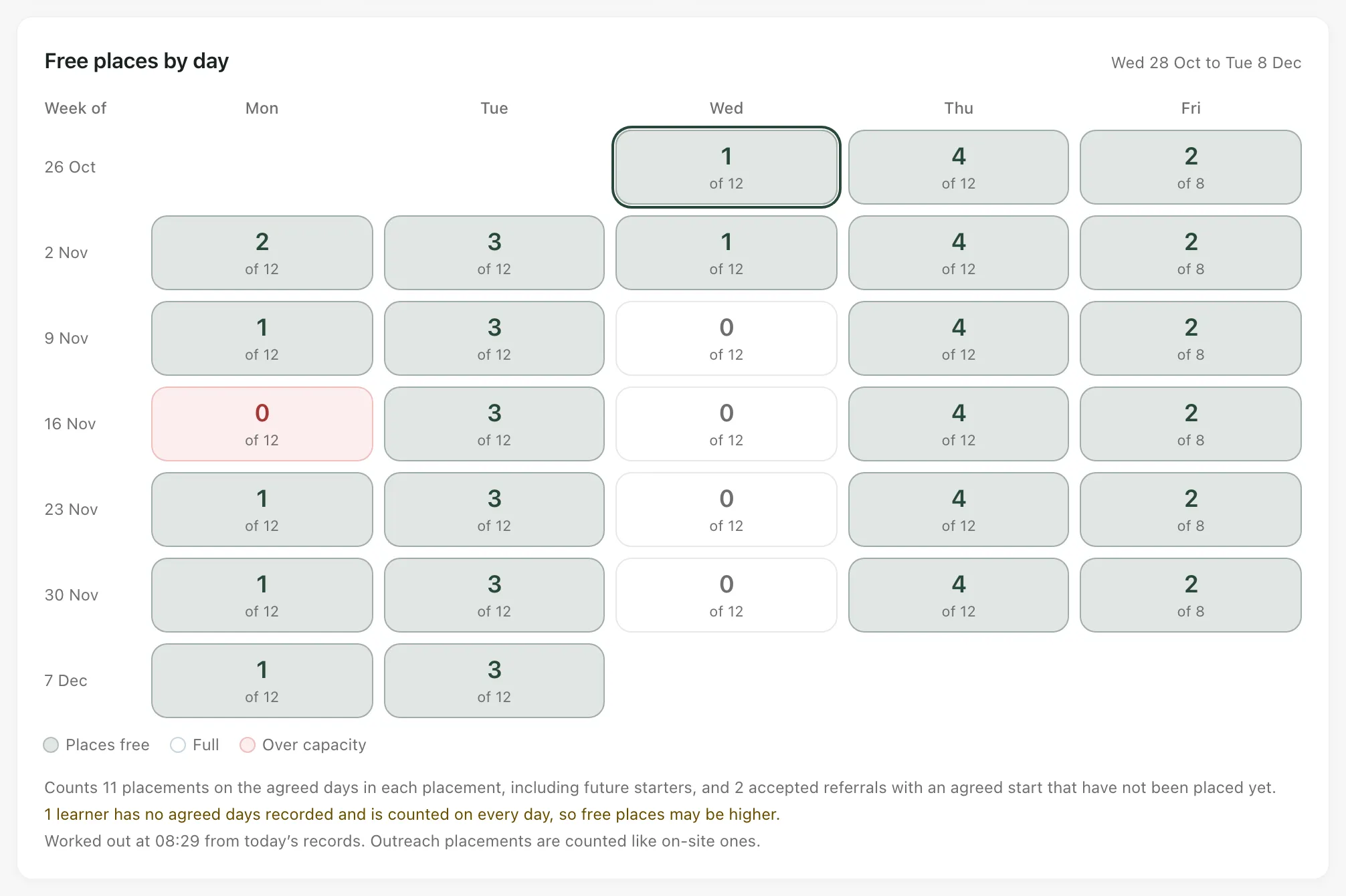
Free places by day shows each weekday as a box, one row per week, with today outlined. Each box shows the places free out of your capacity. If you count per session, it shows the morning (AM) and afternoon (PM) separately. Point at a day to see how many learners are placed, how many are starting soon and how many accepted referrals are counted on it.
| Colour or label | What it means |
|---|---|
| Places free | At least one place is free that day. |
| Full | No places are free that day. |
| Over capacity | More learners are counted that day than your capacity allows. |
| Closed | Your capacity is 0 that day. |
What’s counted
Section titled “What’s counted”Under the grid, a note says what the numbers include:
- Placements: every current or planned placement, on the days agreed for it, including learners who haven’t started yet. Outreach placements count like on-site ones.
- Accepted referrals: referrals with an accepted placement agreement that haven’t been placed yet, from their agreed start date. Referrals on your waiting list aren’t counted until they leave it.
- Learners without agreed days: a placement or agreement with no agreed days is counted on every day. The note says how many there are, so free places may be higher than shown.
- Sessions: if you count per session, a learner counts in the morning or afternoon when their agreed time overlaps it.
Paused placements and term closures aren’t taken off, so a paused learner keeps their place. The figures are worked out from today’s records each time you open the page.
The free places are a guide for planning. They don’t offer, hold or confirm a place for anyone.
When a waiting referral fits
Section titled “When a waiting referral fits”When a place is free on every day a referral on your waiting list needs, a suggestion card appears above the grid. It names the first referral on the list that fits, its place on the list and the date a place is free from. Nothing has been placed. Click Open referral to look at it and decide. See Keep a waiting list for accepted referrals.
- Your provision’s words: labels use your provision’s Setting profile, so what you call your pupils and the schools that place them may differ.
- The AP menu: the sidebar described here appears when your setting profile is alternative provision and AP operations are active. It only shows the pages you can open.
- Placing a learner: you confirm a placement from the referral. See Move a referral through to placement.
If something doesn’t work
Section titled “If something doesn’t work”| What you see | What to do |
|---|---|
| “Capacity has not been set, so free places cannot be worked out. Placed learners are still counted below.” | Click Set capacity, or ask a leader who can manage referrals to set it. |
| The Capacity section shows the settings but no Save capacity button | Your account can see the capacity but not change it. Ask a leader who can manage referrals. |
| “Enter whole numbers from 0 to 999.” | Check the usual number and each day’s number. Leave days blank rather than typing spaces or letters. |
| “Someone else changed this first. The latest version has been loaded.” | Check the capacity that’s now shown, make your change again and click Save capacity. |
| “You do not have permission to change capacity or the waiting list.” | Ask a leader who can manage referrals. |
| “You do not have access to the provision’s referrals, so capacity and the waiting list cannot be shown.” | The page needs access to every referral. Ask your Provision Lead if you need it. |
| “Counts and missing records cannot be confirmed.” | The forecast didn’t load. Click the retry button under the message. Until it loads, don’t rely on the counts. |
| “The last loaded copy is shown and may be out of date.” | The page couldn’t refresh. Click the retry button next to the message. |
| “The change could not be confirmed. Retry to check it.” | Click Save capacity again. It retries the same change, so it won’t be saved twice. |
| “Too many changes in a minute. Wait a moment and retry.” | Wait a minute, then try again. |
| Free places by day shows fewer free places than you expected, with a note about learners without agreed days | Those learners are counted on every day. Record their agreed days on the placement or agreement. |