Prepare a Personal Education Plan and record its review
Written for: Designated teachers and permitted staff coordinating education plans and reviews.
Record pupil views and educational context, review targets and evidence, and retain the school decision and next review date.
Before you start
Section titled “Before you start”Open Inclusion → Personal Education Plans in the intended school. PEP information is restricted: access to a list, a pupil profile or another linked area does not grant access to this plan. The page can show a read-only record without permitting changes, meeting packs or access history.
A school PEP record supports coordination. Local Authority approval stays in the relevant ePEP process. Choosing a planning basis does not change recorded care status, determine funding eligibility or send a referral. Confirm uncertain care/funding facts with the appropriate school or responsible authority lead.
The examples use fictional pupils, staff and educational information.
Find a plan or a review needing attention
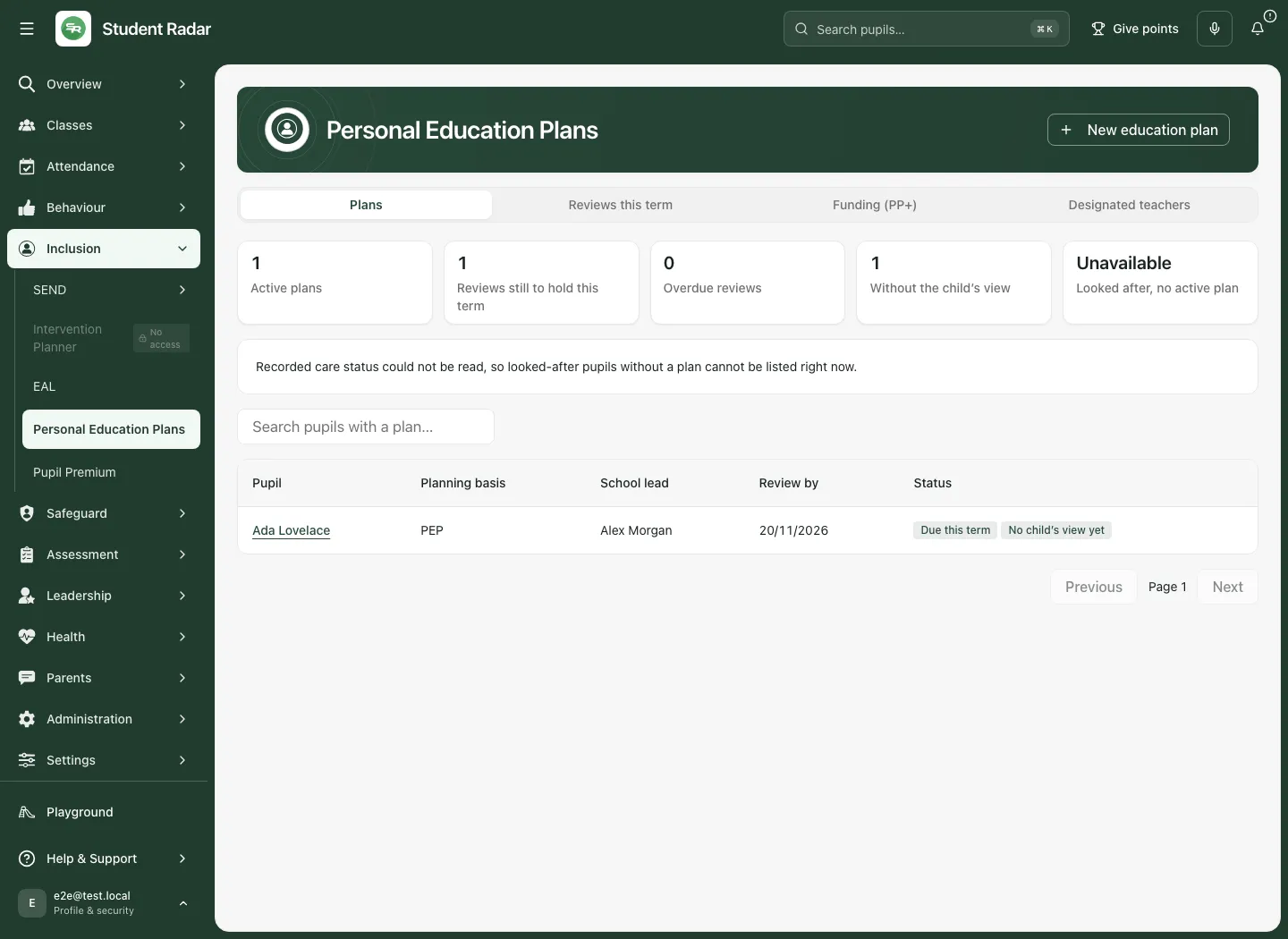
Section titled “Find a plan or a review needing attention”The register has Plans, Reviews this term, Funding (PP+) and Designated teachers.
- In Plans, search and open the named pupil’s plan. Check status, lead, next review and any basis/access warning. Use paging for more records; a limited result is not necessarily the whole school.
- Reviews this term uses the displayed term window. If school term dates are unavailable, the page can use a next-12-weeks window instead; read the dates/source before treating a figure as a term total. Overdue and missing-child-view prompts support staff follow-up. When the truncation notice appears, the figures cover only the first 200 active plans you can open.
- The looked-after-without-an-active-plan section uses permitted recorded care facts. It distinguishes previously looked-after planning and does not start a plan automatically. An unavailable source is not a confirmed count of zero. A closed earlier plan does not count as a current active plan. The section states when only the first 200 pupils are listed.
- Funding (PP+) summarises amounts recorded against targets on the active plans you can open. Requested, agreed and used amounts are separate, with coverage for incomplete values. It is not an allocation/payment ledger or an entitlement decision. When the truncation notice appears, these funding totals include only the first 200 plans.
Create the school plan
Section titled “Create the school plan”- Select New plan, or Start a plan for an eligible pupil shown without an active plan.
- Search for and select the Pupil. Use the actual result, rather than treating text typed into a search box as a selected pupil.
- Check Planning basis: the looked-after PEP or previously looked-after voluntary route as appropriate to the confirmed situation. Read the distinction beside the field.
- Select the current Designated teacher or school lead and agree the Review date. A named lead without a connected account or current PEP access can generate a warning; assigning ownership is not proof they can open or have received the plan.
- Use the creation action and wait for the new plan to open. If another active plan already exists, follow the source’s refusal and open that record rather than duplicating it.
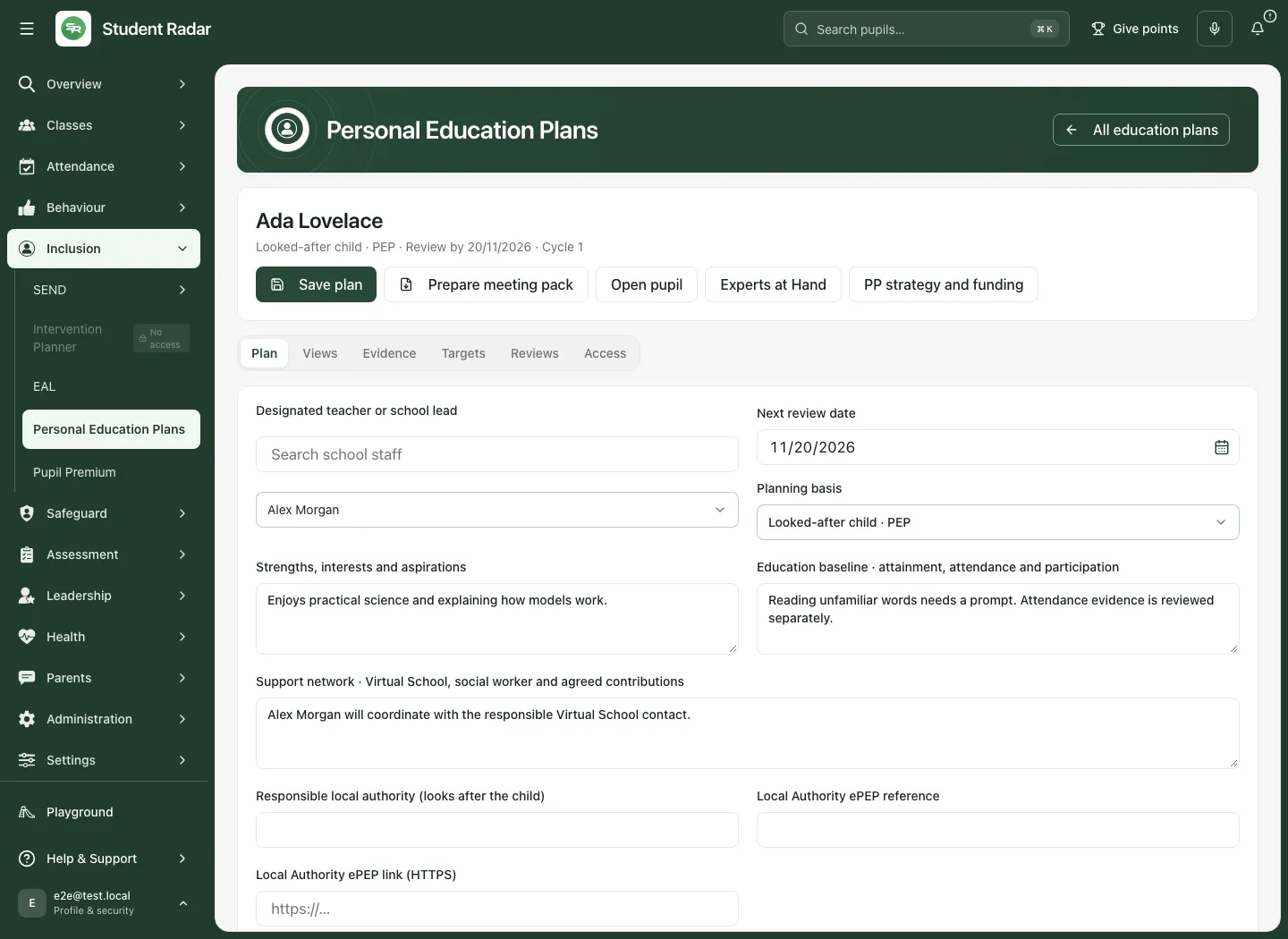
In a plan, the sections are Plan, Views, Evidence, Targets, Reviews and, where permitted, Access. On a phone the selector is labelled Plan section.
Write and save the educational context
Section titled “Write and save the educational context”In Plan:
- Check the lead, review date and planning basis alongside recorded care status. A mismatch, missing fact or school/MIS disagreement is a prompt to investigate. Nothing changes automatically.
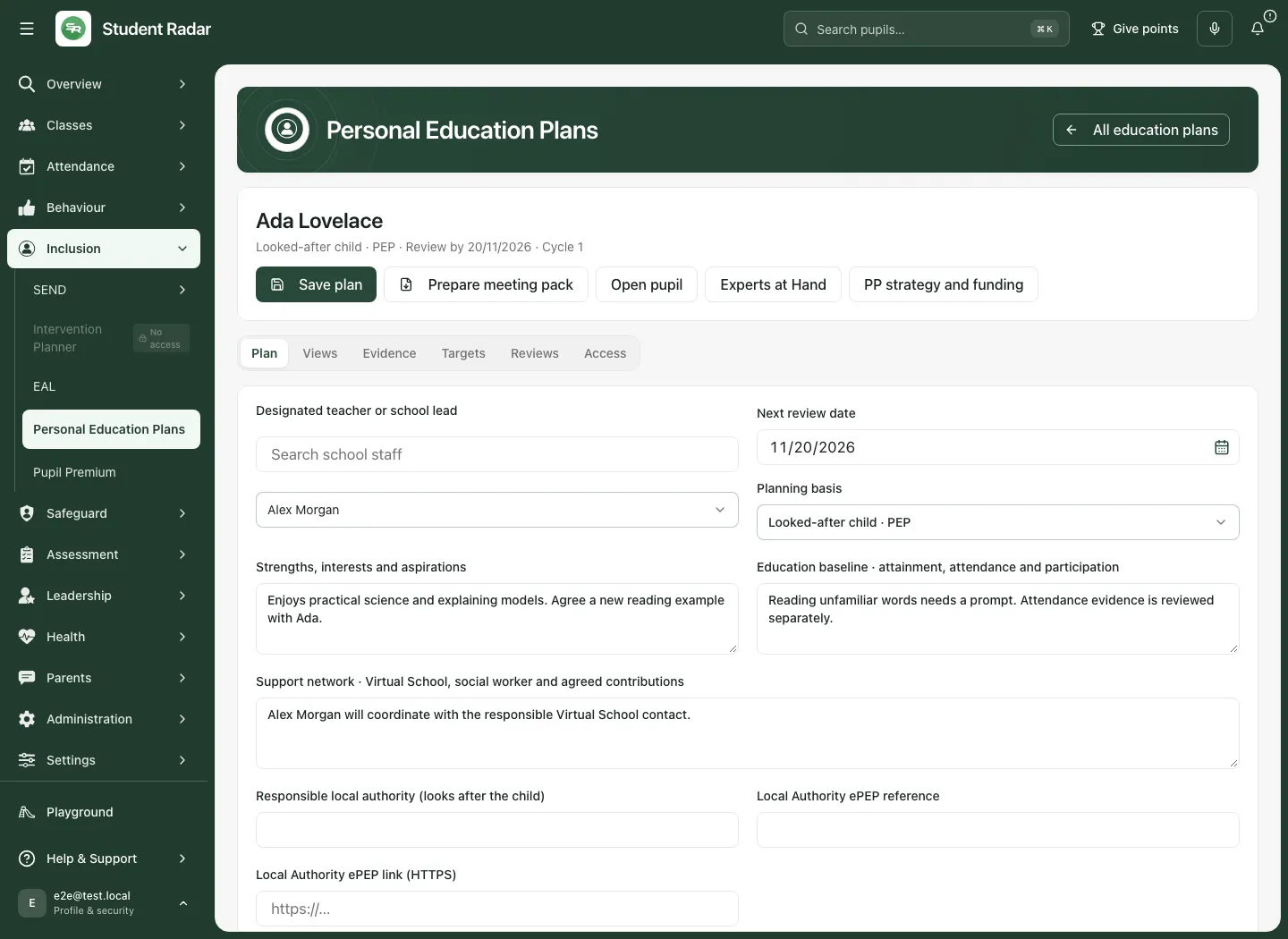
- Record Strengths, interests and aspirations, Education baseline · attainment, attendance and participation and Support network · Virtual School, social worker and agreed contributions.
- Where appropriate, enter the Responsible local authority (looks after the child) and Local Authority ePEP reference. A reference is not evidence of approval.
- Use an HTTPS Local Authority ePEP link if available. Check that it is the correct permitted destination. It remains an external process.
- Select Save plan. Check confirmation and the reloaded record. Switching sections does not by itself save your edits.
A pupil who has left has a read-only record. Closed plans also retain history rather than remaining ordinary editable active work. Use the permitted handover workflow where appropriate.
Record the child’s and other people’s views accurately
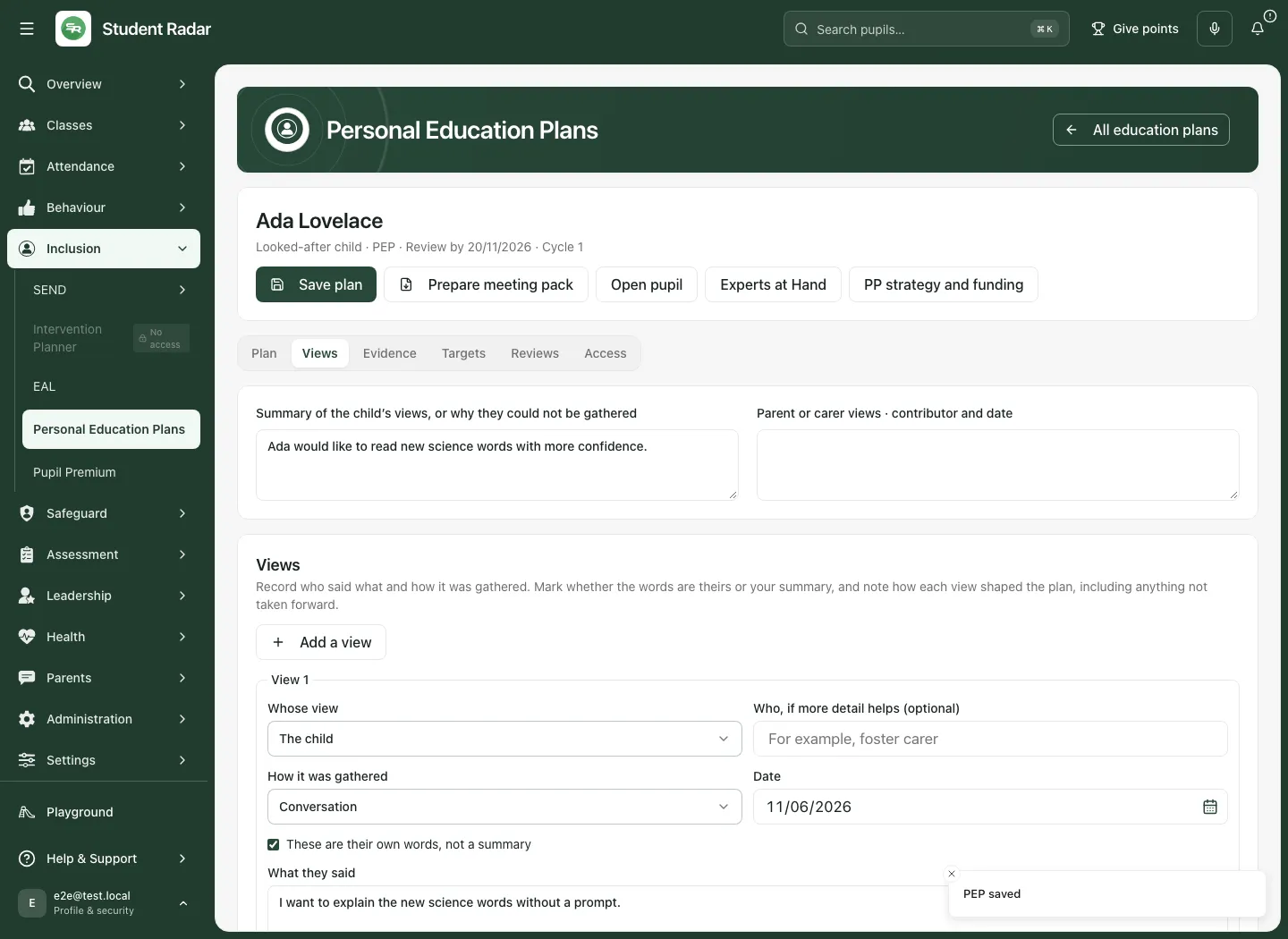
Section titled “Record the child’s and other people’s views accurately”Open Views. The short pupil/carer summaries are useful context, but attributed views preserve who said what and how it was gathered.
- Select Add a view. Choose Whose view: child, parent/carer, social worker, Virtual School, designated teacher or other professional.
- Record the speaker label where useful, when and how the view was gathered, and the person recording it. Methods include conversation, the child’s own writing, pictures/symbols, assisted communication, questionnaire and meeting.
- Enter the actual contribution. Mark whether these are the person’s own words or the recorder’s summary. Do not present interpretation or generated wording as a direct quote.
- Record how the view shaped the plan, including anything not taken forward. If views could not be gathered, record why and the next opportunity instead of inventing them.
- Use Save plan. Up to 20 attributed views can be recorded. Removing an entry from the current draft is not an instruction to erase earlier review snapshots.
Check the evidence and its window
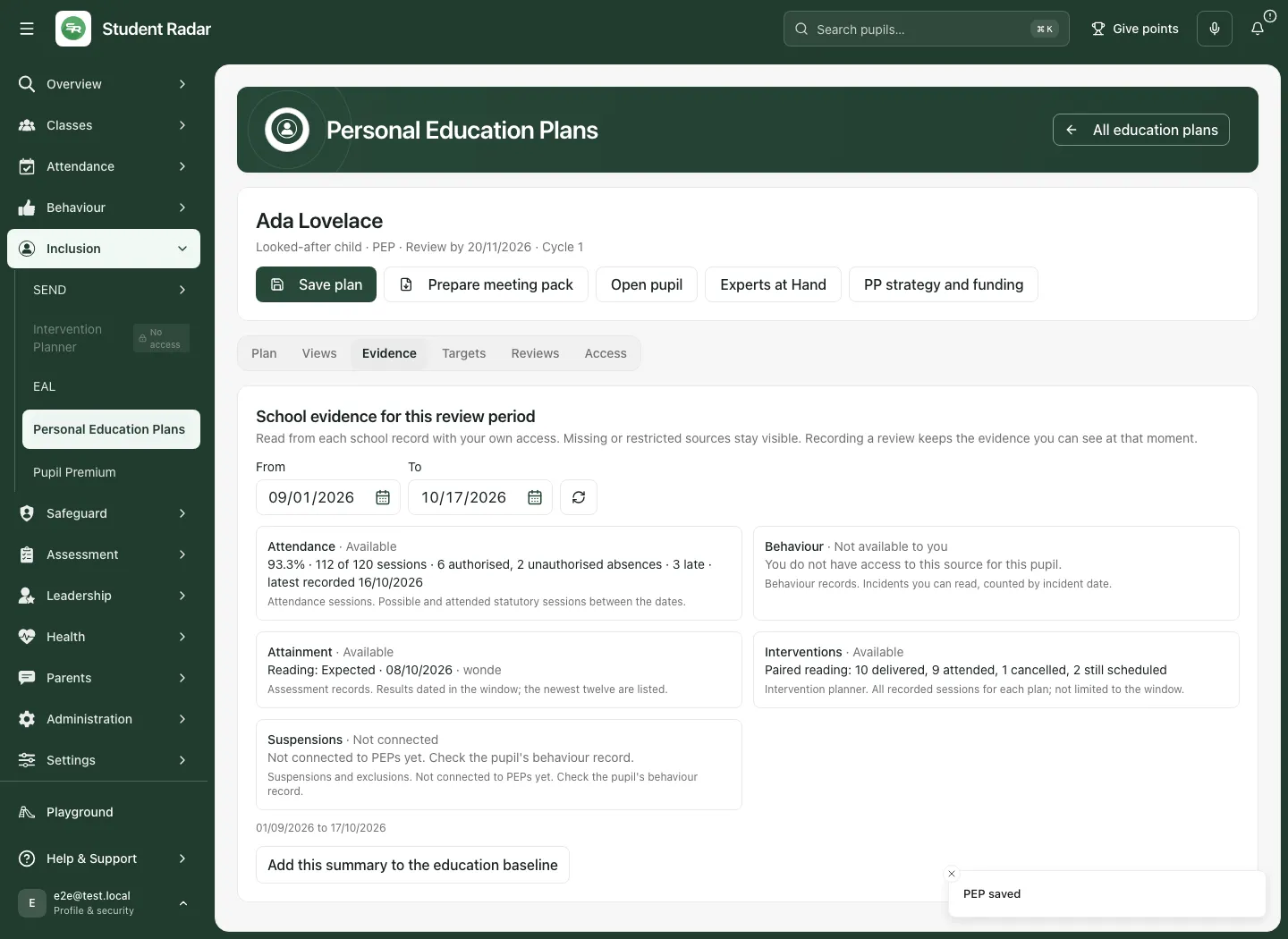
Section titled “Check the evidence and its window”Open Evidence and read the selected date window, generation time, source and method. Attendance, behaviour, assessment, intervention and suspension/exclusion sources can have different availability and scope.
- A percentage needs its possible/attended-session denominator and latest recorded date. A window with no data is different from restricted or unavailable evidence.
- Assessment lists are bounded; read the method rather than assuming the newest displayed results are every assessment.
- Intervention delivery/attendance totals can cover all recorded sessions for a plan rather than only the chosen evidence window. Do not compare unlike periods.
- Restricted evidence is not zero. A source marked not connected requires checking the appropriate original record through permitted access.
Where offered, add the evidence summary to the educational baseline. This changes your draft; review the wording and Save plan if it should be retained. It does not save an independent assessment or establish causation. A later school review retains evidence recorded at that time rather than silently replacing it with today’s picture.
Set targets, delivery judgements and PP+ amounts
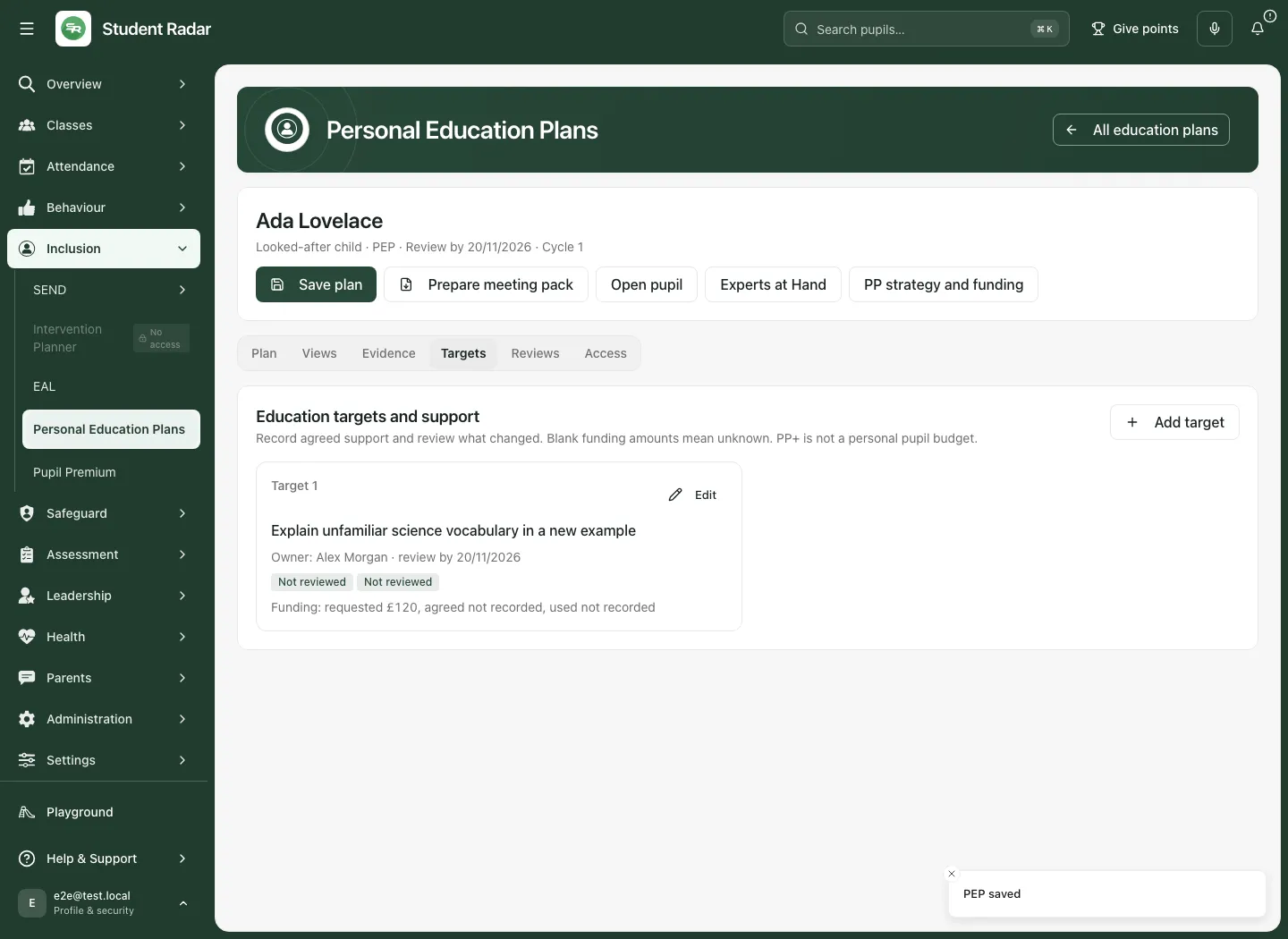
Section titled “Set targets, delivery judgements and PP+ amounts”Open Targets and use Add target or Edit target as offered.
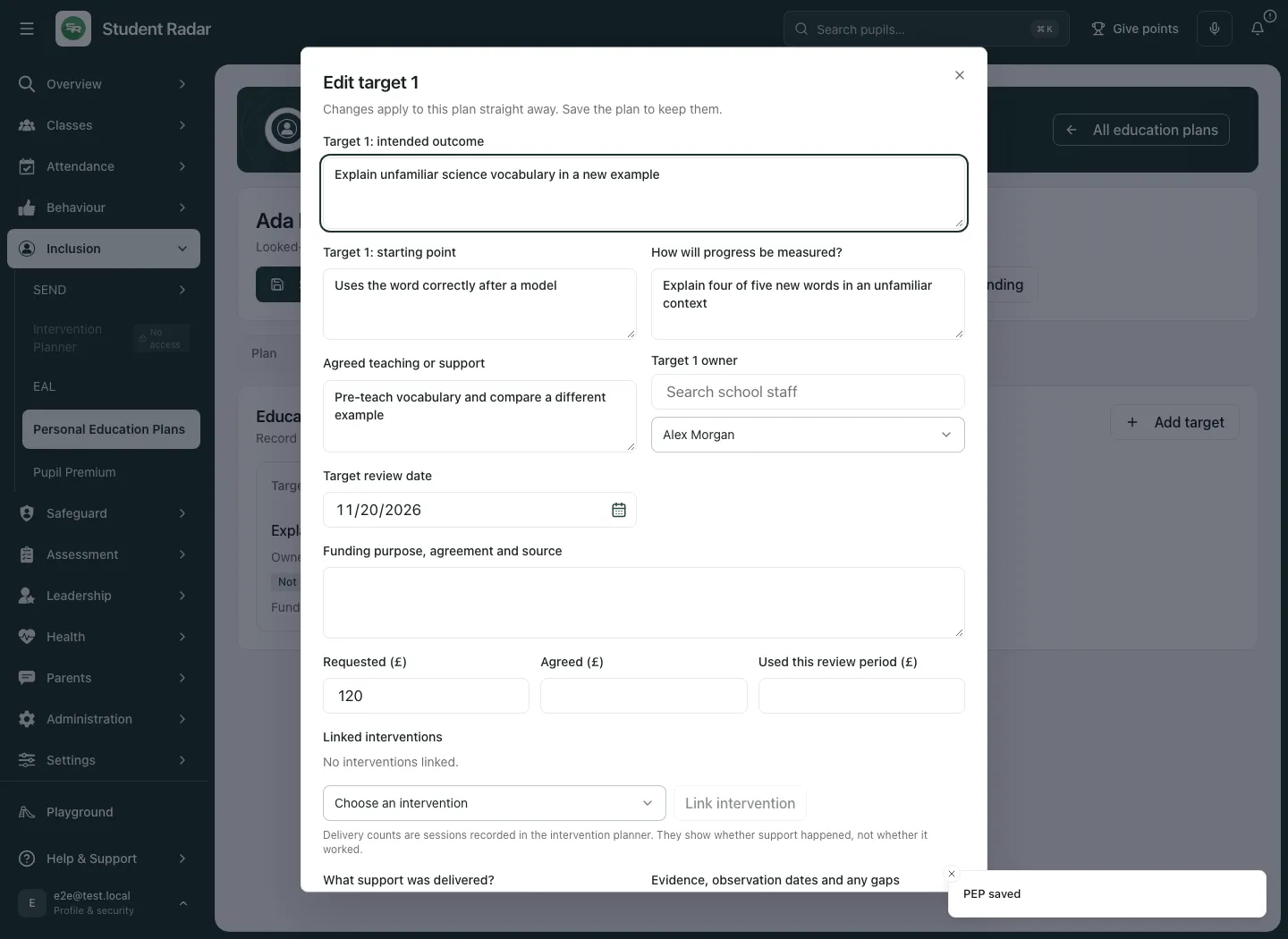
- Write the intended outcome, starting point, How will progress be measured? and Agreed teaching or support. Make the evidence needed for review clear.
- Select a current target owner and Target review date. An owner field is not a delivery receipt or unrestricted access grant.
- Record Funding purpose, agreement and source and the requested/agreed/used amounts where known. Leave an unknown amount unknown, rather than entering zero to fill a field. Requested support is not automatically agreed funding; an agreed amount is not proof it was spent.
- Where offered, link an existing intervention that actually supports this target. Its delivery remains managed by Intervention Planner. Unlink removes the current target reference; it does not cancel the intervention. A missing or inaccessible linked source must stay uncertain.
- When reviewing, record What support was delivered?, Evidence, observation dates and any gaps, Implementation and Observed outcome separately. Options include not reviewed, partly/not delivered and insufficient evidence; use the truthful state.
- Target changes apply to the current plan draft straight away. Select Done to close the dialog, then Save plan to persist the updated plan. Check the target readback. There can be up to 20 targets.
Record the school review and schedule the next one
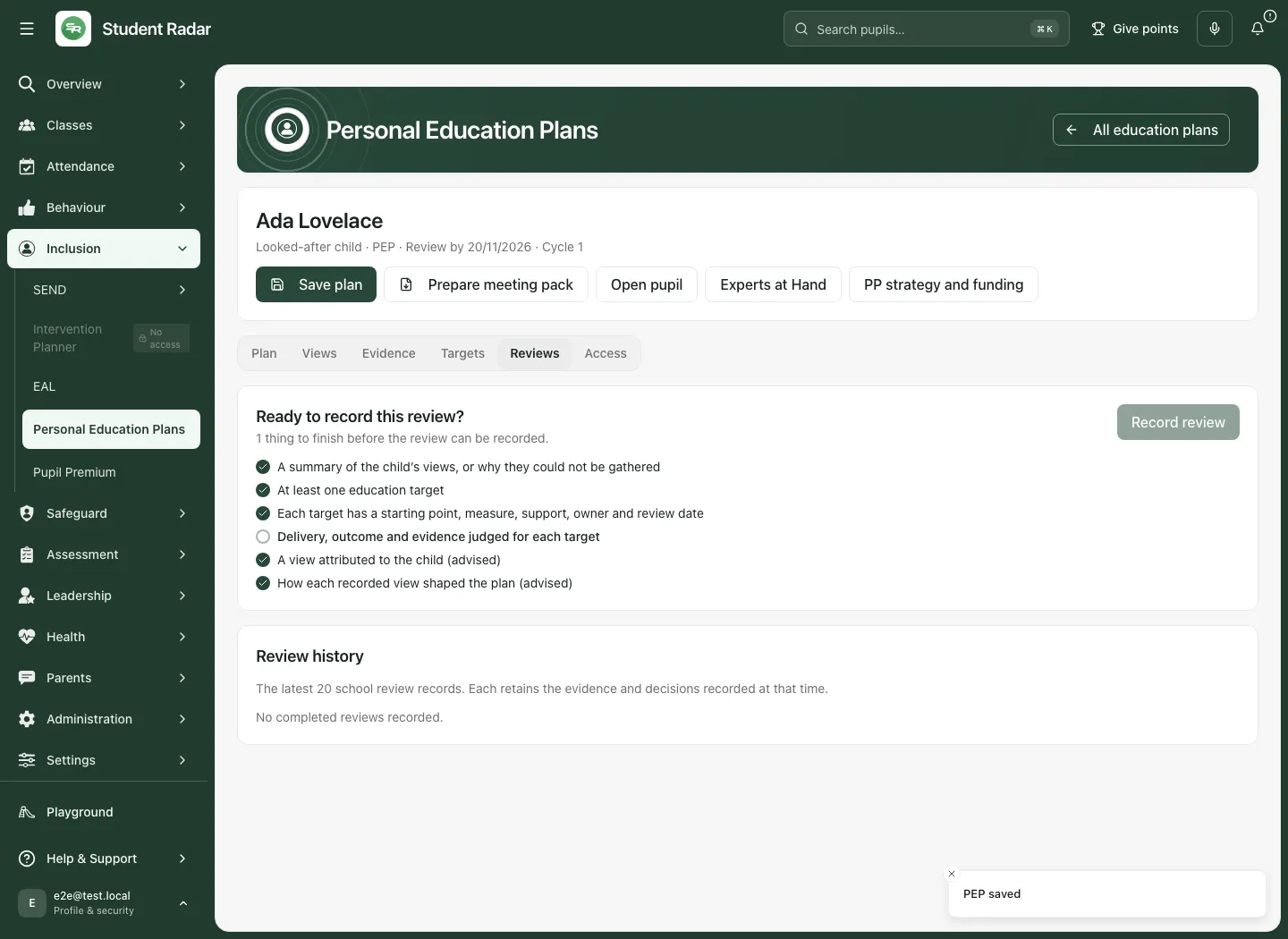
Section titled “Record the school review and schedule the next one”- Open Reviews. Read Ready to record this review? and the Review checklist.
- Finish the required pupil-view summary (or reason it could not be gathered), at least one target, target starting points/measures/support/owners/dates, and the delivery/outcome/evidence judgements. Attributed child views and influence on the plan are advised separately; a checklist tick is not evidence of Local Authority approval.
- Select Record review. Check the current plan and any evidence gaps; the review action saves the current plan with a fixed review record.
- In Record the school review, enter Review held on, which cannot be in the future. Choose Continue support, Adapt support or Seek further advice.
- Record Decision, reasons and agreed next steps. Seek further advice records the decision; it does not send a referral or contact the Virtual School.
- Set Next review after the held date and within a year of it. Select Record review and schedule next.
- Check the confirmed review and next date. The app records and schedules school follow-up; the Local Authority approval process remains separate.
Review history shows the latest 20 school review records with the plan/evidence and decisions recorded at the time. Expand the relevant cycle to inspect its child views, targets, delivery and outcome judgements. No completed review is shown in the fictional example below; the required target judgements still need work.
Prepare a meeting or handover pack deliberately
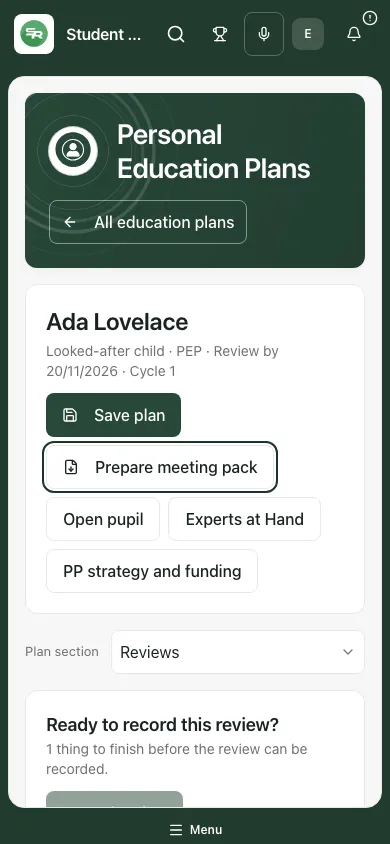
Section titled “Prepare a meeting or handover pack deliberately”Where permitted, select Prepare meeting pack (or Prepare handover pack for a leaver).
- Save changes first if the pack should contain them: it uses the last saved plan.
- Choose Who the pack is for: School PEP meeting, Virtual School and social worker, or Parent or carer. The permitted sections change with the audience; parent/carer packs omit funding and support-network sections.
- Select the necessary Sections, and enter Why the pack is needed.
- Read the selected text for contact, placement, third-party and other sensitive details. Section selection does not automatically make every sentence suitable for the recipient. Confirm I have checked that these sections contain only what [audience] should receive only after that review.
- Select Prepare and download PDF. The app records that the pack was prepared; nothing is sent. Share the checked file through the school’s usual secure route.
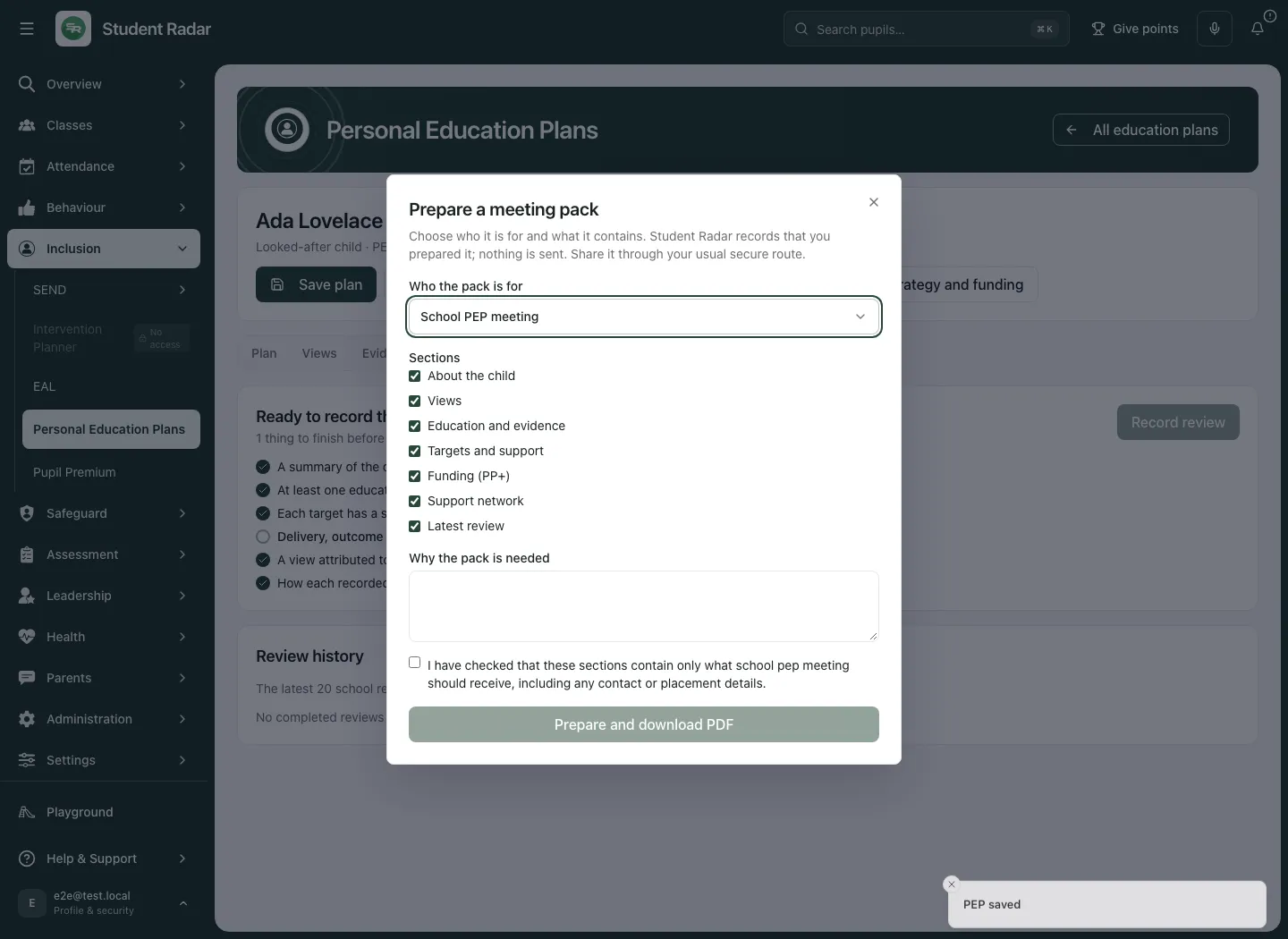
A prepared/downloaded pack is not delivery, approval or proof it was read. If a result is uncertain, use the offered retry rather than repeatedly preparing duplicate packs.
Designated teachers, access history and closure
Section titled “Designated teachers, access history and closure”In the register’s Designated teachers section, permitted readers can see the named designated teachers. Permission managers can Manage designated teachers, choose a current Staff member, optional end date and reason, and save the designation. Review the confirmation and history. Ending a designation changes that designation/access, while plans stay with the school; it is not deleting a plan or automatically transferring its ownership. Existing permissions from other sources can still apply.
The plan’s Access section is offered only with the relevant authority. It shows recorded access/preparation events, not proof that every exported file was received, understood or kept securely outside the app. A failed history refresh is not a reason to rely on earlier entries as a complete current answer.
Use Close plan only when that is the intended school decision. The confirmation asks for a reason; closing retains the plan and review history and cancels its open review reminder. It does not establish that every target was achieved, end care status or close unrelated support.
Keep drafts and permissions clear
Section titled “Keep drafts and permissions clear”A temporary network failure can keep your draft with a notice and retry. A definitive refusal of access withdraws the plan and its unsaved draft; the page explains that unsaved changes were not kept. Do not expect a refused record’s old draft to return after access is restored. Try again makes a fresh authorised read.
If a save conflicts with a newer revision, preserve necessary wording through the school’s permitted process, inspect the latest version and reapply changes deliberately. Do not repeatedly submit the old revision or create another active plan. A lead who has left the staff list must be replaced with a current colleague before saving where required.
Related: Use Pupil Premium · Use Intervention Planner · Record specialist involvement.
Common questions
Section titled “Common questions”What should I record when adding the child’s views?
Section titled “What should I record when adding the child’s views?”Retain the actual contribution and its attribution rather than presenting another person’s wording as the child’s own voice.
Does a school PEP review grant LA approval or funding eligibility?
Section titled “Does a school PEP review grant LA approval or funding eligibility?”No. The school review, authority approval, care status, funding eligibility and secure sharing remain separate processes.