Complete a safeguarding self-audit and follow up gaps
Written for: Authorised safeguarding leads, headteachers and audit reviewers.
Choose the audit framework, year and revision, then assess statements with evidence and assign follow-up for gaps. Review, sign-off, archive and later amendment are separate stages so the original signed record remains identifiable.
This is a school self-audit, not a certificate of legal compliance, an inspection judgement or proof of pupil safety. Follow the school’s current professional and governance arrangements. The screenshots use two fictional illustrative statements and a fictional school; they are not a reproduction of the installed statutory question set.
Before you start
Section titled “Before you start”Check your school and authority. Reading the audit, editing answers, presenting it for review and signing it off are separate decisions. Controls depend on current authority; a role label or audit URL does not grant access.
Gather the evidence you will actually review: current policies, training records, agreed cover arrangements, case-process evidence and the dates/versions relevant to each statement. A link to another workspace checks that target’s access separately. Do not add unnecessary pupil-identifying detail to a school-level audit.
1. Choose framework, year and revision
Section titled “1. Choose framework, year and revision”- Open Safeguard → Oversight & Assurance → Safeguarding Audit.
- Choose Audit framework: Section 175 or Section 157, according to the school’s intended audit process.
- Choose Academic year and read the current-year label. An earlier-year notice means you are reviewing that historical audit, not the current school year.
- If earlier years cannot be loaded, use Try again. Their absence from the selector does not establish there were no earlier audits.
- When offered, choose Audit revision to select the original or a particular amendment and its lifecycle state.
- Read Captured edition, its framework version and capture date. Questions frozen at audit start identifies the question set attached to that audit. A historical edition marked unverified must remain described as unverified.
- Use View original signed audit where offered to inspect the preserved signed original.
- Use Refresh audit to read current source state before continuing an older open view.
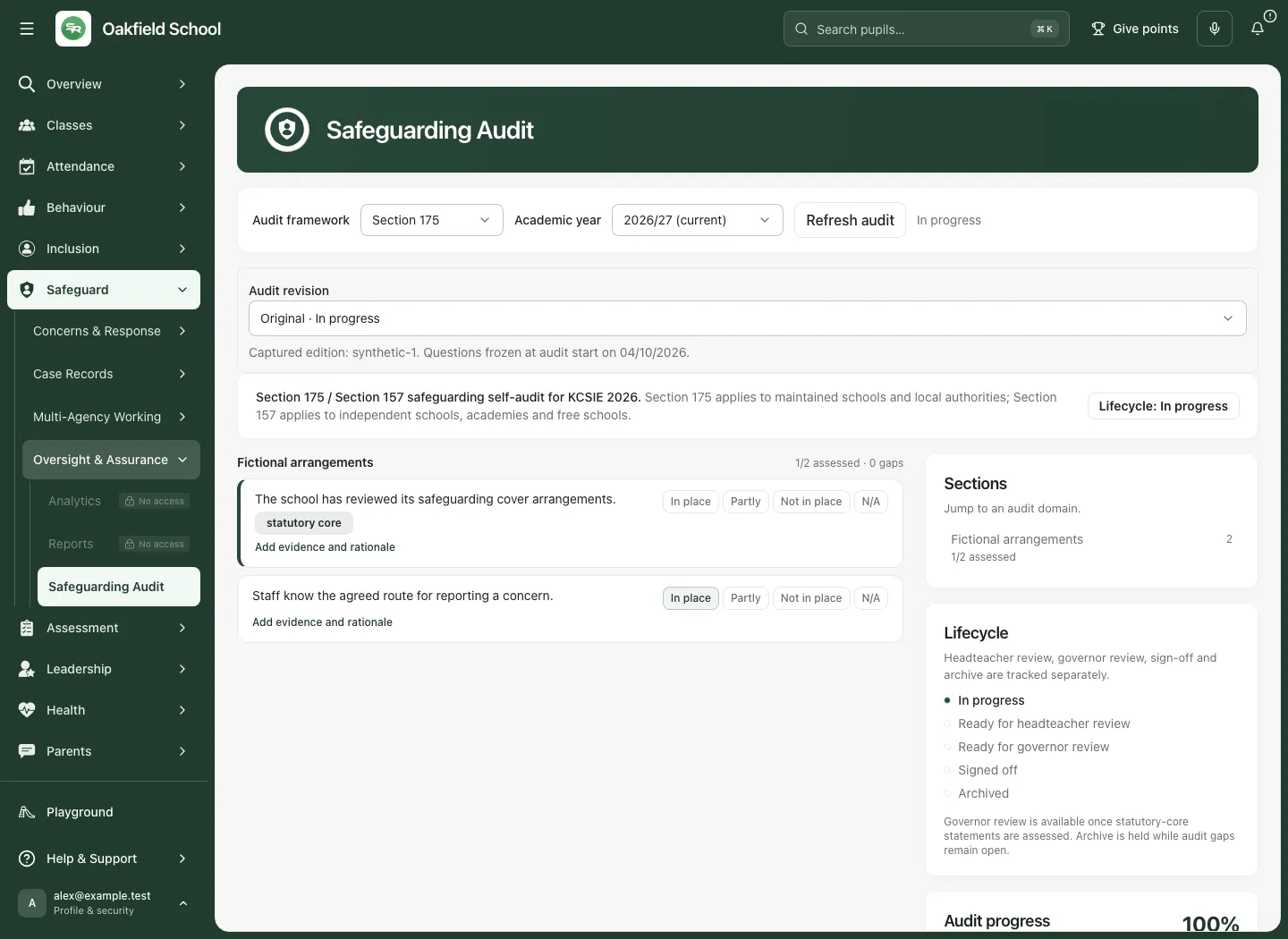
Selecting a framework/year is not a professional decision that every statement applies. Review each statement and record the actual judgement and rationale.
2. Assess a statement with evidence
Section titled “2. Assess a statement with evidence”- Read the entire statement, its section and any source reference or linked/merged-statement note.
- Review the actual supporting evidence. Where available, use the specifically named evidence link, such as Open DSL actions, Open chronology evidence, Open transfer evidence, Open multi-agency evidence, Open reporting evidence, Open metrics evidence, Open policy evidence or Open SCR evidence.
- Select In place, Partly, Not in place or N/A according to the professional assessment.
- Selecting a rating sends that answer for saving. Read the confirmed source state; a pressed button alone is not proof the server accepted it.
- Activate the selected rating again only if you intend to clear it to unassessed.
- Open Add evidence and rationale where the fields are collapsed.
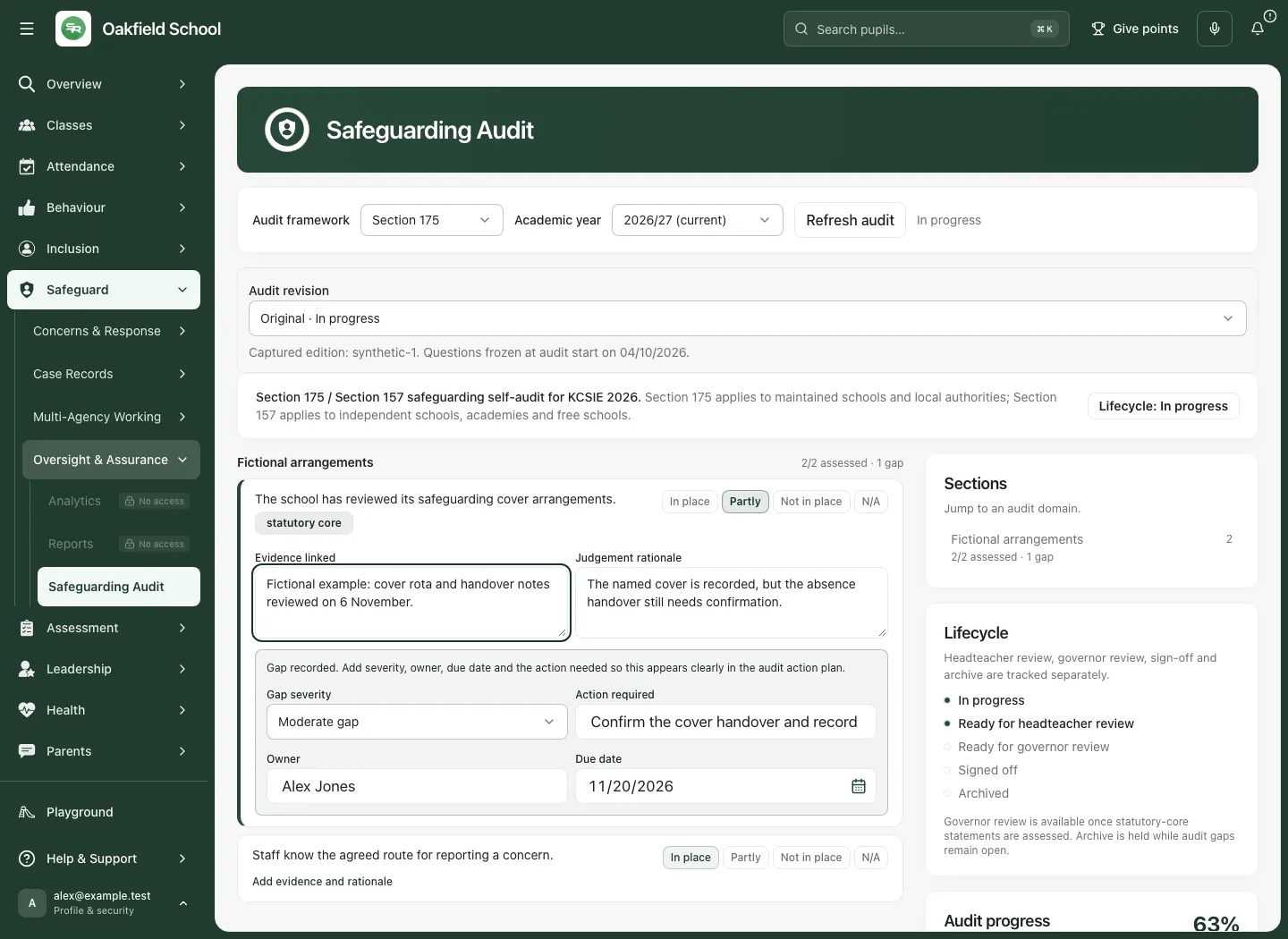
- Complete Evidence linked with useful evidence references and versions, and Judgement rationale with why the judgement is justified.
- Leave the field, for example by moving to the next field, to trigger its save. Wait for the result before relying on the saved answer or leaving the audit.
A pasted evidence reference is a record of what was reviewed; it does not upload, authenticate or grant access to the referenced source. Do not use N/A to hide missing evidence. Explain why a statement does not apply under the school’s review process.
3. Turn a gap into owned follow-up
Section titled “3. Turn a gap into owned follow-up”Partly and Not in place show a gap section and contribute to the action plan.
- Read the recorded gap and choose Gap severity: Low gap, Moderate gap, Significant gap or Immediate action required.
- Enter Action required as a practical next step. Make the intended evidence or review outcome clear.
- Enter Owner and Due date. The owner field records the named audit responsibility; it is not itself an invitation or proof the person has accepted a task.
- Leave each edited field to save it and wait for the current result.
- Read the Action plan to check the gap, severity, action, owner and due date together.
- Arrange the real handover and carry out the work using the school’s approved process. A saved action or an improved rating does not establish that the safeguarding arrangement now works.
- After completing the follow-up, review the supporting evidence again before changing the judgement.
4. Reopen and confirm the saved answer
Section titled “4. Reopen and confirm the saved answer”- Return to the same framework, academic year and revision.
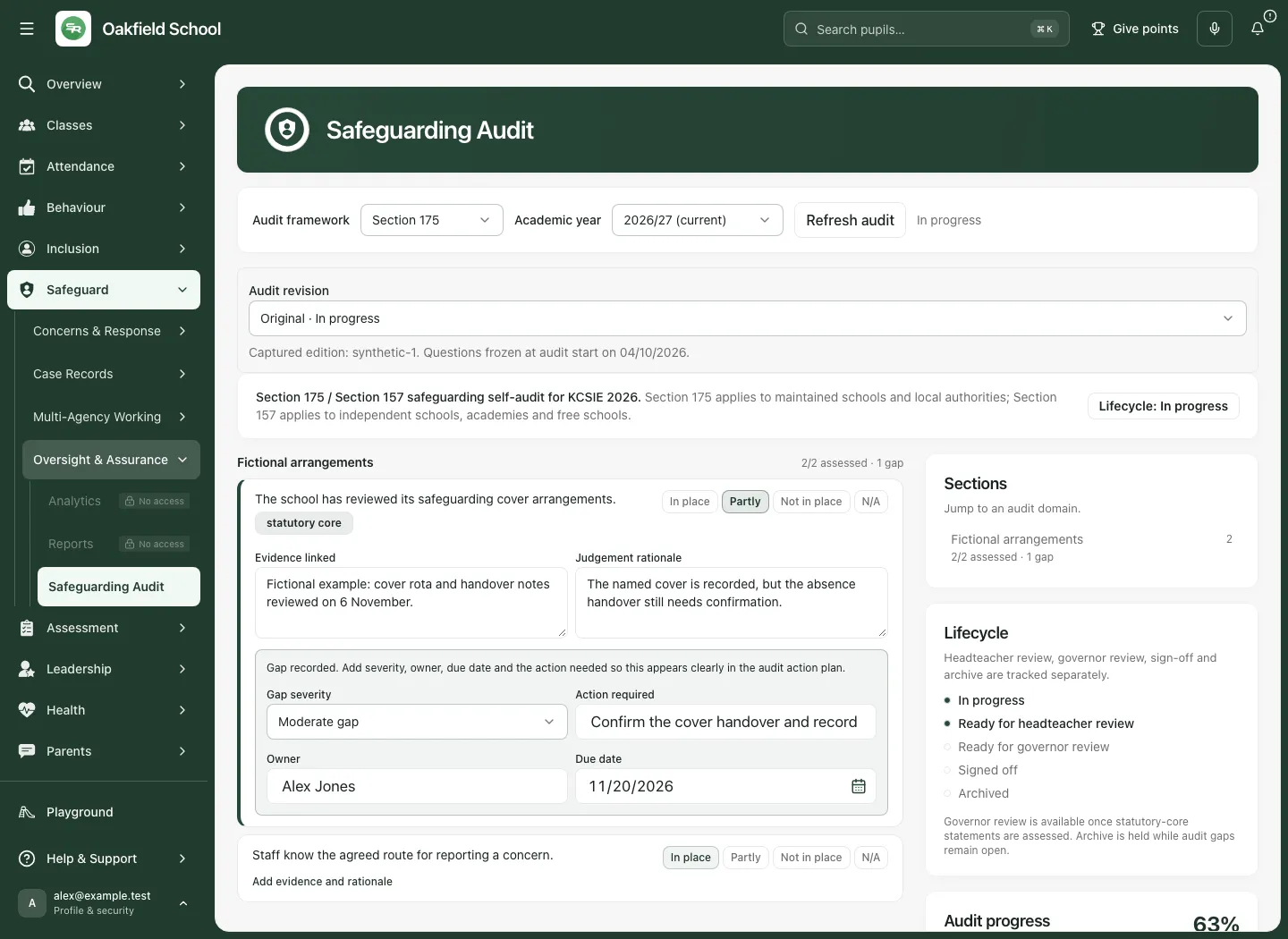
- Read the saved rating, evidence/rationale and any gap action, owner and due date.
- If a value is missing, check save failures and current source state before re-entering it.
- Keep a field that remains a local draft distinct from a confirmed saved answer.
Handle a changed answer without losing the draft
Section titled “Handle a changed answer without losing the draft”If another source change conflicts with your edited field, the card says Saved answer changed. Your unsaved draft is preserved. Review the latest saved answer before retrying.
- Read the latest saved evidence, rationale, action, owner and due date shown in the conflict message.
- Compare that source with your draft and the actual evidence.
- Choose Use reviewed draft for next save only when you have reviewed and intend to retain your draft against the current saved answer; then leave the field to save deliberately.
- Choose Use latest saved answer when the current source should replace your local draft.
- Do not keep clicking ratings while saving is paused or source authority is being refreshed. Read the confirmed source before another judgement.
A conflict is a reason to review the substance, not merely to dismiss a warning. An unconfirmed command needs the displayed recovery process before a competing change.
5. Read progress, score and the action plan
Section titled “5. Read progress, score and the action plan”- Read Audit progress, the assurance score, Assessed count and Gaps count together.
- Check the section-level assessed count and score. The score is weighted by the framework; it is not simply a percentage of all possible controls proved effective.
- An unassessed item is different from N/A, and missing evidence is different from a justified in-place judgement. A high score can coexist with unassessed statements or important gaps.
- Read Action plan, which lists recorded gaps by severity. Check the number shown against the recorded-gap count; a bounded list is not an unrestricted view of all school work.
- Use Sections to jump to an audit domain, then read the actual statements behind any aggregate.
- If a prior signed-audit comparison is shown, read its academic year and any prior edition unverified qualifier. A score change across editions or coverage is not a direct measure of improved safeguarding practice.
6. Present the audit for governor review
Section titled “6. Present the audit for governor review”The Lifecycle panel distinguishes In progress, Ready for headteacher review, Ready for governor review, Signed off and Archived. Readiness is not the same as completed review.
- Assess every statutory-core statement required by the current frozen framework.
- Review the rationale, evidence, gaps, ownership and due dates under the school’s headteacher-review arrangements.
- When the control is available, choose Create governor summary.
- Wait for the recorded Ready for governor review state and inspect the actual summary/export as appropriate.
- Present the evidence and unresolved gaps through the authorised governance process. The status does not itself prove governors received or read it.
The button is unavailable until the statutory-core statements are assessed. Do not select arbitrary ratings merely to enable it. Archive is held while gaps remain open, even where other review stages have been reached.
7. Sign off, reopen or create an amendment
Section titled “7. Sign off, reopen or create an amendment”Sign off after the actual review
Section titled “Sign off after the actual review”- Open the intended audit in Ready for governor review.
- Check that the professional and governance review has actually been carried out under the school’s arrangements.
- The authorised headteacher can choose Sign off where offered.
- Wait for the confirmed signed state and time. A refusal or uncertain result is not sign-off.
- Preserve the signed original. Later corrections use the amendment workflow rather than silently overwriting it.
Reopen a review-stage audit
Section titled “Reopen a review-stage audit”- For an audit in the governor-review stage that needs more work, enter Reason for reopening.
- Choose Reopen.
- Read the returned state and review the current source before editing. The reason records why that review-stage decision changed.
Amend a signed or archived audit
Section titled “Amend a signed or archived audit”- Select the intended signed/archived revision and read its lineage.
- If Open current amendment is offered, use it to continue the existing in-progress/review amendment rather than creating another.
- Otherwise enter Reason for amendment and choose Create amendment when available on the current eligible revision.
- Read the new revision, original audit reference and amendment reason.
- Carry out the needed evidence review and corrections in that amendment, then follow its own review/sign-off process.
- Use View original signed audit to compare with the preserved original.
An amendment is a new reviewable revision. It does not retroactively change what the original signed audit said or when it was signed.
8. Archive after resolving the gaps
Section titled “8. Archive after resolving the gaps”- Open the intended Signed off audit.
- Read the gap count and action plan. Archive is disabled while open audit gaps remain.
- Resolve necessary changes through an authorised amendment and its review process, preserving the original signed record.
- Choose Archive only when the control is available and the school’s retention/review process calls for it.
- Wait for the actual archived result. Archiving is not deletion, disposal or evidence that no further safeguarding work is needed.
9. Export an Audit PDF or Word report
Section titled “9. Export an Audit PDF or Word report”- Check the framework, academic year, revision, captured edition and lifecycle state.
- Review ratings, evidence, rationale, gap actions and any historical-edition limitation.
- Choose Audit PDF or Word report.
- Wait for the actual file result. The export reads an authorised audit bundle and records the export event; a click is not a downloaded file.
- Inspect the exported content and its revision/provenance before using it for the headteacher or governor review.
- Store/share it through the school’s approved process. Exporting does not send it or establish recipient review.
Do not use an old exported version as a replacement for reading the current audit or amendment. An editable Word file needs appropriate review if changed outside the application.
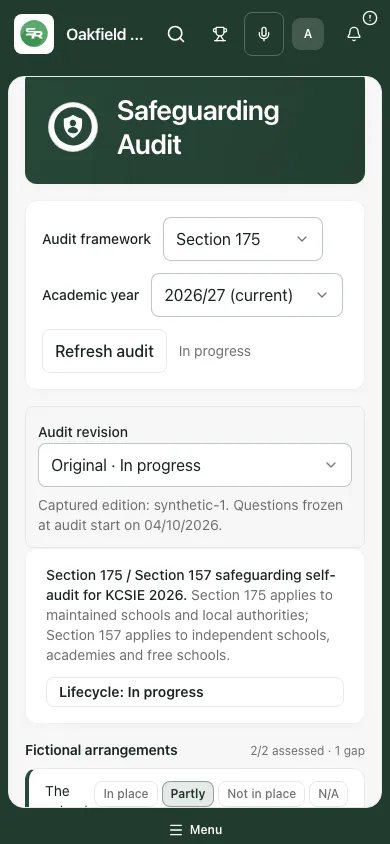
10. Complete the same review on a phone
Section titled “10. Complete the same review on a phone”- Choose the correct framework, year and revision before editing.
- Read the full statement and use the text-labelled rating controls.
- Expand evidence/rationale or gap fields and move out of each field to save it.
- Check the returned source state and action plan before leaving.
- Keep the screen private and finish or explicitly resolve a conflicted draft before handing over the device.
Troubleshooting
Section titled “Troubleshooting”| Situation | What to do |
|---|---|
| Audit or earlier years unavailable | Retry the offered source read. Missing years are not confirmed absent audits. |
| Controls read-only | Check lifecycle, demo state and current authority. Signed records use authorised amendments. |
| Rating will not apply | A source refresh/conflict may pause judgement. Review the current answer and resolve the draft. |
| Text appears unsaved after returning | Check the field-leave save, error and exact selected revision before re-entering it. |
| Governor summary unavailable | Assess the required statutory-core statements after reviewing actual evidence. |
| Sign-off refused | Current authority or source state did not permit the transition; do not mark it signed elsewhere. |
| Archive disabled | Review open gaps and use an authorised revision for the necessary corrections. |
| Historical edition unverified | Keep the qualifier in comparisons and exports; do not claim an exact historical framework match. |
| Conflict message | Compare saved and local values, then choose the explicitly reviewed-draft or latest-saved option. |
Frequently asked questions
Section titled “Frequently asked questions”Is 100% a compliance certificate? No. It is an assurance score from recorded judgements and the framework’s scoring, with assessment coverage and evidence still needing review.
Does an audit Owner field assign a task or send a message? It records responsibility in the audit action plan. Arrange the actual handover and work separately.
Can I clear a rating? Activate the selected rating again to return it to unassessed, then confirm the saved state.
Can I overwrite a signed original? Use the amendment workflow and preserve the original signed record and lineage.
Does Create governor summary send it to governors? No. It records the review-stage transition; distribution and human review are separate.
Where can I review supporting records? Use DSL Action Board, Chronology, Record Transfer and Multi-Agency as permitted. See Analytics and Reports for the separate figures and report workflows.