Review staff access and manage permitted changes
Inspect the colleague’s effective pages and actions before preparing a specific access change, role decision or preset update. Pages and actions are different controls. Showing a page does not by itself authorise every action or grant access to every pupil on it.
The fictional example uses Jamie Reed’s teacher account. The screenshots show the matrix and available choices without saving a permission, role or preset change. They demonstrate the interface, not a live school’s access decision.
1. Confirm school and management authority
Section titled “1. Confirm school and management authority”Open Access under Settings. The page checks current permission-management authority and separate server admission before reading staff access. A failed admission check stays closed and offers retry; it is different from a confirmed refusal.
Check the school, colleague’s linked account and intended job before editing. Directory-only staff without an account cannot receive account overrides here. Family/pupil profiles are excluded from the staff matrix; use the owning relationship controls for them.
Choose the smallest supported permission for the actual duty. A context link, role label or visible row does not prove source access. Source workflows still check current school, capability, scope and object relationship.
2. Choose People, Roles or Presets
Section titled “2. Choose People, Roles or Presets”- People is for an individual colleague’s current effective access and specific choices.
- Roles changes the school’s starting access for everyone with that role.
- Presets defines reusable choices you can give to named colleagues.
Read the page’s edition/jurisdiction availability. Different establishments can have different permitted pages and role ceilings. A generic all-page bundle cannot bypass those limits.
3. Find a person and area
Section titled “3. Find a person and area”- Open People and use Find staff for the colleague’s name, email or role.
- Confirm the linked account and role. A person with No Student Radar account yet needs the appropriate staff invitation/account route first.
- Use the Areas navigation to select the relevant part of the school workspace, or All areas for the wider matrix.
- Use the page/action search in the area navigator to find the actual control. Read its requirements rather than enabling an unrelated broad role.
- Use Previous/Next to inspect other staff pages. The displayed staff page is bounded.
- Read the cell legend and each cell’s description before deciding.
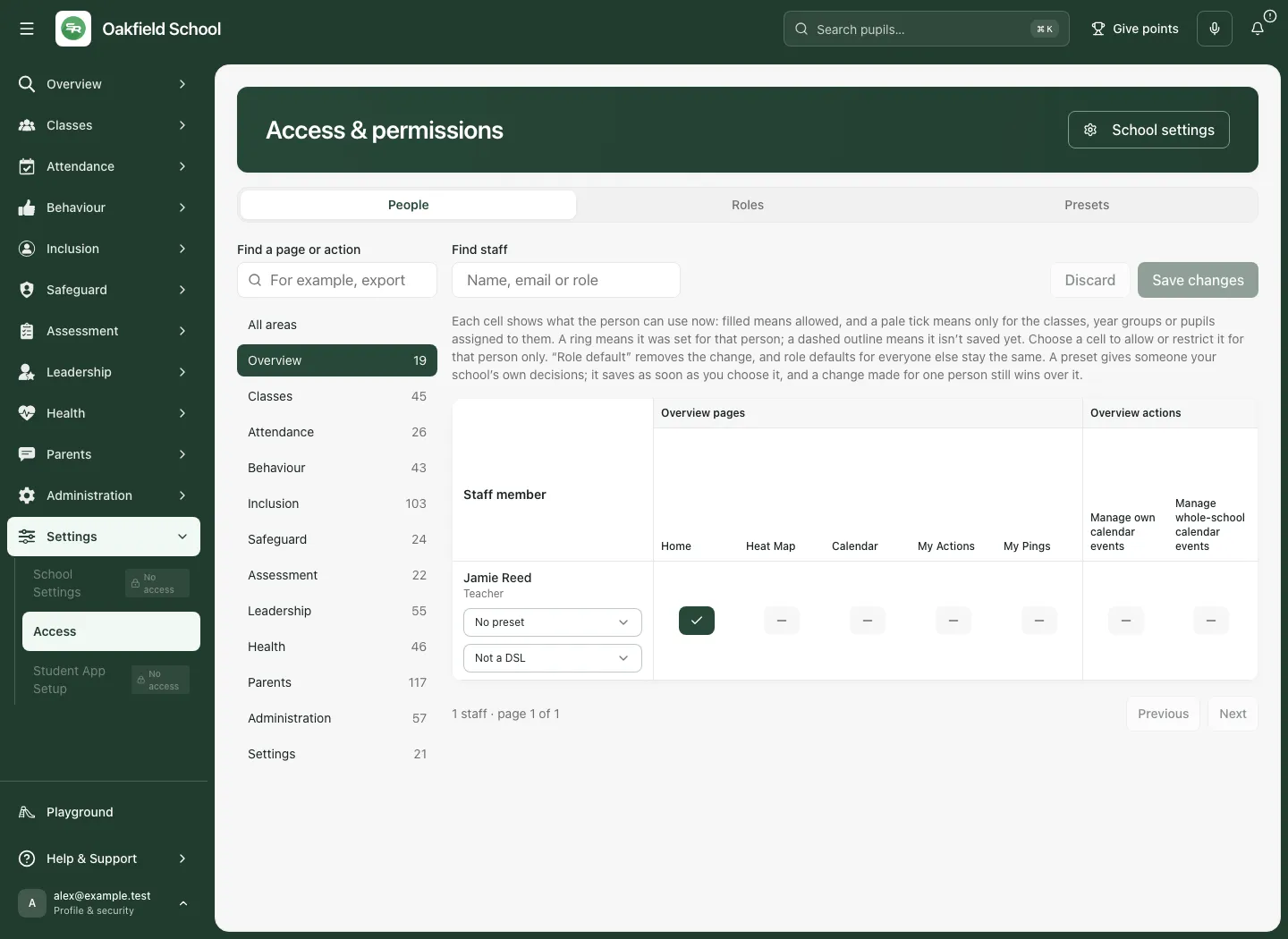
The cell shows effective use now: a filled tick indicates allowed access; a pale tick indicates permission limited to assigned classes, years or pupils. A minus indicates not allowed. Unknown/loading/refused reads must not be treated as a confirmed denial or permission. Use the named Try loading [person]’s access again control for a failed read.
A colleague whose active school is elsewhere can have unavailable page-access information even while action permissions can be read. Do not fill unknown page cells with an assumed result.
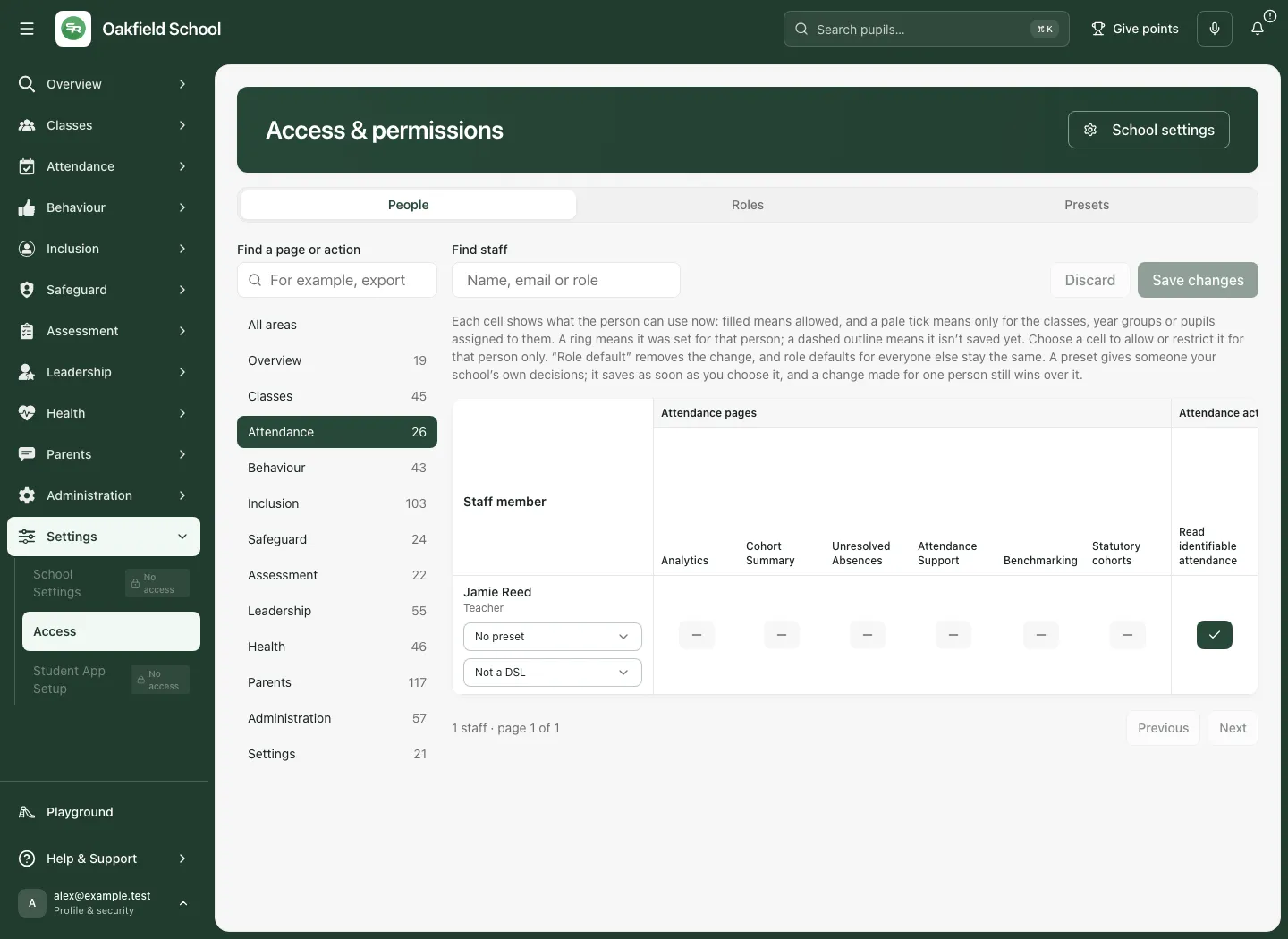
4. Prepare a personal page or action change
Section titled “4. Prepare a personal page or action change”- Open the intended person’s cell. Check both the person and the page/action name in the menu.
- For a page, choose Role default, Show page or Hide page, according to the actual current source/preset label offered.
- For an action, choose the default/inherit option, Allow or Don’t allow.
- Read any requirement or role-ceiling message. A page outside the person’s allowed role cannot simply be forced on by a personal choice.
- Review the marked cells and N unsaved changes. Changing a menu choice is a local draft until saved.
- Use Discard to abandon those local choices, or Save changes after the complete intended set has been reviewed.
- Read the actual save result. It can say changes were saved for some people while others could not be saved.
- Reopen/refresh the intended person and inspect effective access. Do not claim the result solely from the draft marker or a successful save for a different row.
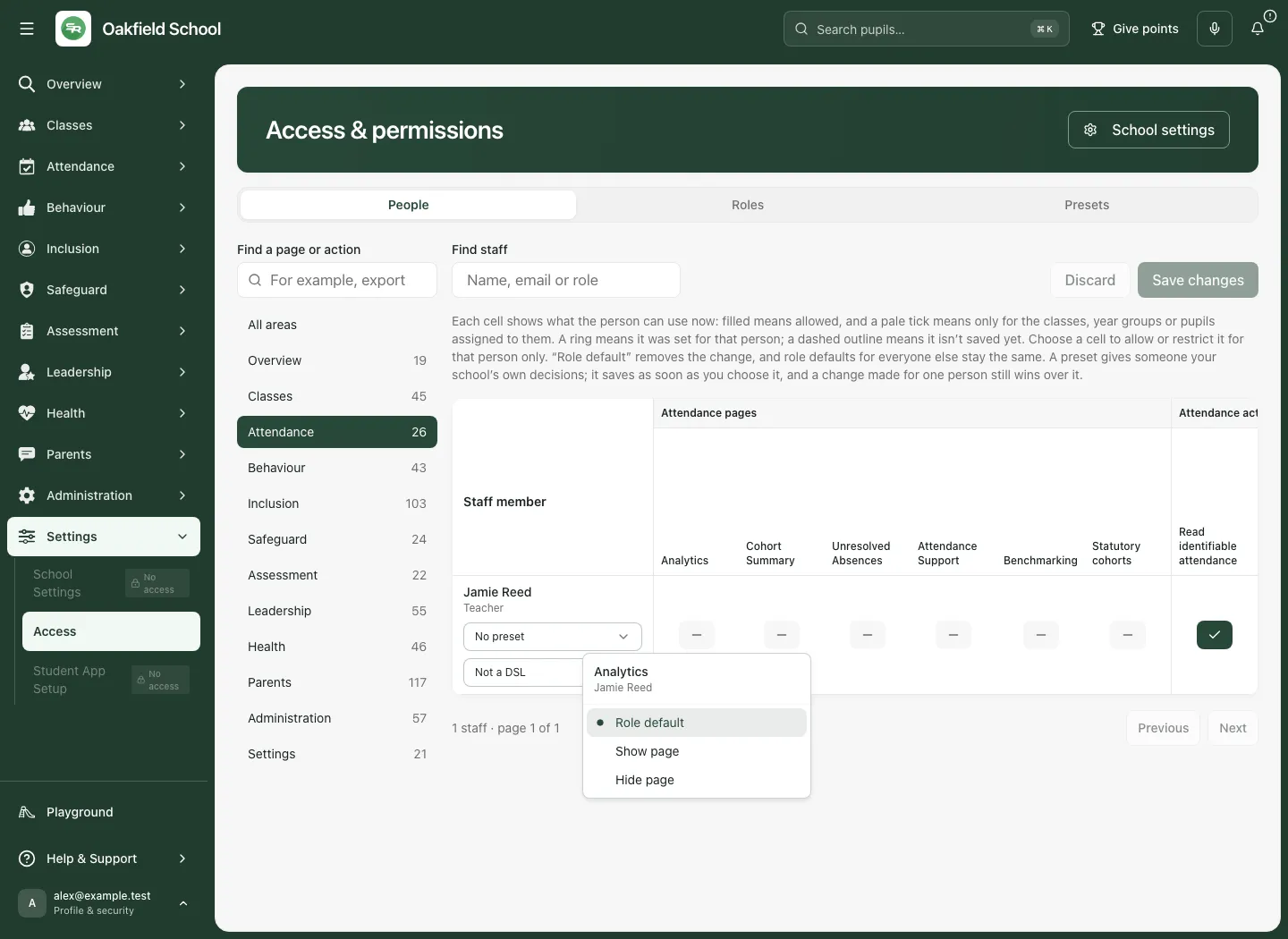
Default/inherit removes this layer’s deliberate choice; it does not mean universally allowed or denied. Existing role, preset, invitation and personal decisions can all affect the final answer. A source-specific deny or role boundary can remain in force. Review the effective cell after saving.
5. Respect protected decisions
Section titled “5. Respect protected decisions”The matrix explains blocked cells, including:
- You can’t change your own access.
- No account yet.
- Student Radar support accounts managed by Student Radar.
- The head’s protected access, which only the head or Student Radar support can change through the authorised boundary.
- Admin-only pages, which only admins can change.
- Pages outside the person’s permitted role, and permissions managed elsewhere.
Do not create a preset or change a broad role to evade a blocked personal cell. The same server boundaries still govern saving, applying a preset and making the actual source action.
Pupil scope is also separate: a pale/scoped tick is not whole-school pupil access. Review the colleague’s assigned years/classes and source relationships, using Staff when appropriate.
6. Review a safeguarding-role change
Section titled “6. Review a safeguarding-role change”Where the named person’s Safeguarding role control is offered, Not a DSL, Deputy DSL and DSL are substantive role decisions, not simple page visibility preferences.
- Check the intended person’s current role and the school’s approved responsibility.
- Select the proposed safeguarding role where your authority allows it.
- In Review staff access change, read Current access, the proposed permission/staff role and the reviewed assignment list.
- Confirm that existing assignments and their scopes will be handled as intended.
- Choose Save reviewed change only after that review. If a retained command needs confirmation, use Retry save unchanged.
- If current access changed elsewhere, reload/review the latest state before another decision.
Giving a page or action does not appoint a person to a safeguarding role. Conversely, changing a safeguarding role must not be described as just showing one menu item. Elevated-role and head protections still apply.
7. Review the school’s starting roles
Section titled “7. Review the school’s starting roles”- Open Roles and read the current starting-role list and edit counts.
- Choose Change the [role] role, or View the [role] role when it is locked.
- Inspect the pages/actions by area, including protected entries and the school’s existing changes.
- Choose the default/allow/deny state for each intended item. The role editor’s defaults are distinct from a personal override.
- If using Start from another role, select the source and wait for its permitted choices to load. It copies what that role allows at this school only where the target role may have it. Nothing changes until saved.
- Review every copied/changed area before applying the role-wide decision.
- Choose Save role. The result applies to everyone with that role at this school, subject to other effective access rules.
- Check representative named people in People after the save, including people with personal/preset differences.
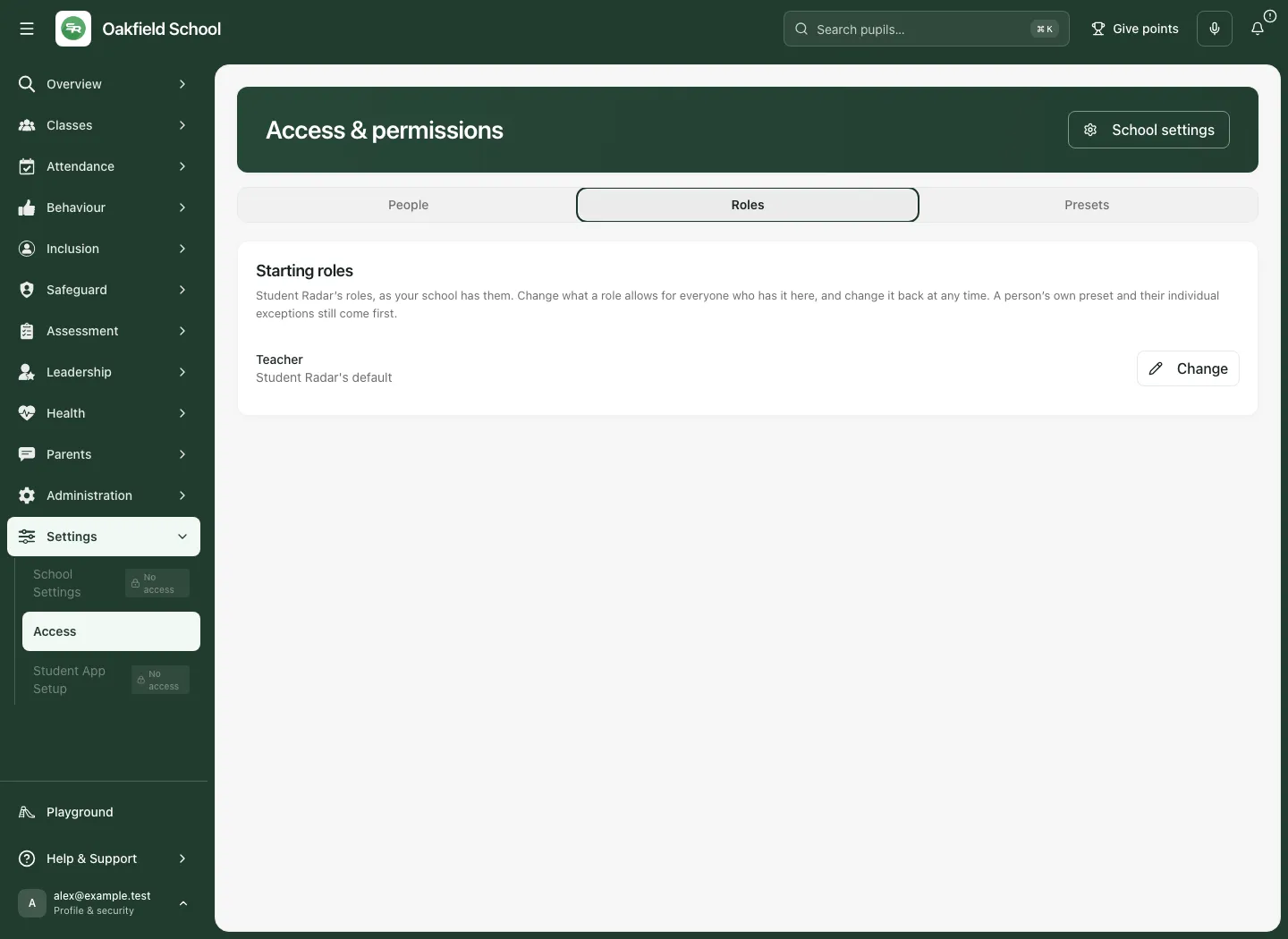
To remove the school’s entire set of edits for a role, use Change all back. Read the confirmation that everyone with that role gets Student Radar’s default straight away; use Keep changes to cancel or Change all back to confirm. This is broader than changing one page and is not a way to silently clear personal choices.
Own-role, protected-head and admin-only restrictions remain visible. Do not present a locked role as an editable blank template.
8. Create a reusable preset
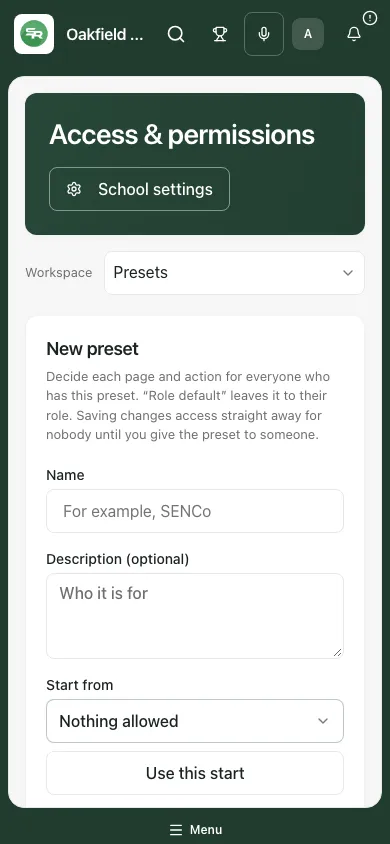
Section titled “8. Create a reusable preset”- Open Presets and choose New preset.
- Enter Name and Description (optional) that explain the actual duty.
- Review Start from. Where offered, choose a blank/default starting point, a role, a copy of a preset or a named Colleague’s effective choices.
- Read the preview of what was copied. Choosing a starting point does not grant the preset to anyone.
- Use the area navigator/search to review each page and action. Role default leaves it to the recipient’s role; explicit allow/deny choices form the preset.
- Choose Create preset and check the saved definition.
- Give it to the intended colleague using Preset for [person] in People, then review that person’s effective access.
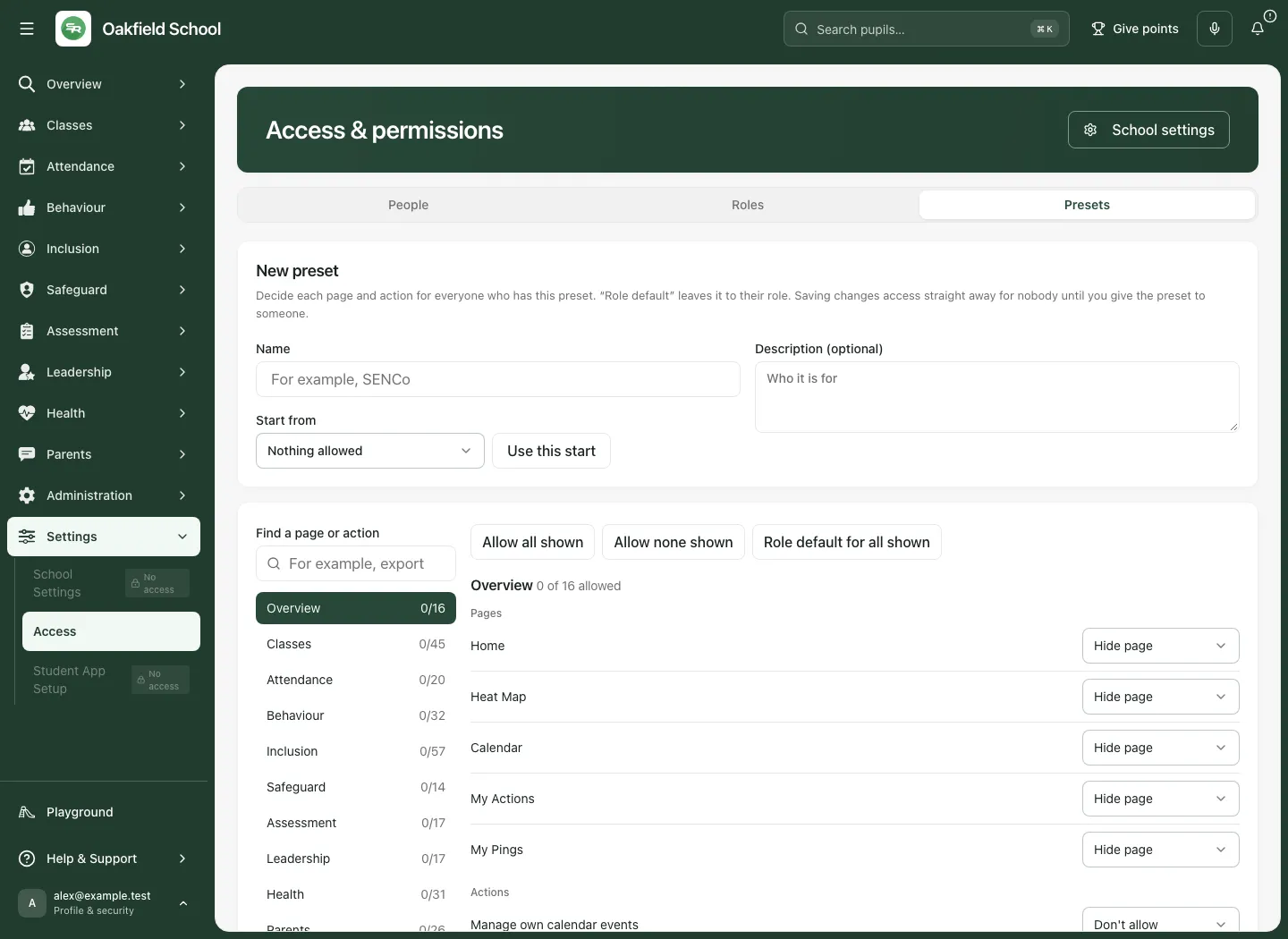
A new preset changes nobody’s access until it is assigned. Editing an existing preset is different: Save preset changes the choices for everyone currently using that preset straight away. Review the member count and list before saving a broad edit.
Use the named Copy [preset] action for a new independent draft, rather than changing an existing preset merely to experiment. To delete, use Delete [preset] and its confirmation. Move everyone off a preset before deleting one that is in use. Admin-only content and protected targets can restrict who may assign/remove a preset.
9. Check the outcome and own the follow-up
Section titled “9. Check the outcome and own the follow-up”After an authorised change, check the exact school and person again. A save can alter the role/preset/personal layer while the final source action remains limited by pupil scope, role ceiling, explicit deny or source authority.
Keep a record of the real duty and review date through the school’s approved process. Ask the colleague to confirm the intended workflow using their own account; do not share credentials or assume an administrator’s view proves their access. When a colleague leaves or changes duties, review the account relationship as well as any role/preset changes.
Troubleshooting
Section titled “Troubleshooting”Checking access fails. Retry current admission. Do not treat a failed check as permission or a confirmed policy refusal.
The person is missing. Check search/pagination, linked school staff account and current school. Non-staff and hidden support identities are intentionally not general staff targets.
The cell is unknown. Reload that person’s effective access. Do not save an assumed value over an unavailable read.
Show page is unavailable. Read the role/admin-only/protected boundary. A preset or personal allow cannot bypass it.
A pale tick appears. The action is scoped to assigned people/groups rather than unrestricted school access.
Some people saved and others failed. Read the per-person outcome and current effective state. Do not repeat successful changes blindly or call the whole batch a pass.
A role/preset change affects more people than expected. Review its membership/scope before saving. Roles and existing presets are shared school decisions, not personal drafts.
A colleague still cannot perform the source action. Check the exact action, pupil/object scope and source authority, rather than merely whether the page is shown.
Questions schools often ask
Section titled “Questions schools often ask”Does Show page allow every action on it? No. Page visibility and action capability are separate.
Does Allow mean every pupil? No. The effective permission can be scoped and the source still checks the relationship.
Does Role default mean allowed? It means this layer follows the relevant default; review the resulting effective answer.
Can I change my own access here? The matrix blocks self changes.
Does a new preset affect people immediately? Not until it is assigned. Editing a preset already in use can affect all its members.
Can I turn an ordinary teacher into a DSL with a page checkbox? No. Safeguarding role changes use a separate reviewed decision.
Related guides: Staff, Account Connections and School Settings.