Review Tutor week and record a pupil check-in
Written for: Authorised tutors and school staff.
Choose the tutor group and week, read the available evidence, and record check-ins or recognition that actually happened.
Use its prompts to decide who to speak to, record a conversation or recognise something positive. A prompt identifies a pattern worth checking; it does not explain why it happened or prescribe the response.
Screenshots use a fictional 9B tutor group with children’s-fiction names.
Before you start
Section titled “Before you start”Open Classes → Tutor groups → your year and group → Tutor week, where offered. Check school, tutor group and week. Only the tutees and source information you can access appear. A tutor-group list or page link does not grant access to every pupil or category.
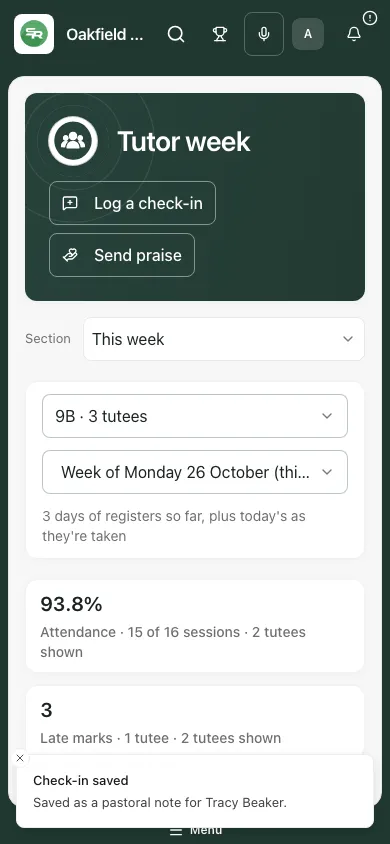
Wait for the week to load and read the coverage line. Not shown, a dash and an unmarked session are not zero. A prompt drawn from only some tutees must not be treated as a complete group assessment.
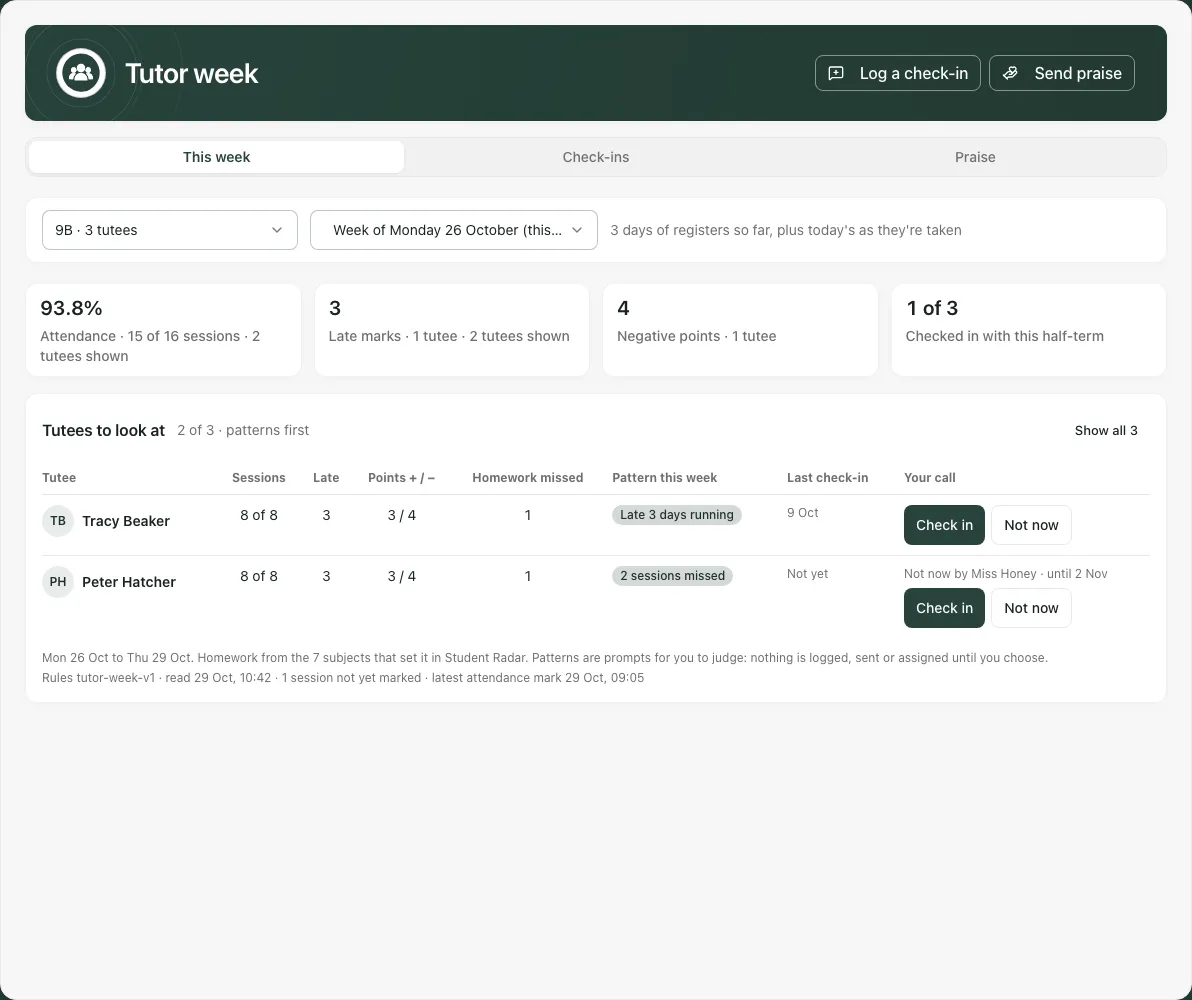
1. Choose the group and week
Section titled “1. Choose the group and week”Use the Tutor group and Week selectors. Choosing a group from the Classes menu changes the context again; check the labels before recording anything. The available groups and weeks are bounded by your access and the app’s supported window.
The sections are This week, Check-ins and Praise. A historical week can still be useful for review, but some decisions are only offered while that week’s evidence is eligible for action. A failed week read can offer Try again; choose another available week if that is what you intended to review.
2. Read the figures with their coverage
Section titled “2. Read the figures with their coverage”| Figure | How to read it |
|---|---|
| Attendance | Read the present/possible-session denominator and the number of tutees represented. Unmarked or unavailable sessions do not become attended sessions. |
| Late marks | These are recorded late marks for the covered tutees, not a reason for lateness or proof of a safeguarding issue. |
| Negative points | The recorded points total for the stated coverage. A points total is not a diagnosis or complete account of behaviour. |
| Check-ins | Read the stated period: it can be the half-term or a fallback observation window. It is not always the selected week’s total. |
Attendance uses daily registration information; a lesson register does not replace the daily-session context. Other columns can show homework missed, report-card context or the latest recorded check-in where available. A missing homework source is not “no missed work”.
3. Review the tutees and prompts
Section titled “3. Review the tutees and prompts”Tutees to look at brings available open prompts forward. Read the pupil’s row, pattern label and evidence before acting. Examples include a run of late marks, missed sessions or homework across subjects. These are rule-based summaries, not an automatic decision about the child.
Open the pupil, report card or notes link where offered to check the wider permitted context. Read in notes opens the pupil’s notes; use that when you need the conversation record rather than just the count.
A prompt can be already answered or deferred. Not now is your personal deferral, not proof another member of staff handled the issue. A colleague’s deferral can leave the prompt available for you. Use the state/date shown in the row rather than assuming it is closed for everyone.
4. Record a check-in you actually had
Section titled “4. Record a check-in you actually had”- Choose Check in on the intended tutee’s row, or the page’s Log a check-in control where available.
- Confirm the tutee in the dialog. If the dialog came from a prompt, read the pattern it refers to.
- In What did you talk about?, record a short factual account of the conversation and agreed next step. Do not write a conversation that has not happened.
- Read the visibility note, then select Save check-in.
- Wait for confirmation. Check the Check-ins section or pupil’s notes before repeating a save after an uncertain connection.
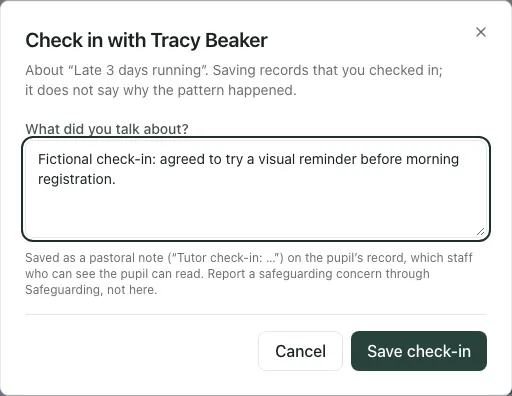
Check-ins are saved as pastoral notes on the pupil record, readable by staff who can see that pupil. This is not a private diary or a safeguarding-reporting route. Use Safeguarding for a concern that belongs there.
If a prompt changed while you were saving, the note can be saved while its prompt decision was not recorded. Read the message: do not create the same conversation again simply because the prompt remains. If the app says a save is not confirmed, its retry sends the same check-in; review the pending entry before adding different text as another conversation.
5. Check the check-in log
Section titled “5. Check the check-in log”Open Check-ins and read the observation-window heading. Find the tutee and recorded time/author. Use the note link where offered to read the actual content.
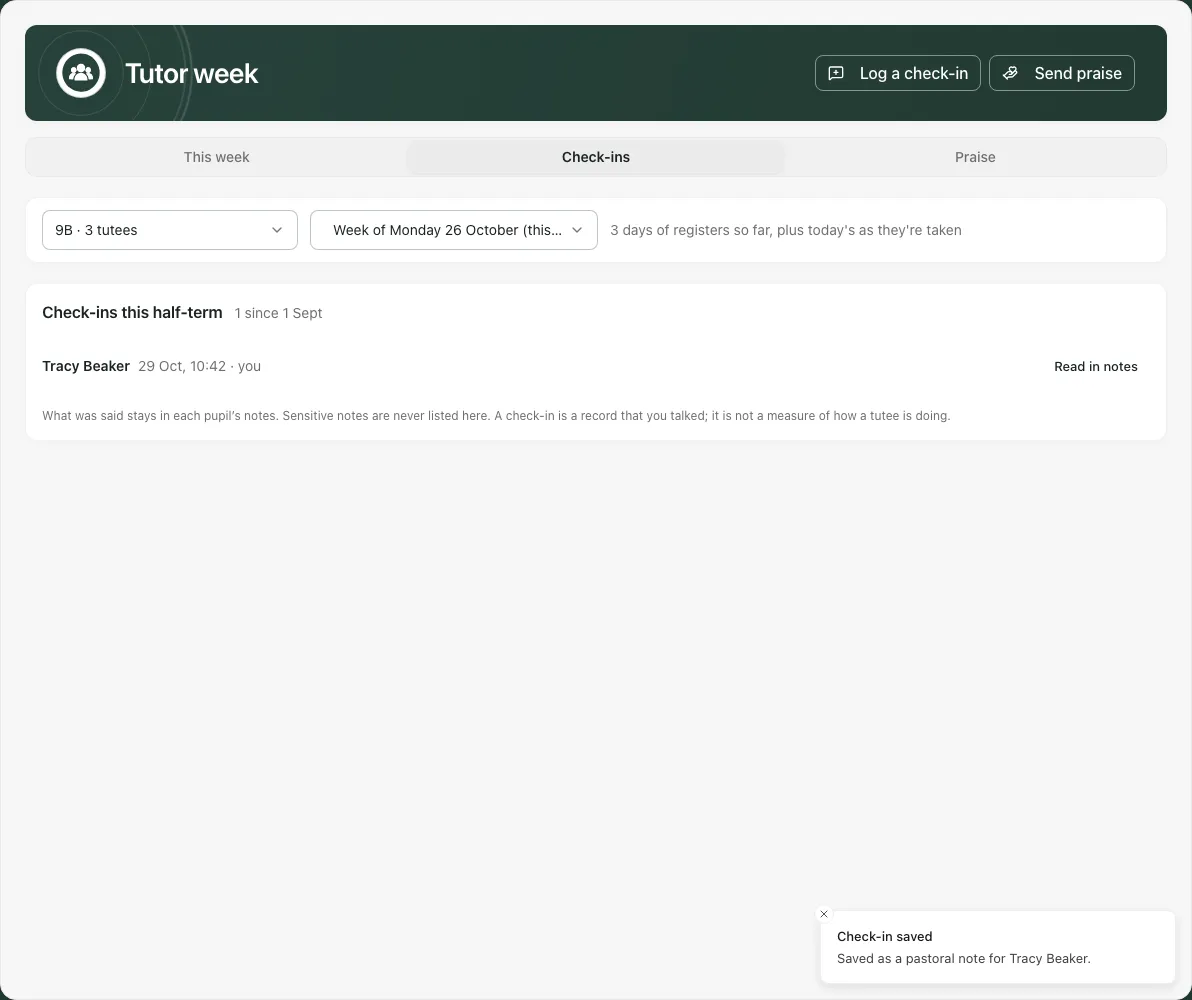
The list may say Showing the latest 200 of N when there are more entries. A bounded log is not the full history. A failed read is not “no check-ins”; retry or inspect the permitted pupil notes through the normal route.
6. Send praise as an actual point award
Section titled “6. Send praise as an actual point award”Where Send praise is available, confirm the tutee and choose a positive Reason from your school’s Points reasons. The reason includes its point value. Add the optional note where offered, then select Send praise only when you intend to make the award.
Praise here is a positive point recorded in Points, not just a local comment. A points cap can stop the award; No point added means do not assume the child received it. If a point was added but its prompt decision could not be confirmed, read the message and use the supported retry rather than awarding a second point through another route.
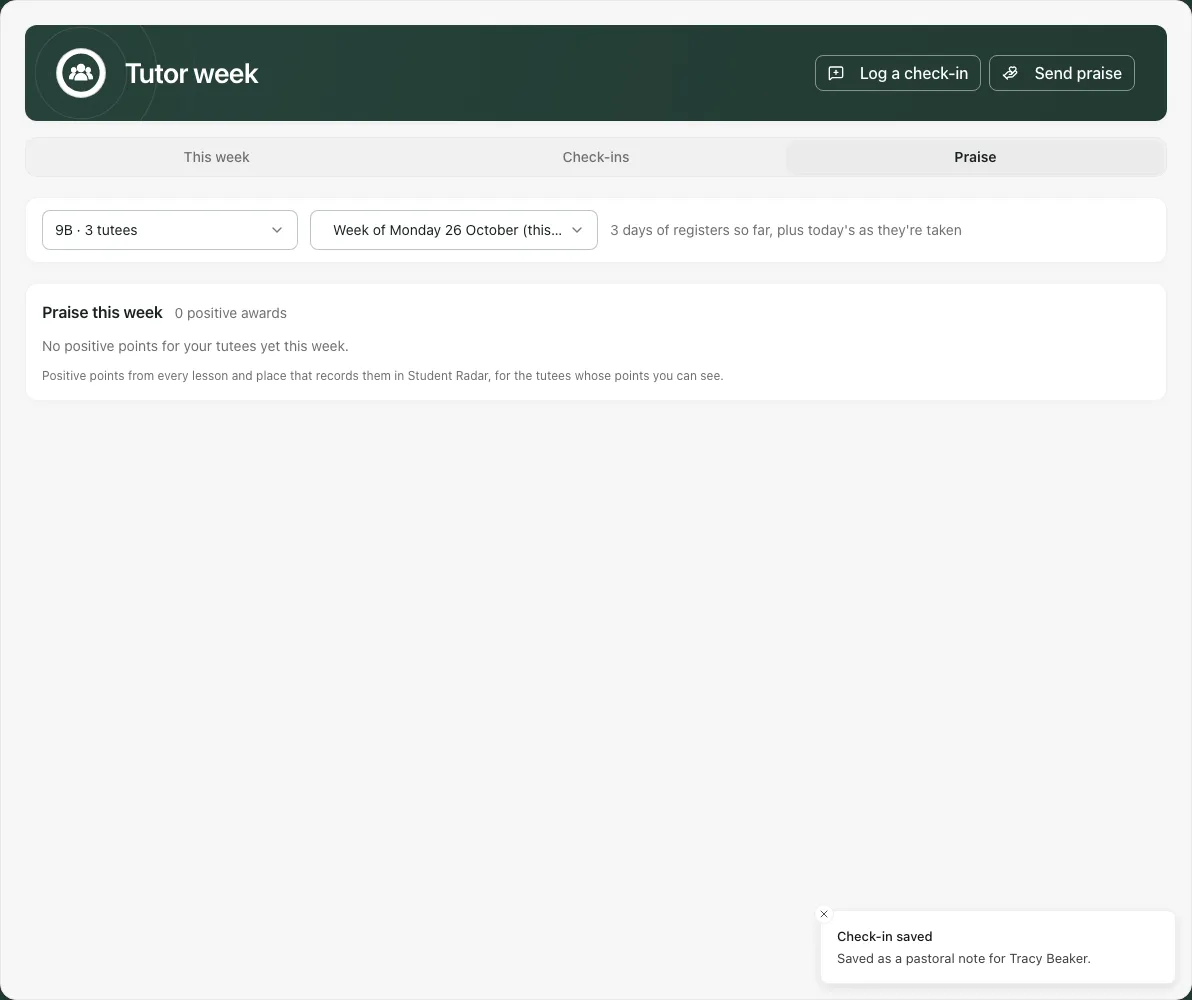
If no positive reasons are available or the reasons failed to load, the app explains why sending is disabled. Ask the authorised Points administrator to check configuration rather than selecting an unrelated category.
7. Defer a prompt deliberately
Section titled “7. Defer a prompt deliberately”Use Not now when you have reviewed the prompt and intend to return later. Read the resulting until date. Deferral does not record a conversation, add a point, finish a report card or escalate a concern. Use your normal urgent-response process when the child needs attention now.
If the evidence or pupil access changed before a decision saved, refresh and review the latest row. Do not treat a stale prompt as authority to act on a different child or week.
8. Use the phone view
Section titled “8. Use the phone view”Choose the section from the phone selector, check group and week, then scroll to the tutee. Read the full row and button label before opening a dialog. Keep the original group/week in mind if you navigate while a draft is open.
If something does not work
Section titled “If something does not work”| Situation | Next step |
|---|---|
| Group missing or too large | Check the group and your access; choose a supported tutor group rather than a wider cohort. |
| Week or group list failed | Use Try again. A failed read is not an empty week. |
| Not shown / incomplete coverage | Use only the stated evidence and inspect the appropriate source before drawing a conclusion. |
| Check-in saved, prompt not recorded | Keep the saved note; re-read the latest prompt instead of duplicating the conversation. |
| Praise added, prompt not confirmed | Follow the retry message for the same award; do not send a second point through another screen. |
| Points cap stopped praise | No point was added; review school points arrangements with the responsible staff. |
| Pupil or access changed | Close the outdated dialog, refresh and confirm the correct pupil/group/week. |
| Safeguarding matter | Use the school’s safeguarding route, not a pastoral check-in note. |
Common questions
Section titled “Common questions”Can I record a suggested check-in before speaking to the pupil?
Section titled “Can I record a suggested check-in before speaking to the pupil?”Record the check-in only after the conversation happened. A prompt helps you choose a follow-up; it is not the conversation record.
How can I check that a conversation was recorded?
Section titled “How can I check that a conversation was recorded?”Open the check-in log and check the intended pupil and entry. Read weekly figures with their coverage before planning another response.