Plan school trips and review the visit through closure
Plan the visit and approval route, check consent and practical arrangements, then use the field register and record the later review. On the day, use the field register and permitted safety information. Afterwards, record what happened, owned learning actions and the closure decision.
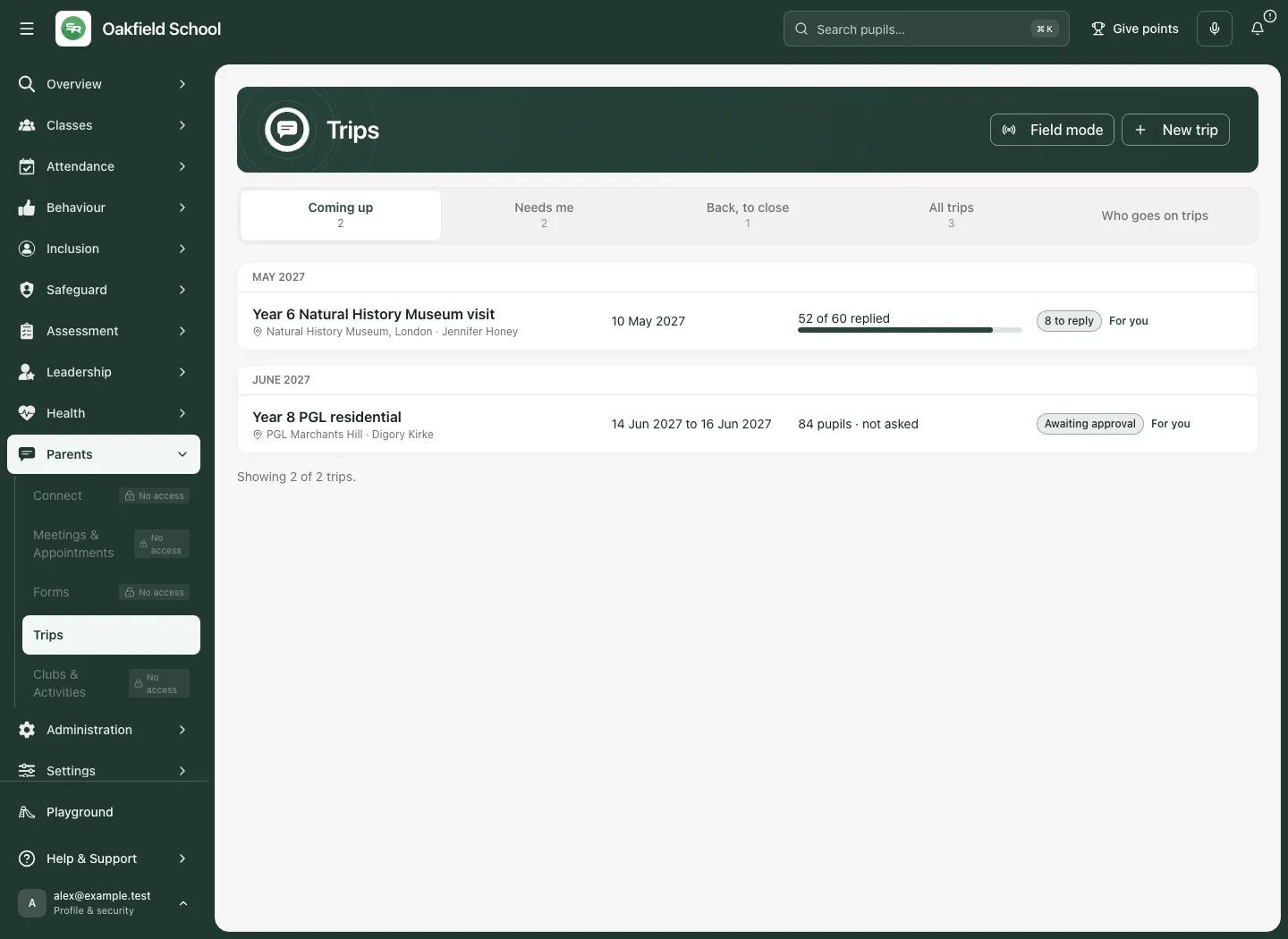
The fictional museum visit below is approved and published but still has an open consent check. These are deliberately different states. A green approval label, a family reply or a paid charge does not by itself establish that the trip is ready to leave.
1. Before you begin
Section titled “1. Before you begin”Open Trips in the school workspace. Check that you are in the right school and can see the intended trip. Planning, managing people, approving, publishing, consent, communications, finance, safety, field registers and closure use separate access. A leader may see operational arrangements without being permitted to see full medical records or private financial support details.
Agree the educational purpose, dates, trip leader, school approval/EVC arrangements and who will follow up outstanding work. Follow school policy for risk, staffing, consent and emergencies. Trips connects those records; it does not make statutory decisions for the school.
The main trip sections are Overview, Plan, People, Consent, Safety, Money and Day & after. Plan contains Details, Approval, Documents and Advanced visit. Consent separates Replies from Messages. Day & after separates On the day, Incidents and Evaluation & closure.
2. Find a trip or create a proposal
Section titled “2. Find a trip or create a proposal”- Open the trip list and choose the relevant list in Trip lists. Read the departure date, lifecycle, approval/readiness information and next step before opening a row.
- Open the required trip. Use All trips to return to the list; do not create a second proposal simply because another list is selected.
- To start a visit, choose New trip. Enter Title, Purpose, Destination, Provider, Activities, Trip type and Risk level.
- Choose Departure, Departure time, Return and Return time. Use the school time zone normally; review Trip timezone when using Change for an overseas trip.
- Select the intended year groups/classes and Places. Check Consent, Reply deadline, school emergency contact and emergency/contingency arrangements.
- Use Next through the three steps and read the summary. Back keeps the entries while you check them.
- Choose Create proposal. This saves a plan; it still needs the school’s approval route. Nothing goes to families merely because a proposal exists.
- Open Plan → Details, confirm the saved dates and scope, and use Save changes after later edits.
If creation fails, the entries are kept. Read the error and check details/access before retrying. Do not assume a timed-out request created nothing; check the trip list before making a duplicate.
3. Use Overview to find the next job
Section titled “3. Use Overview to find the next job”- Open Overview and read the departure date, pupil count, adult ratio and family reply count.
- Read Ready to go? and each current check. The count shows checks done or excepted; it is not a safety score.
- Use Go beside an open check to reach its owning section. Resolve the underlying issue with the appropriate colleague.
- Use Check again after a relevant change. In Safety the equivalent control is Check readiness again.
- Read whether a check must be completed or whether an authorised exception is possible. A blocked check does not become safe because someone has seen it.
- Use Publish to families only when the current approval and other publishing requirements are satisfied. Use Start trip only when all required departure checks are done or validly excepted.
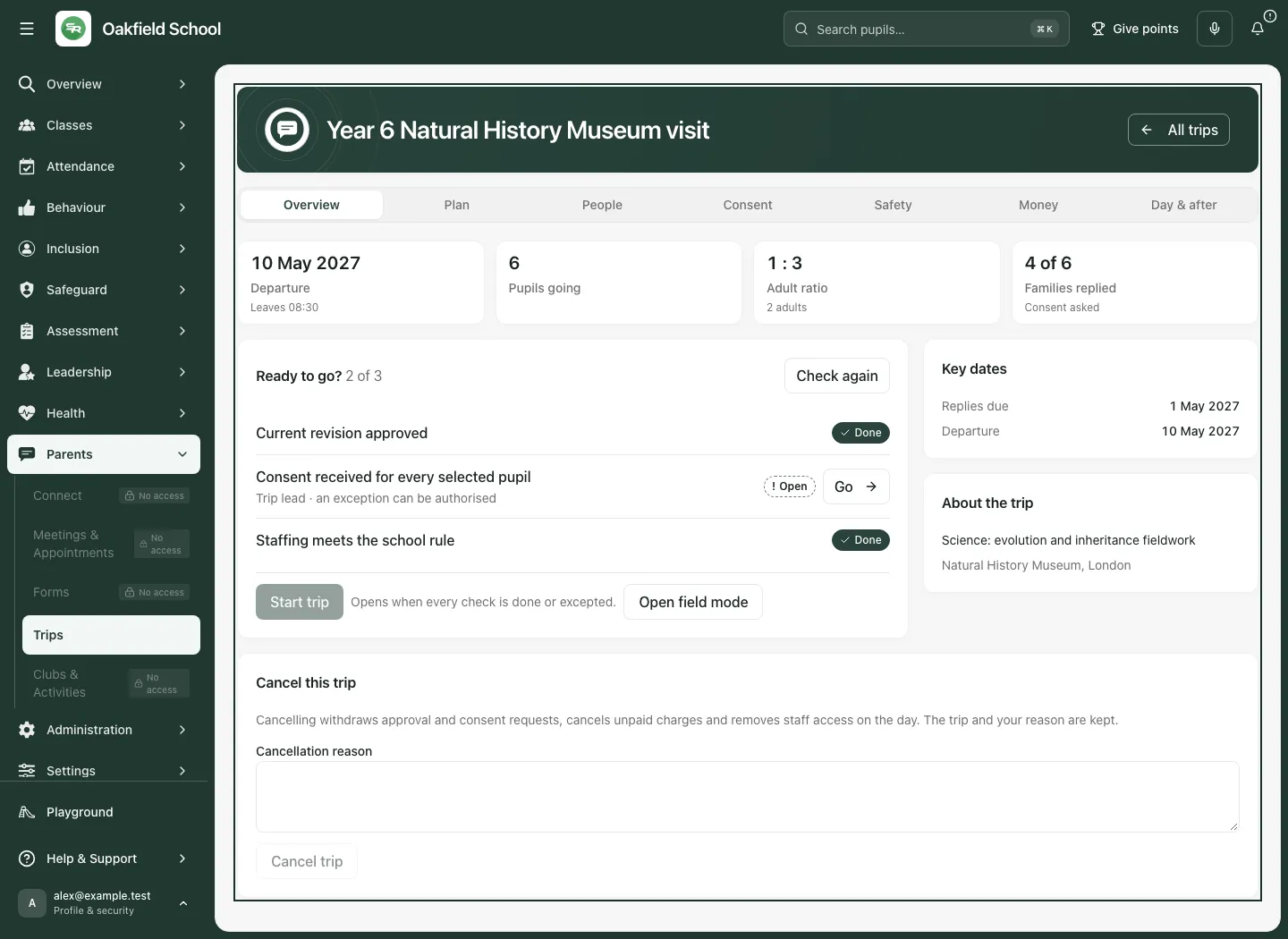
A material plan revision can require fresh review. Read the current revision, rather than relying on an approval given for an earlier plan. Cancelling is a separate decision: enter Cancellation reason and use Cancel trip. The displayed contract withdraws approval and consent requests, cancels unpaid charges and removes staff day access while retaining the trip and reason. Follow the finance process separately for payments already made.
4. Build the itinerary, transport and groups
Section titled “4. Build the itinerary, transport and groups”In Plan → Details, check the educational purpose, destination, provider, activities, departure/return dates and times, Time zone, Maximum pupils, consent deadline and emergency arrangements. Choose Save changes after editing.
For an itinerary item:
- Enter Title, Type, Starts, Ends and Location.
- Select Responsible staff member where appropriate and record Accessibility arrangements and Notes for staff.
- Choose Save, or Save itinerary changes when editing an existing item.
- Read the saved itinerary in time order and check that the handovers and transport fit the visit.
For transport, complete Mode, Provider, Vehicle or service details, responsible staff member, departure/arrival times and locations, Capacity, Pickup and handover and Accessibility. Choose Save transport and check the saved leg. Times use the trip’s stated zone; do not enter overseas local times under the wrong zone.
Create groups using Group name and Description, then Save group. Use Save group changes for an existing group. Grouping helps organise staff and registers; it does not widen a person’s access to every pupil’s restricted information.
5. Add pupils and adults deliberately
Section titled “5. Add pupils and adults deliberately”- Open People, search for pupils within the permitted scope and select the intended people. Review Group for added pupils before adding them.
- Check the roster, groups and capacity. Use the row’s group chooser to correct a group assignment.
- Removing a pupil is explicit: use the remove control and read the confirmation for that named person. Check any existing consent/payment implications before confirming.
- Search for a staff account rather than entering a name as if it were an account. Set Role on the trip, Training, Group, Trip leader and First aider as appropriate before choosing Assign for the matching account.
- Where an external adult is allowed, enter External adult name through the external-adult route and choose Add external adult. This is distinct from giving a school staff account authority.
- Read the school staffing rule and the current ratio/training checks. A ratio display alone does not confirm suitable cover for every activity or group.
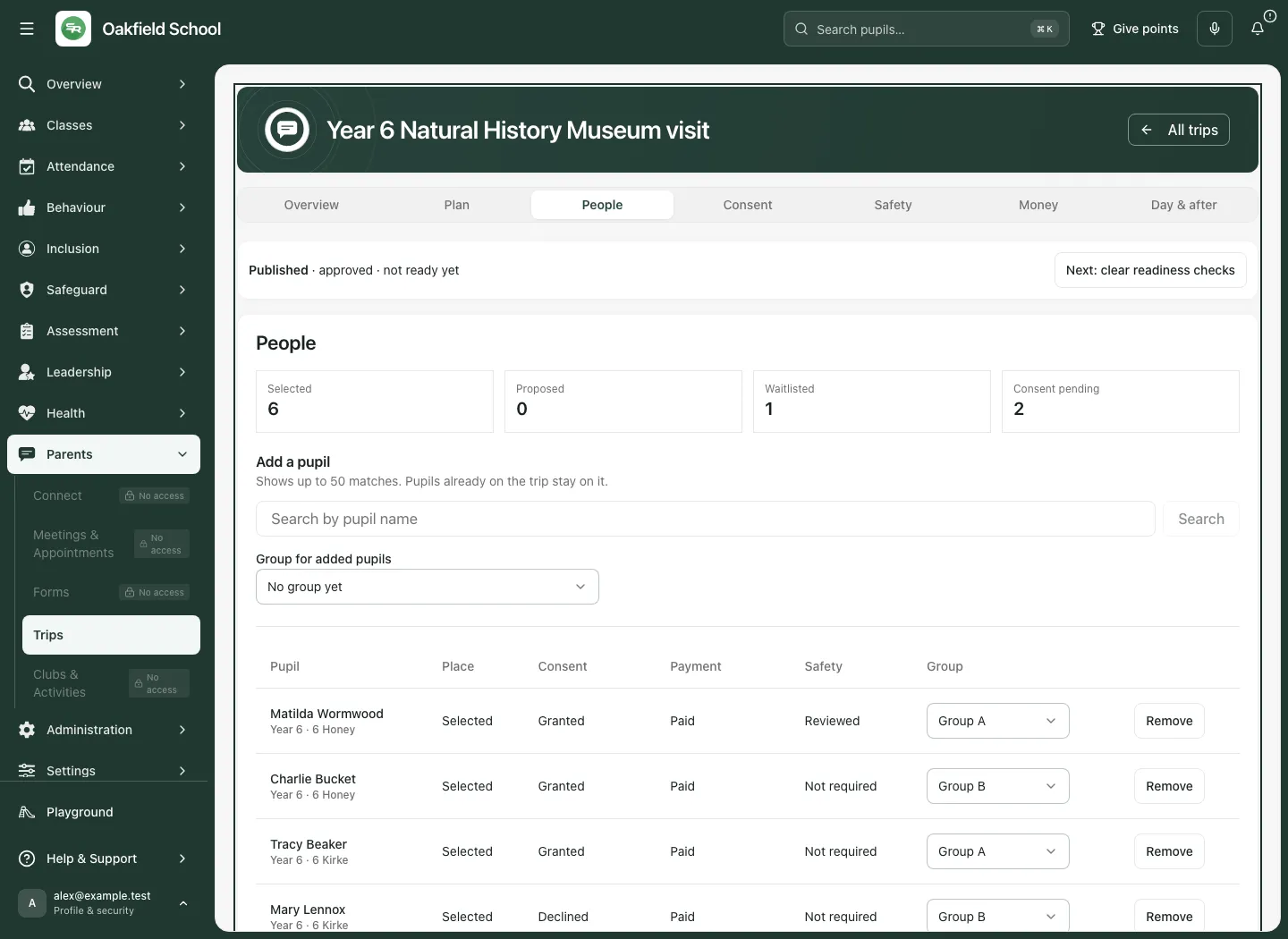
Authorised staff can maintain a school staffing rule using Rule name, Minimum adults, Target pupils per adult, Training needed and Note, then Save school rule. Check how it applies to the current trip rather than lowering a requirement simply to remove a blocker.
6. Risk assessment, EVC and approval
Section titled “6. Risk assessment, EVC and approval”Save and review a risk assessment
Section titled “Save and review a risk assessment”- Open the risk assessment controls. Enter Assessment title, select Assessment approach and write a useful Summary.
- For an Approved reusable assessment, use Search approved school assessments, choose the intended source and read its scope/version before adopting it.
- For trip-specific controls, record Hazard, Controls, Affected groups and the displayed likelihood/severity ratings from 1–5. Explain the actual arrangements; a generic heading is insufficient.
- Choose Save draft. Saving an assessment is not its review or approval.
- The author or an eligible risk manager checks the saved assessment for the current plan version, confirms I have reviewed the saved risk assessment for this version of the plan, and uses Send to review.
- A separate eligible approver reviews the saved evidence for that revision and confirms the review checkbox. The person who wrote or last changed the assessment cannot approve it. Enter Note for the trip leader (needed when asking for changes), then use Approve controls or Ask for changes. A note is required when asking for changes. Check the resulting state and current revision.
Follow the school’s approval route
Section titled “Follow the school’s approval route”- Open Plan → Approval and inspect the current approval steps, approvers and revision.
- If the school route needs configuration, an authorised owner sets the policy Name, any Required by the trust requirement, each Short code, Step name, Approvers in this step, Approver rule and named/role approvers. Choose Save approval steps.
- Use the trip-type template only when it fits school/trust policy. Overseas or residential visits can need an additional final step and named approvers.
- Check the designated EVC/deputy account and any change reason. Save EVC records that designation; it does not approve a visit.
- When the plan is ready, choose Send for approval.
- Each authorised approver reviews their stage and current plan, enters Decision comment and chooses Approve stage or Request changes.
- Read the resulting approval state. Publishing to families is a later action, and departure readiness still needs checking.
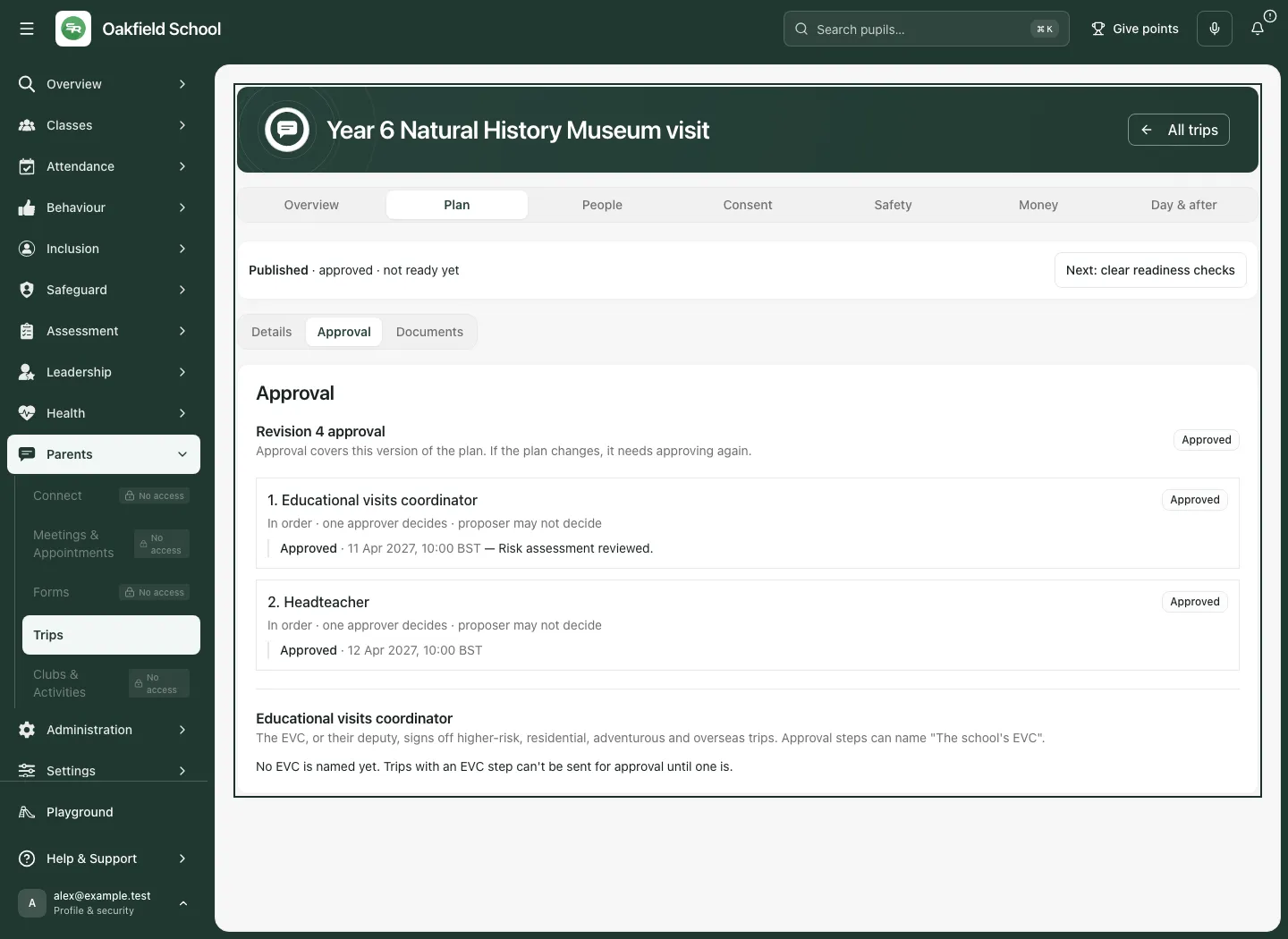
Do not enter a free-text name where a verified account is required. The approval picker and school/trust requirements determine who may decide; being shown a trip does not make someone an approver.
7. Ask families for consent and follow replies
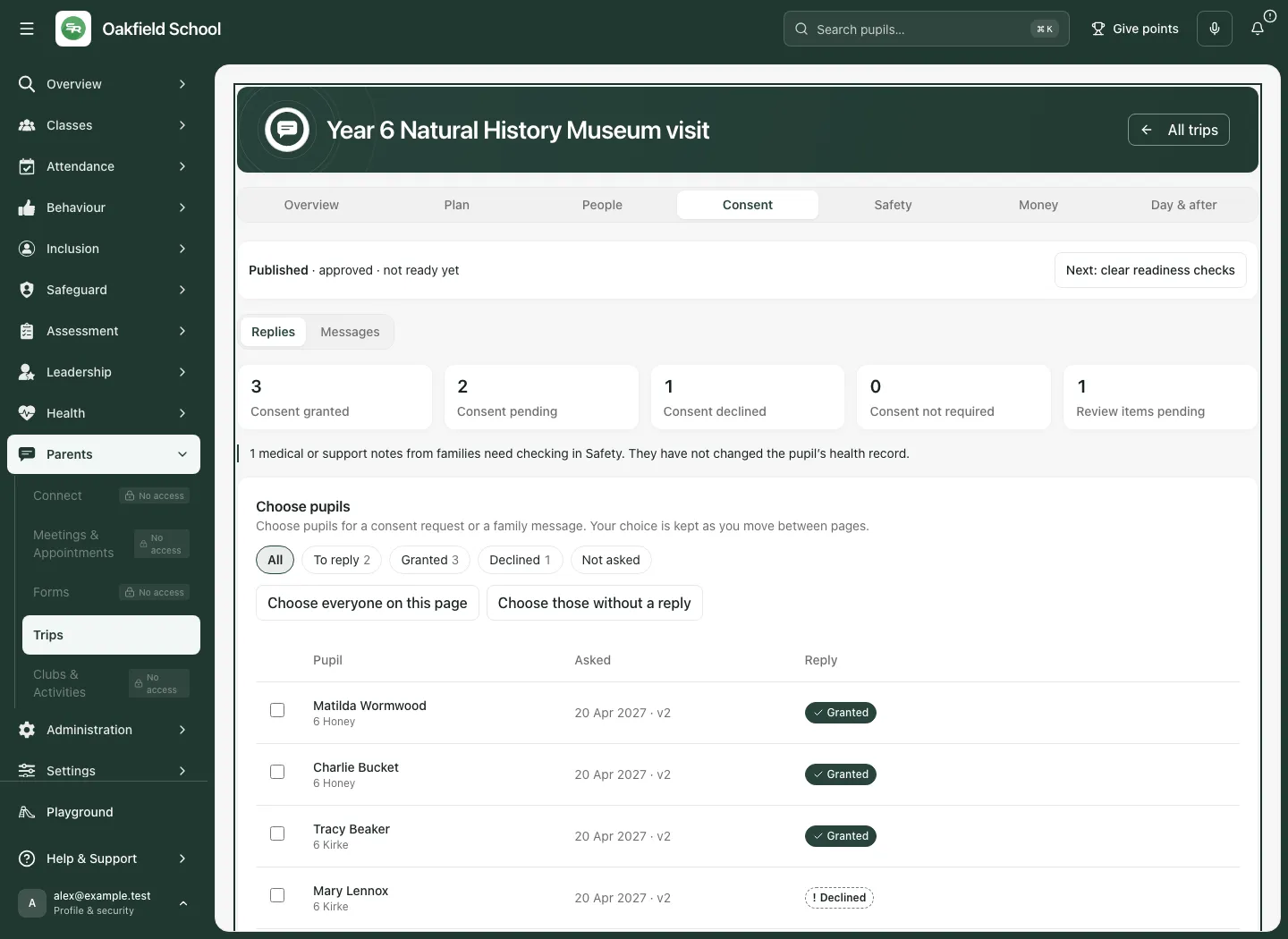
Section titled “7. Ask families for consent and follow replies”- Open Consent → Replies. Read the reply filters and current request state, not just the total number of families who have replied.
- Select the intended pupils. Use Ask for consent to reach the issue form.
- Read or enter Consent text and Text version. Keep the established wording when asking newly added pupils the same question.
- If changing wording already issued, read the replacement warning. Issuing different terms replaces every current reply on the trip, including granted or declined answers, and families must reply again. Confirm I understand every family on this trip must reply again. only when this is intended.
- Choose Issue to N participants, checking the displayed count.
- Review the resulting requests, granted/declined/outstanding states and any failures. A request issued is not a reply received.
Record a paper or telephone reply
Section titled “Record a paper or telephone reply”- On the relevant pupil row, choose Record reply, or open Record a paper or telephone reply.
- Select Pupil, Method, the verified Parent or carer, Decision and an evidence Note.
- Choose Record reply and check the resulting request state. Do not substitute a staff assumption for an actual authorised family decision.
Send and follow trip communications
Section titled “Send and follow trip communications”In Consent → Messages, select the intended pupils, choose Message type, enter Subject and Message, then review before Send to selected families. Read the delivery evidence afterwards. Counts of emails handed to the mail service do not prove inbox delivery or that the family read the message.
For existing secure trip conversations, select Conversation, read the context, enter Reply and use Send secure reply. Contact details are protected in this workspace. General school communication and its independent review route are covered in Connect.
8. Review pupil arrangements and readiness
Section titled “8. Review pupil arrangements and readiness”- Open Safety and choose Show safety information for. Different tiers expose different permitted detail; use the least information needed for the job.
- In Checks to do, select Check and open Review for the named pupil.
- Review the relevant source evidence. Set Outcome, Equipment preparation, Medication preparation when shown, Arrangement for this trip and Note.
- Choose Sign off and check the saved review. A trip arrangement does not edit the underlying medical or SEND plan.
- Use Check readiness again and read the refreshed checks and unresolved items.
- Where permitted, open Review exception, enter the required reason and choose Allow exception. An exception is an authorised, recorded decision, not the removal of the underlying issue. Mark as read acknowledges the exception; it does not approve it.
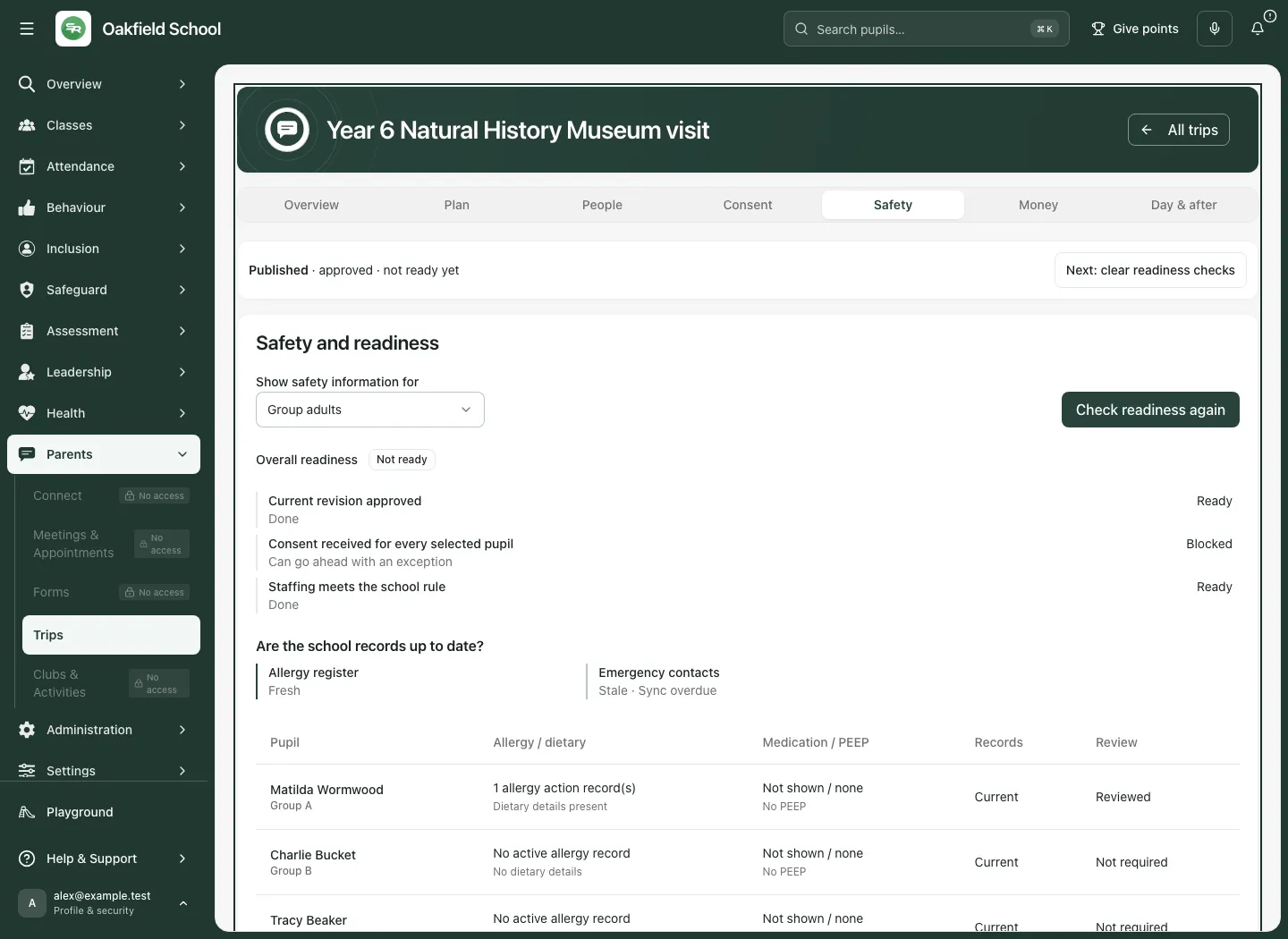
Use Generate controlled page pack only with the required authority and current scope. For an external adult, select External adult assignment and use Generate external briefing for their group. The short briefing expires after the visit; it is not a copy of every pupil’s full record. Keep printed material secure and dispose of it through school policy.
9. Documents and advanced visits
Section titled “9. Documents and advanced visits”For a document, open Plan → Documents:
- Choose Upload as to create a document or upload a new version of an existing one.
- Enter Title, Document type, select File and enter Number of pages (PDF only) where required.
- Choose Upload or Upload next version. Files are limited to 25 MB and PDFs to 100 pages.
- Wait for the security scan. Download is available only through the permitted clean-document route. A successful upload does not mean the file is already safe to open.
For Advanced visit, complete overnight count, destination country where applicable, provider/evidence references, accommodation and emergency arrangements. Save the draft, review the specific controls and use Record reviewed controls only after the authorised review. Store completion and evidence references for travel checks; do not enter passport or visa numbers into free-text notes.
10. Costs, contributions and help with payment
Section titled “10. Costs, contributions and help with payment”Open Money with the appropriate finance access. Read whether the plan has been reviewed: migrated costs can remain unclassified until finance review. Payment is separate from pupil eligibility and consent.
- Choose Charge type and Per-participant amount (£). For a funding target, record Whole-trip target (£) where appropriate.
- Add instalments with Type, Label, Amount (£) and Due date. Use Add instalment as needed; totals must match the participant amount.
- Choose Save costs and review the new plan version.
- For a whole-trip funding decision, enter Reason for the funding decision and choose Proceed or Do not proceed deliberately.
- For individual support, select the correct pupil and choose Adjustment, Amount (£) and Evidence note / reason, then Record adjustment.
- To record a payment made outside the system, select the relevant request and use Record a bank transfer. For a refund already made externally, use Record a refund made outside Student Radar. Recording the evidence does not move money through a bank.
- Use Cancel open request only for the intended unpaid/open request and read the outcome.
Only authorised finance staff should see who receives support and why. The trip’s broad support-available message does not expose the recipient list. Do not remove a pupil because a voluntary contribution is unpaid; read the charge classification and school policy.
11. Field register on the day
Section titled “11. Field register on the day”Open Day & after → On the day or Open field mode. Staff must be on the permitted trip/group assignment. The field workspace shows whether access is for the whole trip, an assigned group or a read-only emergency role.
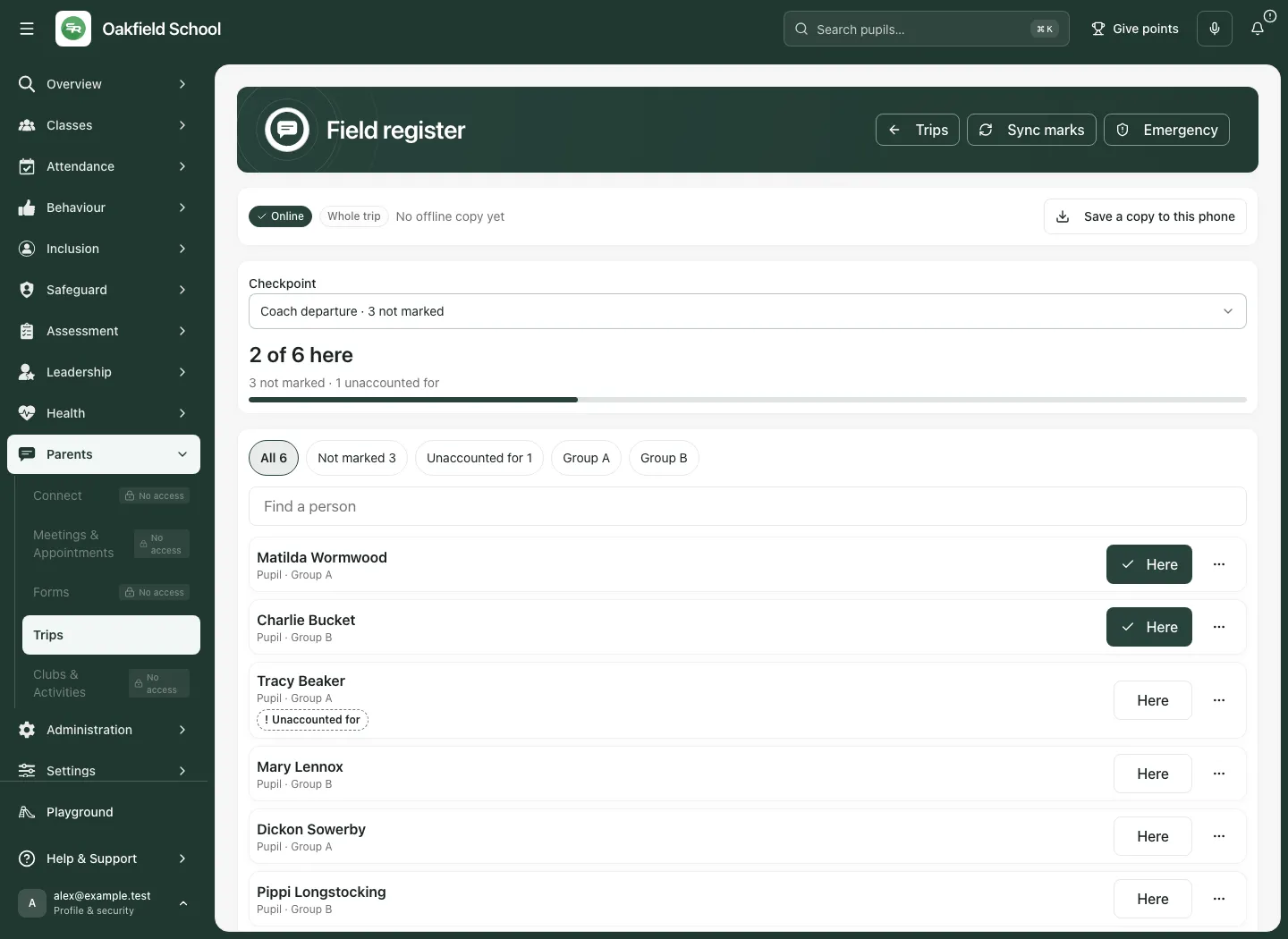
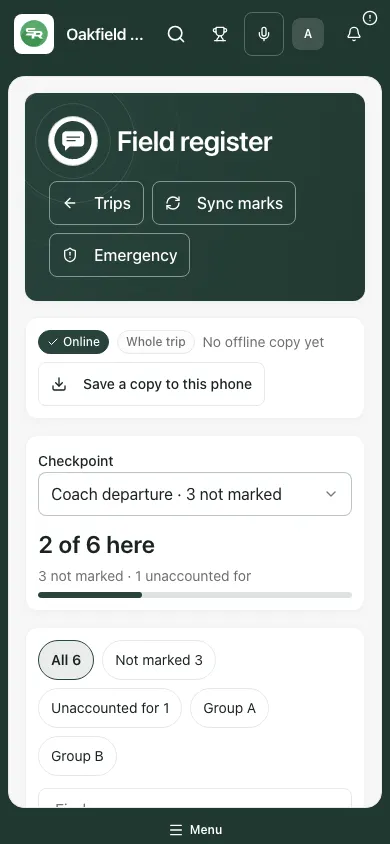
- Before leaving, check the right trip and your assignment. If permitted, use Save a copy to this phone while online. Later use Update saved copy to refresh it.
- Read Online/Offline and whether a copy is actually saved. A button visible on screen is not proof the phone has downloaded a usable copy.
- Select Checkpoint, read the headcount and distinguish not marked from unaccounted for.
- Use the register filters and Find a person. Mark Here only after checking the pupil. Record the correct alternative state where offered rather than treating silence as presence.
- Use Sync marks after reconnecting. Offline marks stay on that phone until synced. Queued, accepted and conflicting events are different states.
- Where a conflict is shown, review the actual evidence, select Resolved state, enter Resolution reason and use Resolve with new event. Do not erase the earlier event to hide a disagreement.
- For a new checkpoint, enter New checkpoint and choose Create checkpoint. Close a checkpoint only after the required checks; give a reason if the offered closure exception is justified.
- To prepare school attendance, set Attendance date and Session, then Prepare attendance update. This prepares a proposal; it does not directly rewrite the school’s attendance register.
A saved copy may be out of date, may cover only selected shards/pages and is still sensitive school information. Check Pupils to show and Register page when offered; an on-page total may not be the whole trip. Keep the device secure. Revoke this field device requires a Revocation reason and removes that device’s future field access through the supported route.
Emergency mode
Section titled “Emergency mode”Follow the school’s immediate emergency procedure first. Use Emergency or Open emergency mode for the trip’s authorised response context. Emergency emphasis puts what to do first at the top; it does not automatically reveal more medical detail.
An authorised person enters Reason or resolution summary and uses Activate, Break glass or Resolve according to the actual situation and their authority. Break-glass access is time-limited and read-only where shown. Record Action or communication update with Record action or Record communication to keep the timeline accurate. A missing/unaccounted-for state can alert the named emergency team; do not wait for a digital alert before acting on an immediate concern.
12. Incidents, evaluation and closure
Section titled “12. Incidents, evaluation and closure”Record what happened in the correct source
Section titled “Record what happened in the correct source”- Open Day & after → Incidents. Choose Type, Severity, Occurred at, Location and Pupil (optional).
- Where linking an existing source, select the authorised Source for that pupil. Trips checks the school/pupil relationship; restricted details stay in the owning record.
- For a trip incident, enter Title, What happened and Immediate actions, then Save incident.
- Record treatment in First Aid and medicines in the medicines workflow. A trip incident is not a substitute for those records or a safeguarding concern.
Review the visit and own the learning
Section titled “Review the visit and own the learning”- Open Evaluation & closure. Set Review scale: Brief, Standard or Enhanced. High/critical incidents require a standard or enhanced review.
- Enter Provider rating (1–5), What worked, Improvements, Incident and near-miss review, Parent communications and Provider performance as appropriate.
- For each learning action, enter Action, select the actual Owner, set Deadline and choose Add action. Review the resulting list.
- Choose Save draft version (or Save completed review version for an already completed review), then use Complete review after the required human review. Actions remain open until separately marked done, cancelled or accepted as a risk.
- Review Still open, any incidents and incomplete learning actions. If closure is permitted with outstanding items, enter Why the trip can close with these still open and choose Record reason.
- Enter Closure summary, then choose Close trip and revoke field access only when the closure requirements are met. Check the final lifecycle and remaining owned work.
- Use EVOLVE-style review export or School post-trip record when an authorised portable record is needed. The export is evidence of the recorded review, not proof of external submission.
Authorised administrators set Keep trip records for (years) and Rationale, then Save policy. Retention policy and closure are different decisions; closing a trip does not mean its evidence should be deleted.
13. Participation equity
Section titled “13. Participation equity”Use the participation equity list when available to review coverage across the stated cohort and period. Read the denominator, exclusions, freshness and method before comparing groups. A pupil with no counted trip is not automatically disengaged; an unknown or excluded record is not a zero. Use the underlying permitted trip context and human review to decide practical next work. Do not copy private finance or medical details into a participation report.
Troubleshooting
Section titled “Troubleshooting”The trip is approved but Start trip is disabled. Read every current readiness check. Resolve consent, staffing, safety or other requirements, then refresh. Approval and departure readiness are separate.
A previously granted reply is no longer current. Check whether the consent text/version was replaced. Changed terms require a new family decision; do not silently reinstate an earlier answer.
A plan save or approval fails. Keep the entries, read the revision/access explanation and reload the current saved context where needed. Do not repeatedly submit an old revision after someone else changed the plan.
A staff member cannot open the field register. Check their actual staff/group assignment and current field access. A general Trips permission or link is insufficient.
Offline information is missing. Check whether a copy was successfully saved to this phone before losing signal, and whether it covers the correct shard/page. Follow the school’s backup arrangements; do not assume a cached page is a full current safety pack.
Marks disagree after syncing. Read the conflict evidence and resolve it with a new event and rationale. A queued mark is not yet the server’s confirmed register.
The safety pack or document will not open. Check authority, current scope, expiry and scan state. Do not route around a rejected scan or expired briefing.
A money balance seems wrong. Check charge classification, plan/request version, instalments, adjustments and actual external payment/refund evidence. Recording a refund does not issue one.
Closure is blocked. Read the review, incidents and outstanding actions. Complete the work or record only the explicit, authorised exception offered by the workflow.
Questions schools often ask
Section titled “Questions schools often ask”Does Create proposal send anything to families? No. The plan still needs the required approval and explicit publishing/consent steps.
Does a parent reply count as consent? Read the recorded decision and current terms. A declined answer is still a reply; the family reply total is not the granted-consent total.
Does payment make a pupil eligible to go? Payment, participation, consent and readiness are separate. Private support decisions are restricted to finance staff.
Can we reuse a risk assessment? Use the approved reusable source route, check its scope/version and review the trip-specific controls. Reuse does not remove the school’s review responsibility.
Can a volunteer see full medical records? External adult briefings are scoped to the assigned group and purpose. A context link does not grant full source access.
Does field attendance update the school register automatically? The preparation control creates an attendance proposal for the supported handover. It does not directly rewrite the register.
Does closing finish every learning action? No. Actions retain their own owners and outcomes. Review what remains open and the closure rationale.
Related guides: Forms and Connect. Finance, First Aid, medicines and safeguarding records remain in their owning areas; their detailed guides are linked when available.