Read an EHCP and review outcomes and provision
Written for: SENCos, SEND team members and authorised school staff.
Open the source EHCP, check versions and extracted content, then review Section E outcomes and Section F provision.
Check organised/extracted content against the original before using it. The source plan, a prepared working copy, confirmed provision and evidence of delivery are different things.
Before you begin
Section titled “Before you begin”Open SEND → Plans → EHCPs. You need access to the pupil’s EHCP; upload/preparation, Section F changes, provision-map actions and Annual Review have their own permissions. The page is tied to the school’s jurisdiction/settings. This guide explains the software workflow, not a decision about an individual pupil’s legal entitlement. The screenshots use a fictional EHCP example and fictional counts.
Find the pupil and read the register
Section titled “Find the pupil and read the register”- Check the school/pupil lens available to your role. Class staff can use the permitted classroom view; the school register supports wider SEND leadership review where authorised.
- Use Search EHCP pupils, Year group, Document status, Review timing and Sort EHCP pupils. Recheck active filters and the count before treating the list as the whole register.
- Read recorded need and its source separately from prepared document text. An unavailable/unconfirmed need is not “no need”.
- Read review status/date and its source. An annual-review meeting date, a last-review date and a next-review date recorded on completion are different facts. Open Annual Review where offered to change that specialist workflow.
- Read outcome/provision coverage with the stated period. 0 of 1 with evidence is an evidence-coverage statement, not zero progress; 0 of 1 on the map is not proof that support was not delivered.
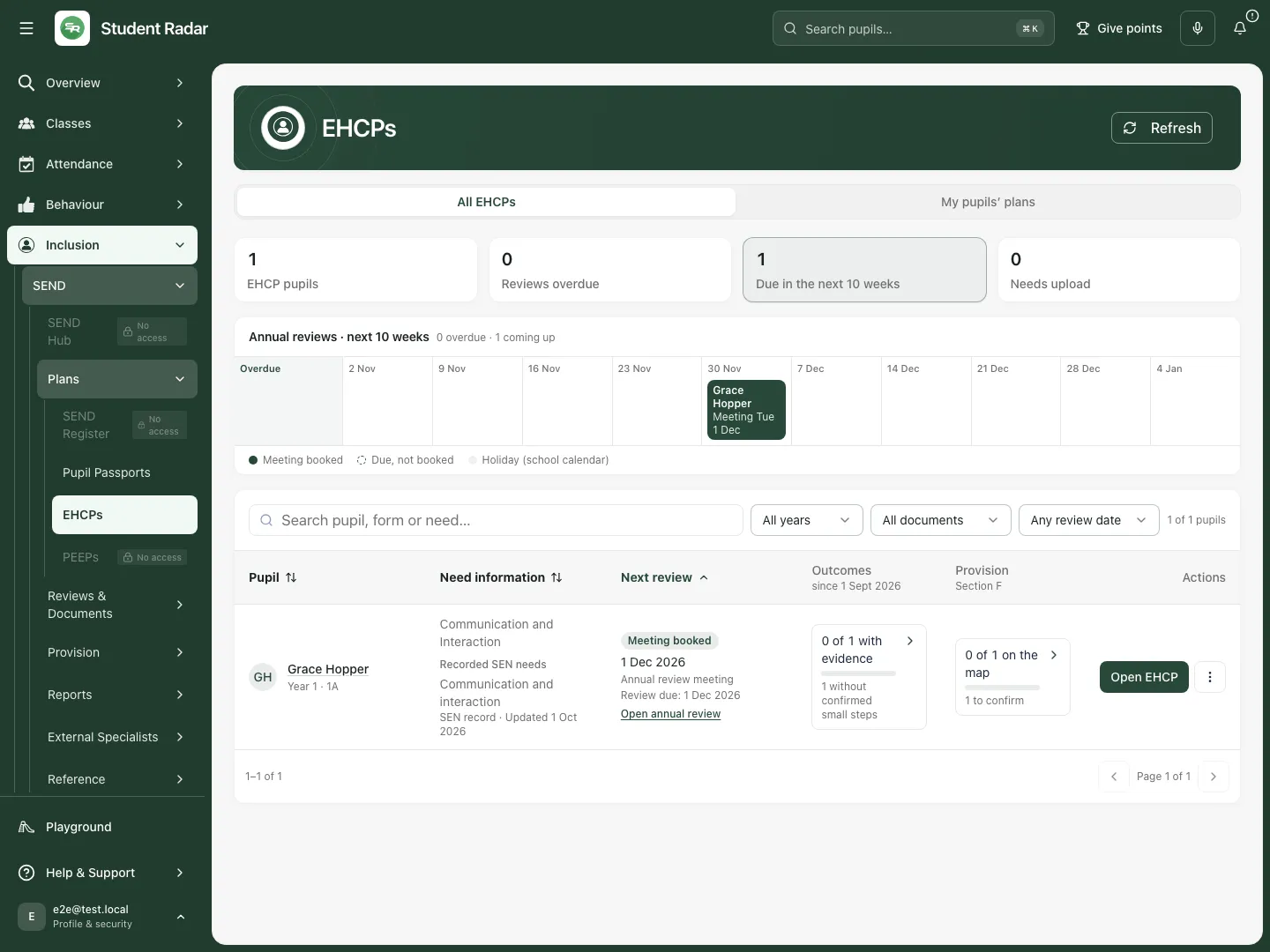
The fictional register keeps the booked annual-review date beside need provenance, outcome evidence and provision-map coverage.
Open and read the plan
Section titled “Open and read the plan”- Select Open EHCP for the intended pupil. Check the pupil, upload date and version at the top.
- In the EHCP workspace, read Document overview, then choose a section such as A · Views, interests and aspirations or B · Special educational needs.
- Use Search in this EHCP to find wording; Clear document search returns to the section view. On a phone use EHCP section to change section.
- Use Original document or Original · page [number] to check the uploaded source where available. The organised sections are a working copy, not a substitute for the issued original.
- If a newer upload is still being prepared, the page says the last prepared version is being shown. Keep both dates in mind; do not describe the older working copy as the new document.
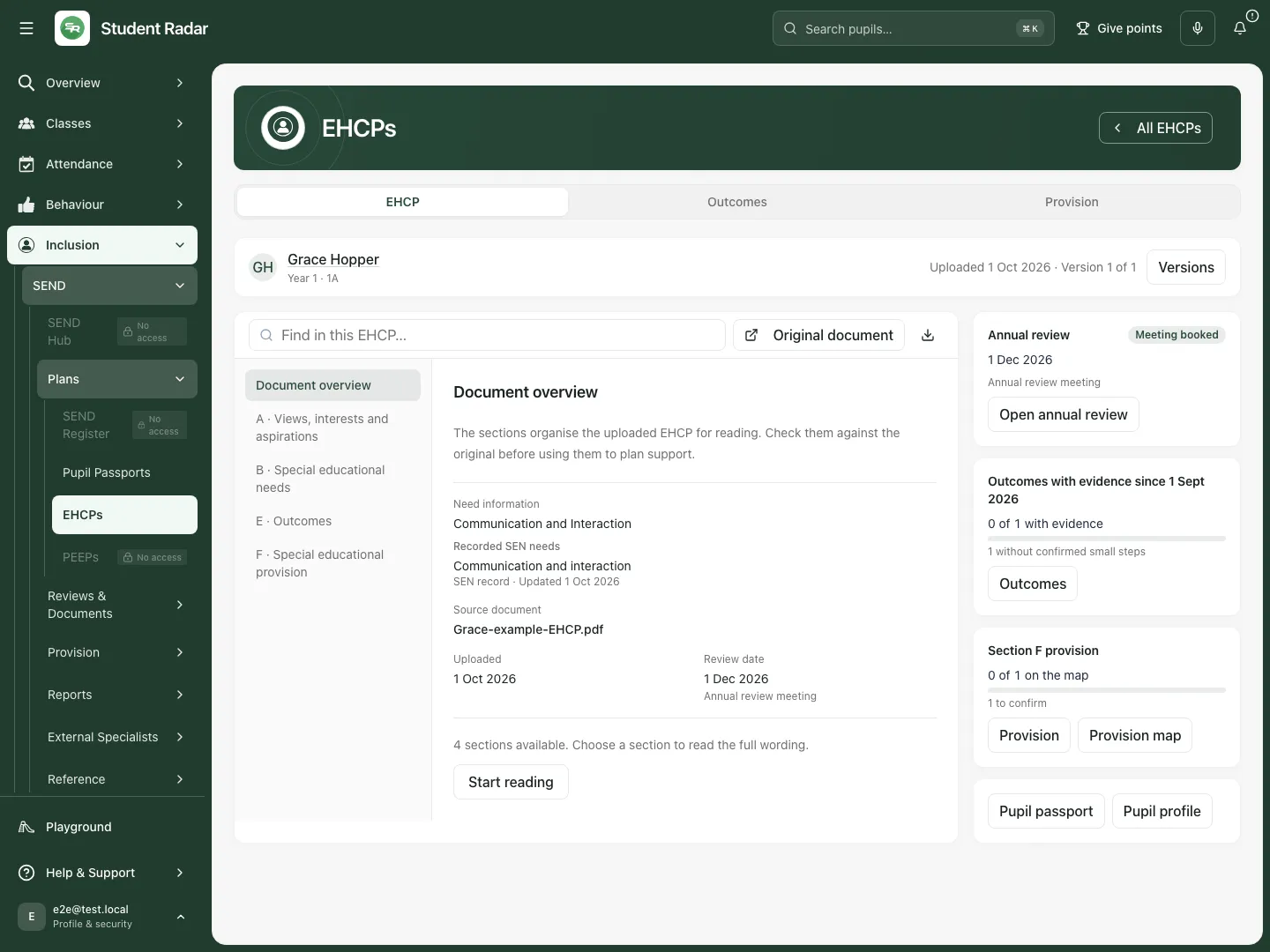
The fictional overview names the source file, upload and review context before staff read the organised sections.
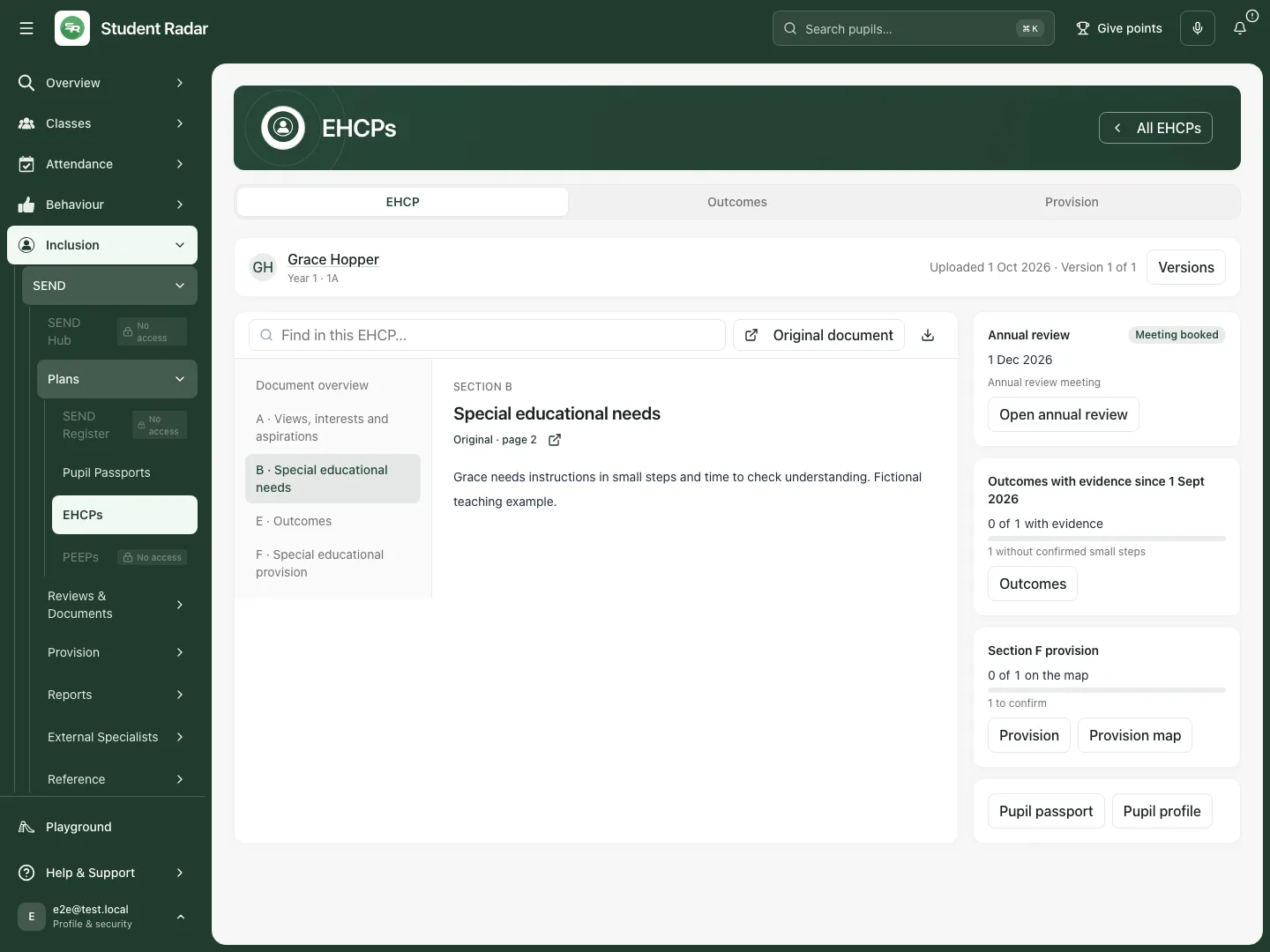
Section B is readable within the real application. Check the extracted wording against the original before using it to plan support.
Review versions and downloads
Section titled “Review versions and downloads”- Select Versions. Check the file name, upload/preparation state and date for the version you intend to use.
- Use the available original view/download controls for that version. A Word original can need a prepared preview before it can be viewed; the source download and prepared copy are different files.
- From the register’s EHCP options for [pupil], choose View original, Download original, Print original or Download Student Radar version as available.
- Review the resulting document’s pupil, version and cautions before sharing. A downloaded working copy can retain warnings about older uploads or Section E extraction needing review. A printout is a snapshot, not proof the current source is unchanged.
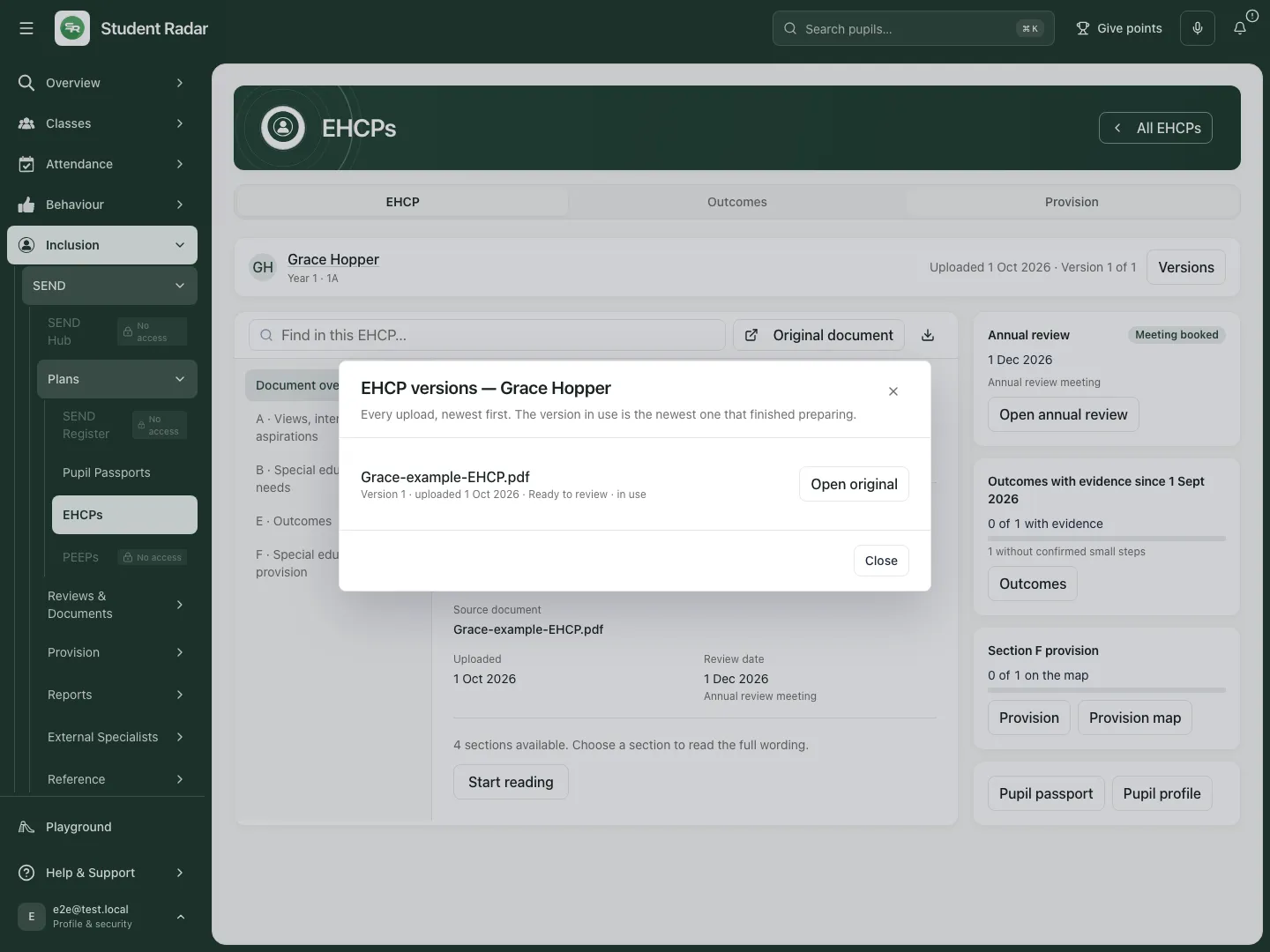
Versions separates the fictional uploaded original from the prepared working copy and its date.
Upload or replace an EHCP
Section titled “Upload or replace an EHCP”- Choose Upload for a pupil without a document, or EHCP options → Replace or upload for an existing one.
- In Upload EHCP, confirm the pupil and choose the correct PDF, DOCX, DOC or RTF source. Follow the displayed file limits and check the file belongs to the pupil.
- Select Upload and prepare deliberately. Upload stores a source; preparation organises/extracts content and is a separate bounded operation. Wait for the reported state rather than uploading duplicates.
- If the file uploaded but preparation did not start, use Start preparing when offered; there is no need to upload the same file again. A failed preparation offers Try preparing again. Prepare again is a deliberate new preparation of a ready source.
- When prepared sections are available, compare them with the original. Correct the editable working sections where offered, then use Save sections and set up review only after checking the content and review information.
- Preserve warnings where an extraction is incomplete or Section E outcomes could not safely be broken down. Check original Section E wording before relying on an outcome list.
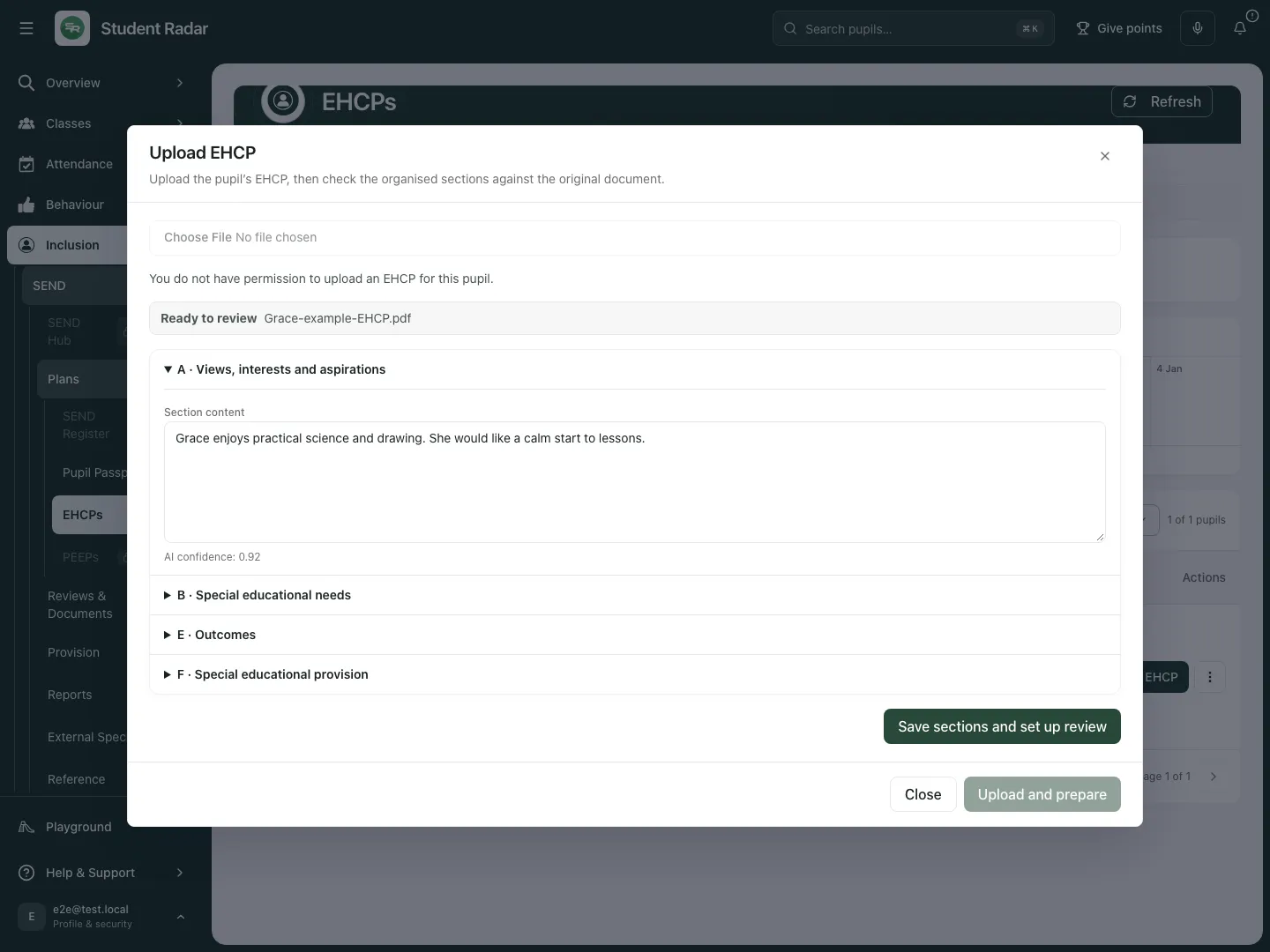
The fictional upload dialog is opened without selecting a file or starting preparation. No paid generation or real upload is demonstrated.
Work on Section E outcomes
Section titled “Work on Section E outcomes”- Open the pupil’s Outcomes workspace. Read the current Section E outcome and original wording before using a proposed small-step ladder.
- Review each draft. Use its Edit control to correct Step description and indicative timing, then Save. Reorder only when the sequence is appropriate; Confirm or Confirm all drafts records human checking, not achievement.
- Use Add a step for a missing practical step. Enter New step and the optional Indicative window for the new step, then select Add step [number]. Split outcome prepares a proposed breakdown for review; it does not make the proposed steps agreed facts automatically.
- Select a step to inspect its linked targets and recorded evidence. Use Mark achieved only for the appropriate human-reviewed progress judgement; Skip and Reopen record different decisions. A completed task or a linked note alone does not establish achievement.
- When a confirmed step is ready to become a target, use Start an ISP from these steps. Review the new ISP in its own creation workflow before saving/issuing it; a suggested link is not a delivered intervention.
- Open Outcome Tracking or the permitted pupil/ISP source where offered to inspect evidence. Keep observations’ source, date and uncertainty. A current document’s outcome and an older superseded outcome must not be silently mixed.
- If Section E has a review/retry caution, resolve it against the original before relying on the structured breakdown. A missing extraction does not mean the plan contained no outcomes.
Check and confirm Section F provision
Section titled “Check and confirm Section F provision”- Select Provision. Read Items in Section F, On the provision map, Flagged by the check, Rejected and Letter to the LA separately.
- In On the map, compare each item’s quote with Section F. Check what is provided, who delivers it, group size, setting, frequency and amount, plus any linked Section E outcome.
- Read specific/quantified checks as flags to review. They do not decide whether the plan meets a legal duty or automatically reject provision.
- Correct supported item fields/links where appropriate, then select the item’s Confirm action only after human checking. For several drafts, use the offered confirmation control and check how many were actually confirmed; a partial/refused result is not a complete save.
- Close/reopen the workspace to verify the confirmed state. Confirmation and adding to the provision map are separate actions.
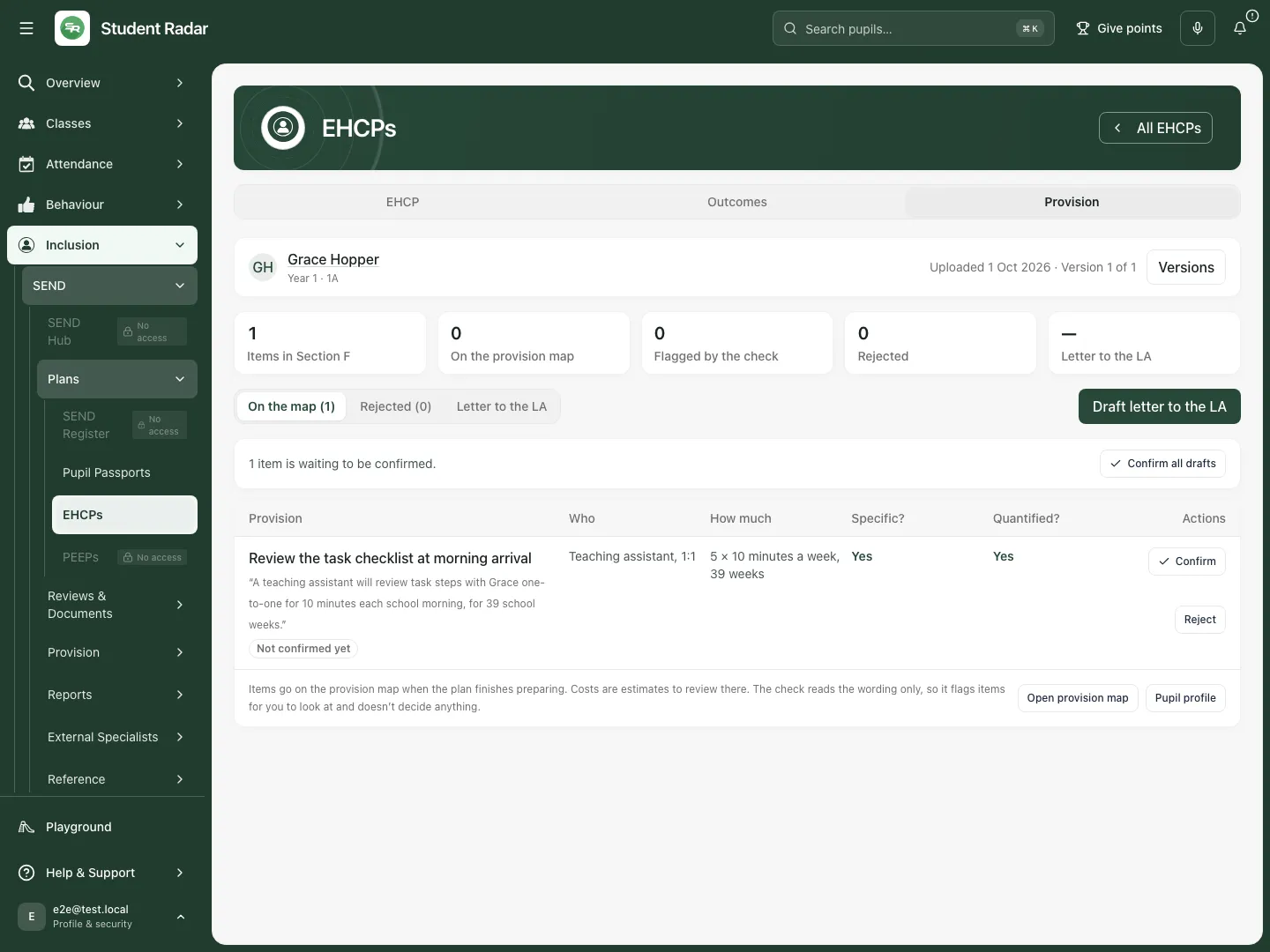
The fictional Section F item is a draft for staff to check against the quote before confirmation.
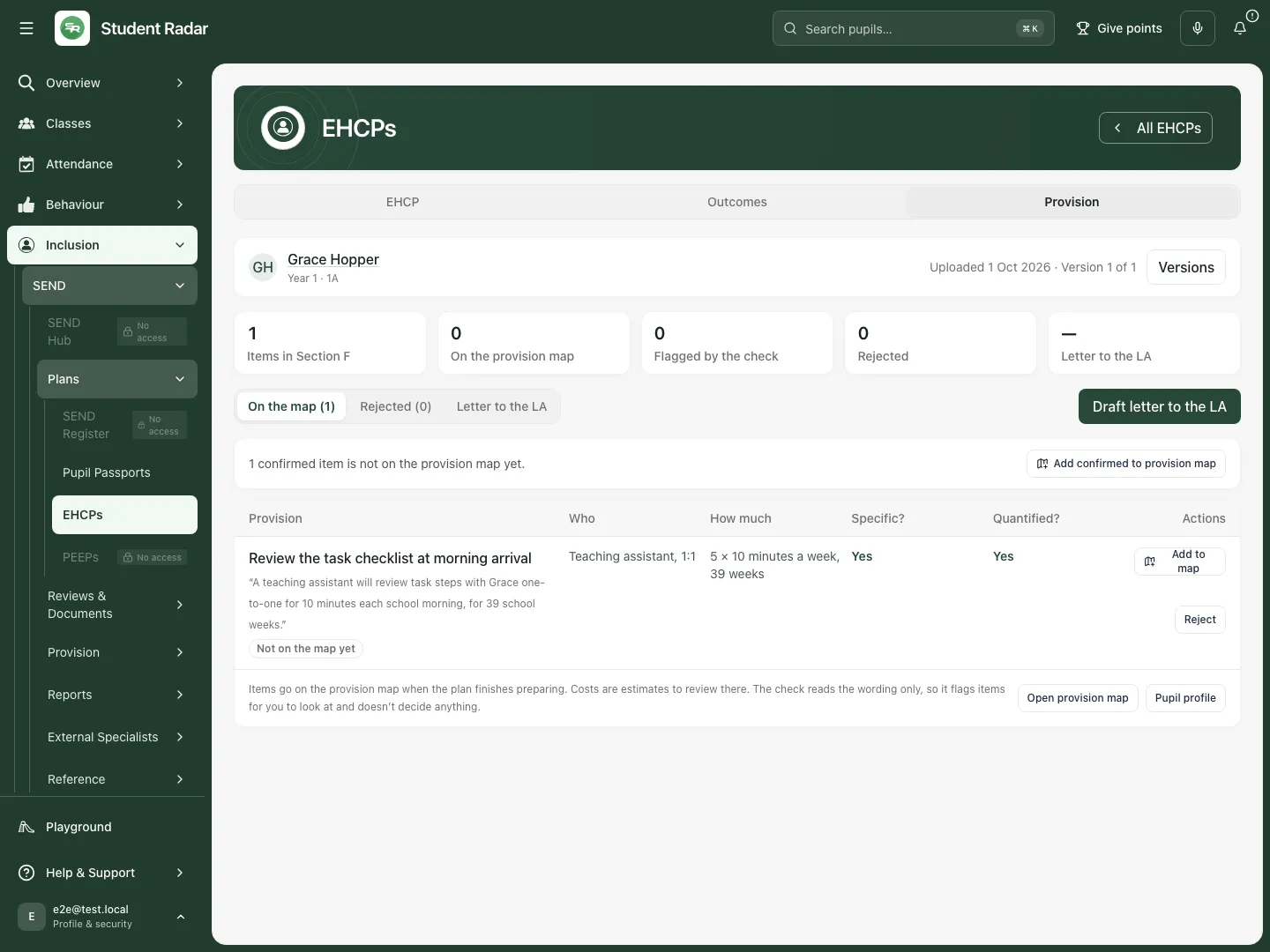
The fictional item reopens as confirmed with a separate Add to provision map action. Confirmation does not establish delivery or pupil impact.
Map, reject or raise an issue deliberately
Section titled “Map, reject or raise an issue deliberately”For a confirmed item not on the map, use Add to map or Add confirmed to provision map where offered. Check the resulting links and counts. Inferred hours/costs require human review; a map entry is not a delivery record or an accepted cost claim.
Use the item’s Reject control only after reviewing the reason. The reason form distinguishes issues to raise from removing an extracted item only; read the stated effect before confirming. Add the required note for Other. Use Rejected to review those decisions and Undo rejecting where correction is needed. A rejection must not erase the original source wording.
Prepare and review a letter to the local authority
Section titled “Prepare and review a letter to the local authority”- In Provision, open Letter to the LA or its draft-letter action. In Draft a letter to the local authority, select the intended Section F items, choose each Reason and add the required note for Other.
- Read the effect before selecting Reject [number] and draft letter: this records the selected rejection decisions and prepares the letter. It does not send anything. Do not choose this merely to preview unrelated wording.
- In Send to the local authority, verify Local authority, SEN team email and Ask for a reply by. A suggested address still needs checking for the intended authority; a date creates follow-up context, not a received reply.
- Choose Edit letter to review Opening paragraph and Closing paragraph, then Done editing. Check the pupil, source quotes, selected issues and recipient in the preview. Leaving the editor is not the final save/send operation.
- Use Export PDF to save the current letter details and prepare a PDF for checking. The current implementation saves those details before PDF generation; there is no separate standalone Save button in this panel. A saved draft/PDF is not delivery.
- When the separately authorised external communication is ready, choose Send email with PDF, read Send this letter to [authority]? and its exact address/pupil details, then Send letter only to make that deliberate send. This guide’s illustrated walkthrough does not perform that action.
- Check the recorded outcome. Draft, Sending…, Not delivered and Delivery unknown are different states. For delivery unknown, check with the authority before sending again; do not treat an unconfirmed attempt as a safe reason to duplicate it.
- In Letters sent, use Record the LA’s reply only after receiving one. Complete What did the local authority say?, then Save reply and check the recorded date/note. A reply reminder is work in My Actions, not evidence that the LA responded.
Follow the next specialist action
Section titled “Follow the next specialist action”The plan overview offers permitted routes to Annual review, Outcomes, Provision, Provision map, Pupil passport and Pupil profile. Follow the authoritative record for the specific change. Context links do not grant access. An EHCP working-copy edit does not amend the issued legal document or automatically change a specialist lifecycle.
Use EHCPs on a phone
Section titled “Use EHCPs on a phone”Use the compact pupil cards, filters and This pupil’s EHCP workspace selector. In the reader, choose the section from its compact menu and scroll the full wording. Check source/version and any caution before making a decision from a small screen.
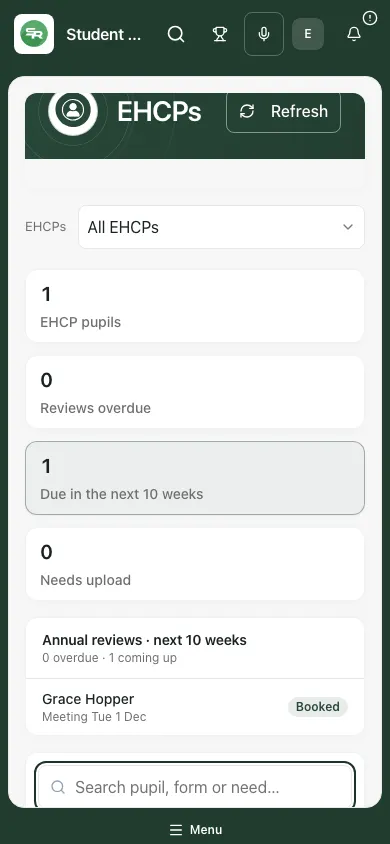
The fictional phone register retains pupil, document and review context with its permitted actions.
Troubleshooting and questions
Section titled “Troubleshooting and questions”EHCP information could not be loaded. Retry the source. Do not interpret a failed read or restricted membership as no plan/no need.
Uploaded, but preparation did not start. Use the offered start/retry action instead of uploading the same source again. A queued preparation is not a completed working copy.
A newer upload is not ready. The last prepared version remains labelled as older. Check both versions and the caution before sharing.
Section E or F looks wrong. Compare the original wording, keep the uncertainty visible and use the permitted correction/confirmation process. Do not invent a missing quantity or outcome.
No item was confirmed or a save was refused. Refresh to inspect current state and exact pupil access before retrying. Do not report a zero/partial confirmation count as saved.
Is evidence coverage the same as progress or provision delivery? No. Outcomes with evidence, confirmed small steps, provision-map links and actual delivery answer different questions.
Does a letter draft amend the EHCP or notify the LA? No. A draft/preview/PDF is preparation; external sending is a separate authorised step whose outcome needs verification.
Related guides
Section titled “Related guides”Use Pupil Passports, Use SEND Hub, Use SEND Register, Prepare and complete an EHCP annual review, Review SEND targets and record a professional judgement.