Compare AP attendance sources and plan agreed sessions
Written for: AP staff reading booked attendance, statutory reconciliation and permitted attendance plans.
Compare booked-session observations with statutory AM/PM expectations, inspect missing sources and plan the sessions actually agreed. Inspect the missing source, record an owned follow-up where permitted and plan the sessions actually agreed with the pupil and commissioning school. A missing mark stays unknown; neither a plan nor a follow-up creates an attendance fact.
Open the AP view and check your scope
Section titled “Open the AP view and check your scope”Open Attendance → Attendance Tracking in the alternative provision sidebar. Check the provision and period. This guide describes the AP workspace; other setting types have different attendance workflows. Governor view does not expose this named operational attendance view. A read-only demo shows evidence but does not save plans or follow-ups.
Current AP access determines the pupils and actions available. Reading attendance does not automatically grant permission to record a register, change an agreement, open a full pupil record or read a commissioner report. Follow-up needs the relevant management permission and a current staff record linked to your account.
The examples use fictional pupils. Their small denominators illustrate incomplete evidence; they are not whole-provision performance claims.
Read booked attendance before interpreting a percentage
Section titled “Read booked attendance before interpreting a percentage”- Start with Expected attendance, Present, Confirmed absent and Unrecorded. A booking is one pupil in one included session: two pupils in one session count as two bookings.
- Use Participation period to select Last 7 days or Last 28 days. Check the displayed dates, rather than assuming a school term or year.
- Read how many bookings have actually been marked. Unrecorded is not confirmed absence, lateness, a missing-child finding or proof a pupil did not attend.
- Read Booked placement attendance. Recording coverage and actual attended time answer different questions; planned minutes do not become attended minutes just because a booking exists.
- Where permitted sites exist, use Site for the selected site’s booked sessions. The pupil totals still cover all sites; do not compare them as if both were restricted to the selected site.
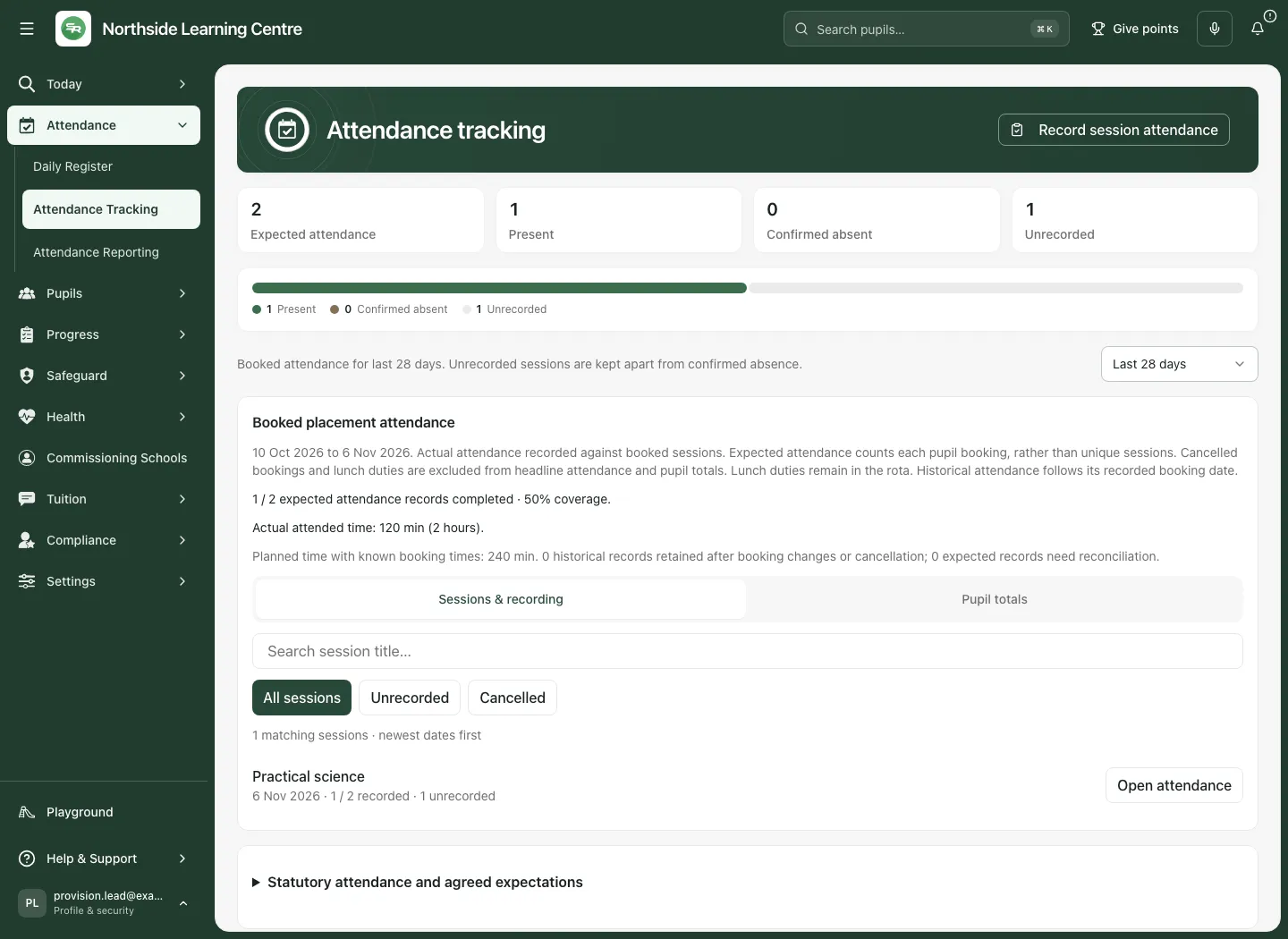
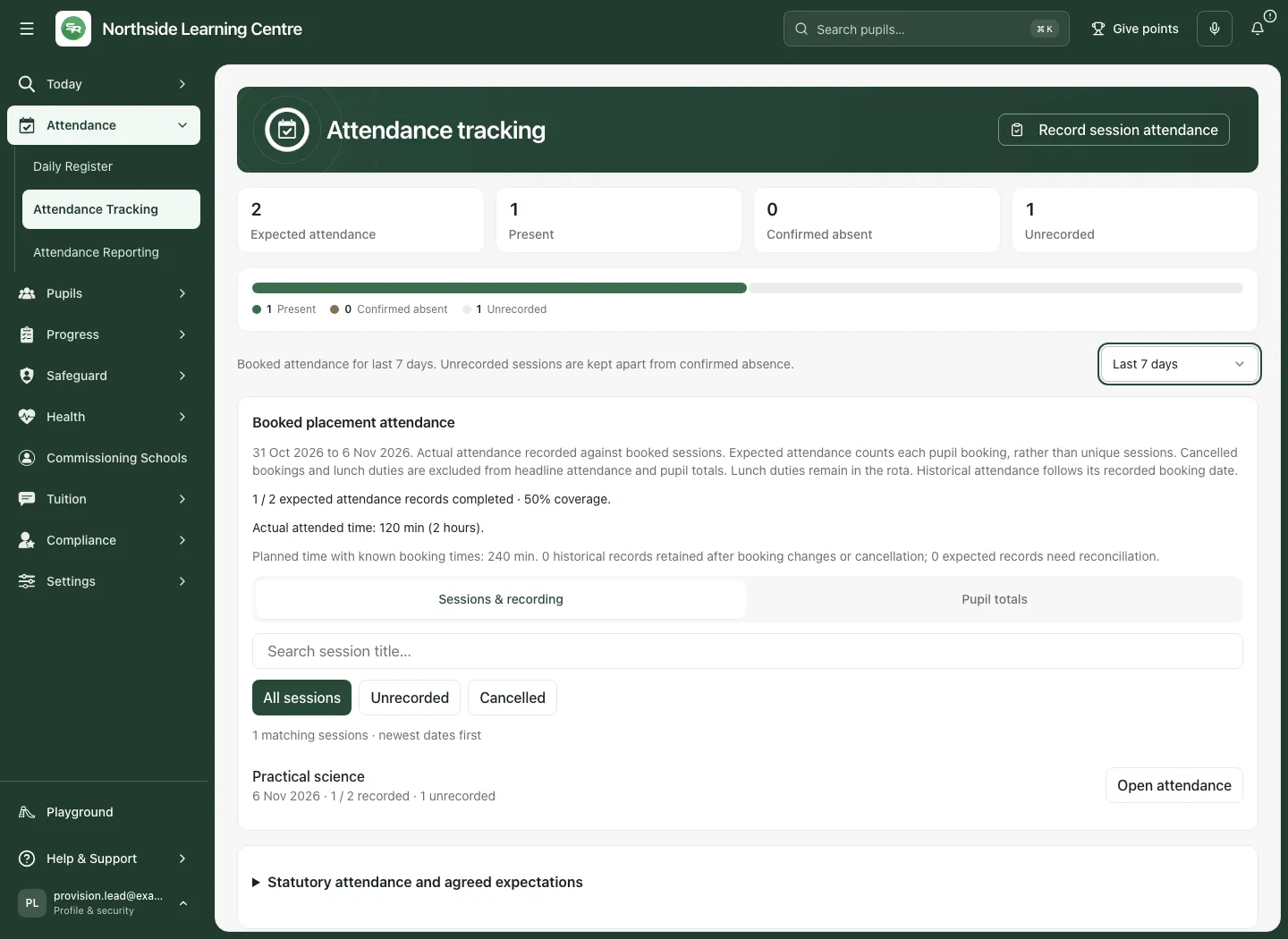
Cancelled bookings and lunch duties are excluded from the booked attendance counts. Header pupil filters narrow the statutory pupil table; booked-session figures retain their stated permitted scope. Clear a filter when you need the wider permitted pupil table, rather than assume a filtered row count is the roll.
Inspect and update an actual booked session
Section titled “Inspect and update an actual booked session”Under Sessions & recording, search the session title or use the offered Unrecorded or Cancelled filter. Check the date, title, expected bookings and recording status, then select Open attendance. Pupil totals summarises each pupil’s booked, present, confirmed absent and unrecorded places and actual attended time.
To record today’s session evidence, select Record session attendance. It opens Daily Register, using the actual dated rota session. Save the counted observations there and check its confirmed state. See Take today’s register and Weekly rota. This does not assign statutory AM/PM codes.
Open statutory attendance and agreed expectations
Section titled “Open statutory attendance and agreed expectations”Expand Statutory attendance and agreed expectations. This section reconciles agreed statutory AM/PM expectations against statutory marks; it does not simply relabel the provision’s booked-session register.
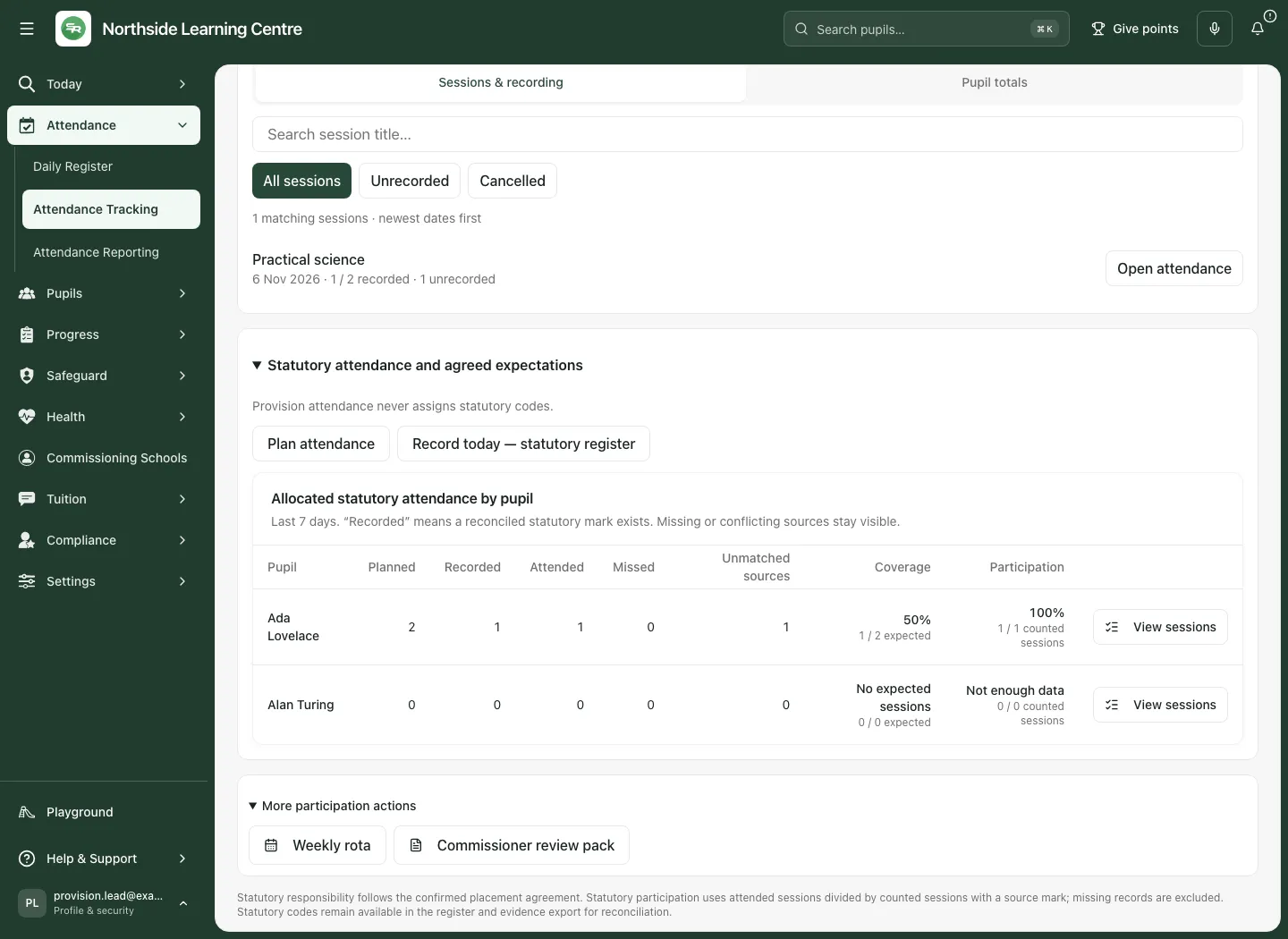
| Column | How to read it |
|---|---|
| Planned | The scheduled expectations in the period, including the source’s cancellation/not-scheduled distinctions. |
| Recorded | Expected occurrences with a reconciled statutory mark. A placeholder is not a recorded mark. |
| Attended | Occurrences whose reconciled statutory mark counts as present, including applicable approved educational activity codes. |
| Missed | Reconciled authorised plus unauthorised absence, rather than every missing record. |
| Unmatched sources | Expected occurrences without a matched statutory attendance mark. |
| Coverage | Recorded occurrences as a share of expected occurrences. Read this before relying on participation. |
| Participation | Attended divided by counted possible-attendance occurrences. Missing marks and non-counted codes are excluded, so 100% can coexist with incomplete coverage. Read the denominator; it is not a claim that all expected sessions were attended. |
If there are no expected sessions, read No expected sessions or Not enough data instead of treating the result as 0% or 100%. Where a source is unavailable, the page withholds the result rather than substituting a fallback zero.
Responsibility for statutory recording follows the confirmed agreement with the commissioning school. Use Record today — statutory register only with the right authority and original evidence. A transport incident or AP session observation may inform a check but does not itself assign a statutory code.
Inspect one pupil’s source sessions
Section titled “Inspect one pupil’s source sessions”- Select View sessions on the statutory pupil row, or the offered pupil name link.
- Check the pupil and dates in the session record. Each occurrence keeps its AM/PM expectation, planned minutes, mark, source and any linked rota sessions distinct.
- Read the reconciliation label: Attended, Authorised absence, Unauthorised absence, Not expected to attend, Record needed, Check mark or Cancelled.
- Select Needs attention to narrow to missing or questionable marks. All sessions returns to the complete loaded period; “none need attention” does not mean every session was attended.
- Read who recorded the mark, its time and comment where available. Select the permitted rota or Open pupil record link for more context; each destination still checks access.
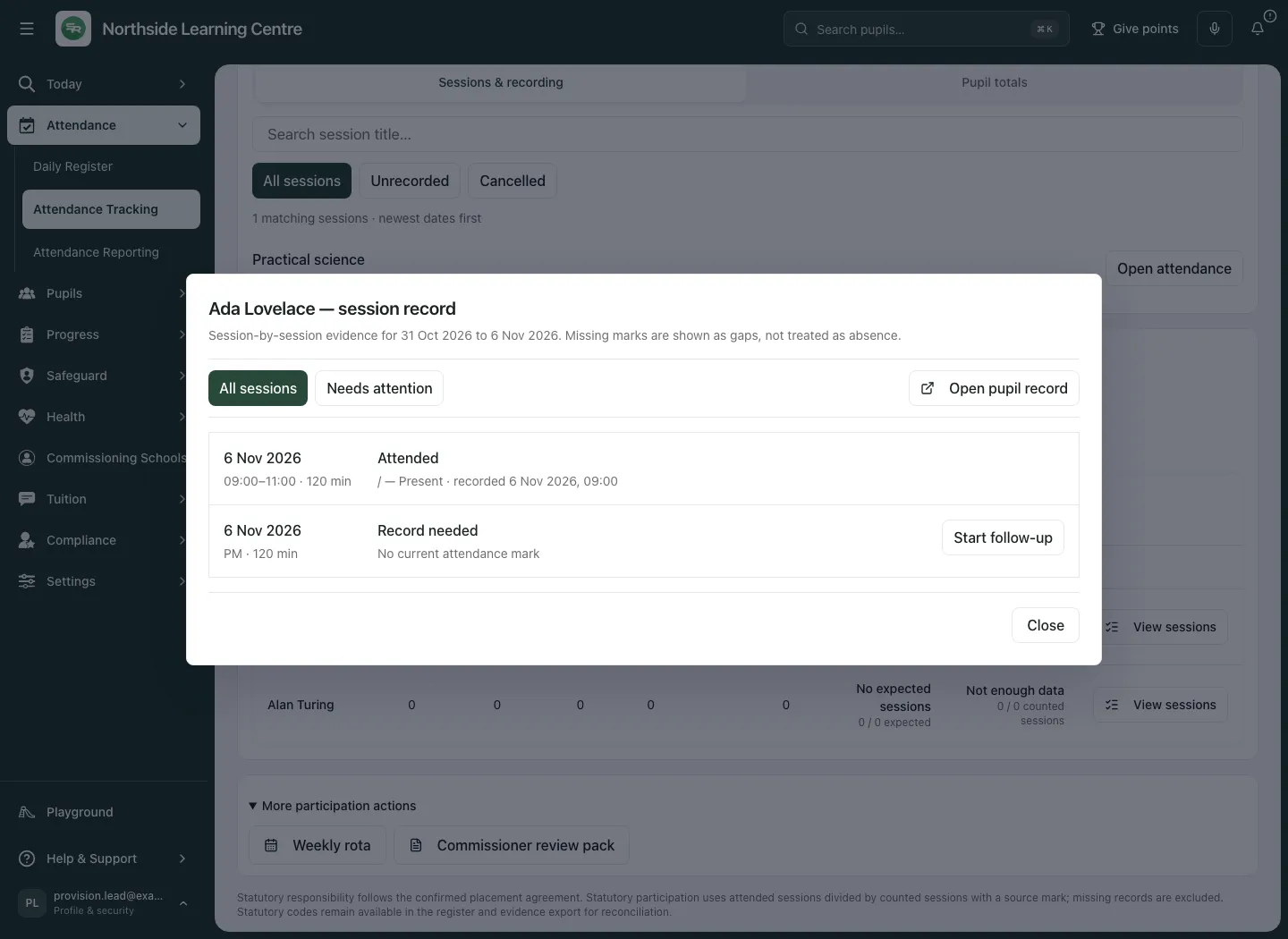
The detail read is bounded. If the period exceeds the supported 250 occurrences, use a shorter period and retry rather than interpreting a truncated history as complete.
Start, review and close a missing-mark follow-up
Section titled “Start, review and close a missing-mark follow-up”A follow-up coordinates checking the missing source. It does not diagnose a reason or convert unknown attendance into absence.
- On an eligible Record needed occurrence, select Start follow-up. You need permission and a linked current staff record. Check the resulting owner, due time and Family message state.
- The resulting owned work connects to My Actions. A family communication can remain a draft, or no draft may exist. Read the displayed state; no message is sent merely by starting work.
- If you own an open unresolved follow-up, select Record review. Other colleagues are told that only the owner can record a review.
- In Record professional review, enter a factual Review note (up to 2,000 characters). Separate what is known from what is still being checked.
- Set Next review in the school’s time zone. It must be in the future, not earlier than the follow-up’s due time and no more than 31 days ahead. Select Save review, then check the saved note and next review.
- Record the actual statutory mark or correct the expectation at its authorised source when established. A review note does not resolve the missing mark.
- Where an open follow-up’s source is no longer missing, use Close follow-up if offered. The app checks the current source before closing; it can say Follow-up stays open if evidence is still missing. Do not tick off separate work as proof of attendance.
If the source changes while you are reviewing, keep your note and re-read the refreshed occurrence before trying again. A failed or conflicting save is not a saved review. Read-only demos and unlinked staff cannot create follow-ups.
Plan the agreed AM/PM attendance
Section titled “Plan the agreed AM/PM attendance”Plan attendance is available to staff permitted to manage expectations. Use the agreement already reached; this form does not obtain consent, approve a reduced timetable or notify the commissioning school.
- Select Plan attendance. Choose the authorised Pupil, then the correct Placement. The picker uses the permitted roll, rather than only the rows left by the page’s current filters.
- Set From and To (up to 28 days) within that placement’s start/end dates. Choose the agreed weekdays. A 28-day selection can contain up to 56 AM/PM occurrences.
- Under Session plan, choose Expected to attend, Session cancelled or Not scheduled, matching the actual agreement. Cancellation and no expectation are different states.
- Tick Morning (AM) and/or Afternoon (PM). For each expected/cancelled part, set Planned minutes (AM/PM) between 1 and 720. Not scheduled has zero planned minutes.
- Add Agreed start and Agreed finish where known, or leave unknown times blank. If both are entered, finish must be later on the same day and the duration must match the planned minutes.
- Add Reason for this plan or variation, up to 500 characters. A changed existing manual plan needs a reason; do not erase the rationale for a change.
- Inspect Review N sessions. Each row says New, Change, Already matches, Update at its source or In the past: not changed here. Check every date and AM/PM part before saving.
- Select the counted Save N sessions button only after resolving the preview. The current label uses “sessions” even for one occurrence. Wait for the confirmed save.
- Reopen the same pupil, placement, dates and agreed details. A saved identical expectation shows Already matches and should not be submitted as another change. Check the reporting period as well: a future plan will not appear in a past-seven-days attendance total.
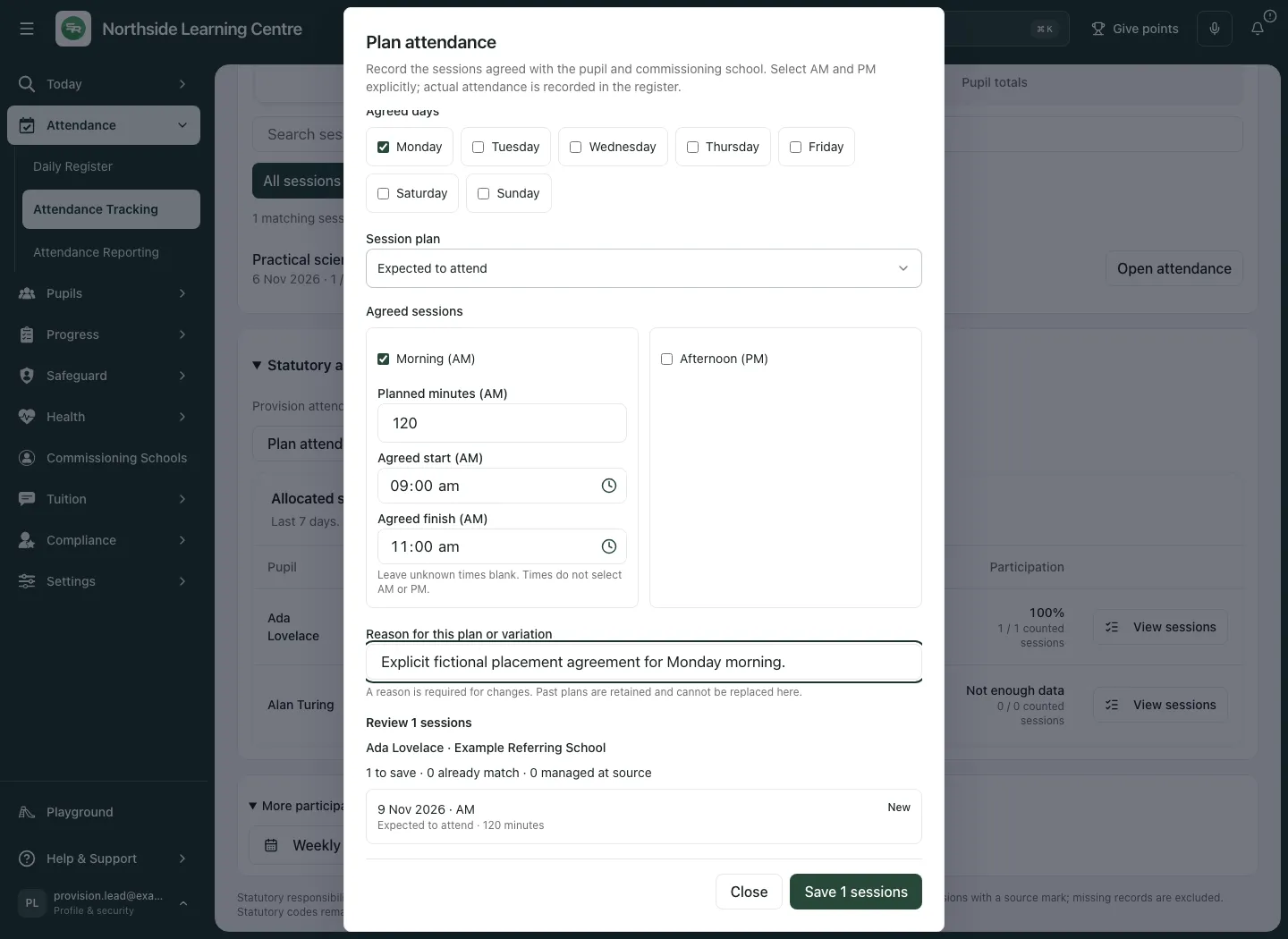
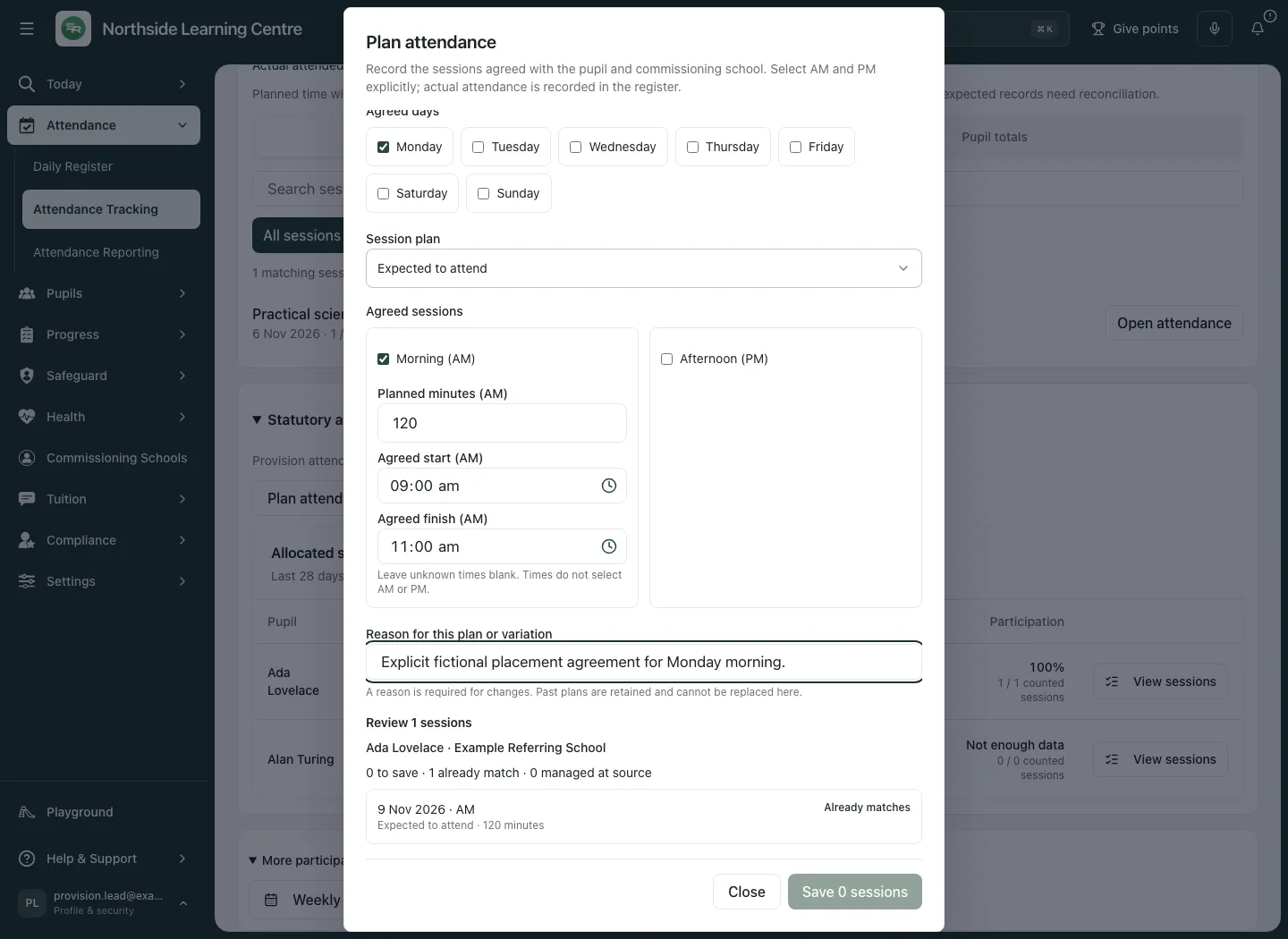
This saves an expectation, not a rota session or attendance mark. Plans with rota or specialist source ownership must be changed at that source; the form will not overwrite them. Existing past plans are history and are not changed here. Follow the authorised historical correction process instead. An unchanged existing row is not re-saved merely to change its reason text.
The complete attendance-plan read must be verified, up to 500 occurrences. A failed, duplicate or partial source read blocks planning; it is not treated as an empty plan. After a conflict or uncertain result, reload the plan and compare the actual rows before retrying. A queued retry keeps its exact intended command; do not keep submitting altered versions while the previous save is unresolved.
Use the phone view and permitted next actions
Section titled “Use the phone view and permitted next actions”On a phone, scroll through the summary and source sections, open the pupil’s session record and check the full dates before changing anything. Scroll within long tables/cards as offered; a clipped column is not absent evidence.
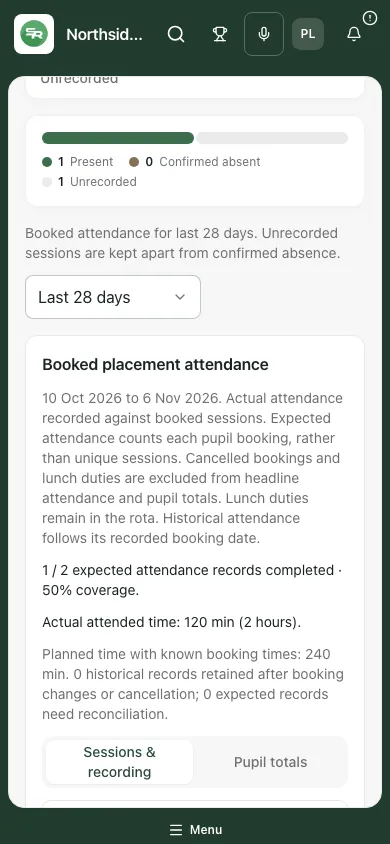
Under More participation actions, permitted links can open Weekly rota or Commissioner review pack. Reports have their own review and sharing steps. Tracking does not send a commissioner report or family message automatically.
If a result is unavailable or an action is refused
Section titled “If a result is unavailable or an action is refused”| Situation | What to do |
|---|---|
| Booked attendance cannot load | Select Retry booked attendance. Keep the unavailable figures distinct from zero bookings. |
| Statutory participation or session evidence fails | Use Retry in the relevant section. Read its period and permissions; a successful booked-session read does not prove this separate source loaded. |
| Header/site filters and totals differ | Read each section’s scope. Clear the pupil filter for the wider statutory table; site-filtered booked sessions and all-site pupil totals are deliberately different. |
| No expected sessions or no usable data | Check the placement agreement and period. Do not create an expectation just to make a percentage appear. |
| Start follow-up unavailable | Confirm permission and your account’s linked current staff record with the provision lead. |
| Update at its source or past-plan refusal | Open the original agreement/rota or use the authorised historical correction process. Do not duplicate it as a new manual expectation. |
| Changed source or unconfirmed save | Keep your note/intended agreement, refresh the source and compare it before retrying. Never report an unconfirmed click as saved or delivered. |
| Read limit | Shorten the period and retry. Contact support if a complete authorised read still cannot be obtained. |
Common questions
Section titled “Common questions”What does a missing session mark mean?
Section titled “What does a missing session mark mean?”It stays unknown. Inspect the original source and record an owned follow-up where permitted rather than infer absence or presence.
Does planning a session create an attendance record?
Section titled “Does planning a session create an attendance record?”No. Plan the sessions actually agreed with the pupil and commissioning school; the plan is separate from an observed attendance fact.
Related: Daily Register, Weekly rota, Placement agreements, Sites, Student Radar support.