Map your evidence to quality mark standards
Written for: Alternative provision leaders and safeguarding leads preparing for a quality mark or commissioner review.
Quality Mark lists the standards your quality mark or commissioners assess you against. For each standard, you link the evidence you already hold in Student Radar or elsewhere, record how complete you judge that evidence to be, and note any gaps. Nothing is copied: each link opens the original.
Before you start
Section titled “Before you start”Quality Mark is for provision leaders, senior leaders, administrators, safeguarding leads and their deputies, and service leads. Each of them can change the map. Other staff can’t open it.
The page is in the alternative provision sidebar once AP operations are active.
Set up your standards
Section titled “Set up your standards”-
In the sidebar, open Compliance and choose Quality Mark.
-
Under Set up your standards, choose how to start:
- Use suggested headings adds a set of short topic headings, such as Safeguarding and welfare and Safer recruitment and staff checks. They aren’t any awarding body’s wording. Rename them to match your framework.
- Add my own standard starts with a blank standard.
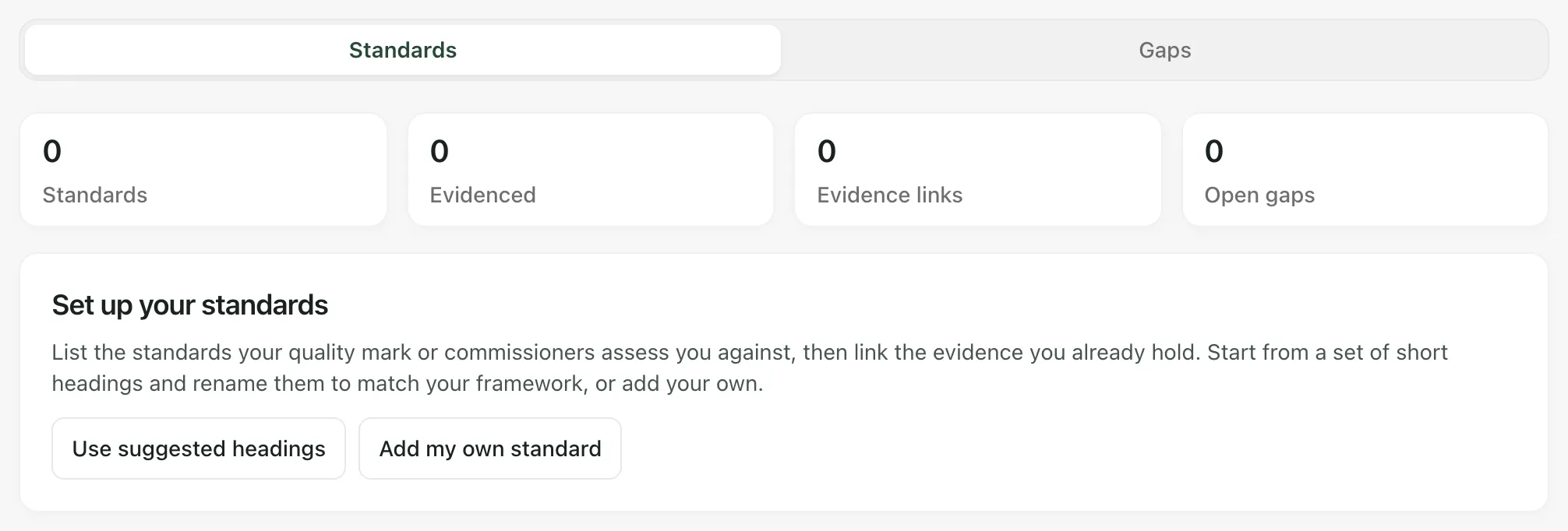
To add more later, click Add standard at the top of the page. You can have up to 60 standards.
Edit a standard
Section titled “Edit a standard”- Click Edit on the standard.
- Change the Heading, and add What this covers (optional) if it helps.
- Click Save.
To take a standard off the map, click Edit, then Archive standard.
Link evidence
Section titled “Link evidence”-
Click Link evidence on the standard.
-
Choose the Kind of evidence:
- Compliance duty: choose a duty from your Compliance Checklist. The link shows the duty’s current status there.
- Document or policy: choose a document from the Evidence Store or Policies.
- Student Radar workspace: choose a page, such as Single Central Record, Staff Supervision, CPD and training or Self-evaluation, and give it a Label.
- Evidence held elsewhere: describe it under What the evidence is, for example a paper file in the office.
-
Add a Note (optional) to say what the evidence shows.
-
Click Link evidence.
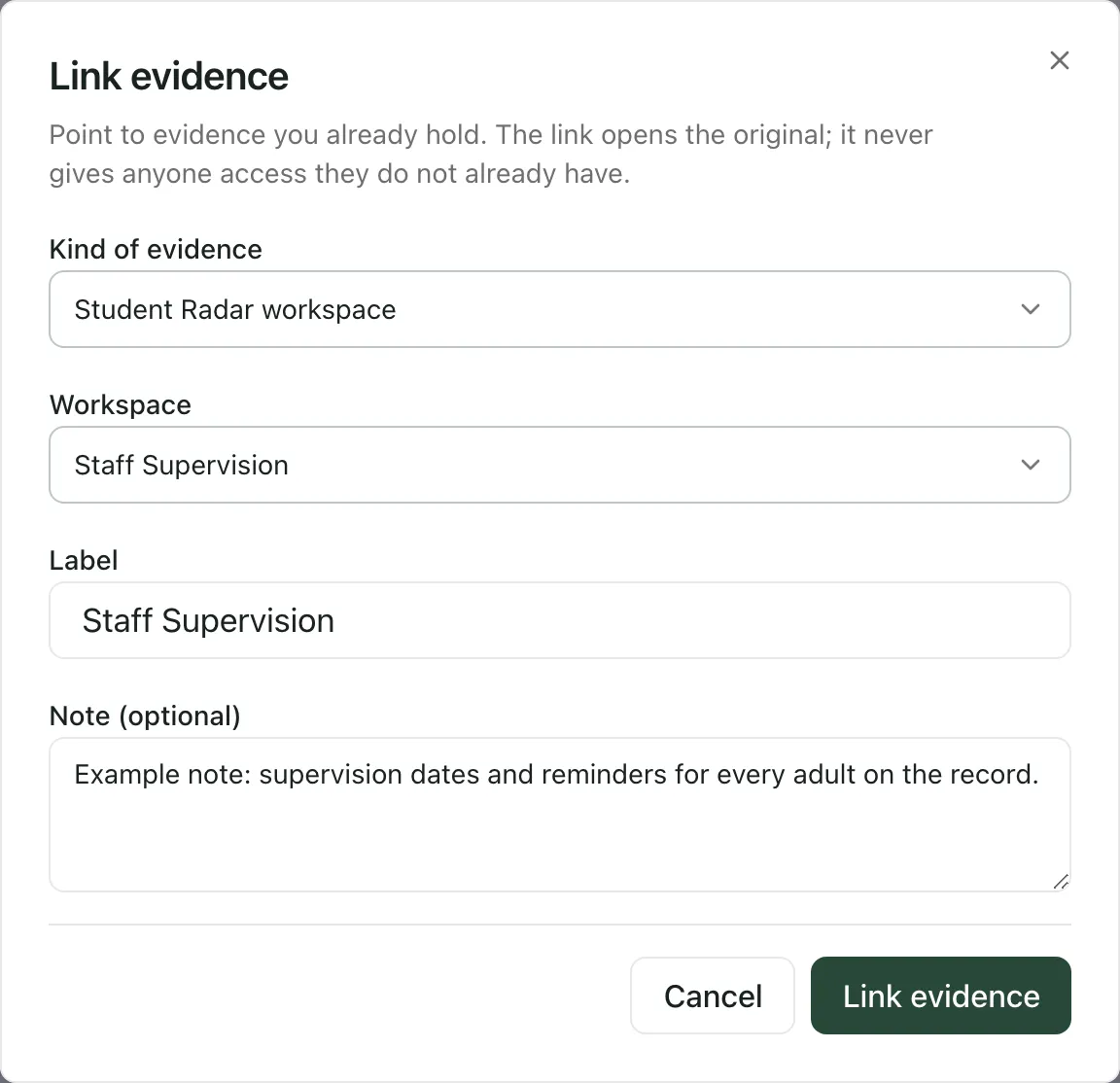
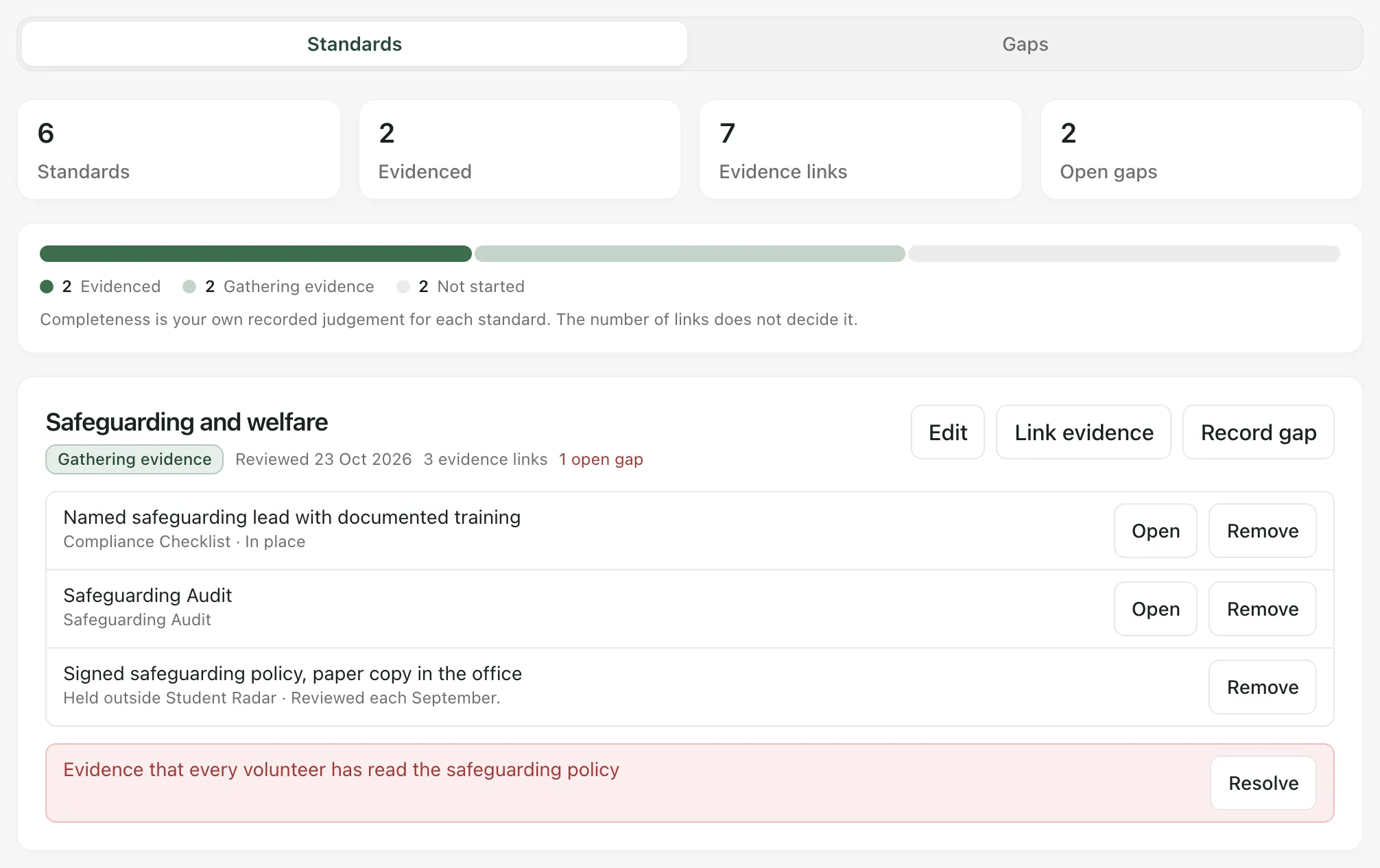
Click Open on a link to go to the evidence. A link never gives anyone access they don’t already have: if you can’t open a document, it shows as “A document you cannot open here”. Click Remove to take a link off a standard.
Record how complete a standard is
Section titled “Record how complete a standard is”Completeness is your own judgement. The number of links doesn’t decide it.
- Click Edit on the standard.
- Choose the Completeness: Not started, Gathering evidence or Evidenced.
- For Gathering evidence or Evidenced, enter the date you reviewed it in Reviewed on. It fills in today’s date, and it can’t be in the future.
- Click Save.
At the top of Standards, the bar shows how many standards are at each level, with counts of Evidence links and Open gaps.
Record and resolve gaps
Section titled “Record and resolve gaps”When a standard needs something you can’t evidence yet:
- Click Record gap on the standard.
- Describe What is missing.
- Click Record gap.
Open gaps show on the standard and in the Gaps section, with the date each was recorded. When you’ve dealt with one, click Resolve. A gap has no owner or due date, so if someone needs to act on it, agree that with them separately.
Related articles
Section titled “Related articles”If something doesn’t work
Section titled “If something doesn’t work”| What you see | What to do |
|---|---|
| “You do not have access to the Quality Mark map.” | The map is for leaders. Ask your Provision Lead if you need it. |
| “No standards have been set up yet.” | Ask a leader to set up your standards. |
| “The Quality Mark map could not be loaded. Completeness and gaps cannot be confirmed.” | Click Retry. Until it loads, don’t rely on the counts. |
| “Check the details. Evidenced and gathering standards need a review date that is not in the future.” | Enter a Reviewed on date of today or earlier. |
| “Someone else changed this standard. Reload and try again.” | Reload the page, check the standard and make your change again. |
| “This has reached its limit. Archive or remove something first.” | A map holds up to 60 standards, and each standard up to 100 links and 100 open gaps. Archive a standard, remove a link or resolve a gap. |
| “That standard is no longer available. Reload the page.” | Someone has archived the standard. Reload the page. |
| “No documents you can open yet. Add them in the Evidence Store or Policies first.” | Add the document in the Evidence Store or Policies, then link it. |
| “You do not have permission to change the Quality Mark map.” | Ask your Provision Lead to make the change. |