Review AP duties and own the next evidence review
Choose the applicable duty, record the provision’s judgement and evidence gaps and assign the next review owner and date. The recorded status is your provision’s decision. A green label, assigned task or uploaded file does not establish that every relevant duty has been met.
Open Compliance Checklist in your provision’s workspace. Reading the checklist, managing its records and managing documents can require different access. An evidence link or a link to another module does not give a colleague permission to open that destination.
1. Check which duties you are reviewing
Section titled “1. Check which duties you are reviewing”The checklist groups duties under Registration and placements; Safeguarding; Attendance and behaviour; Health, safety and first aid; Policies and governance; and Data protection. Each duty shows its description, whether it applies to registered or unregistered providers or both, its displayed basis and its current recorded status.
Start by checking the provision’s recorded registration information. Provision Settings opens the setting profile when you have access. A reviewed regulatory status can take precedence over the general profile. Do not change a setting merely to hide an inconvenient duty: the responsible proprietor or authorised leader must review the actual position.
Where the registration position is known, Show every duty includes those outside the normal applicable list; Only duties that apply restores the applicable list. The readiness figures still describe applicable duties. The recorded In place percentage leaves duties marked Not applicable out of its denominator; read that alongside the individual applicability decisions. Where registration is unknown, the checklist includes both sets so an unknown setting is not treated as an exemption.
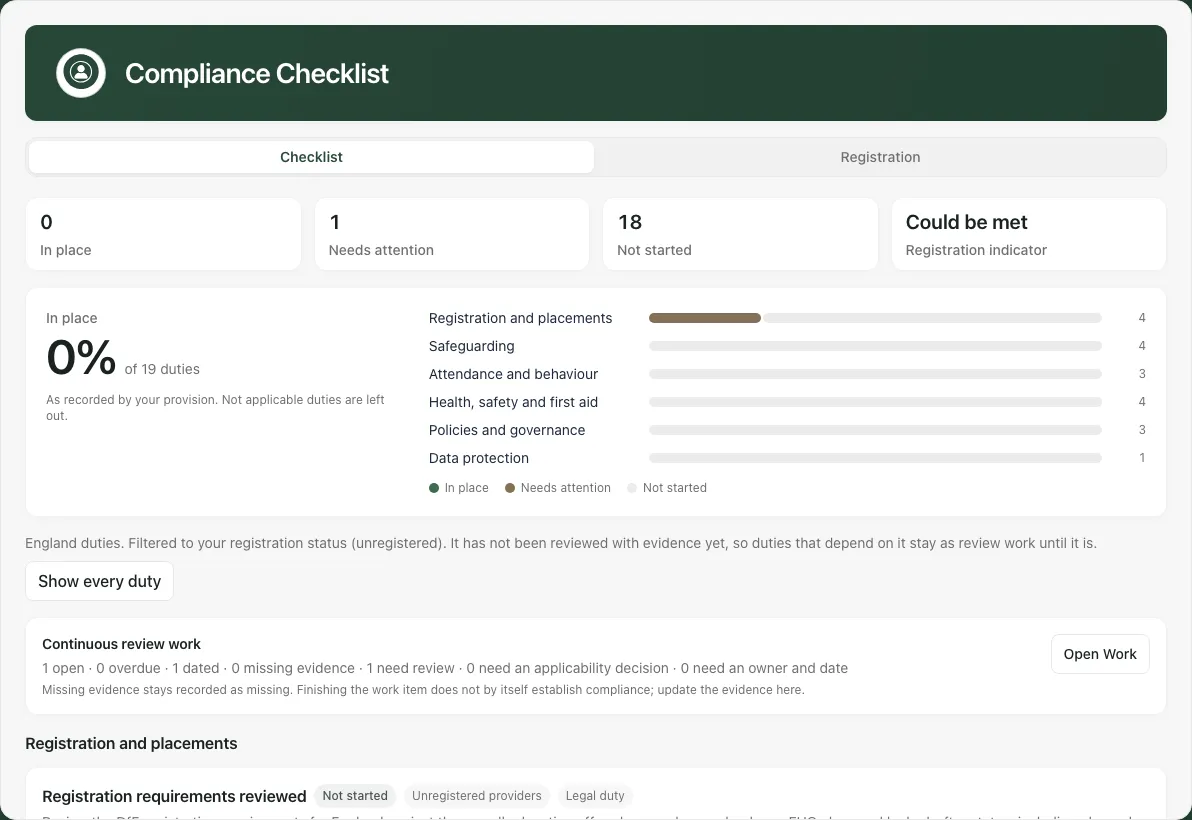
Read coverage alongside any figure. Not started is an unreviewed record, not evidence of compliance. A missing or failed evidence read is not interchangeable with zero evidence. If a warning says records could not be checked, resolve that before using the page as a complete review pack.
The displayed legal/guidance descriptions help organise the review; the checklist is not legal advice or a registration determination. Verify the current requirements and your organisation’s responsibilities through the appropriate official guidance and authorised professional decision.
2. Review and save one duty
Section titled “2. Review and save one duty”Select the relevant duty by its title; a link from work or another page may bring it into view directly. Read its description and any offered links such as Placements or another specialist record before recording a conclusion.
- Inspect the existing evidence, note, last review and next review.
- Choose Status: Not started, In place, Needs attention or Not applicable.
- Set Reviewed on to the date the review actually took place. A future date is not accepted as a completed review.
- Write an Evidence note that explains what was checked, any limitation and the next action. It allows up to 1,000 characters. Keep sensitive pupil/staff details in the appropriate controlled record rather than copying them unnecessarily.
- Select Save on that duty.
- Read the result and return to the saved values. A change typed after Save started can remain unsaved; save that later edit separately when appropriate.
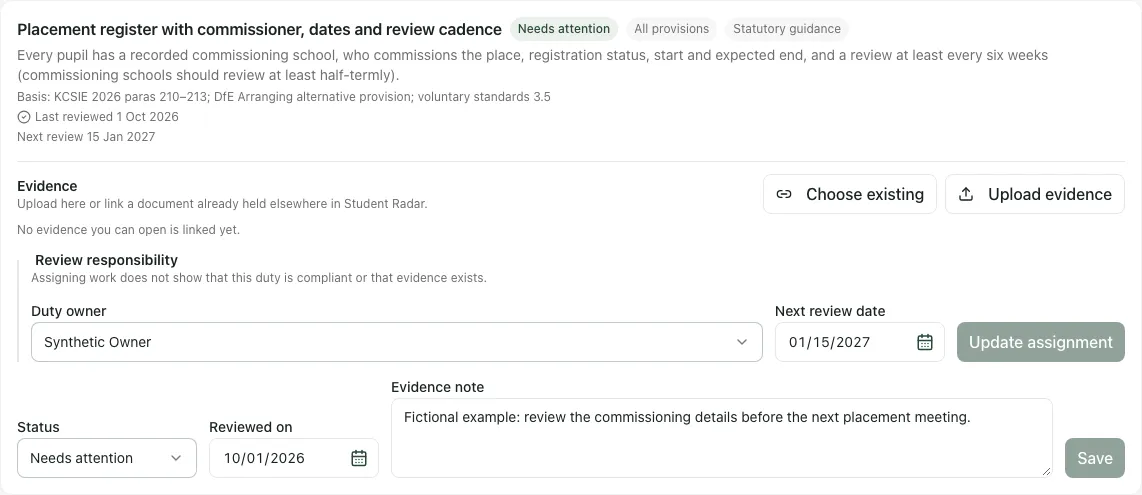
For example, “commissioner and review date checked; signed placement agreement still needs linking” preserves the gap. It should not be turned into In place merely because someone has been asked to find the agreement.
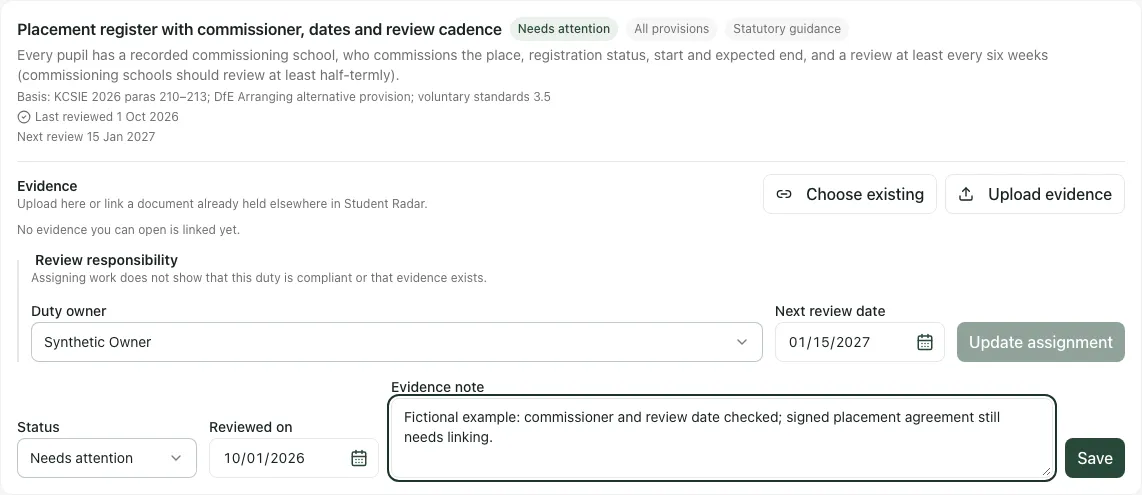
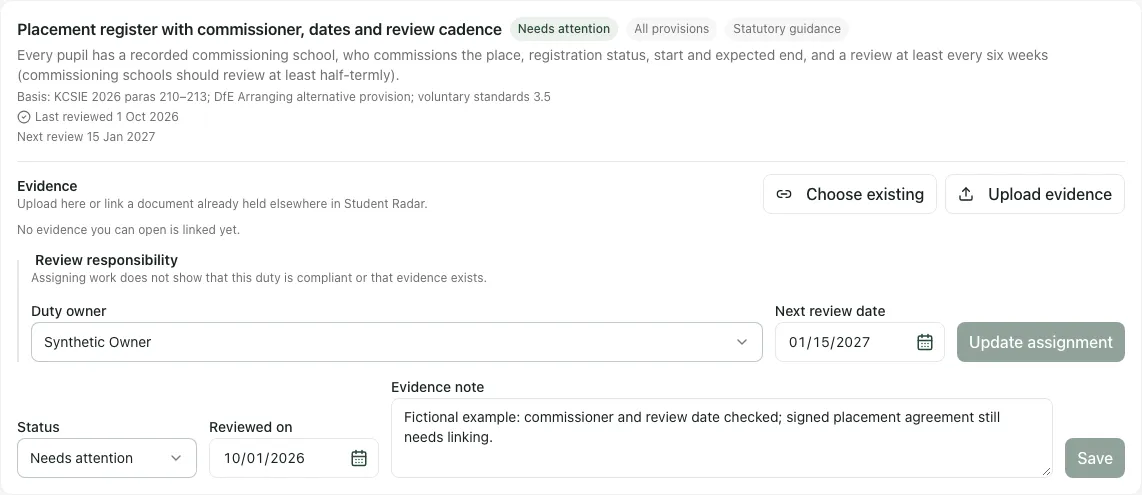
The page checks the latest saved duty before writing. If that read fails, it can stop the save and keep your draft. If another colleague changed the same field, compare the current record and reconcile the decision rather than repeatedly overwriting it. Separate changed fields are handled against the latest record; this is not a live collaborative text editor. Try again retries a failed save where offered. Do not interpret an error as proof that your draft was saved.
3. Understand evidence gaps without changing the recorded decision
Section titled “3. Understand evidence gaps without changing the recorded decision”Still needed for this duty highlights specific gaps. In place still needs a review date and an evidence file you can open. Not applicable needs a reason and review date. Linked evidence on a Not started duty still needs a human review.
A status is not silently changed when evidence is attached or when a gap is detected. Re-read the duty and save the appropriate decision yourself. A document shell without a file does not count as evidence. Evidence that your account cannot open must not be assumed available to every reviewer; ask an authorised document owner to check access.
Likewise, the section readiness figures and Continuous review work answer different questions. Readiness concerns the duty records; work counts concern open follow-up items and can include more than one issue for a duty. Do not treat either figure as an external certificate.
4. Link a document already held in Student Radar
Section titled “4. Link a document already held in Student Radar”- On the duty select Choose existing.
- In Add compliance evidence, keep the Choose existing tab selected.
- Use Search documents to find an appropriate document by title. Searching can find records outside the initial list; an empty initial list is not a complete search of the organisation.
- Inspect the title, source, version and confidentiality information. Choose the actual supporting record, not a similarly named draft without a file.
- Tick Select [document title]. You can choose up to 20 documents at once.
- Select Link selected (N) and check the linked evidence under the original duty.
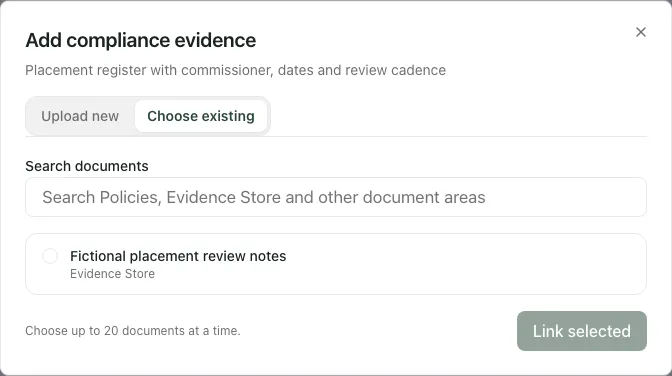
The picker only offers documents available to you. The initial/search result limit is 300, so refine the title search if a busy document library does not show the record. A fileless document can be linked as context, but the app explicitly warns that it does not count as evidence.
Linked document details can reflect its latest version rather than an immutable copy of what you once read. Review the current version and retain any required formal review record through your organisation’s document process. Opening a linked source rechecks access there.
To remove an incorrect association, use Remove [title] from this duty, read the confirmation and confirm the unlink. This removes the duty’s link; it does not delete the underlying controlled document or bypass its retention rules.
5. Upload new supporting evidence
Section titled “5. Upload new supporting evidence”- Select Upload evidence, or switch the evidence dialog to Upload new.
- Enter Evidence title.
- Choose File in, such as Evidence Store or Policies, according to the document’s purpose.
- Choose Confidentiality, Standard or Confidential. Use the organisation’s policy for sensitive material; attaching it to a duty does not broaden access automatically.
- Choose the File. The app checks the permitted file types and a maximum size of 25 MB; read its validation message if rejected.
- Select Upload and link and wait for the result.
- Check both the document/file and its link on the duty, then update the duty’s note/status only after reviewing the evidence.
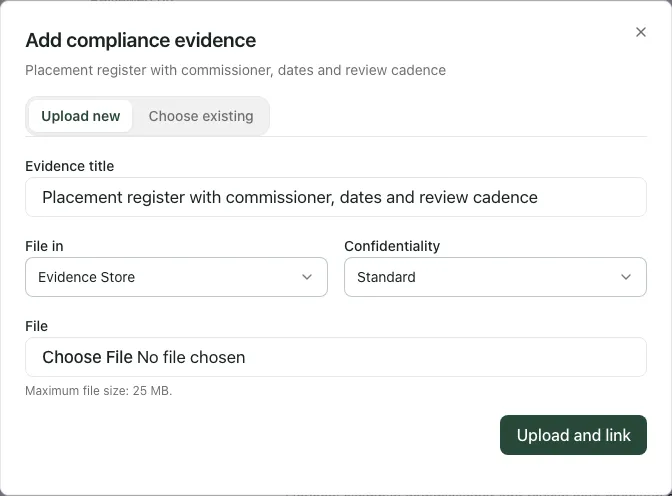
Creating a document, uploading its file and linking it are separate stages. If a later stage fails, the message can identify what was already saved. Follow the offered retry or inspect the saved document before starting over; do not assume every error means nothing exists. Avoid duplicate copies and do not claim compliance simply because the upload succeeded.
6. Give the next review an owner and date
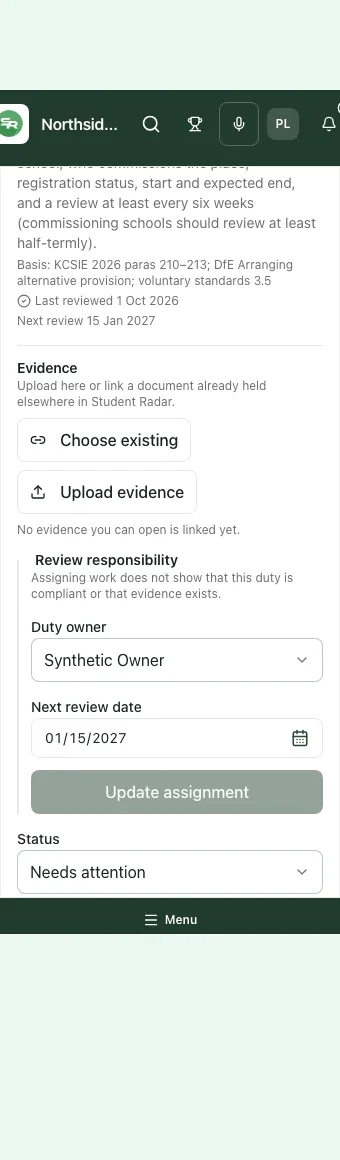
Section titled “6. Give the next review an owner and date”Where you can manage compliance, each duty has Review responsibility.
- Choose the appropriate active Duty owner.
- Set Next review date to the agreed date, using the provision’s school date. It must be today or later, within the supported two-year range.
- Select Assign review, or Update assignment for an existing assignment.
- Check the owner and next-review display after saving. The assignment’s work and calendar entries can follow from the saved record.
- If the app says the assignment changed elsewhere, reload it and reconcile with the other reviewer before saving again.
The owner needs an active staff record. An assigned person without a linked usable account may not receive the expected personal workspace view; check that the right colleague can see the work. Reassign reviews when an owner leaves instead of assuming an old assignment remains deliverable.
A next-review date is different from Reviewed on. The former plans future work; the latter records a completed review. Assigning work does not mean evidence exists or that the duty is compliant. Description text that recommends a cadence does not automatically schedule every recurring review for you.
7. Use Continuous review work to follow gaps through
Section titled “7. Use Continuous review work to follow gaps through”Read Continuous review work for open, overdue and dated follow-ups, missing evidence, items needing review/applicability decisions and missing owners/dates. Single Central Record checks are shown separately so they are not mistaken for checklist-duty counts.
Use Open Work, Open Calendar or Open Single Central Record where available. A compliance work item points back to its duty. Follow that source link, review the evidence and update the checklist record. Completing or attempting to close the task by itself does not repair a missing file, record a reviewed status or establish compliance.
An item becomes overdue after its due day according to the provision’s calendar rules; a date arriving today is not automatically the same as overdue. If projected work is unavailable, the duty records can still be present, but you cannot claim the work overview is complete. Retry or ask the administrator to investigate rather than treating unavailable counts as zero.
8. Review the Registration indicator carefully
Section titled “8. Review the Registration indicator carefully”For an unregistered or unknown setting, the workspace can also offer Registration. It requires compliance-management access. A registered setting does not need the same indicator section.
The indicator uses agreed placement hours and facts about pupils you can open. Read the shown window, week-by-week detail, pupil coverage and Method and coverage. Missing hours, date of birth, EHC plan or looked-after information are unknown, not “no”. Lower confirmed counts and upper counts allowing for unknowns answer different questions. Do not infer a clear position from a low known count with incomplete inputs.
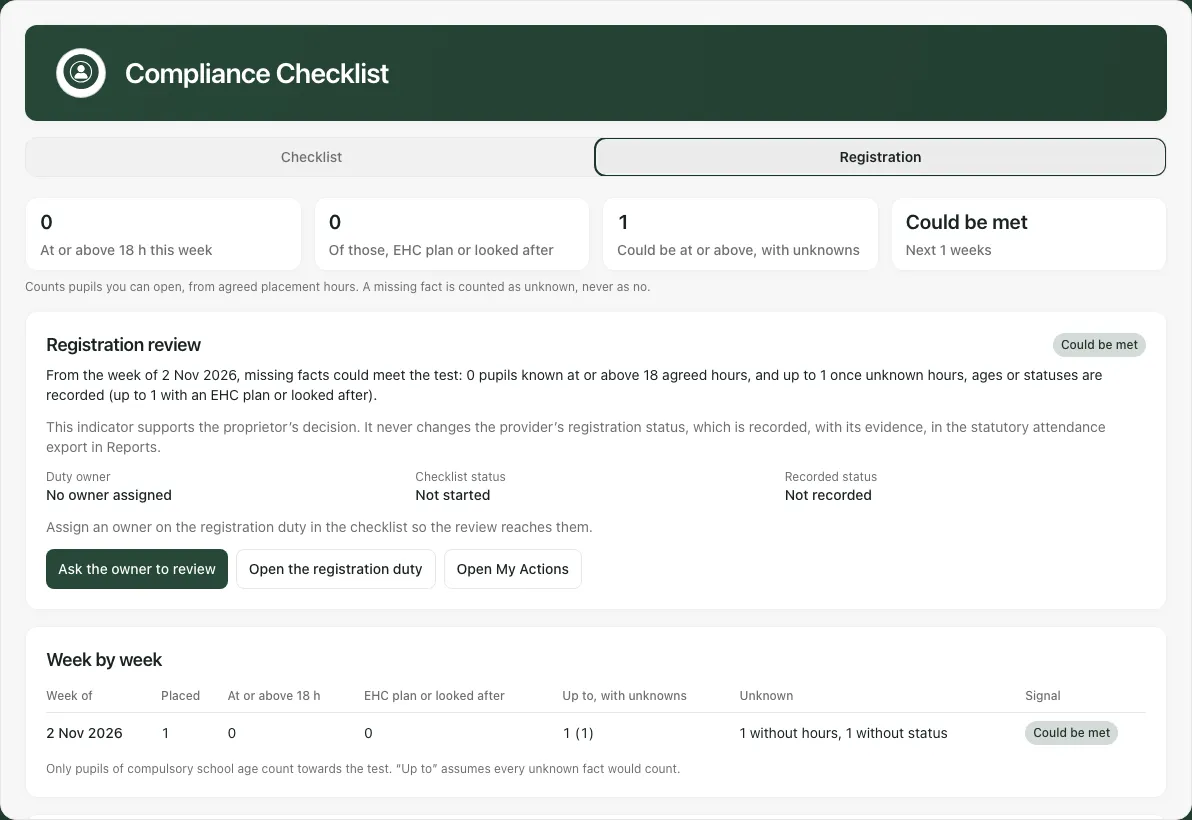
The software’s hours threshold is an indicator within its stated method, not a legal definition of full-time education. Planned admissions, the overall education offered and factors outside the model still need an authorised review of current guidance. The scope is pupils your account can open, not necessarily every child at the provision; a truncated pupil table or missing facts further limits what can be concluded.
If a possible/met signal warrants follow-up:
- Check the named pupil facts and agreed placement hours in the appropriate source records.
- Assign an owner/date on the Registration requirements reviewed checklist duty if needed.
- Select Ask the owner to review only when that is the intended action. It marks the duty for review and routes work; it does not register the provision or change its regulatory status.
- Read whether a review was newly requested, was already open or the underlying facts changed. Refresh a changed indicator before making another request.
- Use Record status in Reports where offered to open the appropriate reporting workflow for an authorised, evidence-backed status record. Do not confuse recording that reviewed position with obtaining approval from a regulator.
The indicator may explicitly say it is unavailable. In that case nothing has been assumed: check placement facts and current official guidance directly. A request is internal work, not a notification or application to the DfE.
9. Troubleshooting
Section titled “9. Troubleshooting”| What you encounter | What to do |
|---|---|
| No edit or evidence controls | Check compliance and document permissions. Reading a duty does not grant management access. |
| Cannot save Reviewed on | Check it is a genuine completed-review date, not a future date. |
| In place still has a gap | Check the review date and an actual linked file you can open. Keep the recorded decision under human review. |
| Not applicable still needs review | Record the reason and review date; changing a filter is not an applicability decision. |
| Saved text differs from your later typing | Read any “unsaved changes” message and save the later edit separately; do not assume typing auto-saves. |
| The document is absent | Search its title, check library/access and whether it has a file; an initial/result cap is not a global absence claim. |
| Upload/link only partly succeeded | Inspect the stated saved stage and use the offered recovery before creating a second document. |
| Owner is inactive or assignment changed | Choose a current appropriate owner, or reload and reconcile the latest assignment. |
| Work or indicator cannot be checked | Preserve the uncertainty. Retry the affected reader and use original records; do not report zero gaps. |
Common questions
Section titled “Common questions”Does uploading evidence change the recorded duty decision?
Section titled “Does uploading evidence change the recorded duty decision?”Evidence and the provision’s recorded judgement are separate. Review the duty and its actual evidence gaps before changing the decision.
What should I record for the next review?
Section titled “What should I record for the next review?”Give the duty a review owner and date and use connected review work to follow the gaps through.