Manage school policy reviews and document signatures
Find the policy, check its owner and review date and connect the current document version and required signatures. Use connected tasks for the next review or return preparation, and publish a policy only through the separate authorised website workflow.
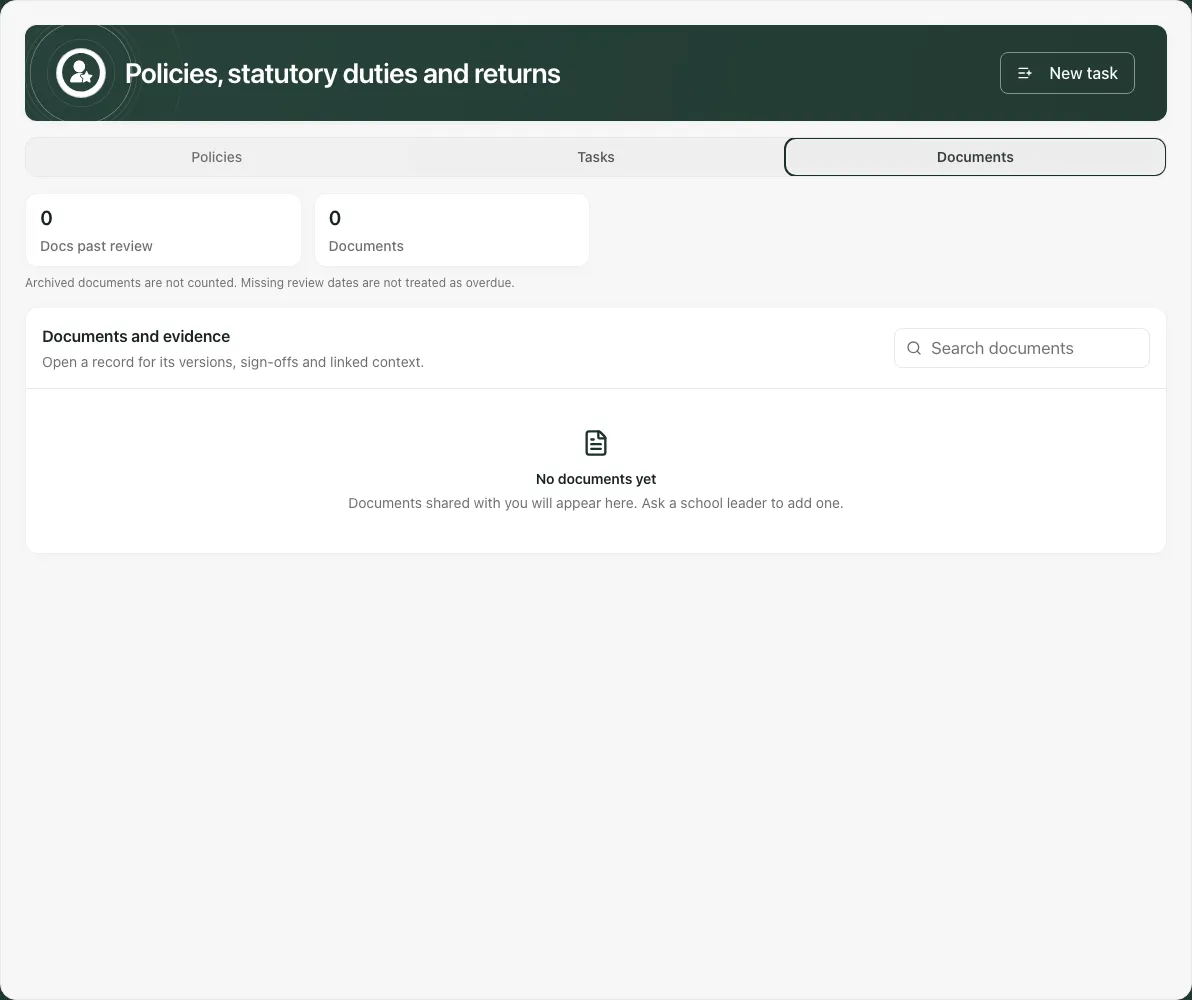
Open Leadership → Operations → Policies & Returns, or Policy library where offered. Alternative provisions can open Compliance → Policies. The page heading is Policies, statutory duties and returns and its sections are Policies, Tasks and Documents. Screenshots use a fictional local policy; no real file is published.
1. Read the register and its coverage
Section titled “1. Read the register and its coverage”In Policies, choose All, Needs attention or Archived and use Search policies or owners. Check the displayed view/count before reporting what is outstanding.
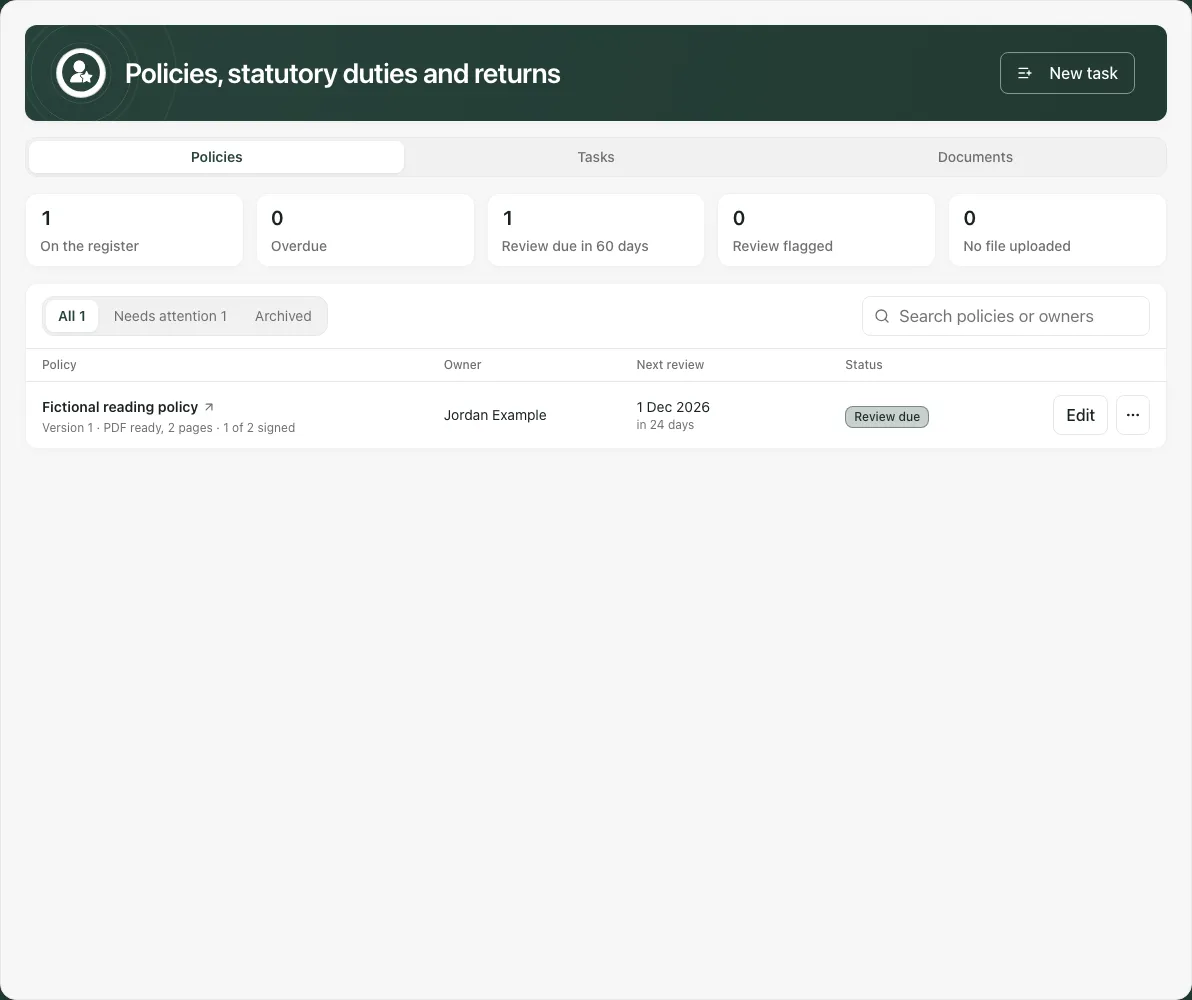
The register separates Overdue, Review due in 60 days, Review flagged and No file uploaded. A flagged policy can also be past its date, so these categories are not mutually exclusive. An archived or not-applicable row does not owe a current review countdown.
Read the row’s file/version and PDF state, owner, next review, applicability and sign-off text together. 1 of 2 signed means one of the selected required people signed the current version; it is not proof that all staff read it. You need to read and sign identifies your own requirement where applicable.
Kept in the allergy register is a specialist-source connection, not an uploaded file missing from this page. Use the offered allergy link only where your account can open it.
A load error is not an empty register. If a refresh fails after rows were loaded, the page can retain them with a warning and Try again; treat that picture as potentially out of date. Read any newest-record/truncation notice rather than presenting a bounded list as the complete store.
2. Set the owner, actual review date and applicability
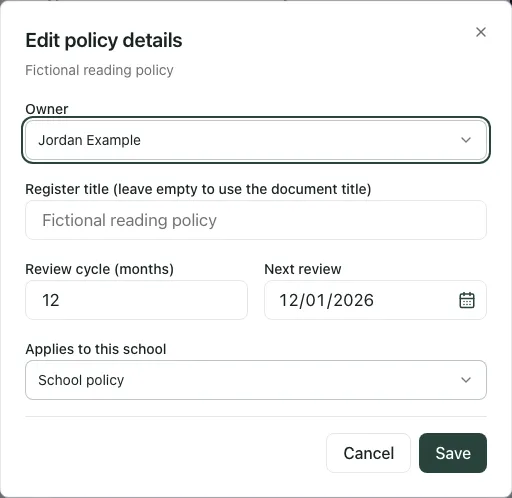
Section titled “2. Set the owner, actual review date and applicability”Select the policy’s Edit control. In Edit policy details:
- Choose Owner. If the staff list fails, the current owner is retained; do not substitute another person to get past the message.
- Set Register title (leave empty to use the document title) only if the register needs a different label. It does not rename the document file’s contents.
- Set Review cycle (months) and Next review. The cycle accepts whole months from 1 to 36; a future review date must fit the offered bounds.
- Choose Applies to this school. For Not applicable, record Why it does not apply rather than simply hiding unfinished work.
- Choose Save, wait for confirmation and check the returned row/reopen it.
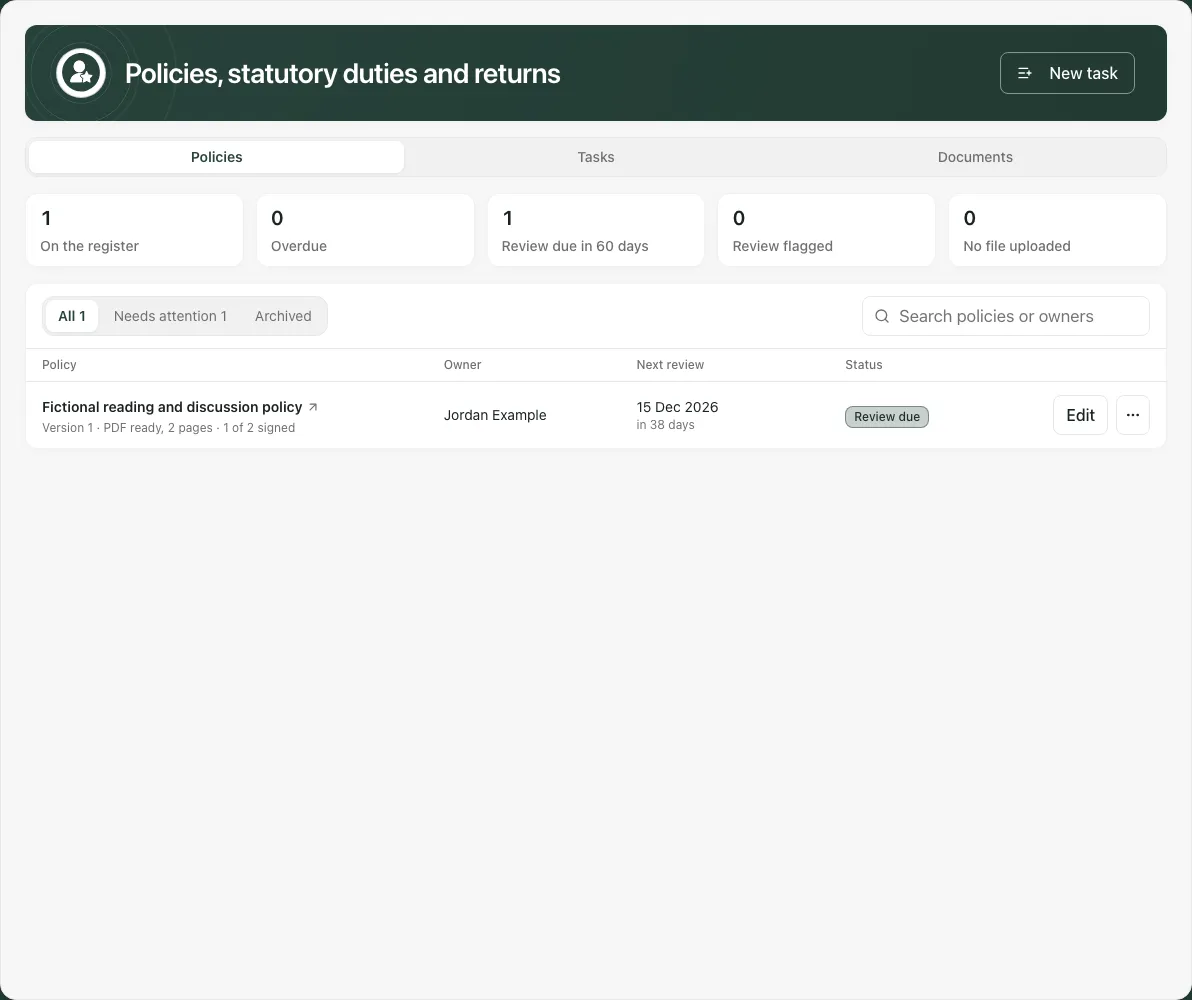
The current page does not offer a general Mark reviewed command that automatically calculates the next date from the review cycle. Record the agreed next date explicitly after the school’s actual review. A changed date does not prove a policy was reviewed or approved.
If the row changed elsewhere, the editor closes and refreshes. Read the latest details before reopening; do not assume the old form overwrote them. Marking a published policy Not applicable stops its public link while that state applies; read the warning before saving.
3. Add a document and connect it to the register
Section titled “3. Add a document and connect it to the register”Use Documents → New document where available. In Create document, enter Title, Type, Confidentiality, optional Review due (optional) and the appropriate file or Link. Link documents require a supported secure web address. Keep confidential pupil/case information out of a policy intended for general publication.
Choose Create document, then inspect the saved document and its Versions. Creating the document and successfully uploading its file are separate outcomes. If the document was saved but its file failed, reopen that existing record and check Versions before creating another copy.
Back in Policies, inspect Policy documents not on the register and use the offered Add [title] to the register action, or the control to add all eligible policy documents. Check the actual added count; “already on the register” does not mean a new copy was created. An empty register can require a manager to create/connect documents first.
The document and register row have related metadata but distinct purposes. A row with no document or version is a gap in evidence, not an in-force policy confirmed by a title alone.
4. Upload and inspect a new version
Section titled “4. Upload and inspect a new version”Use the row’s ⋯ menu (More actions for [title]) and Upload new version, or open the document and its Versions section. Enter Change note (optional) before selecting the file where offered. The document upload limit is 50 MB; use the offered file types.
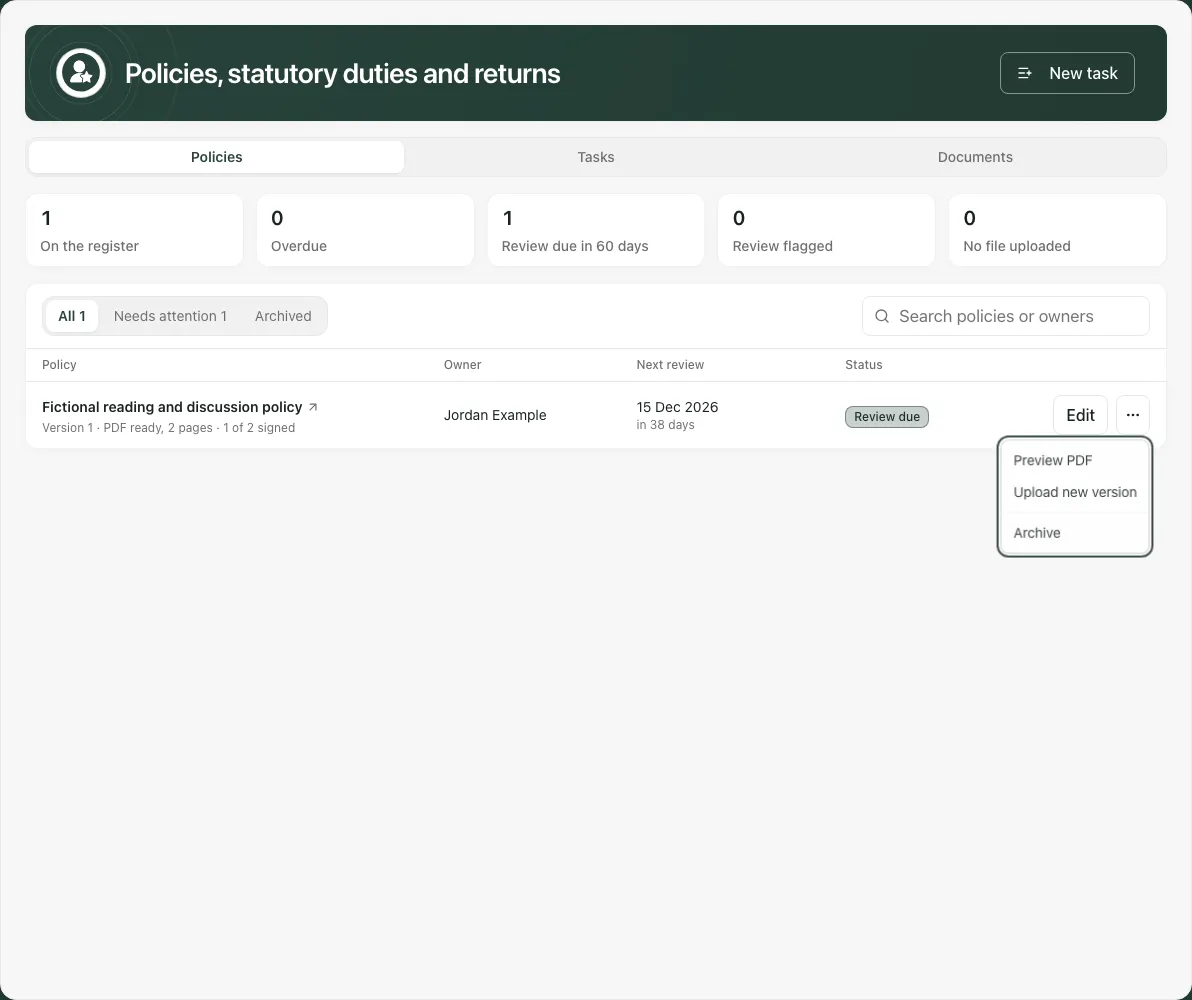
Each successful upload adds a new version; earlier versions remain. Wait for the upload result and check the latest version number/file. Failed uploads should not be treated as a current usable file. A file reservation or partially saved record is not proof that storage completed.
For website use, Prepare PDF requests the supported checked PDF rendition where offered. Preparing PDF, scanning/conversion, blocked and failed states differ from PDF ready. Preview PDF opens a short-lived permitted preview in a new tab; if the browser blocks it, use the offered Open PDF route while it remains valid.
Do not publish while preparation is incomplete or blocked. A failed rendition may require a corrected/new file version; repeated requests are not a promise that the same failed conversion will be rerun. Ask the school’s administrator if the required preparation service is unavailable.
5. Choose required signers and retain their actual attestations
Section titled “5. Choose required signers and retain their actual attestations”Open the document and Read & sign. Managers can use Sign-off targets → Roles and Named staff, including Search staff by name, to select the whole intended required set. Check retained named people before adding/removing roles, then Save targets and wait for the refreshed result.
Do not save over targets that failed to load. Controls lock while a target save and its reread are in progress; reopening/rechecking is safer than assuming a slow response means nobody is required to sign. A person selected by both role and name is one required person, not two.
For your own signature, first read the actual latest file. Confirm Latest version, enter Type your name to sign, then Sign. Check You signed version [number] and its date. Signing is your attestation, not a manager’s signature on behalf of another person. Archived documents and documents with no version cannot take a new signature here.
A new version requires checking/signing that version; older attestations remain historical evidence. The register’s counts do not list everyone who has not signed, and this workflow does not automatically create My Actions prompts for every unsigned person.
6. Publish to a website only after the separate review
Section titled “6. Publish to a website only after the separate review”Publication is a consequential external sharing action. It is offered only with the required publishing access and a suitable current PDF/version. Read any Can’t publish: [reason] menu item instead of assuming every policy can be published.
- Choose Publish on website… or Publish version [number].
- In Publish on website, use Preview PDF and inspect the exact version’s full content.
- Enter Approved or adopted on using the actual school decision date.
- Confirm I’ve checked this PDF contains no pupil personal data and only the staff contact details we intend to publish. only after that check.
- Use the offered publish control only when authorised, then check the returned Published state and version.
Anyone with the resulting public link can download that published PDF. Copy link, its QR code and Copy label code support the school’s website. The stable public link changes the served file when a later version is deliberately published; merely uploading a new version does not publish it.
Unpublish stops the link serving the policy. Replace link… changes the link reference and can break old website links/QR codes. Read the confirmation before acting and update the school’s website where required. Archiving or making the row Not applicable also stops a live public link while that state applies.
“Link downloads”/label views are technical usage counts, not proof that an individual read or understood the policy. A public link is different from an internal document download or a temporary file-share URL; do not use it for confidential material.
7. Coordinate review and return preparation with tasks
Section titled “7. Coordinate review and return preparation with tasks”In Tasks, use New task, enter Title, Description (optional), Due date (optional) and Priority, then the offered save/create control. Check the saved task and its intended owner/process. Search/filter the list and update the actual work status as appropriate.
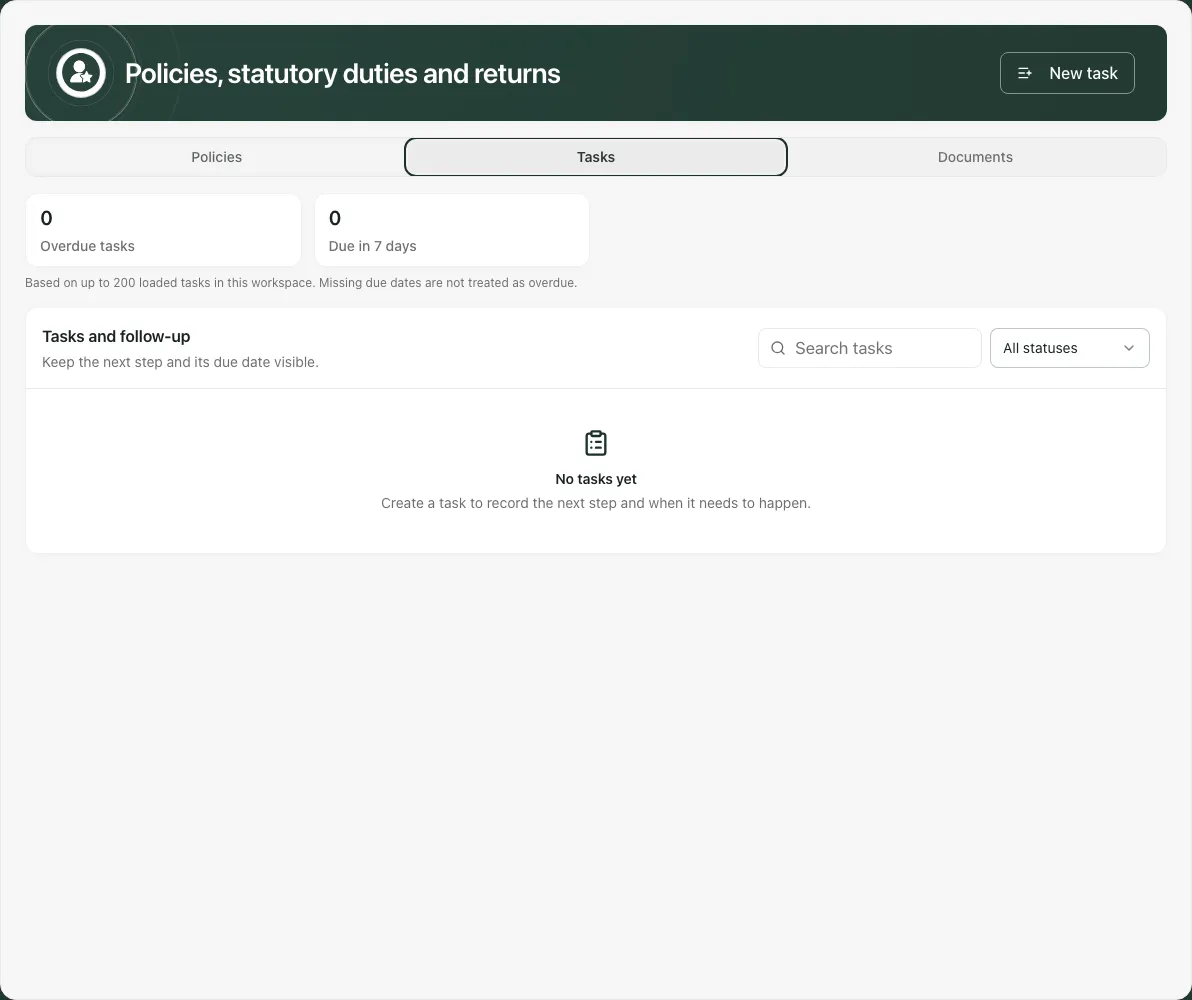
The page’s statutory-return suggestions are task starting points. It does not provide a statutory returns submission/tracking system, an automatic returns calendar or proof a return reached an external authority. Record the required filing route and receipt in the school’s agreed process; task completion alone is not submission.
Tasks metrics use the stated loaded-record coverage and treat missing due dates as unknown rather than overdue. Closing a task does not change a policy’s file, next review, public publication or required signatures automatically.
8. Keep archive and AP sharing decisions clear
Section titled “8. Keep archive and AP sharing decisions clear”A policy’s ⋯ → Archive asks for confirmation. It retains history and stops a public link while archived. Reactivate restores active handling where allowed; it does not prove a fresh approval or new review. Use the Archived view to check the intended record.
For an alternative provision, the register can also select policies for the referral pack. Check the actual selected documents and latest active versions before a separate referral/share decision. Adding a policy to a pack is not sending it to a referrer or changing its website publication.
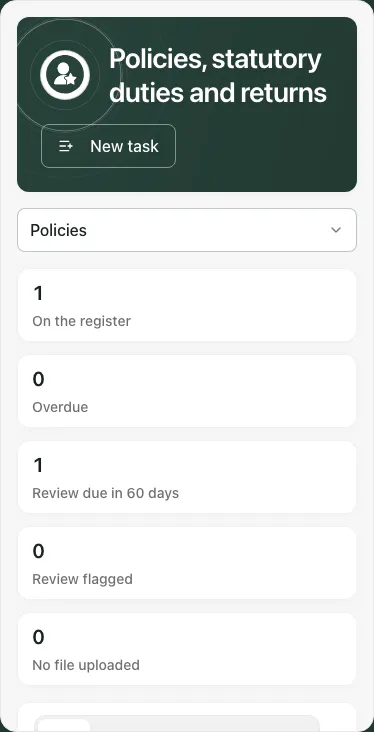
On a phone, policy rows stack their details. Open the correct row’s Edit or ⋯, scroll the dialog and wait for confirmation before leaving.
Troubleshooting
Section titled “Troubleshooting”- Missing required command or permission: ask the administrator to check the specific management/signing/publishing action; no changed state should be assumed from a refusal.
- PDF still preparing/failed/blocked: inspect the exact version and returned explanation; use a corrected upload or service support where required.
- No file or signatures: distinguish a document title, an uploaded version and a signed current version.
- Changed elsewhere: reopen the refreshed row/version/targets before making the next decision.
- Public link not available: check publication, active/applicable state and service readiness with the publisher; do not replace it with an unrestricted confidential-file link.
Common questions
Section titled “Common questions”What should I check before asking staff to sign a policy?
Section titled “What should I check before asking staff to sign a policy?”Check the policy owner, review date and exact current document version, then use its required-signature controls.
Does updating a policy publish it to the website?
Section titled “Does updating a policy publish it to the website?”No. Website publication uses its separate authorised workflow. Updating the register or file is not a publication decision.